
Universal TV Remote
Turn your iPhone into a powerful remote control for 1000+ TV brands — Samsung, LG, Sony, Roku, and more.

 Scan the QR code to download on your iPhone
Loved by 1M+ users worldwide!
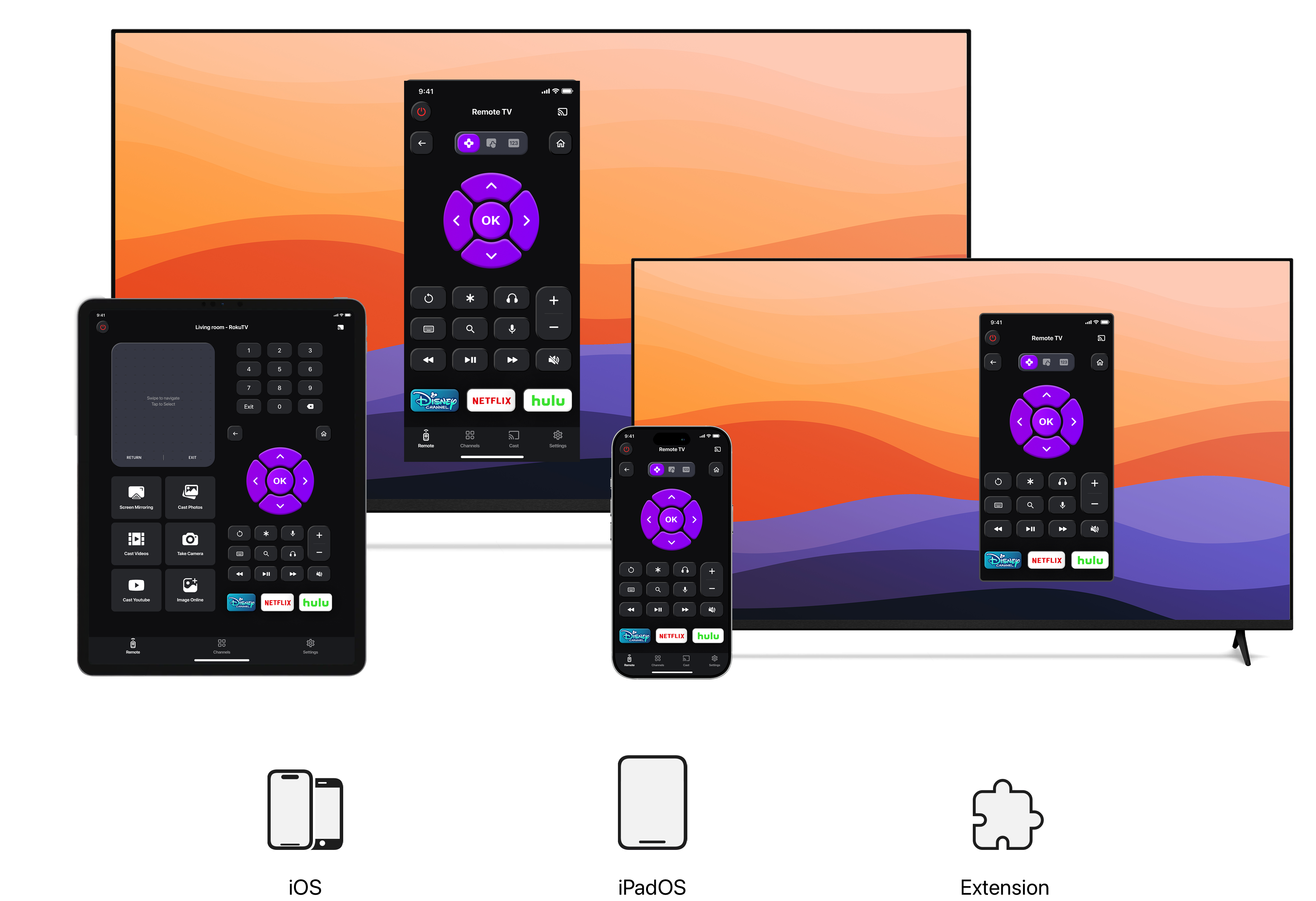
Works with Your TV Brand
Instant Wi-Fi control for the world most popular smart TVs and streaming devices
Features
Everything you need to control your TV from your iPhone

1000+ TV Brands
Works with Samsung, LG, Sony, TCL, Hisense, Roku TV, Philips, Panasonic, and hundreds more brands out of the box.

Smart Auto-Detection
Instantly finds and connects to your TV over Wi-Fi — no manual IP setup needed for most brands.

Voice Control
Control your TV hands-free with Siri Shortcuts. Set up phrases like "Hey Siri, mute the TV" in seconds.

No Ads, No Tracking
Your privacy matters. Universal TV Remote never shows ads, never tracks you, and never sells your data.

Macros & Custom Buttons
Record button sequences as one-tap macros — turn on the TV, switch to HDMI 2, and open Netflix with a single tap.

Smart Home Ready
Integrates with Apple HomeKit, Amazon Alexa, and Google Assistant for whole-home automation.
What people say
Feedback from people who use Universal TV Remote every day
I lost my Samsung remote and found this app the same day. Setup took under a minute — it found my TV on the network automatically and every button works exactly as expected.
Tried three other remote apps before this one and they were all either riddled with ads or could not find my LG TV reliably. This one connected instantly and the interface is clean.
Being able to say "Hey Siri, turn on the living room TV" without touching my phone is something I did not know I needed. Works flawlessly with my Sony Google TV.
My kids kept losing the physical Roku remote so I set this up on a spare iPhone. It finds the Roku instantly and the keyboard is so much faster for searching.
Controls everything on my TCL TV including the Roku channel grid and all the streaming apps. The custom button layout lets me put my most-used apps front and center.
Downloaded it when my Hisense remote died. Found the TV on my first try, every button works, and the app opens in under a second. Exactly what you want from a remote app.
Why Universal TV Remote
| Feature |
Universal TV Remote
|
TVRemote+ | AnyMote |
|---|---|---|---|
|
1000+ TV Brands
Supports Samsung, LG, Sony, TCL, Hisense, Roku TV, and 1000+ more brands.
|
|||
|
Wi-Fi Smart Auto-Detection
Automatically finds your TV on the network — no manual IP entry.
|
|||
|
No Ads
The app is 100% ad-free for a clean remote experience.
|
|||
|
No Account Required
Use the app immediately — no sign-up or email needed.
|
|||
|
Voice Control (Siri)
Control your TV with Siri Shortcuts on iPhone.
|
|||
|
Macros & Custom Buttons
Record multi-step sequences and run them with one tap.
|
|||
|
Apple HomeKit Integration
Add TV controls to your Apple Home scenes and automations.
|
|||
|
Amazon Alexa Support
Control your TV with Alexa voice commands.
|
|||
|
Family Sharing
Share the app with your family via Apple Family Sharing.
|
|||
|
Multiple TVs
Add and switch between multiple TVs in the same app.
|
Thêm một section FAQ ở cuối trang
What TVs are compatible with a Remote TV App?
Most modern TV remote apps support popular smart TV brands and streaming devices, including Samsung, LG, Roku, Sony, TCL, Hisense, Vizio, Philips, Android TV, Google TV, and Fire TV.
Compatibility depends on the TV model, operating system, and available network-control features. In most cases, your smartphone and television need to be connected to the same Wi-Fi network before the app can discover and control the TV.
Can I use my phone as a remote for Roku, Samsung, LG, TCL, or Hisense TV?
Yes. Many Roku, Samsung, LG, TCL, Hisense, Sony, Android TV, and other smart TVs can be controlled from a compatible smartphone.
After connecting your phone and TV to the same Wi-Fi network, a remote control app can usually detect available televisions nearby and let you control them directly from your phone.
Depending on the TV brand and model, you may need to approve a pairing or connection request on the television before using the app.
What can a Remote TV App do?
A TV remote app can replace many of the everyday functions of a traditional remote control.
Depending on your TV, available features may include:
- Power control
- Volume adjustment
- Channel switching
- Menu navigation
- Home and back controls
- Touchpad navigation
- Phone keyboard input
- Streaming app shortcuts
- Media playback controls
- Multiple TV control from one phone
Using your phone keyboard can also make it easier to search for movies, shows, or videos on services such as Netflix and YouTube.
Does a Remote TV App work without Wi-Fi?
Most smart TV remote apps require the phone and TV to be connected to the same Wi-Fi network.
Some smartphones with an infrared blaster may be able to control compatible TVs without Wi-Fi, but infrared hardware is uncommon on newer phones.
If your original remote is lost and the TV is not connected to Wi-Fi, you may first need to use the TV’s physical buttons, connect it through Ethernet, or use another compatible remote to get the television online.
Once the TV and phone are on the same network, you can usually connect them through the remote app.
Why is my Remote TV App not finding my TV?
If your remote app cannot detect your television, start with these checks:
- Make sure your TV and phone are connected to the same Wi-Fi network.
- Confirm that the television is powered on.
- Allow the app to access devices on your local network.
- Temporarily disable VPN connections.
- Restart the remote app.
- Restart the television.
- Restart your Wi-Fi router if the connection is unstable.
- Confirm that your TV model supports network remote control.
Samsung, LG, Roku, Android TV, Google TV, and other devices may also display a connection request on the television. Make sure you approve it before trying to control the TV.
If the problem continues, check the troubleshooting guide for your specific TV brand or model.
Why is my TV not responding to the remote app?
If the app can find your television but the TV does not respond to commands, the connection may have become unstable or the previous pairing session may have expired.
Try the following:
- Reconnect the phone and television
- Close and reopen the app
- Restart the TV
- Check your Wi-Fi connection
- Remove the television from the app and add it again
- Update your TV software
- Update the remote control app
- Approve any new pairing request shown on the TV screen
For Roku devices, make sure network access for mobile apps has not been restricted. Samsung and LG TVs may also request permission again after a software update, router change, or network reset.
What should I do if my original TV remote is lost or broken?
If your Samsung, LG, Roku, TCL, Sony, Hisense, or other smart TV remote is lost or stops working, you generally have three options:
- Use a Remote TV App on your smartphone
- Buy an official replacement remote
- Buy a compatible universal remote
Using your phone is often the fastest option because you may be able to start controlling the television immediately without waiting for replacement hardware to arrive.
A remote app can also be useful as a backup even after you purchase a new physical remote.
Is a Remote TV App better than a physical replacement remote?
It depends on how you use your television.
A Remote TV App can be a better option if you want:
- Immediate access after losing your remote
- No additional remote hardware
- One phone to control multiple compatible TVs
- Phone keyboard input
- Touchpad navigation
- Convenient access to frequently used controls
A physical remote may be better if you:
- Frequently use the TV without Wi-Fi
- Prefer physical buttons
- Do not always have your phone nearby
- Need brand-specific features such as dedicated voice controls
For many smart TV owners, using both is convenient: the phone works as an everyday or emergency remote, while the physical remote remains available as a backup.
How much does a replacement TV remote cost?
The cost of a replacement TV remote varies depending on the brand, model, retailer, and features.
Basic universal remotes are usually less expensive, while official replacement remotes with features such as Bluetooth, voice control, rechargeable batteries, or dedicated streaming buttons generally cost more.
Prices for Roku, Samsung, LG, Sony, TCL, Hisense, and other TV remotes can vary significantly between models and retailers.
If you only need common controls such as volume, navigation, channels, or media playback, using a compatible Remote TV App may be a more convenient alternative.
Where can I buy a replacement remote for my TV?
Replacement TV remotes are commonly available from:
- The television manufacturer’s official store
- Authorized electronics retailers
- Local electronics stores
- Major online marketplaces
- Authorized repair or service centers
Before buying a replacement, check your exact TV model number and make sure the remote supports your television.
For Roku devices, for example, you should also check whether your device requires a basic infrared remote or a paired voice remote because the connection methods are different.
If you need to control your TV immediately while waiting for a replacement remote, a compatible Remote TV App may allow you to use your smartphone instead.
Download Universal TV Remote
The easiest way to control your TV from your iPhone — 1000+ brands, zero setup headaches.
Scan the QR code to download on your iPhone