Mi TV Remote Download: Complete Setup and Pairing Guide
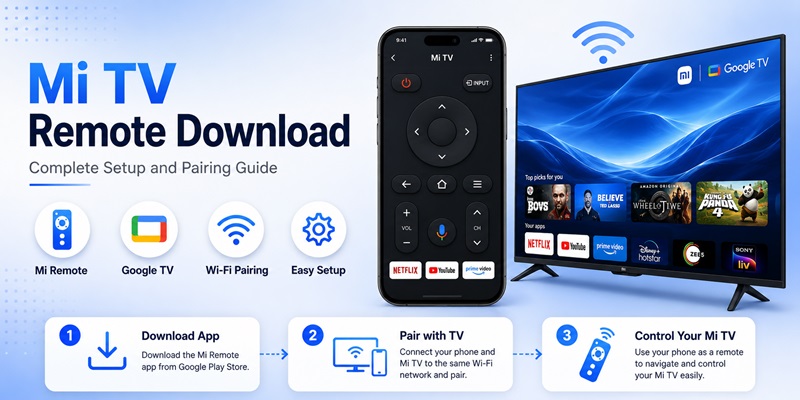
Losing a television remote can turn a simple task into a frustrating one. You may still be able to turn the TV on with a physical button, but changing the input, entering a password, opening an app, or adjusting settings becomes much harder. A mi tv remote download can turn a compatible phone into a practical replacement and help you regain basic control without waiting for a new physical remote.
The important point is that not every mi tv remote download works in the same way. Xiaomi supports more than one television platform, including Android TV and Google TV models, while Mi Remote can also use infrared hardware on supported phones. Xiaomi’s official support guidance says users can control a Xiaomi TV through the Mi Remote app or by linking the TV with Google Home, while Google provides a virtual remote inside the Google TV app for compatible Android TV and Google TV devices.
A carefully selected mi tv remote download should match the television platform, the phone’s hardware, and the type of connection available. This guide explains how to choose the correct app, install it safely, pair the phone, and solve common remote-control problems.
1. What Is Mi TV Remote Download and How Does It Work?
A mi tv remote download is a mobile application that gives a smartphone an on-screen television controller. Depending on the app and device, the interface may include power, volume, mute, directional navigation, playback, channel, input, keyboard, voice, and app-launch controls.
There are two main ways a phone can control a television: infrared signals and Wi-Fi network commands. Choosing the wrong method is one of the most common reasons a downloaded remote does not work.
Infrared Control with Mi Remote
Xiaomi describes Mi Remote as a universal remote-control app that works with a phone’s IR blaster. It can control TVs and several other appliance categories when the phone includes compatible infrared hardware.
Xiaomi’s Google Play listing is published by Beijing Xiaomi Mobile Software Co., Ltd. and says most phones with IR blasters support the app’s infrared features.
An infrared mi tv remote download works like a traditional physical remote. You select the appliance category and brand, point the top of the phone toward the television, and test command profiles until the TV responds.
This type of remote usually does not require Wi-Fi. However, it requires:
- A phone with an IR blaster
- A clear line of sight to the television
- A compatible remote profile
- A working infrared receiver on the TV
Installing a remote app cannot add infrared hardware to a phone that does not already have it.
Wi-Fi Control with Google TV or Standard Protocols
A network-based mi tv remote download sends commands through the home Wi-Fi network. The phone and television must normally be connected to the same local network.
Google’s official setup process asks users to open the Google TV app, select the nearby television, enter the code displayed on the TV, and tap Pair. The phone can then work as a remote for compatible Google TV and Android TV devices.
The official Mi Remote listing also states that supported mobile devices can control Mi TV, Mi Box, and other compatible smart televisions through Wi-Fi protocols.
Wi-Fi control may offer additional functions such as:
- Phone keyboard input
- Touch navigation
- Voice search
- App launching
- Easier device discovery
- Control without pointing the phone at the TV
However, a Wi-Fi remote cannot detect a television that is offline, connected to another router, or isolated on a guest network.
Get the App Now2. Which Remote App Should You Use for Mi TV, Redmi TV, or Xiaomi TV?
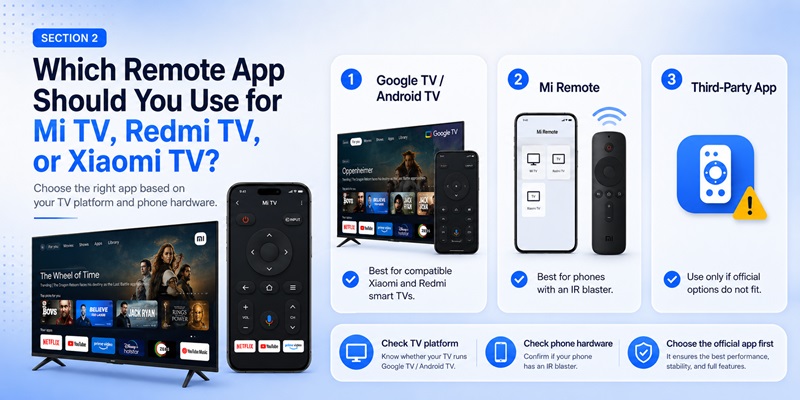
The best mi tv remote download depends on the television’s operating system, the phone’s hardware, and the controls you need. The right mi tv remote download should match the TV platform before you install it.
Official apps should normally be tested before third-party alternatives.
Use Google TV for Compatible Google TV and Android TV Models
Many recent Xiaomi televisions run Google TV or Android TV. Xiaomi’s Xiaomi TV A Pro 32 2026 product page identifies Google TV as the television’s software experience and includes Wi-Fi, Bluetooth, casting, and Bluetooth voice-remote support.
For these models, the Google TV app is usually the most convenient network remote.
Google says the virtual remote can navigate compatible Android TV and Google TV devices. The official iPhone listing also confirms that Google TV includes a built-in remote and phone keyboard for supported televisions.
Choose this mi tv remote download when the television:
- Shows Google TV or Android TV branding
- Includes Google Play
- Has a Google Account section
- Supports local-network pairing
- Displays a pairing code on the screen
Use Mi Remote When the Phone Has an IR Blaster
Mi Remote is the better choice when you need infrared control for a TV, set-top box, projector, air conditioner, or another supported appliance.
The app is available through Google Play and Xiaomi GetApps. Its official listing describes support for both infrared appliances and selected smart devices that can be controlled through Wi-Fi.
When completing a mi tv remote app download, verify that the Google Play developer is Beijing Xiaomi Mobile Software Co., Ltd. Similar names and icons may belong to unrelated developers.
Use Google Home for a Linked Xiaomi TV
Xiaomi’s official support page also recommends linking a Xiaomi TV with Google Home and then using Google Home to control it.
This method may be useful when the television is already included in a Google Home household. However, Google Home may provide fewer remote buttons than the Google TV virtual remote.
Be Careful with Third-Party Apps
Searches such as xiaomi tv remote download, redmi tv remote download, or download remote tv xiaomi may return independent applications that are not affiliated with Xiaomi.
Some may work correctly, but others may include:
- Advertising
- Automatically renewing subscriptions
- Limited free controls
- Unnecessary permissions
- Unsupported model claims
- Outdated interfaces
- Poor reconnection after standby
Keep an official option installed until the third-party app has been tested successfully.
3. What to Check Before Downloading a Mi TV Remote
Before beginning a mi tv remote download, identify the television model, platform, and required connection method. This prevents repeated installation of incompatible apps.
Check the TV Platform
Open the television’s Settings menu and look for:
- Google TV
- Android TV
- Google Play Store
- Google Account
- Chromecast built-in
- PatchWall
- Device Preferences
- Bluetooth accessories
A TV that uses Google TV or Android TV is a strong candidate for the official Google TV virtual remote.
Older Xiaomi TVs may use different firmware or regional software, so the Mi TV name alone does not guarantee identical app compatibility.
Find the Complete Model Number
Check the label on the rear of the television, the product packaging, purchase invoice, or Settings > About.
Screen size alone is not sufficient. A search for mi tv 32 inch remote app download can refer to several different product generations.
Xiaomi currently offers newer 32-inch models with Google TV-related features, while older Mi TV 4A or Mi TV 4S 32-inch models may have different operating systems and remote configurations. Xiaomi provides separate support pages for multiple 32-inch TV families.
Check the Phone Hardware
For infrared control, confirm that the phone includes an IR blaster. Xiaomi’s official documentation says Mi Remote uses the phone’s infrared port.
For Wi-Fi control, confirm that the phone and television can connect to the same router.
Keep a Backup Control Method
Do not discard the physical remote immediately after completing a mi tv remote download.
Keep it available for:
- First-time TV setup
- Factory resets
- Wi-Fi changes
- Bluetooth pairing
- Network outages
- Deep standby
- Phone battery failure
- App connection problems
A mobile app is useful as a primary or backup controller, but a physical remote remains important during setup and recovery.
4. How to Download Mi Remote on Android Safely
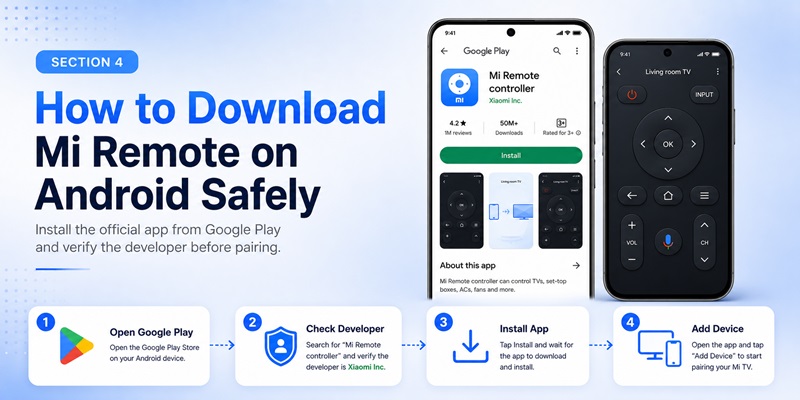
Users researching how to download mi tv remote often begin with Mi Remote. The following steps explain how to complete a safe mi tv remote download on Android.
Step 1: Open Google Play
Open Google Play and search for Mi Remote controller.
Do not rely only on the app name or icon because independent applications may use similar wording.
Step 2: Verify the Developer
The official Google Play listing identifies the developer as Beijing Xiaomi Mobile Software Co., Ltd. The package name is com.duokan.phone.remotecontroller.
The listing describes support for:
- Televisions
- Set-top boxes
- DVD players
- Projectors
- Air conditioners
- A/V receivers
- Cameras
- Other compatible appliances
This check is particularly important when searching mi tv remote app for android free download. An app being free does not prove that it is official or safe.
Step 3: Review Permissions and Data Information
Before installing, review:
- App permissions
- Data safety information
- Update date
- Developer contact details
- Recent reviews
- Supported hardware
- Advertising or subscription terms
A trustworthy mi tv remote download should primarily request access connected to Wi-Fi, Bluetooth, nearby-device discovery, or infrared functions.
Avoid granting contacts, call logs, messages, or unrelated file access to a basic remote app unless the developer clearly explains why it is required.
Step 4: Install and Add a Device
Tap Install and open the application.
For infrared control:
- Select TV.
- Choose the television brand.
- Point the phone toward the TV.
- Test the power command.
- Try another profile if the first one fails.
- Save the working profile.
For Wi-Fi control:
- Connect the phone and TV to the same network.
- Open the device discovery section.
- Select the television.
- Complete the pairing instructions.
Step 5: Test Essential Buttons
After the mi tv remote download is installed, test:
- Power
- Volume
- Mute
- Directional navigation
- Home
- Input
- Playback
- Channel controls
A remote profile that turns on the TV may still use the wrong volume or menu commands.
The phrase mi tv ka remote download is often used in Hindi-language searches, but the setup principle remains the same: use Mi Remote for compatible IR hardware or Google TV for a supported network-connected television.
5. How to Use the Google TV App as a Xiaomi TV Remote
For many current Xiaomi and Redmi televisions, the most practical mi tv remote download is the official Google TV app.
The app is available on Android and iPhone. The official iPhone listing states that Google TV includes a built-in virtual remote for supported Google TV and Android TV devices.
Download the Official Google TV App
On Android:
- Open Google Play.
- Search for Google TV.
- Confirm that the developer is Google LLC.
- Tap Install.
On iPhone:
- Open the Apple App Store.
- Search for Google TV.
- Confirm that the developer is Google.
- Tap Get.
Avoid apps that imitate the Google TV name or icon.
Pair the Phone and TV
Google’s official instructions are:
- Open the Google TV app.
- Tap Connect TV or the nearby TVs option.
- Select the Xiaomi television.
- Enter the code displayed on the TV.
- Tap Pair.
This mi tv remote download works when the Xiaomi or Redmi television uses a compatible Google TV or Android TV platform.
Use the Remote Interface
After pairing, the mobile remote may provide:
- Directional navigation
- OK or Select
- Back
- Home
- Keyboard input
- Voice input
- Playback controls
- Device switching
Google’s official iPhone listing notes that the phone keyboard can be used to enter passwords, movie names, and search terms on supported televisions.
On Android, the virtual remote can also be added to Quick Settings for faster access.
Understand the Limits
Power and volume behavior may depend on:
- Television model
- Soundbar connection
- HDMI-CEC settings
- Audio output configuration
- Bluetooth support
- Infrared requirements
If the mi tv remote download pairs successfully but cannot change the volume, review the virtual remote’s volume settings and the television’s audio configuration. Google provides troubleshooting instructions for both Android and iOS virtual remotes.
6. How to Connect and Pair Your Phone with Mi TV
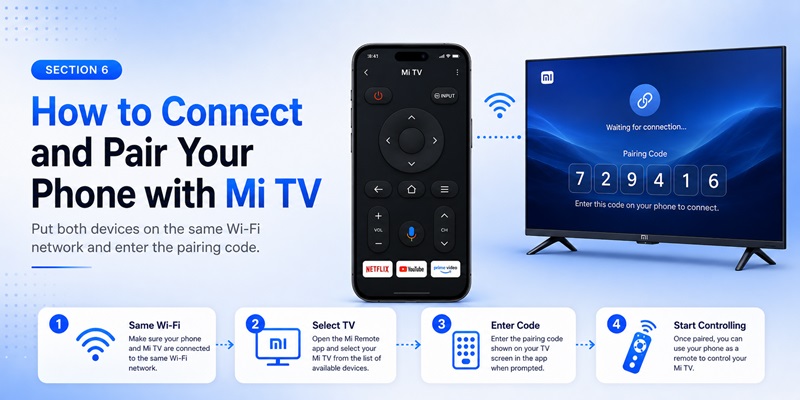
A successful mi tv remote download requires a stable connection. A reliable mi tv remote download setup begins with correct network discovery.
Put Both Devices on the Same Wi-Fi
Open the Wi-Fi settings on the phone and TV. Confirm that they use the exact same network name.
Avoid guest networks because many routers prevent guest devices from communicating with other devices in the home.
A phone using mobile data cannot normally discover a television connected only to home Wi-Fi.
Turn On Bluetooth During Setup
Google recommends enabling Bluetooth and Wi-Fi during Google TV setup. Bluetooth may assist with discovery and initial configuration.
Enter the Correct Pairing Code
Select the correct Xiaomi TV, Redmi TV, Mi Box, Xiaomi TV Box, or TV Stick from the device list.
Enter the code shown on the television before it expires. When several TVs are connected to the same network, rename them clearly to avoid pairing with the wrong screen.
Approve Permissions
Allow local-network, nearby-device, or Bluetooth access when the official app requests it.
These permissions help the mi tv remote download discover and communicate with the television.
Test Reconnection
Turn the television off and on, reopen the app, and verify that the phone reconnects.
A mi tv remote download is most useful when it can reliably reconnect after the television enters standby.
Some TVs reduce network activity in deep standby. In that case, use the physical power button or Bluetooth remote to turn the TV on before reconnecting the app.
7. How to Control Mi TV 32-Inch Models, Redmi TV, and Xiaomi TV Box
Different Xiaomi product families may require different remote solutions. One mi tv remote download may not support every television and streaming box.
Mi TV 32-Inch Models
A mi tv 32 inch remote app download should begin with the complete model number.
Newer Xiaomi 32-inch models may use Google TV, while older Mi TV 4A, Mi TV 4S, or regional versions may use different firmware.
For a current Xiaomi TV A 32 or Xiaomi TV A Pro 32 2026, begin with the Google TV virtual remote. Xiaomi describes current models with Google TV, Wi-Fi, Bluetooth, Google Assistant, and casting support.
For an older 32-inch set, test Mi Remote with an IR-capable phone or purchase a compatible physical remote.
Redmi TV
A redmi tv remote download follows the same platform-first process.
When the Redmi TV uses Google TV or Android TV:
- Install Google TV.
- Connect both devices to the same Wi-Fi.
- Select the Redmi TV.
- Enter the pairing code.
- Test all controls.
When the TV uses a regional or proprietary platform, consult its product manual before installing an app.
Xiaomi TV Box and Mi Box
For xiaomi tv box remote download, Google TV is generally the best starting option when the device runs Google TV or Android TV.
Xiaomi TV Box S (2nd Gen) uses Google TV and includes a physical Bluetooth and infrared remote.
To pair the mobile remote:
- Open Google TV.
- Select the Xiaomi TV Box.
- Enter the code shown on the connected screen.
- Tap Pair.
- Test navigation and playback.
When the physical remote stops working, Xiaomi recommends checking the batteries, restarting the box, and troubleshooting the Bluetooth connection.
Xiaomi TV Stick
Xiaomi TV Stick models generally use Android TV or Google TV, so the Google TV virtual remote is the best starting point.
Connect the stick and phone to the same Wi-Fi network, select the device, and enter the displayed pairing code.
Keep the Bluetooth remote as a backup because some power and volume functions may still depend on hardware control.
8. Mi Remote vs Google TV vs Third-Party Remote Apps
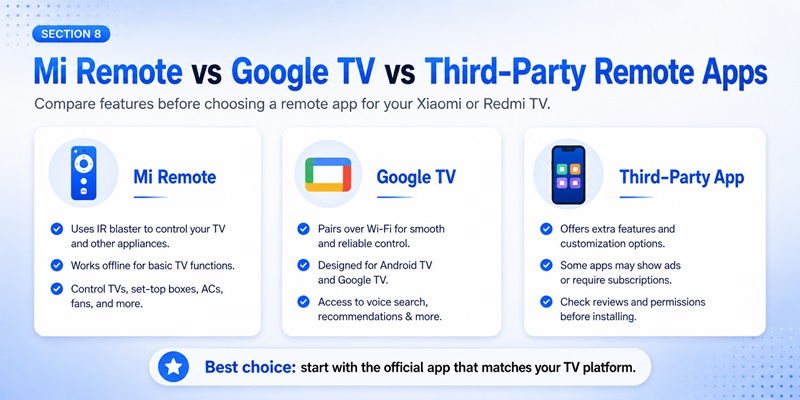
Choosing the right mi tv remote download is easier when the main options are compared directly.
| Option | Best Use | Main Limitation |
| Mi Remote | IR appliances and supported Mi devices | Infrared control requires an IR blaster |
| Google TV | Compatible Google TV and Android TV models | Requires local-network pairing |
| Google Home | Basic control in a connected smart home | May provide fewer remote buttons |
| Third-party app | Special interfaces or unsupported cases | Compatibility, ads, and pricing vary |
| Physical remote | Initial setup, offline recovery, and backup | Must match the device model |
Xiaomi officially recommends Mi Remote or connecting the television through Google Home. Google officially supports mobile remote control for compatible Google TV and Android TV devices.
A mi tv remote app free download may be free to install but still contain:
- Advertising
- Subscription plans
- Limited free buttons
- Premium keyboard features
- Automatic trial renewal
- In-app purchases
A xiaomi tv remote app download from an official store is generally safer than a modified APK from an unknown website.
Use a third-party Remote TV App only when Mi Remote, Google TV, or Google Home does not provide the required controls.
Turn your phone into a Mi TV remote in just a few taps. Connect quickly over Wi-Fi and enjoy smooth navigation, volume control, channel switching, and media playback from one easy-to-use app.
Get the App Now9. How to Fix a Mi TV Remote App That Does Not Work
When a mi tv remote download installs but cannot connect, troubleshoot the communication method before downloading another app.
The TV Does Not Appear
Check the following:
- Confirm that the phone and TV use the same Wi-Fi.
- Disable a VPN temporarily.
- Avoid guest Wi-Fi.
- Restart the phone, television, and router.
- Enable Bluetooth during pairing.
- Update the mobile app.
- Update the television software.
- Allow local-network and nearby-device permissions.
Google’s troubleshooting guidance recommends checking the network, restarting the Google TV device, and setting up the virtual remote again.
The Pairing Code Does Not Work
Cancel the pairing attempt and request a new code.
Confirm that you selected the correct television or streaming box. Enter the code before it expires.
When the app repeatedly shows an old device, remove the saved connection, close the app, and repeat device discovery.
Mi Remote Does Not Send IR Commands
Confirm that the phone includes an IR blaster.
Remove any case that blocks the transmitter, point the phone toward the TV’s infrared receiver, and test another remote profile.
Xiaomi confirms that Mi Remote depends on the phone’s IR blaster for infrared appliance control.
Only Some Buttons Work
A remote profile may partially match the television.
Try another profile for the same Xiaomi or Mi TV model. Check whether volume is configured to control the TV, HDMI device, or soundbar.
Some manufacturer-specific controls may not be available in a generic remote app.
The TV Is Offline
A network mi tv remote download cannot discover a television that has lost its Wi-Fi connection.
Use one of these temporary methods:
- Physical TV buttons
- Original remote
- Replacement remote
- Ethernet connection
- IR-capable phone
- USB keyboard
- Previously paired Bluetooth remote
Restore the television’s network connection before repeating the mobile pairing process.
10. Frequently Asked Questions and Final Recommendations
Is Mi Remote Free?
Yes. The official Mi Remote app is free to install from Google Play. Review the current listing for regional availability, data practices, and device compatibility.
Can I Use Mi Remote Without an IR Blaster?
Traditional infrared control requires an IR blaster.
However, supported Mi TV and Mi Box devices may also use compatible Wi-Fi protocols. Check the device platform before assuming that the mi tv remote download requires infrared.
Can an iPhone Control Mi TV?
Yes, when the television runs a compatible Google TV or Android TV system.
The Google TV app is available on iPhone and includes a built-in virtual remote and keyboard for supported devices.
What Is the Best Xiaomi TV Remote Download?
For Google TV or Android TV models, start with the official Google TV app.
For an older infrared-controlled television, use Mi Remote on an Android phone with an IR blaster.
The best mi tv remote download is the option that matches both the television platform and phone hardware.
Does Mi TV Remote Work Without Wi-Fi?
An infrared setup can work without Wi-Fi when the phone has an IR blaster.
A Google TV or Android TV virtual remote normally requires both devices to communicate through the same local network.
Can I Control a Xiaomi TV Box with My Phone?
Yes. Use the Google TV app for compatible Xiaomi TV Box or Mi Box devices.
Select the box, enter the code shown on the connected display, and complete pairing.
Is a Third-Party Xiaomi Remote App Safe?
Safety depends on the developer, app store, permissions, update history, and payment model.
Use official stores, avoid modified APK files, and review subscription terms carefully. A third-party mi tv remote download should be tested without deleting the official remote options.
Final Recommendation
The best mi tv remote download begins with three checks:
- Identify the complete TV model.
- Confirm the television platform.
- Check whether the phone supports Wi-Fi, Bluetooth, or infrared control.
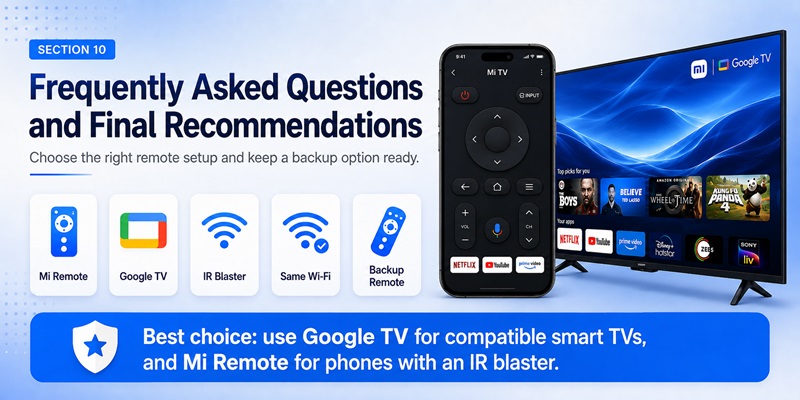
Use Google TV for compatible Google TV or Android TV televisions. Use Mi Remote for supported infrared devices. Use Google Home when the television is already linked to a smart-home account.
Do not select a mi tv remote download only because the title includes Xiaomi, Redmi, Mi TV, or TV Box. Verify the developer, requested permissions, pricing, and connection method.
After the mi tv remote download is installed, test power, volume, navigation, input, playback, keyboard input, standby reconnection, and app launching.
Keep a physical remote available for initial setup, factory resets, Wi-Fi failures, and emergencies.
A carefully selected mi tv remote download can provide a fast and reliable backup for everyday viewing. Matching the app to the correct television platform is more important than installing several different remote apps.
No physical remote? No problem. Download the Mi TV Remote App to control your Mi Smart TV, launch apps, adjust settings, and enjoy seamless entertainment from your phone.
Download Mi TV Remote