
How to Use Universal Remote Control With TV
Learning how to use universal remote control with tv is usually straightforward once you identify the exact remote model and choose the right setup method. Most universal remotes connect to a television through direct code entry, automatic code search, or, on some newer models, Bluetooth pairing. The important part is not simply getting the Power button to work. A good setup should also give you reliable control over volume, input selection, navigation, playback, and any other buttons you use regularly.
Before starting, check the model number of the universal remote and, if available, its code-list version. Code lists can vary even between remotes from the same manufacturer, so using a random list found for another model can create partial or inconsistent results.
Once the TV responds, test the remote as you would use it every day. If Power works but Volume or Input does not, the setup may be using an incomplete code profile. In that case, try another listed code or repeat the automatic search rather than assuming the remote is fully configured.
1. How to Use Universal Remote Control With TV: Quick Answer
If you only need the basic process, the setup can be summarized in four steps: identify the remote, select the TV mode, program the correct code or run code search, and then test every important button.
The short answer
Start by inserting fresh batteries and turning the TV on manually. Find the remote’s model number and use the code list supplied for that specific remote. Put the remote into TV programming mode, enter a compatible code, and save it according to the manufacturer’s instructions.
If you do not have a working code, use the remote’s automatic code-search feature. The remote will cycle through supported command sets until the TV responds. Once you find a working profile, save it immediately.
Do not stop after testing Power. Check at least:
- Power or Wake
- Volume Up and Down
- Mute
- Input or Source
- Menu or Home
- Arrow keys and OK
- Back or Return
- Playback buttons if you use them
A profile that turns the television on but cannot change inputs or volume is only a partial match.
What changes by model or platform
Universal remotes do not all communicate in the same way. Traditional models mainly use infrared, while newer controllers may also use Bluetooth or work together with HDMI-CEC features built into the TV and connected devices.
That difference matters when your setup includes more than a television. For example, the TV may respond to infrared commands while a streaming box is controlled through HDMI-CEC. A soundbar may need its own infrared code, or the television may pass volume commands to it through HDMI.
Because of this, two people with the same TV brand can have very different results if their remote models, sound systems, or streaming devices are different.
The easiest approach is to configure one device at a time. First make the TV reliable. Then add the soundbar, receiver, cable box, or streaming device only after the television controls are working correctly.
Know when the setup is complete
A remote is ready for everyday use when the commands you actually need work consistently and still work after the television has been placed in standby.
Keep the original TV remote nearby during setup. It is useful if you need to change an HDMI setting, approve a Bluetooth connection, or access a menu that the universal remote cannot yet open.
For how to use universal remote control with tv, the goal is not necessarily to reproduce every feature of the original controller. The practical goal is to cover your normal viewing routine without repeatedly reprogramming the remote.
2. Set Up the Remote Before Daily Use
A few minutes of preparation can prevent most setup problems. Before entering codes, confirm what you are programming and how the remote expects that device to be added.
Prepare the controller and TV
Install known-good batteries and make sure the television can be turned on normally. If you are using an infrared remote, point it toward the TV’s infrared receiver and remove anything blocking the front of the television.
Next, check the label inside the battery compartment or on the back of the remote. Some manufacturers use the remote model number and code-list version to determine which TV codes apply. The original article specifically references Jasco guidance for checking this information before choosing a code.
Write down the TV brand and the universal remote model before you begin. This simple step helps avoid mixing instructions from visually similar remotes that use different programming sequences.
Use direct code entry first when possible
Direct code entry is usually the fastest method when the correct code list is available.
The exact button sequence varies by manufacturer, but the general flow is:
- Turn the TV on.
- Put the remote into programming or setup mode.
- Select TV as the device you want to program.
- Enter a code listed for your television brand.
- Save or exit programming mode.
- Test the important buttons.
If the first code only controls some functions, try the next code listed for the same TV brand. Manufacturers sometimes use several command sets across different model years and product families.
This is why a successful Power test should be treated as the beginning of verification, not the end of setup.
Use automatic code search when codes fail
Automatic search is useful when the printed code list is missing, outdated, or none of the listed codes gives you a complete button set.
During code search, keep the remote pointed toward the TV and follow the manufacturer’s search sequence. When the television responds, stop the search and save the current profile.
Then test the remote carefully. If the result is still incomplete, continue searching for another profile if the remote supports that option.
Confirm that the setup survives standby
Once the main controls work, turn the TV off and leave it in standby briefly. Turn it back on with the universal remote and repeat the same checks.
This catches problems that are easy to miss during initial programming. A remote may work while the TV is already awake but fail to wake it correctly later. Bluetooth models can also behave differently after a connection has been idle.
If your television uses a soundbar or receiver for audio, test volume with that audio system active. A perfectly programmed TV code will not necessarily control a separate soundbar unless the soundbar is programmed as another device or HDMI-CEC is handling volume control.
| Method | Use it when | Evidence of success |
| Direct code entry | You have the correct code list | Essential buttons work with one saved code |
| Automatic search | Codes are unavailable or incomplete | A working command profile is found and saved |
| Bluetooth pairing | Both devices support wireless pairing | Advanced wireless controls connect reliably |
3. Switch Between TV and Other Device Modes
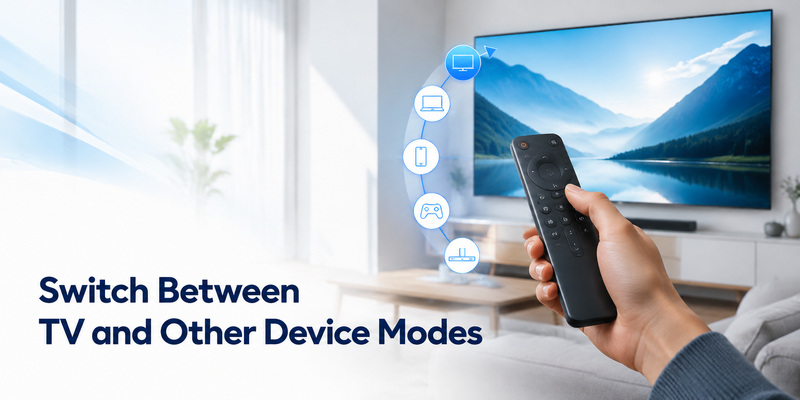
Many universal remotes are designed to control several devices from one controller. Common device modes include TV, Audio, AUX, Cable, DVD, or Streaming. The key to using them comfortably is understanding which device is currently receiving your commands.
Start with the device selector
Before pressing a command, select the device you want to control. If the remote has dedicated TV, Audio, AUX, or other mode buttons, the active mode determines which command library is used.
For example, pressing Volume while TV mode is active may change the television speakers. Pressing the same button in Audio mode may control a receiver instead.
Some remotes can be configured so volume always goes to one audio device regardless of the current mode. Others do not support this behavior. If your buttons seem to control the “wrong” device, first check which mode is active before reprogramming anything.
Test the buttons people actually use
Once each device has been programmed, test controls in the order they normally appear in your viewing routine.
For the television:
- Power
- Input
- Volume
- Mute
- Home or Menu
- Navigation and OK
For a streaming or media device:
- Home
- Back
- Navigation
- Play and Pause
- Fast Forward and Rewind
For an audio device:
- Power
- Volume
- Mute
- Input or Sound Mode if needed
Testing in real-world order makes it much easier to notice when a button is mapped to the wrong device profile.
Understand what a universal code actually does
A universal TV code tells the remote which command set to send. It does not update the television, unlock hidden functions, or guarantee that every feature of the original remote will be available.
Advanced functions are the most likely to vary. Voice search, pointer control, private listening, app-specific shortcuts, text entry, and smart-home features may depend on Bluetooth, a network connection, or the original manufacturer’s ecosystem.
That does not mean the universal remote is unusable. For many households, reliable Power, Volume, Input, Home, Back, and navigation controls are enough.
When deciding whether the setup is successful, judge it by your daily use rather than by the total number of buttons printed on the controller.
Download TV Remote APP4. Use a Universal Remote With Streaming Devices
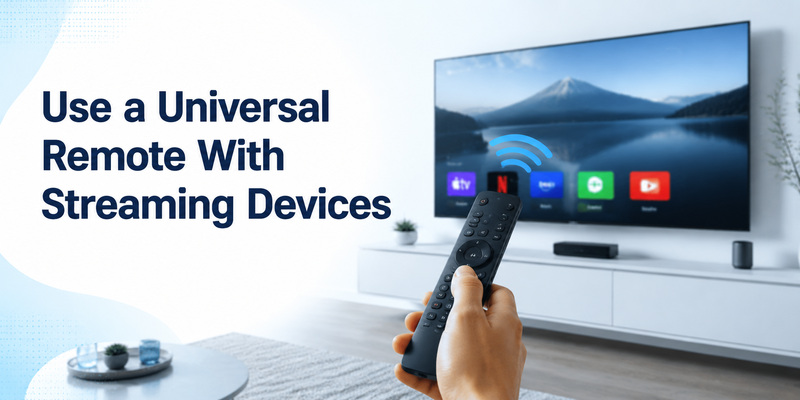
Streaming devices can make a universal remote setup look more complicated because control may pass through several technologies at once.
First identify what is actually being controlled
A television, streaming stick, streaming box, and soundbar may each respond differently. One device may use infrared while another depends on Bluetooth or HDMI-CEC.
Start by testing the television independently. Once the TV is stable, check whether the streaming device responds when you press Home, Back, directional keys, and playback controls.
If it works without programming a separate streaming-device code, HDMI-CEC may be passing the commands through the television. That can be convenient because it reduces the number of device modes you need to switch between.
If navigation does not work, the streaming device may require its own supported code or a different control method.
Do not assume Power controls the whole entertainment system
Power is a common source of confusion. A single Power press may turn on the television but leave a receiver or streaming box unchanged. In another setup, HDMI-CEC may wake several devices together.
Test each device separately before trying to create a one-button routine. This makes it much easier to see which component is failing.
The same applies to volume. If your TV sends audio to a soundbar, the volume buttons may need to control the soundbar rather than the television itself.
When advanced streaming features may not work
Even a well-programmed universal remote may not reproduce every feature of a streaming device’s original controller.
Functions such as voice input, motion control, touch gestures, headphone/private-listening modes, or proprietary shortcut buttons may require hardware that a basic infrared universal remote does not include.
In those cases, use the universal remote for routine navigation and keep the original controller or a verified phone remote available for the few functions that need it.
This is usually more practical than repeatedly changing a working TV setup in an attempt to force support for a feature the remote was not designed to provide.
Explore Articles: Download the Universal Remote App for Samsung TV: Easy Setup Guide
5. Fix Buttons That Control the Wrong Device
When something goes wrong, identify the exact symptom before resetting the remote. Most problems can be narrowed down quickly when you change only one thing at a time.
Match the fix to the symptom
If nothing responds, start with batteries, line of sight, and device mode.
If Power works but Volume, Input, or navigation does not, the most likely problem is a partial code match. Try another code for the same brand or continue the automatic search.
If Volume changes the wrong device, check whether the remote is in TV or Audio mode. If the remote supports volume lock or volume punch-through, review that setting as well.
If a Bluetooth remote loses control after standby, repeat the pairing check before performing a full reset.
For phone-based remote control, network discovery is a separate issue. The phone and television generally need the appropriate local connection and permissions for the app being used. That problem should be handled separately from infrared code programming.
Change one layer at a time
Avoid changing the TV code, HDMI settings, audio output, and network settings all at once. Doing so may solve the symptom temporarily while making it impossible to know what actually fixed it.
A cleaner troubleshooting sequence is:
- Write down which buttons currently work.
- Identify the first button or device that fails.
- Change the smallest relevant setting.
- Test the same command again.
- Only move to the next layer if the failure remains.
A factory reset should normally be a later option because it removes settings that may already be correct.
Prove the repair with a normal restart
After fixing the problem, turn the television off normally and test the setup again after standby. If you use a streaming device or soundbar, include those devices in the same check.
The setup is reliable when you can reproduce the result without entering codes or pairing again.
| Symptom | Likely cause | First check |
| No response | Batteries, line of sight, wrong mode, lost connection | Confirm power and select the correct device |
| Power works only | Partial code profile | Try another listed code or continue code search |
| Volume does not work | Soundbar, receiver, or audio routing | Identify which device is producing sound |
| Wrong device changes volume | Device mode or volume-lock setting | Check TV/Audio mode and remote configuration |
| Control fails after standby | Wake support or lost wireless session | Repeat the same test after reconnecting |
| Phone remote cannot find TV | Local network or permission issue | Check the phone and TV connection separately |
6. Universal Remote Daily-Use Checklist
Once programming is complete, a short daily-use check can tell you whether the universal remote is genuinely ready to replace the original controller.
Choose the main control route
Use one controller as your primary method rather than switching constantly between several partially configured options.
A good primary remote should reliably handle the commands you use most:
- Turn the TV on and off
- Adjust volume and mute
- Change inputs
- Open Home or Menu
- Navigate with arrows and OK
- Go Back
- Control playback when needed
If you have a soundbar, receiver, or streaming device, add only the modes you genuinely use. A simpler setup with two reliable device modes is often easier to live with than a complicated setup containing several incomplete profiles.
Keep a dependable fallback
Even after learning how to use universal remote control with tv, it is sensible to keep the original remote or another verified control method nearby for setup menus and advanced functions.
This is especially useful when:
- The universal remote cannot perform voice commands.
- Bluetooth pairing needs to be approved again.
- A new HDMI device is added.
- You need to change television settings that are not mapped to the universal remote.
- A streaming device uses controls that are not available through infrared.
The fallback does not have to be used every day. It simply prevents a minor compatibility limitation from turning into a full setup problem.
Related question: how does a universal TV remote work?
People asking how does a universal tv remote work are usually trying to understand why one controller can operate several brands and devices.
In simple terms, a universal remote stores command profiles for many device families. When you enter a code or complete an automatic search, you are telling the remote which command profile to use. Pressing a button then sends the corresponding command through the supported control method, commonly infrared and, on some models, Bluetooth.
That is also why one code may work better than another for the same TV brand. Different product generations can respond to different command sets.
>>> Explore Articles: Apple TV Remote Universal: Complete Setup and Buying Guide
Conclusion
The most reliable approach to how to use universal remote control with tv is simple: identify the exact remote, use the correct code list or pairing method, save a working profile, and test more than the Power button.
If direct code entry gives you only partial control, try another listed code or use automatic search. If your entertainment system includes a soundbar or streaming device, configure those components separately and check whether HDMI-CEC can simplify everyday control.
Finally, test the setup again after standby. If Power, Volume, Input, navigation, and the other buttons you rely on still work without reprogramming, the remote is ready for daily use.
Download TV Remote APP