
Download Universal Remote for Samsung TV: Easy Setup Guide
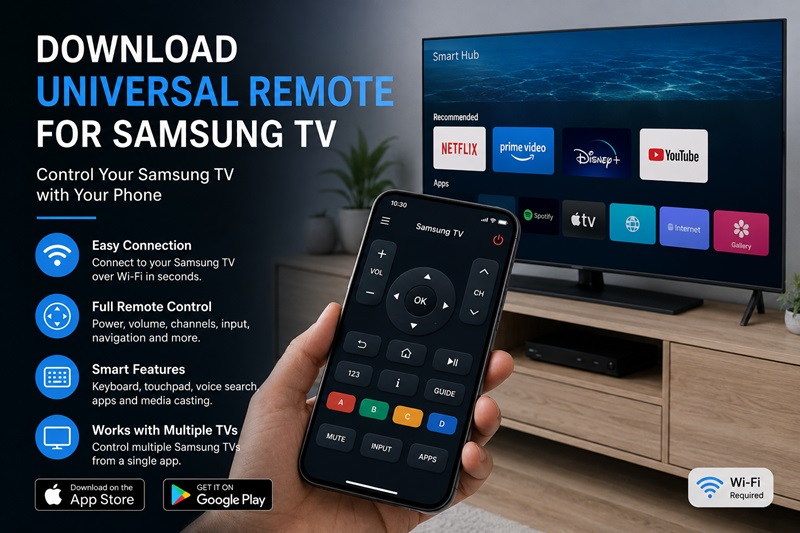
Losing or damaging a Samsung TV remote can quickly interrupt your viewing routine. You may still be able to turn the television on manually, but changing the volume, opening apps, switching inputs, or navigating menus becomes difficult. The fastest solution is often to download universal remote for Samsung TV and use your smartphone as a replacement controller.
A remote app can provide basic buttons, a touchpad, a keyboard, playback controls, and shortcuts to Smart TV features. It can also remain on your phone as a backup. This guide explains installation, connection, available features, and when a physical universal remote may be better.
1. Quick Checklist Before You Download a Universal Remote for Samsung TV
Before you download universal remote for Samsung TV, confirm the following:
- Your Samsung TV is turned on.
- The television supports Smart TV or network-control features.
- Your phone and TV are connected to the same home Wi-Fi.
- Local Network permission on iPhone or Nearby Devices permission on Android is enabled.
- A VPN is temporarily disabled during pairing.
- Neither device is using a guest network that blocks local communication.
- You are installing the app from the Apple App Store or Google Play.
When you download universal remote for Samsung TV, most modern remote apps communicate through the local Wi-Fi network. The app must be able to discover the television and send commands directly through the router.
Older Samsung TVs may require a different approach. A non-smart model without Wi-Fi may need a phone with an infrared blaster, an external infrared accessory, or a physical universal remote. Before beginning any universal remote control download, check the app description for supported models, production years, and connection methods.
2. How to Download Universal Remote for Samsung TV
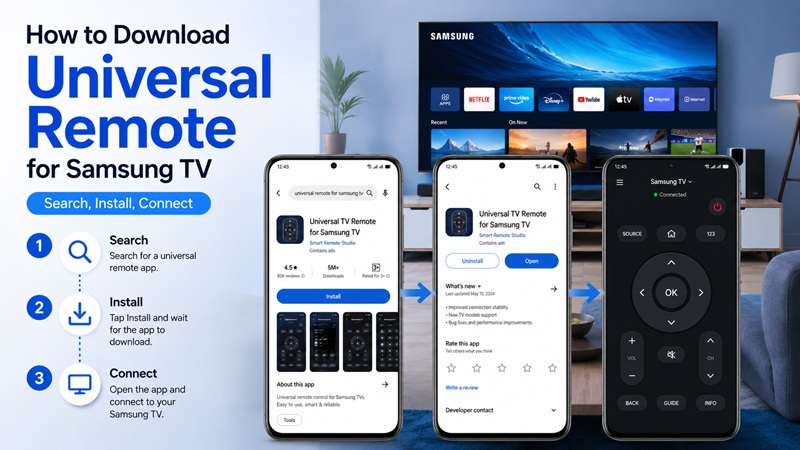
The safest way to download universal remote for Samsung TV is through the official app store on your mobile device.
Step 1: Search the App Store
On an iPhone or iPad, open the Apple App Store. On Android, open Google Play. Search for “Samsung TV remote,” “universal TV remote,” or “smart TV remote app.”
You may see several results. Read each description carefully and confirm that Samsung televisions are supported. Some apps work only through infrared, while others are designed for Wi-Fi-connected Smart TVs.
Step 2: Check Compatibility and Pricing
Before you download universal remote for Samsung TV, review:
- Supported Samsung TV models or years
- Required phone operating system
- Free and premium features
- Trial and automatic-renewal terms
- Recent ratings and reviews
- Required permissions
- Support for multiple TVs
Many users search for a free way to download universal remote for tv, but free installation does not always mean every control is free. Some apps limit commands, show advertisements, or reserve keyboards and touchpads for paid plans.
Step 3: Install and Open the App
Tap Get on iPhone or Install on Android. Open the app, choose Samsung from the brand list, and follow the connection instructions. A reputable universal tv remote control app should clearly explain whether it uses Wi-Fi, Bluetooth, or infrared.
Allow Local Network, Nearby Devices, or Bluetooth access when required. These permissions help the app find your TV. They are different from permission to access unrelated personal information.
Step 4: Avoid Unsafe Sources
Do not install modified packages from unknown websites simply because they promise a free download universal remote tv option. Unofficial files may contain unwanted software or request unnecessary permissions. Avoid entering your Samsung account password into an unfamiliar third-party app.
A trusted Remote TV App should have a recognizable developer, a clear privacy policy, visible pricing, and recent reviews.
3. How to Connect a Universal Remote App to Samsung TV
After you download universal remote for Samsung TV, connect the app and television through the same home network.
Connect Both Devices to the Same Wi-Fi
Open the network settings on the Samsung TV and note the Wi-Fi name. Check the Wi-Fi settings on your phone and confirm that both devices use the same network and router.
A phone using mobile data cannot usually discover a TV on home Wi-Fi. Guest networks may also prevent connected devices from seeing one another. Temporarily disable mobile data or a VPN if pairing fails.
Select Your Samsung TV
Open the app and tap Add Device, Connect TV, Select TV, or a similar button. Choose Samsung, wait for the scan to finish, and select your television.
The TV may appear under its model name or room name. If several TVs are listed, compare the displayed model with the number in Samsung settings.
Approve the Pairing Request
Your television may display an approval message or pairing code. Select Allow, Accept, or Confirm. Enter the code in the phone app if requested.
If the prompt stops appearing after a rejection, open the TV’s device settings, remove the blocked phone, and try again.
Test the Main Controls
Test power, volume, mute, channels, Home, Back, navigation, input selection, and playback. After you download universal remote for Samsung TV, some advanced functions may still depend on the TV model. Power-on support, for example, may require network standby or wake settings.
4. What Can a Universal TV Remote Control App Do?
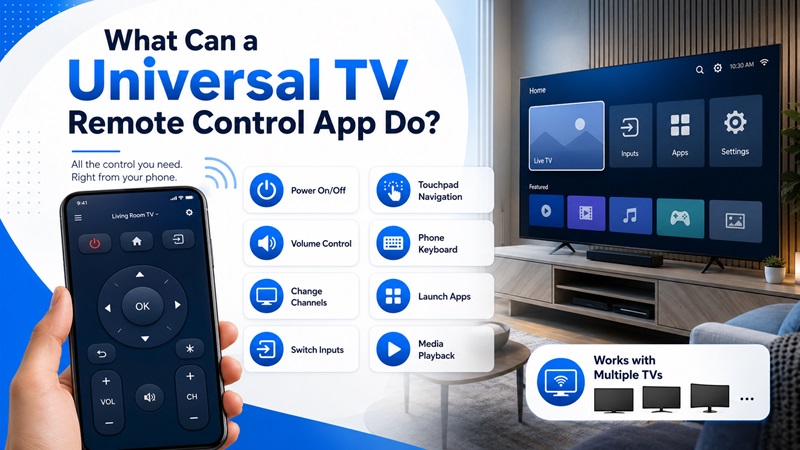
A reliable universal tv remote control app can offer more than a few replacement buttons.
Basic Controls
After you download universal remote for Samsung TV, you may be able to:
- Turn a compatible television on or off
- Adjust or mute the volume
- Change channels
- Open the Home screen
- Navigate menus
- Switch HDMI inputs
- Control playback
Smart TV Navigation
Many apps replace the directional pad with a touchpad. You can swipe to move through menus and tap to select an item. A phone keyboard makes it easier to enter passwords, search for movies, or sign in.
Users who download universal tv remote app software for several rooms may be able to save multiple televisions and switch between them without pairing again.
Casting and Media Features
Depending on the app and TV, extra tools may include photo casting, personal video playback, music streaming, or screen mirroring. Compatibility varies, and protected streaming services may limit mirroring. This is why you should confirm feature support before you download universal remote for Samsung TV.
| Feature | Remote App | Physical Universal Remote |
| Volume and channel control | Usually | Usually |
| Phone keyboard | Often | No |
| Requires Wi-Fi | Usually | No |
| Controls multiple TVs | Often | Model-dependent |
| Works with a dead phone battery | No | Yes |
| Smart app shortcuts | Sometimes | Model-dependent |
5. Can You Use or Buy a Universal Remote for a Samsung Smart TV?
Many people ask, can you buy a universal remote for a samsung tv? Yes. Many physical universal remotes support Samsung televisions, but compatibility with basic commands does not guarantee access to every Smart TV feature.
Can I Use a Universal Remote With Samsung Smart TV?
A common question is, can i use universal remote for samsung smart tv models? In most cases, a compatible remote can control power, volume, channels, input selection, and menu navigation. Some can also open the Samsung Home screen or Smart Hub.
Before buying, check for:
- Samsung Smart TV support
- Home, Menu, Back, and Input buttons
- The number of controllable devices
- Voice-control support
- Soundbar or streaming-device compatibility
- The required setup method
Basic remotes may not support voice assistants, model-specific shortcuts, touch controls, or smart-home buttons.
How Universal Remote Codes Work
A physical remote may use direct code entry, automatic code search, brand search, or a learning function. The correct code depends on both the remote brand and the television brand.
The phrase ge universal remote tv codes for sanyo refers to codes used to connect a compatible GE remote to a Sanyo TV. Those codes do not apply to Samsung televisions. If you have a GE universal remote, use the Samsung section in the code list for your exact remote model.
If the first Samsung code fails, try the remaining listed codes and test power, volume, input, and navigation.
6. Remote TV App vs. Physical Universal Remote
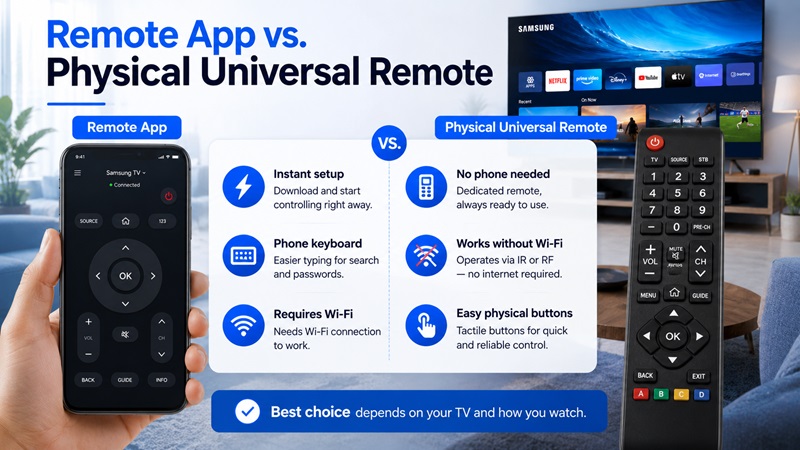
After you download universal remote for Samsung TV, decide whether the app can become your main controller or should remain a backup.
Choose a Remote App When
A remote app is a good choice when:
- The original remote is temporarily missing
- The TV is already connected to Wi-Fi
- You need a replacement immediately
- You want a keyboard or touchpad
- You control several TVs
- You do not want to buy another device
A Remote TV App is especially helpful for searching, entering passwords, and browsing Smart TV menus.
Choose a Physical Universal Remote When
A physical remote may be better when:
- The TV is not connected to Wi-Fi
- The television is an older model
- Several people need simple access
- You do not want to unlock a phone for every command
- Your phone is often charging or unavailable
- You need to control a soundbar or receiver
A physical remote works independently of the phone battery.
Which Option Is Better?
For many households, using both is practical. You can download universal remote for Samsung TV as an immediate backup and use a physical remote for everyday buttons.
The app is better for typing, while a physical remote is convenient for everyday power and volume control.
7. Troubleshooting, Safety Tips, and FAQs
Even after you download universal remote for Samsung TV, the app may not find the television or certain buttons may not respond.
Why Can’t the App Find My Samsung TV?
Common causes include:
- The phone and TV use different Wi-Fi networks
- Local Network or Nearby Devices permission is disabled
- A VPN is blocking local discovery
- The TV is connected to guest Wi-Fi
- The router uses device isolation
- The app does not support the TV model
- The television is completely offline while powered off
First, compare the network names on both devices. Then open the phone settings and confirm that the app has permission to access the local network.
How Do I Fix Connection Problems?
Try these steps:
- Close and reopen the app.
- Confirm that both devices share the same Wi-Fi.
- Turn off mobile data and VPN services temporarily.
- Restart the smartphone and Samsung TV.
- Restart the router.
- Remove the saved TV from the app.
- Search again and approve the new request.
- Update the app and television software.
If the TV previously blocked the phone, remove it from the denied-device list before pairing again.
Is It Safe to Download a Universal Remote App?
Choose an app from an official store with a clear developer, privacy policy, and pricing page. Access to contacts or messages is generally unnecessary.
Before you download universal remote for Samsung TV, check whether a free trial automatically becomes a paid subscription.
Can I Download a Universal Remote for Samsung TV for Free?
You can often download universal remote for Samsung TV at no initial cost. Many apps can be installed for free and include basic controls. Ad removal, unlimited commands, touchpads, keyboards, casting, or multiple saved TVs may require payment. Compare the free feature list before starting a trial.
Can I Use My Phone as a Samsung Remote Without Wi-Fi?
A Wi-Fi remote app normally requires the phone and TV to share a network. Without Wi-Fi, the phone may work only if it has compatible infrared hardware or an external IR accessory. Most iPhones do not include an infrared blaster.
Does a Remote App Work With Older Samsung TVs?
It may work if the television supports network control and is listed as compatible. Older TVs without Wi-Fi usually require infrared control or a physical remote.
Can One App Control Multiple TVs?
Many apps can save several televisions or brands. This feature may require a premium plan. Rename each saved TV by room to avoid selecting the wrong screen.
Can a Universal Remote Turn On a Samsung Smart TV?
A correctly programmed physical remote can usually turn on a compatible TV. An app may turn it on only when the model supports network wake and the relevant standby settings are enabled.
8. Conclusion
The easiest way to replace a missing controller is often to download universal remote for Samsung TV from the Apple App Store or Google Play. Connect the phone and television to the same Wi-Fi, approve the pairing request, and test the essential controls.
A mobile remote is ideal for quick access, touchpad navigation, and keyboard input. A physical universal remote is often better for older TVs, shared households, or users who prefer reliable buttons. By checking compatibility, permissions, pricing, and network settings before installation, you can choose the solution that best fits your Samsung television.
