
Samsung TV Remote App Free Setup with SmartThings
Short answer: Use Samsung SmartThings as the first free mobile remote option for a compatible Samsung television.
If you searched Samsung TV remote app free, begin with Samsung’s own app rather than a subscription offer that happens to include the Samsung name. Compatibility still depends on your television, account setup, phone, and the controls exposed by that model.
SmartThings can provide a useful remote screen, but installing it is only the first step. You need to add the television, complete any approval request, and test the functions used in your room. This guide covers those steps, explains iPhone and Android differences, and helps distinguish a network problem from an unsupported model or an optional third-party charge.
Start Your Samsung TV Remote App Free Setup
Download SmartThings from its official publisher listing. Samsung’s support page on controlling a television or projector with a phone identifies SmartThings as the mobile remote route and notes account and internet requirements.
A free remote app for Samsung TV should be evaluated against your exact model. SmartThings support for one Samsung device does not prove that an older television, hospitality model, monitor, or projector has the same mobile controls.
Check the app you installed
Read the publisher name and app description before signing in. A search result headed Samsung TV remote app free can lead to an independent application with a different business model. That is not automatically a problem, but it should be a deliberate choice.
If a supposed official remote immediately demands a recurring plan for basic access, verify that you opened the intended SmartThings listing. Do not assume the prompt represents Samsung’s requirement just because the TV brand appears in the title.
Keep the TV available for setup
Turn the television on and keep its physical remote or supported onboard controls nearby. First-time registration can involve selecting or approving the device on the television. The phone cannot be assumed to approve its own access in every model’s workflow.
Do this before the original handset is lost, if possible. A Samsung TV remote app free setup becomes much easier when you can still open menus, inspect the current network, and respond to prompts without improvising another control method.
Keep the original app name in your household notes instead of recording only a store search phrase. Samsung TV remote app free results can change order and include several publishers. Saving SmartThings as the chosen official route makes the next installation clearer and prevents another household member from mistaking an unrelated upgrade prompt for a required Samsung charge.
Check the Television and Account Requirements
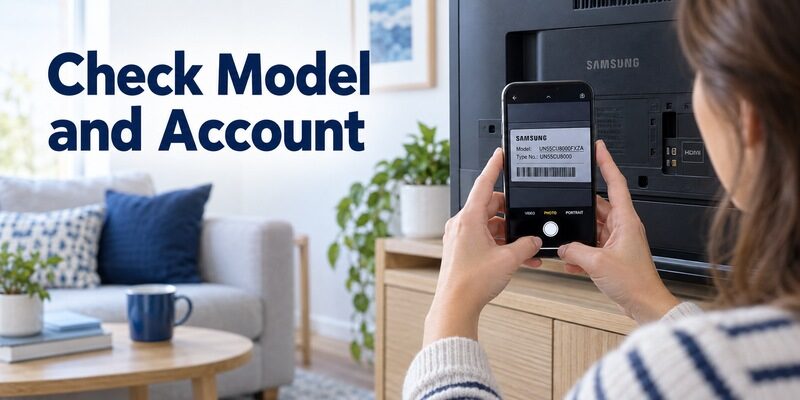
Confirm the exact model
Find the complete model code in the television’s information screen, documentation, or accessible label. Include regional suffixes when checking support. A screen size and a broad product family are not enough to establish which smart functions are present.
For a Samsung TV remote app free download, also check the app’s current phone-system requirements. An old phone may be unable to install the current version even when the television supports SmartThings. Resolve that compatibility issue before troubleshooting discovery.
Use the appropriate Samsung account
Samsung’s phone-control documentation specifies a Samsung account for the supported smart workflow. Sign in through the legitimate application and follow its device-registration prompts. Keep account access available for future phone changes or reinstalls.
Account access and television pairing are separate requirements. Signing in successfully does not prove that your phone has discovered or been authorized to control the television. Work through the device-addition process rather than stopping at the account Home screen.
If the television belongs to a shared home, establish which authorized account manages it before removing any existing registration. A Samsung TV remote app free setup should preserve another person’s working access. Confirm the supported household-sharing arrangement rather than deleting the device simply because it does not immediately appear under a newly signed-in account.
Add the Samsung TV to SmartThings
1. Prepare the television: Turn it on and confirm its network connection.
2. Open SmartThings: Sign in and use the option to add a device.
3. Select the TV route: Choose the detected television or the appropriate Samsung TV category.
4. Complete confirmation: Follow the app and TV prompts, including any approval or PIN request.
5. Name the device: Use a clear room name so you select the correct television later.
Follow the prompts actually shown on your model. Menu wording and automatic discovery behavior can vary with the phone app and television software. Avoid instructions that promise one universal screen sequence for every Samsung TV generation.
Once registration finishes, open the television’s device card. If the card exists but appears offline, check whether you selected the correct TV and whether it is fully powered on. A saved device entry can remain visible even when a current connection is unavailable.
This distinction matters when a Samsung TV remote app free setup appears complete but does not send commands. Registration records the device; the remote still needs a working route to communicate with it at the time of use.
Open and Test the Mobile Remote
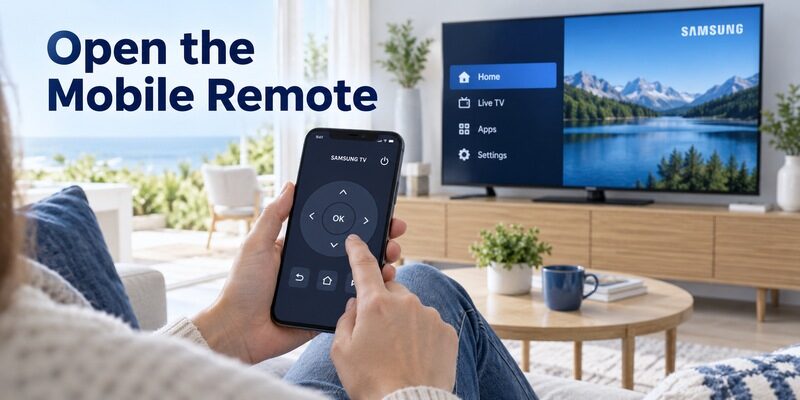
Find the remote controls
Samsung’s support instructions describe selecting the TV from the device list to open the on-screen remote. Depending on app version, that may be reached through a device card or a menu showing all devices.
Test the free Samsung TV remote app Android or iPhone interface with a simple arrow and selection command first. Make sure the action occurs on the intended television before trying power or changing the source.
Check the available button set
Supported controls can include volume, channel, mute, navigation, and other functions, but Samsung notes that options vary by device. Use the controls actually offered for your registered television rather than expecting every button shown in another user’s screenshot.
A working remote page is the relevant test. When choosing a Samsung TV remote app free option, confirm that your required command responds correctly, not merely that the application displays an attractive remote-shaped screen.
| Function | Practical test | What to check if it fails |
|---|---|---|
| Navigation | Move once and select a harmless menu item | Correct device and active connection |
| Volume | Change one step at a low listening level | Television or external audio output |
| Input | Open sources and return to the usual HDMI port | Model support and current source |
| Home or Back | Leave a menu and return safely | App-specific behavior versus TV behavior |
Try the controls from the seat where you normally watch. You should be able to identify the selected TV, move through a menu, and exit without changing the setup unintentionally. A Samsung TV remote app free interface that requires constant searching for the right device card may need clearer room names rather than a different television code.
Use SmartThings on iPhone or Android
iPhone discovery permission
For a Samsung TV remote app free iPhone setup, allow Local Network access when the chosen app asks to discover the television. Apple’s privacy controls can block device discovery independently of ordinary browsing or account sign-in.
If you denied access earlier, review the app in iPhone privacy settings and retry. Do not repeatedly reset the television to fix a permission that lives on the phone. Keep Bluetooth or other requested permissions tied to the setup features you actually use.
Android connection checks
On Android, follow the current SmartThings permission prompts and confirm the phone is using the intended home Wi-Fi. If the phone has switched to mobile data or a guest network, television discovery may behave differently.
A Samsung phone is not the only possible phone route. SmartThings availability and supported features should be checked for the actual Android or iOS device. The phrase free Samsung TV remote app iOS refers to phone software, not a requirement for Samsung-branded phone hardware.
If one phone works and another cannot discover the TV, keep the working connection as a reference. Compare network and permissions on the failing phone before changing the television. This is particularly helpful when evaluating Samsung TV remote app free options across both phone systems, because one successful device establishes that at least one supported TV control path is available.
Understand Network and Standby Behavior
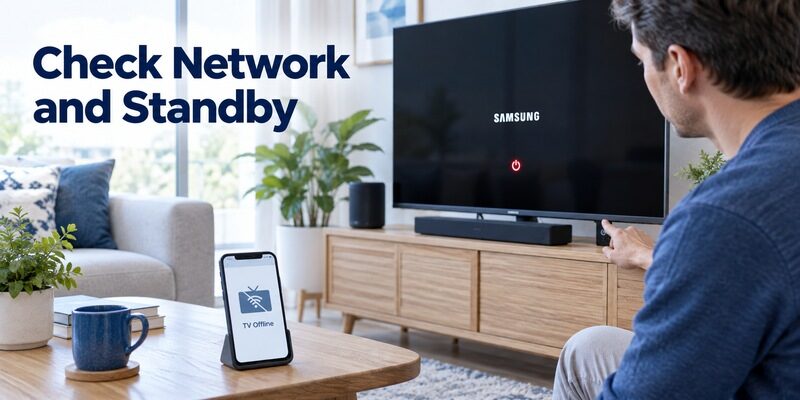
Local discovery and router separation
Start setup with the phone and television on the same home network. A guest connection may isolate devices, and a managed network may block local communication. Seeing a working internet connection on both devices does not prove that discovery is allowed.
A Samsung TV remote app free connection should be tested with the television awake first. This removes standby behavior from the initial diagnosis and lets you confirm whether basic remote control works under normal viewing conditions.
Wake from standby
Power-on behavior depends on the TV’s supported network wake settings and configuration. A television that stops advertising or accepting network commands in standby may appear offline until powered on through another route.
Do not treat successful power-off as proof of power-on support. Check the model’s instructions before changing wake settings. No mobile application can turn on a television that has been disconnected from electrical power simply by sending a network command.
Compare Free Controls and Optional Paid Alternatives
SmartThings and third-party pricing
A free Samsung TV remote app no subscription search should begin with the official route and its documented functions. Independent apps may use advertising, paid feature unlocks, or recurring subscriptions. Read those terms as the independent developer’s offer.
A Samsung TV remote app free listing can mean installation is free while the desired command is restricted. Close optional upgrade prompts if permitted and test the remaining controls before deciding whether the application meets your needs.
Evaluate features instead of slogans
If you compare alternatives, choose a few meaningful tasks: reaching Input, controlling your audio arrangement, entering text where supported, and reconnecting after reopening the app. Test them on the exact television and phone you intend to use.
Do not pay to solve an unverified compatibility problem. A subscription cannot guarantee that an unsupported television exposes the missing command. Confirm support and a working trial of the relevant feature before making a purchasing decision.
| Option | Reason to consider it | Main check |
|---|---|---|
| SmartThings | Official Samsung control route | Model support and account setup |
| Independent mobile remote | Preferred layout or supported extra devices | Feature limits and actual compatibility |
| Compatible physical remote | Offline and setup recovery | Full model and required buttons |
Treat a best free Samsung TV remote app claim as a starting point for testing, not a ranking that overrides your equipment. The useful Samsung TV remote app free choice must cover the commands you personally need. A simpler interface with reliable Input access can be more valuable than a longer list of extra features that your model does not support.
Fix a TV That Is Missing or Offline
The television never appears
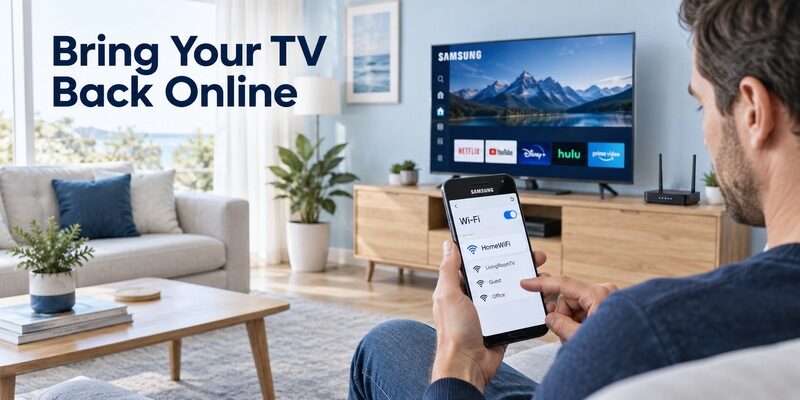
Verify that the model supports the selected route, the TV is on, and the phone has the required discovery access. Compare network names and leave the guest connection for the normal home network where appropriate.
For Samsung TV remote app free troubleshooting, change one setting and repeat one discovery attempt. Installing several similar applications does not resolve a blocked network path and makes it harder to identify which app has permission or an active pairing request.
A saved television will not respond
Check whether another controller can operate the television normally. Close and reopen the app, then select the correct saved TV. If the problem follows standby, compare behavior immediately after turning the set on physically.
Record the exact failure stage before removing the device. Re-adding can require approval on the TV again. If the physical remote is missing, preserve any working association until you know how to complete a new registration request.
Know the Limits for Older TVs and Projectors
Non-smart and unsupported televisions
An older Samsung television without supported network control needs another route, typically a compatible physical controller or suitable infrared hardware. An iPhone app does not turn the phone into an IR transmitter.
A free universal remote app for Samsung TV can support several models without supporting every model. Check its actual connection requirements. Bluetooth availability on a TV for headphones is not evidence that it accepts phone remote commands over Bluetooth.
Samsung Freestyle and other projectors
Samsung includes supported projectors in its SmartThings phone-control guidance, but device-specific functions still vary. If you need a Samsung Freestyle remote replacement, check the projector’s own model instructions and supported registration route.
Do not apply television replacement part numbers to a projector. A Samsung TV remote app free search may be a useful starting point for learning about SmartThings, but permanent hardware replacement should follow the exact device documentation.
Keep a Reliable Mobile Backup
Prepare other authorized users
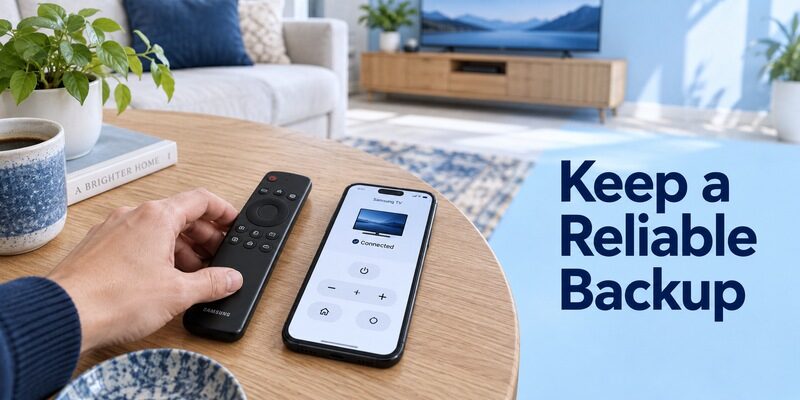
Name the television clearly and use SmartThings’ supported household access features where appropriate. Avoid passing around account passwords just to let someone lower the volume. Test the intended access route while a working handset is available.
A Samsung TV remote app free setup is most useful when it is already ready at the moment the remote disappears. Keep a physical fallback for network outages, initial setup, or any television command the mobile interface does not expose.
Consider Remote TV App for a supported alternative
If you prefer another mobile layout, review and check the current compatibility and feature terms. It can provide a backup control interface on supported televisions after the required connection is established.
For wider comparisons, see . Verify each app on your actual setup before relying on it for Samsung input, audio, or network recovery tasks.
Retest after a router change or a phone replacement. Device names, account access, and discovery permissions may need attention even when the television itself has not changed. Maintaining a Samsung TV remote app free connection is easier when the app, model, and last working arrangement are recorded together, with the physical remote ready for any new approval request.
Frequently Asked Questions
Is there a free Samsung TV remote app?
Yes. SmartThings is Samsung’s official starting point for phone control of supported TVs. You still need a compatible television and the required account and connection setup. Independent apps using the Samsung name can have separate subscriptions or paid feature limits.
Is SmartThings the best free Samsung TV remote app?
It is a sensible first choice for supported televisions because Samsung documents the connection and control workflow. The best fit still depends on your required functions. Test your actual TV, sound system, and phone rather than judging only by download ratings.
Can I use the app when the remote is already lost?
Yes, if the television is reachable and you can complete any required authorization. An existing registered connection is particularly useful. If first-time setup demands an on-screen approval that you cannot select, obtain a compatible control rather than resetting the television.
Does free TV remote app for Samsung mean free streaming?
No. Remote control and video subscriptions are different services. A controller can navigate a streaming app without granting access to its paid content. Review any charge according to which provider is requesting it and what feature or content it unlocks.
Final Thoughts
For Samsung TV remote app free use, start with SmartThings, verify the television model, and finish the device-registration process. Test the commands your household needs before treating the phone as a complete replacement.
Keep a physical remote available for approval and recovery. If an independent app offers a better layout, assess its compatibility and payment terms separately; a free installation is useful only when the required controls remain available and work with your television.
Download TV Remote App