
Hisense TV Remote Control App Free Options by Platform
Short answer: Choose the app for your Hisense TV’s operating system, such as Roku, Google Home or Google TV, Fire TV, or the TV-directed VIDAA app.
A Hisense TV remote control app free search does not lead to one official application for every Hisense television. Hisense sells sets across several smart platforms, and the matching mobile-control route depends on the model, region, and software running on the TV.
Use the platform table below before downloading anything. This guide explains how to identify the television, follow the appropriate connection workflow, and evaluate free access without confusing it with a trial. It also covers iPhone and Android requirements, offline televisions, missing volume controls, and practical alternatives when a physical remote is lost.
Match a Hisense TV Remote Control App Free Option to the Platform
The operating system is the first compatibility check. Hisense’s own smart-TV platform information lists multiple systems, including Google TV, Android TV, Roku TV, Fire TV, VIDAA, and other region-specific offerings.
| Platform shown by the TV | First mobile route to check | Essential limitation |
|---|---|---|
| Roku TV | Official Roku mobile app | TV must be reachable for discovery |
| Google TV or Android TV | Supported Google TV or Google Home remote | Phone route and target support must match |
| Fire TV | Amazon Fire TV app | Follow its network and pairing workflow |
| VIDAA | App identified by the television’s mobile-app support screen | Correct regional app and TV version |
| Another platform or older model | Exact model’s official support information | Do not assume one of the routes above applies |
Read the Home screen and information menu
Look for the platform name rather than only the Hisense logo. Check Settings, About, or the model documentation when the Home screen is unclear. Record the full model code and regional suffix for support lookups.
A Hisense TV remote control app free listing should then be checked against that information. The fact that another Hisense owner uses an app successfully tells you little unless their television runs the same supported platform.
Separate a built-in platform from an HDMI device
If your Hisense TV normally shows a Fire TV Stick or Roku player connected by HDMI, the visible interface may belong to that external device. Its app can operate the streamer while the television still needs a separate route for inputs or picture settings.
Identify the command target before pairing. A free TV remote app for Hisense may be unnecessary if the immediate task is navigating a connected streamer, but the streamer app may not replace the TV’s full handset.
Keep the operating-system name beside the model number in your notes. If the television is moved to another room or given to another household member, that record identifies the right mobile route immediately. A Hisense TV remote control app free comparison becomes much easier when the platform is known instead of rediscovered from scratch during a missing-remote problem.
Use the Roku App with a Hisense Roku TV
Connect to the television
Roku describes its official mobile application as free for iOS and Android. With the phone and Hisense Roku TV on the supported shared network, select the television in the app and open its remote interface.
A Hisense TV remote app free setup should be tested with a simple arrow and selection command. Verify that the intended room’s TV responds before trying volume or power, especially when several Roku devices appear under the same account.
Preserve the network connection
Roku’s lost-remote guidance explains that a device at initial setup or after a reset may not be discoverable by the mobile app. Keep a working network configuration intact when the physical remote is missing.
The app cannot automatically repair an offline setup screen. If a Hisense TV remote control app free connection was working before a reset, recreating it may first require a compatible physical control to reconnect the television.
Do not remove the Roku connection simply because one optional feature is unavailable. First compare basic navigation with the failing function. A Hisense TV remote control app free setup can be working correctly while a particular audio arrangement or application handles a command differently from the television’s own Home screen.
Control Hisense Google TV or Android TV
Choose the supported phone route
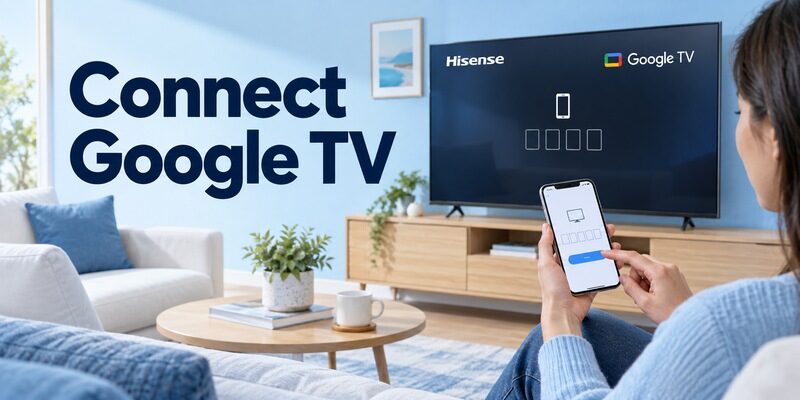
Google’s Android instructions describe opening Google TV, choosing the nearby television, entering its displayed code, and pairing. Google’s virtual-remote guidance also provides a Google Home route, including opening the remote on supported iOS devices.
For a Hisense Google TV remote app free setup, follow the route documented for your phone and television. Installing a Roku or VIDAA app does not create compatibility with a Google TV simply because all three can appear on Hisense products.
Test navigation before extra features
Once paired, test movement, selection, Back, and a supported text field. Keyboard and playback behavior may vary between individual television apps. A successful phone connection does not guarantee that every custom sign-in screen accepts mobile text.
Keep the current pairing code visible. If the request times out, generate a fresh request rather than repeatedly entering an old number. This is an authorization step for your device, not a universal Hisense remote code.
If several Google devices appear, use their names to identify the intended television and confirm one visible movement. Avoid pairing with the first result solely because it is nearby. The Hisense TV remote control app free route should target the actual television whose menus you need, not another streamer that happens to share the home network.
Connect a Hisense Television Running Fire TV
Select Amazon’s official mobile app
Use Amazon Fire TV for a television actually running Fire TV. Install the Amazon-published application on the phone, sign in as required, and open its remote area. Keep the TV awake and follow the device selection and on-screen connection process.
A Hisense TV remote control app free choice should distinguish Amazon’s official app from independent products using Fire TV in their names. Those independent apps can have their own payment terms and supported-device limitations.
Check television-level functions
A built-in Fire TV television and an external Stick are not identical control targets. Test volume, input, and other TV-level functions on the exact set. Keep a compatible handset available for any commands not exposed in the mobile interface.
Use the television’s actual feature set as the reference. The guide explains why successful streaming navigation does not always establish complete control over a separate television or sound system.
Find the Correct App for a VIDAA Television
Follow the TV-directed download route
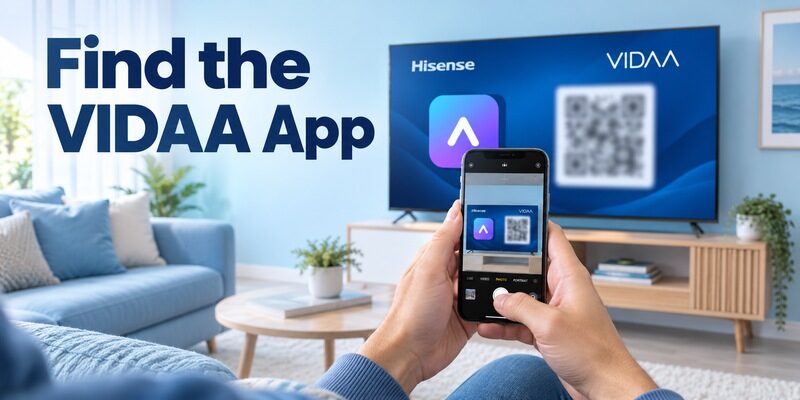
VIDAA’s support guidance tells users to open the television’s Settings and look under Support, then Mobile App, to find the appropriate download route or QR code. Follow the wording on your particular television if the menus differ.
This is more reliable than choosing an old app name from an unrelated tutorial. A Hisense TV remote control app free setup on VIDAA should use the app version intended for that television and region.
Complete the television’s required setup
VIDAA’s connection instructions specify the same network and completion of the relevant television agreements before connecting the app. They also recommend restarting the mobile app and selecting the intended TV after those prerequisites are satisfied.
Review the agreements before accepting them. If discovery still fails, recheck the TV’s own Mobile App support screen instead of repeatedly installing similarly named applications. The television-directed route helps identify the correct supported product.
Save the application name after following the TV-directed download route. Store search rankings and product branding can change, while the model’s own support route remains the appropriate starting point. This gives your Hisense TV remote control app free setup a reproducible reference if a new phone must be configured later.
Prepare iPhone or Android for Registration
iPhone permissions
For a free Hisense TV remote app for iPhone, grant the selected application’s Local Network access when it needs to discover the TV. If the permission was denied, review it in iOS privacy settings and retry the connection.
A Hisense TV remote control app free can load its own internet content while being unable to browse local devices. Account sign-in or a working app Home page therefore does not prove that discovery permission is available.
Android requirements
For a free Hisense TV remote app for Android, check the actual app’s minimum phone requirements and follow its current setup permissions. Confirm the phone has joined the intended home Wi-Fi instead of remaining on mobile data or an isolated guest network.
Choose permissions by the feature being used. Basic remote discovery, voice search, and media sharing can have different requirements. Establish simple navigation first so a problem with an optional feature does not obscure a working connection.
Check That the Remote Features Are Really Free
Free download versus usable controls
A Hisense TV remote control app free download may still contain purchases or a trial for particular features. Read the current store information and verify whether the actual remote can send commands without accepting an unwanted subscription.
When comparing a Hisense TV remote free app, test the function that matters most before exploring extras. If Input or volume is essential and locked behind payment, the application’s free tier may not fit your requirement even though installation costs nothing.
Official and independent support
Roku explicitly offers a free mobile remote, while other platform providers document their own supported control routes. Independent multi-brand applications can be useful, but their purchase terms and compatibility claims belong to that developer.
Do not treat the Hisense name as proof of official ownership. Confirm the publisher and platform scope, then compare the free experience on your actual television rather than relying on the app title alone.
| Check | Question to answer |
|---|---|
| Publisher | Is this the platform provider or an independent developer? |
| Compatibility | Does it support this Hisense operating system and model? |
| Ongoing cost | Are needed controls usable after declining optional upgrades? |
| Feature scope | Does it cover TV input and audio, or only navigation? |
Evaluate a normal session after reopening the app, not only its welcome demonstration. A Hisense TV remote control app free offer should remain clear when you return the next evening. Check whether saved-device access, repeated commands, and the particular volume or input control you need are included without accepting a trial.
Test the Controls in Your Viewing Setup
Navigation and sources
Open a harmless menu, move once, select an item, and return with Back. Then test the source you use every day. Keep a note of the usual HDMI port so an Input test does not leave you on a blank source.
A Hisense TV remote control app free connection should be judged against that normal routine. A television may accept navigation on its Home screen while a particular streaming application handles a special key differently.
Sound and external equipment
Start at a low listening level and test a small volume adjustment. Determine whether sound comes from the TV speakers, a soundbar, or a receiver. The app’s connection to the television may not directly control every external audio device.
Separate sound routing from connection failure. If Home and arrows work but the receiver remains unchanged, investigate how the audio device receives commands before removing the television from the mobile app.
Standby and power
Test whether the app reconnects after normal standby. Network wake and television power settings are model-dependent. A connection that works while viewing does not prove the TV remains reachable in every low-power state.
Keep an accessible physical power method alongside the Hisense TV remote control app free setup. A Hisense TV remote control app free cannot wake a television that is disconnected from electrical power, and it may need the TV awake to complete discovery or authorization.
Fix Discovery Problems by Platform
No television appears
Check the platform match, powered-on state, network arrangement, and phone permissions in that order. For VIDAA, verify the TV-directed app; for Roku, preserve its network setup; for Google TV or Fire TV, follow the corresponding current pairing workflow.
A best free Hisense TV remote app claim is not helpful if the application supports the wrong operating system. Compatibility comes before repeated network resets. Confirm the target before making broader changes.
The TV appears but will not connect
Read the current on-screen request and check whether a code or physical confirmation is pending. Select the correct room’s television. If the prompt expires, start a fresh request rather than sending repeated taps to a stale pairing screen.
For Hisense TV remote control app free troubleshooting, record the failure stage and any recent change, such as a new router or phone. Those details help distinguish a local permission problem from a television-platform limitation.
Handle Missing Remotes and Offline Televisions
Use physical controls only within their scope
Check the model manual for the TV’s onboard button or joystick. Some controls provide power and limited menus; others do not allow full setup navigation. Use the documented functions instead of assuming one button can replace the whole handset.
A Hisense TV remote online free search does not remove this limitation. A normal network mobile controller cannot directly reach a television that has not joined the network or cannot complete its required approval step.
Check infrared hardware for older sets
A free universal remote app for Hisense TV may use infrared on supported phones, but the phone needs a real transmitter or compatible accessory. Many Android phones lack built-in IR, and an iPhone does not gain it through software.
Keep a compatible physical replacement for recovery. Before buying, match the full model and needed functions, including voice features if relevant. A remote that looks similar or turns on the TV may still omit a critical setup key.
Keep a Verified Alternative Ready
Save the platform and app details
Record the television model, operating system, app name, and usual input in a short household note. Name the TV by room and set up other authorized users while a working physical controller is available.
A Hisense TV remote control app free setup is much easier to maintain when the correct platform is already documented. It prevents the next person from downloading several incompatible apps after the handset disappears.
Consider Remote TV App where supported
Review if you want another mobile interface for supported television models. Check its current compatibility and feature terms before depending on it for a specific Hisense platform or missing button.
It can be a useful backup once the required connection is established. An alternative app still needs a supported device and authorization. The guide explains why multi-brand coverage has practical limits.
Ask another authorized user to try the saved room name and backup method. If they cannot tell which application belongs to the television, simplify the household note. A Hisense TV remote control app free setup is more dependable when it can be understood by someone who did not perform the original registration.
Frequently Asked Questions
Is there one official app for every Hisense television?
No. Hisense televisions use several operating systems, and the supported mobile app depends on that platform and model. Identify whether the set runs Roku, Google TV, Fire TV, VIDAA, or another system before choosing a phone controller.
Can I get a Hisense smart TV remote app free?
Yes, supported platform apps provide mobile-control options, including Roku’s explicitly free remote. Check your actual television’s route and the current listing. Independent applications can have separate purchases or subscriptions even when their download is free.
Can the phone control a Hisense TV without Wi-Fi?
Only if another supported communication route exists. A conventional infrared route needs suitable hardware, and ordinary local-network apps need a reachable TV. Mobile data alone does not make an offline television discoverable or bypass its authorization requirements.
Why does the app control menus but not my soundbar?
The soundbar may receive commands through a different route from the television’s menu controls. Check the selected audio output and supported equipment control. A Hisense TV remote control app free connection does not guarantee direct control of an independent receiver or soundbar.
Final Thoughts
Choose a Hisense TV remote control app free option by identifying the television’s operating system first. Use the corresponding platform workflow and test actual controls before assuming full compatibility.
Preserve working network settings, confirm free access to the functions you need, and keep a physical recovery controller available. That approach is more dependable than choosing an app solely because its title includes Hisense or promises universal operation.
Download TV Remote App