
Hisense TV Remote App for Android: Setup Guide A-Z
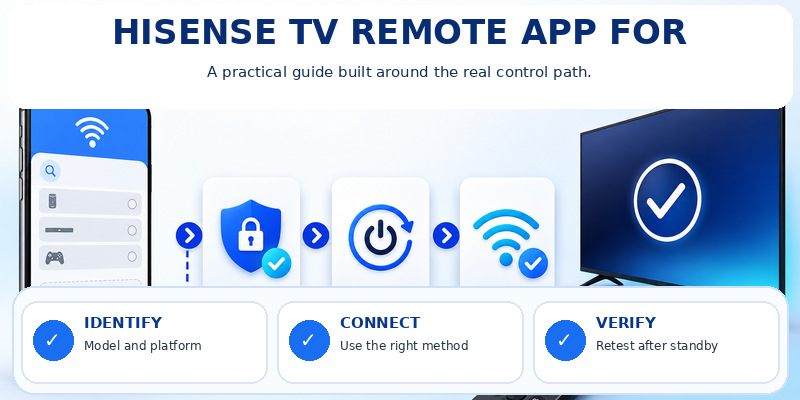
The best hisense tv remote app for android depends on the operating system running on your Hisense TV. Use the VIDAA mobile app for compatible VIDAA TVs, Google TV for Hisense Google TV or Android TV models, Roku’s mobile app for Hisense Roku TV, and the Fire TV app for Hisense Fire TV models. If your Hisense model runs Xumo TV, identify its Xumo version before choosing the mobile remote.
Before downloading anything, check your TV platform in Settings > System/About, on the Home screen, or in the model documentation. That one step prevents most compatibility mistakes. If you prefer a single app for several compatible TV brands, Remote TV App can be considered after you confirm that your TV is online and supported.
1. Which Hisense TV Remote App Should Android Users Download?
There is no single official phone remote that covers every Hisense smart TV. Hisense sells televisions using several operating systems, so the safest way to choose a hisense tv remote app for android is to identify the TV platform first.
| Your Hisense TV runs | Start with | What to know |
|---|---|---|
| VIDAA | VIDAA mobile app | Remote control, quick app access, and supported media casting |
| Google TV / Android TV | Google TV app | Official Google virtual remote |
| Roku TV | Roku mobile app | Phone and TV normally need the same local network |
| Fire TV | Fire TV app | Amazon’s mobile remote for Fire TV devices |
| Xumo TV | Matching Xumo remote app | Correct app depends on Xumo TV version |
| Non-smart Hisense TV | IR app or physical remote | Android phone must have a real IR blaster |
VIDAA says its mobile app provides remote-control functions, quick access to apps, and media casting, and it is available for Android. Google officially supports using the Google TV app as a remote for Google TV and Android TV. Roku and Amazon provide their own phone-remotes for Roku and Fire TV devices.
Xumo also supports phone-based remote control, but it currently has different remote-app paths depending on the Xumo device or TV version. Hisense Xumo TVs are real Hisense product variants, so this distinction matters for some owners.
Match the app to the operating system, not just the Hisense logo. That makes the right hisense tv remote app for android much easier to identify before installing anything.
2. How to Identify Your Hisense TV Operating System
If you are unsure which app to install, identify the TV platform before opening Google Play. A hisense tv remote app for android intended for one platform may not detect a TV running another one.
Check the Home Screen
The TV interface often gives you the fastest answer.
Roku TV: Roku branding and Roku-style menus.
Google TV: Google’s content-focused home screen with profiles and recommendations.
Android TV: Android TV launcher and Google services.
VIDAA: VIDAA-branded interface and settings.
Fire TV: Amazon Fire TV home interface.
Xumo TV: Xumo-branded interface.
Check Settings or About
Open Settings and look for sections such as:
- System
- About
- Device Preferences
- Support
- System Information
The exact wording varies by model and platform.
If needed, note the TV model number and check the manufacturer documentation. Avoid choosing an app only because the Google Play title contains “Hisense.” The TV operating system is a better compatibility signal than the app name.
A hisense tv remote app for android should therefore be evaluated against the platform first.
For a broader guide covering different Hisense systems, read Hisense TV Remote App.
3. Official App vs Third-Party Hisense Remote Apps
For most users, start with the official app for the TV platform. It gives you the clearest compatibility baseline and official setup documentation.
A third-party hisense tv remote app for android can still be useful when you want a different interface or one remote for several compatible television brands.
| Option | Best for | Main advantage | Main limitation |
|---|---|---|---|
| Official platform app | Most users | Platform-specific support | Different app for each TV OS |
| Remote TV App | Multi-brand homes | One interface for several supported TVs | Features vary by TV/platform |
| Other third-party Wi-Fi app | Alternative layouts | More interface choices | Pricing, ads, permissions vary |
| IR remote app | Offline/basic control | Does not need TV Wi-Fi | Phone needs physical IR hardware |
When evaluating a third-party app, check the current Google Play listing for:
- Developer identity
- Supported TVs
- Permissions
- Recent updates
- In-app purchases
- Subscription terms
“Free to install” does not necessarily mean every remote-control feature is free.
The best hisense tv remote app for android for a multi-brand home is still one that clearly explains which Hisense systems and controls it supports.
A Note About Hisense Roku TV
Roku currently recommends its own mobile app and advises users to be cautious with third-party Roku control applications. For a Hisense Roku TV, start with Roku’s official mobile app first.
4. How to Download the Correct App Safely
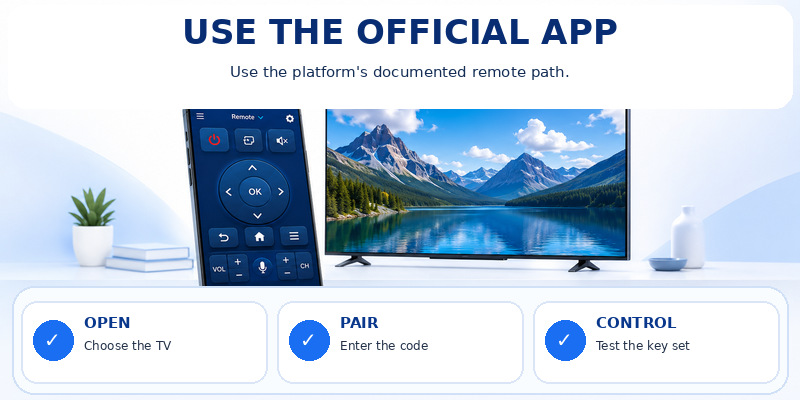
A safe hisense tv remote app for android setup should begin in Google Play or through the TV platform’s own installation instructions.
Avoid random APK websites when an official remote solution is available.
For Hisense VIDAA TV
VIDAA gives users a particularly useful way to avoid downloading the wrong app.
On a compatible VIDAA television, go to:
Settings > Support > Mobile App
VIDAA says you can scan the QR code displayed on the television to get the correct mobile app version. The company also confirms that its app is available for Android and iOS.
For Hisense Google TV or Android TV
Use the Google TV app on Android.
Google officially documents the Google TV app as a phone remote for Android TV and Google TV devices.
For more detailed instructions, see Google TV Remote App Android.
For Hisense Roku TV
Install Roku’s official mobile app.
Roku describes it as a free mobile remote for Roku TV and Roku streaming devices. The phone and Roku normally need to be connected to the same local Wi-Fi network.
You can also read Hisense Roku TV Remote App for Roku-specific setup.
For Hisense Fire TV
Use Amazon’s Fire TV app.
Amazon’s current setup instructions require the mobile device and Fire TV to share the same Wi-Fi network. The app provides on-screen navigation, keyboard input, and other remote functions.
For Hisense Xumo TV
First identify the Xumo TV version.
Xumo currently documents different mobile remote apps for different Xumo device versions, so do not assume every Xumo TV uses the same phone app.
Download Hisense TV Remote for Android5. Models, Operating Systems, and Phone Support
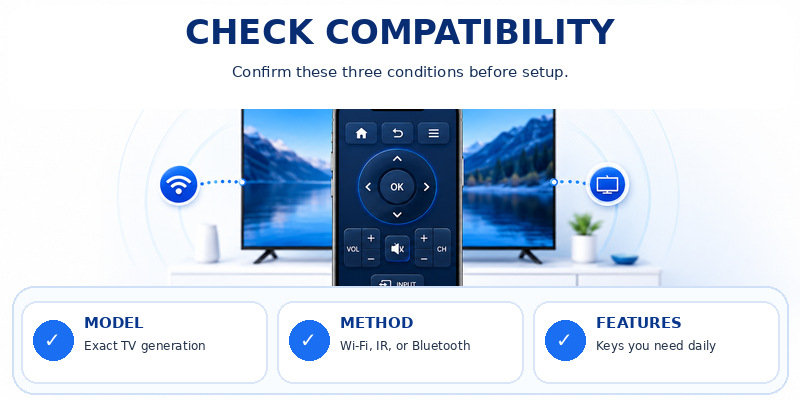
Brand compatibility is not a yes-or-no promise. For hisense tv remote app for android, the TV operating system, model generation, and supported control protocol determine which app can discover the screen and which buttons it can send.
Test the exact feature set
The likely strengths are platform-matched controls, keyboard entry, app access, and media features without guessing from the Hisense logo alone. The known boundary is that one Hisense remote app cannot be assumed to cover every Hisense model because the brand ships multiple TV platforms. A compatibility table should therefore distinguish basic navigation from advanced features rather than giving one blanket yes or no.
Brand name is only the first filter
The relevant support target is Hisense TVs must be matched by operating system: VIDAA, Google TV/Android TV, Roku TV, or another supported platform. The same brand may use several operating systems across different model years, so the System or About screen should be checked before an app is described as compatible.
Confirm the phone platform
The official route is available on Android and iPhone, depending on the TV platform. Availability does not guarantee feature parity: local-network permissions, voice support, keyboard behavior, and background reconnection can differ between Android and iPhone.
💡 Discover Helpful Guides
Android Remote TV: Complete Guide to Control Any Smart TV From Android
6. Is It Free, Ad-Supported, or Subscription-Based?
The word free describes the download price, not necessarily the full experience. Store labels, trial screens, advertising, and renewal terms must be checked before hisense tv remote app for android is treated as a no-cost solution.
Read the store labels
Before installation, inspect the developer name and the labels for ads and in-app purchases. Those labels do not prove the app is bad, but they tell the reader that ‘free’ may be funded by advertising or limited until a purchase is made.
| Question | Free version | Paid version | What to verify |
| Basic buttons | Should be testable before payment | May add custom layouts | Power, navigation, volume, input |
| Advertising | May show banners or full-screen ads | Often removed | Frequency during button use |
| Number of TVs | May be limited | May allow more saved devices | Household device count |
| Trial | Sometimes offered | May auto-renew | Duration, price, cancellation |
| Compatibility | Must already work | Payment cannot add missing TV hardware | Exact model and platform |
Check trial and renewal terms
A trial should display its duration, renewal price, and cancellation terms before confirmation. The safest choice is to test the free button set first and reject any screen that hides the price or asks for payment before the TV has even been detected.
Permissions should fit the job
A Wi-Fi remote may reasonably request local-network or nearby-device access. Basic control should not require contacts, messages, call logs, or broad photo and file access. When permissions exceed the stated feature set, the reader should stop and compare another verified option.
7. Download the Correct App
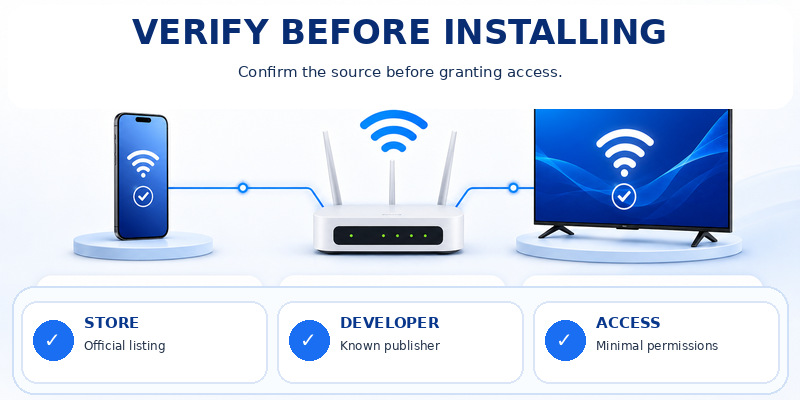
The download step should lead to one verified listing, not another page of look-alike apps. Publisher name, store labels, and the television platform are the three checks that protect the free path for hisense tv remote app for android.
Read the commercial labels
Before tapping Install, check whether the listing says Contains ads or In-app purchases. Screenshots should also reveal whether the basic remote is accessible before a purchase screen.
Keep updates on the same channel
Install and update through the same verified store account. Switching later to a mirror or modified build can break signatures, disable automatic updates, and make it difficult to know whether a new permission request is legitimate.
Search by publisher, not icon
Use this route: open the TV About screen, identify its operating system, then install the matching official platform app from the mobile store. Look-alike icons and similar names are common, so the visible publisher is a stronger identifier than a blue remote graphic or a claim such as ‘official style.
Download Hisense TV Remote for Android8. Connect the Phone and TV for Hisense
Connection is successful only when the phone controls the intended television and reconnects after standby. The setup below keeps the free path visible before any optional premium feature is evaluated.
Verify reconnection
After Home, Back, volume, and input work, close the app and let the television enter standby. Reopen the remote and repeat the same commands. Reliable reconnection is part of setup, not an advanced troubleshooting topic.
- Identify the television model and operating system from its Settings or About screen.
- Install VIDAA Smart TV, Google TV, or The Roku App (Official), depending on the Hisense TV operating system from the official mobile store and verify VIDAA, Google LLC, or Roku, Inc. or the stated platform publisher.
- Connect the phone and supported smart TV to the same trusted home network.
- Select the exact television and approve the on-screen code or connection request.
- Test Power or Wake, Home, Back, volume, mute, and input before accepting any upgrade.
- Close the app, let the TV enter standby, and confirm that the free setup reconnects.
Prepare the television
Turn on the TV, confirm its network connection, and keep a working local control available for approval. Then select the detected TV, enter the PIN shown on screen when requested, and test power, navigation, volume, and app launching. Selecting a stale room entry or a neighboring TV can make the first test misleading.
Complete the free path
Skip optional trials until the app has discovered the television and basic buttons have been tested. A reader should not need to enter payment details merely to learn whether the exact model is supported.
📘 Find the Right Guide: Hisense TV Remote App: Control Your Hisense TV From Your Phone
9. Features Worth Testing in Daily Use
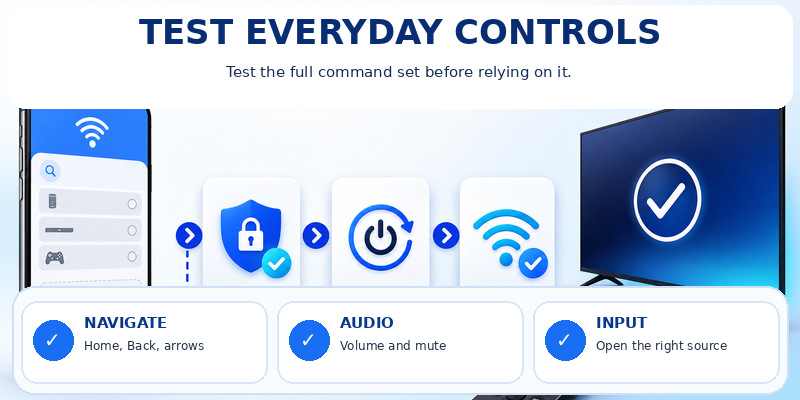
A remote app is useful only if it covers the reader’s daily actions. Power, navigation, volume, input, text entry, and wake behavior should be tested separately rather than summarized as ‘connected.’
Test the complete basic set
Run a defined check: Power or Wake, Home, Back, directional keys, OK, volume, mute, and input. Mark any missing function instead of describing the app as fully working after Power responds once.
Separate premium extras
Keyboard entry, voice, touchpad navigation, casting, private listening, and app shortcuts can be valuable, but they are not all universal. platform-matched controls, keyboard entry, app access, and media features without guessing from the Hisense logo alone. The article should identify which features belong to the official app and which come from a paid third-party layer.
Retest after normal interruptions
Lock the phone, answer a notification, switch away from the app, and return after the television sleeps. A usable remote should reconnect predictably. If the free version inserts an advertisement before every urgent button press, that is a practical limitation worth reporting.
10. What to Do When the App Does Not Connect
Connection failures are usually caused by the wrong app, an unsupported TV platform, missing local-network access, or an approval prompt that was never completed. Reinstalling repeatedly does not resolve those mismatches.
TV appears but buttons fail
Approve the connection on the television, remove only the stale saved device, and pair again. Test Home and Back as well as Power. A partial button set may reveal an incompatible third-party profile rather than a broken television.
The app asks for payment too early
Return to the store listing and compare the official app or another clearly labeled option. Do not enter billing information merely to discover whether the TV is supported. Compatibility should be testable before a long-term subscription starts.
TV is missing from the app
Recheck the television platform, then confirm that the phone and TV normally share the same home network and complete a PIN or approval step. Guest Wi-Fi, client isolation, a disabled local-network permission, or choosing an old saved TV can all prevent discovery.
11. Which Option Should You Keep?
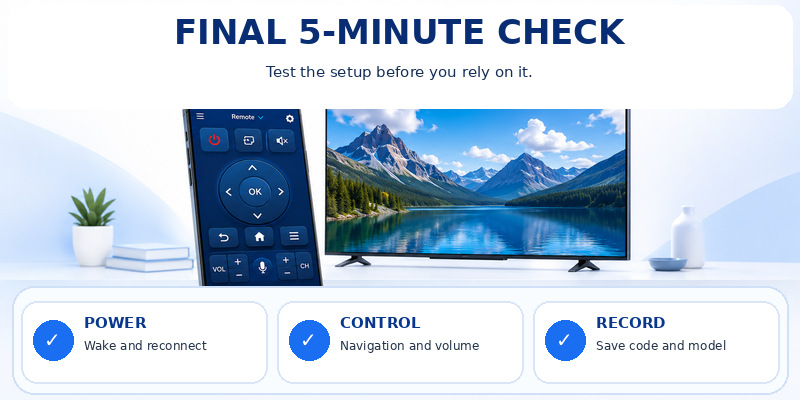
The final choice should answer the original search without adding another cost or device. The checks below turn the article into a decision: which app, which TV, what remains free, and what limitation still applies.
Five-question decision
Before keeping hisense tv remote app for android, answer five questions: Is the publisher verified? Does the exact TV appear? Are basic buttons free? Are ads tolerable? Does the app reconnect after standby? A ‘yes’ to all five is a stronger recommendation than a broad all-TV claim.
Best first choice
For most readers, the first choice is VIDAA Smart TV, Google TV, or The Roku App (Official), depending on the Hisense TV operating system. It is easier to verify, the official platform apps are free to install and do not sell basic remote button access as a separate subscription, and its limitations are documented for Hisense TVs must be matched by operating system: VIDAA, Google TV/Android TV, Roku TV, or another supported platform. Third-party apps belong in the comparison only when they add a specific needed feature.
Who needs a different option
A different route is necessary when non-smart Hisense models require infrared, which means an Android phone with a built-in IR blaster or a physical remote, when the official app excludes the TV model, or when the reader needs an offline physical fallback. Those cases should be named explicitly instead of being hidden inside generic troubleshooting.
Is hisense tv remote app for android completely free?
The most dependable baseline is VIDAA Smart TV, Google TV, or The Roku App (Official), depending on the Hisense TV operating system: it is the official platform apps are free to install and do not sell basic remote button access as a separate subscription. Independent apps may be free to download while showing ads, limiting buttons, or offering a renewable premium plan.
Does it work with Samsung, LG, and Sony TVs?
Only when the app supports the specific TV platform. Hisense TVs must be matched by operating system: VIDAA, Google TV/Android TV, Roku TV, or another supported platform. A single store claim should not replace a model check.
Can an iPhone control a non-smart TV?
Not through infrared alone because iPhones do not include an IR blaster. A non-smart TV needs compatible external hardware, a physical remote, or an Android phone that genuinely includes infrared.
📖 Explore Articles: Hisense TV Remote Flashing Blue: Meaning, Pairing Fixes, and Red-Light Cases
Do I need a subscription?
Read any third-party trial and renewal screen separately.
Download Hisense TV Remote for Android