
Hisense TV Remote App: Control Your Hisense TV From Your Phone
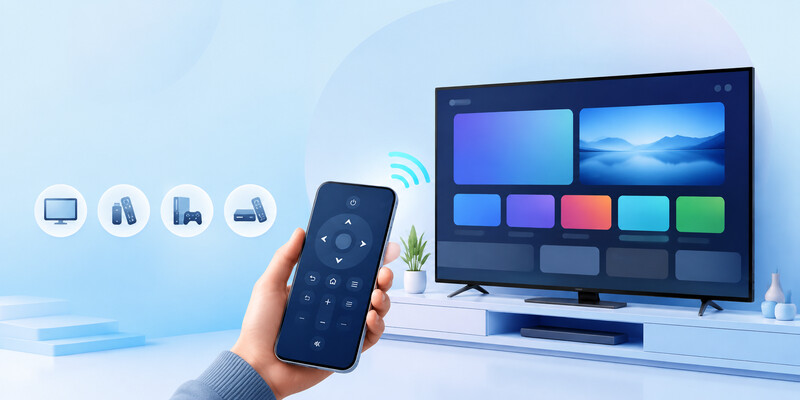
A hisense tv remote app turns a compatible phone into a practical backup controller for your television. It is useful when the original remote is lost, the batteries are flat, buttons no longer respond, or you simply want an easier way to type search terms and passwords. Instead of navigating every menu with directional buttons, you can use a phone screen for touch controls, a keyboard, app shortcuts, and—in some cases—voice features.
The most important requirement is simple: your phone and TV generally need to be connected to the same Wi-Fi network. Once connected, a hisense tv remote app can handle everyday actions such as changing volume, opening streaming apps, selecting inputs, navigating menus, and powering off the TV. Some features depend on the exact Hisense platform, including VIDAA, Google TV, Android TV, Roku TV, Fire TV, or another licensed operating system.
This guide explains how to choose, connect, and troubleshoot a hisense tv remote app while keeping the focus on the task users actually need to complete: controlling the TV from a phone. Physical remotes, universal remotes, and reset methods are included only where they help you regain control.
1. What Is a Hisense TV Remote App?
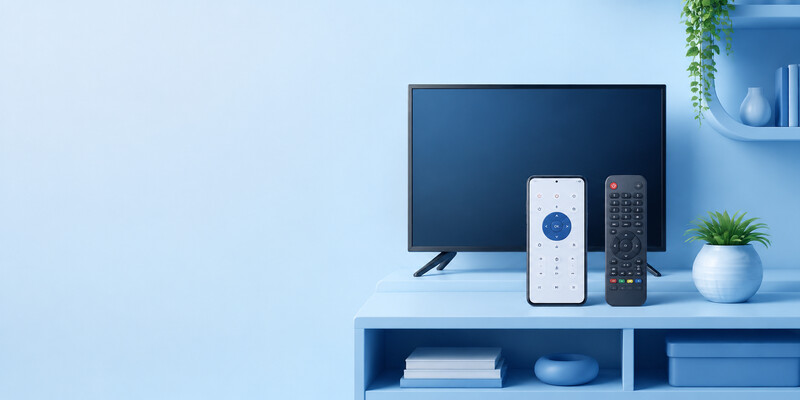
A hisense tv remote app is a mobile application that communicates with a compatible Hisense television over your local network. Rather than sending infrared signals like a traditional handset, most modern remote apps use Wi-Fi. This gives the app more than basic channel and volume functions: it can often offer a touchpad, an on-screen keyboard, source selection, media controls, and access to supported smart-TV functions.
For many households, the app is not meant to replace every use of the physical remote forever. It is a reliable alternative when the remote is in another room, temporarily unavailable, or damaged. It can also be more convenient for entering a streaming-service login, searching YouTube, or naming a Wi-Fi network.
A hisense tv remote app may be provided by Hisense or by the company that powers your TV platform. For example:
- A Hisense Google TV or Android TV may work with Google Home or a compatible remote feature.
- A Hisense Roku TV normally works best with the official Roku mobile app.
- A Hisense Fire TV model may use the Amazon Fire TV app.
- Some VIDAA models may support Hisense’s own official mobile-control options, depending on region and software version.
- A third-party option such as Remote TV App can be useful when it supports your specific TV and network setup.
Before downloading anything, check the label on the TV, the box, or Settings > System > About. “Hisense” identifies the manufacturer, but the operating system determines which remote app has the strongest compatibility.
Download LG TV Remote2. What You Need Before Connecting Your Phone
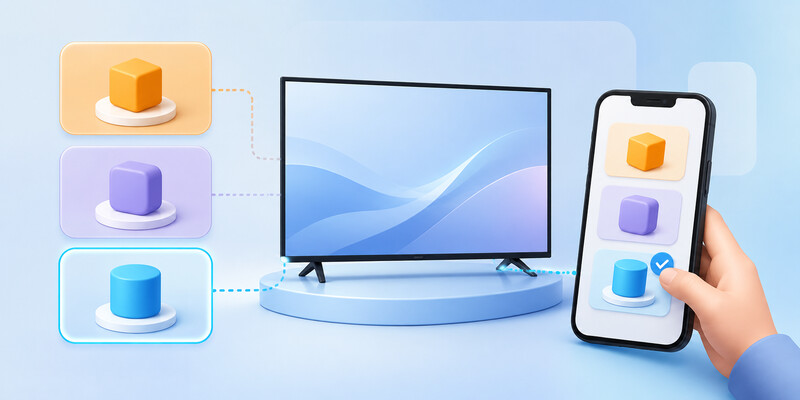
A successful hisense tv remote app connection normally requires the television to be turned on and already connected to Wi-Fi. Your phone must join the same local network. If one device is using a guest Wi-Fi network, mobile data, or a different router band with device isolation enabled, the app may not discover the television.
Prepare these items first:
- A compatible Hisense smart TV.
- A phone or tablet running a supported version of iOS or Android.
- The same home Wi-Fi network on both devices.
- Permission for the app to access your local network, Bluetooth, or nearby devices when prompted.
- A working physical control method for the first connection, if the TV is currently offline.
Most hisense tv remote app tools cannot turn on a TV that is completely disconnected from Wi-Fi, because the phone has no network path to reach it. Some models support network standby or wake-on-LAN behavior, but this varies by platform and power settings. Think of the app as a Wi-Fi controller first, not as a universal infrared replacement.
If your TV is online but does not appear in the app, confirm that your phone has not automatically switched to cellular data. Disable a VPN temporarily if it prevents local-device discovery. It is also worth restarting the TV and phone before changing more advanced settings.
3. How to Set Up a Hisense TV Remote App
The setup process for a hisense tv remote app is usually quick. Start by choosing the correct app for the TV’s operating system. Official platform apps are often the best first choice because they are designed around their own pairing and permission system. A compatible third-party app can also work well when it clearly identifies the supported TV platform.
Follow this general process:
- Turn on the Hisense TV.
- Confirm that the TV is connected to your home Wi-Fi.
- Connect your phone to that exact Wi-Fi network.
- Install the selected hisense tv remote app from the official app store.
- Open the app and allow local-network or nearby-device access if requested.
- Select the detected Hisense TV from the device list.
- Enter the pairing code shown on the TV, if one appears.
- Test volume, navigation, Home, Back, and app-launch buttons.
Do not skip the pairing-code step. It protects the TV from being controlled by another person on the same network. Some apps display a code on the television screen, while others require you to confirm a device name or press an approval button.
After setup, leave the app installed even if you find the physical remote. A hisense tv remote app is most valuable when you set it up before an emergency. If your remote is lost later and the TV has been disconnected from Wi-Fi, initial setup becomes more difficult.
4. Controls You Can Use From Your Phone
The exact layout varies, but a good hisense tv remote app should cover the controls people use most often. The basic screen typically includes a directional pad, Select or OK button, Home, Back, volume controls, mute, playback controls, and a power option.
Many apps also provide a keyboard. This is one of the biggest advantages over a physical remote. Typing an email address, password, movie title, or Wi-Fi password with arrow keys is slow; typing it on a phone is much faster.
Depending on your model, a hisense tv remote app may also include:
- A touchpad for quick menu navigation.
- Input selection for HDMI devices, game consoles, or cable boxes.
- Channel controls for supported live-TV inputs.
- App shortcuts for streaming services.
- A voice-search button.
- Screen mirroring or casting controls.
- TV settings shortcuts.
- Media playback controls.
Keep expectations realistic. A remote app can only expose functions the TV platform permits. For instance, a phone app may not control external devices connected through HDMI-CEC in the same way as the original handset. It may also lack dedicated branded shortcut buttons found on a physical hisense 4k tv remote.
Still, for daily navigation, an app is often enough. A hisense tv remote app is especially effective for streaming-focused households that mainly use Home, search, playback, volume, and app-selection controls.
5. How to Turn On a Hisense TV Without the Remote
People often search for how to turn on hisense tv without remote after the original controller stops working. The simplest option is the physical power button on the TV. Its location differs by model, but it is commonly beneath the lower bezel, on the underside, behind the front panel, or along the side or rear edge.
Press the button once, then wait for the TV to boot. Once it is online, open your configured hisense tv remote app to take over navigation. If the TV was already connected to Wi-Fi and has network standby enabled, some apps may show a power option; however, this is not guaranteed on every model.
A practical recovery sequence is:
- Locate and press the physical TV power button.
- Wait until the TV connects to your saved Wi-Fi network.
- Open the hisense tv remote app.
- Select the TV and complete pairing if necessary.
- Use the phone to open Settings and check network, power, and remote options.
If the TV cannot connect to Wi-Fi because the router name or password changed, use the physical control button only as a temporary navigation tool if your model supports it. Otherwise, a compatible physical replacement remote may be needed for the first reconnection.
6. Fix a Hisense TV Remote App That Will Not Connect
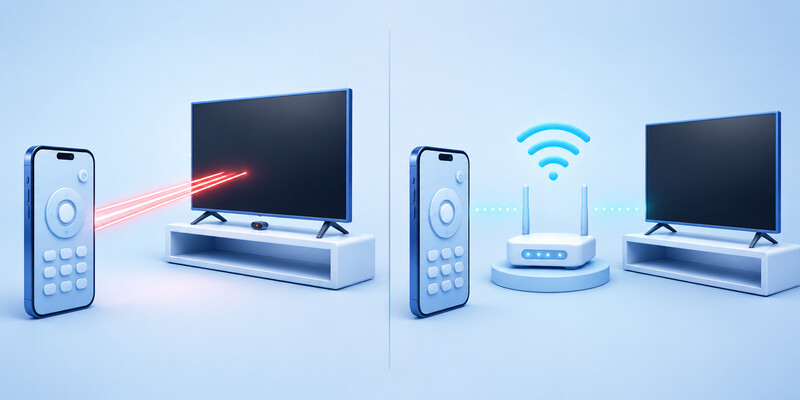
A hisense tv remote app that cannot find the TV is usually dealing with a network or permission problem, not a damaged television. Start with the most likely cause: both devices are not actually on the same Wi-Fi network.
Check these fixes in order:
Confirm the network
Open Wi-Fi settings on the phone and compare the network name with the one shown in the television’s Network settings. Do not assume two similar names are the same. “HomeWiFi” and “HomeWiFi-5G” may be separate bands or separate access rules.
Allow local-device access
On iPhone, the app may need Local Network permission. On Android, it may request Nearby Devices, Location, or network permissions depending on the app version. Denying these permissions can prevent a hisense tv remote app from discovering the TV.
Restart both devices
Turn the TV off, unplug it for around one minute, reconnect power, and restart the phone. This refreshes the network connection and can resolve a device that is visible to Wi-Fi but not to the app.
Disable VPN or guest isolation
VPN apps, guest networks, and router settings such as AP isolation can stop devices from communicating locally. Connect both devices to the main home network and try again.
Update the app and TV software
An outdated app may fail after a platform update. Likewise, a TV with very old system software may have bugs affecting device discovery. Once control is restored, check for software updates through the TV’s Settings menu.
If the app was working yesterday but now fails, remove the TV from the hisense tv remote app, reopen the app, and pair again. This refreshes the connection without requiring a factory reset.
7. What to Do When the Physical Hisense Remote Stops Working
A hisense tv remote app is often the fastest workaround for a physical remote problem, but it is still worth diagnosing the hardware. Search queries for hisense tv remote not working can describe many different issues: dead batteries, blocked infrared sensors, broken buttons, failed Bluetooth pairing, or corrosion inside the battery compartment.
Start with the basics:
- Install fresh batteries in the correct direction.
- Remove the batteries for one minute, then insert new ones.
- Check the battery contacts for white residue, rust, or moisture.
- Make sure nothing blocks the TV’s infrared receiver.
- Test the remote through a phone camera; many infrared remotes show a faint flashing light through the camera when a button is pressed.
- Restart the TV and try pairing again if the remote uses Bluetooth.
Questions about hisense tv remote batteries are relevant when several buttons respond slowly or the remote works only from a very short distance. Replace both batteries together and use the type printed inside the compartment. Do not mix old and new cells or different battery chemistries.
If you need to inspect the compartment or clean a contact, learn how to open hisense tv remote safely from the battery cover first. Avoid forcing the main remote casing open unless you are comfortable with small plastic clips; cracking the case can make replacement the better option.
Meanwhile, keep the hisense tv remote app paired. It lets you use the TV while you decide whether to repair or replace the physical controller.
8. Pairing, Bluetooth, and Flashing Blue Light Issues
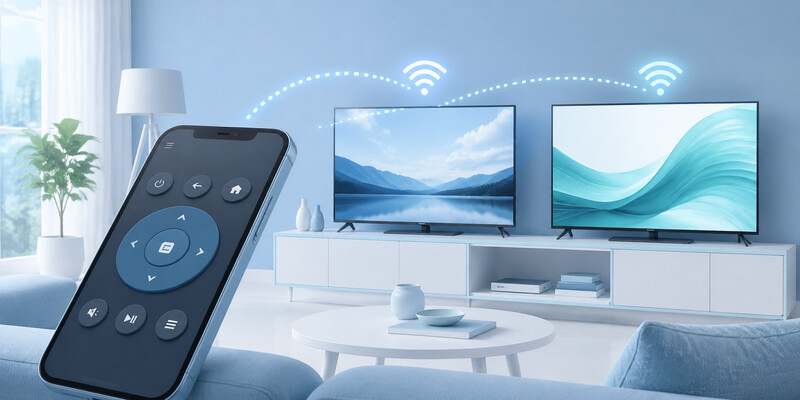
Not all Hisense remotes work in exactly the same way. Basic remotes may use infrared, while voice-enabled models can use Bluetooth or another wireless connection. This distinction matters when Power works but voice search, pointer functions, or advanced buttons do not.
If you see a hisense tv remote flashing blue light, it may indicate that the remote is attempting to pair, searching for a TV, or signaling a low-power or connection state. The exact meaning depends on the remote model, so the correct reference is the model-specific hisense remote control manual or support instructions for the television platform.
For a remote that needs pairing, the usual steps are:
- Turn on the TV.
- Move close to the television.
- Hold the designated pairing buttons shown in the manual.
- Wait for a pairing prompt on screen.
- Confirm the connection.
- Test navigation, voice, and volume controls.
The process behind how to pair hisense remote to tv differs between VIDAA, Google TV, Roku TV, and Fire TV models. Do not copy a button combination from a different Hisense remote unless the manual confirms it. Pairing the wrong way may do nothing or trigger an unrelated function.
A hisense tv remote app can remain useful even after Bluetooth pairing is fixed. It gives you an independent backup controller, particularly for typing and settings navigation.
9. Using a Universal Remote or Replacement Remote
A phone app is excellent for Wi-Fi control, but a physical remote can be the more reliable choice when the television is offline, in a hotel-style setup, or used by people who prefer dedicated buttons. A replacement should match the TV platform and model as closely as possible.
A hisense tv remote replacement may be an original remote, a compatible model-specific remote, or a universal remote. Original or officially compatible models are usually the safest choice when you need voice, Bluetooth pairing, branded app keys, or exact menu behavior.
People also ask, will a universal remote work on a hisense tv? Often yes for basic functions such as Power, volume, input, and directional navigation. However, advanced functions may be unavailable. Universal remotes may need a hisense tv code for universal remote, and different remote brands use different code lists and programming methods.
If the goal is only to watch TV tonight, choose the method that restores control fastest:
- Use the physical TV button to power on.
- Use a configured hisense tv remote app if the TV is online.
- Try a compatible infrared or universal remote for basic controls.
- Buy a model-specific replacement if you need advanced features.
Searches for hisense tv remote price in bangladesh are purchase-intent queries rather than app-control questions. Prices vary widely by model, seller, condition, and shipping. Verify the television model and operating system before buying solely on price.
10. Resetting a Hisense TV When You Do Not Have the Remote
A reset should be the last option, not the first fix for a connection issue. Factory resetting removes saved Wi-Fi networks, streaming-app sign-ins, preferences, and many custom settings. It can also make your hisense tv remote app unusable until you reconnect the TV to Wi-Fi.
For hisense tv factory reset without remote, first look for a physical reset pinhole or reset button on the TV. The exact location and press duration vary by model. Consult the label, manual, or official support information for the TV before pressing it.
Try these less-destructive steps first:
- Restart the TV by unplugging it briefly.
- Use the physical power or control button to reach Settings.
- Connect through a working hisense tv remote app.
- Use a compatible replacement remote.
- Check whether the TV platform’s official mobile app can reconnect.
If a factory reset is unavoidable, prepare your Wi-Fi password and account credentials in advance. After the reset, complete the TV’s initial setup, reconnect it to Wi-Fi, then install and pair your preferred hisense tv remote app again.
Avoid repeated resets simply because one app cannot discover the TV. Most discovery failures are resolved by network checks, permissions, restarts, or re-pairing.
11. How to Use a Remote App Safely and Conveniently
A hisense tv remote app is easiest to use when you prepare it before anything goes wrong. Pair it while your original remote still works, name the TV clearly inside the app, and verify that the phone reconnects after the TV restarts.
For smoother daily use, follow these habits:
- Keep the TV and phone on the same trusted home network.
- Avoid connecting the TV to a guest network.
- Enable automatic app updates.
- Keep a basic physical remote available for Wi-Fi outages.
- Use a screen lock on your phone.
- Remove old TVs from the app’s device list after moving or selling them.
- Avoid granting remote-control permissions to apps you do not trust.
A third-party hisense tv remote app should explain which TV platforms it supports and which permissions it needs. Be cautious with apps that promise universal support but do not identify compatible models, show excessive ads, or request unrelated permissions.
For households with multiple users, a hisense tv remote app is also a convenient shared solution. Each family member can install it, pair with the TV, and avoid fighting over one physical remote. That is especially helpful when the remote is often misplaced.
12. FAQs About Hisense TV Remote Apps
Can I use my phone as a Hisense TV remote?
Yes, if the TV is compatible and both devices can communicate over the same Wi-Fi network. Choose an official platform app where possible, or use a trusted compatible hisense tv remote app.
Why can’t my phone find my Hisense TV?
Usually, the phone and TV are on different networks, local-network permission is disabled, a VPN is interfering, or the TV is offline. Restart both devices and reconnect them to the same main Wi-Fi network.
Can a remote app turn on my Hisense TV?
Sometimes, but not always. The TV must support network standby or a similar wake feature, and it usually needs to remain connected to Wi-Fi. The physical TV power button is the most dependable option when the TV is fully off.
Does a remote app work without Wi-Fi?
Most modern remote apps need Wi-Fi because they control the television through the local network. A phone with an infrared blaster can operate some IR-controlled TVs, but this is different from a normal Wi-Fi-based hisense tv remote app.
Should I replace my Hisense remote or just use an app?
Use the app as a convenient backup and everyday controller. Buy a compatible physical replacement if you regularly need offline control, dedicated app buttons, voice features, or controls for users who do not use a smartphone.
13. Final Thoughts
A hisense tv remote app is one of the simplest ways to regain control when the physical remote is missing, unresponsive, or inconvenient. The key is to identify your Hisense TV platform, connect both devices to the same Wi-Fi network, approve the required permissions, and complete pairing before you need an emergency backup.
For most users, the best approach is not choosing between an app and a physical remote. Keep a working physical controller for offline situations, and keep a hisense tv remote app installed for quick navigation, typing, streaming, and remote recovery. With both options ready, a lost remote does not have to interrupt your viewing.
Download LG TV Remote