TCL TV Not Responding to Remote Troubleshooting Guide
Last updated: September 2026
Short answer: Check fresh batteries, a clear signal path, and the TV’s physical power button first.
A TCL TV not responding to remote commands may have a handset problem, a lost voice connection, or an unresponsive television. Those situations need different next steps. Testing another control method early helps you avoid buying a remote for a problem that actually belongs to the TV or its connected equipment.
Work through the checks below in order, testing after each meaningful change. Identify whether your set uses Roku TV, Google TV, Android TV, or Fire TV before attempting pairing. Similar-looking TCL controllers do not all use the same button sequence, and restoring one function does not automatically restore the others.
TCL TV Not Responding to Remote First Checks
Refresh the handset power
Replace the complete removable battery set with fresh matching cells of the specified type. Follow the compartment’s polarity markings. For a rechargeable handset, use its documented charging method instead of trying to open a sealed battery housing.
A TCL TV not responding to remote input immediately after a battery change may simply have a reversed or poorly seated cell. Inspect the installation before concluding that the fresh batteries made no difference. Remove a tight protective sleeve temporarily if it presses against the keys.
Compare remote and physical button response
Use the television’s actual power button, following the model’s guide for its location. TCL’s power troubleshooting lists several possible locations, including the underside, lower edge, or side or rear panel. Do not mistake an indicator window or microphone switch for the button.
- Press once: Give the television time to respond to its normal power control.
- Observe the screen: Note a logo, picture, or brief backlight change.
- Listen for activity: Record startup or program audio even if the screen stays dark.
- Compare the handset: Try one remote command after startup finishes.
If the physical button works, investigate the remote path next. If the TCL TV not responding to remote also ignores its own button, broaden the diagnosis before replacing the handset.
Define Exactly What Does Not Respond
Separate complete and partial failure
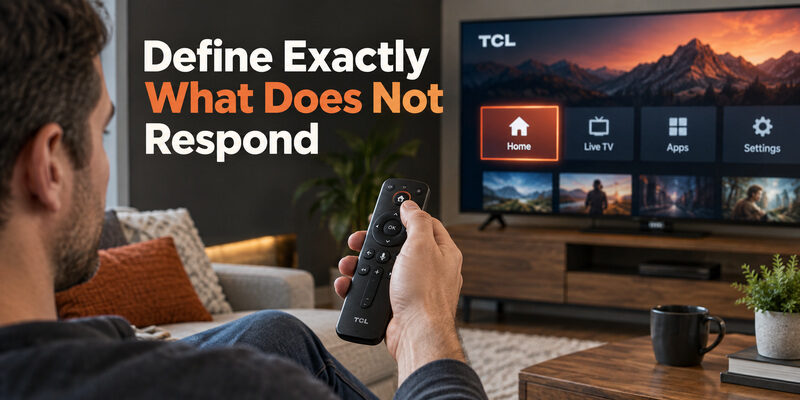
A TCL TV remote control not working description is too broad to choose a repair. Check Power, Home, a direction key, and Volume independently. Use the same screen and wait between commands so animation or startup delay does not obscure the result.
| Observed behavior | Likely area to investigate | Useful next check |
|---|---|---|
| No remote buttons work | Power or signal path | Fresh cells and clear aiming |
| Power works but voice fails | Voice connection or service | Pairing and assistant setup |
| Navigation works but volume fails | Audio routing or key function | Actual speaker output |
| Only one app reacts slowly | App or TV software | Compare with the home screen |
| Neither remote nor TV button works | TV power or system state | Power and startup diagnosis |
Make the result repeatable
When a TCL TV not responding to remote appears intermittent, try a single command three times with pauses. Note whether failure depends on distance, screen, or time since startup. “Home fails only just after switching on” is more useful than “sometimes it is broken.”
Change one variable per test. Replacing batteries, moving furniture, and resetting the TV together may restore control, but it leaves you unable to identify the cause. A short record matters most when the fault returns and someone else has to continue the investigation.
Clear the Infrared Path and Check the Receiver Area
Remove common obstructions
For an infrared handset, aim toward the TV’s receiver and test from a clear position. TCL’s Roku guidance specifically identifies objects in front of the television, including soundbars, as possible obstructions. Move a suspect object temporarily and repeat the same command.
If you are asking where is the remote sensor on TCL TV, consult the exact model’s diagram. The sensor may sit near the lower edge, but there is no single location to assume across the range. A TCL TV remote sensor not working cannot be diagnosed merely because a nearby status light stays unchanged.
Interpret a phone camera test carefully
A phone camera can sometimes show the infrared emitter flashing when a remote key is pressed. TCL notes that some cameras filter infrared, so absence of a visible flash is not conclusive. Compare with a known working infrared controller on the same camera when possible.
A visible flash proves emission, not correct commands. The handset could still be incompatible, programmed incorrectly, or aimed at a blocked receiver. For a TCL TV not responding to remote despite a visible flash, continue with compatibility and actual television response instead of declaring the receiver faulty.
Test again from the usual seat after clearing the path. A successful close-range check is only the first step; the remote needs to work where people normally watch.
Download TV Remote AppCheck Whether the Television Is Frozen or Showing the Wrong Source
Compare the home screen with the active input
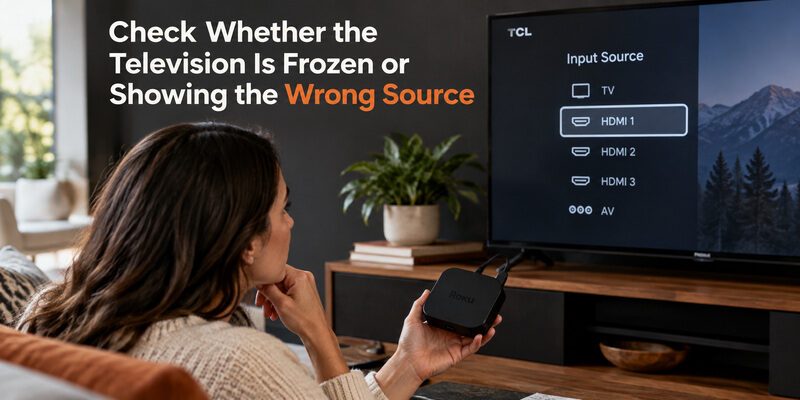
A TCL TV remote slow to respond inside one streaming app may behave normally on Home. If another controller can navigate, leave the app and repeat the same directional commands. A fault limited to one service deserves app-specific investigation.
Also distinguish the television interface from an attached cable box or streaming player. The remote may be controlling the TV while the visible HDMI device is waiting for its own controller. Select the intended device mode on a universal handset before retrying.
Restart the affected system once
Follow TCL’s restart instructions for your platform and symptom. Its Roku remote guide uses a power disconnection of at least 30 seconds; its broader no-power guidance uses a longer 60-second procedure. Use the relevant model guidance rather than combining every reset sequence you find.
A restart and a factory reset are different actions. A restart does not deliberately erase the television’s setup. A factory reset can remove accounts and network settings, leaving you without an easy way back if the remote still fails.
For a TCL TV not responding to remote after an external device was connected, isolate that change using the manufacturer’s power-off and disconnection guidance. Reconnect accessories individually if basic television control returns.
Restore a Google TV or Android TV Voice Connection
Pair the supported handset
TCL’s Google TV pairing instructions describe holding Home and OK together until the pairing process begins. Use that sequence for the supported TCL handset, keep it near the television, and wait for the on-screen confirmation.
A TCL TV remote not pairing should prompt a model check as well as a battery check. A remote that sends a basic Power command is not automatically the correct wireless accessory. Confirm compatibility before repeating the same button hold indefinitely.
Test the assistant separately
For a TCL TV remote mic not working, press and hold the microphone or assistant button as directed, speak clearly, and observe whether the assistant opens. If it opens but cannot provide results, investigate network, profile, or service settings rather than the physical key alone.
TCL’s assistant guidance distinguishes the microphone in the remote from a television’s optional hands-free microphones. A TV microphone switch does not identify the state of every remote microphone feature. Some models lack hands-free operation entirely.
If the TCL TV not responding to remote problem affects only Google Assistant, keep working navigation intact while checking that feature. Do not erase the entire TV configuration simply because one voice request fails.
Reconnect Roku and Fire TV Remotes With Their Own Procedures
Use the appropriate Roku voice method
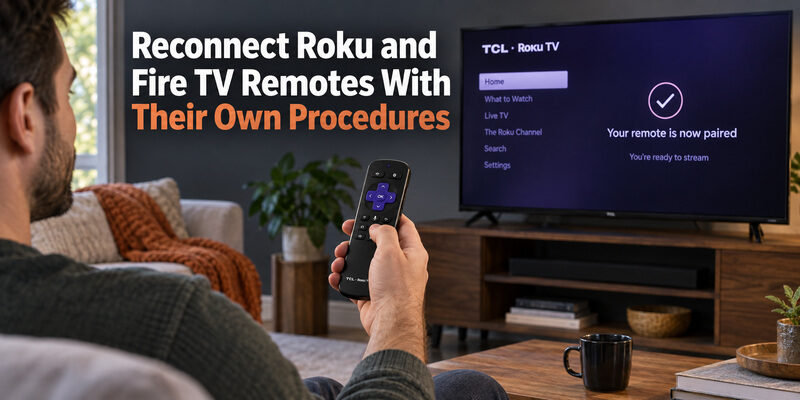
Roku voice controllers need a supported pairing connection. Depending on the model, pairing starts with a dedicated button or a documented button combination. Current Roku guidance describes holding the pairing button for about five seconds, or Back and Home on applicable buttonless voice models.
A simple infrared Roku TV handset normally does not use voice pairing. Confirm the remote family before searching the battery compartment for a button that may not exist. A flashing light indicates an attempt; wait for the television to confirm the connection.
Use the Fire TV setup sequence
TCL’s Fire TV setup guidance describes holding Home for about ten seconds when the remote does not pair automatically. Keep the supported controller near the TV and follow the setup screen, including any Play/Pause prompt after pairing.
Do not use a Google TV Home-and-OK procedure merely because the television carries the TCL brand. If the TCL TV not responding to remote has a Fire TV interface, follow the Fire TV accessory instructions and verify that the handset supports the television version.
Record which method succeeded. That note prevents another household member from repeating an unrelated reset sequence the next time the controller needs attention.
Isolate Power Volume and Individual Button Faults
Check the device that should receive the command
For a TCL TV remote power button not working while navigation works, test the power command from a clear position and compare it with the TV’s own button. Some controllers use different control paths for different functions, so partial success does not eliminate every signal issue.
For TCL TV remote volume not working, identify whether sound comes from the television, a soundbar, or a receiver. Watch the actual output device during the test. A changing on-screen number does not prove that the intended speaker volume changed.
Check physical key movement
Remove an accessory sleeve and inspect whether each key returns freely after release. TCL’s remote troubleshooting recommends checking for stuck or damaged buttons when only certain functions fail. Avoid spraying liquid into the handset or opening sealed parts as a first test.
One consistently failed key is different from complete loss of control. If a TCL TV not responding to remote complaint is actually one damaged key, describe that precisely to support or the replacement seller.
If menus continue scrolling after release, set aside other controllers and close active phone-remote sessions. You need to identify which device is sending commands before assigning the fault to the handset you happen to be holding.
Compare a Phone Remote With the Physical Handset
Use a second control path as evidence
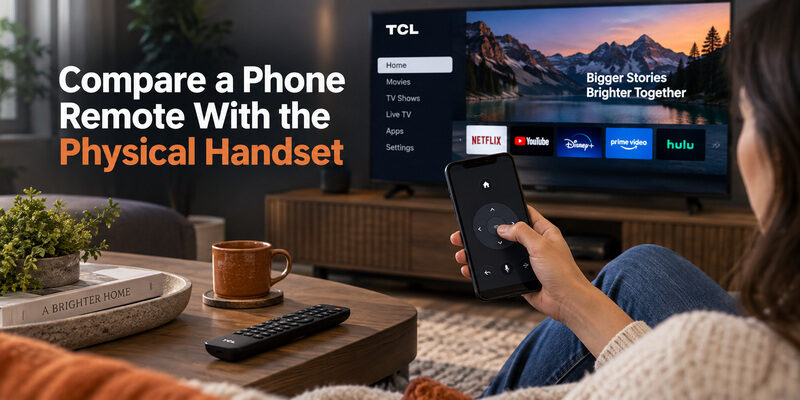
A compatible phone remote can help determine whether the TV still accepts commands. Select the correct app for the television platform, connect through the required network, and complete the device-selection or approval step.
For supported models, provides another control route while you investigate the physical handset. Test an actual command after discovery. A television appearing in a list does not by itself establish that the app can control it.
If a TCL TV not responding to remote works normally through the phone, focus next on the physical accessory’s power, signal, model match, or pairing. This is useful evidence, although it does not identify a single failed component by itself.
Recognize the limits of a failed app test
An app that cannot find the television may have a network or permission problem unrelated to the handset. Check that both devices can communicate on the required local network and that the app has the necessary access.
Do not interpret two failed control methods as proof of television hardware damage until their separate prerequisites are checked. A TV can have a flat-battery handset and an unrelated guest-network discovery problem at the same time.
For a TCL TV not responding to remote or buttons, with no usable phone control after those checks, collect power and startup observations for TCL support instead of buying another remote on speculation.
Evaluate a Fault That Comes and Goes
Compare startup with normal viewing
A TCL TV not responding to remote only during its first moments after startup needs a different observation from one that fails throughout a program. Wait for the home interface to finish loading, then compare the same command with its behavior later in the session.
Do not repeatedly press Power while waiting for a picture. A delayed response can make a second press reverse the first action, leaving the viewer unsure whether the television ever started. Use one deliberate command and observe the result. Record any logo, sound, or light change before trying again.
Compare locations without changing the setup
Try the normal viewing seat, a nearby clear position, and another seat using the same screen and key. A TCL TV not responding to remote only from one position may be sensitive to an obstruction or aiming angle. That observation is more useful than replacing the batteries repeatedly.
If the problem began after rearranging the room, restore the earlier arrangement temporarily where practical. Photograph the new position of a soundbar or ornament so support can understand what changed. Avoid moving a mounted television simply to carry out this comparison.
Keep an intermittent fault record short
For a TCL TV not responding to remote unpredictably, a useful note includes time since startup, the active app or input, the command, and whether a second controller worked. You do not need to log every successful key press; capture the pattern around the failure.
If a software update preceded the issue, record that timing without treating it as proof of cause. The same TCL TV not responding to remote symptom can have several explanations. A repeatable sequence helps support investigate the actual behavior instead of working from a guessed diagnosis.
Decide Whether to Replace the Remote or Contact TV Support
Gather evidence before spending money
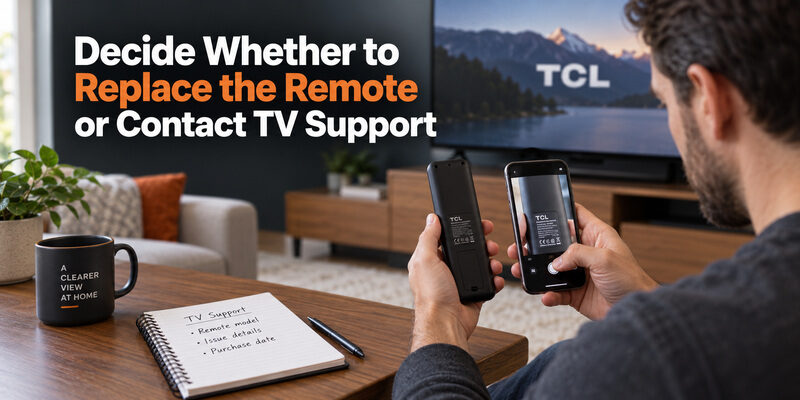
A TCL TV remote not working with new batteries may need replacement when the correct accessory remains unresponsive after relevant checks, especially if it is physically damaged. Confirm the full television model and platform before choosing another handset.
| Evidence | What to record | Who can use it |
|---|---|---|
| Remote identity | Model and clear button photo | Accessory seller or support |
| Television identity | Full model and built-in platform | TCL support |
| Failed commands | Exact keys and screen behavior | Either support route |
| Alternative control | Physical button and phone results | Helps narrow the fault |
| Recent change | New accessory, update, move, or spill | Helps reproduce the sequence |
Preserve the order of events. A problem that began after moving a soundbar should be described differently from one that followed a dropped remote.
Verify a replacement before discarding the original
Use the guide to compare the required functions and model support. A product labeled simply “for TCL” may not restore the platform-specific features you need.
When the replacement arrives, test the same commands and positions used during diagnosis. If the TCL TV not responding to remote shows identical behavior with a known-compatible replacement, revisit the TV and signal path rather than assuming a second accessory is defective.
Keep packaging and the compatibility statement until the essential functions pass. Do not promise yourself that a newer or more expensive handset will correct every underlying issue.
Before ending the investigation, ask another regular viewer to repeat the essential controls. A technically successful pairing can still leave the volume route or input selection confusing. Show which buttons operate the television and which belong to an external box.
If the TCL TV not responding to remote returns after the room is put back together, check the conditions changed during testing: the sleeve, seating position, connected equipment, and selected device mode. Preserve the last known working arrangement long enough to identify the difference instead of restarting every test from scratch.
For a TCL TV not responding to remote, stop repeating a test once its result is clear and move to the next relevant check.
Final Thoughts
Start a TCL TV not responding to remote investigation by separating handset power, command delivery, and television response. Fresh batteries and a physical-button test provide a useful starting point; platform-specific pairing and focused function checks provide the next steps.
Replace hardware only when the evidence supports that choice. A reliable phone backup, clear model details, and a short description of the failed commands make the remaining problem easier to resolve without unnecessary factory resets or repeated purchases.