
5 Best Free TCL Google TV Remote Apps to Control Your TV From Your Phone
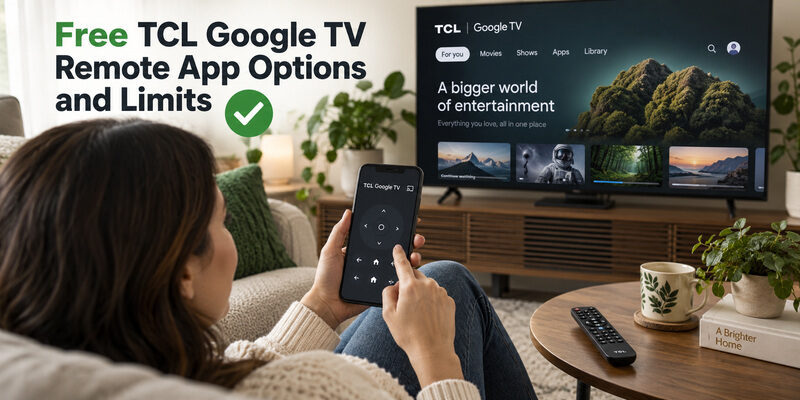
Quick Answer: If you need a free TCL Google TV remote app, start with the official Google TV app. It offers built-in remote controls for compatible Google TV and Android TV devices, including navigation, volume, media controls, text input, and pairing from your phone.
However, Google TV is not your only option. Apps such as Universal Remote TV Control by Begamob, Google Home, TCL Home, and MagiConnect can also be useful depending on whether you want a universal remote, smart-home integration, casting, or additional navigation options.
Here are the five options worth comparing.
Best Free TCL Google TV Remote Apps at a Glance
| App | Best For | iPhone | Android | Free Access |
|---|---|---|---|---|
| Google TV | Best official option | Yes | Yes | Yes |
| Universal Remote TV Control by Begamob | Best universal alternative | Yes | Check current availability | Free download, premium options |
| Google Home | Best for Google ecosystem | Yes | Yes | Yes |
| TCL Home | Best TCL ecosystem app | Yes | Yes | Yes / region dependent features |
| MagiConnect | Best for remote + casting | Varies | Yes | Free with ads / purchases |
Availability and feature limits can change by platform, region, TV model, and app version, so always check the current app-store listing before installing.
1. Google TV – Best Overall Free TCL Google TV Remote App
Best for: Most TCL Google TV owners
Price: Free
Developer: Google LLC
For most users, Google TV is the best place to start because it is Google’s official remote solution for compatible Google TV and Android TV devices.
Google’s support documentation confirms that the mobile app can control media playback, adjust volume, turn compatible TVs on or off, activate Google Assistant, navigate the interface, and enter text from the phone.
What you can do
Once your phone is paired with your TCL Google TV, you can use it for everyday functions such as:
- Navigate menus
- Select apps and content
- Control media playback
- Adjust volume
- Enter text using your phone keyboard
- Use Google Assistant where supported
- Turn supported devices on or off
The phone keyboard is particularly useful when signing into streaming services or searching for a long movie title.
How to connect Google TV to a TCL TV
The basic setup is simple:
- Connect your TCL Google TV and phone to the same Wi-Fi network.
- Open the Google TV app.
- Select TVs nearby or Connect TV.
- Choose your TCL television.
- Enter the pairing code displayed on the TV.
- Tap Pair.
Google documents this pairing process for supported Google TV and Android TV devices.
Pros
- Official Google solution
- No separate physical remote required
- Useful phone keyboard
- Voice features
- Simple pairing
- Good first option for troubleshooting a lost TCL remote
Cons
- Requires a compatible connected TV
- Both devices generally need access to the correct local network
- Some controls can vary by television model
- Users can occasionally experience connection or reconnection issues
Verdict
For most people searching for a free TCL Google TV remote app, this should be the first app to test.
Rating: 4.8/5
2. Universal Remote TV Control by Begamob – Best Universal Alternative
Best for: Homes with several TV brands
Price: Free download with optional in-app purchases
Developer: BEGAMOB GLOBAL LIMITED
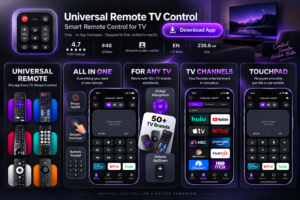
If you want more than a controller dedicated only to Google TV, Universal Remote TV Control by Begamob is a useful alternative.
The app is designed to turn an iPhone or iPad into a universal smart TV remote. Its App Store listing includes controls such as channel changes, volume adjustment, streaming-app access, and media casting. The current U.S. listing is free to download but includes in-app purchases and subscription options.
This makes it especially useful for households where a TCL Google TV is not the only television.
Why consider Remote TV App?
Instead of keeping separate phone apps for different televisions, a universal remote can provide a more consistent control experience.
Depending on the supported TV and connection method, common controls can include:
- Volume
- Navigation
- Home and Back
- Playback
- Channel control
- Streaming shortcuts
- Media casting
- Device discovery over Wi-Fi
Begamob’s own product information describes the app as supporting multiple television brands and smart-TV platforms rather than being limited to TCL alone.
Setup
For compatible TVs:
- Connect your phone and television to the same Wi-Fi network.
- Open Universal Remote TV Control.
- Let the app search for compatible TVs.
- Select your TCL television.
- Complete any connection request if required.
- Test Home, navigation and volume before relying on the app.
Where it stands out
The biggest advantage is multi-brand convenience.
If your home has, for example:
- TCL in the living room
- Samsung in the bedroom
- LG in another room
a universal remote app can be more practical than keeping a different manufacturer’s app for each television.
Pros
- Free to download
- Universal approach
- Suitable as a replacement when the physical remote is lost
- Easy phone-based interface
- Supports multiple smart TV brands
- Useful for multi-TV households
Cons
- Some features require premium access
- It should not be described as completely free
- Available functions depend on your TV model and platform
- Network control still requires a compatible connection
Verdict
Universal Remote TV Control is the strongest alternative in this list if you want one app for TCL and other TV brands rather than a Google-only controller.
Rating: 4.7/5
No remote nearby? Turn your phone into a TV remote and start controlling your supported TCL TV in minutes.
CTA: Download Remote TV App
3. Google Home – Best for Smart Home Users
Best for: Users already using Google Home, Nest or other Google smart-home products
Price: Free
Developer: Google LLC
Google Home is another strong TCL Google TV remote app free option, especially if your television is already part of your Google Home ecosystem.
TCL itself documents using Google Home on both iPhone/iPad and Android to control supported TCL Google TVs. Available functions can include menu navigation, Home and Back controls, volume adjustment and keyboard input.
What makes Google Home different?
Google TV focuses more directly on entertainment and the virtual remote.
Google Home is broader.
You can organize your TCL TV alongside:
- Google Nest speakers
- Chromecast devices
- Smart lights
- Cameras
- Other connected home devices
This makes it useful when you already control much of your home from Google Home.
How to use Google Home as a TCL remote
- Install or update Google Home.
- Connect the phone and TCL TV to the same Wi-Fi.
- Add the TV under Devices if necessary.
- Select your TCL Google TV.
- Tap Remote or Open remote.
- Test navigation and volume.
TCL also notes that some voice commands can be used for supported actions such as power, volume and app launching, although availability may depend on the service, account and region.
Pros
- Official Google ecosystem
- Free
- Works on iOS and Android
- Smart-home integration
- Supports remote and voice-related functions
- Convenient if Google Home is already installed
Cons
- More complex than a dedicated remote app
- Not every TV function is guaranteed
- Setup may require the same Google account and compatible network conditions
Verdict
Choose Google Home when your TCL Google TV is part of a larger smart-home setup.
If you only need a simple virtual remote, Google TV may still be faster.
Rating: 4.6/5
4. TCL Home – Best for TCL Device Owners
Best for: Users with several TCL products
Price: Free
Developer: TCL
TCL Home is worth considering because it is designed around TCL’s own connected-device ecosystem.
Its current store descriptions include smartphone TV control, keyboard input, voice control and media casting for supported TCL products.
More than a television remote
TCL Home can also manage other supported TCL products, such as:
- TVs
- Soundbars
- Air conditioners
- Air purifiers
- Robot vacuums
- Other TCL smart-home products
If you already own several TCL devices, this may be more useful than installing an app dedicated only to TV control.
Important compatibility note
TCL’s app-store description indicates that some smart-TV and casting functionality is restricted to supported models or selected countries.
That means you should not assume every TCL Google TV in every country supports every TCL Home feature.
Check:
TV model → region → TCL Home compatibility → available controls
before choosing it as your only remote.
Pros
- Developed for the TCL ecosystem
- Remote control functions
- Phone keyboard support
- Voice control where supported
- Media casting
- Useful for managing several TCL devices
Cons
- Feature availability can vary by region
- Not every TCL TV necessarily supports every function
- More smart-home focused than a dedicated remote interface
Verdict
TCL Home makes the most sense for someone who wants one TCL ecosystem app, rather than just a replacement for the physical remote.
Rating: 4.4/5
5. MagiConnect TCL Remote – Best for Remote Control and Casting
Best for: Users who frequently cast media from their phone
Price: Free to install; contains ads and in-app purchases
Developer: TCL Group
MagiConnect is another TCL-branded option that combines remote control with casting features.
Its Google Play listing describes multiple navigation styles, including directional-button, touch and mouse modes on supported devices. It also supports casting photos, videos, music and other media.
Key features
Depending on compatibility, MagiConnect can provide:
- Directional remote controls
- Touch navigation
- Mouse-style navigation on selected models
- Media casting
- Quick app launching
- Photo and video sharing
This makes the app more interesting if you regularly move content from your phone to the TV.
Free does not mean ad-free
MagiConnect’s current Google Play listing shows that the app contains both advertising and in-app purchases.
Therefore, it belongs in a list of apps that are free to install, but it should not be marketed as an entirely free premium experience.
Pros
- TCL-focused
- Free installation
- Several navigation modes
- Strong casting features
- Useful for local media
Cons
- Ads
- In-app purchases
- Some navigation modes work only on particular models
- Less streamlined if you only need basic TV controls
Verdict
Try MagiConnect if casting is nearly as important to you as the remote itself.
Rating: 4.2/5
Which Free TCL Google TV Remote App Is Best?
There is no single winner for every user.
Choose Google TV if:
You want the simplest official remote for your TCL Google TV.
Choose Universal Remote TV Control by Begamob if:
You want one phone remote that can also be useful with TVs from other brands.
Choose Google Home if:
Your TCL television is already integrated into Google’s smart-home ecosystem.
Choose TCL Home if:
You own several TCL products and prefer one TCL management app.
Choose MagiConnect if:
You frequently cast photos, videos or other content from your phone.
For most users, our recommended order is:
1. Google TV → 2. Remote TV App by Begamob → 3. Google Home → 4. TCL Home → 5. MagiConnect
How to Connect a Free Remote App to TCL Google TV
Most network-based remote apps follow roughly the same setup process.
Step 1: Connect both devices to Wi-Fi
Your TCL Google TV and smartphone should normally be connected to the same local Wi-Fi network.
Avoid guest networks because they may prevent devices from communicating with each other.
Step 2: Open your chosen remote app
Launch Google TV, Google Home, Remote TV App or another compatible application.
Step 3: Select your TCL TV
Wait for the television to appear in the device list.
Step 4: Complete pairing
Some apps display a pairing code on the television.
Enter the code on your phone when requested.
Step 5: Test the important buttons
Before relying on your phone, test:
- Navigation
- OK/Select
- Home
- Back
- Volume
- Playback
- Keyboard
- Power, if supported
A TV appearing in the device list does not necessarily mean every control is available.
What If the TCL Google TV Remote App Cannot Find Your TV?
Before deleting the app or paying for another one, check the connection.
First confirm that:
- Your TCL TV actually runs Google TV or Android TV.
- The TV is switched on and connected.
- Phone and television use the same Wi-Fi.
- Local-network or nearby-device permissions are enabled.
- The TV is not isolated on a guest Wi-Fi network.
For Google’s virtual remote, Google specifically recommends checking the Wi-Fi connection when pairing fails.
If one remote app works while another cannot discover the TV, the problem may be compatibility, permissions or implementation rather than the television itself.
Free TCL Google TV Remote App FAQs
Is there a completely free remote app for TCL Google TV?
The official Google TV app is the best starting point and provides virtual remote functionality for compatible Google TV and Android TV devices.
Other apps may be free to install while offering optional subscriptions, advertising or premium features.
Can I use my iPhone as a TCL Google TV remote?
Yes. Supported TCL Google TVs can be controlled from an iPhone using compatible apps such as Google Home, and other remote apps are also available for iOS. TCL provides official instructions for controlling TCL Google TV through Google Home on iPhone and iPad.
Can Android control TCL Google TV?
Yes. Google’s Google TV app supports using an Android phone as a virtual remote for compatible Google TV and Android TV devices.
Can I use a TCL remote app if the physical remote battery is dead?
Yes, provided the television is already connected to the required network and can be discovered by the app.
A phone remote is particularly useful while you replace the batteries or find the original controller.
Does a TCL Google TV remote app work without Wi-Fi?
Many smartphone remote apps communicate with smart TVs over the local network, so Wi-Fi or another supported network connection is normally required.
Paying for an app does not remove the underlying connection requirement.
What is the best alternative to the Google TV app?
If you want a remote that is not limited to Google’s ecosystem, Universal Remote TV Control by Begamob is a useful alternative for supported televisions. Its App Store listing is free to download with optional in-app purchases.
Final Thoughts
The best free TCL Google TV remote app depends on what you want your phone to replace.
For straightforward TCL Google TV control, Google TV is the safest first choice because it is Google’s official solution. Google Home is better for smart-home integration, while TCL Home and MagiConnect are useful for people who prefer TCL-focused tools.
For households with several television brands, Universal Remote TV Control by Begamob offers a more universal approach and can turn your smartphone into a convenient backup when your physical remote is lost, damaged, or out of battery.
Want one phone remote for more than just your TCL TV? Try Remote TV App and control supported TVs directly from your smartphone.
