TCL Google TV Remote App: Setup and Controls Guide
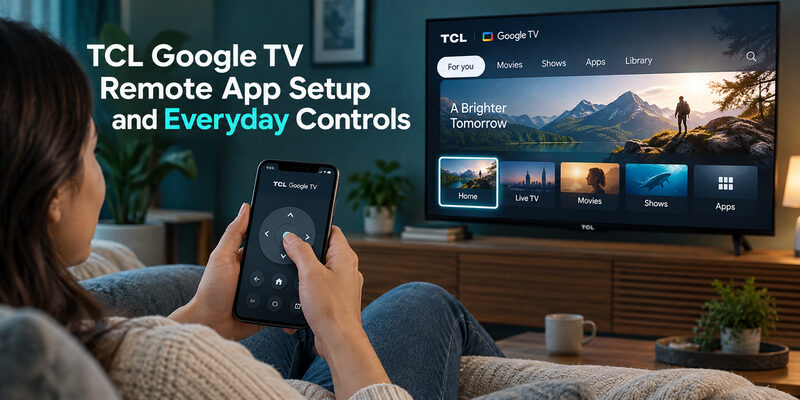
Short answer: Use the Google TV app’s built-in remote to control a supported TCL Google TV.
The official app is a practical starting point when the physical handset is missing, its batteries are empty, or typing with directional buttons feels slow. A TCL Google TV remote app connects to the television through the required local network and pairs with the code displayed on your screen. It does not use the numeric programming codes intended for infrared universal remotes.
Identify the television’s built-in platform first, then follow the phone-specific connection steps below. This guide covers both Android and iPhone, explains which controls to test, and separates a missing TV from a failed pairing or unavailable feature.
Choose Your TCL Google TV Remote App
Google’s official app description includes a built-in remote for Google TV and Android TV devices. Its support instructions explain device selection and on-screen code pairing. Start there before comparing third-party products that may use similar names or charge for additional features.
A TCL logo alone is not the compatibility test. A TCL Roku TV or TCL Fire TV uses a different platform. This article’s TCL Google TV remote app instructions apply to a television running Google TV, rather than every television sold under the TCL name.
If a streaming player is connected through HDMI, identify whether you want to control that player or the TV itself. Selecting an external Google TV device can navigate its interface without necessarily providing every television control.
Prepare the Television and Phone
Confirm the network and screen access
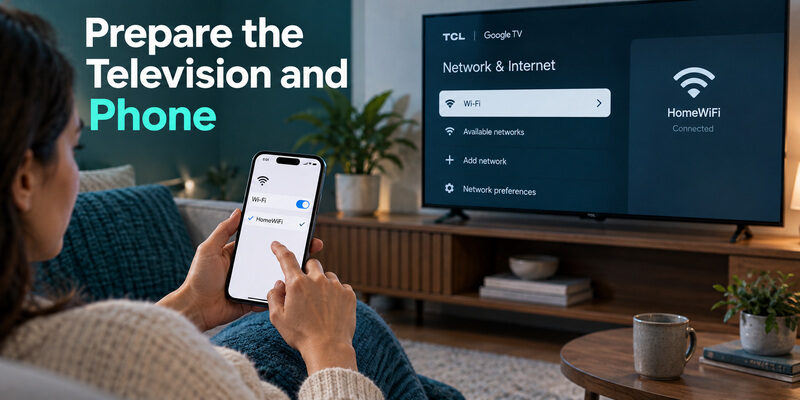
Turn on the television and let its home screen finish loading. Connect the phone and TV to the same Wi-Fi network as required by Google’s virtual-remote guidance. Keep the television visible so you can read the pairing code when it appears.
A TCL Google TV remote app cannot complete code pairing if nobody can see the television’s prompt. For a wall-mounted set, there is usually no reason to move the TV just to perform this step; use the screen and the existing settings access.
Check the installed app identity
Use the Google TV app published by Google, checking the developer identity in your phone’s app store. Google’s own mobile-app page provides the official download routes. Avoid treating a search result containing the words “Google TV remote” as proof that Google published it.
Install the phone app on the phone. You are not replacing the television’s operating system or installing remote-control firmware. A remote app for TCL Google TV is a controller for a supported TV, with its own setup requirements and limits.
A Google TCL TV remote search can also surface unrelated streaming-player controllers, so verify the app publisher before installing.
Have the physical handset available during first setup if it still works. It is useful for network changes and any on-screen settings you need to inspect before the phone connection is established.
Connect From an Android Phone
Select the TV and pair with its code
Google’s Android TV Help describes the following starting sequence in the Google TV app. Button labels can move between app versions, but the essential steps remain device selection, a television-displayed code, and confirmation.
- Open the remote connection: Tap the app’s Connect TV or remote option.
- Choose the correct television: Select the intended TCL set from the discovered devices.
- Read the screen code: Enter the code currently displayed on that television.
- Finish pairing: Tap Pair and wait for the controls to become available.
For a TCL Google TV remote app, use the code from your own pairing session. A number copied from a tutorial cannot substitute for the television’s current prompt.
Confirm the selected screen responds
Press Home or one direction key once, then watch the television. If you have several similar devices, confirm that the correct room’s screen responds before continuing. Rename devices where supported so future selection is less ambiguous.
If the app reports a connection but nothing changes, note whether the television displayed a pairing confirmation. A discovered device and a completed control connection are different stages. Repeatedly entering new codes is not the right response to every unavailable command.
Once the TCL Google TV remote app works, close it and reopen it once. This simple recovery check shows whether the saved device is easy to reach on the next viewing session.
Connect From an iPhone or iPad
Use the iOS device selector
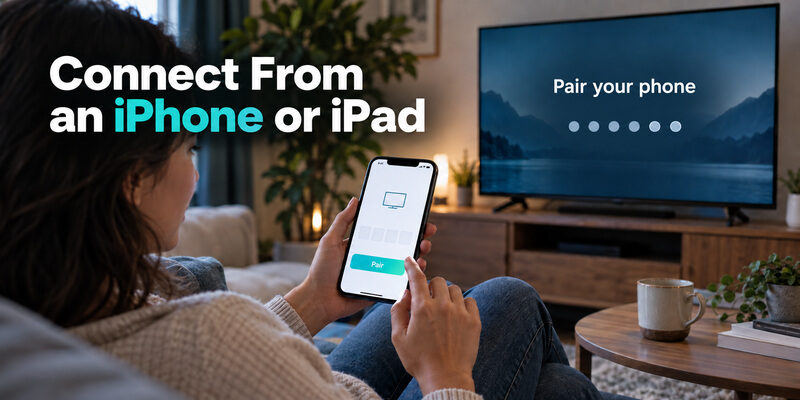
Google’s iPhone and iPad instructions describe opening Google TV, tapping TVs nearby near the bottom right, selecting the device, entering the code shown on the television, and tapping Pair. Follow the labels in your installed version if the layout has changed.
Keep the phone on the required network throughout this process. Moving from home Wi-Fi to mobile data while troubleshooting can change the connection conditions and make the same TV appear to vanish.
A TCL Google TV remote app on iPhone should be tested against the same actual television functions as its Android counterpart. Do not assume every screen, shortcut, or gesture is arranged identically across the two phone platforms.
Review local access if discovery fails
If iOS asks for local-network access, review that permission in the context of finding your television. A denied local connection can prevent a remote app from seeing nearby devices even while the phone can browse the internet.
Internet access and local device access are different checks. Verify the required network and app permission before reinstalling. If another phone works, compare its connection conditions rather than immediately changing settings on the television.
Keep account and app-store region requirements separate from the pairing code. A television approval prompt is not asking you to disclose an account password to another person or paste credentials into an unrelated website.
Learn the Controls Through a Normal Viewing Session
Navigate and type where text is accepted
Use the directional pad to highlight an item and the confirmation control to select it. Open a familiar app, return with Back, and use Home to leave the app completely. These tests establish basic navigation before you explore less familiar features.
Google’s app description highlights phone-keyboard input for searches and other text fields. In a TCL Google TV remote app, open a real text field on the television before expecting typing to appear. A phone keyboard shown while the TV is on an ordinary menu is not proof of failed text entry.
Check sound and source changes separately
Test Volume and Mute while observing the device actually producing sound. A soundbar or receiver can make volume behavior different from a setup that uses the TV’s own speakers. Do not assume successful navigation proves every audio route is configured.
Judge each function by the result on the television. For TCL Google TV remote buttons explained in everyday terms, Home returns to the platform interface, Back usually leaves the current screen, and directional controls move the highlighted selection. Exact behavior inside an app can still depend on that app.
The TCL Google TV remote app is most useful when the controls you need are easy to repeat, not when its interface merely resembles the original handset.
Separate Phone Control From Casting and Voice
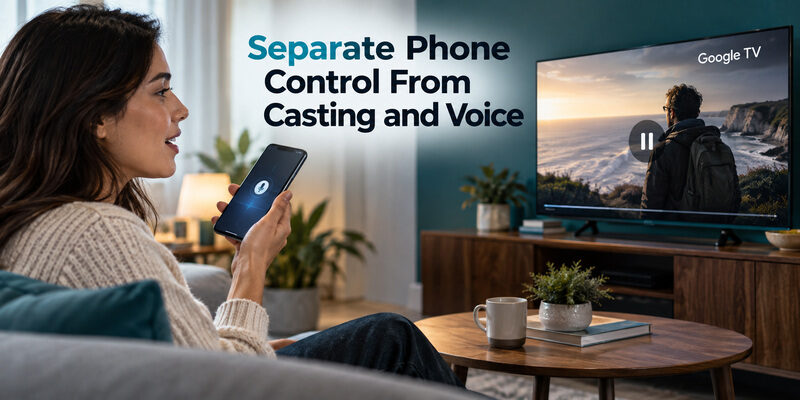
Understand what is being controlled
Casting starts supported media playback on the selected device; a virtual remote navigates its interface. The same app may offer both functions, but connecting a video stream does not establish that every remote button is available for every target.
If a movie plays on an external streaming device, confirm whether volume and power commands refer to the television or that player’s configured controls. This distinction matters when a TCL Google TV remote app seems able to play content but cannot change a TV input.
Test voice according to the available feature
Voice behavior depends on the app, television, account, region, and supported assistant features. Do not assume that a microphone icon guarantees the same experience as the physical TCL handset or a television’s hands-free microphones.
Phone microphones and TV microphones are separate inputs. Grant a microphone permission when you choose to use a feature that needs it, and test one simple supported request. If navigation works but voice does not, investigate voice setup rather than removing a functioning remote connection.
For a TCL Google TV remote not working on the physical handset, phone control can provide a useful temporary route. It does not prove the handset’s own microphone or wireless pairing has been repaired.
Troubleshoot Discovery Pairing and Commands in Order
Identify the failed stage
A TCL Google TV remote app failure becomes easier to investigate when you separate three stages: finding the TV, completing its code pairing, and performing a command. Record the last successful stage before changing settings.
| Failure stage | First checks | Avoid assuming |
|---|---|---|
| TV does not appear | Power, platform, required network, local access | That a subscription will make it discoverable |
| TV appears but pairing fails | Current on-screen code and selected device | That a universal remote code applies |
| Paired but one function fails | Feature support and TV configuration | That all connectivity is broken |
| Works once then disappears | Reconnection conditions and TV standby state | That the app must be reinstalled every time |
Restart only after checking the connection
Google’s virtual-remote troubleshooting recommends checking the shared Wi-Fi connection and restarting the Google TV device when needed. Follow the television manufacturer’s restart guidance where it differs, then repeat pairing only if the saved connection no longer works.
Keep the working parts of the setup intact. If the directional pad responds, record that before investigating Volume or a particular app. A TCL Google TV remote app that fails only in one text field may be encountering that field’s input behavior rather than a network fault.
If discovery fails on one phone but succeeds on another, compare network and permission settings. Do not reset the television while the evidence still points to one phone’s configuration.
Know What Happens Without the Original Remote
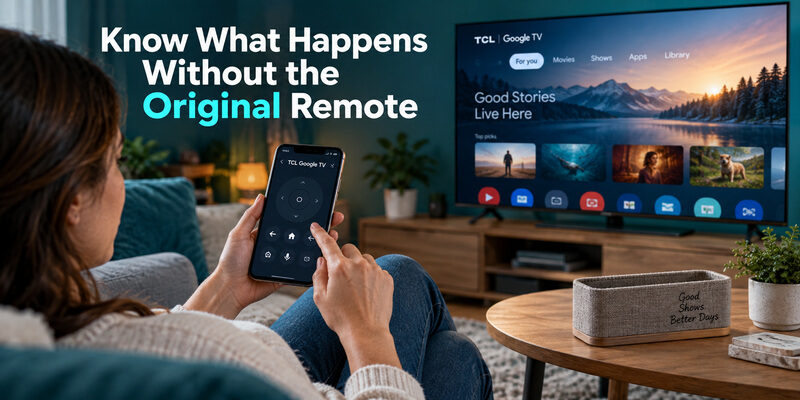
Use the phone while the TV is already configured
The answer to how to use TCL Google TV without remote depends on the television’s current state. A connected, configured set is a much easier case than a new or reset TV waiting for its first network setup.
A TCL Google TV remote app may restore normal navigation when the physical handset is lost, provided the phone can establish the required connection. Complete that setup before replacing the router or deliberately removing the TV from its network.
Preserve a route through initial setup
A TCL Google TV factory reset without remote can leave you facing setup screens that the existing phone connection can no longer reach. Do not use factory reset as a casual way to solve a missing handset or a single failed button.
Have a supported setup control available before resetting. The physical TV button may provide power and limited options, but its capabilities vary by model. Check the manual rather than assuming it can navigate every account or network screen.
For a TV that is no longer reachable, an appropriate physical replacement may be the practical next step. A downloaded app does not itself restore the television’s Wi-Fi credentials or create an infrared transmitter in the phone.
Manage More Than One Phone or Television
Give each screen a recognizable identity
If two televisions appear with similar names, verify the intended room before sending commands. A family member may have selected a nearby streaming box rather than the built-in TV platform. Rename the target where supported and test that the visible screen responds.
A TCL Google TV remote app should make device selection predictable. Keep a short note of which name belongs to each room, particularly after moving a television or adding another player. This prevents an apparent failure that is simply a command reaching the wrong device.
Pair each phone through its own setup
Do not assume that a second phone inherits the first phone’s connection. Complete the normal device-selection and code process on that phone, with the television visible. Check its local permissions separately if discovery behaves differently.
A working connection on one phone is a useful comparison. Preserve it while setting up another device so you still have a control route if the new setup fails. Avoid changing the television’s network settings merely to troubleshoot a single phone.
Verify the handoff to another viewer
Ask the next viewer to open Home, select a service, enter a short search, and change the sound. Their result can reveal a confusing device name or control layout that the person who configured it no longer notices.
When a TCL Google TV remote app is used as a shared backup, an understandable routine matters as much as the initial pairing. Keep the explanation focused on the actual controls the household uses.
Consider an Alternative App for a Specific Need
| Option | Connection basis | Best reason to consider it |
|---|---|---|
| Google TV app | Supported Google or Android TV on the required network | Official phone-remote starting point |
| Physical TCL handset | Model-dependent infrared or wireless control | Initial setup and dependable direct access |
| Compatible third-party app | Its stated TV support and network requirements | Alternative layout or supported extra functions |
Compare the function that matters to you
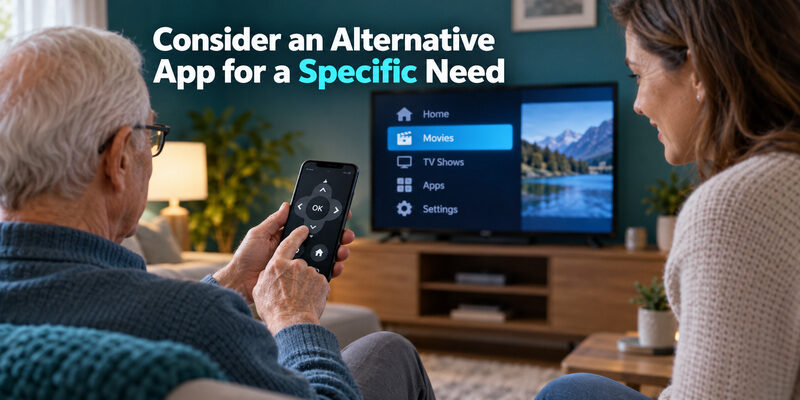
The official app is a useful baseline. Consider another TCL Google TV remote app when it clearly supports your model and offers a layout or control you actually need. Check current pricing and compatibility before accepting a trial or subscription.
offers phone control for supported models while a physical remote is unavailable. Test the essential functions after setup and keep the successful connection details. A different app is an alternative control route, not a guaranteed fix for an offline TV.
Keep an easy backup routine
Save the television’s recognizable name and make sure another regular viewer can reconnect without your help. A TCL Google TV remote app is a useful household backup only if the person who needs it can find and operate the correct device.
Use the guide to evaluate free access and paid-feature limits separately. The guide covers restoring a physical handset’s connection when that is the remaining problem.
Questions Before You Rely on Phone Control
Is there a remote app for TCL Google TV?
Yes. Google TV includes a built-in remote for supported Google TV and Android TV devices. Identify the television platform, use the official publisher’s app, and complete the on-screen pairing process before expecting navigation to work.
Can the app replace every physical button?
Not necessarily. Available controls depend on the device and configuration. Test the functions you use, especially volume, input changes, and standby recovery. Keep a physical control route for tasks the phone cannot perform reliably on your particular setup.
Does pairing require a universal remote code?
No. The TCL Google TV remote app uses the code displayed by the television during its own pairing process. Universal remote codes belong to a different programming system and cannot replace that temporary on-screen code.
Should I reset the TV if the app cannot find it?
No, not as the first step. Check the TV platform, power state, required network, and phone permissions. Resetting can erase the setup that makes phone control possible and leave you needing a compatible physical controller.
Final Thoughts
Start with the official Google TV remote, select the correct television, and pair using the code on its screen. A TCL Google TV remote app becomes a dependable tool after you verify navigation, typing, sound, and reconnection in ordinary use.
Set up the backup before the physical handset fails completely. Keep the TV reachable, preserve its model details, and investigate discovery, pairing, and feature problems as separate stages instead of repeatedly resetting the whole setup.
Control Your TCL Google TV From Your Phone
If you want a faster backup when your physical remote is missing, out of battery, or not responding, try the Remote TV App by Begamob. It turns your smartphone into a convenient remote for supported TCL Google TVs, so you can keep controlling your TV without waiting for a replacement remote.
With the app, you can access everyday controls such as navigation, Home, Back, volume, playback, and app selection directly from your phone. In most cases, setup is simple: connect your phone and TCL Google TV to the same Wi-Fi network, open the app, select your TV, and complete any pairing request shown on the screen.
Why use the Remote TV App?
- Quick setup for supported TCL Google TVs
- Convenient phone-based control
- Useful when the physical remote is lost or out of battery
- Easy access to common TV functions
- A practical backup remote for everyday use
No remote nearby? Use your phone instead.