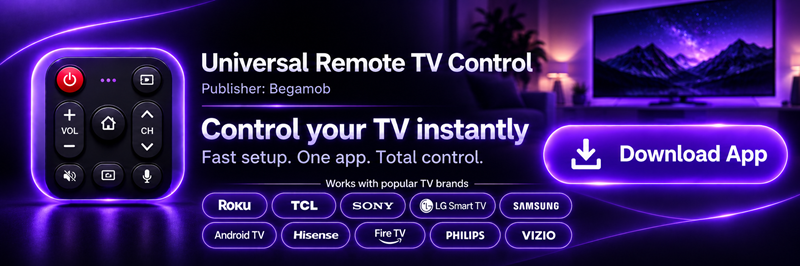
Google TV Remote Not Working? 15 Fixes for Pairing, Volume, Buttons, Voice, and Power
By the Remote TV App Team
Last updated: September 2026
Quick answer: If your Google TV remote is not working, replace or reseat the batteries, restart the TV or streaming device, and then re-pair the remote.
Most failures come from battery power, a lost Bluetooth connection, incorrect IR/CEC configuration, or a temporary Google TV software state rather than a permanently damaged remote.
For a Chromecast Voice Remote, Google recommends checking for the remote LED, trying two fresh 1.5-volt AAA batteries, restarting the streaming device, and re-pairing or resetting the remote if necessary. Google also separates Bluetooth navigation problems from IR-controlled functions such as TV power and volume.
So if your first thought is “my google tv remote is not working”, don’t immediately buy a replacement. Work through the checks below in order. Most take only a few minutes and also help identify whether the fault is in the remote, TV, streaming device, Bluetooth connection, or IR configuration.
1. Google TV Remote Not Working? Try These Fixes First
When google tv remote not working suddenly becomes a problem, start with the simplest fixes before resetting anything.
Try these in order:
- Remove both remote batteries for 30 seconds.
- Reinstall them with the correct polarity.
- If possible, install a completely fresh matching pair.
- Move within a few feet of the TV or Google TV device.
- Restart the television or streaming device.
- Try the remote again.
- If navigation still fails, re-pair the remote.
- If only volume or power fails, troubleshoot IR/CEC instead of Bluetooth.
This sequence matters because different symptoms point to different connections.
| Symptom | Likely cause | Best first fix |
| Nothing works | Battery, pairing, hardware | Batteries → restart → pair |
| Navigation fails | Bluetooth connection | Re-pair remote |
| Volume/power fails | IR or CEC setup | Reconfigure remote buttons |
| Voice fails | Bluetooth, battery, microphone | Batteries → re-pair |
| Phone remote fails | Network issue | Same Wi-Fi + restart |
| Works intermittently | Weak battery/interference | Fresh batteries + reconnect |
A google tv remote stopped working after previously working normally often needs a restart or Bluetooth reconnection rather than a factory reset.
Do not factory-reset the entire TV first. That should be close to the end of the troubleshooting process because it can erase accounts, apps, preferences, and device setup.
Download TV Remote App📖 Read More Guides: Google Remote TV: Complete Guide to Apps, Pairing, Fixes, Phone Control, and Replacement
2. Check the Batteries and Remote LED
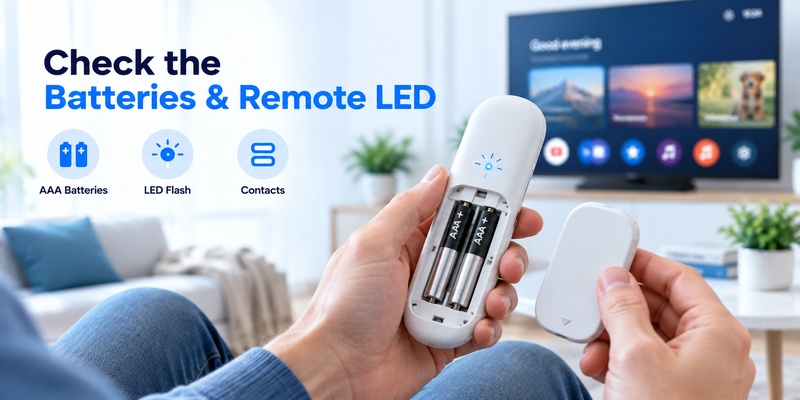
Battery problems are deceptively common because a remote does not always fail all at once.
It may have enough power to flash an LED or send an occasional command but not enough to maintain a reliable Bluetooth connection. That can make the google tv remote not working problem look like a software bug.
For Chromecast and Google TV Streamer voice remotes, Google specifically recommends trying two fresh 1.5V AAA batteries. Google also instructs users to watch the remote’s LED after reinserting the batteries; under its troubleshooting procedure, the LED should flash twice.
If you have google tv remote not working with new batteries, check these details:
- Confirm both batteries are facing the correct direction.
- Do not mix an old battery with a new one.
- Try a second known-good pair.
- Check battery contacts for dirt or corrosion.
- Remove both batteries and wait several minutes before reinserting them.
Google’s current Chromecast Voice Remote troubleshooting process includes removing both batteries and waiting five minutes before installing them again if earlier battery checks fail.
What if the LED does not light?
No LED activity after fresh batteries can indicate:
- poor battery contact;
- damaged battery terminals;
- internal remote failure;
- a faulty button or circuit.
If the remote was recently dropped, exposed to liquid, or developed sticky buttons, hardware damage becomes more likely.
At that point, trying to repair google tv remote hardware may make sense only if the issue is obvious and minor, such as dirty contacts. Avoid dismantling the device unless you know what you are doing.
💡 Discover Helpful Guides: How to Pair and Reconnect a Google TV Remote
3. Restart Your Google TV and Remote
A restart is one of the highest-value fixes when google tv remote not working appears without an obvious hardware cause.
If the remote still allows navigation, you can usually restart Google TV through its system settings. Menu wording can vary slightly by manufacturer and software version.
If you’re searching how to restart google tv with remote, the typical route is:
Settings → System → Restart
If the remote is completely dead, perform a power cycle instead.
- Unplug the television, Chromecast, or Google TV Streamer from power.
- Wait at least 10 seconds.
- Reconnect power.
- Allow Google TV to boot completely.
- Test the remote.
Google’s virtual-remote troubleshooting documentation also recommends unplugging a Google TV device, waiting 10 seconds, reconnecting it, and then setting up the remote again.
For repeated Bluetooth drops on Google’s streaming hardware, Google’s Voice Remote guide goes further and recommends disconnecting the streaming device from power for one minute before reconnecting it.
This is particularly useful when the google tv remote not responding problem appears after waking the television from standby or after an update.
💡 Discover Helpful Guides: Google TV Remote Not Working? 15 Fixes for Pairing, Volume, Buttons, Voice, and Power
4. Fix a Google TV Remote That Won’t Pair
A google tv remote not pairing issue usually means the TV or streaming device is no longer recognizing the Bluetooth connection.
That can explain why some commands work while navigation or voice does not.
For Google’s Chromecast Voice Remote, the official pairing procedure after a reset is to press and hold:
Back + Home for about 3 seconds.
Google also recommends using a phone as a temporary virtual remote when necessary so you can open Settings → Remotes & Accessories and initiate pairing from the TV interface.
If your google tv remote won’t pair, follow this sequence:
Step 1: Restart both devices
Power-cycle Google TV first, then remove and reinstall the remote batteries.
Step 2: Move close to the device
Try pairing from roughly 1 meter / 3 feet away rather than from across the room.
Step 3: Enter pairing mode
On Chromecast Voice Remote models, hold Back + Home.
Manufacturer remotes may use another combination.
Step 4: Remove an old pairing entry
Using a phone remote if necessary, open:
Settings → Remotes & Accessories
Select the old remote entry and remove or forget it, then pair again.
A persistent google tv remote not connecting problem after these steps may indicate a remote firmware issue, Bluetooth interference, or hardware failure.
🗺️ Browse How-To Guides: Google TV Remote Battery: Type, Life, Drain and Replacement Guide
5. Stop a Google TV Remote From Disconnecting
If your google tv remote keeps disconnecting, focus on Bluetooth rather than IR.
Google’s own troubleshooting documentation recognizes a condition where the remote LED operates but the remote cannot control the Google TV interface. The recommended sequence includes reseating the batteries, restarting the streaming device, and resetting the Voice Remote.
So why does my google tv remote keep disconnecting?
Common reasons include:
- weak batteries;
- temporary Bluetooth failures;
- interference near the streaming device;
- unstable remote firmware;
- the streaming device itself needing a restart.
Google also suggests moving the Wi-Fi access point away from the streaming hardware when a Voice Remote responds slowly and repositioning the streaming device to reduce interference.
If your google tv remote disconnected repeatedly:
First: install fresh batteries.
Second: restart the Google TV device.
Third: forget and re-pair the remote.
Fourth: reset the remote if reconnection remains unstable.
Don’t immediately reset the entire television. A remote-specific reset is much less disruptive.
🗺️ Browse How-To Guides: Google TV Remote Not Working Light On: LED Meanings and Fast Fixes
6. Fix Google TV Remote Volume Problems
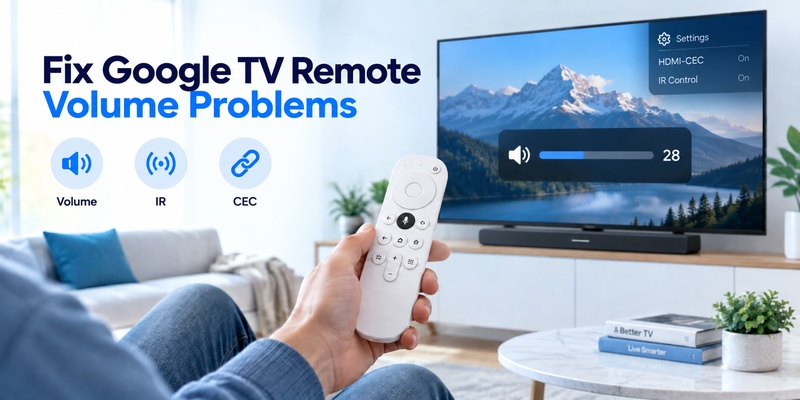
The google tv remote volume not working problem is different from a remote that cannot navigate Google TV.
If navigation works but volume doesn’t, your Bluetooth connection may be perfectly healthy. The failure is more likely related to IR, HDMI-CEC, or the configured audio device.
Google’s documentation specifically says that if a Voice Remote can navigate but cannot control power or volume, an IR configuration problem is likely. Google recommends checking:
Settings → Remotes & Accessories → Set up remote buttons
and reconfiguring Volume, Power, or Input for the correct television or audio device.
For the Google TV virtual remote, Google’s current guidance also says to check:
Settings → Remotes & Accessories → Set up remote buttons → Volume control
and confirm Auto (CEC) where appropriate.
So if you have google tv remote not controlling volume or volume not working on google tv remote, check:
- Is the correct TV brand/device configured?
- Is volume assigned to the TV, soundbar, or receiver?
- Is HDMI-CEC enabled?
- Does IR have a clear line of sight?
- Does another TV remote successfully change volume?
A google tv remote volume button not working while every other button works is therefore not strong evidence that the entire remote is defective.
Reconfigure volume control before replacing it.
7. Fix Power and IR Control Problems
A google tv remote not turning on tv problem often belongs to the same family as volume failures.
Google TV navigation generally relies on the connection to the Google TV device, while TV power, input, and volume may depend on IR or CEC depending on your configuration.
That’s why you may encounter strange combinations such as:
- google tv remote only volume works
- google tv remote only power button works
- navigation works but power doesn’t;
- voice works but TV volume doesn’t.
When google tv remote ir not working is suspected, first make sure nothing blocks the TV’s IR receiver.
Soundbars are surprisingly common culprits because they are often placed directly in front of the television’s lower bezel, where an IR sensor may be located.
Test the IR signal with a phone camera
TCL’s official remote troubleshooting guide recommends using a smartphone or digital camera to check for IR transmission.
Point the remote tip toward the camera, press Power, and look through the camera display for a flashing light. TCL notes that some phone cameras filter infrared light, so the test may work better with another camera or in a darker environment.
If you see IR light, the remote is probably transmitting.
If you see nothing even with fresh batteries, the IR hardware may be faulty.
When google tv remote power button not working, also rerun the TV/device configuration under Set up remote buttons before assuming physical damage.
💡 Discover Helpful Guides: How to Control Google TV With Phone on Android and iPhone
8. What to Do When Only Some Remote Buttons Work
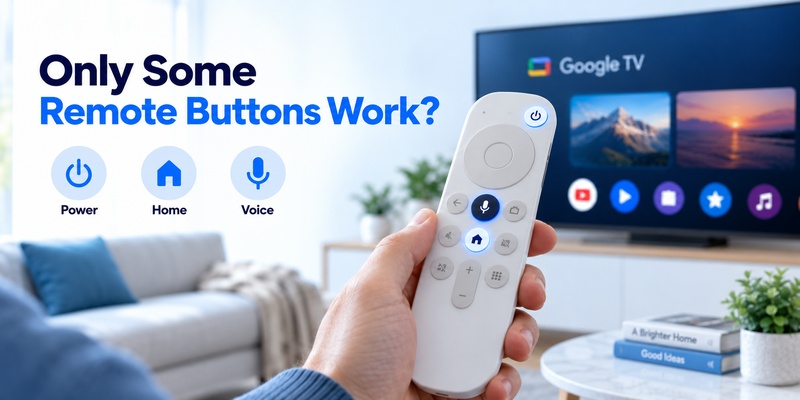
A google tv remote buttons not working issue is easier to diagnose when you identify exactly which buttons fail.
If navigation, Back, and Home work but Volume and Power do not, investigate IR/CEC.
If Power works but directional buttons do not, investigate pairing.
If every button except Assistant works, investigate Bluetooth pairing and voice configuration.
| Working buttons | Broken buttons | Most likely area |
| Navigation | Volume/Power | IR/CEC configuration |
| Power only | Navigation/Home | Bluetooth pairing |
| Navigation/Power | Voice | Bluetooth/microphone |
| Only a few buttons | Individual keys | Physical button wear |
| None | Everything | Battery/pairing/hardware |
With google tv remote some buttons not working, press each failed button several times while checking whether it feels physically different.
A sticky, sunken, or inconsistent key suggests mechanical wear rather than software.
On the other hand, multiple functionally related buttons failing together often suggests configuration.
For example, Power + Volume + Input all failing while Google TV navigation remains perfect strongly suggests the TV-control configuration rather than three physical buttons failing simultaneously.
🗺️ Browse How-To Guides: How to Connect Google TV to WiFi Without Remote: 5 Working Methods
9. Fix Google TV Remote Voice and Microphone Problems
A google tv remote microphone not working issue does not always mean the microphone itself has failed.
Voice functionality generally depends on Bluetooth connectivity, sufficient battery power, internet access, software services, and microphone operation.
TCL’s current Google Assistant troubleshooting documentation notes an important practical detail: weak batteries may still allow basic remote functions while making the Bluetooth connection required for voice control unreliable.
So when google tv remote voice not working, try this order:
- Replace the batteries.
- Restart Google TV.
- Re-pair the remote.
- Verify internet connectivity.
- Test voice again from the Google TV home screen.
- Check whether ordinary buttons remain responsive.
Google’s Android TV guidance says users with a microphone-equipped remote can press the voice-search button and speak into the remote to initiate search.
If google tv remote voice search not working but navigation is normal, pairing is one of the first things worth checking.
If voice consistently fails after fresh batteries and re-pairing while all other Bluetooth features remain reliable, microphone hardware failure becomes more plausible.
📘 Find the Right Guide: Google TV Remote Finder: How to Find a Lost Remote
10. Fix the Google TV App Remote
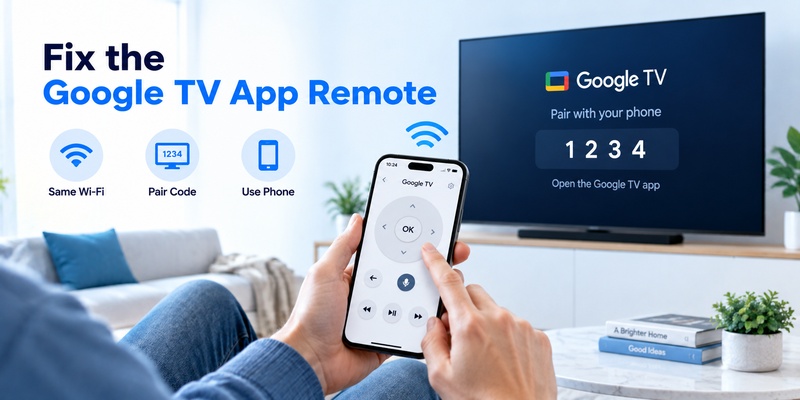
Sometimes the physical remote is fine and the real problem is google tv app remote not working.
The virtual remote has a different dependency: network connectivity.
Google states that the phone and Google TV/Android TV device need to be connected to the same Wi-Fi network for this setup. The pairing process involves selecting the TV and entering the code shown on the television screen.
If your google tv remote app not working, check:
- phone and TV are on the same Wi-Fi SSID;
- Wi-Fi is enabled on both devices;
- the TV is fully connected rather than showing limited connectivity;
- Google TV app is current;
- the TV has been restarted;
- the pairing code appears and is entered correctly.
Google says the virtual remote can provide navigation, media playback, text input, Assistant access, volume control, and supported power functions.
This makes a phone particularly useful when the physical google tv remote not working issue prevents you from reaching the pairing menu.
You can also use a compatible Remote TV App as a practical temporary control option when your physical remote is lost, damaged, or waiting to be replaced. A phone-based controller is especially useful for navigating menus while troubleshooting the original remote.
🧭 Explore Guides: Google TV Remote Replacement: Compatibility, Buying, and Pairing Guide
11. Fix a TCL Google TV Remote
If tcl google tv remote not working, do not automatically follow the Chromecast pairing combination.
TCL provides its own pairing procedure for TCL Google TV remotes.
The current official TCL instructions say to press and hold:
HOME + OK simultaneously
until the pairing process begins.
For related TCL voice remotes, TCL also advises users to stay within around 3 feet / 1 meter while pairing.
Try this order:
- Install fresh matching batteries.
- Restart the TCL television.
- Move close to the TV.
- Hold HOME + OK.
- Follow the pairing animation on-screen.
- Test navigation and voice separately.
TCL explains that some remote functions may involve both infrared and Bluetooth. Infrared requires a line of sight, while Bluetooth enables wireless functionality including voice features on supported remotes.
This distinction explains why a TCL remote can appear partially functional even when it is no longer correctly paired.
If the TV itself seems dead, test the physical power button. TCL recommends this as a way to distinguish a remote problem from a television power problem.
🧭 Explore Guides: Google Home TV Remote: How to Control Your TV From the Home App
12. Fix Chromecast With Google TV Remote Problems
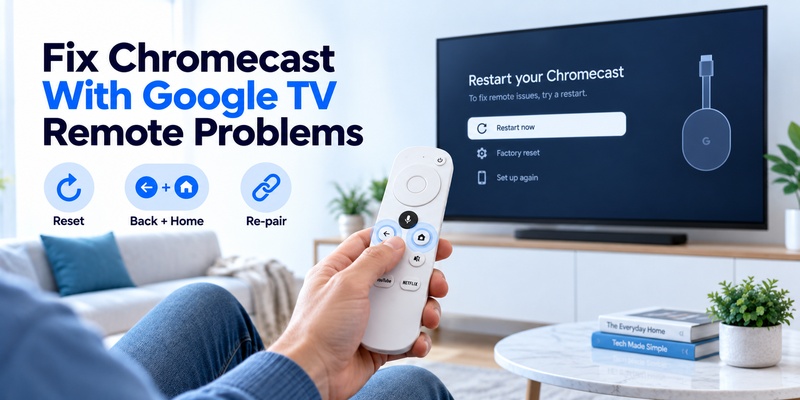
The chromecast with google tv remote not working problem has one advantage: Google publishes a detailed reset procedure specifically for the Chromecast Voice Remote.
Before resetting, try:
- fresh AAA batteries;
- restarting Chromecast;
- forgetting the remote under Remotes & Accessories;
- re-pairing with Back + Home.
If that fails, Google’s Chromecast Voice Remote factory-reset procedure is:
- Remove both batteries.
- Wait five minutes.
- Hold the Home button.
- Reinsert the batteries while continuing to hold Home.
- Keep holding while the LED is solid.
- Release Home when the LED begins pulsing.
If automatic pairing does not follow, Google instructs users to hold Back + Home for three seconds.
This procedure also applies when users describe the problem as google chromecast with google tv remote not working after battery replacement or a lost pairing connection.
Resetting the Chromecast itself should come later because that is more disruptive than resetting the remote.
13. Fix Google TV Streamer 4K Remote Problems
A google tv streamer remote not working problem should not always be treated exactly like a Chromecast Voice Remote problem.
The Google TV Streamer Voice Remote has its own reset command.
According to Google’s current documentation, to factory-reset the Google TV Streamer Voice Remote:
- Hold Mute + Center/Select together.
- Keep holding while the LED blinks white.
- A countdown sound starts after roughly 10–12 seconds.
- Continue holding until the LED becomes solid white.
Google says initiating the reset normally takes no more than about 12 seconds.
That timing is worth knowing because releasing the buttons after only two or three seconds may do nothing.
If google tv streamer 4k remote not working continues after a reset, test the remote again close to the device and re-establish pairing.
For a replacement Voice Remote, Google’s setup instructions say the streaming-device button can be held for 5–10 seconds to start pairing mode. Replacement remotes use two AAA batteries and often pair automatically, with Back + Home for three seconds available when they do not.
📘 Find the Right Guide: Chromecast With Google TV Remote: Buttons, Pairing, Setup, and Fixes
14. Repair or Replace a Google TV Remote?
A google tv remote repair is worth considering only after software and pairing issues have been eliminated.
Replacement is more reasonable when:
- there is no LED activity with known-good batteries;
- battery terminals are damaged;
- liquid entered the remote;
- the case or circuit board is physically broken;
- individual buttons remain dead after cleaning;
- the remote repeatedly disconnects after successful resets;
- IR testing shows no output with fresh batteries.
Before replacing anything, test a phone remote.
If the phone controls Google TV perfectly while the physical google tv remote not working problem continues through fresh batteries, restart, re-pairing, and reset, the physical remote becomes the strongest suspect.
Conversely, if neither the phone nor physical remote can control the TV properly, investigate the Google TV device, network, TV software, or power state before buying another remote.
Temporary alternative: use your phone
Google officially supports using the Google TV app as a virtual controller for compatible Google TV and Android TV devices.
A Remote TV App can also be useful as a backup remote, especially when you need immediate navigation while replacing or repairing physical hardware.
Keeping a phone-based remote installed also gives you a useful troubleshooting tool the next time google tv remote not working prevents access to Settings.
15. FAQ
Why won’t my Google TV remote work even with new batteries?
If google tv remote not working continues with new batteries, the problem may be Bluetooth pairing, the Google TV device itself, incorrect battery contact, or remote hardware. Restart Google TV and re-pair the remote before assuming the batteries or remote are defective.
Why does my Google TV remote only control volume?
If the google tv remote only volume works, the volume command may still be reaching the television through IR while Bluetooth navigation has disconnected. Restart the Google TV device and re-pair the remote.
Why does my Google TV remote control menus but not volume?
When google tv remote not controlling volume but navigation works, check Settings → Remotes & Accessories → Set up remote buttons. Reconfigure the correct television, soundbar, or receiver and verify your CEC/IR settings.
Can I use my phone if my Google TV remote doesn’t work?
Yes. Google’s Google TV app can act as a virtual remote when the phone and TV are on the same Wi-Fi network. Select the television in the app and enter the pairing code displayed on the TV.
Should I factory-reset Google TV when the remote stops working?
Usually no, not first. Start with batteries, a restart, re-pairing, and a remote-only reset. A full Google TV or Chromecast factory reset is much more disruptive and should normally be reserved for persistent problems after simpler fixes fail.
How do I know whether the remote or TV is broken?
Use the physical power button on the TV and test a phone-based remote. If the television responds normally to both but the physical google tv remote not working issue remains, the remote is likely responsible. You can also test IR output using a phone camera on supported remotes.