
Google TV Remote Not Working Light On: LED Meanings and Fast Fixes
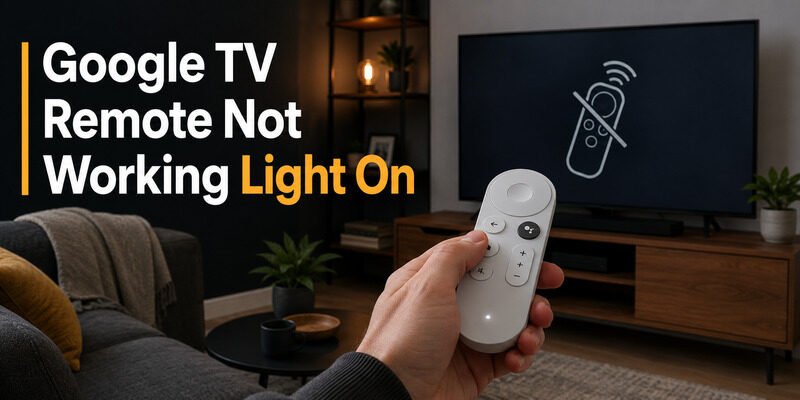
If your google tv remote not working light on problem leaves the LED glowing or pulsing, the remote usually has power but is stuck in pairing, voice-input, update, or reset activity.
That is better than a completely dark remote because it narrows the fault. First identify whether the light is on the handheld remote or on the Google streaming device, then match the pattern rather than treating every white light as the same error. The steps below cover the Chromecast Voice Remote and the newer Google TV Streamer Voice Remote; button combinations and LED behavior can vary on third-party Google TV televisions.
Read the Remote Light Before Resetting Anything
The fastest way to diagnose a google tv remote not working light on case is to watch the LED for ten seconds without pressing another button. A steady light, slow pulse, fast pulse, two flashes, or ten flashes each points to a different state.
Google’s official LED-state guide says a slowly pulsing Voice Remote is ready to pair, a fast pulse means it is attempting to pair, two quick flashes mean pairing succeeded, and ten quick flashes mean pairing failed. On the Google TV Streamer Voice Remote, a solid light can also indicate that the microphone is active; on the older Chromecast Voice Remote, a solid LED may also appear while firmware is being applied.
| Light pattern | Likely meaning | Best next action |
|---|---|---|
| Slow white pulse | Ready to pair | Put the TV or streamer into pairing mode |
| Fast white pulse | Pairing in progress | Wait up to 30 seconds and avoid pressing extra buttons |
| Two quick flashes | Pairing completed | Test Home, D-pad, and Back |
| Ten quick flashes | Pairing failed | Restart the device, then retry nearby |
| Solid white | Microphone active or possible update state | Release the voice button and wait briefly |
Do not confuse the remote LED with the LED on a Chromecast or Google TV Streamer. A solid white device light generally means the streamer is powered and connected, while a pulsing white device light can mean it is disconnected or needs setup. Solving the wrong LED will waste time.
Download LG TV RemoteTry These Fast Fixes First
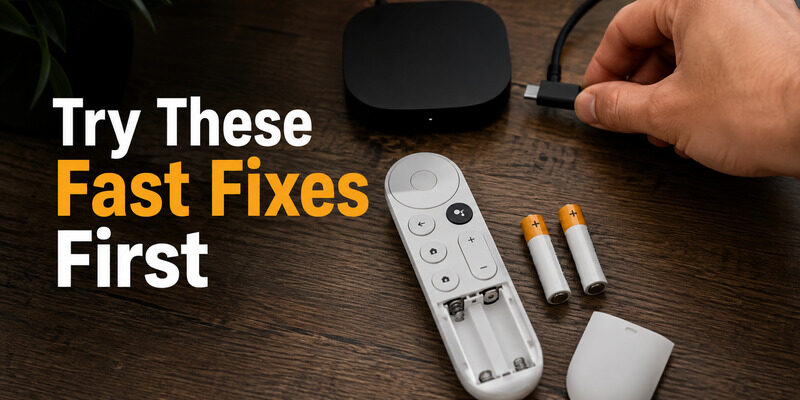
For most google tv remote not working light on reports, a battery reseat and power cycle clear a temporary Bluetooth state.
- Remove both batteries from the remote.
- Unplug the Google TV device or television from power.
- Wait 60 seconds so the device fully restarts rather than briefly sleeping.
- Insert a fresh, matched pair of AAA batteries in the correct direction.
- Restore power and wait for the Google TV home or pairing screen.
- Test the D-pad, Home, Back, and volume buttons separately.
Use a matched battery pair
Mixing an old battery with a new one can light the LED while voltage drops under Bluetooth load. The practical clue is a remote that flashes normally but disconnects the moment you press several buttons. Use two fresh alkaline AAA batteries for the test, even if the old pair still works in another low-drain device.
Restart for a full minute
Google’s support guidance for an unresponsive Google TV device recommends disconnecting power, waiting one minute, and reconnecting it. In testing workflows, a quick two-second unplug often fails because the device does not fully clear its previous Bluetooth session.
If the remote stays dark after a fresh pair, read the separate guide before continuing.
🛠️ Learn with Step-by-Step Guides: Apple TV Remote Icon: What It Means and How to Use It
Pair the Remote Again
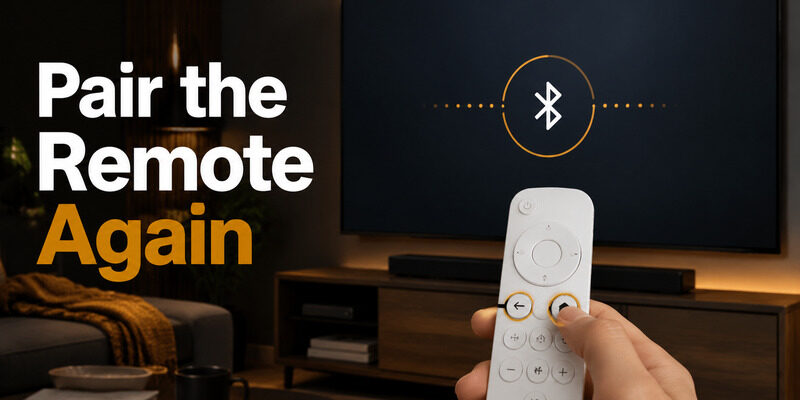
If the LED pulses but buttons do nothing, the remote is powered and probably unpaired. This is the most common explanation for a google tv remote not working light on symptom after a power outage, device reset, or remote replacement.
Chromecast with Google TV
Press and hold Back + Home until the remote light begins to pulse. If the TV does not open pairing automatically, press the physical button on the Chromecast device to start pairing mode, then keep the remote close to the streamer. Google’s setup page also uses Back + Home as the standard pairing shortcut.
Google TV Streamer
Use the phone remote to open Settings > Remotes & Accessories > Pair remote or accessory when needed. Put the Voice Remote in pairing mode and select it on screen. If you are pairing a replacement, Google’s current instructions say to press the button on the back of the streaming device for about 5–10 seconds, then insert two AAA batteries in the new remote.
| Symptom during pairing | Cause to check | Fix |
|---|---|---|
| Slow pulse never changes | Streamer is not in pairing mode | Trigger pairing from the device button or Settings |
| Fast pulse ends with ten flashes | Pairing attempt failed | Move closer, restart, and remove nearby Bluetooth interference |
| Two flashes but no navigation | Connected to another device or stale session | Forget the remote and pair it again |
📘 Find the Right Guide: Apple TV Remote Volume Not Working? Here’s How to Fix It
Use Your Phone While the Physical Remote Is Offline
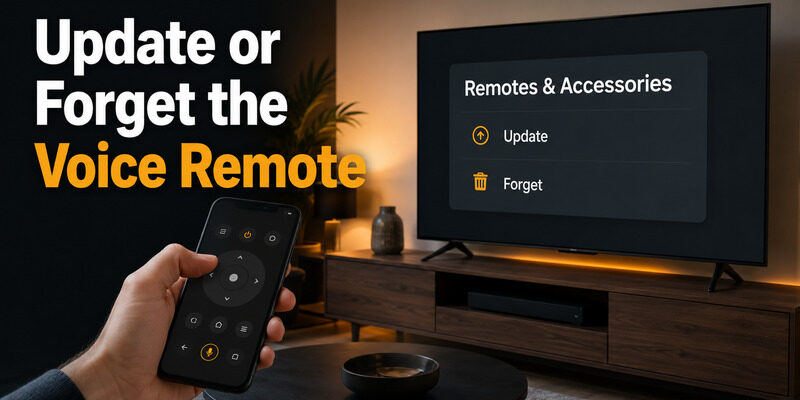
A virtual remote gives you access to Settings without waiting for the physical remote to recover. On Android, open the Google TV app, tap Connect TV or TVs nearby, choose the device, enter the code shown on the TV, and tap Pair. Google says the phone and TV must be on the same wireless network.
This route separates a google tv remote not working light on failure from a frozen television because responsive phone commands prove that Google TV is still accepting input.
The phone remote is especially useful when google tv remote not working light on prevents you from selecting Forget, update, or Pair remote or accessory. It also lets you type passwords faster and verify that the TV itself is responsive.
If the phone cannot find the TV, confirm both devices use the same Wi-Fi name and disable VPN or guest-network isolation temporarily. The full guide covers Android, iPhone, Google Home, and connection failures.
📘 Find the Right Guide: How to Reset Your Apple TV Remote: Pairing, Volume, and No-Remote Fixes
Update or Forget the Voice Remote
A remote can appear paired while its firmware or Bluetooth record is damaged. Navigate with the phone remote to Settings > Remotes & Accessories, select the Voice Remote, and install an update if one is offered. Google’s Google TV troubleshooting page specifically recommends checking for a remote update after reseating the batteries.
If there is no update or the remote still fails, select the Voice Remote, choose Forget, and confirm. Restart the TV or streamer, then pair the remote as a new accessory. This clean re-registration is safer than factory-resetting the entire Google TV device and preserves your apps and accounts.
Use this order:
- Update the remote if available.
- Forget only the Voice Remote.
- Restart the Google TV device.
- Pair again at close range.
- Test navigation before configuring TV power or volume control.
If every button works except volume or power, the Bluetooth pairing is probably fine. Reconfigure Settings > Remotes & Accessories > Set up remote buttons instead of repeating the whole reset.
Factory-Reset the Correct Remote Model
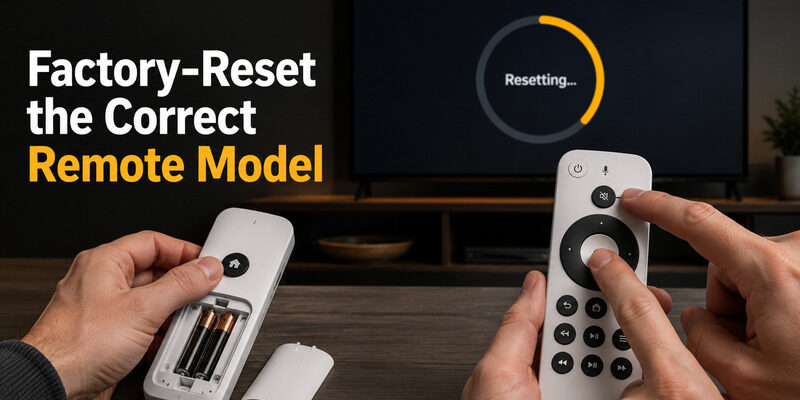
Use a remote factory reset only after fresh batteries, a device restart, and re-pairing fail. The correct button combination matters; copying a reset sequence for the wrong model can leave the google tv remote not working light on issue unchanged.
Chromecast Voice Remote reset
Remove the batteries. Hold the Home button while reinserting them. Keep holding while the LED is solid, then release Home when the light begins to pulse. Google’s factory-reset instructions identify that pulse as the point when the reset process is ready for pairing.
Google TV Streamer Voice Remote reset
Press and hold Mute + Center/Select together. The LED will blink white and a countdown sound begins after about ten seconds. Keep holding until the LED becomes solid white; Google notes that the process normally takes no more than twelve seconds.
After either reset, return the streaming device to pairing mode and complete pairing. Do not factory-reset the whole TV or streamer unless Google TV itself remains frozen after the remote has been tested with fresh batteries and a clean pairing record. For more reset detail, use .
💡 Discover Helpful Guides
Apple remote tv app: Complete Apple TV Remote Guide for iPhone, Siri Remote, Pairing & Fixes
Decide Whether the Fault Is Hardware
The google tv remote not working light on condition can still be a hardware failure. A lit LED proves that some power reaches the circuit, not that the D-pad contacts, Bluetooth radio, microphone button, or battery terminals are healthy. Treat a recurring google tv remote not working light on symptom after a clean reset as evidence to test the handset itself.
| Test result | Most likely conclusion | Next step |
|---|---|---|
| Phone remote controls the TV, physical remote never appears in pairing | Physical remote fault | Replace or request warranty support |
| Only one or two buttons fail | Worn or contaminated button membrane | Clean externally; replace if persistent |
| Remote disconnects when moved | Loose battery contact | Inspect contacts and battery fit |
| Several remotes fail with the same TV | TV/streamer Bluetooth or software issue | Restart, update, then contact manufacturer |
Avoid spraying cleaner into the buttons. Wipe the exterior with a barely damp microfiber cloth and let it dry fully. If the google tv remote not working light on symptom began after a drop or liquid exposure, replacement is usually more reliable than repeated resets.
Use Remote TV App as a Reliable Backup
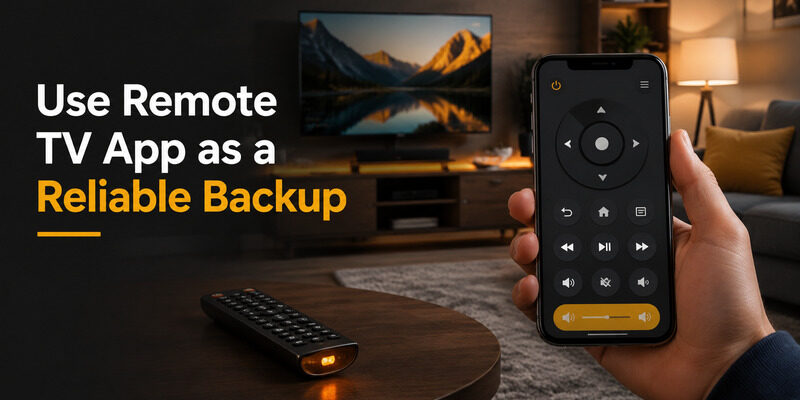
When the google tv remote not working light on problem returns, keep a phone-based backup ready before the physical remote fails completely. Remote TV App can provide navigation and playback controls on supported TVs over the same local network, letting you continue watching and reach settings while you arrange a repair or replacement.
Open the homepage to check compatibility and setup options. A network remote cannot repair a damaged Bluetooth handset, but it prevents a small remote failure from blocking basic TV control.
Final Thoughts
When google tv remote not working light on appears, read the LED pattern first, reseat fresh batteries, restart the Google TV device for a full minute, and pair again. Use a phone remote to update or forget the Voice Remote before attempting a model-specific factory reset.
A slow pulse usually points to pairing, ten flashes indicate a failed pairing attempt, and a solid light can reflect microphone or update activity depending on the remote. If the phone controls the TV but the physical remote never pairs after a clean reset, move to a compatible rather than repeatedly resetting the entire device.
Download LG TV Remote