
Apple remote tv app: Complete Apple TV Remote Guide for iPhone, Siri Remote, Pairing & Fixes
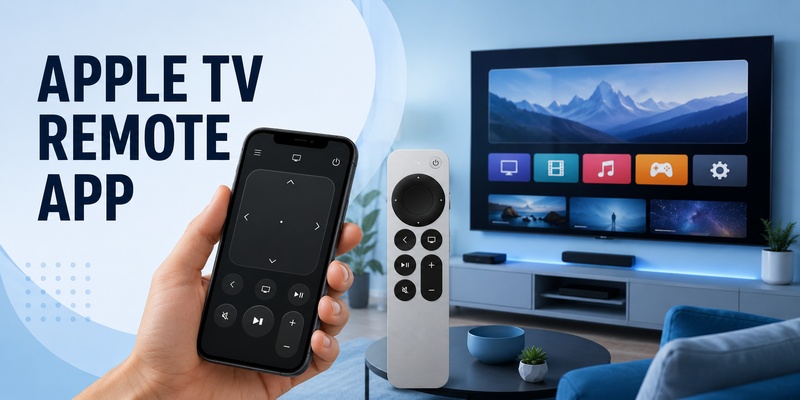
An apple remote tv app can turn an iPhone or iPad into a practical controller for Apple TV, giving you navigation, playback, text entry, Siri-related controls, and quick access without reaching for the physical remote. That makes an apple remote tv app especially useful when the physical Siri Remote is across the room, charging, temporarily disconnected, or missing. It is also a strong backup when a family member has the hardware remote, because the phone-based controller can connect to the same Apple TV when the devices are set up correctly.
This pillar guide explains how an apple remote tv app fits into the wider Apple TV remote ecosystem. If your goal is to understand both the digital and physical ways to control Apple TV, the apple remote tv app is the best place to start because it connects almost every common remote problem to a usable fallback.
1. What Is the Apple TV Remote on iPhone?
An apple remote tv app is a phone- or tablet-based interface that lets you control a compatible Apple TV without relying exclusively on the physical Siri Remote. On modern iPhone and iPad software, Apple’s own remote experience lives in Control Center. You open Control Center, tap the Remote control, select the Apple TV, and then use the touch area and onscreen buttons much like a hardware remote.
The built-in controller works with Apple TV 4K, Apple TV HD, and compatible AirPlay smart TVs. When a compatible smart TV is used instead of an Apple TV box, it generally needs to be added to the Home app and assigned to a room before the Control Center remote can work as expected.
For people searching for an apple tv remote for iphone, the key point is that the phone already contains the necessary Apple control in current iOS versions. The apple remote tv app is therefore less like a traditional App Store download and more like a system-level remote surface built into iOS.
The same idea applies to apple tv remote ipad. The iPad can open Apple TV Remote from Control Center and provide a larger touch surface, which can be comfortable when browsing long lists or entering text.
An apple remote tv app does not completely eliminate the value of the physical remote. A Siri Remote still has dedicated tactile buttons, a clickpad, infrared capability for certain home-theater controls, and a rechargeable battery. The apple remote tv app works well as a convenient second controller and emergency backup.
For users comparing options, a third-party Remote TV App may also provide broader television-control features across supported brands. The important distinction is that Apple’s built-in controller is optimized for Apple TV, while a cross-platform solution is designed for households that want one phone to control multiple television ecosystems.
Download LG TV Remote🗺️ Browse How-To Guides: Apple TV Remote Icon: What It Means and How to Use It
2. How to Use the Apple TV Remote on iPhone and iPad
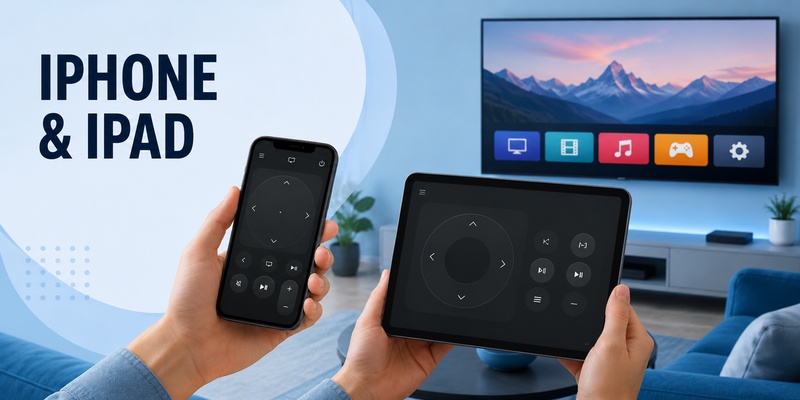
The easiest way to start with an apple remote tv app is through Control Center. On a current iPhone, swipe down from the top-right corner, then tap the Remote control. Choose your Apple TV from the device list. If a four-digit passcode appears on the television, enter it on the iPhone or iPad to complete setup.
If you specifically searched how to use apple tv remote on iphone, the workflow can be summarized in four steps:
- Connect the iPhone and Apple TV to the same Wi-Fi network.
- Open Control Center and tap the Apple TV Remote control.
- Select the Apple TV you want to control.
- Enter the onscreen passcode if Apple TV requests one.
Once connected, the apple remote tv app provides a touch area for swiping between items and selecting content. You can go back, open TV/Control Center functions, play or pause content, and use supported volume controls. When a text field appears on Apple TV, your iPhone can also become a much faster keyboard than the television interface.
If the Remote control is missing from Control Center, add it through Control Center customization. This is the accurate answer to how to download apple tv remote on iphone on current iOS: you generally do not need a separate Apple TV Remote download. Instead, add the Remote control that is already available in the system.
The apple tv remote ios experience is particularly useful because it can stay close at hand even when the physical remote disappears. An apple remote tv app also reduces friction when entering passwords or search terms because the phone keyboard is familiar and fast.
If the phone cannot discover Apple TV, verify that both devices are on the same network, update iOS/iPadOS and tvOS, and restart both devices. The apple remote tv app depends on network communication, so Wi-Fi configuration matters more than physical distance in most normal use cases.
🧭 Explore Guides: Apple TV Remote Replacement: Buying and Setup Guide
3. Phone Remote vs Siri Remote: Which Should You Use?
An apple remote tv app and the physical Siri Remote overlap in everyday navigation, but they are not identical. The best choice depends on whether you prioritize convenience, tactile buttons, home-theater control, voice interaction, or a backup when hardware is missing.
The apple tv siri remote is designed as Apple TV’s dedicated physical controller. Current models use a touch-enabled clickpad, Back, TV/Control Center, Play/Pause, Mute, volume controls, Power, and Siri. Depending on region, Apple may call the hardware Siri Remote or Apple TV Remote; the underlying hardware can be the same.
| Control option | Connection | Main strengths | Main limitation | Best for |
| Apple TV Remote on iPhone | Wi-Fi/network | Always nearby, keyboard input, quick backup | Depends on phone and network | Everyday backup control |
| Apple TV Remote on iPad | Wi-Fi/network | Larger touch surface and keyboard | Less convenient to hold | Home use and text entry |
| Siri Remote | Bluetooth + IR capabilities | Tactile buttons, dedicated clickpad, home-theater control | Can be lost or need charging | Primary Apple TV control |
| Cross-platform remote app | Network, device-dependent | Potential multi-brand control | Feature support varies | Mixed-TV households |
An apple remote tv app is usually more convenient when you already have your phone in hand. It is also excellent when you need to type a search phrase, email address, or password. The physical remote wins when you want button feel without looking at a screen or need dependable control of TV volume through supported HDMI-CEC or infrared configurations.
The apple remote tv app can therefore coexist with Siri Remote rather than replace it permanently. Many users will prefer the hardware remote for normal viewing and the phone remote for text entry, backup use, or finding a misplaced remote.
If you want a single rule, use the apple remote tv app for convenience and redundancy; use Siri Remote when you want the complete dedicated Apple TV hardware experience.
💡 Discover Helpful Guides: Apple TV Siri Remote: Complete Guide to Features, Generations, Pairing, and Everyday Use
4. Apple TV Remote Buttons, Icons, and Everyday Controls
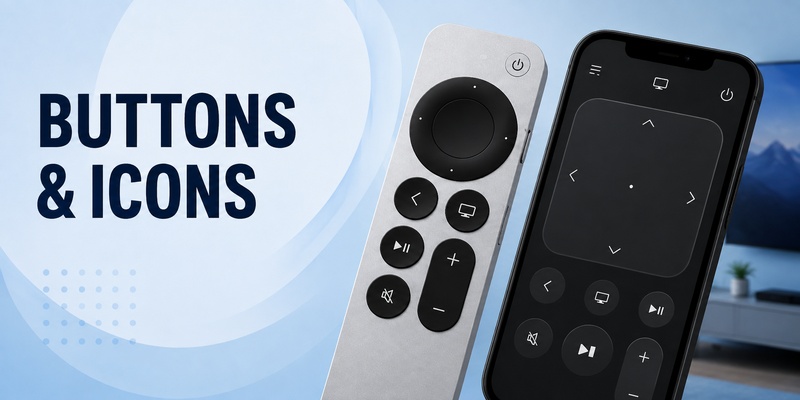
Understanding the controls makes an apple remote tv app much easier to use. The apple remote tv app mirrors Siri Remote controls on screen, while the exact layout can differ by iOS version and device orientation.
On a recent Siri Remote, the most important apple tv remote buttons include the clickpad, Back, TV/Control Center, Play/Pause, Mute, Volume Up/Down, Power, and the side Siri button. The clickpad supports directional presses and touch gestures. Its center selects the highlighted item, while the ring can support navigation and playback scrubbing.
The apple tv remote icon in Control Center identifies the built-in phone remote. Tap it to open the controller, then choose the Apple TV at the top if more than one compatible device is available. In a multi-TV household, checking the selected device before pressing buttons prevents you from controlling the wrong room.
The apple remote tv app commonly provides these everyday actions:
- Swipe or tap to navigate menus.
- Tap to select an app, show, movie, or setting.
- Go back to the previous screen.
- Open TV or Control Center functions.
- Play or pause supported content.
- Enter text using the iPhone or iPad keyboard.
- Use supported volume controls when the audio setup allows it.
Users learning how to use an apple tv remote should remember that not every button behaves identically across every remote generation. Older Apple remotes may use Menu instead of Back, while newer Siri Remote generations have a silver aluminum body and a circular clickpad.
An apple remote tv app also changes the interaction model because you are looking at a touchscreen rather than feeling physical buttons. Give yourself a few minutes to learn where Back, TV, Play/Pause, and the touch area sit. Once those four controls become familiar, the apple remote tv app feels far more natural and can handle most routine Apple TV navigation without the hardware remote.
📖 Read More Guides: Thomson TV Remote App iOS: How to Control Your Thomson TV From iPhone
5. How to Pair, Sync, and Reconnect an Apple TV Remote
A physical remote normally arrives paired with Apple TV, but replacements or disconnected remotes may need manual pairing. Even if your Siri Remote is offline, an apple remote tv app can keep Apple TV usable while you troubleshoot the hardware.
For how to pair apple tv remote, Apple’s current support guidance is straightforward. Point the remote toward Apple TV and keep it about three inches away. Press and hold Back—or Menu on an older compatible remote—together with Volume Up for about five seconds. If the television asks, place the remote on top of Apple TV to finish pairing.
People often use the phrase apple tv remote sync to describe the same basic process. In practice, pairing creates the Bluetooth relationship between the Siri Remote and Apple TV. An apple remote tv app does not pair in the same hardware sense; the iPhone/iPad controller connects through the Apple TV Remote setup and network environment.
If the remote disconnected and you need an apple tv remote reconnect, try the pairing sequence again after charging the remote. Apple TV 4K supports one dedicated Apple TV 4K remote paired at a time, so pairing a replacement can unpair another dedicated remote.
If the physical pairing fails, unplug Apple TV from power, wait about six seconds, reconnect it, and try again. You can keep the apple remote tv app open on your phone during this process so you still have navigation after Apple TV restarts.
For apple tv remote pairing not working, also reduce the distance between the remote and Apple TV, remove obvious obstructions, and make sure the remote has been charged. On newer tvOS versions, Settings > Remotes and Devices > Remote can show remote signal information, which helps identify a weak Bluetooth connection.
The apple remote tv app is especially valuable during pairing problems because it prevents the troubleshooting process from becoming a dead end. You can still reach Settings, verify software updates, and check network details from the phone while the dedicated remote is being repaired or reconnected.
🧭 Explore Guides: How to Reset Your Apple TV Remote: Pairing, Volume, and No-Remote Fixes
6. How to Reset and Charge an Apple TV Remote
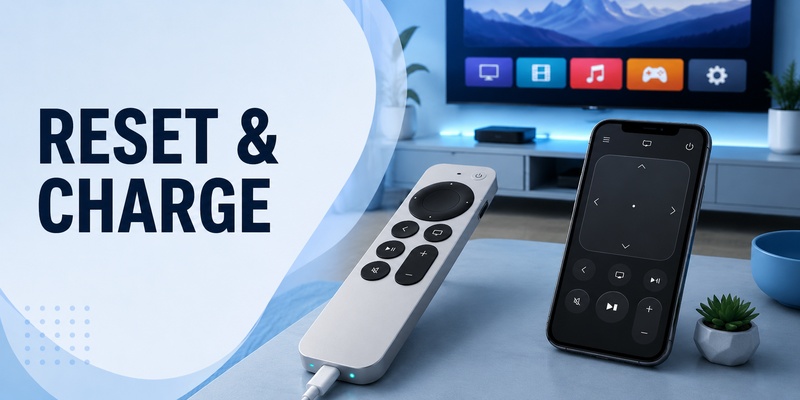
When the physical remote behaves unpredictably, how to reset apple tv remote is one of the most useful troubleshooting questions. An apple remote tv app gives you a backup controller while the Siri Remote restarts and reconnects.
For current Siri Remote and Apple TV Remote models, press and hold the TV/Control Center button and Volume Down together for about five seconds, until the Apple TV status light turns off and on again. Release the buttons and wait several seconds. Press any button on the remote and watch for a connected notification. If it still does not connect, repeat the pairing procedure using Back/Menu plus Volume Up.
Charging is equally important. The apple tv remote charge method depends on the remote generation. Newer Siri Remote hardware uses USB-C, while earlier rechargeable generations use Lightning. Connect the appropriate cable to the port on the bottom of the remote and to a computer or compatible power adapter.
| Remote type | Charging connection | Battery style | Useful note |
| Siri Remote 3rd generation | USB-C | Built-in rechargeable | Current silver remote generation |
| Siri Remote 2nd generation | Lightning | Built-in rechargeable | Silver clickpad remote |
| Siri Remote 1st generation | Lightning | Built-in rechargeable | Black touch-surface remote |
| Older Apple Remote | Replaceable battery varies | Non-rechargeable design | Different troubleshooting path |
Apple says a rechargeable Apple TV 4K remote takes about three hours to charge fully under normal charging conditions, and typical use may require charging only a few times per year. Battery level can be checked in Apple TV Settings under Remotes and Devices > Remote.
If the remote battery is critically low, charge it for at least 30 minutes before spending time on pairing troubleshooting. Meanwhile, the apple remote tv app can provide immediate navigation. That combination—charge the hardware remote while using the apple remote tv app—often resolves the problem without interrupting viewing.
📘 Find the Right Guide: iOS Remote Control: Turn Your iPhone or iPad Into a Smart TV Remote
7. How to Fix Apple TV Remote Not Responding or Pairing Problems
When you see apple tv remote not responding, separate the problem into two categories: the physical remote is failing, or the phone-based apple remote tv app is failing. The troubleshooting steps are different.
For a physical Siri Remote, first charge it. Then move close to Apple TV and try pairing. If pairing does not work, restart the remote with TV/Control Center plus Volume Down, then attempt pairing again. If Apple TV itself seems frozen, restart the box and retest.
For apple tv remote pairing not working, use this checklist:
- Keep the remote approximately three inches from Apple TV during pairing.
- Hold Back/Menu and Volume Up for about five seconds.
- Place the remote on top of Apple TV if instructed.
- Charge the remote before another attempt.
- Unplug Apple TV for about six seconds if pairing repeatedly fails.
- Check for interference or a weak remote signal.
For apple tv remote app not working, focus on network and software instead. Confirm the iPhone/iPad and Apple TV are on the same Wi-Fi network, update iOS/iPadOS and tvOS, restart both devices, and reselect Apple TV from the Remote control.
| Symptom | Likely area | First action | Next action |
| Siri Remote does nothing | Battery/pairing | Charge remote | Restart and pair |
| Remote disconnects repeatedly | Bluetooth/signal | Move closer | Check signal and interference |
| iPhone cannot see Apple TV | Network | Check same Wi-Fi | Restart devices |
| Phone remote opens but cannot connect | Setup/network | Reselect Apple TV | Update software |
| Only some hardware buttons fail | Settings/hardware | Restart remote | Check specific control settings |
The apple remote tv app is also a diagnostic tool. If the phone remote works while the Siri Remote does not, Apple TV itself is probably still operating normally. If both the hardware remote and apple remote tv app fail, look more closely at Apple TV power, network status, software, or the television connection.
🗺️ Browse How-To Guides: How to Use an Apple TV Remote: Buttons, Navigation, Power, and Everyday Shortcuts
8. What to Do If Your Apple TV Remote Volume Is Not Working
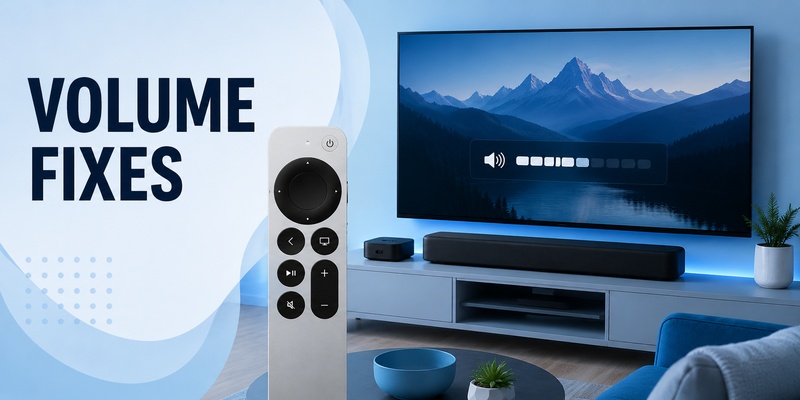
An apple remote tv app can navigate Apple TV even when volume control is behaving differently than expected, but volume is special because it may depend on the television, receiver, soundbar, HomePod, HDMI-CEC, infrared, or AirPlay audio configuration.
For apple tv remote volume not working, Apple recommends restarting the physical remote first. Hold TV/Control Center and Volume Down for about five seconds, wait for the remote to disconnect and reconnect, then test volume again.
If that does not help, go to Apple TV Settings > Remotes and Devices > Volume Control. Depending on your setup, you may see options such as Auto, HDMI, Receiver via IR, TV via IR, Off, or Learn New Device. Auto is a sensible starting point, but a specific IR or HDMI-CEC option may work better with some home-theater equipment.
The apple remote tv app on iPhone or iPad has an important limitation: phone volume buttons can control Apple TV volume in supported audio setups, such as when Apple TV is configured with HomePod, a compatible soundbar, or other AirPlay-compatible speakers. If your television is not using that kind of supported setup, you may still need the TV’s own remote or the physical Siri Remote for volume.
That means a working apple remote tv app does not guarantee that every volume scenario will be available from iPhone. Navigation and playback may work perfectly while volume remains tied to the television or receiver.
When diagnosing the issue, ask three questions: Does the physical Siri Remote change volume? Does the TV’s original remote change volume? Does Apple TV have the correct Volume Control method selected? The answers quickly reveal whether the issue sits with Apple TV, the Siri Remote, the audio device, or the control method.
💡 Discover Helpful Guides: Apple TV Remote Pairing Not Working: How to Fix Pairing, Disconnects, and Remote Control Problems
9. Lost Apple TV Remote: Find It, Replace It, or Use Your Phone
A lost apple tv remote no longer means you have to stop using Apple TV. An apple remote tv app on iPhone or iPad can take over immediately, and newer Siri Remote generations can even be located using an iPhone.
Apple supports remote finding for Siri Remote or Apple TV Remote 2nd generation or later when the required software versions are available. Open Control Center on iPhone, tap Apple TV Remote, select the relevant Apple TV, then use the Find option for the remote. The iPhone provides proximity guidance as you move around, helping you determine whether you are far, near, or right next to the remote.
While searching, the apple remote tv app remains fully useful for basic Apple TV control. This is one practical reason to set up the apple remote tv app before you actually lose the physical controller.
If the remote is damaged or permanently missing, an apple tv remote replacement can restore the tactile experience. For Apple TV 4K and Apple TV HD, Apple supports several compatible generations of Siri Remote/Apple TV Remote, while older Apple TV hardware may require a different Apple Remote. Always check the Apple TV generation before buying a replacement.
| Situation | Fastest solution | Long-term solution |
| Remote somewhere in the room | Use iPhone Find feature when supported | Keep remote in a fixed location |
| Remote lost outside the home | Use apple remote tv app | Buy compatible replacement |
| Remote physically damaged | Use iPhone/iPad controller | Replace or service remote |
| Remote battery empty | Use phone controller | Recharge remote |
A free remote app for apple tv is often what people search for after losing the physical remote. On iPhone and iPad, Apple’s built-in Control Center Remote is included with the operating system, so there is no separate purchase required for Apple’s standard remote control experience.
📖 Explore Articles: Lost Apple TV Remote? How to Find It Fast and Keep Watching
10. Apple TV Remote on Android and Other Cross-Platform Options
The apple tv remote android search has a different answer from iPhone. Apple’s built-in Control Center remote is an iOS/iPadOS feature, so Android phones do not get the same first-party Apple TV Remote experience that an iPhone or iPad provides.
That does not mean an Android user has no options. Third-party remote apps may support Apple TV or television control through local-network features, but support, privacy practices, ads, device compatibility, and available buttons vary significantly. Check the app’s compatibility claims and permissions before relying on it as your primary controller.
An apple remote tv app is therefore simplest inside the Apple ecosystem, where Control Center and Apple TV are designed to work together. If your household uses both Android and iOS devices, a cross-platform Remote TV App can be useful when it supports the televisions and streaming devices you own. For iPhone users who also control non-Apple televisions, the broader category of ios remote control apps can be relevant. However, generic iOS TV remote apps should not be confused with Apple’s built-in Apple TV Remote. A third-party controller may target smart TVs directly, while Apple’s first-party tool is specifically integrated with Apple TV and compatible AirPlay smart TVs.
The apple remote tv app remains the preferred route when Apple TV is the main device. Use a cross-platform app when the larger problem is managing several television brands or streaming devices from one phone.
This is also why unrelated searches for Google TV, Fire TV, LG, Samsung, Sony, Philips, or other remote ecosystems should not be mixed into an Apple TV pillar page. They represent different devices, pairing methods, and support requirements. Keeping the apple remote tv app topic focused improves both user clarity and search intent.
💡 Discover Helpful Guides: Google TV Remote iOS: How to Control Google TV from Your iPhone or iPad
11. Frequently Asked Questions About Apple TV Remote Control
Is there an Apple TV remote app on iPhone?
Yes. The apple remote tv app experience is built into Control Center on current iPhone software. Open Control Center, tap Remote, select your Apple TV, and enter a passcode if prompted. You generally do not need to install a separate Apple TV Remote app.
Can I use my iPhone if I lose the Siri Remote?
Yes. An apple remote tv app on iPhone or iPad can control compatible Apple TV models over the network. If you have a supported newer Siri Remote, the iPhone can also help locate it using the Find function inside the Apple TV Remote interface.
Does the Apple TV Remote on iPhone work without Wi-Fi?
Usually, the phone-based apple remote tv app expects your iPhone/iPad and Apple TV to be available in the appropriate network environment. If Apple TV is offline or connected to a different network, the iPhone may not discover it, so network troubleshooting is often the first step.
How do I reset a Siri Remote that stopped responding?
Press and hold TV/Control Center and Volume Down together for about five seconds, then release and wait for reconnection. If necessary, pair again with Back/Menu plus Volume Up. During the process, an apple remote tv app can serve as your temporary controller.
How long does an Apple TV remote take to charge?
A rechargeable Siri Remote generally takes about three hours to reach a full charge under normal conditions. The cable depends on the generation: newer models use USB-C and older rechargeable models use Lightning. You can continue using an apple remote tv app while the physical remote charges.
Can an Android phone replace an Apple TV remote?
Not with Apple’s built-in iPhone/iPad Control Center remote. Android users need a compatible third-party solution or a physical remote. If cross-platform support matters, choose an app that clearly lists Apple TV or your smart TV among its supported devices.
12. Final Thoughts
An apple remote tv app is one of the most useful backup controls an Apple TV owner can configure. On iPhone and iPad, the Apple TV Remote is integrated into Control Center, giving you navigation, playback, text entry, device selection, and supported volume functions without requiring a separate first-party download.
The physical Siri Remote still matters. It offers dedicated tactile buttons, direct pairing, rechargeable hardware, and home-theater control features that a phone does not always reproduce. The best setup is not phone versus hardware; it is having both ready. Use the apple remote tv app when you want convenience, fast text entry, or an immediate backup, and use Siri Remote when you prefer dedicated controls.
If the remote stops working, the troubleshooting path is clear: charge it, restart it, pair it again, and check Apple TV settings. If volume fails, review the Volume Control method. If the remote disappears, use the iPhone Find feature when supported or switch to the apple remote tv app while you look for it.
For homes with multiple television brands, a Remote TV App can add another layer of convenience by providing a broader phone-based control option. But for Apple TV itself, the apple remote tv app built into the Apple ecosystem remains the most direct starting point.
Once you understand pairing, charging, icons, buttons, replacements, and troubleshooting, the apple remote tv app becomes more than an emergency alternative. It becomes part of a resilient control setup that keeps Apple TV usable even when the physical remote is charging, disconnected, damaged, or nowhere to be found.
Download LG TV Remote