
Apple TV Remote Pairing Not Working: How to Fix Pairing, Disconnects, and Remote Control Problems
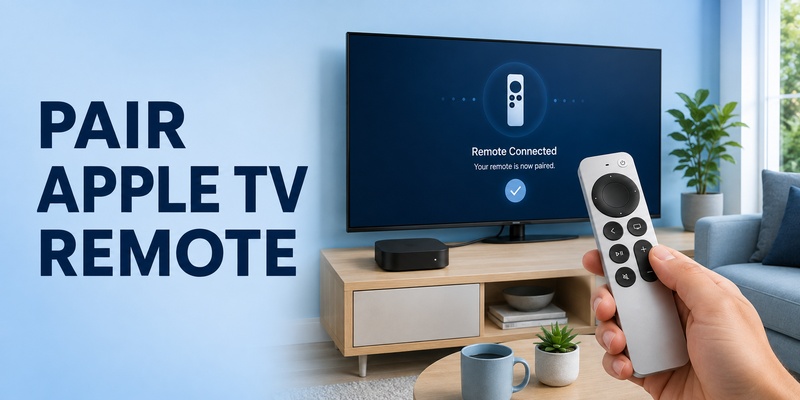
If apple tv remote pairing not working is the problem stopping you from using your Apple TV, start with the connection between the physical remote and the Apple TV box before changing Wi-Fi, television, or audio settings. A Siri Remote or Apple TV Remote can fail to pair because the battery is low, the remote is too far away, the connection state is stuck, or the Bluetooth signal is weak. In many cases, the remote itself is still usable and only needs to be paired or restarted correctly.
The fastest troubleshooting path is simple: charge the remote, move it close to Apple TV, use the correct pairing buttons, restart the remote if needed, and then check signal strength. If apple tv remote pairing not working continues after those steps, your iPhone or iPad can often give you temporary access to Apple TV settings while you investigate the physical remote.
This guide stays focused on pairing. It also explains why a remote can disconnect after working normally, when Wi-Fi matters, when it does not, and how phone-based remote control fits into the recovery process. In most cases, apple tv remote pairing not working can be solved without replacing hardware.
1. What Apple TV Remote Pairing Not Working Usually Means
When apple tv remote pairing not working, it helps to identify whether the problem is truly pairing or a different control issue. Pairing is the Bluetooth relationship between a Siri Remote or Apple TV Remote and the Apple TV box. If that relationship is missing or broken, basic navigation buttons usually do not control Apple TV at all.
A volume-only problem is different. If you can move through menus, open apps, and press Back successfully, the remote is probably paired. Volume and power can depend on HDMI-CEC, infrared, a television, an AV receiver, or a soundbar. Repeating the pairing process in that situation may not change anything.
Use the symptoms to choose the right first action:
| Symptom | Likely issue | First action |
| No remote buttons control Apple TV | Pairing, battery, or connection | Charge and pair the remote |
| Remote worked, then suddenly stopped | Temporary disconnect | Restart the remote |
| Pairing prompt appears but never completes | Pairing state or distance | Move closer and retry |
| Navigation works but volume does not | TV/audio control | Check volume-control settings |
| Remote works only close to Apple TV | Weak Bluetooth signal | Check range and obstructions |
Treat apple tv remote pairing not working as a connection diagnosis rather than a reason to reset everything. That keeps the fix targeted and reduces the chance of creating a second problem while trying to solve the first. A systematic check makes apple tv remote pairing not working easier to isolate.
Download LG TV Remote2. Pair the Apple TV Remote the Correct Way
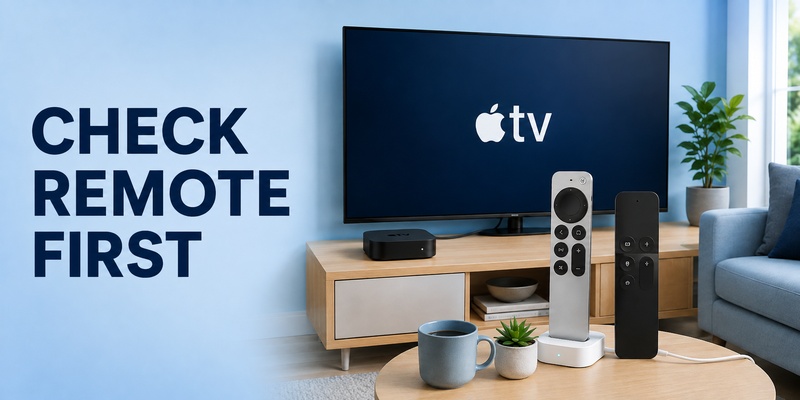
The official pairing sequence should be the first real fix when apple tv remote pairing not working. Move the remote close to the Apple TV box before pressing any buttons. Apple recommends holding it about three inches, or roughly eight centimeters, from Apple TV during pairing.
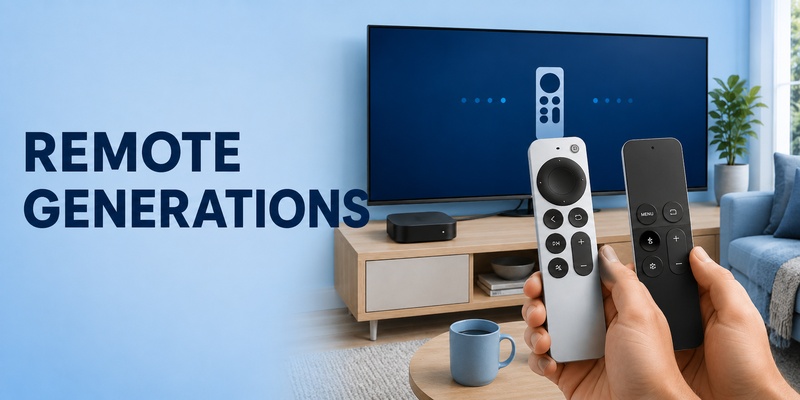
For a current Siri Remote or Apple TV Remote, point the remote toward Apple TV and press and hold Back and Volume Up together for about five seconds. If you have an earlier remote with a Menu button instead of Back, hold Menu and Volume Up instead. If the television asks you to place the remote on top of Apple TV, do that to finish pairing.
Follow this order:
- Make sure Apple TV is powered on.
- Move the remote to about three inches from the Apple TV box.
- Point the remote toward Apple TV.
- Hold Back and Volume Up for about five seconds.
- On a Menu-style remote, hold Menu and Volume Up instead.
- Follow any onscreen prompt to place the remote on Apple TV.
- Wait for a connected or paired notification.
- Test navigation before changing other settings.
If apple tv remote pairing not working remains after one careful attempt, do not immediately repeat the button combination many times. Check the battery and restart the remote first. Repeated pairing attempts cannot compensate for a remote that has too little power or a connection state that needs to be refreshed. One clean attempt is better when apple tv remote pairing not working than repeated button presses.
💡 Discover Helpful Guides
Apple remote tv app: Complete Apple TV Remote Guide for iPhone, Siri Remote, Pairing & Fixes
3. Charge the Remote and Remove Simple Pairing Obstacles
A low battery can make apple tv remote pairing not working look like a more serious hardware failure. Apple recommends charging the remote for 30 minutes when it is not working correctly. Depending on the remote generation, that may use USB-C or Lightning.
While the remote charges, check the environment. Pairing is most reliable when the remote is very close to the Apple TV box. Thick furniture, a closed cabinet, or equipment placed directly in front of Apple TV can complicate troubleshooting even if they are not the original cause.
Before the next pairing attempt, verify the basics:
- Charge the remote for at least 30 minutes.
- Confirm Apple TV has power and is showing video output.
- Keep the remote close to the Apple TV box during pairing.
- Remove obvious objects blocking the area around Apple TV.
- Use Back/Menu + Volume Up only for pairing.
- Do not factory-reset Apple TV as an early troubleshooting step.
If apple tv remote pairing not working began immediately after the battery was fully drained, charging is especially important. A remote that can briefly send a command may still lack enough power for stable operation.
Also check that you are pairing the remote to the intended Apple TV if there is more than one box in the home. Working near the correct device reduces confusion and makes the onscreen confirmation easier to interpret. These basics eliminate common reasons apple tv remote pairing not working persists. That makes apple tv remote pairing not working easier to diagnose before deeper changes.
💡 Discover Helpful Guides: Apple TV Remote Replacement: Buying and Setup Guide
4. Restart the Remote When Pairing Still Fails
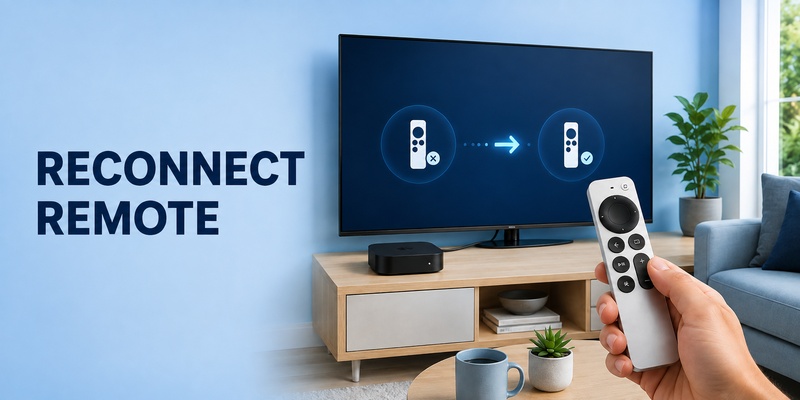
If apple tv remote pairing not working continues after charging and a correct pairing attempt, restart the remote itself. Restarting is different from pairing: it refreshes the remote’s connection state and can help when the device appears frozen, repeatedly disconnects, or does not respond consistently.
For supported Siri Remote and Apple TV Remote models, press and hold the TV/Control Center button and Volume Down together. Keep holding them for about five seconds, or until the status light on Apple TV turns off and back on. Release the buttons and wait about five to ten seconds.
Then press any button on the remote. If a Remote Connected notification appears, test the controls. If it does not appear, go back to the pairing steps and use Back/Menu + Volume Up.
| Action | Buttons | Purpose |
| Pair remote | Back/Menu + Volume Up | Establish the remote connection |
| Restart remote | TV/Control Center + Volume Down | Refresh remote connection state |
| Test reconnection | Any button | Confirm the remote is active |
This distinction matters when apple tv remote pairing not working because using the wrong combination can make troubleshooting feel random. Pair first when the remote has never connected or has lost pairing. Restart when the remote appears stuck or reconnects unreliably, then pair again only if necessary. Restarting first can clear the state behind apple tv remote pairing not working.
💡 Discover Helpful Guides: How to Reset Your Apple TV Remote: Pairing, Volume, and No-Remote Fixes
5. Power-Cycle Apple TV Before More Aggressive Fixes
Sometimes apple tv remote pairing not working is caused by a temporary state on the Apple TV side rather than the remote. Apple recommends unplugging Apple TV from power, waiting about six seconds, reconnecting it, and trying to pair the remote again when normal pairing does not succeed.
A power cycle is much less disruptive than a factory reset. It does not require you to erase Apple TV, reinstall apps, or rebuild your setup. That makes it a sensible next step after charging and restarting the remote.
Use this sequence:
- Unplug Apple TV from power.
- Wait at least six seconds.
- Reconnect the power cable.
- Allow Apple TV to start normally.
- Move the remote close to the box.
- Hold Back/Menu + Volume Up for about five seconds.
- Follow the pairing prompt if one appears.
If apple tv remote pairing not working is resolved after the power cycle, stop troubleshooting and test the remote for several minutes. There is no benefit to performing additional resets when pairing has already returned.
If the remote pairs but drops again soon afterward, the next question is not whether you pressed the pairing buttons correctly. The problem may be battery condition, Bluetooth signal strength, interference, or a software issue. That is when checking the remote signal becomes more useful than repeating the same pairing sequence. This power cycle is especially useful when apple tv remote pairing not working survives a remote restart.
📖 Explore Articles: Apple TV Remote for iPhone: How to Set Up and Use Your iPhone as an Apple TV Remote
6. Check Bluetooth Signal Strength and Frequent Disconnects
A remote can pair successfully and still behave badly. If apple tv remote pairing not working changes into intermittent control, missed button presses, or repeated disconnections, inspect the Bluetooth connection rather than pairing over and over.
On Apple TV running tvOS 18 or later, go to Settings > Remotes and Devices > Remote and review the Bluetooth RSSI signal indicator. Apple recommends moving within about 20 feet, or six meters, of Apple TV if the signal is weak. Move objects that block the path around the Apple TV box, television, receiver, or soundbar.
If you are asking why did my apple tv remote disconnect, common practical causes include a low battery, weak Bluetooth signal, temporary connection state, or a software issue that may be cleared by restarting the remote or Apple TV. A disconnect does not automatically mean the remote is damaged.
For recurring problems:
- Charge the remote fully.
- Test it from a short distance.
- Check Bluetooth RSSI on supported tvOS versions.
- Remove large obstructions around the entertainment unit.
- Restart the remote if it becomes unresponsive.
- Update Apple TV to the latest tvOS available for the device.
Once apple tv remote pairing not working has been replaced by a stable connection at close range, increase the distance gradually. If reliability drops only as you move away, range or interference is a stronger suspect than pairing itself. Signal data helps separate apple tv remote pairing not working from range problems.
📘 Find the Right Guide: Apple TV Remote iPad: How to Set Up and Control Apple TV From Your iPad
7. Can You Connect to Apple TV Without Wi-Fi or a Remote?
This question often appears during apple tv remote pairing not working because users try to switch to a phone immediately. The physical Siri Remote and Apple TV Remote use Bluetooth for their connection to Apple TV, so the physical pairing process itself does not depend on your home Wi-Fi network.
The phone-based Apple TV Remote is different. Apple’s current setup instructions say the iPhone or iPad and Apple TV should be on the same Wi-Fi network when setting up the software remote. That means a phone is not a guaranteed workaround when Apple TV has no usable network connection.
If you search connect to apple tv without wifi or remote, the practical answer is that you need to restore at least one control path. A compatible physical remote can pair over Bluetooth. If your Apple TV model supports Ethernet and your home network is available through a router, a wired network connection can also help restore network access, but the iPhone still needs a compatible path to the same network for Apple TV Remote setup.
Do not let this side issue distract from apple tv remote pairing not working. If you have the physical remote, concentrate on charging, close-range pairing, restart, and signal checks first. Those steps solve the core problem without requiring you to rebuild the network configuration. That distinction keeps apple tv remote pairing not working from becoming a network troubleshooting exercise.
8. Use an iPhone as a Temporary Remote While Troubleshooting
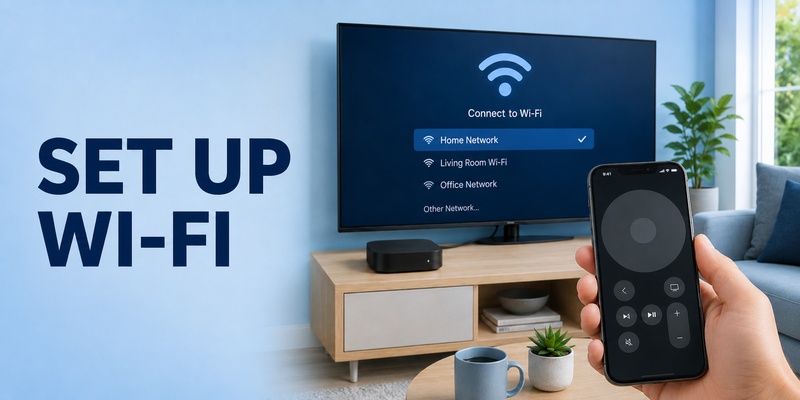
When apple tv remote pairing not working, an iPhone or iPad can be useful because it gives you access to Apple TV settings while the physical remote is unavailable. Open Control Center, add or open Remote, choose your Apple TV, and follow the onscreen setup steps. If a code is displayed on the television, enter it on the phone or tablet.
Apple’s current instructions say the iPhone or iPad and Apple TV should be connected to the same Wi-Fi network when setting up Apple TV Remote. If the software remote cannot connect, confirm both devices are on the same network, update iOS or iPadOS and tvOS, and restart both devices.
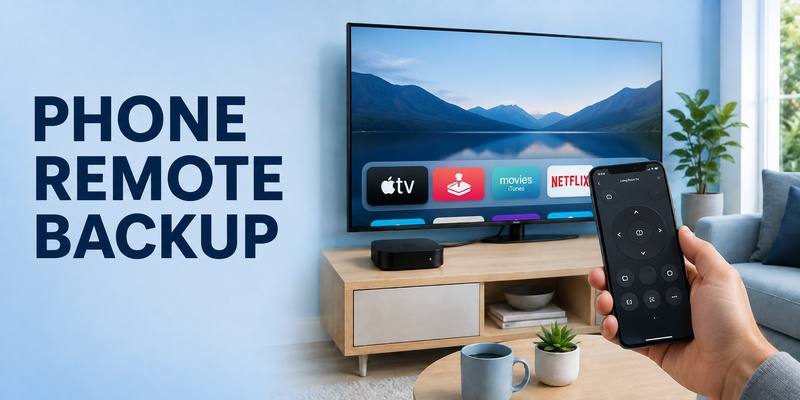
A Remote TV App can also be a useful backup for compatible televisions when you need basic phone-based control while fixing the physical remote. It does not change the Bluetooth pairing state of the Siri Remote, but it can reduce the urgency of the problem by keeping compatible TV controls accessible.
If apple tv remote pairing not working is preventing you from reaching Settings, use the phone remote to check for tvOS updates or review Remotes and Devices. Once the physical remote pairs correctly again, return to it and verify that navigation remains stable before assuming the issue is finished. Phone control is a backup while apple tv remote pairing not working remains unresolved.
🛠️ Learn with Step-by-Step Guides: Apple TV Remote Icon: What It Means and How to Use It
9. Phone Remote Questions That Can Be Confused With Pairing
Phone control and physical remote pairing are separate systems. That distinction matters because apple tv remote pairing not working refers primarily to the physical Siri Remote or Apple TV Remote, while the iPhone remote is a software controller that communicates through the network.
If you are searching how to disconnect apple tv remote from phone, you usually do not need to unpair the physical Siri Remote. To stop using the iPhone as the controller, exit the Remote interface, switch to another control in Control Center, or choose a different Apple TV when appropriate. The physical remote remains paired independently.
Similarly, if the iPhone Remote fails to connect, do not assume the physical remote has lost pairing. Check the phone and Apple TV network first. Apple recommends confirming they are on the same Wi-Fi network, updating software, and restarting both devices when setup fails.
This separation keeps apple tv remote pairing not working troubleshooting clean. Keeping these paths separate prevents apple tv remote pairing not working from being misdiagnosed:
| Problem | Connection involved | Best place to troubleshoot |
| Physical remote will not control Apple TV | Bluetooth pairing | Remote pairing/restart steps |
| iPhone Remote cannot find Apple TV | Network connection | Wi-Fi and software setup |
| Phone works but physical remote does not | Physical remote connection | Battery, pair, restart, RSSI |
| Physical remote works but phone does not | Phone/network setup | Control Center and Wi-Fi |
10. Final Thoughts
The most efficient fix for apple tv remote pairing not working is to troubleshoot in a strict order rather than changing several settings at once. Charge the remote, bring it within about three inches of Apple TV, and hold Back/Menu + Volume Up for five seconds. If the remote still does not connect, restart it with TV/Control Center + Volume Down and then try pairing again.
If apple tv remote pairing not working continues, power-cycle Apple TV before considering anything more disruptive. When pairing succeeds but the remote still disconnects or responds inconsistently, check Bluetooth RSSI on tvOS 18 or later, shorten the distance, and remove obvious obstructions.
Remember that Wi-Fi mainly becomes important when you switch to an iPhone or iPad as a software remote. The physical Siri Remote uses Bluetooth, so a Wi-Fi problem is not normally the reason its basic pairing fails. If you still wonder why did my apple tv remote disconnect, test battery level, signal strength, and restart behavior before assuming hardware failure.
For temporary phone control, Apple TV Remote in Control Center is the first Apple-provided option. A Remote TV App can also provide a convenient backup for compatible TVs while you solve the physical remote problem. Once apple tv remote pairing not working is fixed and the connection stays stable, stop resetting and simply verify normal navigation, playback, and control over several minutes.
Download LG TV Remote