
Apple TV Remote for iPhone: How to Set Up and Use Your iPhone as an Apple TV Remote
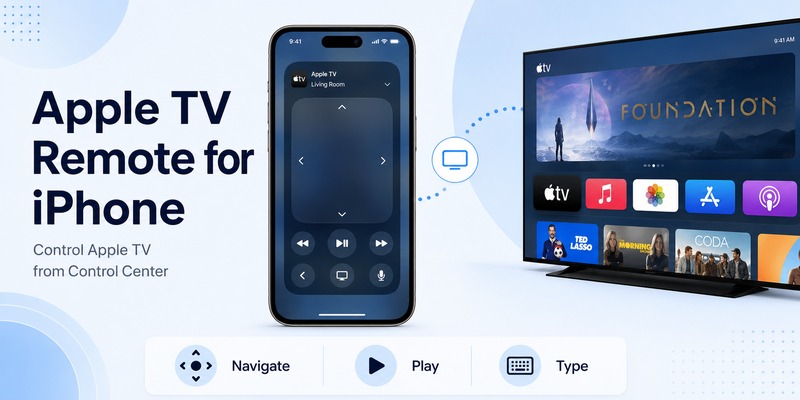
Losing your Apple TV remote does not mean you have to stop watching TV until you find it. If you have an iPhone nearby, Apple already provides a built-in apple tv remote for iphone that can control compatible Apple TV devices directly from Control Center.
There is no need to search through the App Store for an official standalone remote application. On modern versions of iOS, Apple TV Remote is integrated into Control Center. You can use it to move around the Apple TV interface, select apps, control playback, return to the Home Screen, use Siri-related controls where supported, and enter text more easily with your iPhone.
Apple says its Control Center remote works with Apple TV 4K, Apple TV HD, and supported AirPlay-compatible smart TVs.
That makes apple tv remote for iphone useful not only when your physical Siri Remote is lost but also when you simply prefer using a touchscreen.
This guide explains where the remote is located, how to set it up, how pairing works, what you can control, and how to troubleshoot common connection problems.
1. What Is Apple TV Remote for iPhone?
The apple tv remote for iphone is a software-based remote control built into iOS.
Instead of requiring a separate physical remote, your iPhone displays a touch-based interface that can communicate with a compatible Apple TV over your network.
If you are wondering what is apple tv remote on iphone, think of it as a virtual version of many of the controls available on the Siri Remote.
The interface provides a large touch area for navigation along with controls for common Apple TV actions. Depending on your Apple TV, software version, audio equipment, and configuration, you can navigate menus, select content, control playback, adjust compatible audio systems, and access additional controls.
Apple currently says the Control Center remote supports:
- Apple TV 4K
- Apple TV HD
- AirPlay-compatible smart TVs that meet Apple’s requirements
For an AirPlay-compatible smart TV, Apple instructs users to add the television to the Home app and assign it to a room before using it with the remote.
One important advantage of apple tv remote for iphone is convenience. Your iPhone is often already in your hand, so you do not need to find another device before pausing a show or searching for something to watch.
It can also be especially useful when typing passwords, email addresses, search terms, or other longer text because using an iPhone keyboard is often faster than selecting letters individually on a television screen.
Download TV Remote App2. Where to Find Apple TV Remote for iPhone
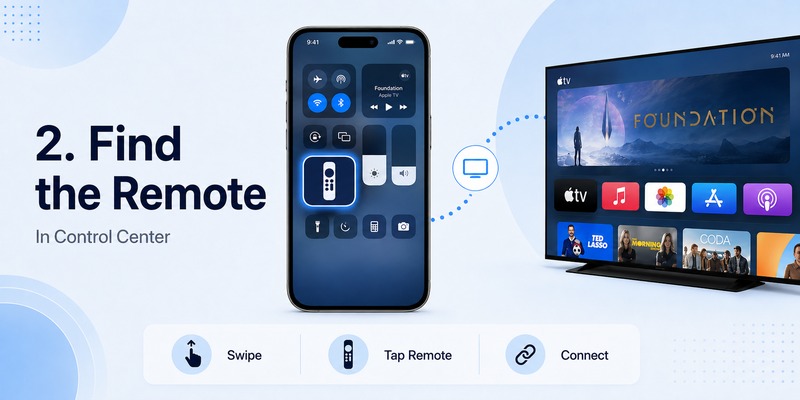
One of the most common questions is where is apple tv remote on iphone.
On current iPhones, it is available through Control Center.
For iPhone X and later models, including current Face ID-equipped iPhones, swipe down from the top-right corner of the display to open Control Center. Apple confirms this is the standard method for accessing Control Center on newer iPhones.
Once Control Center opens, look for the Apple TV Remote icon.
Tap it, and the apple tv remote for iphone interface should open.
If you do not see the Remote control, do not assume that your iPhone does not support it. The control may simply not have been added to your Control Center layout.
On newer versions of iOS, you can customize Control Center and add Remote manually.
This means the answer to where is apple tv remote on iphone is generally not “inside a dedicated Apple TV Remote app.” Instead, Apple places the control directly inside Control Center so it can be accessed quickly from almost anywhere on the iPhone.
For older iPhone models with a Home button, Control Center may be opened by swiping upward from the bottom edge of the screen.
💡 Discover Helpful Guides
Apple remote tv app: Complete Apple TV Remote Guide for iPhone, Siri Remote, Pairing & Fixes
3. How to Set Up Apple TV Remote for iPhone
Setting up apple tv remote for iphone normally takes only a few steps.
Apple’s current instructions are:
- Open Control Center.
- Tap the Apple TV Remote control.
- Select your Apple TV or compatible smart TV.
- Follow the on-screen pairing instructions.
- Enter a four-digit passcode if requested.
Apple specifically states that a four-digit passcode may appear during setup and should be entered on the iPhone or iPad when instructed.
Before pairing, make sure your iPhone and Apple TV are connected appropriately.
For most home setups, your iPhone and Apple TV should be on the same Wi-Fi network.
Once the connection is established, apple tv remote for iphone can behave much like a normal remote for everyday navigation.
To test the connection, move your finger across the touch area and see whether the highlighted selection changes on the Apple TV.
Then tap an item to open it.
If navigation works correctly, setup is complete.
For most users trying iphone as apple tv remote for the first time, there is no complicated Bluetooth pairing menu to configure manually. The pairing process is handled through Apple’s Remote interface and on-screen prompts.
💡 Discover Helpful Guides: Apple TV Remote Replacement: Buying and Setup Guide
4. How to Add Apple TV Remote to Control Center
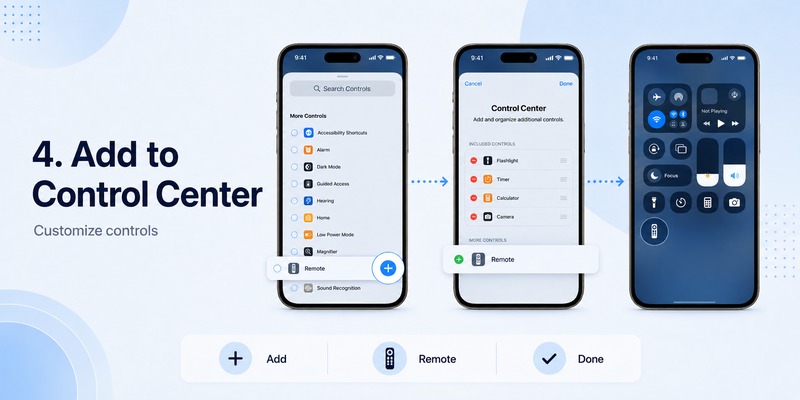
If apple tv remote for iphone does not appear in Control Center, you can add it.
Apple’s current support instructions for recent iOS versions say to:
- Swipe down from the top-right corner to open Control Center.
- Tap the option to add controls.
- Choose Add a Control.
- Search for or scroll to Remote.
- Tap Remote to add it.
Apple notes that on iOS 17 and earlier, the process was different: users could go to Settings → Control Center and add Apple TV Remote from there.
This difference matters because many older tutorials still show the previous Settings-based method.
If you follow an old guide and cannot find Apple TV Remote under Settings → Control Center, try customizing Control Center itself instead.
Once added, keep apple tv remote for iphone somewhere convenient in your Control Center layout.
If you use Apple TV frequently, placing it near your other common media controls can make it faster to access.
You typically only need to add the control once.
After that, open Control Center and tap the Remote icon whenever you want to control your Apple TV.
5. How to Use Apple TV Remote for iPhone
After pairing, using apple tv remote for iphone should feel familiar if you have used a modern Apple TV remote before.
The large touch area is the primary navigation surface.
Swipe your finger across it to move through menus, apps, settings, and content rows.
Tap to select the highlighted item.
Depending on your Apple TV and software version, the interface can also provide buttons for common actions such as going back, opening TV controls, controlling playback, and accessing other system functions.
Apple’s current Apple TV documentation confirms that an iPhone or iPad can be used as a remote for Apple TV 4K through Control Center.
Navigate through menus
Swipe across the touch area.
This works well for browsing streaming apps, moving through Settings, selecting movies, or navigating the Apple TV Home Screen.
Select an item
Tap the touch area after highlighting the item you want.
Control playback
When content is playing, apple tv remote for iphone can provide playback controls for supported apps and media.
This is useful for quickly pausing a movie when someone enters the room or resuming playback without finding your physical remote.
Return to previous screens
Use the appropriate back control in the Remote interface to move backward through menus.
Switch between Apple TVs
If your home has multiple compatible Apple TV devices, the Remote interface can allow you to choose the Apple TV you want to control.
This makes apple tv remote for iphone particularly convenient in homes with multiple rooms.
💡 Discover Helpful Guides: How to Reset Your Apple TV Remote: Pairing, Volume, and No-Remote Fixes
6. Using Apple TV Remote for iPhone on iPhone 16
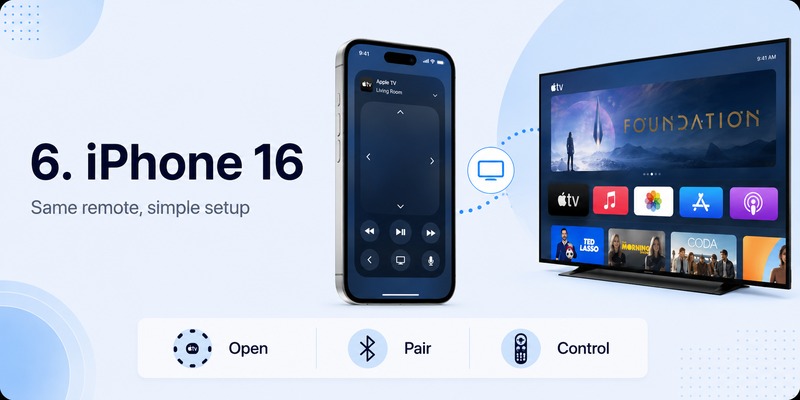
Users searching for apple tv remote iphone 16 do not need a special iPhone 16-specific app.
The same Control Center functionality applies.
On iPhone 16, swipe down from the upper-right corner of the display to open Control Center, then tap the Remote control.
If you have not added it yet, customize Control Center and add Remote.
Select your Apple TV and complete any pairing prompt.
After pairing, apple tv remote for iphone can be used from the iPhone 16 just as it can on other recent iPhones.
The larger display and modern iOS interface can make the remote comfortable to use, particularly when entering text or navigating content.
If the control does not appear, check your Control Center customization rather than searching for a separate iPhone 16 remote download.
Keeping both your iPhone and Apple TV software updated is also important. Apple recommends updating iOS or iPadOS and tvOS if you have trouble setting up the Remote.
7. What Can You Control With Your iPhone?
A major reason to use apple tv remote for iphone is that it handles many everyday Apple TV functions.
Menu navigation
The touch interface lets you browse the Apple TV Home Screen, settings, streaming apps, and other menus.
Playback
You can control supported video and audio playback without reaching for the physical Siri Remote.
Text entry
When Apple TV requests text input, your iPhone can offer a much faster typing experience than an on-screen TV keyboard.
Volume
Volume control requires a little more explanation.
Apple says the volume buttons in the Control Center Remote can control Apple TV volume when Apple TV is configured with a HomePod, soundbar, or another AirPlay-compatible speaker system.
If your setup does not support this type of volume control, Apple recommends using the remote supplied with your television.
Therefore, apple tv remote for iphone may not provide identical volume functionality in every entertainment setup.
Power and system controls
Available system controls depend on your Apple TV model, tvOS version, television, and connected home-theater hardware.
For most users, though, the iPhone remote provides enough functionality for everyday browsing and playback.
🧭 Explore Guides: How to Reset Your Apple TV Remote: Pairing, Volume, and No-Remote Fixes
8. How to Use the iPhone Keyboard With Apple TV
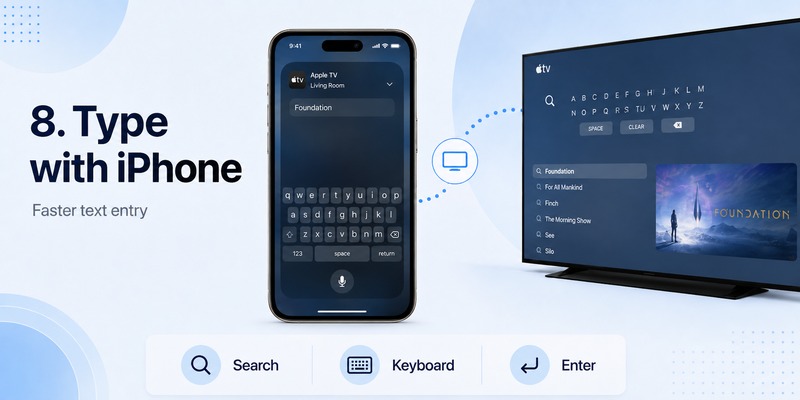
One of the most useful benefits of apple tv remote for iphone is text input.
Imagine searching for a long movie title using only directional controls.
Moving between every letter on an on-screen keyboard can become tedious.
With your iPhone connected to Apple TV, compatible text fields can allow you to enter text from the phone.
This is especially useful for:
- Search queries
- Wi-Fi information
- Usernames
- Email addresses
- App searches
- Longer titles
Using a phone keyboard can make apple tv remote on iphone feel more practical than the physical remote in situations where a lot of typing is required.
It is also one reason to keep the Remote configured even if you normally use the Siri Remote.
Think of apple tv remote for iphone as a complementary controller rather than only an emergency replacement.
🗺️ Browse How-To Guides: How to Use an Apple TV Remote: Buttons, Navigation, Power, and Everyday Shortcuts
9. What to Do If Apple TV Remote for iPhone Is Not Connecting
Sometimes the Remote opens but cannot find or connect to your Apple TV.
Apple recommends several troubleshooting steps.
Check Wi-Fi
Make sure the iPhone and Apple TV are on the same Wi-Fi network.
On iPhone:
Settings → Wi-Fi
On Apple TV:
Settings → Network
If the devices are connected to different networks, apple tv remote for iphone may not be able to establish the expected connection.
Update your software
Update your iPhone to the latest supported version of iOS.
Also update the Apple TV to the latest compatible version of tvOS.
Apple specifically recommends updating both devices when troubleshooting Remote setup problems.
Restart your devices
Restart the iPhone.
Then restart the Apple TV or compatible smart TV.
After everything reconnects to Wi-Fi, open apple tv remote for iphone again.
Select the correct Apple TV
If multiple Apple TVs appear, confirm that you selected the device in the room you are currently using.
Recheck the pairing code
If a four-digit code appears, enter it exactly as instructed.
A failed or interrupted initial pairing can prevent the Remote from connecting correctly.
Check the smart TV setup
If you are controlling an AirPlay-compatible television rather than an Apple TV box, Apple says the smart TV should be added to the Home app and assigned to a room.
Following these checks resolves many common problems with apple tv remote for iphone without requiring a reset.
📖 Explore Articles: Lost Apple TV Remote? How to Find It Fast and Keep Watching
10. Can Apple TV Remote for iPhone Replace the Siri Remote?
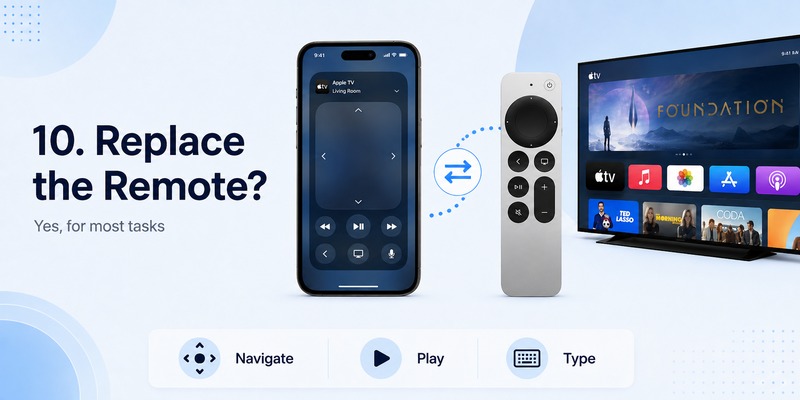
For many everyday tasks, yes.
You can use apple tv remote for iphone for navigation, selection, playback, and other common Apple TV functions.
If you regularly keep your phone nearby, you may even find yourself using it more often than the physical remote.
However, the iPhone is not always a perfect replacement.
A physical Siri Remote offers tactile controls that you can operate without looking at a touchscreen. It also does not require you to unlock or access another device before controlling the television.
Battery state is another consideration. If your iPhone is charging in another room or has no battery left, a physical remote remains more convenient.
The best setup is often to use both.
Keep the Siri Remote available for everyday television control while using apple tv remote for iphone when you need fast text input, cannot locate the physical remote, or already have your phone in hand.
Interestingly, recent Apple TV and iPhone software can also help locate certain physical Apple TV remotes.
Apple says an iPhone running iOS 17 or later can help locate a compatible Siri Remote or Apple TV Remote, such as supported second-generation or later models. The iPhone displays proximity feedback as you move closer.
So your iPhone can potentially serve both as the remote and as a tool for finding the missing physical one.
Using a remote TV App as an Alternative
The built-in Apple solution is usually the logical starting point for Apple TV because it is integrated directly into iOS.
However, a remote TV App can be useful if you want to control additional televisions or smart-TV platforms from the same phone.
Third-party TV remote apps may support features such as navigation, playback controls, channel controls, app launching, keyboard input, or device discovery depending on the television brand and network environment.
The main difference is that apple tv remote for iphone is specifically integrated with Apple’s ecosystem, while a broader TV remote application may focus on controlling multiple television brands.
If your home has an Apple TV in one room and another brand of smart TV elsewhere, having both types of control available can be convenient.
For Apple TV itself, however, try the built-in Control Center option first before installing additional software.
Frequently Asked Questions
Is there an apple tv remote on iphone?
Yes.
Apple includes the Apple TV Remote in Control Center on supported iPhones.
Open Control Center, tap Remote, select your Apple TV, and follow the pairing instructions.
Do I need to download apple tv remote for iphone?
Normally, no separate official remote download is required.
The Remote is integrated with iOS through Control Center.
If you cannot see it, add the Remote control to Control Center.
How do I use my iphone as apple tv remote?
Open Control Center by swiping down from the upper-right corner on newer iPhones.
Tap the Apple TV Remote icon, choose your Apple TV, and complete the pairing process.
You can then navigate using the touch area.
Why can’t I find apple tv remote for iphone?
The Remote control may not currently be included in your Control Center layout.
Customize Control Center, choose Add a Control, search for Remote, and add it.
Apple’s current instructions use this method on newer iOS versions.
Does apple tv remote for iphone work with Apple TV 4K?
Yes.
Apple officially supports the Control Center Remote with Apple TV 4K.
Does it work with Apple TV HD?
Yes.
Apple lists Apple TV HD as a supported device for Apple TV Remote in Control Center.
Can apple tv remote for iphone control a smart TV?
It can work with compatible AirPlay smart TVs.
Apple says the television should be added to the Home app and assigned to a room before using it with the Remote.
Why doesn’t volume work?
Volume control depends on your audio configuration.
Apple says Control Center Remote volume buttons can operate compatible setups involving HomePod, soundbars, or other AirPlay-compatible speakers.
Otherwise, you may need the physical television remote.
Can I use apple tv remote for iphone if my Siri Remote is lost?
Yes.
This is one of the most useful reasons to configure it.
You can also use a compatible iPhone to help locate certain newer Siri Remote or Apple TV Remote models.
Does apple tv remote for iphone require the same Wi-Fi network?
For normal setup and troubleshooting, Apple instructs users to ensure the iPhone or iPad and Apple TV or compatible smart TV are on the same Wi-Fi network.
Final Thoughts on Apple TV Remote for iPhone
The apple tv remote for iphone is one of the easiest ways to control an Apple TV when the physical remote is unavailable—or when your iPhone is simply more convenient.
On current iPhones, start by opening Control Center. Tap Apple TV Remote, choose your Apple TV, and complete the pairing instructions if prompted.
If Remote is missing, customize Control Center and add it.
Once connected, apple tv remote for iphone gives you touchscreen navigation, playback controls, convenient text entry, and access to common Apple TV functions without requiring another device.
Apple currently supports the feature with Apple TV 4K, Apple TV HD, and compatible AirPlay smart TVs.
For iPhone 16 owners, there is no separate process or special application required. The same Control Center-based system provides the apple tv remote for iphone experience.
If the connection fails, check that both devices are on the same Wi-Fi network, update iOS and tvOS, restart the devices, and try connecting again.
The physical Siri Remote still has advantages, especially when you want immediate tactile controls. But keeping apple tv remote for iphone configured gives you a reliable backup whenever the Siri Remote disappears between the sofa cushions, needs charging, or simply is not within reach.
For anyone who regularly watches Apple TV, setting up apple tv remote for iphone takes only a short time and can make controlling the television considerably more convenient.
Download TV Remote App