
Lost Apple TV Remote? How to Find It Fast and Keep Watching
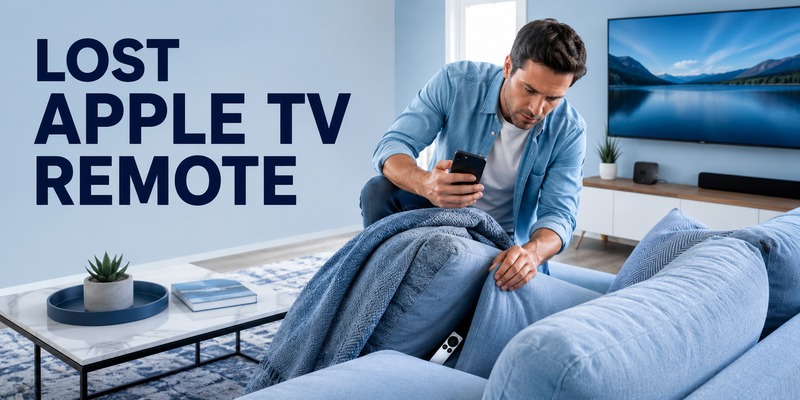
A lost apple tv remote can turn a simple movie night into a search through couch cushions, blankets, side tables, and every place the remote “could not possibly be.” The good news is that newer Apple TV remotes can be located with an iPhone, and even when that feature is not available, you can usually keep controlling Apple TV from a phone or tablet while you continue looking.
The right solution depends on which remote you have. Apple says an iPhone can help find a Siri Remote or Apple TV Remote from the second generation or later when the required software is installed. If your remote is older, the proximity-finding feature may not be available, but that does not mean you are locked out of your Apple TV.
This guide focuses on the fastest practical path after a lost apple tv remote: check whether your remote supports Apple’s Find feature, use your iPhone to narrow down its location, switch to a software remote if needed, and decide whether a replacement makes sense only after the easier options are exhausted.
1. Lost Apple TV Remote? Start Here
When you first notice a lost apple tv remote, decide whether you need to find the hardware immediately or simply regain control of Apple TV. Those are related problems, but your iPhone can often solve the second one before the first is finished.
If you have an iPhone, open Control Center and look for Apple TV Remote. Compatible newer remotes can be located through Find, and the phone can also act as a temporary controller while the physical remote is missing.
Use this quick decision path:
| Situation | Best first move | Why it helps |
| Newer remote is missing | Try Find from Apple TV Remote on iPhone | Gives proximity guidance |
| Remote generation is unknown | Open the device list and check for Find | Fast way to see whether locating is supported |
| Find is unavailable | Use phone remote and search manually | Keeps Apple TV usable |
| Physical remote may be out of power | Search common locations before assuming failure | A discharged remote can still be physically nearby |
| Remote is truly gone | Consider a compatible replacement | Restores dedicated hardware control |
This approach keeps a lost apple tv remote from becoming a bigger problem than it needs to be. The important distinction is that “missing” and “unusable” are not the same thing. Your Apple TV may still be fully accessible from your iPhone while you work out where the remote went.
If you searched for apple tv remote lost, the fastest next step is therefore not a random room search. It is to check whether your iPhone can help locate the remote directly.
Download LG TV Remote2. Can You Find a Lost Apple TV Remote With an iPhone?
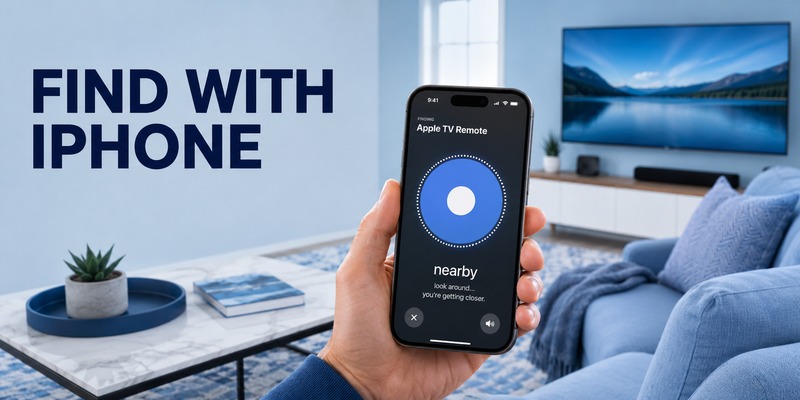
Yes, for compatible hardware. Apple says you can use an iPhone to find a Siri Remote or Apple TV Remote from the second generation or later. The iPhone needs iOS 17 or later, and the Apple TV needs tvOS 17 or later for this locating workflow.
That makes the iPhone especially useful for a lost apple tv remote on newer hardware. Rather than showing a map pin, the interface gives proximity guidance that changes as you move closer.
This is useful when the remote is under a blanket, between cushions, or behind furniture. Apple notes that you may need to move around before the iPhone establishes a connection.
Before trying to locate apple tv remote, check these requirements:
- You are using an iPhone with iOS 17 or later.
- Your Apple TV is running tvOS 17 or later.
- The missing remote is a supported second-generation or later Siri Remote/Apple TV Remote.
- Your iPhone can access the Apple TV Remote control.
- You are close enough to the general area for the phone to establish contact with the remote.
If all of those conditions are met, a lost apple tv remote becomes much easier to recover than with a purely manual search.
💡 Discover Helpful Guides
Apple remote tv app: Complete Apple TV Remote Guide for iPhone, Siri Remote, Pairing & Fixes
3. How to Find Your Apple TV Remote Step by Step
To search for a lost apple tv remote, start on your iPhone rather than on the Apple TV screen. Open Control Center, then tap Apple TV Remote. Once the remote interface opens, tap the device list at the top and choose the Apple TV connected to the missing remote.
If the physical remote supports locating, you should see a Find option next to it. Tap Find and follow the onscreen directions. Your iPhone will guide you as you move around the room or nearby area.
The basic process is:
- Open Control Center on your iPhone.
- Tap Apple TV Remote.
- Tap the device list or the Apple TV name at the top.
- Tap Find beside the missing compatible remote.
- Move around slowly until the iPhone establishes a connection.
- Follow the distance guidance until you reach the remote.
- Close the locating screen after you have found it.
When looking for the missing remote, move slowly and let the phone update before changing direction.
Once the phone shows that you are close, search a small radius: cushions, sofa gaps, folded blankets, pillows, and nearby surfaces.
If connection is not immediate, keep moving through the area. A lost apple tv remote may simply be far enough away that the iPhone needs a moment to detect it.
💡 Discover Helpful Guides: Apple TV Remote Replacement: Buying and Setup Guide
4. What “Far,” “Near,” and “Here” Mean
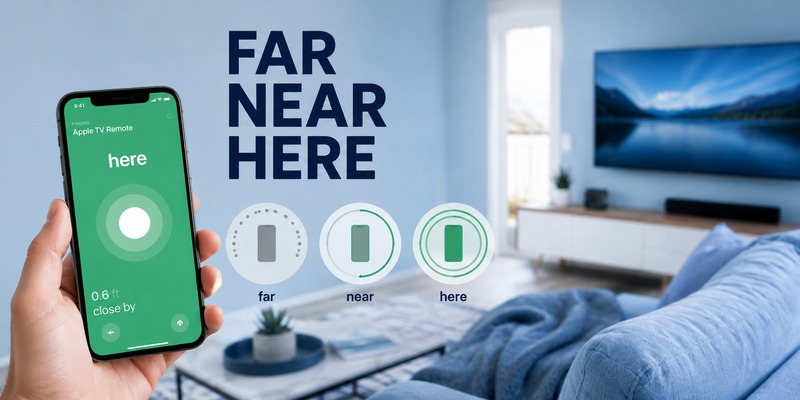
The locating screen for a compatible lost apple tv remote does not work like a map with a pin. Instead, it gives you proximity feedback. Apple describes the onscreen circle becoming larger as you get closer, while the text changes through stages such as far, near, and here.
Use the display as search feedback, not as an exact distance meter. Move, watch whether the status improves, and narrow your search as you get closer.
| Onscreen status | What it suggests | What to do next |
| Far | The remote is not close to your current position | Move to another part of the room or nearby room |
| Near | You are within a smaller search area | Slow down and check furniture, blankets, and surfaces |
| Here | You are very close to the remote | Search the immediate area carefully |
This is one reason the iPhone method is more efficient than repeatedly checking the same places after a lost apple tv remote. It turns a vague search into a narrowing process.
When the status changes from Far to Near, slow down. When it says Here, inspect the immediate area, especially beneath soft or layered objects that can hide the remote completely.
The locating feature only narrows the zone. The remote may still be hidden under a cushion, so finish with a careful visual check.
💡 Discover Helpful Guides: How to Reset Your Apple TV Remote: Pairing, Volume, and No-Remote Fixes
5. What to Do If the Find Option Does Not Appear
If you open Apple TV Remote on your iPhone but do not see Find for the lost apple tv remote, start with compatibility rather than troubleshooting randomly. The locating function is designed for supported newer remotes, so an older remote may not offer the feature at all.
Software is another important check. Apple states that finding the compatible remote with an iPhone requires iOS 17 or later and tvOS 17 or later. If either device is running older software, update it before assuming the remote cannot be located.
If phone control cannot connect, check that the iPhone or iPad and Apple TV are on the same Wi-Fi network. Updating and restarting both devices are also standard setup checks.
Use this order for a lost apple tv remote when Find is missing:
- Confirm that the physical remote is a supported generation.
- Update the iPhone to the latest available iOS version.
- Update Apple TV to the latest available tvOS version.
- Make sure the phone can connect to Apple TV Remote in Control Center.
- Check that both devices are on the expected Wi-Fi network when setting up phone control.
- Restart the iPhone and Apple TV if the software remote cannot connect.
If Find is unavailable because your model is older, use phone control and continue a targeted search for the lost apple tv remote.
📖 Explore Articles: Apple TV Remote for iPhone: How to Set Up and Use Your iPhone as an Apple TV Remote
6. Use Your iPhone or iPad as a Temporary Apple TV Remote
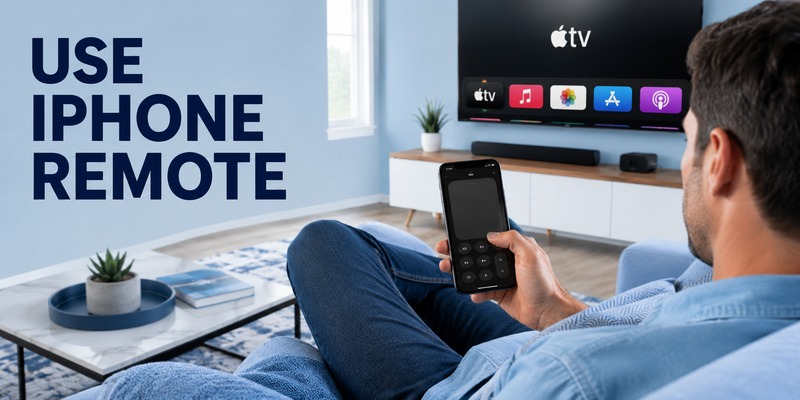
Even if you cannot immediately recover a lost apple tv remote, you may not need to stop watching TV. Apple TV Remote in Control Center can turn an iPhone or iPad into a practical software controller for compatible Apple TV models.
Open Control Center, tap Apple TV Remote, select your Apple TV, and follow the pairing prompt if one appears. Apple may ask you to enter a four-digit passcode displayed on the television. Once connected, the software remote provides navigation and playback controls that can cover the most important everyday actions.
This separates urgency from the search. You can keep navigating and playing content without first solving the lost apple tv remote problem.
For homes with other compatible TVs, a Remote TV App can be another backup. A software remote keeps the system usable while you decide whether to recover or replace the dedicated Apple remote.
| Backup option | Good for | Limitation |
| Apple TV Remote in Control Center | Direct Apple TV navigation | Requires compatible setup and connection |
| iPad remote control | Larger-screen backup controller | Less convenient to hold than a phone |
| Physical replacement remote | Dedicated long-term control | Requires buying another device |
| Phone-based TV remote solution | Broader household TV control | Features vary by TV and device |
A lost apple tv remote is therefore inconvenient, but it does not automatically make Apple TV unusable.
📘 Find the Right Guide: Apple TV Remote iPad: How to Set Up and Control Apple TV From Your iPad
7. Search Your Room More Efficiently
If the Find feature is unavailable or only gets you close, use a repeatable physical search instead of checking the same obvious places again. A lost apple tv remote is small enough to disappear into furniture, but its usual movement pattern is predictable: it often follows the person who last used it.
Start at the viewing position. Remove cushions one at a time, check the seams, lift blankets fully, and inspect the floor under and behind the couch.
Next, follow the route someone might take after viewing: kitchen counter, dining table, desk, bedside table, or charging area. Also check low shelves or places where a pet could have knocked the remote down.
A useful search sequence for a lost apple tv remote is:
- Sofa cushions and seams.
- Blankets, throws, and pillows.
- Coffee and side tables.
- Floor under and behind furniture.
- Kitchen and dining surfaces.
- Charging areas and desks.
- Bedrooms or other rooms visited during viewing.
Finish one zone before moving to the next. If proximity guidance is available, apply this checklist only inside the area marked Near or Here.
The goal is not to search harder, but to avoid checking the same hiding place twice.
🛠️ Learn with Step-by-Step Guides: Apple TV Remote Icon: What It Means and How to Use It
8. Older Apple TV Remotes and Compatibility Limits
Not every lost apple tv remote can be found with the iPhone proximity feature. Apple’s current support guidance specifically points to Siri Remote or Apple TV Remote second generation or later for the locating workflow. If you have an earlier remote, you may need to rely on manual searching, phone control, or replacement.
This is why identifying the generation matters before you spend time trying to make the Find button appear. A missing feature can be a hardware limitation rather than a connection error.
Replacement compatibility varies by Apple TV model. Check your Apple TV generation and the replacement remote’s compatibility before purchasing.
For an older lost apple tv remote, use this fallback order:
- Search the room methodically.
- Use Apple TV Remote on an iPhone or iPad if your Apple TV supports it.
- Continue using the phone temporarily if it meets your needs.
- Buy a compatible replacement only if the physical remote does not turn up or phone control is inconvenient.
Do not buy a new remote only because Find is unavailable. If phone control works, you can keep using Apple TV while deciding.
If you repeatedly misplace the remote, consider changing where it lives when not in use. A tray beside the couch, a dedicated charging location, or a consistent shelf can prevent the next lost apple tv remote search from happening at all.
📖 Explore Articles: How to Use an Apple TV Remote: Buttons, Navigation, Power, and Everyday Shortcuts
9. FAQ About a Lost Apple TV Remote
Can I find my Apple TV remote with my iPhone?
Yes, if you have a supported Siri Remote or Apple TV Remote from the second generation or later and the required software. For a lost apple tv remote, Apple says the iPhone should run iOS 17 or later and Apple TV should run tvOS 17 or later.
Does the Apple TV remote appear in the Find My app?
Apple’s current documented locating workflow starts from Apple TV Remote in Control Center rather than the standard Find My device list. To locate apple tv remote, open Apple TV Remote, select your Apple TV, and use Find next to the compatible missing remote.
What if my Apple TV remote is too old to use Find?
You can still search manually and use your iPhone or iPad as a temporary controller if your Apple TV supports Apple TV Remote in Control Center. An older lost apple tv remote may not support proximity locating, but that does not necessarily prevent phone-based Apple TV control.
Can I use Apple TV without the physical remote?
Yes. On compatible setups, Apple TV Remote in Control Center can provide navigation and playback controls from an iPhone or iPad. This is often the fastest way to keep watching while a lost apple tv remote is still missing.
Should I replace the remote immediately if I cannot find it?
No. First check compatibility with the iPhone locating feature, search the most likely areas, and use a phone as a temporary controller. Replace a lost apple tv remote when the search has clearly failed or when relying on a phone is inconvenient for your household.
10. Final Thoughts
A lost apple tv remote is much easier to handle when you separate the problem into two goals: finding the physical remote and keeping Apple TV usable. For a compatible second-generation or later Siri Remote or Apple TV Remote, your iPhone can provide proximity guidance that changes as you move closer. That is the best first option when the required iOS and tvOS versions are installed.
If Find is unavailable, check the remote generation and software requirements first. Older hardware may simply lack locating support, so use Apple TV Remote in Control Center and search the room methodically.
A lost apple tv remote does not have to stop playback for long. Your iPhone or iPad can often keep Apple TV accessible while you look.
For multi-TV homes, a Remote TV App can also be a useful backup alongside Apple’s controls.
Once you recover the lost apple tv remote, give it a consistent home: a tray, charging spot, or shelf near the television. A small routine now can save another long search later. Keeping the remote in one familiar place also makes it easier for everyone in the household to know where to return it after watching every time.
Download LG TV Remote