
How to Use an Apple TV Remote: Buttons, Navigation, Power, and Everyday Shortcuts
Learning how to use an apple tv remote is easier once you stop treating every button as a separate feature and start thinking in a few simple groups: navigation, playback, power, voice, and TV control. Newer Siri Remote models use a circular clickpad, while the first-generation Siri Remote uses a touch surface, but the everyday logic is similar.
If you have just set up an Apple TV, replaced a lost remote, or moved from an older model, this guide walks through how to use an apple tv remote from the first button press to more useful shortcuts. It also explains what to do when the remote stops responding and how your iPhone can keep Apple TV usable when the physical remote is unavailable.
The goal is practical control, not memorizing every feature. Once you understand the clickpad, Back, TV/Control Center, Play/Pause, Siri, volume, mute, and power controls, how to use an apple tv remote becomes intuitive enough for everyday viewing.
1. How to Use an Apple TV Remote: Quick Start
The fastest way to understand how to use an apple tv remote is to learn five actions first: move, select, go back, play or pause, and return to the TV screen or Control Center. These cover most of what you do during a normal viewing session.
On the current silver Siri Remote, use the outer ring of the clickpad to move up, down, left, or right. Press the center of the clickpad to select the highlighted item. Press Back to return to the previous screen. Press Play/Pause when content is playing, and use the TV/Control Center button to access Apple TV system controls.
For the first-generation black Siri Remote, navigation happens on the touch surface instead of a circular clickpad. Swipe in the direction you want to move and press the touch surface to select. This difference matters when reading how to use apple tv remote instructions written for another generation.
A useful starter routine is:
- Wake Apple TV with the TV, Back, Menu, or Power button available on your remote model.
- Move the highlight to an app with the clickpad or touch surface.
- Press the center or touch surface to open it.
- Use Back to leave a page or return to the previous level.
- Use Play/Pause during supported playback.
That sequence is the core of how to use an apple tv remote. Everything else adds speed or extends control to your television and audio equipment. Practice how to use an apple tv remote by opening one familiar app, moving through a few rows, and returning to the previous screen before trying advanced shortcuts.
Download LG TV Remote2. Know the Buttons on Your Apple TV Remote
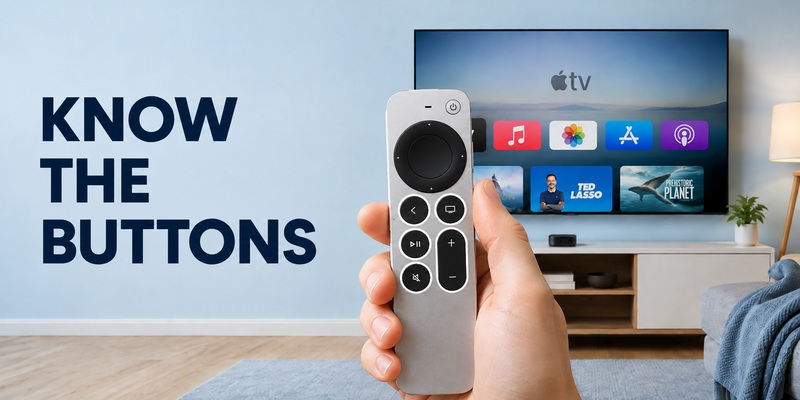
Understanding the physical layout makes how to use an apple tv remote much easier. Identify whether you have a newer silver Siri Remote with a circular clickpad or the older black model with a touch surface.
For a detailed visual reference, the site’s guide to apple tv remote buttons can help you match each control to its purpose. The table below covers the everyday functions you are most likely to use.
| Control | What it does | Best everyday use |
| Clickpad / touch surface | Moves focus and selects items | Browse apps, menus, and timelines |
| Back / Menu | Returns to the previous screen | Exit menus or step back |
| TV / Control Center | Opens TV functions and Control Center | Switch profiles, access settings, return to TV |
| Play/Pause | Starts or pauses supported media | Movies, shows, music |
| Siri | Accepts voice requests where supported | Search, launch apps, ask questions |
| Volume / Mute | Controls compatible audio setups | Adjust sound without another remote |
| Power | Wakes or sleeps compatible equipment | Turn Apple TV and supported TV setup on or off |
When learning how to use an apple tv remote, do not assume every button controls the television directly. Apple TV navigation is one layer; television power and volume can depend on HDMI-CEC, infrared, a receiver, a soundbar, or another audio path.
A simple way to learn how to use an apple tv remote is to separate Apple TV navigation from television control. Searches such as apple tv remote how to use often come from this exact confusion. If navigation works but volume or power does not, the remote itself may be fine. Test Apple TV navigation first, then troubleshoot TV or audio control separately.
💡 Discover Helpful Guides
Apple remote tv app: Complete Apple TV Remote Guide for iPhone, Siri Remote, Pairing & Fixes
3. Navigate Apple TV With the Clickpad or Touch Surface
Navigation is the part of how to use an apple tv remote that you will use constantly. On second-generation and later Siri Remotes, the circular clickpad acts both as directional control and as a selectable center button. On the first-generation remote, the upper touch surface performs the same basic job through taps and swipes.
Move and select
Press or swipe up, down, left, or right to move the onscreen highlight. When the item you want is selected, press the center of the clickpad or the touch surface. This opens apps, selects menu items, confirms choices, and starts content where appropriate.
Go back without getting lost
Use Back on newer models or Menu on the first-generation model to return to the previous screen. This is one of the most important habits when learning how to use an apple tv remote, because it prevents the common mistake of repeatedly pressing the TV button when you only need to go back one level.
Move through long rows quickly
Apple TV interfaces often place content in horizontal rows. Use steady left-right movement rather than rapid random swipes. If selection jumps too far, slow the gesture before moving again.
When practicing how to use an apple tv remote, focus on one navigation pattern at a time rather than making several fast gestures. The basic rule is simple: directional control moves focus, the center selects, and Back reverses the last navigation step. Once that becomes automatic, how to use an apple tv remote feels much closer to using a familiar game controller than learning a complicated home-theater device.
4. Control Playback, Scrubbing, and Apps
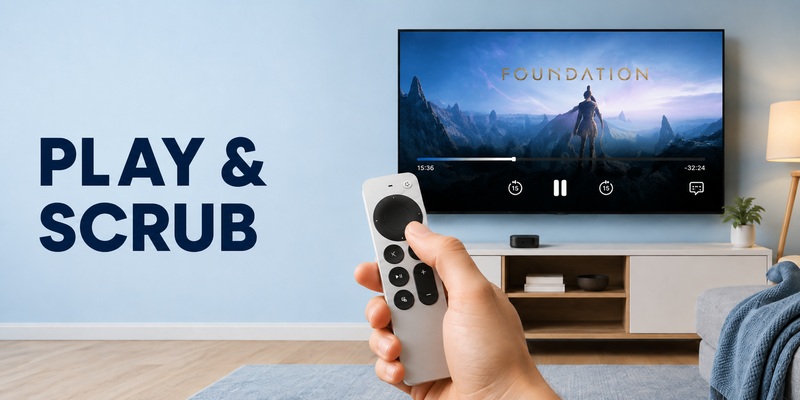
Playback is where how to use an apple tv remote becomes more than opening apps. The Play/Pause button provides the most obvious control, but the clickpad or touch surface can also help you move through a video timeline in supported apps.
Press Play/Pause once to pause content and again to resume. When an app exposes a timeline, pausing first usually gives you a clearer position indicator. Depending on the remote generation and app, you can then move backward or forward using the clickpad or touch surface. Apple’s first-generation instructions, for example, describe pausing and swiping left or right on the touch surface to scrub through a timeline.
For everyday use, think of playback controls in three layers:
- Play/Pause: stop and resume immediately.
- Timeline navigation: move to a different point in the program where supported.
- App-specific controls: subtitles, audio options, episode lists, and information panels vary by app.
A common mistake while learning how to use an apple tv remote is expecting every streaming app to behave identically. If a gesture behaves differently, pause and check the onscreen controls.
Knowing how to use an apple tv remote during playback also means watching the onscreen timeline before scrubbing. You can also use Back to close an overlay without exiting the entire app. This makes how to use an apple tv remote faster: use the smallest action that matches your goal instead of repeatedly backing all the way to the Home Screen.
💡 Discover Helpful Guides: Apple TV Remote Replacement: Buying and Setup Guide
5. Turn On Your TV and Control Volume
One of the most useful parts of how to use an apple tv remote is controlling more than the Apple TV box itself. With a compatible setup, the Siri Remote can also wake connected TV or receiver equipment.
On current Apple TV 4K software, go to Settings > Remotes and Devices and look under Home Theater Control. Depending on your setup, Apple provides options such as Control TVs and Receivers or Turn On Your TV with Your Remote. When properly configured, powering Apple TV on or off can also turn compatible TV or receiver equipment on or off.
That answers the intent behind how to use apple tv remote to turn on tv: first enable the relevant home-theater control option, then use the Power button on newer silver remotes or the appropriate Apple TV wake/sleep controls. HDMI-CEC support on the TV or receiver is often central to this behavior.
Volume is slightly different. Apple TV can use HDMI-CEC or infrared for volume. If it does not respond, check Settings > Remotes and Devices > Volume Control.
| What works | Likely meaning | What to check next |
| Apple TV navigation and TV power | Core remote connection is healthy | No action needed |
| Navigation works, volume fails | Audio control path may differ | Volume Control settings |
| Apple TV wakes, television stays off | TV control may not be enabled | HDMI-CEC / Home Theater Control |
| Nothing responds | Remote may need charge, pairing, or restart | Connection troubleshooting |
Separating these layers is essential to how to use an apple tv remote without assuming every failure is a remote failure. When you know how to use an apple tv remote for navigation first, power and volume problems become easier to isolate.
6. Use Siri and Control Center Faster
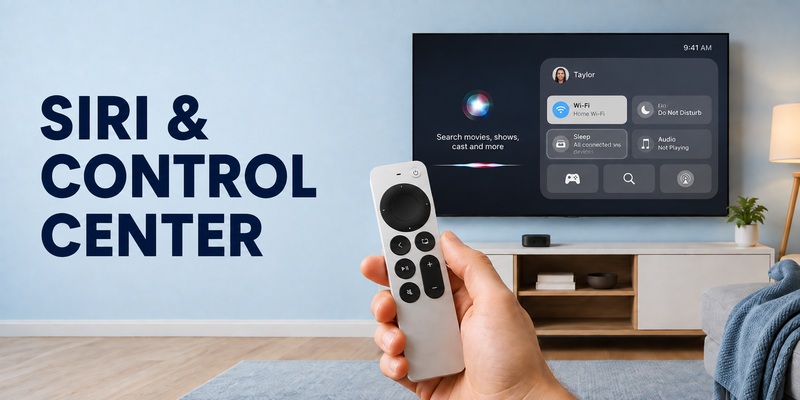
Once the basic controls feel natural, how to use an apple tv remote becomes faster with Siri and Control Center. These features reduce clicks for search, profiles, settings, and playback.
Use Siri for search and commands
On a Siri Remote, press and hold the Siri button, speak your request, then release it. Availability varies by language and region. Siri can also support dictation in compatible text fields.
Open Control Center
Press and hold the TV/Control Center button to open Control Center. This area gives you quick access to system functions without leaving the context of what you are watching. A quick press of the TV button can perform a different action depending on your Apple TV settings, so the long press is the reliable way to reach Control Center.
These shortcuts are useful because how to use an apple tv remote is not only about knowing which button performs an action; it is also about reducing unnecessary steps. Learning how to use an apple tv remote efficiently usually means replacing repeated menu navigation with Control Center or voice when those options are faster. Voice search can replace long typing, and Control Center can replace a trip through several Settings screens.
If you use an iPhone as a remote, Apple provides similar touch and button controls through Control Center. The dedicated guide on how to use apple tv remote on iphone is useful when you want to move between the physical remote and phone control without relearning the interface.
💡 Discover Helpful Guides: How to Reset Your Apple TV Remote: Pairing, Volume, and No-Remote Fixes
7. Restart or Reconnect an Apple TV Remote
Even after you understand how to use an apple tv remote, the remote may occasionally stop responding as expected. Before replacing it, distinguish between restarting the remote, pairing it again, and restarting the Apple TV box. Treat them as different actions.
For how to restart apple tv remote, Apple’s current procedure for Siri Remote and Apple TV Remote is to press and hold the TV/Control Center button and Volume Down at the same time for about five seconds, or until the Apple TV status light turns off and on again. Release the buttons, wait for the remote to disconnect, and then press a button after the Remote Connected notification appears.
The phrase apple tv remote restart is often confused with resetting or re-pairing. Restarting refreshes the remote; pairing tells Apple TV which remote should control it. If pairing is required, Apple currently instructs users to place the remote close to Apple TV and hold Back (or Menu on older models) plus Volume Up for five seconds. If pairing fails, Apple recommends unplugging Apple TV, waiting six seconds, reconnecting power, and trying again.
| Action | Button combination / step | Use it when |
| Restart remote | TV/Control Center + Volume Down | Remote is connected but behaving incorrectly |
| Pair remote | Back/Menu + Volume Up | Apple TV does not recognize the remote |
| Restart Apple TV | Disconnect power, wait six seconds, reconnect | Pairing still fails |
Once you know how to use an apple tv remote normally, reserve restart and pairing steps for genuine connection problems rather than everyday navigation mistakes. If you need deeper troubleshooting, see how to reset apple tv remote or how to pair apple tv remote. Knowing these distinctions makes how to use an apple tv remote much less frustrating when a normal button press stops working.
📖 Explore Articles: Apple TV Remote for iPhone: How to Set Up and Use Your iPhone as an Apple TV Remote
8. Use Apple TV Without the Physical Remote
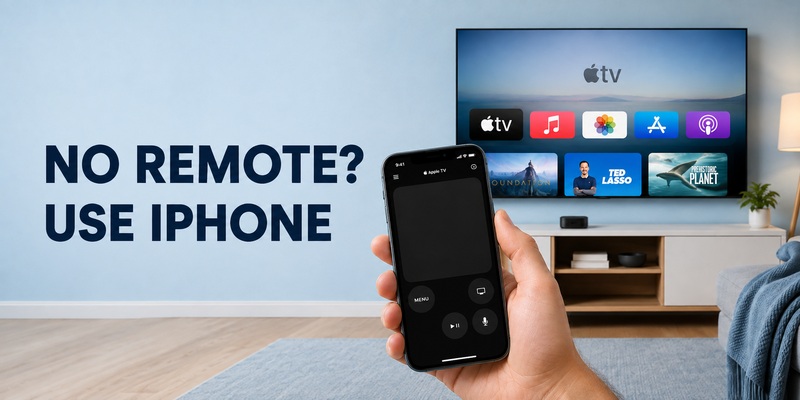
Understanding how to use an apple tv remote also means knowing your backup when the physical remote is lost, charging, or temporarily unavailable. Apple lets you control supported Apple TV models from an iPhone or iPad using Apple TV Remote in Control Center.
If you are asking how to use apple tv without remote, open Control Center on the iPhone or iPad and tap the Remote control. Select your Apple TV, then enter the onscreen passcode if prompted. Apple’s setup guidance says the mobile device and Apple TV should be on the same Wi-Fi network when configuring or troubleshooting this connection.
The phone interface provides touch navigation, playback controls, and easier text entry with the phone keyboard.
For households that want phone-based control across more than one television platform, a Remote TV App can provide another practical option when it supports the devices in your setup. It can be useful when you want a broader TV-control workflow.
It is worth learning how to use an apple tv remote on both the physical controller and the iPhone interface because the core navigation logic is similar. The best backup plan is to set up phone control before the physical remote disappears. That way, how to use an apple tv remote does not become an emergency troubleshooting task when the Siri Remote is under a sofa cushion, out of charge, or temporarily disconnected.
📘 Find the Right Guide: Apple TV Remote iPad: How to Set Up and Control Apple TV From Your iPad
9. Frequently Asked Questions
Is the clickpad the same as the old touch surface?
Not exactly. Newer silver Siri Remotes use a circular clickpad, while the first-generation black Siri Remote uses a touch surface. For how to use an apple tv remote, the key idea is the same: move the highlight, then select the item you want.
Can the Apple TV remote turn on my television?
Yes, with a compatible setup. Enable the appropriate option under Settings > Remotes and Devices > Home Theater Control. HDMI-CEC support may be required for coordinated TV or receiver power. If the TV stays off, check its HDMI-CEC setting.
Why do the volume buttons work differently from navigation?
Because navigation controls Apple TV directly, while volume may be routed through HDMI-CEC, infrared, a receiver, soundbar, HomePod, or another audio setup. If navigation works but volume does not, check Volume Control first.
Can I use an iPhone if my Siri Remote is lost?
Yes. Apple TV Remote in iPhone or iPad Control Center can control supported Apple TV models. Set it up on the same Wi-Fi network and choose the Apple TV from the remote interface. This is the simplest answer to how to use apple tv without remote when a phone is available.
Do I need to restart the remote often?
No. Restarting is a troubleshooting step, not part of normal how to use an apple tv remote operation. Use it when the remote is behaving incorrectly or fails to respond normally. If the problem is pairing, charge, or TV volume control, address that specific layer instead of repeatedly restarting the remote.
🛠️ Learn with Step-by-Step Guides: Apple TV Remote Icon: What It Means and How to Use It
10. Final Thoughts
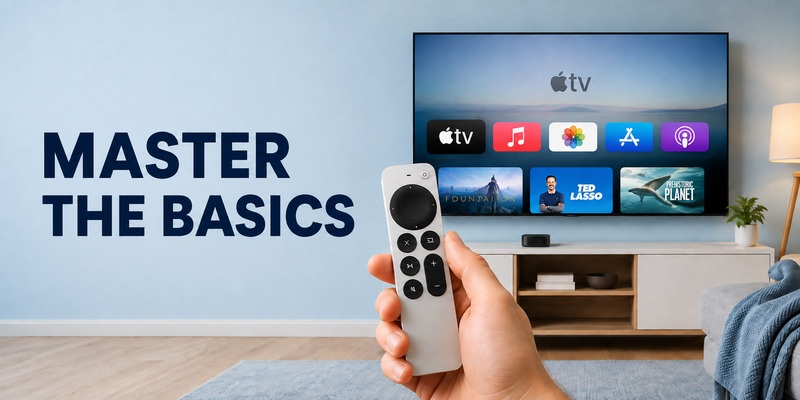
The simplest way to master how to use an apple tv remote is to build a small set of habits. Use the clickpad or touch surface for navigation, press the center to select, use Back for one-level navigation, rely on Play/Pause during media, and learn the TV/Control Center button for faster system access.
After that, add the features that matter to your setup. Configure television power if your TV and receiver support it, check the correct volume-control method, and use Siri when voice search is faster than manual typing. These are the details that turn how to use an apple tv remote from basic button knowledge into a smooth home-theater workflow.
Keep the restart and pairing combinations in mind, but use them only when needed. For everyday viewing, the remote should feel simple rather than technical. If the physical remote is missing or unavailable, iPhone or iPad Control Center gives you a strong backup, and a compatible Remote TV App can be useful when you want broader phone-based TV control across your setup.
Once you know the difference between Apple TV navigation, television power, audio control, and connection troubleshooting, how to use an apple tv remote becomes straightforward. Start with navigation, add shortcuts gradually, and keep phone control ready as a backup.
Download LG TV Remote