
Apple TV Remote Buttons Explained: Home, Menu, Power, Control Center
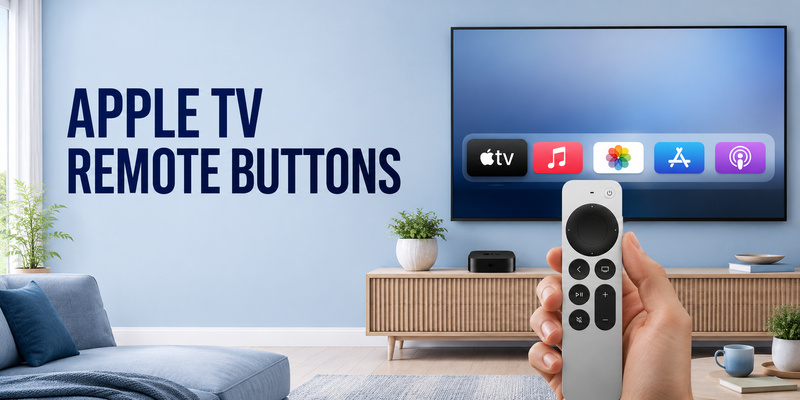
If you have changed Apple TV generations or picked up a replacement Siri Remote, apple tv remote buttons can be more confusing than they first appear. Newer silver Siri Remote models use a circular clickpad, Back button, Power button, Mute button, and side-mounted Siri button, while the first-generation Siri Remote uses a large touch surface and a Menu button instead.
Most apple tv remote buttons fit into a few simple groups: navigation, playback, system access, voice, television power, and audio control. Once you know which remote generation you have, the layout becomes much easier to understand.
This guide provides apple tv remote buttons explained in practical terms. You will learn what each control does, how Home and Menu behavior differs, where the Power button is, how TV/Control Center works, and what to do if a button sticks, breaks, or stops responding.
1. Apple TV Remote Buttons at a Glance
The fastest way to learn apple tv remote buttons is to identify your remote generation first. Apple’s second- and third-generation Siri Remote design is silver and uses a large circular clickpad near the top. Under it are Back and TV/Control Center, followed by Play/Pause, Mute, and the vertical Volume control. The Power button is in the top-right corner, while Siri is activated from a narrow button on the right edge.
The first-generation Siri Remote looks different. It has a black body with a large touch surface across its upper section. Directly underneath are Menu and TV/Control Center. Siri, Play/Pause, and volume controls sit lower on the remote. This older design does not have the same dedicated Power and Mute buttons as the newer silver model.
Here is a quick map of apple tv remote buttons:
| Control | Main job | Extra action |
| Clickpad / Touch surface | Navigate and select | Scrub supported timelines |
| Back / Menu | Return to previous screen | Hold for Home Screen |
| TV/Control Center | Open Apple TV app or configured destination | Double-press for App Switcher; hold for Control Center |
| Play/Pause | Start or pause media | Helps enter timeline scrubbing |
| Siri | Voice search and dictation | Hold while speaking |
| Volume / Mute | Control supported audio | Depends on TV/audio setup |
| Power | Wake or sleep compatible setup | Newer silver remotes only |
The key is that apple tv remote buttons can react differently to a press, double-press, or long press. Learning those patterns is more useful than memorizing symbols alone.
Download LG TV Remote2. Clickpad and Touch Surface: Navigation Explained
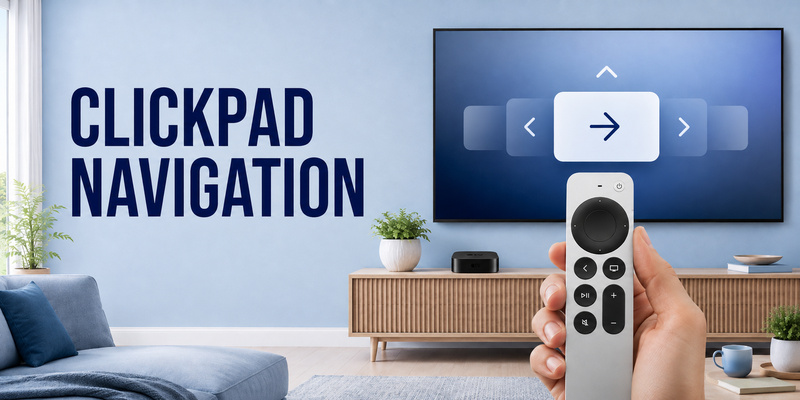
Among all apple tv remote buttons, the clickpad is the control you use most. On second-generation and later Siri Remotes, it is the large circular area at the top-center. Press up, down, left, or right on the ring for precise movement, swipe across the touch-enabled surface for faster navigation, and press the center to select a highlighted item.
During playback, apple tv remote buttons around the clickpad can also move through a timeline. Apple says you can press left or right on the ring to skip backward or forward. After pausing supported content, swipe left or right to scrub. You can also move a finger around the ring in a circular motion when the app supports that interaction.
The first-generation Siri Remote replaces the circular clickpad with a rectangular touch surface. Swipe to move focus and press the surface to select. During supported playback, the same surface can be used to move through the timeline after you pause.
If you are following instructions written for another generation, translate “clickpad” to “touch surface” when appropriate. The physical shape changed, but the navigation idea did not.
For a complete usage walkthrough, see how to use an Apple TV remote. The navigation area is the center of almost every interaction; the surrounding apple tv remote buttons mainly provide shortcuts for going back, opening system controls, starting playback, and managing audio.
💡 Discover Helpful Guides
Apple remote tv app: Complete Apple TV Remote Guide for iPhone, Siri Remote, Pairing & Fixes
3. Home, Back, and Menu Buttons: What Changed
Questions about the apple tv remote home button are common because current Siri Remotes do not show a button literally labeled “Home.” Instead, Home behavior is available through other apple tv remote buttons.
On current silver models, the Back button is directly below the clickpad on the left. Press it once to return to the previous screen. Press and hold it to go to the Home Screen. So if you are asking what is the home button on apple tv remote, think of Home as a long-press function of Back rather than a separate labeled key.
The apple tv remote menu button belongs to the first-generation Siri Remote. It sits directly below the touch surface on the left. Apple says one press returns to the previous screen while browsing, while holding Menu takes you to the Home Screen. That also answers what is the menu button on apple tv remote and where is the menu button on apple tv remote for the older black model.
For users asking where is the home button on apple tv remote, remember that Home is a function, not a printed label. The TV/Control Center button can also be configured to go to the Home Screen with a single press instead of opening the Apple TV app.
These apple tv remote buttons become easier to remember if you separate them by purpose: Back or Menu handles backward navigation and Home by long press; TV/Control Center handles system-level navigation and shortcuts.
💡 Discover Helpful Guides: Apple TV Remote Replacement: Buying and Setup Guide
4. TV/Control Center Button: One Button, Several Actions
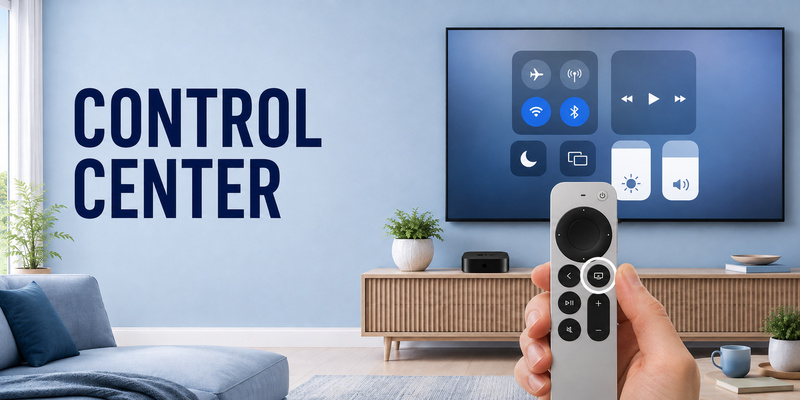
The TV/Control Center control is one of the most versatile apple tv remote buttons. On newer silver remotes, it is the circular button directly below the clickpad on the right and carries a small TV-screen icon. On the first-generation Siri Remote, it appears in roughly the same position below the touch surface.
A single press normally opens the Apple TV app in supported regions, although the button can be configured to return to the Home Screen. Double-pressing opens the App Switcher, where you can move through open apps and close one by swiping upward. Pressing and holding opens Control Center.
That is why what is the tv control center button on apple remote has more than one answer: its behavior depends on whether you press once, twice, or hold it. You may also see the search phrase apple remote tv control center button when users are trying to identify the same icon.
Control Center gives quick access to profiles, audio output, sleep controls, and other system options. Instead of opening Settings and moving through several menus, hold the button and use the overlay.
Among apple tv remote buttons, this control is the clearest example of why press duration matters. If one press opens the Apple TV app when you wanted Control Center, the remote is probably functioning correctly—you simply need to hold the button.
💡 Discover Helpful Guides: How to Reset Your Apple TV Remote: Pairing, Volume, and No-Remote Fixes
5. Power, Volume, and Mute Buttons
The apple tv remote power button appears on second-generation and later silver Siri Remotes. Apple places it at the top-right corner as a small circular control. If you are asking where is the power button on apple tv remote, look above the clickpad rather than inside the main button cluster.
Press and hold Power to wake Apple TV and turn on a compatible television setup. Press and hold it again to turn off compatible TV equipment and put Apple TV to sleep. Whether your television or receiver follows the command depends on the home-theater control path and equipment support.
The volume control is the long vertical button on the right side of the remote face. Press the upper half to raise volume and the lower half to reduce it. Mute sits on the lower-left area of current silver remotes. These apple tv remote buttons can depend on HDMI-CEC, infrared, a receiver, soundbar, or another audio setup, so navigation can work even when volume does not.
| Symptom | Likely area | First check |
| Navigation works, volume fails | Audio control path | Remotes and Devices > Volume Control |
| Apple TV wakes, TV stays off | TV/receiver control | HDMI-CEC / Home Theater Control |
| Mute does nothing | Audio-device support | Test the active audio route |
| Physical button is damaged | Hardware | Stop forcing it and consider service |
If an apple tv remote power button fell off, avoid forcing the loose part back with sharp tools or glue. Use phone-based control temporarily and consider Apple or an authorized service provider for inspection or replacement.
6. Play/Pause and Siri Buttons
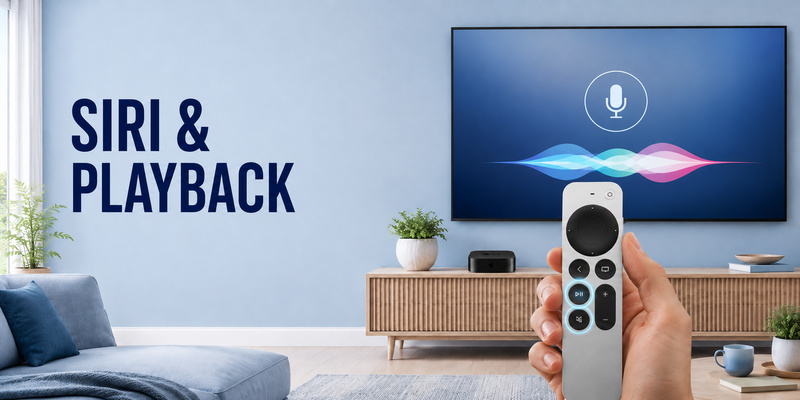
Two apple tv remote buttons are especially useful for reducing menu navigation: Play/Pause and Siri. The Play/Pause button is a round control on the left side of current silver remotes, below Back. Press it once to pause supported media and again to resume.
Play/Pause also helps when you want to move through a video timeline. Apple’s current instructions allow you to pause, then use the clickpad to scrub backward or forward through supported content. The first-generation Siri Remote works similarly with its touch surface.
The Siri button on second-generation and later Siri Remotes is on the right edge. Press and hold it, speak your request, then release it. Siri availability depends on language, country, and region. Where available, it can search for movies or shows, launch playback, and dictate text in supported fields.
These apple tv remote buttons can replace several manual steps. Voice search can be faster than moving through an onscreen keyboard, while Play/Pause gives you a predictable starting point before scrubbing a timeline.
If Siri is not supported in your region, the control can behave differently, such as opening Search instead. That difference does not automatically mean the remote is faulty.
A practical way to learn apple tv remote buttons is to add these shortcuts after you are comfortable with the clickpad. Navigation first, then Play/Pause and Siri, keeps the learning curve simple.
📖 Explore Articles: Apple TV Remote for iPhone: How to Set Up and Use Your iPhone as an Apple TV Remote
7. Apple TV Remote Buttons on Different Generations
Confusion around apple tv remote buttons often comes from following instructions for the wrong hardware generation. Apple’s newer silver Siri Remote design uses a circular clickpad, Back button, dedicated Power button, and Mute button. The first-generation black Siri Remote uses a rectangular touch surface and a Menu button instead.
The main differences are easy to compare:
| Function | 2nd generation and later | 1st generation |
| Navigation | Circular touch-enabled clickpad | Rectangular touch surface |
| Previous screen | Back | Menu |
| Home Screen | Hold Back | Hold Menu |
| Control Center | Hold TV/Control Center | Hold TV/Control Center |
| App Switcher | Double-press TV/Control Center | Double-press TV/Control Center |
| Power | Dedicated Power button | No equivalent dedicated top Power button |
| Mute | Dedicated Mute button | No dedicated Mute button |
| Siri | Side button | Face button |
This difference explains why searches for apple tv remote buttons can produce answers that seem contradictory. Someone using the older black remote sees Menu where a newer guide refers to Back. Someone using a current silver Siri Remote may search for Menu and find no button with that label.
The same applies to the apple tv remote home button. Neither remote needs a key printed “Home” to offer a Home Screen shortcut. Hold Back on newer remotes or Menu on the first-generation model.
Before troubleshooting apple tv remote buttons, identify the remote visually. That simple step prevents normal generational differences from being mistaken for missing controls or incorrect setup.
📘 Find the Right Guide: Apple TV Remote iPad: How to Set Up and Control Apple TV From Your iPad
8. What to Do When Buttons Stick, Break, or Stop Responding
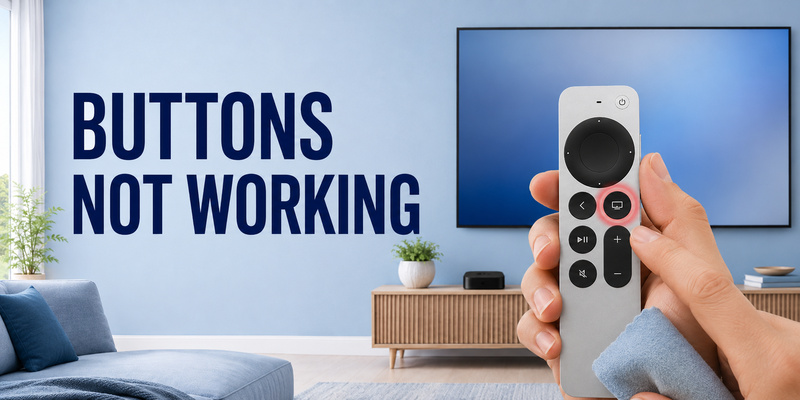
When apple tv remote buttons sticking is the problem, first separate a physical issue from a wireless or software issue. If one button feels slow, does not spring back, or only works when pressed at an angle, debris or physical wear is more likely. If many apple tv remote buttons stop responding at once but still feel normal, battery, pairing, or connection is a better place to investigate.
For a mildly sticky button, inspect around its edge for visible dust or residue. Use a clean, dry, soft cloth around the surface. Avoid pouring cleaner into openings, and do not pry beneath the button with a blade, pin, or screwdriver. If liquid was spilled or the button remains mechanically stuck, service is safer than forcing the mechanism.
If several controls respond inconsistently, restart the remote. Apple’s current procedure is to hold TV/Control Center and Volume Down together for about five seconds, release them, wait for the remote to disconnect, then press a button after it reconnects.
If pairing is the issue, keep the remote close to Apple TV and hold Back—or Menu on the first-generation model—together with Volume Up for five seconds. See how to pair Apple TV remote for a fuller walkthrough.
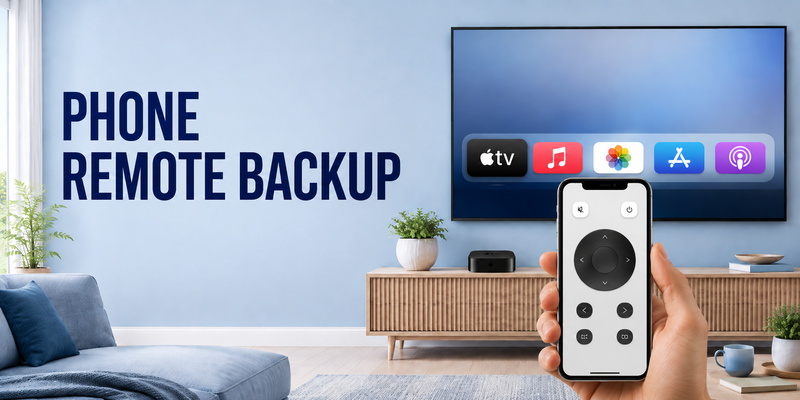
When physical damage is obvious, software troubleshooting will not repair the mechanism. Use Apple TV Remote in iPhone Control Center or a compatible Remote TV App as a temporary backup while you arrange service or replacement.
🛠️ Learn with Step-by-Step Guides: Apple TV Remote Icon: What It Means and How to Use It
9. Frequently Asked Questions About Apple TV Remote Buttons
Where is the Power button on the latest Siri Remote?
The power control is the small round button at the top-right corner of second-generation and later silver Siri Remotes. Hold it to wake Apple TV and compatible TV equipment, or hold it again to turn the setup off and put Apple TV to sleep.
Where is the Home button on an Apple TV remote?
There is no key literally labeled Home on current Siri Remotes. Hold Back on newer silver models. On the first-generation remote, hold Menu. The TV/Control Center button can also be configured for Home Screen behavior.
What does the TV/Control Center button do?
It is one of the most multifunctional apple tv remote buttons. Press once for the Apple TV app or configured destination, double-press to open the App Switcher, and press and hold to open Control Center.
Why do my Apple TV remote buttons work except volume?
Navigation and audio control can use different paths. If apple tv remote buttons navigate tvOS correctly but volume does not respond, check Settings > Remotes and Devices > Volume Control and verify your TV, receiver, soundbar, HDMI-CEC, or IR configuration.
Can I control Apple TV if a button breaks?
Yes. Apple TV Remote in iPhone or iPad Control Center can replace the physical controller for many everyday actions. A compatible Remote TV App may also help with broader phone-based TV control depending on the television platform you use.
💡 Discover Helpful Guides: Lost Apple TV Remote? How to Find It Fast and Keep Watching
10. Final Thoughts
Understanding apple tv remote buttons starts with identifying your Siri Remote generation. Newer silver models use a circular clickpad, Back, TV/Control Center, Play/Pause, Mute, volume, side-mounted Siri, and dedicated Power. The first-generation black remote uses a touch surface and Menu button instead of several newer controls.
Remember three interaction patterns: press, double-press, and press and hold. Many apple tv remote buttons change function based on timing. Back or Menu returns one level with a normal press but reaches Home when held. TV/Control Center opens a destination with one press, App Switcher with two presses, and Control Center with a long press.
Physical problems require a different response from connection problems. If controls feel normal but stop responding, check battery, pairing, and restart the remote. If you have apple tv remote buttons sticking or obvious physical damage, avoid forcing the mechanism and use phone control while you consider service.
For everyday use, learn the clickpad first, then Back/Menu, TV/Control Center, playback, power, volume, and Siri. If the physical controller is unavailable, iPhone Control Center is a practical backup, while a compatible Remote TV App can support phone-based TV control across supported devices.
Once you know the symbols and press patterns, apple tv remote buttons become a compact set of shortcuts rather than a collection of mysterious icons.
Download LG TV Remote