
How to Use Apple TV Remote on iPhone: Complete Setup and Control Guide
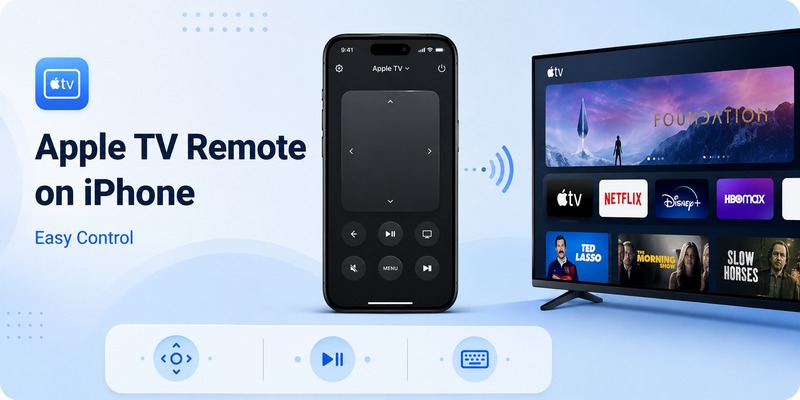
Your Apple TV remote has disappeared between the sofa cushions, the battery is empty, or you simply have your iPhone in your hand already. In any of these situations, knowing how to use apple tv remote on iphone can save you from searching for the physical Siri Remote every time you want to pause a show or open another app.
Apple includes Apple TV Remote directly in Control Center on supported iPhones. That means you normally do not need to download a separate official remote application. You can open Control Center, select your Apple TV, and start navigating from the iPhone screen.
Apple’s current support documentation says Apple TV Remote in Control Center works with Apple TV 4K, Apple TV HD, and compatible AirPlay smart TVs. For compatible smart TVs, the television should first be added to Apple’s Home app and assigned to a room.
The setup is straightforward, but understanding how to use apple tv remote on iphone involves more than simply opening the remote. You can navigate menus, select content, control playback, enter text with the iPhone keyboard, switch between Apple TV devices, and—in supported audio setups—control volume.
This guide walks through the entire process from setup to troubleshooting.
1. What You Need Before Using Apple TV Remote on iPhone
Before learning how to use apple tv remote on iphone, make sure your devices meet the basic requirements.
Apple currently supports Apple TV Remote in Control Center with:
- Apple TV 4K
- Apple TV HD
- Compatible AirPlay smart TVs
For normal setup, Apple also recommends that your iPhone and Apple TV or compatible television use the same Wi-Fi network.
You should also keep both devices updated.
Your iPhone should be running a current supported version of iOS, while the Apple TV should be running the latest compatible tvOS version.
This is especially important if you are having trouble connecting the apple tv remote on phone for the first time.
You do not need the physical Siri Remote every time you use the iPhone Remote after setup. However, depending on your television and current configuration, the physical remote may still be useful for certain TV-specific functions.
If your goal is simply to understand how to use apple tv remote on iphone for everyday Apple TV navigation, your iPhone, Apple TV, and Wi-Fi connection are usually all you need.
Download LG TV Remote2. How to Use Apple TV Remote on iPhone From Control Center
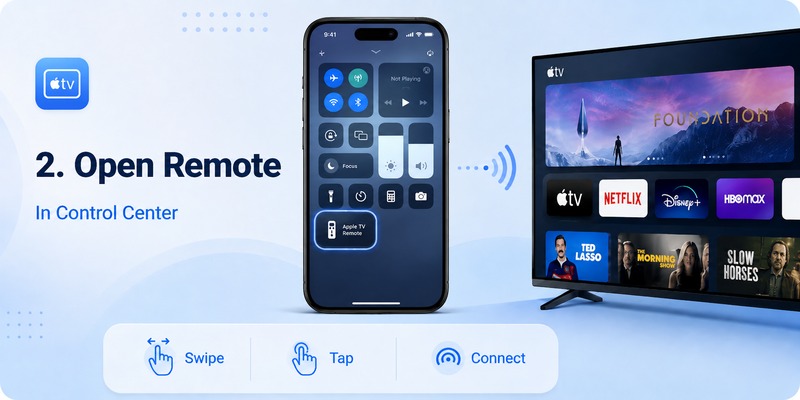
The fastest method starts in Control Center.
On an iPhone with Face ID, swipe down from the top-right corner of the display.
On older iPhone models such as iPhone 8 or earlier, Apple notes that Control Center may be opened by swiping upward from the bottom edge.
Then follow these steps:
- Open Control Center.
- Tap the Apple TV Remote icon.
- Select your Apple TV from the device list.
- Enter the four-digit pairing code if requested.
- Use the touch area and remote buttons to control Apple TV.
That is the basic process for how to use apple tv remote on iphone.
If you see several Apple TV devices, check the room or device name carefully before selecting one.
Once connected, the Remote interface appears on the iPhone. A large touch-sensitive area provides navigation while buttons around it handle common commands.
For someone searching how to use iphone as apple tv remote, this built-in Control Center tool is generally the best place to begin.
There is no need to pair the iPhone as though it were a conventional Bluetooth accessory. Apple handles the Remote connection through its Apple TV and network ecosystem.
Once you know how to use apple tv remote on iphone, opening it again usually takes only a few seconds.
💡 Discover Helpful Guides
Apple remote tv app: Complete Apple TV Remote Guide for iPhone, Siri Remote, Pairing & Fixes
3. How to Add Apple TV Remote to Control Center
Sometimes you open Control Center but cannot find the Remote button.
In that case, the answer to how to get apple tv remote on iphone is to add the Remote control to Control Center.
Apple’s current instructions are:
- Open Control Center.
- Tap the option to add controls.
- Select Add a Control.
- Search for Remote or scroll until you find it.
- Tap Remote to add it.
Apple notes that the procedure is different on iOS 17 and earlier. On those versions, users can go to Settings → Control Center and use the add button beside Apple TV Remote.
After adding it, position the Remote somewhere convenient in your Control Center layout.
If you regularly watch Apple TV, putting it close to playback, volume, or connectivity controls can make how to use apple tv remote on iphone feel much faster.
Users asking how to get the apple tv remote on your phone sometimes assume it needs to be downloaded from the App Store. On supported current iPhones, that normally is not necessary because Apple TV Remote is integrated into Control Center.
Once the control is visible, tap it whenever you want to open your apple tv remote phone interface.
💡 Discover Helpful Guides: Apple TV Remote Replacement: Buying and Setup Guide
4. How to Connect Your iPhone to Apple TV
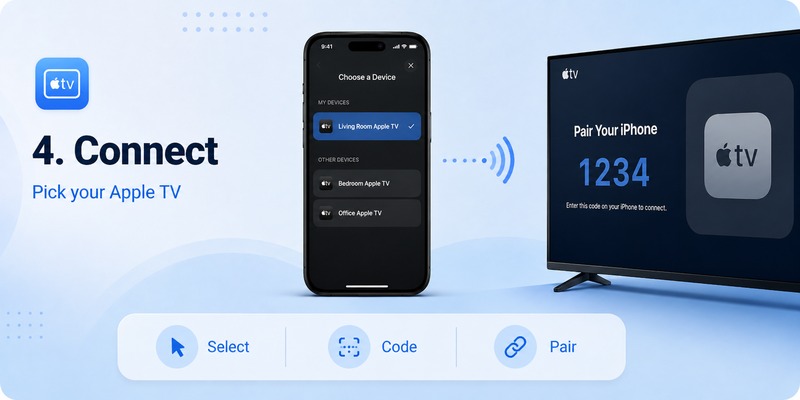
The first time you open Apple TV Remote, you may need to connect it to your television.
Understanding this step is essential to how to use apple tv remote on iphone because the Remote cannot control an Apple TV until the correct device has been selected.
Open Control Center and tap Apple TV Remote.
At the top of the Remote interface, select the Apple TV or compatible smart TV you want to control.
Apple may then display a four-digit code. Follow the on-screen instructions and enter that code into your iPhone when requested.
After pairing, try moving your finger across the touch area.
The selection on the television should move.
Tap an item.
If the item opens, the apple tv remote from phone connection is working.
If nothing happens, check that both devices are on the same Wi-Fi network before repeating the setup.
Apple specifically lists shared Wi-Fi as one of the first troubleshooting checks when Apple TV Remote cannot be configured.
Once connected, how to use apple tv remote on iphone becomes very similar to using a physical Apple TV remote, except the directional surface and controls appear on your touchscreen.
💡 Discover Helpful Guides: How to Reset Your Apple TV Remote: Pairing, Volume, and No-Remote Fixes
5. How to Use Apple TV Remote on iPhone for Navigation
Navigation is where the iPhone Remote gets most of its everyday use.
Open the Remote and use the large touch area to move around Apple TV.
Swipe upward, downward, left, or right to move between apps, menu items, streaming titles, and settings.
When the desired item is highlighted, tap the touch area to select it.
This is the central interaction to remember when learning how to use apple tv remote on iphone.
Apple’s Apple TV documentation confirms that you can use the touch area and buttons on the iPhone Remote to control Apple TV 4K.
Move between apps
Swipe through the Apple TV Home Screen until the app you want is highlighted.
Tap to open it.
Browse movies and shows
Move through content rows by swiping.
Tap a title to open its information page.
Return to a previous screen
Use the Back control in the iPhone Remote interface.
Return to Apple TV controls
Use the appropriate TV or navigation button shown in the Remote interface.
The exact appearance can change slightly as Apple updates iOS and tvOS, but the fundamental approach to how to use apple tv remote on iphone remains based on touch navigation and on-screen buttons.
The result is particularly convenient when your iPhone is already nearby.
📖 Explore Articles: Apple TV Remote for iPhone: How to Set Up and Use Your iPhone as an Apple TV Remote
6. How to Control Playback From Your iPhone
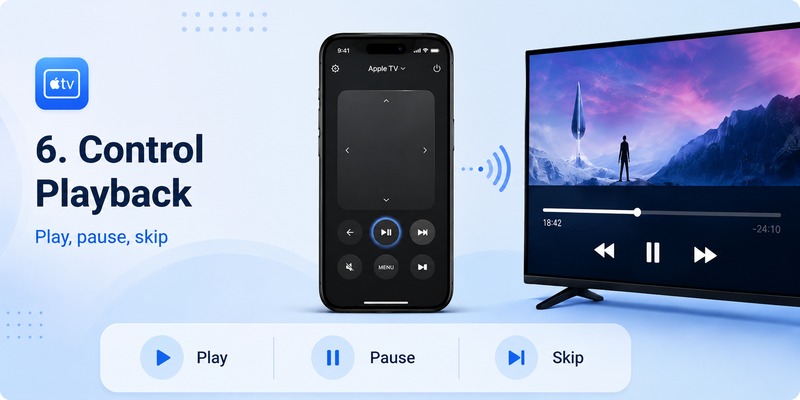
Once a movie, show, song, or video is playing, how to use apple tv remote on iphone becomes even simpler.
The iPhone Remote provides playback controls that let you pause, resume, and interact with supported media.
For example, if someone calls you while you are watching a show, you do not need to search for your Siri Remote.
Open Control Center, tap Remote, and pause the content.
Depending on the current app and playback context, your Remote interface can display controls for:
- Play
- Pause
- Previous or rewind-related actions
- Next or forward-related actions
- Menu navigation
This makes using an apple tv remote on phone practical even if the physical remote is sitting somewhere nearby.
It can also be convenient in a shared household. If someone else leaves the physical remote on the opposite side of the room, you can still control playback immediately from your iPhone.
For everyday viewing, playback is one of the easiest parts of how to use apple tv remote on iphone to learn.
7. How to Type on Apple TV With Your iPhone
Typing is one area where the iPhone can be noticeably more convenient than a physical television remote.
Imagine entering a long search phrase using an on-screen TV keyboard.
Moving one character at a time can become frustrating.
When Apple TV requests text and the supported iPhone keyboard interaction becomes available, you can use the iPhone to enter text much more naturally.
This is especially useful for:
- Movie and show searches
- App searches
- Email addresses
- Account names
- Wi-Fi information
- Other text fields
If you are researching how to use your phone as an apple tv remote, do not overlook this feature.
Text input can be one of the strongest reasons to keep your phone configured as a Remote even when your Siri Remote works perfectly.
For example, type “Foundation” or another title on your iPhone instead of moving through every letter on the television.
This makes how to use apple tv remote on iphone more than an emergency workaround. In certain situations, the phone is genuinely the faster controller.
8. How Volume Control Works With Apple TV Remote
Volume is slightly different from ordinary navigation.
You might expect how to use apple tv remote on iphone to include universal volume control for every television setup, but that is not always the case.
Apple says the volume buttons used with Apple TV Remote in Control Center can control Apple TV volume when the Apple TV is configured with a HomePod, soundbar, or another AirPlay-compatible speaker setup.
If the Apple TV is not configured with compatible audio equipment, Apple recommends using the remote supplied with the television to control volume.
Therefore, if navigation works but the iPhone volume buttons do not change TV volume, the Remote itself may not be broken.
Your audio setup may simply not support that control method.
This is an important detail in how to use iphone as remote for apple tv, especially for users trying to completely replace the physical TV remote.
Think of navigation and playback as standard Apple TV controls, while volume functionality can depend more heavily on the connected television and audio hardware.
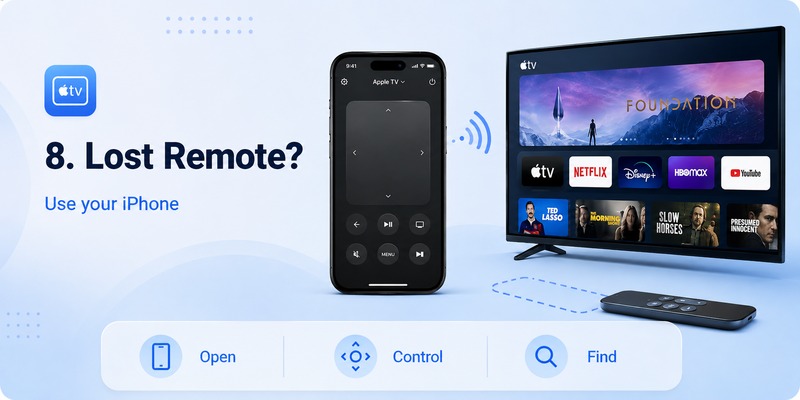
9. How to Use Apple TV Remote on iPhone When the Physical Remote Is Lost
A missing Siri Remote is one of the most common reasons people learn how to use apple tv remote on iphone.
Fortunately, once the iPhone Remote is configured, losing the physical remote usually does not stop you from using Apple TV.
Open:
Control Center → Apple TV Remote → Your Apple TV
You can then continue navigating and playing content from the phone.
On supported hardware, your iPhone can even help locate certain missing physical Apple TV remotes.
Apple says that an iPhone running iOS 17 or later can help find a compatible second-generation or later Siri Remote or Apple TV Remote. From Apple TV Remote on the iPhone, select the Apple TV name and use the Find option when available.
The screen provides proximity feedback as you move closer.
That means knowing how to use apple tv remote on iphone can solve two problems at once:
You can control the television without the physical remote, and potentially locate the missing remote afterward.
This makes the iPhone a useful backup controller even if you normally prefer tactile buttons.
10. What to Do When Apple TV Remote Is Not Connecting
You understand how to use apple tv remote on iphone, but the Apple TV does not appear or nothing responds.
Start with Apple’s recommended troubleshooting sequence.
1. Check Wi-Fi
Your iPhone and Apple TV should be connected to the same Wi-Fi network.
On iPhone:
Settings → Wi-Fi
On Apple TV:
Settings → Network
Apple specifically recommends verifying this when the Remote cannot be set up.
2. Update iOS and tvOS
Update your iPhone to the newest supported iOS version.
Update Apple TV to the latest available tvOS version.
Software differences can interfere with setup, particularly if one device has not been updated for a long time.
3. Restart both devices
Restart your iPhone.
Restart Apple TV.
Then reconnect to Wi-Fi and try how to use apple tv remote on iphone again.
Apple lists restarting both devices among its recommended setup troubleshooting steps.
4. Check the selected device
If your household has several Apple TVs, confirm that the Remote is connected to the correct room.
5. Repeat pairing
Open Remote again and select the Apple TV.
If a four-digit code appears, enter it exactly as displayed.
6. Check compatible smart TV setup
If you are controlling an AirPlay-compatible smart television rather than an Apple TV box, Apple says you should add the smart TV to the Home app and assign it to a room.
Once these checks are complete, try how to use apple tv remote on iphone again before resetting your Apple TV.
A factory reset is rarely the first step needed for an ordinary Remote connection issue.
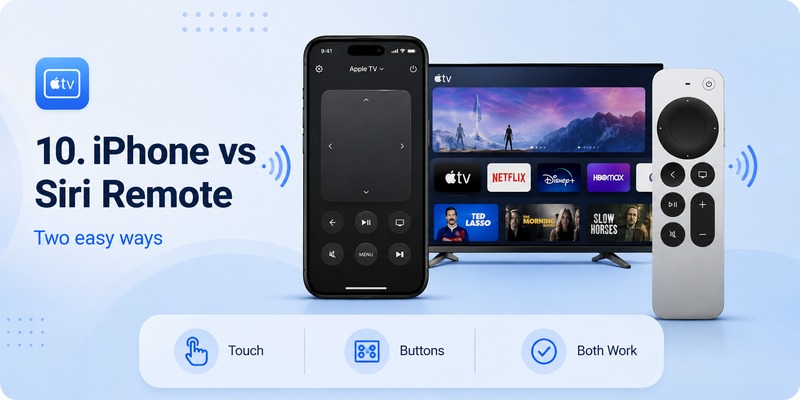
Apple TV Remote on iPhone vs Physical Siri Remote
Once you understand how to use apple tv remote on iphone, you may wonder whether you need the physical remote anymore.
For many common tasks, the iPhone works extremely well.
It offers navigation, playback controls, device selection, and convenient text entry.
But the Siri Remote still has advantages.
Why use the iPhone?
Your iPhone is often already nearby.
Typing can be considerably easier.
You have a backup when the physical remote is missing or charging.
You can quickly switch to the apple tv remote from phone without getting up.
Why keep the Siri Remote?
Physical buttons are easier to operate by feel.
You do not need to unlock or interact with another touchscreen.
It remains available when your iPhone battery is low.
Some television and audio controls may depend on your equipment.
For many households, the ideal solution is not choosing one or the other.
Instead, learn how to use apple tv remote on iphone and keep the Siri Remote available as well.
The iPhone becomes a convenient secondary controller while the physical remote remains the traditional primary option.
Using a remote TV App as Another Option
Apple TV Remote in Control Center is normally the most direct solution for Apple TV itself.
However, a remote TV App can be useful when you want your phone to control additional television brands or smart-TV platforms.
Third-party remote solutions may offer functions such as:
- TV navigation
- Volume controls
- Channel changes
- Playback commands
- Keyboard input
- App launching
Available functions vary by TV manufacturer, operating system, network connection, and app.
If your primary goal is how to use apple tv remote on iphone, Apple’s built-in Control Center Remote should usually be your first choice because it is designed specifically for the Apple TV ecosystem.
A broader remote application becomes more relevant when your home includes multiple smart-TV platforms and you want one phone-based solution for several devices.
Frequently Asked Questions
How do I start how to use apple tv remote on iphone?
Open Control Center, tap Apple TV Remote, choose your Apple TV, and enter the pairing code if requested.
Then swipe on the touch area to navigate and tap to select.
Do I have to download Apple TV Remote?
Normally, no.
Apple TV Remote is built into Control Center on supported iPhones. Apple’s current documentation instructs users to open Control Center and add Remote from the available controls if it is not already visible.
How to get apple tv remote on iphone if I cannot see it?
Open Control Center, choose Add Controls, tap Add a Control, then search for Remote and add it.
On iOS 17 and earlier, Apple says the option is available through Settings → Control Center.
Can I use the apple tv remote on phone with Apple TV 4K?
Yes.
Apple lists Apple TV 4K as supported by Apple TV Remote in Control Center.
Does it work with Apple TV HD?
Yes.
Apple TV HD is also officially supported.
Do both devices need the same Wi-Fi?
For normal Remote setup, Apple recommends verifying that the iPhone and Apple TV or compatible smart TV are on the same Wi-Fi network.
Why does the Remote work but volume does not?
Volume support depends on the audio configuration.
Apple says iPhone Remote volume buttons can control compatible Apple TV setups involving a HomePod, soundbar, or another AirPlay-compatible speaker system. Otherwise, you may need the television’s own remote.
Can I control more than one Apple TV?
Yes.
When multiple Apple TV devices are available, you can select the desired Apple TV from the device menu.
That makes learning how to use apple tv remote on iphone useful for homes with Apple TVs in multiple rooms.
Can the iPhone replace a lost Siri Remote?
For many ordinary tasks, yes.
You can navigate Apple TV and control playback with your phone. Certain supported Siri Remote models can also be located using an iPhone running iOS 17 or later.
Is how to use apple tv remote on iphone different on newer iPhones?
The basic process remains the same: open Control Center, tap Remote, select Apple TV, and control it.
On modern Face ID iPhones, Control Center opens by swiping down from the top-right corner.
Final Thoughts on How to Use Apple TV Remote on iPhone
Learning how to use apple tv remote on iphone is simple once you know that Apple places the Remote directly inside Control Center.
For most users, the complete process is:
Open Control Center → Tap Apple TV Remote → Select Apple TV → Enter the pairing code if requested → Start navigating.
Apple currently supports Apple TV Remote in Control Center with Apple TV 4K, Apple TV HD, and compatible AirPlay smart TVs.
If Remote is missing from Control Center, add it through the Control Center customization interface. If connection fails, confirm that both devices use the same Wi-Fi network, update iOS and tvOS, and restart the iPhone and Apple TV.
Once connected, how to use apple tv remote on iphone goes beyond basic navigation. You can control playback, move between apps, select content, enter text using the iPhone keyboard, and access compatible volume controls.
It is particularly valuable when your Siri Remote is lost. On supported remote models, the iPhone can even help locate the missing physical controller.
You do not necessarily need to choose between an iPhone and the Siri Remote. The physical remote is excellent for tactile everyday control, while the iPhone provides a convenient backup and a faster way to enter text.
The best approach is to configure both.
That way, whenever the physical remote disappears, needs charging, or is across the room, you already know how to use apple tv remote on iphone and can continue watching without interruption.
Download LG TV Remote