
Apple TV Siri Remote: Complete Guide to Features, Generations, Pairing, and Everyday Use
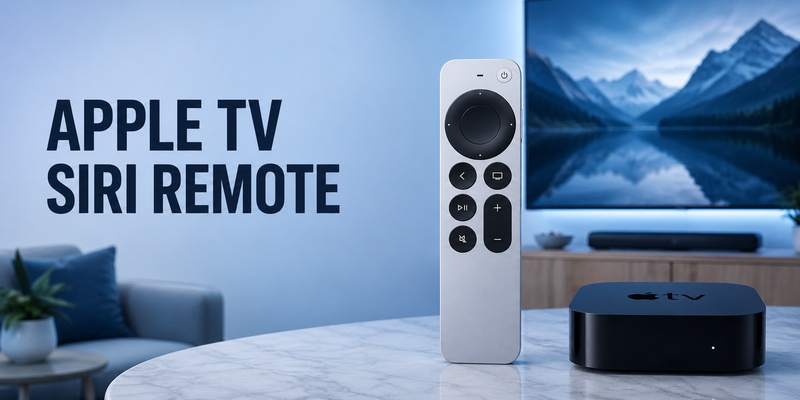
The apple tv siri remote is Apple’s dedicated handheld controller for Apple TV, combining a touch-enabled clickpad, physical navigation buttons, Siri voice control, playback keys, and television volume and power controls in a compact design. For many people, it is the simplest way to move through tvOS without reaching for a phone or juggling separate remotes for basic viewing tasks.
The current design is especially relevant because the third-generation remote introduced USB-C charging while retaining the silver aluminum body and circular clickpad introduced with the previous generation. Understanding the apple tv siri remote is useful whether you are setting up a new Apple TV 4K, replacing a lost remote, learning the buttons, or trying to solve a pairing or volume problem.
1. What Is the Apple TV Siri Remote?
The apple tv siri remote is the physical remote designed for modern Apple TV hardware. Its main purpose is to give you direct control over tvOS: navigate menus, open apps, select content, scrub through video, adjust supported audio setups, open Control Center, put the Apple TV to sleep, and use Siri where the voice assistant is available.
Unlike a basic infrared remote, the apple tv siri remote communicates with Apple TV primarily through Bluetooth. The third-generation model also includes an infrared transmitter, which can participate in controlling compatible televisions and audio equipment. This combination is useful because the Apple TV box can receive remote commands without requiring a direct line of sight, while some TV or receiver functions may still use IR depending on your setup.
The most distinctive control is the touch-enabled clickpad. You can press the ring in four directions for precise navigation or swipe across the surface to move quickly through menus. During playback, the outer ring can also support circular gestures for scrubbing when the interface allows it. This makes the Siri Remote more flexible than a traditional directional-pad remote without making every action depend on touch gestures.
Siri is another major part of the experience. Press and hold the Siri button on the side, speak a request, and release it. You can search for content, ask for playback actions, or dictate text where Siri and dictation are supported. Availability varies by language and region, which also affects what Apple calls the remote.
Download TV Remote App2. Apple TV Siri Remote 3rd Generation: What Changed?
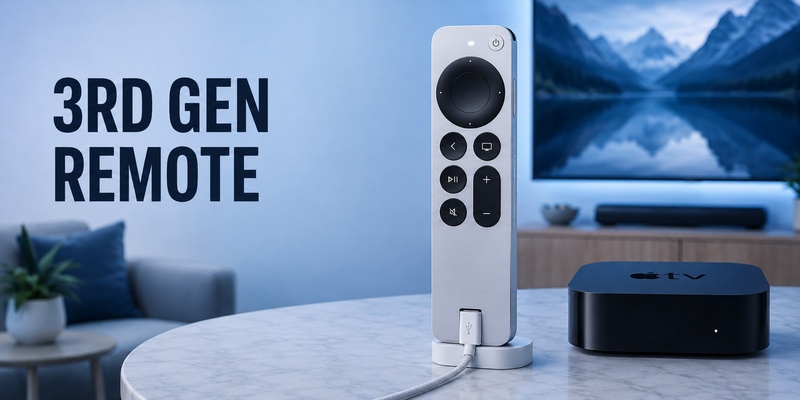
The apple tv siri remote currently associated with Apple TV 4K is the third-generation model introduced in 2022. The biggest visible functional change from the second-generation silver remote is the charging connector. The third generation uses USB-C instead of Lightning, bringing the accessory in line with Apple’s broader move toward USB-C charging.
The apple tv siri remote 3rd generation retains the silver aluminum enclosure and touch-enabled circular clickpad. According to Apple’s technical specifications, it uses Bluetooth 5.0, includes an IR transmitter and microphone, and has a built-in rechargeable battery designed to last for months under typical daily use. Charging requires a USB-C cable connected to a computer or compatible power adapter.
Apple lists the third-generation apple tv siri remote as compatible with Apple TV 4K models and Apple TV HD, with software requirements applying to older devices. That makes it a practical replacement for more than just the Apple TV 4K generation with which it originally shipped.
| Feature | Siri Remote 3rd generation | Siri Remote 2nd generation | Older 1st generation |
| Main design | Silver aluminum | Silver aluminum | Black touch-surface design |
| Navigation | Touch clickpad | Touch clickpad | Touch surface |
| Charging | USB-C | Lightning | Lightning |
| Siri button | Side button | Side button | Front button |
| Wireless | Bluetooth 5.0 | Bluetooth | Bluetooth |
For everyday use, the second and third generations feel very similar. USB-C is the clearest practical difference, especially for households already using USB-C cables for phones, tablets, computers, and other accessories.
 Discover Helpful Guides
Apple remote tv app: Complete Apple TV Remote Guide for iPhone, Siri Remote, Pairing & Fixes
3. Apple TV Remote vs Siri Remote: Is There a Difference?
The naming can be confusing because apple tv remote vs siri remote sounds like a comparison between two completely different accessories. For recent generations, however, the distinction is often regional naming rather than a major hardware difference.
Apple explains that the remote shipped with recent Apple TV 4K models is called Siri Remote in countries and regions where Siri is supported. In other places, the same general remote is called Apple TV Remote. Therefore, an apple tv siri remote listing and an Apple TV Remote listing can refer to equivalent hardware depending on the market.
Some users search apple tv remote siri when trying to identify this naming difference; the generation and hardware details are more reliable than the wording alone.
This matters when shopping for a replacement. Instead of relying on the product name alone, check the generation, charging port, physical design, and compatibility. A third-generation silver remote with USB-C is much easier to identify accurately than a vague marketplace listing that only says “Apple remote.”
The hardware remote also needs to be separated from the Apple TV Remote built into iPhone and iPad Control Center. The phone-based interface is a software controller, while Siri Remote is dedicated hardware. Both can navigate Apple TV, but they do not provide exactly the same experience.
| Option | Form | Main advantage | Main limitation |
| Siri Remote | Dedicated hardware | Tactile controls and fast access | Can be misplaced or need charging |
| Apple TV Remote on iPhone | Software controller | Convenient phone backup | Depends on phone and network |
| Phone remote app | Phone-based alternative | Can broaden TV-control options | Feature support varies |
The key takeaway is that “Siri Remote” and “Apple TV Remote” do not always represent competing hardware products. On current generations, check the generation first and the regional product name second.
📖 Explore Articles: Lost Apple TV Remote? How to Find It Fast and Keep Watching
4. Apple TV Siri Remote Buttons and Everyday Controls
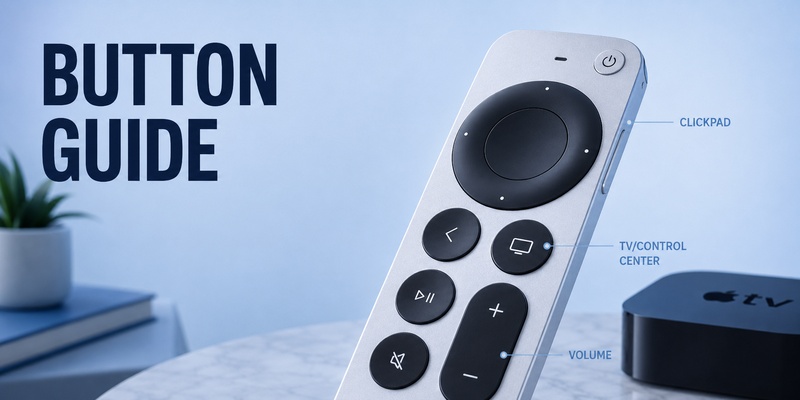
Learning the apple tv siri remote buttons makes the device considerably faster to use. The second- and third-generation design keeps the most important controls around the circular clickpad, with additional buttons for playback, sound, power, and Siri.
Clickpad
The clickpad is the main navigation area. Press up, down, left, or right on the outer ring to move one item at a time. Press the center to select. You can also swipe across the clickpad to move through lists more quickly.
During compatible playback screens, the ring can be used to move backward or forward through a timeline. The circular gesture is one of the remote’s more distinctive interactions because it gives you both conventional button navigation and touch control in the same surface.
Back and TV/Control Center
The Back button returns to the previous screen. Holding it can take you back to the Home Screen.
The TV/Control Center button has several jobs. A normal press can open the Apple TV app or return to Home depending on your configuration and region. Double-pressing opens the App Switcher, while holding the button opens Control Center.
Play/Pause, Mute, and Volume
Play/Pause provides direct playback control without opening an onscreen menu. Mute toggles audio when supported by your setup.
The vertical volume rocker increases or decreases volume when Apple TV is properly configured to control the television, receiver, soundbar, or another supported audio setup.
Power and Siri
The Power button can wake or sleep Apple TV and, with compatible device-control settings, can also participate in turning the television on or off.
The Siri button is located on the side. Hold it while speaking, then release it after your command. This placement keeps voice control available without filling the front face of the remote with another large key.
Apple’s current button guide confirms these functions for second-generation and later remotes.
Discover Helpful Guides: Apple TV Remote Replacement: Buying and Setup Guide
5. How to Pair and Reconnect an Apple TV Siri Remote
A new apple tv siri remote normally pairs during Apple TV setup, but replacement remotes or disconnected devices may need manual pairing. Apple’s support process is designed to be simple and usually does not require opening a settings menu first.
Start by turning on Apple TV. Hold the apple tv siri remote close to the box and point it toward the front. Apple’s troubleshooting guidance recommends keeping it about three inches away.
Press and hold the Back button and Volume Up together for about five seconds. If Apple TV asks you to do so, place the remote on top of the box to complete pairing.
If the apple tv siri remote refuses to connect, disconnect Apple TV from power, wait about six seconds, reconnect it, and repeat the pairing process. Make sure the remote has enough battery power before spending time on more advanced troubleshooting.
Pairing problems can sometimes be confused with volume-control problems. If you can navigate Apple TV normally but the volume buttons do nothing, pairing is probably not the main problem. Instead, investigate the Volume Control configuration covered later in this guide.
If nothing on the remote controls Apple TV, pairing or battery power becomes much more likely.
A useful sequence is:
- Charge the remote.
- Move close to Apple TV.
- Hold Back and Volume Up.
- Follow the onscreen pairing prompt.
- Restart the remote if pairing still fails.
- Power-cycle Apple TV and retry.
Apple’s current troubleshooting page specifically recommends the close-range pairing process and the six-second Apple TV power cycle when pairing fails.
Discover Helpful Guides: How to Reset Your Apple TV Remote: Pairing, Volume, and No-Remote Fixes
6. How to Charge, Restart, and Troubleshoot the Remote
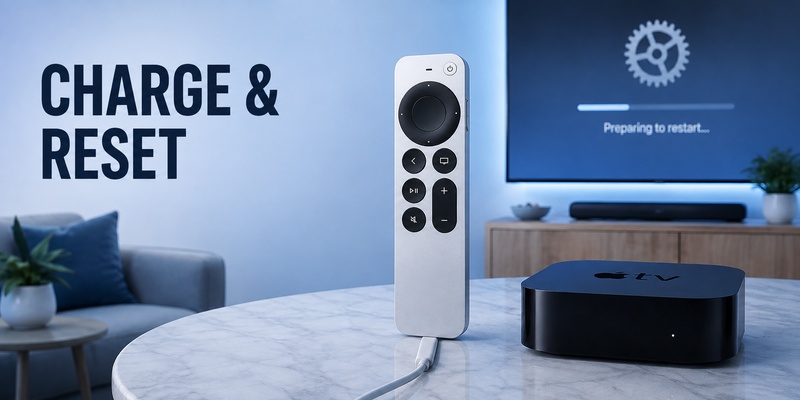
The third-generation apple tv siri remote has a built-in rechargeable battery and a USB-C port. Apple states that its battery can provide months of operation under typical daily use, so charging should be occasional rather than something you need to do every day.
Connect a USB-C cable to the third-generation remote and then to a computer or compatible power adapter. If you have a second-generation Siri Remote, that model uses Lightning instead.
Battery information can be viewed from Apple TV settings, which is useful when a remote starts behaving unpredictably. Checking the charge before repeatedly pairing the device can save time.
Restart the remote
When the apple tv siri remote behaves unexpectedly, restart it before assuming the hardware is defective.
Press and hold the TV/Control Center button and Volume Down together for about five seconds, or until the Apple TV status light turns off and back on. Release the buttons and wait for the remote to disconnect. Then press a button when it is ready to reconnect.
If pairing still fails
Try the troubleshooting process in this order:
- Charge the apple tv siri remote before pairing again.
- Move within a few inches of Apple TV.
- Hold Back and Volume Up to pair.
- Restart the remote if it does not connect.
- Power-cycle Apple TV and retry pairing.
- Check for software updates after regaining control.
| Symptom | Likely area | Best first action |
| No response | Battery or pairing | Charge, then pair |
| Repeated disconnects | Signal or pairing | Move closer and restart |
| Navigation works, volume fails | TV/audio configuration | Check Volume Control |
| Buttons act inconsistently | Temporary remote issue | Restart the remote |
Apple’s latest guidance uses TV/Control Center plus Volume Down for the restart procedure.
💡 Discover Helpful Guides: Apple TV Siri Remote: Complete Guide to Features, Generations, Pairing, and Everyday Use
7. How Siri, Volume, and TV Power Controls Work
Voice control is the feature that gives the apple tv siri remote its name. Hold the side Siri button, say what you want, and release it. Depending on region, language, apps, and services, Siri can search for content, control playback, and help with text entry through dictation.
Siri availability also explains the naming difference between markets. Apple identifies recent hardware as Siri Remote where Siri is supported and Apple TV Remote in certain other regions.
Volume and power operate somewhat differently because they can involve devices outside the Apple TV box itself.
Depending on the setup, the apple tv siri remote can use HDMI-CEC or infrared as part of controlling compatible equipment. If the volume buttons stop working, go to:
Settings > Remotes and Devices > Volume Control
Then test the available control options appropriate to your setup. Apple specifically recommends changing the volume-control setting if restarting the remote does not solve a volume-button problem.
A television might respond through HDMI-CEC, while another setup may depend on infrared control. A receiver or soundbar can introduce another layer. Therefore, volume failure does not necessarily mean that the apple tv siri remote has lost its Bluetooth connection to Apple TV.
The Power button follows a similar principle. When Apple TV and the television are correctly configured for compatible device control, pressing and holding Power can put Apple TV to sleep and may also turn the television off.
When Siri, HDMI-CEC, infrared control, and tvOS settings are aligned, the Siri Remote can replace several everyday actions that would otherwise require multiple controllers.
📖 Explore Articles: Apple TV Remote for iPhone: How to Set Up and Use Your iPhone as an Apple TV Remote
8. Using an iPhone or Phone Remote as a Backup
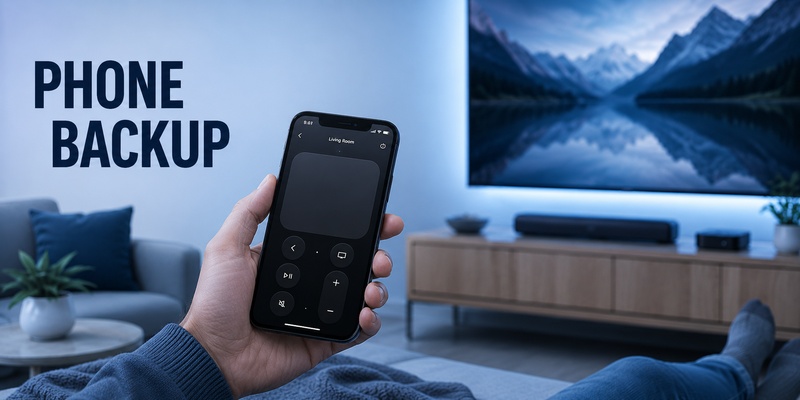
Even if the apple tv siri remote is your preferred controller, keeping a phone-based option ready is practical. The Apple TV Remote built into iPhone and iPad Control Center can navigate compatible Apple TV devices when the phone and Apple TV are available on the appropriate network.
A phone controller becomes especially useful when the apple tv siri remote is charging, temporarily disconnected, under the sofa, or being used by someone else. Text input is another advantage because typing on a familiar phone keyboard can be faster than selecting individual characters on the television.
A Remote TV App can provide another phone-based control option for supported televisions and devices. This can be useful in a household where one phone needs to serve as a backup controller across several television ecosystems.
Feature availability depends on the television, streaming device, and app being used. A phone controller should therefore be treated as a complement to the dedicated apple tv siri remote rather than an assumption that every physical button or hardware function will be reproduced exactly.
The strongest setup is redundancy:
- Keep the physical Siri Remote as the main tactile controller.
- Know how to open Apple TV Remote from iPhone or iPad.
- Keep a compatible phone remote option available for emergencies.
- Charge the hardware remote before its battery becomes critically low.
This combination makes remote problems much less disruptive. If the dedicated remote is charging or temporarily disconnected, you can continue navigating Apple TV while you fix it.
Apple’s current Apple TV guide supports using iPhone and iPad as remote-control alternatives alongside the physical remote.
💡 Discover Helpful Guides: Free Remote App for Apple TV: Control Apple TV From Your iPhone
9. Frequently Asked Questions
Is Apple TV Remote the same as Siri Remote?
Yes, for recent generations the names can refer to the same hardware depending on region. Apple uses “Siri Remote” where Siri is supported and “Apple TV Remote” in some other markets. Always compare generation, design, and charging port when buying an apple tv siri remote replacement.
Is the third-generation Siri Remote worth buying?
Yes, especially if you need a replacement and prefer USB-C. The third-generation apple tv siri remote keeps the silver clickpad design while changing charging from Lightning to USB-C. If your second-generation remote works well, however, the basic everyday control experience remains similar.
Does Siri Remote work with older Apple TV models?
Yes. Apple lists the third-generation apple tv siri remote as compatible with multiple Apple TV 4K generations and Apple TV HD, subject to appropriate software compatibility. Confirm the exact Apple TV model and tvOS version before buying a replacement for older hardware.
How do I pair a Siri Remote that stopped connecting?
Hold the apple tv siri remote close to Apple TV, then press and hold Back and Volume Up for about five seconds. Follow any onscreen instruction to place the remote on Apple TV. If pairing fails, power-cycle Apple TV and repeat the procedure.
Can I use my iPhone instead of Siri Remote?
Yes. Apple TV Remote in iPhone Control Center can handle navigation and playback on compatible Apple TV hardware. It is particularly useful when the apple tv siri remote is lost, disconnected, or charging, although tactile physical buttons can still be more convenient for routine viewing.
10. Final Thoughts
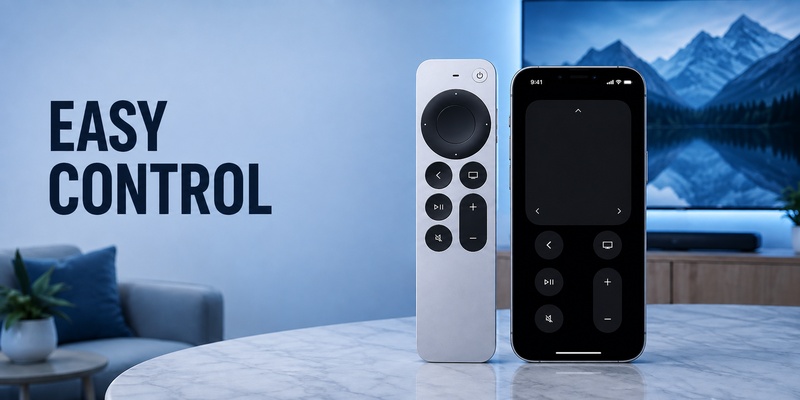
The apple tv siri remote combines the benefits of a traditional physical controller with touch navigation, Bluetooth connectivity, Siri voice control, and television integration. The third-generation model adds USB-C charging while preserving the circular touch-enabled clickpad and familiar silver design of the previous generation.
The most important buying lesson is not to become confused by apple tv remote vs siri remote terminology. In markets where Siri is supported, Apple uses the Siri Remote name; elsewhere, closely related hardware may be called Apple TV Remote. Check generation, port, compatibility, and physical design instead of relying only on the listing title.
For everyday use, learn the clickpad, Back, TV/Control Center, Play/Pause, Mute, Volume, Power, and Siri buttons. If the apple tv siri remote stops responding, charge it, restart it, and pair it again before assuming the hardware has failed. If only volume is affected, check Apple TV’s Volume Control configuration first.
The apple tv siri remote works best as part of a simple backup strategy. Keep the dedicated controller for fast tactile use, rely on the built-in iPhone controller when necessary, and consider a Remote TV App when you want a phone-based backup that can support a broader television-control setup.
Download TV Remote App