
Google TV Remote iOS: How to Control Google TV from Your iPhone or iPad
Lost your Google TV remote or simply want a faster way to search and type? A google tv remote ios solution lets you control Google TV or Chromecast with Google TV directly from your iPhone or iPad. In just a few steps, you can navigate apps, enter passwords, adjust playback, and get back to watching without needing the physical remote.
1. Quick Answer: Can You Use an iPhone as a Google TV Remote?
Yes. A google tv remote ios solution lets you use your iPhone or iPad to control a Google TV or Chromecast with Google TV when the physical remote is missing, broken, or out of battery.
The easiest option is usually the Google TV app, which includes a built-in remote feature for compatible devices. After your iPhone and Google TV are connected to the same Wi-Fi network, you can pair them with a code shown on the TV screen. Then, your phone can handle navigation, volume, playback, voice search, and text input.
A google tv remote ios setup is especially useful when typing passwords, searching for movies, or recovering control after losing the original remote.
Download LG TV Remote2. What Is a Google TV Remote iOS Solution?
A google tv remote ios setup turns an iPhone or iPad into a virtual remote control. Instead of relying only on a physical controller, you use an app interface with buttons or a touchpad to navigate your TV.
Google TV is the smart TV interface used on devices such as Chromecast with Google TV and selected televisions from brands including Sony, TCL, Hisense, and Philips. While the hardware and remote designs can vary, many compatible devices can be controlled through an iPhone.
Most google tv remote ios tools provide essential controls, including:
- Directional navigation and select buttons
- Home, Back, and Google Assistant controls
- Play, pause, fast-forward, and rewind
- Volume adjustment on supported devices
- Keyboard input for searches and passwords
- App launching and content browsing
For basic use, the official google tv remote app ios option is often enough. However, some users prefer third-party apps that offer a different layout, quick-access buttons, or support for several TV brands in one place.
🛠️ Learn with Step-by-Step Guides: Apple remote tv app: Complete Apple TV Remote Guide for iPhone, Siri Remote, Pairing & Fixes
3. What You Need Before Connecting Your iPhone
Before setting up a google tv remote ios connection, make sure both devices meet a few basic requirements. Most connection problems happen because the phone and TV are not on the same network or because permissions have not been enabled.
You will need:
- An iPhone or iPad with a current version of iOS or iPadOS
- A Google TV, Chromecast with Google TV, or compatible Android TV device
- A stable Wi-Fi network
- Both devices connected to the same Wi-Fi network
- Access to the TV screen to enter a pairing code
- The Google TV app or another compatible remote-control app
Your phone does not need to be extremely new, but keeping iOS updated helps prevent app compatibility and network discovery problems.
If your Google TV is offline and you do not have the original remote, recovery can be more difficult. In that case, you may need to use Ethernet, a USB keyboard, or a mobile hotspot with the same name and password as a previously saved Wi-Fi network.
🛠️ Learn with Step-by-Step Guides: Apple TV Siri Remote: Complete Guide to Features, Generations, Pairing, and Everyday Use
4. How to Set Up Google TV Remote iOS on iPhone
Setting up a google tv remote ios connection normally takes only a few minutes.
Step 1: Install the Google TV App
Download the Google TV app from the App Store on your iPhone or iPad. Sign in with the Google account you use for your TV services if prompted.
The app is not only for browsing content. It also includes a remote-control feature for supported Google TV and Android TV devices.
Step 2: Connect Your Devices to the Same Wi-Fi
Your iPhone and Google TV must be connected to the same local Wi-Fi network. If one device is on mobile data, a guest network, or a different router band with isolation enabled, your phone may not find the TV.
Open your iPhone Wi-Fi settings and confirm the network name. Then check the Google TV network under Settings if you can access it.
Step 3: Open the Remote Feature
In the app, find the Remote section. Your compatible TV or streaming device should appear in the device list. Choose the correct device to begin pairing.
This part of the google tv remote ios process may require Bluetooth or local network permissions. Allow them when iOS asks, as the app needs permission to discover devices on your home network.
Step 4: Enter the Pairing Code
A code should appear on your TV screen. Enter that code on your iPhone to confirm the connection.
Once paired, the app should open a remote screen with navigation controls. You can choose between a D-pad-style layout and touch controls depending on the app version and device compatibility.
Step 5: Test the Essential Buttons
Test the Home, Back, directional, and select buttons first. Then try opening an app, changing volume, and typing in a search field.
After the first successful pairing, your google tv remote ios connection will often reconnect automatically whenever both devices are on the same network.
🛠️ Learn with Step-by-Step Guides: Apple TV Remote App Not Working: Fast Fixes for iPhone and Siri Remote Issues
5. Main Features You Can Use
A well-configured google tv remote ios tool can do much more than replace a few physical buttons. It can make everyday control faster, particularly when the original remote has limited typing and search functions.
Navigation and App Control
Use your phone to move across the Google TV home screen, open streaming apps, browse recommendations, and access settings. The Home and Back buttons are important because Google TV menus often require several navigation steps.
Text Input
Typing with a physical remote can be slow. A google tv remote ios setup lets you use your iPhone keyboard when a text field appears on TV.
This is useful for:
- Entering Wi-Fi passwords
- Logging in to Netflix, YouTube, or Disney+
- Searching for shows and movies
- Entering app activation codes
- Updating account information
Voice Search
Some remote interfaces offer Google Assistant or voice search. This allows you to search for titles, actors, genres, or apps without typing every word.
Voice control availability can vary by device model, region, language, and Google account settings.
Playback Controls
A google tv remote ios tool usually provides play, pause, rewind, and fast-forward buttons. These controls are useful when streaming content, especially when the original remote is unavailable.
Volume Control
Volume behavior depends on your device setup. If your Google TV controls volume through HDMI-CEC, Bluetooth, or an external sound system, the phone remote may work differently from the physical remote. Test it after pairing instead of assuming every volume button will control your TV speakers.
🛠️ Learn with Step-by-Step Guides: Fire TV Remote iOS: How to Control Fire TV and Fire Stick From iPhone
6. How to Control Chromecast with Google TV from iOS
If you own a Chromecast with Google TV, an iPhone can be an effective backup controller. A chromecast with google tv remote app ios setup works best when the Chromecast is fully connected to Wi-Fi and visible on your home network.
Open the Google TV app, select the remote function, choose your Chromecast, and enter the pairing code displayed on the TV. Once connected, you can navigate the interface just as you would with the bundled Chromecast remote.
A google tv remote ios setup is particularly useful for Chromecast users because the original remote is compact and easy to misplace. Keeping your phone connected means you still have a practical way to control the device without immediately buying a replacement.
If the Chromecast does not appear, restart the streaming device by unplugging it for around 30 seconds. Then restart the iPhone, reconnect both devices to the same Wi-Fi network, and try pairing again.
7. Fix Google TV Remote iOS Not Connecting
When a google tv remote ios connection fails, the cause is usually a local network issue rather than a serious hardware problem.
Check the Wi-Fi Network
Confirm that your iPhone and Google TV use the exact same Wi-Fi network. Homes with several routers, extenders, guest networks, or mesh nodes can create discovery issues.
Turn off mobile data temporarily if your iPhone keeps switching away from Wi-Fi.
Allow Local Network Permissions
On iPhone, go to Settings, find the Google TV app, and confirm that Local Network access is allowed. Without it, the app may not be able to find your TV.
You may also need to enable Bluetooth if the app asks for it during setup.
Restart Both Devices
Restarting is simple but effective. Restart your iPhone, then restart your Google TV or Chromecast. After both are back online, reopen the app and try the google tv remote ios connection again.
Update the App and TV Software
Outdated software can create remote pairing errors. Update the Google TV app through the App Store and check for a system update on the TV.
Disable VPNs Temporarily
A VPN or privacy relay can sometimes interfere with device discovery on a local network. Turn it off briefly, pair the remote, then test whether you can re-enable it without losing the connection.
Forget and Pair Again
If the remote was previously connected but no longer works, remove the device from the app if that option is available. Start the pairing process again and enter a new code.
📘 Find the Right Guide: Fios Remote TV Codes: Find, Program, and Fix Your Verizon Fios Remote
8. When to Use a Third-Party Remote App
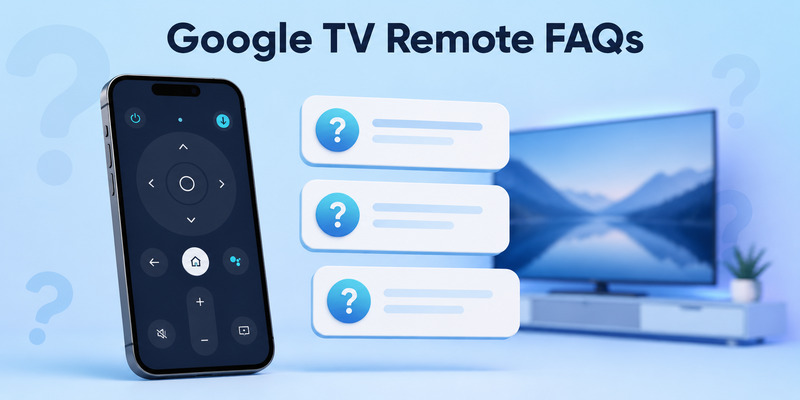
The official google tv remote app ios is a reliable starting point, but it may not fit every setup. A third-party app can be useful when you want a different remote layout, universal device support, or extra control options.
For example, Remote TV App may be useful for households that use more than one television platform or want an alternative remote interface on iPhone.
Before choosing any third-party google tv remote ios app, check these points:
- It supports Google TV or Android TV specifically
- It clearly explains whether features require a subscription
- It has recent updates and user reviews
- It requests only necessary permissions
- It supports your TV brand and device model
- It can discover devices on your local Wi-Fi network
Avoid apps that promise impossible features, such as controlling a TV over the internet without setup, Wi-Fi, or compatible device support.
A google tv remote ios app should be a convenience tool, not a reason to share unnecessary personal data or pay for features you do not need.
📘 Find the Right Guide: Apple TV Remote iOS: Set Up, Connect, and Fix Common iPhone Remote Problems
9. Tips for a Better iPhone Remote Experience
Once your google tv remote ios connection works, a few habits can make it more dependable.
Keep the App Installed
Do not delete the remote app after you find the physical controller. Keeping it on your iPhone gives you an immediate backup if the remote battery dies or the remote goes missing.
Add the TV to a Stable Network
Use one primary home Wi-Fi network for both the TV and your phone. Avoid frequently moving the TV between guest networks, hotspots, and different routers.
Use a Clear Device Name
If your home has several Google TVs or Chromecast devices, rename them clearly. Names such as “Living Room Google TV” and “Bedroom Chromecast” reduce the chance of connecting to the wrong screen.
Keep a Physical Backup When Possible
An iPhone remote is convenient, but it depends on power and network access. Keep the original remote or a compatible replacement nearby for setup, emergency resets, and situations where Wi-Fi is unavailable.
Check HDMI-CEC Settings
If volume or power controls do not behave correctly, inspect your TV’s HDMI-CEC settings. Different brands use different names, such as Bravia Sync, Anynet+, Simplink, or CEC Control.
Correct HDMI-CEC configuration can improve how a google tv remote ios tool works with the TV and connected soundbar.
💡 Discover Helpful Guides: Apple TV Remote App Not Working: Fast Fixes for iPhone and Siri Remote Issues
10. FAQs About Google TV Remote iOS
Is there a free Google TV remote for iPhone?
Yes. The official Google TV app offers remote functionality for compatible devices. You can also explore other apps, but review their pricing and permissions before installing them.
Why can’t my iPhone find my Google TV?
Usually, the devices are on different Wi-Fi networks, Local Network permission is disabled, or the TV needs a restart. Confirm the network first, then restart both devices.
Can I use an iPhone remote if I lost my Chromecast remote?
Yes. A chromecast with google tv remote app ios setup can control a compatible Chromecast after your iPhone and device are on the same Wi-Fi network and paired with the on-screen code.
Does Google TV remote on iPhone work without Wi-Fi?
Normally, no. A google tv remote ios tool needs local network access to communicate with the TV or streaming device. If the TV is offline, restore its network connection first.
Can I type with my iPhone keyboard on Google TV?
Yes, in many cases. When Google TV opens a text field, the remote app can let you enter text with the iPhone keyboard, which is much faster than using directional buttons.
11. Final Thoughts
A google tv remote ios setup is one of the easiest ways to regain control of your TV when the physical remote is unavailable. With the right app, the same Wi-Fi connection, and a quick pairing step, your iPhone can handle navigation, text entry, playback, and more.
For most users, start with the official Google TV app. If you need a different interface or support for multiple television platforms, consider a trusted alternative such as Remote TV App. Keep the app installed as a backup, and you will be prepared the next time your Google TV remote disappears or stops working.
Download LG TV Remote