
Fire TV Remote iOS: How to Control Fire TV and Fire Stick From iPhone
Lost your Fire TV remote or tired of typing with a directional pad? With fire tv remote ios, your iPhone can become a practical replacement for controlling Fire TV or Fire Stick. You can navigate apps, search with a keyboard, manage playback, and reconnect quickly as long as your iPhone and Fire TV are on the same Wi‑Fi network.
1. Quick Answer: Use Your iPhone as a Fire TV Remote
A fire tv remote ios setup lets you control a Fire TV, Fire TV Stick, or compatible Fire TV smart television directly from an iPhone. Install the official Fire TV remote app from the App Store, connect your iPhone and Fire TV device to the same Wi-Fi network, choose the device in the app, and enter the code shown on the TV screen.
This is the fastest answer when your physical remote is missing, out of batteries, or not responding. A fire tv remote ios app normally gives you a directional pad, Select button, Back, Home, playback controls, Alexa access where available, and an iPhone keyboard for typing.
If the app cannot find your Fire TV, first confirm both devices use the exact same Wi-Fi network. Then restart the Fire TV, restart the iPhone, close and reopen the app, and try pairing again. Most connection problems are related to Wi-Fi, a VPN, guest-network restrictions, or a Fire TV device that is asleep.
Download LG TV Remote2. What You Need Before Setting Up Fire TV Remote iOS
Before you begin, make sure you have a compatible Fire TV device, an iPhone with internet access, and a stable home Wi-Fi network. A fire tv remote ios connection relies on your local network rather than a traditional infrared signal.
A compatible Fire TV device
The app is designed for Fire TV devices, including many Fire TV Stick models, Fire TV Cube devices, and televisions with Fire TV built in. Turn on the TV and make sure the Fire TV home screen is visible before trying to connect.
If your physical remote is unavailable, you may need to use the television’s buttons, HDMI-CEC controls, or another already-paired remote to wake the Fire TV and confirm that it is online.
An iPhone connected to Wi-Fi
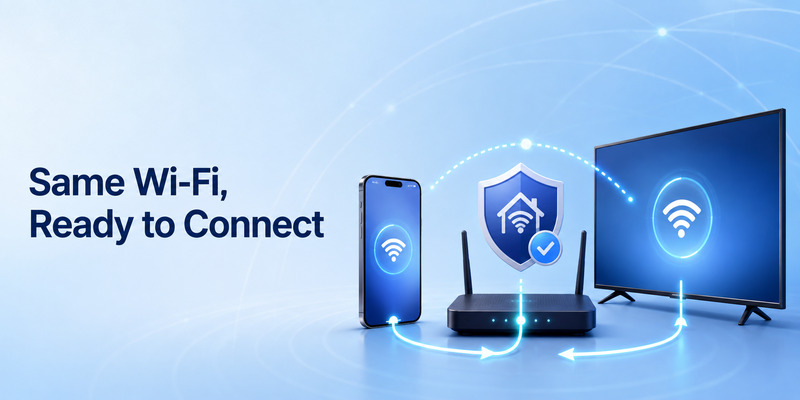
Your iPhone must be connected to the same local Wi-Fi network as the Fire TV. Open Settings > Wi-Fi on iPhone and check the network name. Then open Fire TV network settings and confirm that it matches.
This requirement is crucial for fire tv remote ios. Your iPhone can have working mobile data and still fail to find the Fire TV if the two devices are on different Wi-Fi networks.
Local Network permission
When you first open the remote app, iOS may ask for permission to find devices on your local network. Tap Allow. If you previously denied the request, go to Settings > Privacy & Security > Local Network and turn on access for the app.
Without local-network access, the app may remain on a searching screen even though your Fire TV is powered on.
A non-guest network
Avoid using guest Wi-Fi. Guest networks often isolate devices from each other for security. This means your iPhone and Fire TV may both have internet access but cannot communicate directly.
If you have separate 2.4 GHz and 5 GHz networks, connect both devices to the same named network first. Many routers allow cross-band communication, but testing on one network removes an unnecessary variable.
🛠️ Learn with Step-by-Step Guides: Apple TV Remote Icon: What It Means and How to Use It
3. Download and Connect the Fire TV Remote App for iPhone
The first step is a fire tv remote app download from the iPhone App Store. Search for the official Amazon Fire TV remote application and confirm that it is the correct app before installing it.
A legitimate fire tv remote app for iphone should clearly identify Fire TV compatibility and explain which devices it supports. Be cautious with generic “universal remote” apps that use similar names but may have different pricing, subscriptions, or limited device support.
Install the app
Open the App Store, search for the Fire TV remote application, and install it. After installation, open the app and allow Local Network permission if asked.
The fire tv remote app free option from the official provider is usually the best place to start for standard Fire TV navigation. You do not need to pay for a third-party app simply to replace a missing Fire TV remote.
Choose your Fire TV device
The app should scan your local network and show compatible Fire TV devices. Tap the correct device name. If you have multiple Fire TVs at home, check the room name or TV model before selecting one.
A fire stick remote phone app may display a setup code on the TV screen. Enter that code into the iPhone app to authorize the connection. This step prevents other phones on the network from taking control without permission.
Save the pairing
After successful setup, the app normally remembers the Fire TV device. The next time you open it, your iPhone should reconnect more quickly as long as both devices are on the same Wi-Fi network.
If you change routers, reset the Fire TV, rename the network, or set up a new iPhone, you may need to repeat the pairing process.
🛠️ Learn with Step-by-Step Guides: How to Control Google TV With Phone on Android and iPhone
4. Use Navigation, Keyboard, and Playback Controls
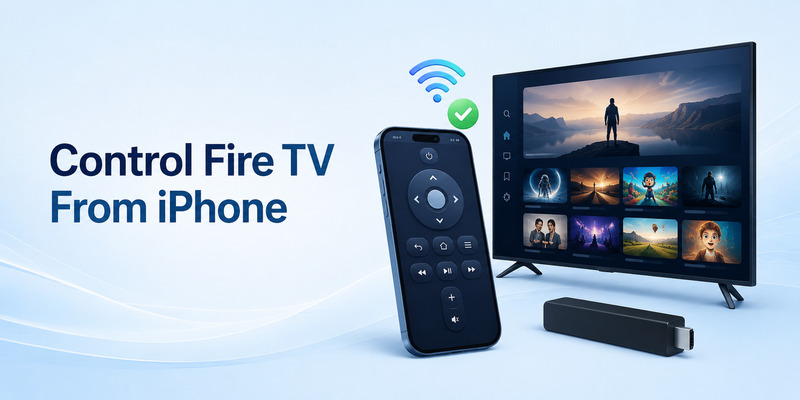
Once connected, fire tv remote ios gives you an alternative to the physical remote. The layout may vary slightly by app version, but most tools include the same core functions.
Directional navigation
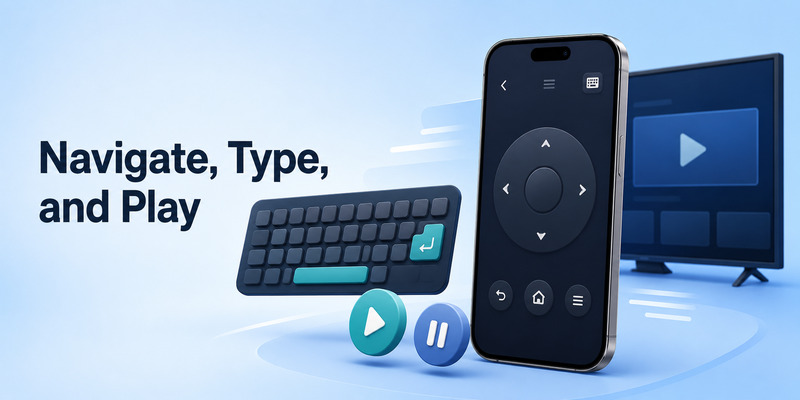
Use the circular directional pad to move up, down, left, and right. Tap the center Select button to open an app, play a title, confirm a choice, or choose a Fire TV setting.
This is the main replacement for a physical remote. Test it first by opening the Fire TV home screen and moving across the app row.
Back and Home buttons
The Back button exits a screen, closes a menu, or returns to the previous page. The Home button takes you to the Fire TV home screen.
These controls are especially useful when an app freezes, a menu gets stuck, or you cannot find your way back to the main interface.
Keyboard input
Typing from iPhone is one of the most useful parts of fire tv remote ios. Instead of selecting each letter with a D-pad, use the app keyboard to enter search terms, Wi-Fi passwords, account credentials, and app names.
Tap the keyboard icon in the remote app when a text field is active on Fire TV. Keep the iPhone unlocked during setup so the app can send text immediately.
Playback controls
Depending on the screen and app you are using, you may have Play, Pause, Fast Forward, Rewind, and media navigation controls. These make the fire tv remote app iphone experience practical for daily streaming, especially when the original remote is misplaced.
📘 Find the Right Guide: Apple TV Remote iOS: Set Up, Connect, and Fix Common iPhone Remote Problems
5. Understand Fire TV Remote App Volume Control
Many users expect the app volume buttons to control the television immediately, but fire tv remote app volume control can depend on your Fire TV model and audio setup.
Why navigation can work while volume does not
The remote app sends commands to the Fire TV device through Wi-Fi. Television volume may be handled by the TV itself, a soundbar, an AV receiver, or a physical Fire TV remote using infrared or HDMI-CEC.
As a result, your fire tv remote ios controls may navigate Fire TV perfectly while the television volume stays unchanged.
Check your audio setup
First, identify where your sound comes from:
- TV built-in speakers
- A soundbar
- An AV receiver
- Bluetooth headphones or speakers
- HDMI-CEC connected equipment
If you use a soundbar or receiver, test volume with its original remote. Then check Fire TV audio and equipment-control settings. The app can only control volume when the connected system supports it through Fire TV’s configuration.
Use a practical fallback
If iPhone navigation works but volume does not, use the TV or soundbar remote for volume while using the Fire TV app for browsing and typing. This is not necessarily a failed fire tv remote ios connection; it is often a difference between Fire TV controls and the TV’s own audio hardware.
💡 Discover Helpful Guides: Apple TV Remote iOS: Set Up, Connect, and Fix Common iPhone Remote Problems
6. Fix Fire TV Remote App Not Connecting
A fire tv remote app not connecting issue is usually solvable without resetting the Fire TV. Start with the network before uninstalling the app or changing your Amazon account.
Confirm the same Wi-Fi network
Check the iPhone network in Settings > Wi-Fi. Then check the Fire TV network in its settings menu. The names must match. If your iPhone switched to cellular data or another saved Wi-Fi network automatically, reconnect it to the Fire TV network.
Turn off a VPN temporarily. VPN services can interfere with local-device discovery, even if both devices are technically on the same Wi-Fi.
Wake and restart Fire TV
A Fire TV in sleep mode may not appear immediately. Wake it using the television input, physical controls, or an available remote. If it still does not show up, restart the Fire TV from its settings menu.
If you cannot access settings, disconnect the Fire TV power cable, wait about 10 seconds, reconnect it, and give it time to restart fully.
Restart the iPhone and router
Restart the iPhone, then reopen the remote app. If other smart devices are also having trouble, restart the Wi-Fi router. After the network returns, wait a minute before scanning for Fire TV again.
This process resolves many cases of fire tv remote app not working because it clears temporary network assignments and app discovery errors.
Check app permissions
If the app searches forever, verify Local Network access in iPhone privacy settings. Also make sure the app has not been restricted by Screen Time, a work-device management profile, or a network security tool.
📖 Explore Articles: Apple TV Remote Sync: How to Pair, Reconnect, and Fix Your Remote
7. Fix Fire TV Remote App Not Working on iPhone
When the app finds your Fire TV but controls do not respond, troubleshoot the connection methodically.
Close and reopen the app
Swipe the app away from the iPhone app switcher, then open it again. Select the Fire TV device and test the directional pad. A fresh app session can restore a stalled connection.
Remove and reconnect the device
If the fire tv remote app not working iphone problem started after a network change or software update, remove the saved Fire TV from the app if that option is available. Scan again and enter the pairing code shown on the TV.
Update iOS and Fire TV software
Keep iPhone software updated under Settings > General > Software Update. Also check Fire TV settings for available updates. Software compatibility is a common cause of app behavior that seems random, such as delayed button presses or repeated connection prompts.
Avoid conflicting devices
If several phones or remotes are sending commands at once, Fire TV may feel unresponsive. Temporarily close remote apps on other phones and test from one iPhone only.
Know what the app cannot replace
The official iPhone app is mainly designed for mobile control. A fire tv remote app for pc is a separate use case and is not the normal solution for controlling Fire TV from a computer. Likewise, a fire tv remote app for android is intended for Android phones and tablets, not iPhone.
Keep the article focused on fire tv remote ios if your actual goal is to control Fire TV from an iPhone.
🛠️ Learn with Step-by-Step Guides: Android TV Remote Control iOS: How to Control Android TV From an iPhone
8. Choose the Right Remote Option and Final Thoughts
For iPhone users, the official ios fire tv app is generally the simplest remote option because it is built for Fire TV and gives you essential navigation and keyboard controls without requiring a separate physical device.
A third-party Remote TV App may be useful if you manage several smart TV platforms in one home. Before installing one, confirm that it specifically supports Fire TV, review its privacy policy, check subscription terms, and allow only the permissions it needs.
The physical Fire TV remote still has value for power and volume controls, especially where a television or soundbar depends on infrared. But an iPhone remote is an excellent backup for everyday streaming, searching, app navigation, and entering text.
The most reliable fire tv remote ios setup follows three rules:
- Keep iPhone and Fire TV on the same Wi-Fi network.
- Allow Local Network access for the remote app.
- Restart and re-pair before considering a factory reset.
With those basics in place, fire tv remote ios can quickly turn your iPhone into a capable replacement for a missing Fire TV or Fire Stick remote.
Download LG TV Remote