
Apple TV Remote Sync: How to Pair, Reconnect, and Fix Your Remote
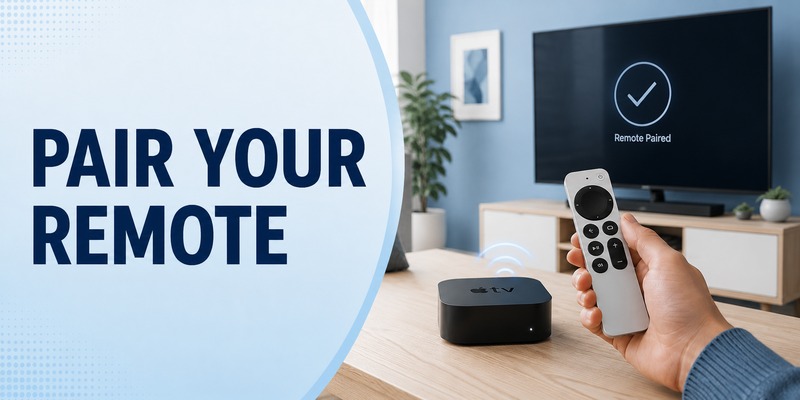
thing to check. A remote can appear completely dead when the real problem is simply that it is no longer paired correctly, the battery is too low, or the Bluetooth connection has been interrupted. The good news is that most pairing problems can be solved without resetting Apple TV or buying a replacement remote.
This guide explains apple tv remote sync from start to finish: what syncing actually means, the correct button combination for current Siri Remote and Apple TV Remote models, what to do when pairing fails, how to restart the remote, and how to keep controlling Apple TV from a phone while you troubleshoot. The goal is to solve the connection problem with the smallest possible number of steps.
For most modern remotes, apple tv remote sync is essentially a pairing process between the remote and Apple TV. Once the pairing is complete, the remote communicates with Apple TV over Bluetooth for navigation, while some television controls may rely on HDMI-CEC or infrared. Understanding that distinction prevents unnecessary troubleshooting when only volume or TV power is affected.
1. What Does Apple TV Remote Sync Actually Mean?
People often use “sync,” “pair,” and “connect” to describe the same problem, but they are not always identical. In practical terms, apple tv remote sync means establishing or restoring the connection that allows your Siri Remote or Apple TV Remote to control the Apple TV box.
The remote does not need to be manually paired every time you watch TV. Under normal conditions, a paired remote reconnects automatically. Manual pairing is most useful after replacing a remote, after a connection has been lost, or when Apple TV stops responding to button presses even though the remote has power.
A successful apple tv remote sync should restore basic navigation first. You should be able to move through menus, select items, go back, and use playback controls. Volume and television power are slightly different because they can depend on your TV, receiver, soundbar, HDMI-CEC settings, or infrared configuration.
Here is a quick way to separate the symptoms:
| What happens | Most likely area to check | Best first action |
| No buttons control Apple TV | Pairing or remote power | Try pairing |
| Navigation works, volume fails | TV/audio control | Check volume settings |
| Remote disconnects repeatedly | Battery, signal, interference | Charge and check signal |
| New remote does nothing | Not yet paired | Start manual pairing |
| Phone remote works, physical remote does not | Physical remote connection | Pair or restart remote |
2. How to Perform Apple TV Remote Sync Correctly
For a current Siri Remote or Apple TV Remote, the official pairing process is simple. Begin by moving close to the Apple TV box. Apple recommends positioning the remote about three inches, or roughly eight centimeters, from Apple TV.
Point the remote toward Apple TV. Then press and hold the Back button and Volume Up together for about five seconds. If you use an earlier Siri Remote that has a Menu button instead of a Back button, hold Menu and Volume Up instead.
If the television asks you to place the remote on top of Apple TV, do so to complete apple tv remote sync. Once the pairing finishes, test navigation before changing any other settings.
The sequence is:
- Move the remote to about three inches from Apple TV.
- Point it toward the Apple TV box.
- Hold Back and Volume Up for five seconds.
- On a remote with a Menu button, hold Menu and Volume Up instead.
- If prompted, place the remote on top of Apple TV.
- Wait for the pairing confirmation.
- Test directional navigation and Select.
If you searched how to sync apple remote to apple tv, this is the main procedure to try first. Avoid holding random button combinations because some shortcuts restart the remote or Apple TV rather than pairing them.
💡 Discover Helpful Guides
Apple remote tv app: Complete Apple TV Remote Guide for iPhone, Siri Remote, Pairing & Fixes
3. Before You Sync: Check Power, Distance, and the Right Remote
A failed apple tv remote sync is often caused by something simpler than pairing. Before repeating the pairing sequence, make sure the remote has enough power to communicate reliably.
Apple recommends charging a Siri Remote or Apple TV Remote when connection problems persist. Depending on the generation, the remote uses USB-C or Lightning for charging. If you are unsure whether the battery is low, charging for at least 30 minutes is a useful troubleshooting step before trying again.
Distance also matters during apple tv remote sync. Pairing should be attempted close to the Apple TV box, not from across the room. Move the remote near Apple TV and remove obvious obstacles between them.
Use this short pre-sync checklist:
- Charge the remote before troubleshooting a persistent connection problem.
- Stand close to the Apple TV box.
- Point the remote directly toward Apple TV.
- Make sure you are using the intended Siri Remote or Apple TV Remote.
- Verify that Apple TV itself is powered on.
- Avoid changing television or receiver settings until basic Apple TV navigation works.
These checks make pairing more predictable because they remove common variables before you start changing settings.
💡 Discover Helpful Guides: Apple TV Remote Replacement: Buying and Setup Guide
4. What to Do When Apple TV Remote Sync Fails
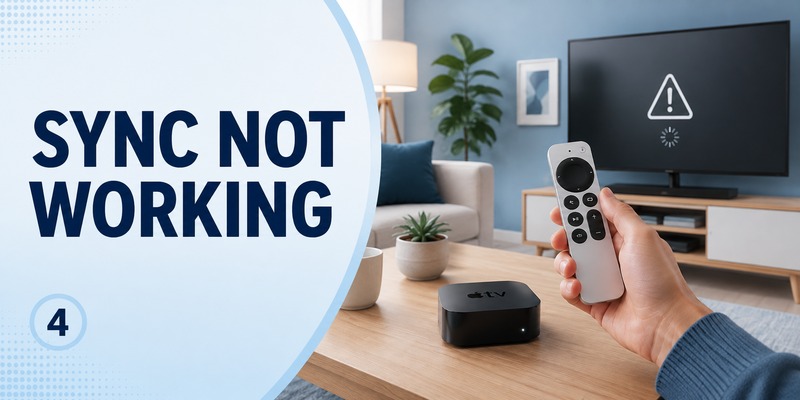
If the standard pairing sequence does not work, Apple recommends restarting the Apple TV connection path before you assume the remote has failed. One current troubleshooting step is to unplug Apple TV from power, wait six seconds, reconnect it, and then try pairing the remote again.
This simple power cycle can help when apple tv remote sync is blocked by a temporary connection state. After Apple TV starts again, move close to the box and repeat Back or Menu plus Volume Up for five seconds.
Use this order rather than trying many fixes at once:
| Step | Action | Why it helps |
| 1 | Charge the remote | Rules out low battery |
| 2 | Move close to Apple TV | Improves pairing conditions |
| 3 | Hold Back/Menu + Volume Up | Starts pairing |
| 4 | Power-cycle Apple TV | Clears a temporary connection state |
| 5 | Try pairing again | Re-establishes the connection |
| 6 | Restart the remote | Refreshes the remote itself |
A common mistake during remote-pairing troubleshooting is resetting unrelated equipment. Your TV, soundbar, or receiver normally does not need to be factory-reset just because Apple TV is ignoring the physical remote.
Also avoid treating every volume problem as a failed sync. If Apple TV navigation works, the Bluetooth pairing may already be healthy. Volume can be controlled separately through HDMI-CEC or infrared, depending on the equipment.
If apple tv remote sync still does not complete after charging, close-range pairing, and an Apple TV power cycle, restarting the remote itself is the next logical step.
💡 Discover Helpful Guides: How to Reset Your Apple TV Remote: Pairing, Volume, and No-Remote Fixes
5. Restart the Remote Before Trying to Pair Again
Restarting a Siri Remote or Apple TV Remote is different from pairing it. Pairing tells Apple TV which remote should control it; restarting refreshes the remote’s own connection state. This can be useful when pairing repeatedly fails or when the remote connects and disconnects unexpectedly.
To restart a supported Siri Remote or Apple TV Remote, press and hold the TV/Control Center button and Volume Down at the same time. Hold them for about five seconds, or until the status light on Apple TV turns off and then back on.
Release the buttons and wait several seconds. Apple says a disconnected notification may appear. Press any button on the remote and watch for the connected notification. If it reconnects, test the controls before pairing again.
The important button combinations are:
| Goal | Buttons | Approximate hold time |
| Pair the remote | Back/Menu + Volume Up | 5 seconds |
| Restart the remote | TV/Control Center + Volume Down | 5 seconds |
| Test reconnection | Any button after restart | One press |
Do not confuse these combinations. When users try to solve connection problems, repeatedly using the restart combination will not necessarily initiate pairing, and repeatedly using the pairing combination may not clear a temporary remote problem.
After restarting, try pairing again only if the remote does not reconnect automatically. This keeps troubleshooting efficient and avoids changing more settings than necessary.
6. Check Signal Strength and Interference After Pairing
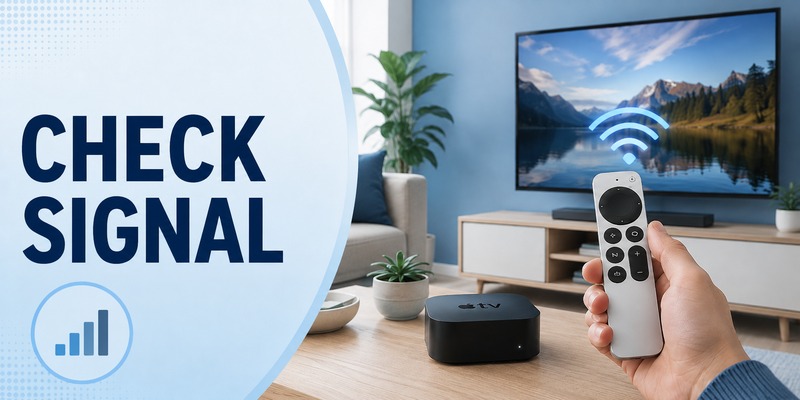
Sometimes apple tv remote sync succeeds, but the remote still feels unreliable. Buttons may respond slowly, presses may be missed, or the remote may disconnect when you move farther from Apple TV. In that situation, the next step is to look at signal quality rather than repeatedly pairing.
On Apple TV running tvOS 18 or later, Apple provides a Bluetooth signal-strength indicator. Go to Settings, choose Remotes and Devices, select Remote, and review the Bluetooth RSSI indicator. A weak signal suggests that distance or interference may be affecting performance.
Apple recommends moving within about 20 feet, or six meters, if the signal is weak. Remove objects that block the path around Apple TV, the television, receiver, or soundbar.
This is important because successful apple tv remote sync does not guarantee perfect performance in every physical setup. Bluetooth still depends on reasonable range and a usable signal environment.
Try these adjustments:
- Move closer to Apple TV and test the same buttons again.
- Avoid placing Apple TV behind dense obstacles where possible.
- Keep the remote charged.
- Verify that Apple TV is updated to the latest tvOS available for your model.
If the remote works normally near Apple TV but becomes unreliable farther away, the pairing itself may be fine. Repeating the pairing process is unlikely to solve a range problem.
📖 Explore Articles: Apple TV Remote for iPhone: How to Set Up and Use Your iPhone as an Apple TV Remote
7. Why a Synced Remote Can Still Have Volume or Power Problems
One of the most confusing situations is when apple tv remote sync appears successful but Volume Up, Volume Down, Mute, or television power still behaves incorrectly. This does not automatically mean the remote needs to be paired again.
Apple TV navigation and television control can use different connection methods. The remote communicates with Apple TV for navigation, while volume control may depend on HDMI-CEC, infrared, a receiver, a soundbar, or another audio configuration.
If the directional controls, Back button, and playback controls work, apple tv remote sync has probably succeeded. Focus on the specific feature that remains broken instead of restarting the entire pairing process.
Before changing anything, test these three things separately:
- Can the remote navigate Apple TV?
- Can the original television or soundbar remote change volume?
- Does Apple TV’s volume-control setting match the audio setup you actually use?
This separation is important for efficient remote troubleshooting. If navigation is perfect, repeatedly pairing the remote adds work without addressing the volume path.
Treat apple tv remote sync as one layer of the system. Once that layer works, troubleshoot television and audio controls as their own features.
📘 Find the Right Guide: Apple TV Remote iPad: How to Set Up and Control Apple TV From Your iPad
8. Use an iPhone While You Fix the Physical Remote
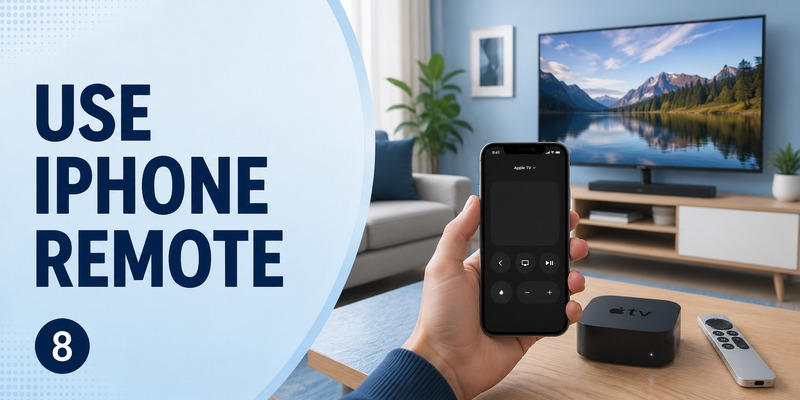
If apple tv remote sync is not working immediately, you do not have to lose access to Apple TV. Apple TV Remote in Control Center can turn a compatible iPhone or iPad into a temporary controller for Apple TV 4K or Apple TV HD.
Open Control Center and select the Remote control. Choose your Apple TV and follow the onscreen pairing instructions if a code appears. Apple recommends that the iPhone or iPad and Apple TV be on the same Wi-Fi network when setting up the software remote.
This backup is useful because it gives you access to Settings while you diagnose apple tv remote sync. You can update tvOS, restart Apple TV, review Remotes and Devices, or keep watching content without waiting for the physical remote to reconnect.
For users who also control multiple television brands, a Remote TV App can provide an additional phone-based backup where compatible. It is most useful as a temporary way to maintain basic TV control while the physical remote issue is being resolved.
If you searched how to sync apple remote to apple tv because the physical remote stopped responding, using the iPhone first can make the repair process easier because you can reach the relevant Apple TV settings even before pairing is restored.
9. FAQ About Apple TV Remote Sync
Does an Apple TV Remote sync automatically?
Usually, yes after it has already been paired. A healthy remote normally reconnects without manual action. If apple tv remote sync is lost, use Back or Menu plus Volume Up for about five seconds while the remote is close to Apple TV.
Why won’t my Apple TV Remote pair?
Low battery, excessive distance, a temporary connection problem, or a remote that needs restarting can all interfere with apple tv remote sync. Charge the remote, move it close to Apple TV, retry the official pairing combination, and power-cycle Apple TV if pairing still fails.
How close should the remote be when I sync it?
Apple recommends placing the remote about three inches, or roughly eight centimeters, from Apple TV during pairing. Keeping it close gives apple tv remote sync the best chance to complete without signal or distance becoming an additional variable.
Do I need to reset Apple TV to sync the remote?
No. A normal apple tv remote sync does not require a factory reset. Start with pairing, charging, a remote restart, and a simple Apple TV power cycle. Factory-resetting Apple TV is far more disruptive and is not the standard first response to a remote pairing problem.
Can I use my iPhone if the remote will not sync?
Yes. Apple TV Remote in Control Center can control compatible Apple TV models from an iPhone or iPad. This lets you navigate Settings and continue using Apple TV while you work on apple tv remote sync with the physical remote.
🛠️ Learn with Step-by-Step Guides: Apple TV Remote Icon: What It Means and How to Use It
10. Final Thoughts
The fastest way to solve apple tv remote sync is to keep the process focused. Start close to Apple TV, make sure the remote has power, and hold Back or Menu together with Volume Up for about five seconds. If prompted, place the remote on Apple TV and wait for pairing to complete.
When that does not work, do not jump straight to a factory reset. Power-cycle Apple TV, restart the remote with TV/Control Center plus Volume Down, and then retry apple tv remote sync. If pairing succeeds but performance remains inconsistent, check the Bluetooth signal strength on supported tvOS versions and reduce distance or obstructions.
Remember that successful apple tv remote sync mainly restores navigation between the remote and Apple TV. Volume, mute, and television power can depend on separate HDMI-CEC or infrared settings, so troubleshoot those functions independently when navigation already works.
If you need control while troubleshooting, use Apple TV Remote on an iPhone or iPad. A Remote TV App can also serve as a convenient phone-based backup for compatible televisions while you restore the physical remote.
Once apple tv remote sync is stable and the main controls respond normally, there is no reason to keep resetting or re-pairing the system. A charged remote, current tvOS, and a clear connection path are usually enough to keep the setup reliable.
Download LG TV Remote