
How to Control Google TV With Phone on Android and iPhone
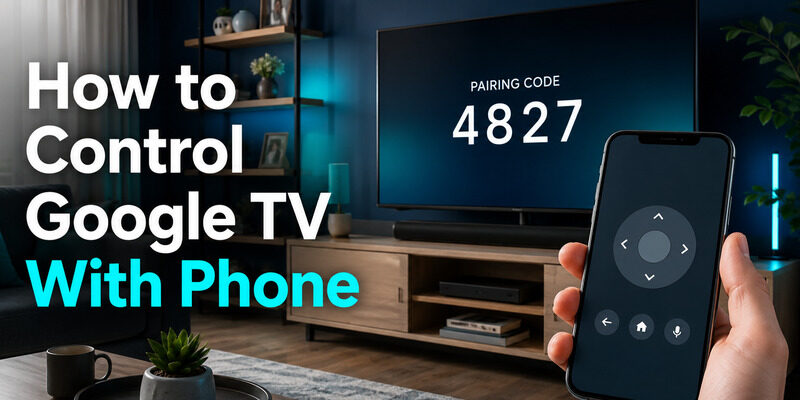
To learn how to control google tv with phone, connect the phone and Google TV to the same Wi-Fi network, open a compatible remote app, select the TV, and enter the pairing code shown on screen.
The official Google TV app works as a virtual remote on Android and iPhone/iPad, while Google Home can also expose controls for supported devices. Once paired, a phone can navigate, play or pause media, enter text, change volume when supported, and help recover from a lost or unresponsive physical remote. The exact buttons can vary by TV manufacturer and HDMI-CEC configuration.
What You Need Before Phone Pairing
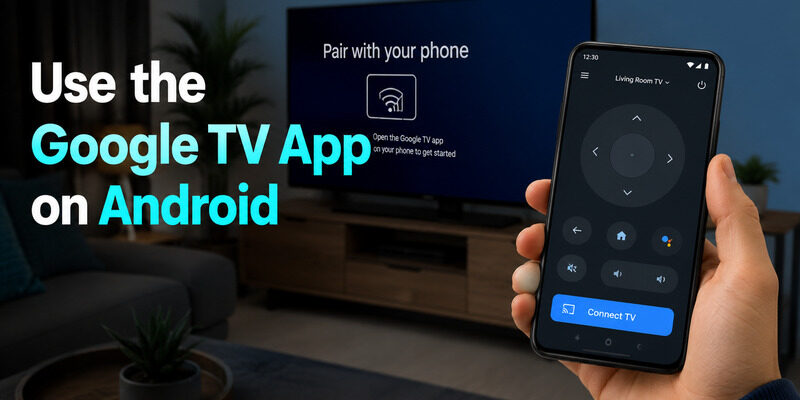
The central requirement for how to control google tv with phone is network visibility. Your phone and Google TV normally need to be connected to the same local Wi-Fi network, not merely to the internet through different connections.
Check these items first:
- Google TV or Android TV is powered on and has finished starting.
- The phone is connected to the same Wi-Fi name as the TV.
- The Google TV, Google Home, or Remote TV App is allowed to discover local-network devices.
- Bluetooth is enabled if the setup flow requests it.
- A pairing code can be read on the TV screen.
| Requirement | Why it matters | Quick check |
|---|---|---|
| Same Wi-Fi | Local discovery and commands stay on the home network | Compare network names on phone and TV |
| Local-network permission | iOS and Android can block device discovery | Review the app’s permissions |
| Current app version | Older builds can lose remote discovery | Update from the official app store |
| TV awake | A fully powered-off TV may not advertise itself | Use its physical power button if needed |
Guest Wi-Fi often isolates devices from one another. If the TV appears in a casting list but not in the remote list, test the main home network before reinstalling anything.
🛠️ Learn with Step-by-Step Guides: Apple TV Remote Icon: What It Means and How to Use It
Use the Google TV App on Android
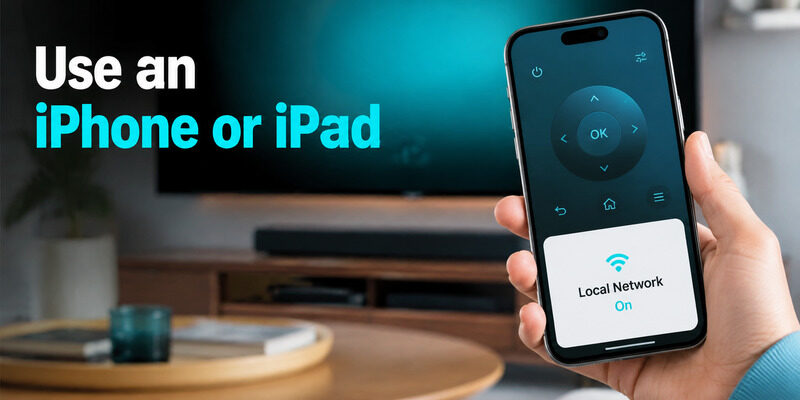
Google’s current support instructions make the Google TV app the most direct Android route for how to control google tv with phone.
- Open the Google TV app on the Android phone.
- Tap Connect TV or the nearby-TV control near the lower-right area.
- Select the Google TV device.
- Enter the code displayed on the television.
- Tap Pair and wait for the virtual D-pad to appear.
Add the remote to Quick Settings
On supported Android versions, add the TV remote tile to Quick Settings. This puts the google tv phone remote one swipe away without reopening the full app. Google specifically recommends this shortcut for fast access.
Use keyboard and playback controls
Tap a text field on the TV to open the phone keyboard for passwords and searches. The google tv remote on phone can also handle navigation, media playback, volume, power, and Assistant functions, although power and volume depend on the device and its control configuration.
The pairing code should appear immediately. If it does not, wait until the TV home screen has fully loaded and select the device again rather than repeatedly tapping Pair.
📘 Find the Right Guide: Apple TV Remote Volume Not Working? Here’s How to Fix It
Use an iPhone or iPad as a Google TV Remote
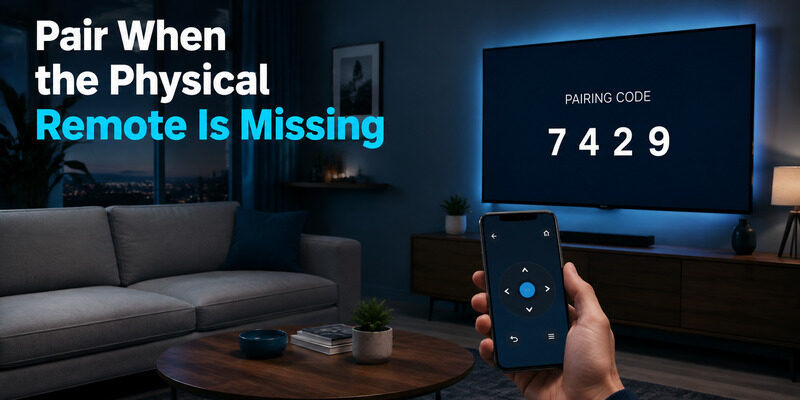
The iOS flow for how to control google tv with phone is similar: install or open the Google TV app, allow local-network access, select the TV, and enter the on-screen code. This is the practical answer for google tv remote for iphone, google tv remote iphone, and google tv remote ios searches.
Check Local Network permission on iOS
If the TV never appears, open iPhone Settings, find the Google TV app, and confirm Local Network access is enabled. Being on the correct Wi-Fi is not enough when iOS has denied discovery permission.
Keep the app on the local network
Some VPN, private relay, corporate security, or guest-network configurations stop local discovery. Temporarily disconnect the VPN and retry. Do not disable normal security permanently; this is a diagnostic step to confirm whether traffic is being isolated.
Once paired, the google tv remote on iphone is particularly useful for typing long passwords and search queries. It also provides immediate control if the physical handset is missing but the TV remains on the known network.
Download LG TV RemoteControl Google TV Through Google Home
Google Home offers another answer to how to control google tv with phone when it shows a remote tile for a supported Google TV, Chromecast with Google TV, or Google TV Streamer assigned to your home. Open Google Home, select the device from Favorites, Devices, or the appropriate room, then open its remote controls.
Use Google Home when you already manage the TV in a smart-home setup or cannot find the remote entry in the Google TV app. The available button layout may differ, but the same-network rule still applies for dependable local control.
| App route | Best for | Main limitation |
|---|---|---|
| Google TV app | Full virtual remote and keyboard | Requires compatible Google TV/Android TV discovery |
| Google Home | Existing smart-home device control | Layout and controls vary by device |
| Android Quick Settings | Fast everyday access | Android only and must be added first |
| Remote TV App | Cross-brand backup on supported TVs | Compatibility depends on TV and network |
If you ask, “can i control google tv with my phone?” the answer is yes for compatible devices, but initial discovery is usually local rather than remote over cellular data.
Pair When the Physical Remote Is Missing
A lost google tv remote is easy to work around if the TV still remembers the current Wi-Fi. This is the best-case scenario for how to control google tv with phone: open the phone app, select the TV, enter the code, and start controlling it. You do not need the physical remote to accept the phone pairing when the code-entry flow is available in the app.
If the TV is on a different or forgotten Wi-Fi network, the phone will not discover it normally. Recreate the old network name and password with a router or hotspot, use Ethernet when the device supports it, connect a compatible USB keyboard or mouse on a TV, or pair a replacement remote. The full guide explains these recovery routes.
For a physical Voice Remote that lights up but does not respond, use the troubleshooting steps instead of assuming the TV is offline.
📘 Find the Right Guide: How to Reset Your Apple TV Remote: Pairing, Volume, and No-Remote Fixes
Fix a Phone Remote That Cannot Connect
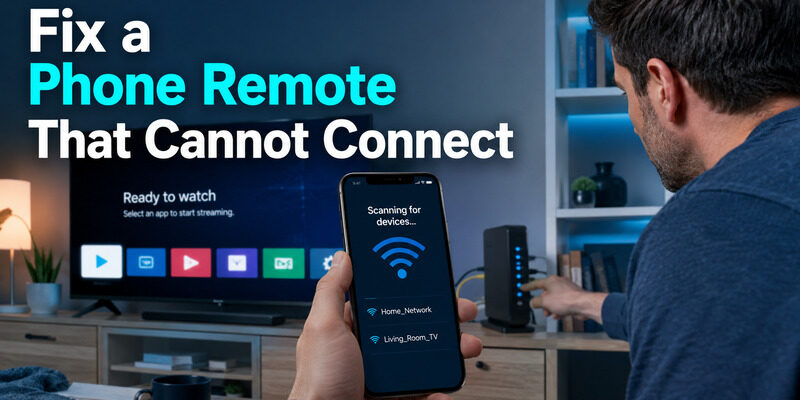
When how to control google tv with phone stops at “Scanning for devices,” troubleshoot the network before clearing accounts or resetting the TV.
Confirm the exact network
Compare the SSID on the phone with Settings > Network & Internet on Google TV. A 2.4 GHz and 5 GHz band can work together when the router bridges them, but separately isolated guest or IoT networks may not.
Restart both ends
Close and reopen the app, toggle phone Wi-Fi, then unplug the Google TV device for ten seconds and reconnect it. Google’s virtual-remote troubleshooting page specifically recommends restarting Google TV and setting up the virtual remote again.
Repair permissions and app data
On iOS, enable Local Network permission. On Android, allow nearby-device or network access when prompted. Update the app; if discovery remains stuck, clear its cache or reinstall it, then pair again.
| Symptom | Likely cause | Fix |
|---|---|---|
| TV absent from list | Different or isolated network | Move both devices to the same main Wi-Fi |
| Code appears but pairing fails | Stale session | Restart TV and app, then request a new code |
| Navigation works, volume does not | Volume control route not configured | Set Auto (CEC) or configure remote buttons |
| TV disconnects repeatedly | Weak Wi-Fi or changing network | Improve signal and keep one stable SSID |
Do not factory-reset the TV just because the phone app fails once. A reset removes accounts and settings and may make control harder if no physical remote is available.
Understand What Phone Control Cannot Do
The phrase use phone as google tv remote does not mean every function works from anywhere. Any guide to how to control google tv with phone must account for local network access, and the TV must be awake enough to receive commands. Power-on behavior depends on the television, network standby, and HDMI-CEC settings.
A google tv remote for pc or google remote control desktop is not the same as Google’s supported mobile virtual remote. Chrome can cast supported content from a computer, but that does not guarantee a full D-pad, volume, and settings remote. Avoid unofficial desktop utilities that ask for unnecessary account credentials.
Voice features also differ. The phone microphone may support search through the app, but it does not turn every TV into a far-field voice device. If only volume fails, Google’s support guidance recommends checking Settings > Remotes & Accessories > Set up remote buttons > Volume control and using Auto (CEC) when appropriate.
💡 Discover Helpful Guides
Apple remote tv app: Complete Apple TV Remote Guide for iPhone, Siri Remote, Pairing & Fixes
Use Remote TV App for Everyday Control
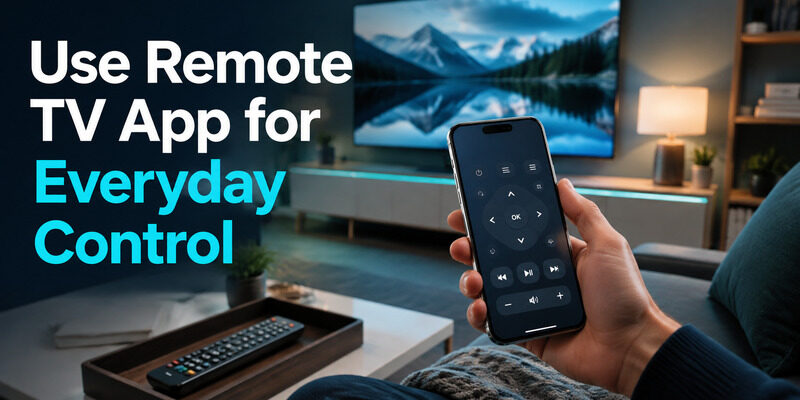
Once you understand how to control google tv with phone, keep a second remote option configured before the physical handset disappears. Remote TV App can offer navigation and media controls for supported TVs on the same home network, making it a practical cross-brand backup. This turns how to control google tv with phone from an emergency workaround into a prepared everyday option.
Visit the homepage to review compatibility and setup. A phone remote is most reliable when you pair it while the physical remote still works and keep the app’s local-network permission enabled.
Final Thoughts
The reliable method for how to control google tv with phone is simple: put both devices on the same Wi-Fi, choose the TV in a supported app, enter the code, and test navigation plus keyboard input. Android users can add the remote to Quick Settings; iPhone users should verify Local Network permission.
If the TV is no longer on a reachable network, restore the old SSID, connect Ethernet, use a compatible input device, or pair a replacement remote. Set up a phone remote now rather than waiting for the physical problem to leave you without access to Settings.
Download LG TV Remote