
Apple TV Remote Volume Not Working? How to Fix It
When the apple tv remote volume not working problem appears, you may still be able to browse apps, select movies, pause playback, and return to the Home Screen. However, pressing Volume Up, Volume Down, or Mute does nothing. This usually happens because volume commands travel through a different connection than normal Apple TV navigation.
The Siri Remote communicates with Apple TV through Bluetooth, but volume may be controlled through HDMI-CEC or infrared. As a result, the remote can navigate perfectly while failing to control the television, soundbar, or AV receiver.
Common causes include an incorrect Volume Control setting, disabled HDMI-CEC, a lost infrared profile, a blocked sensor, an unstable HDMI connection, or a Siri Remote that needs to be restarted. The apple tv remote volume not working issue can also begin after replacing a TV, connecting a new soundbar, switching HDMI ports, or updating home-theater equipment.
This guide explains how to restart and re-pair the remote, configure volume control, program a new infrared device, fix HDMI-CEC, troubleshoot soundbars and receivers, and use an iPhone or Remote TV App while the physical remote is unavailable.
1. Why Is the Apple TV Remote Volume Not Working?
The apple tv remote volume not working issue does not always mean that the remote is broken. Apple TV can send volume commands in several ways, and a failure in any part of that chain can stop the volume buttons from responding.
The most common causes include:
- The Siri Remote has temporarily frozen.
- The remote has lost its connection to Apple TV.
- Volume Control is set to Off.
- Apple TV selected the wrong volume-control method.
- HDMI-CEC is disabled on the television.
- The soundbar or receiver has CEC disabled.
- Apple TV is connected to an HDMI port with limited CEC support.
- The remote’s infrared profile no longer matches the TV or soundbar.
- The infrared sensor is blocked.
- The audio output has changed to another speaker.
- A new soundbar or AV receiver was installed.
- The remote battery is low.
- The Volume buttons are physically stuck or damaged.
If the apple tv remote volume control not working problem began immediately after changing the sound system, Apple TV may still be sending commands to the old device.
When my apple tv remote volume is not working, first determine which device is actually producing the sound:
- Television speakers
- HDMI soundbar
- Optical soundbar
- AV receiver
- HomePod
- AirPlay speaker
- Bluetooth headphones
The correct volume-control method depends on that output.
HDMI-CEC sends commands through the HDMI cable. Infrared sends commands directly from the remote to the TV, soundbar, or receiver. Bluetooth handles navigation between the Siri Remote and Apple TV.
This separation explains why the apple tv remote volume not working problem can occur even though every navigation button still works.
2. Quick Checks Before Changing Apple TV Settings
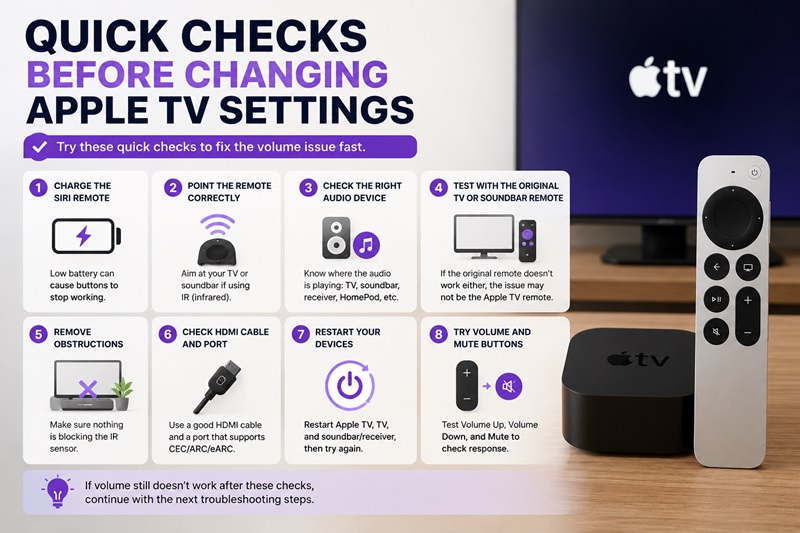
Before opening advanced settings, complete a few quick checks. They can often resolve the apple tv remote volume not working problem without reprogramming anything.
Charge the Siri Remote
Connect the Siri Remote to power and let it charge. A low battery can produce intermittent commands or unexpected disconnections.
After charging, test:
- Volume Up
- Volume Down
- Mute
- Power
- Navigation
Remove the Remote Case
Some protective cases partially cover the infrared transmitter or press against the volume buttons.
Remove the case and test the remote again.
Move Closer to the TV or Soundbar
If Apple TV uses infrared volume control, the remote must have a clear line of sight to the receiving device.
Stand close and point the top of the Siri Remote directly toward:
- The television
- The soundbar
- The AV receiver
Remove decorations, cabinet doors, books, or other objects blocking the sensor.
Test the Original TV or Soundbar Remote
Use the original remote to adjust the volume.
If the original remote also fails, the problem may be:
- The wrong audio output
- A frozen soundbar
- A muted receiver
- A disconnected HDMI or optical cable
- A problem with the television itself
If the original remote works but the volume not working on apple tv remote issue continues, focus on the Siri Remote and Apple TV settings.
Restart the Home-Theater Devices
Turn off the Apple TV, television, soundbar, and receiver. Disconnect their power for about 30 seconds, then reconnect everything.
Start the television and audio device first. Turn on Apple TV last and test the volume buttons.
| Symptom | Likely cause | First step |
| No volume buttons work | Wrong setting or frozen remote | Restart Siri Remote |
| TV remote controls volume normally | Apple TV volume setup is incorrect | Check Volume Control |
| Neither remote controls volume | TV or audio device problem | Check audio output |
| Volume works only when aimed at TV | Infrared control is active | Clear the IR sensor |
| Problem began after adding a soundbar | Old IR or CEC configuration | Learn New Device |
| Power works but volume does not | Volume path is not configured | Try Auto, HDMI, or IR |
These checks are especially useful when the volume button not working on apple tv remote problem appears suddenly without any equipment changes.
3. How to Restart the Siri Remote or Apple TV Remote
Restarting the remote is one of the fastest solutions when the apple tv remote volume not working issue appears unexpectedly.
Restart the Siri Remote Step by Step
- Make sure Apple TV is turned on.
- Locate the TV/Control Center button.
- Locate the Volume Down button.
- Press and hold both buttons together.
- Keep holding them for approximately five seconds.
- Watch the status light on the Apple TV.
- Release the buttons after the light turns off and comes back on.
- Wait about 10–15 seconds.
- A Remote Disconnected message may appear.
- Wait for the remote to reconnect automatically.
- Press Volume Up and Volume Down to test it.
This restart clears temporary remote errors without deleting your Apple TV settings.
If the apple tv remote volume stopped working because the controller was frozen, volume may return immediately after reconnection.
Re-Pair the Remote if It Does Not Reconnect
If the remote remains disconnected:
- Move the Siri Remote close to Apple TV.
- Point it toward the Apple TV box.
- Press and hold Back and Volume Up.
- On an older remote, hold Menu and Volume Up.
- Continue holding for approximately five seconds.
- Follow the pairing instructions displayed on the television.
- Place the remote on top of Apple TV if requested.
- Wait for pairing to finish.
- Test navigation and volume.
If navigation returns but the apple tv remote no longer controls volume, Bluetooth pairing has been restored, but the television or soundbar volume path still needs attention.
Restart Apple TV
Using the remote:
- Open Settings.
- Select System.
- Select Restart.
- Wait for Apple TV to reboot.
- Test volume again.
You can also disconnect Apple TV from power, wait several seconds, and reconnect it.
For many users asking how to fix volume on apple tv remote, restarting both Apple TV and the Siri Remote resolves the problem before deeper changes are needed.
4. How to Set Up Volume Control on Apple TV Step by Step
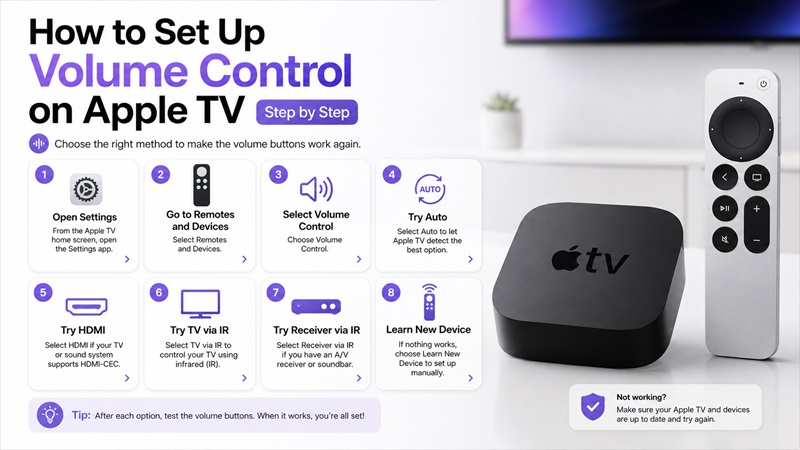
If restarting does not fix the apple tv remote volume not working issue, review the Volume Control setting.
Open the Volume Control Menu
- Open Settings on Apple TV.
- Select Remotes and Devices.
- Scroll to the home-theater control options.
- Select Volume Control.
- Review the currently selected method.
The available options can vary depending on your TV and audio equipment.
Try Auto First
Select Auto and test the volume buttons.
Auto lets Apple TV determine whether to use:
- HDMI-CEC
- TV infrared commands
- Receiver infrared commands
- Another supported control path
Auto is usually the best starting point when the system previously worked.
If the apple tv remote volume not working problem continues, manually test the other choices.
Select HDMI
Choose HDMI when:
- The television supports HDMI-CEC.
- The soundbar or receiver uses HDMI ARC or eARC.
- CEC is enabled on all connected devices.
- Apple TV is connected through a compatible HDMI path.
After selecting HDMI:
- Exit Settings.
- Press Volume Up.
- Watch for the TV or soundbar volume indicator.
- Test Volume Down and Mute.
If nothing happens, check the HDMI-CEC settings described later.
Select TV via IR
Choose TV via IR when audio comes from the television speakers and the Siri Remote should send infrared commands directly to the TV.
After selecting it:
- Point the remote toward the television.
- Press Volume Up.
- Test Volume Down.
- Test Mute.
- Move closer if the commands are inconsistent.
If the apple tv remote volume button not working issue disappears only when the remote points directly at the screen, infrared control is active.
Select Receiver via IR
Choose Receiver via IR when audio comes from:
- A soundbar connected by optical cable
- An AV receiver without reliable CEC
- An older sound system controlled through infrared
Point the Siri Remote at the soundbar or receiver while testing.
Make Sure Volume Control Is Not Off
If Volume Control is set to Off, the volume buttons will not control an external television or audio device.
Change it to Auto, HDMI, TV via IR, or Receiver via IR.
Learn a New Device
Use Learn New Device when Apple TV cannot automatically control the television, soundbar, or receiver.
You will need the original remote for the audio device.
- Open Settings.
- Select Remotes and Devices.
- Select Volume Control.
- Choose Learn New Device.
- Pick up the original TV, soundbar, or receiver remote.
- Follow the on-screen instructions.
- Hold Volume Up on the original remote.
- Hold Volume Down when requested.
- Press Mute if the setup asks for it.
- Name the new remote profile.
- Select the learned profile as the active volume method.
- Test the Siri Remote.
This method is particularly helpful when the apple tv remote volume control not working problem begins after installing a new soundbar.
Repeat the learning process if Apple TV does not recognize the original commands correctly.
For users asking how to fix volume on apple tv remote, the most effective sequence is Auto first, followed by HDMI, TV via IR, Receiver via IR, and Learn New Device.
5. How to Fix HDMI-CEC, TV, Soundbar, and Receiver Problems
HDMI-CEC allows devices to control each other through HDMI. If CEC is disabled or unstable, the apple tv remote volume not working issue may affect volume, power, and input control.
Enable HDMI-CEC on the Television
CEC has different brand names:
- Samsung: Anynet+
- LG: SIMPLINK
- Sony: BRAVIA Sync
- Panasonic: VIERA Link
- Philips: EasyLink
Open the television settings, locate the CEC option, and enable it.
After enabling CEC:
- Turn off Apple TV.
- Turn off the television.
- Turn off the soundbar or receiver.
- Disconnect power for about 30 seconds.
- Reconnect the HDMI cables.
- Restore power.
- Turn on the television.
- Turn on the soundbar or receiver.
- Start Apple TV.
- Test volume.
Enable CEC on the Soundbar or Receiver
Some audio systems have a separate HDMI control option. It may be named:
- HDMI Control
- CEC
- Control for HDMI
- Device Link
- HDMI Pass Through
Enable the feature and restart the equipment.
Check the HDMI Port
Some televisions provide full ARC, eARC, or CEC support only on selected HDMI ports.
Check for labels such as:
- ARC
- eARC
- CEC
- HDMI Control
Connect the soundbar to the ARC or eARC port when required.
Try another HDMI port for Apple TV if the current connection is unstable.
Replace the HDMI Cable
A damaged or outdated HDMI cable may interrupt CEC communication even when video and audio still work.
Replace the cable and test again.
Soundbar Connected Through Optical
Optical cables carry audio but do not carry HDMI-CEC volume commands.
For an optical soundbar:
- Open Settings > Remotes and Devices > Volume Control.
- Select Receiver via IR.
- Point the Siri Remote at the soundbar.
- Test the buttons.
- Use Learn New Device if necessary.
This is a common cause when volume not working on apple tv remote after switching from HDMI ARC to optical audio.
Check ARC or eARC
Make sure:
- The soundbar is connected to the correct ARC/eARC port.
- ARC or eARC is enabled on the television.
- The TV audio output is set to the soundbar or receiver.
- HDMI-CEC is enabled.
- The soundbar uses the correct input.
If the apple tv remote no longer controls volume after changing an HDMI cable or port, restarting the complete HDMI chain may restore the CEC connection.
6. What to Do When Apple TV Remote Volume Still Does Not Work
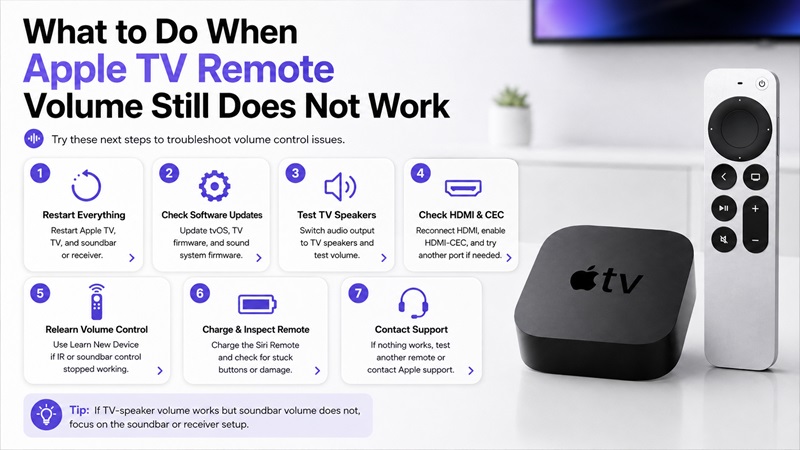
If the apple tv remote volume not working issue remains after restarting and changing Volume Control, isolate the television, audio device, and remote one at a time.
Restart Every Device
Use this order:
- Restart the Siri Remote.
- Restart Apple TV.
- Turn off the TV.
- Turn off the soundbar or receiver.
- Disconnect all devices from power.
- Wait about 30 seconds.
- Reconnect the HDMI cables.
- Restore power to the TV and audio device.
- Restore power to Apple TV.
- Test volume again.
Update tvOS
- Open Settings.
- Select System.
- Select Software Updates.
- Select Update Software.
- Install any available update.
- Restart Apple TV.
Also check for firmware updates for the television, soundbar, and receiver.
Switch Temporarily to TV Speakers
Change the television audio output from the soundbar or receiver to the built-in TV speakers.
Then set Apple TV Volume Control to Auto or TV via IR.
If the Siri Remote controls TV-speaker volume, the remote itself is probably working. Focus troubleshooting on the soundbar, receiver, ARC, or infrared profile.
If the apple tv remote volume stopped working with both TV speakers and external audio, review the remote restart and Volume Control setup again.
Inspect the Siri Remote
Check for:
- Stuck Volume buttons
- Liquid damage
- Impact damage
- Dirt around the buttons
- A case blocking the infrared transmitter
- Low battery charge
Press the buttons several times and confirm that they move normally.
Test Another Siri Remote
A compatible second remote can help identify whether the problem is hardware-related.
If another remote controls volume with the same Apple TV settings, the original remote may need repair or replacement.
Reset the Learned Volume Device
If a learned infrared profile is no longer working:
- Return to Volume Control.
- Choose Auto or another temporary option.
- Run Learn New Device again.
- Use the original soundbar or TV remote.
- Save the new profile.
- Test the Siri Remote.
This is often the correct solution when the apple tv remote volume button not working problem started after replacing the audio system.
7. Why Only the Volume Buttons—or Everything Except Volume—Works
The exact symptom can reveal whether the problem involves Bluetooth, infrared, or HDMI-CEC.
Apple TV Remote Only Volume Working
If the apple tv remote only volume working problem occurs, volume is probably being sent through infrared while the Bluetooth connection to Apple TV has failed.
Try:
- Charge the Siri Remote.
- Move close to Apple TV.
- Restart the remote.
- Pair the remote again.
- Restart Apple TV.
- Remove nearby wireless interference.
Volume can continue working through IR even while navigation is disconnected.
Everything Works Except Volume
When navigation, playback, and Home work but Volume does not, Bluetooth is working normally. The problem is limited to CEC or IR.
Check:
- Volume Control setting
- HDMI-CEC
- ARC/eARC
- IR sensor visibility
- Selected audio output
- Learned device profile
This is the most common form of the volume button not working on apple tv remote issue.
Power Works but Volume Does Not
Power and volume do not always travel through the same command path.
The television may accept a CEC power command while rejecting CEC volume commands.
Try switching Volume Control from HDMI to TV via IR or Receiver via IR.
Volume Works Intermittently
Intermittent volume commonly points to:
- A blocked infrared sensor
- Remote not aimed at the device
- Weak remote battery
- Unstable HDMI-CEC handshake
- Damaged HDMI cable
- Soundbar changing inputs
- Wireless interference
If the my apple tv remote volume is not working complaint changes depending on where you stand, infrared visibility is the likely cause.
Volume Controls the Wrong Device
Apple TV may send commands to the TV even though audio is playing through the soundbar.
Open Volume Control and choose Receiver via IR or learn the soundbar remote.
The apple tv remote volume control not working problem can sometimes be a wrong-device problem rather than a complete failure.
8. Use a Remote TV App or iPhone While Troubleshooting
While fixing the apple tv remote volume not working issue, you can use the Apple TV Remote in Control Center on an iPhone or iPad for navigation.
Use Apple TV Remote on iPhone
- Connect the iPhone and Apple TV to the same Wi-Fi network.
- Open Control Center.
- Tap the Apple TV Remote icon.
- Select your Apple TV.
- Enter the pairing code if requested.
- Use the touchscreen remote to navigate.
- Open Settings and continue troubleshooting.
The physical volume buttons on the iPhone may control volume in supported audio configurations, including selected AirPlay speakers, HomePod setups, and compatible receivers. They may not control every television directly.
Use a Universal Remote TV App
A compatible Remote TV App may control the television separately from Apple TV.
This can help you:
- Adjust TV volume
- Control a supported soundbar
- Navigate the television menu
- Change inputs
- Open audio settings
- Test whether the TV itself responds
- Continue watching while the Siri Remote is unavailable
The app does not repair HDMI-CEC or damaged Siri Remote hardware, but it can show whether the failure is limited to the Apple remote.
Recommended Troubleshooting Order
When the apple tv remote volume not working problem appears, use this order:
- Charge and restart the Siri Remote.
- Re-pair the remote.
- Restart Apple TV.
- Set Volume Control to Auto.
- Try HDMI.
- Try TV via IR.
- Try Receiver via IR.
- Use Learn New Device.
- Enable HDMI-CEC.
- Restart the full home-theater system.
- Test TV speakers instead of the soundbar.
- Update all devices.
- Test another remote or mobile app.
In most cases, the apple tv remote volume not working issue is caused by a lost remote state, incorrect Volume Control setting, disabled CEC, or outdated IR profile. Restarting the Siri Remote and reconfiguring volume control usually restores normal operation.
