
Panasonic TV Remote in Mobile for Android and iPhone
Short answer: Use a compatible Panasonic or TV platform app on the same home network to control your Panasonic television from your mobile phone.
The right Panasonic TV remote in mobile depends on the television’s operating system, its supported remote features, and whether it already has a network connection. A VIERA model, a Panasonic Fire TV, and an Android TV model may need different applications even though they share the same manufacturer.
This guide explains how to identify the correct route, connect Android or iPhone, test the controls you need, and recover when discovery fails. It also separates phone control from casting and explains why an app cannot automatically replace every physical button or connect an offline television.
Choose Your Panasonic TV Remote in Mobile by Platform
Match the television platform before installing an app. The Panasonic name alone does not identify the software running inside the set. Check its Home screen, model information, or the operating instructions supplied for that regional model.
| Television or device | First app route to check | Essential condition |
|---|---|---|
| Compatible VIERA or my Home Screen model | Panasonic TV Remote 3 | Model explicitly supports the app |
| Panasonic television running Fire TV | Amazon Fire TV app | Fire TV network setup completed |
| Panasonic Android TV or Google TV | Supported Google TV or Google Home remote | Compatible platform and pairing access |
| Older television without network remote support | Compatible physical remote or suitable IR hardware | Software alone cannot add missing hardware |
VIERA and Panasonic TV Remote 3
Panasonic’s published TV Remote 3 store descriptions identify supported television generations and refer readers to model compatibility information. Treat these as a starting point, then verify the full model: a year range does not mean every television sold during those years works.
For a supported set, Panasonic TV remote in mobile can provide network control without aiming the phone at the screen. Panasonic’s Swipe and Share support instructions also distinguish TV Remote 3 from the older TV Remote 2 application.
Fire TV and Android TV televisions
Use the platform named by the television itself. The remote page in Amazon’s app operates Fire TV; Google’s virtual remote targets supported Google TV or Android TV devices. Installing a VIERA app on a Panasonic Fire TV does not establish compatibility.
A streaming stick adds another distinction. Its app controls the stick, while television input and volume may need a separate supported route. Identify which device you actually want the phone to operate.
For example, a household may have an older VIERA in the bedroom and a newer Panasonic Fire TV downstairs. Their shared brand is useful when finding manuals, but it does not identify a shared mobile-control system. Check each set separately and save the app name with its room name. This avoids opening the VIERA app every time the downstairs television needs attention.
The Panasonic TV remote in mobile route should follow the device that displays the menu you want to change. If you are watching an external streamer, return to the television’s own Home or input screen to identify the underlying platform before choosing software.
📘 Find the Right Guide: Panasonic TV Remote: Choose, Set Up and Replace It
Prepare the Television Before Touching the Phone
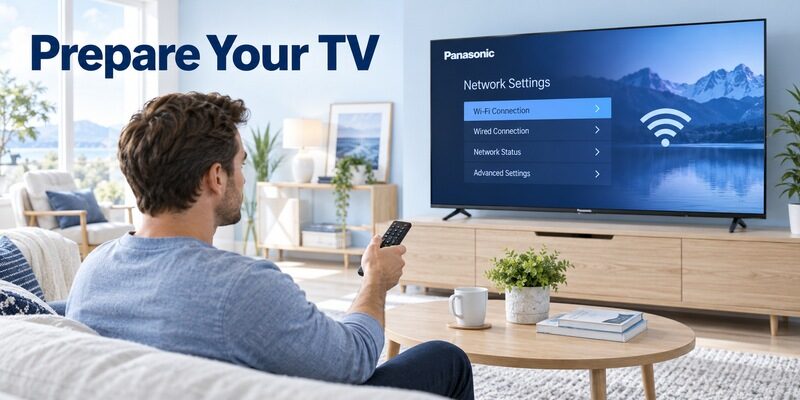
Find a working way into the menus
Turn the TV on using its physical control or an available compatible remote. Locate the network settings and confirm a connection exists. A Panasonic TV remote in mobile is easiest to establish while you still have a working controller for any approval prompt.
If the original handset is missing, inspect the TV manual for the physical button’s capabilities. Some controls offer only a short input or power menu. Do not assume a single button provides full Settings access.
Record the full model and network
Photograph the model label without moving a heavy mounted television unnecessarily. Note the model suffix, platform name, and network name. These details are more useful than screen size when an app lists supported devices.
Keep the TV’s network settings intact. A factory reset can remove the connection that your phone needs, making a recoverable situation harder. Plan how you would complete first-time setup before considering any reset.
There is also a difference between borrowing a controller briefly and buying a permanent replacement. If a compatible handset gives you access to the network and approval screens, complete the phone setup while it is available. Then check whether the mobile controls remain usable after closing and reopening the app. Do not return the borrowed handset before confirming that basic navigation works.
For Panasonic TV remote in mobile recovery, keep the television awake throughout registration. That prevents an automatic standby transition from interrupting the test and being mistaken for a failed pairing process.
📘 Find the Right Guide: App for Panasonic TV Remote: VIERA and Platform Options
Connect Android to a Supported Panasonic Television
Install the app that matches the platform, then complete its own discovery process. Bluetooth settings on the phone are not a substitute for network remote setup.
1. Prepare the TV: Power it on and confirm it is connected to your home router.
2. Join the network: Connect Android to the same local network and open the matching app.
3. Choose the television: Select its device name from the available list.
4. Authorize control: Complete the on-screen confirmation or code entry if requested.
5. Test navigation: Try an arrow, OK, and Back before checking additional features.
Panasonic app discovery
In Panasonic TV Remote 3, choose the compatible VIERA detected by the application. If two televisions appear, use the device names and room locations to select the correct one. Avoid rapidly sending commands to identify a television in another room.
A Panasonic TV remote control mobile setup should be verified with visible navigation, not merely a device name appearing in a list. Discovery means the phone found a device; successful control confirms the app and television can exchange commands.
Google platform pairing
Google’s virtual remote instructions describe selecting the television, entering the code displayed on the screen, and choosing Pair. The code is generated for that connection; it is not a reusable universal remote number.
For Panasonic TV remote in mobile on Android TV, keep the pairing screen visible until the process finishes. If it times out, start a fresh request and use the new code instead of repeatedly submitting the expired one.
If the application lists a previously used television that is no longer in the room, remove or rename that stale entry only after identifying it. A saved device name can outlive the current network arrangement. The presence of that entry should not be used as proof that the new television has been detected.
A practical Panasonic TV remote in mobile test is to move one highlight to the right, move it back, and select a harmless menu item. Visible, reversible navigation confirms the destination without changing accounts, sources, or picture settings during the initial connection check.
💡 Discover Helpful Guides: Download the Panasonic TV Remote App: Complete Setup Guide
Set Up an iPhone Without Confusing Remote Apps
Install the correct iOS application
An iPhone Panasonic TV remote can work over the local network when the television and application support each other. Panasonic publishes an iOS version of TV Remote 3; Fire TV owners should use Amazon’s corresponding app.
For supported Google devices, Google’s guidance also describes opening a virtual remote from Google Home on iOS. Follow the current app interface for the chosen platform. An iPhone does not become an infrared handset by installing software.
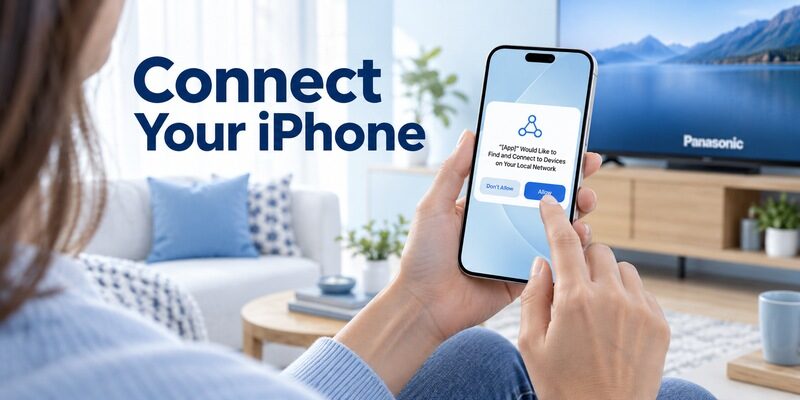
Allow discovery when iOS asks
Apple’s Local Network privacy guidance explains that applications must request access before browsing devices on the local network. Allow this for the remote app you intentionally selected. If previously denied, review the application’s Local Network access in iPhone privacy settings.
A Panasonic TV remote iPhone connection can otherwise look mysterious: the television streams normally, the phone browses websites, yet the app sees nothing. Internet access and permission to discover nearby network devices are separate requirements.
💡 Discover Helpful Guides: Can You Factory Reset a Panasonic TV Without a Remote?
Make Sure the Phone and TV Can Find Each Other
Being connected to the same internet service does not necessarily mean devices can communicate locally. Guest networks and router isolation can prevent discovery even when both screens show a Wi-Fi symbol.
Main Wi-Fi and guest Wi-Fi
Compare the actual network names. Put the phone on your ordinary home network rather than the guest connection. On managed apartment, hotel, or office networks, ask the administrator about device-to-device communication instead of changing unfamiliar router settings.
For Panasonic TV remote in mobile, proximity to the television does not fix isolation. Moving the phone next to the screen helps only if weak wireless coverage was the underlying issue.
Wired televisions and dual band routers
A TV connected by Ethernet may communicate with a phone on Wi-Fi when the router places them on the same local network. They do not always need identical physical connection types.
Likewise, different Wi-Fi bands are not automatically incompatible. If the manufacturer’s setup instructions specify a band, follow them; otherwise focus on whether the router bridges the connections. Change one network variable at a time so the result is meaningful.
When one phone works and another does not, keep the working phone as a reference. Compare the selected Wi-Fi network, application, and permissions on the failing phone. There is little reason to erase television settings that already support a successful connection from the first device.
When every phone loses access immediately after a router change, investigate the shared network first. Panasonic TV remote in mobile troubleshooting becomes more focused when you distinguish a single-phone failure from a change affecting all local devices. Note that distinction when requesting support.
💡 Discover Helpful Guides: Panasonic TV Remote Instructions for Buttons Menus and Daily Use
Check the Controls You Actually Need
Navigation and text entry
Open a harmless menu and test direction buttons, OK, Back, and Home. Then try a search field if the app offers keyboard input. Some television apps use custom entry screens that may not accept phone text in the same way.
A working Panasonic TV remote on phone can make searches easier, but it does not guarantee keyboard support in every application. Record the tasks that work instead of treating a single unavailable feature as total failure.
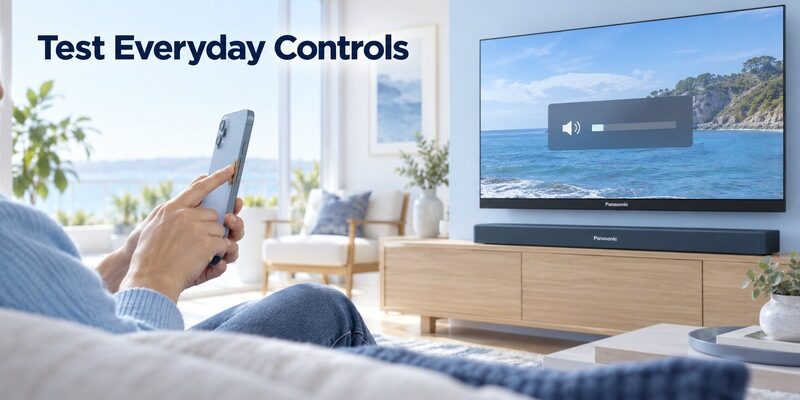
Volume and external sound systems
Set a modest listening level and test small adjustments. If audio comes from a soundbar or receiver, determine which device controls its volume. The TV may show a volume graphic while the external audio system behaves differently.
Test the full viewing chain. Panasonic TV remote in mobile should be judged against your actual arrangement: television speakers, HDMI audio, cable box, or streaming stick. A controller for one part may not operate the others.
| Test | What success establishes | What it does not establish |
|---|---|---|
| Arrow and OK | Basic TV navigation works | Every settings screen is supported |
| Search text | That field accepts phone input | All apps accept text |
| Volume change | Selected audio route responds | Independent receiver control |
| Wake from standby | Current standby setup allows wake | Operation after wall power is disconnected |
Understand Standby and Offline Limits
Turning on a television from standby
Network wake depends on the television’s supported standby features and settings. A Panasonic TV remote in mobile that works while the TV is already on may fail to wake it after a long idle period. Review the model’s network standby options before deciding the app is faulty.
Panasonic TV remote in mobile cannot wake a television with no electrical power. Keep an accessible physical control available, particularly if your household routinely turns the TV off at the wall.
Working without home Wi-Fi
A Panasonic TV remote mobile app that uses Wi-Fi needs a supported communication path. Mobile data on its own does not make an offline television discoverable. A hotspot arrangement is not a universal shortcut and may complicate discovery.
Some Android phones have an IR transmitter, but many do not. An infrared app requires that hardware plus a suitable command profile. Check the phone specifications rather than assuming its camera or Bluetooth radio can transmit infrared commands.
Check two realistic moments: immediately after putting the TV into standby and after leaving it idle for the length of a normal evening break. A device may behave differently once energy-saving features take effect. Write down the result and retain the physical power method if either test fails.
For Panasonic TV remote in mobile use, the goal is predictable access, not forcing every wake option on. Choose the supported power configuration that fits your household, and explain to other users when the television needs to be turned on physically before the app becomes available.
💡 Discover Helpful Guides: Panasonic TV Remote Battery Types Replacement and Common Problems
Fix Discovery and Connection Problems in Order
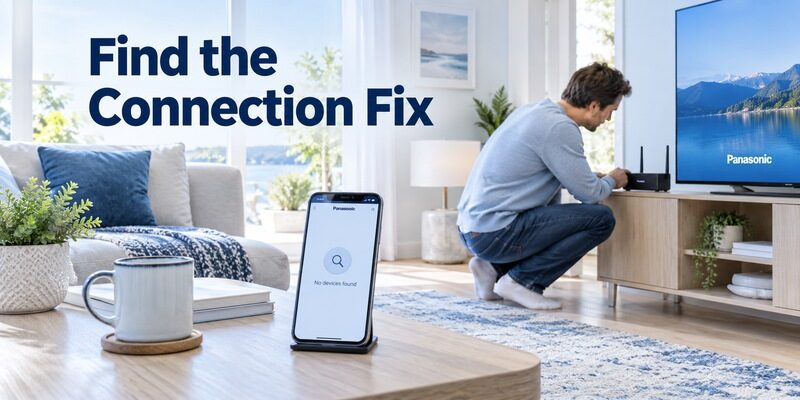
Separate a missing device from a rejected connection and a missing button. These symptoms point to different stages of setup.
| Symptom | First thing to check | Next useful action |
|---|---|---|
| No TV appears | Platform match and local network | Review discovery permission |
| TV appears but rejects pairing | Current prompt or code | Start a fresh authorization request |
| Connection drops after standby | Network wake support | Compare behavior while fully powered on |
| Navigation works but volume fails | Audio output route | Test television speakers separately |
Start with reversible checks
Close and reopen the app, confirm the selected television, and reconnect the phone to the intended Wi-Fi network. Temporarily test without a VPN if it prevents local device access, then restore your preferred settings after diagnosis.
For Panasonic TV remote in mobile, repeat a single simple command after each change. Reinstalling several apps, rebooting the router, and resetting the TV together hides which change mattered and may introduce extra problems.
Escalate with a useful record
Check available app and television updates through their normal supported channels. If the issue continues, record the TV model, app version, phone operating system, and exact failure stage before contacting the relevant provider.
A Panasonic TV remote in mobile problem that began after switching routers needs different investigation from one that affects only a newly installed app. Include that timing; it narrows the search more effectively than saying the remote is broken.
💡 Discover Helpful Guides: Panasonic TV Remote Universal Compatibility and Setup Guide
Keep Casting Separate from Remote Control
Sending media is a different task
A casting button sends supported media to a playback destination. A remote interface sends navigation commands. One can work without the other because the television and phone may use different services for those functions.
Panasonic’s Swipe and Share documentation describes a media sharing workflow for compatible televisions. Successful photo sharing does not prove complete remote support. Test navigation independently before relying on the phone as your main controller.
Old television browsers have separate limitations
Older VIERA browser compatibility can limit modern websites even when the phone connection is healthy. Changing the remote app does not update the television’s browser engine or add support for every video site.
If Panasonic TV remote in mobile already moves through menus correctly, investigate playback or browser limitations separately. A supported external streaming device may solve a content problem, although its remote and the television’s remote remain distinct controls.
A useful comparison is a photo appearing successfully on the TV while its input menu remains inaccessible from the phone. That outcome shows that media transfer is available, not that the application exposes all television settings. Conversely, working arrows with a failed web video point toward the media service or browser rather than a missing remote connection.
Keep those observations separate in a Panasonic TV remote in mobile support request. They help identify which feature needs attention and prevent repeated pairing attempts from obscuring an unrelated playback limitation.
Choose a Practical Backup for Everyday Use
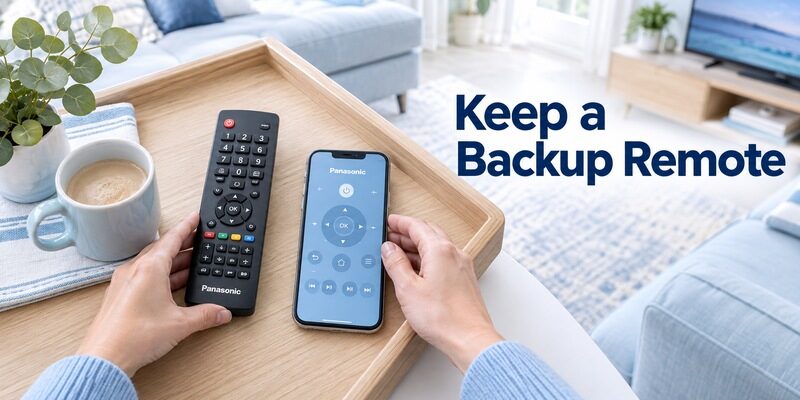
Keep a physical recovery option
A compatible handset remains useful for first-time setup, offline use, and settings that a mobile application does not expose. The guide explains why model and part-number matching matter.
Treat Panasonic TV remote in mobile as one useful control route within the household. Save the app where other authorized users can find it, name televisions by room, and keep the working remote in a consistent place.
Consider another supported app
Remote TV App can be considered as an alternative mobile interface when its current compatibility information includes your television. Check supported devices and available controls before depending on it for a missing physical button.
Explore if you want a backup for everyday navigation. It still needs a supported connection and cannot bypass television approval, restore missing network hardware, or guarantee operation on every Panasonic model.
Before making the phone your everyday controller, try the complete viewing routine from the sofa: select the right source, start a program, adjust sound, leave the app, and reconnect. Include the person who will use the controls most often; a touchpad that suits one user may be awkward for another.
A Panasonic TV remote in mobile setup can remain valuable even when one occasional settings task needs the handset. Keep that division clear in the household note rather than describing the phone as a complete replacement when it has known limits.
Frequently Asked Questions
Can I use any Panasonic TV with my phone?
No. Phone control depends on the exact television and its supported platform or network remote features. An older non-network model needs an appropriate physical remote or compatible external hardware. Check the model before selecting Panasonic TV remote in mobile software.
Does an iPhone need an infrared adapter?
No, not for supported network remote control. The iPhone communicates through the home network. An infrared route is a separate hardware arrangement for devices that require it; installing an app alone does not give the phone an IR transmitter.
Can I connect when the original remote is lost?
Yes, sometimes. A television already connected to the network may be discoverable, but a first-time approval prompt can still require an available control. Avoid a factory reset until you know how you will complete the television’s setup again.
Why does the phone work only while the TV is on?
The television may stop accepting network commands in its current standby mode. Check the model’s supported wake options and test after a normal standby cycle. Panasonic TV remote in mobile does not guarantee wake support just because navigation works while viewing.
Final Thoughts
Panasonic TV remote in mobile works best when you identify the operating system, choose a compatible app, and confirm the home network before pairing. Start with simple navigation, then test text entry, audio, and standby as separate functions.
Keep a working recovery method before changing network or reset settings. That prevents a convenient phone setup from becoming your only way into the television. If an app lacks support for the exact model, switch to a verified alternative or compatible handset instead of repeating the same failed connection process.
Download TV Remote App