
App for Panasonic TV Remote: VIERA and Platform Options
By the Remote TV App Team
Short answer: Choose an app explicitly compatible with your Panasonic model and platform, then connect through its required local network and approval process.
For supported older VIERA televisions, check Panasonic TV Remote 3 and its published model scope. For Panasonic Fire TV or a supported Google TV platform, investigate the corresponding platform app. A Panasonic brand label alone does not identify the correct software.
This guide helps you choose an app for Panasonic TV remote use before downloading several unsuitable options. It covers current support, Android and iPhone considerations, no-WiFi claims, everyday controls, and the limits that matter when a physical handset is missing. Start with the model you own and the task you want the phone to complete.
Select an App for Panasonic TV Remote by Platform
Use the television’s system information or manual to identify the built-in platform. A separate HDMI streaming player has its own identity, even when its interface occupies the whole screen. Decide whether you want to control that player or the television itself.
| Television or device type | App route to investigate | Main compatibility question |
|---|---|---|
| Supported older Panasonic VIERA | Panasonic TV Remote 3 | Is the exact model within its supported scope? |
| Panasonic Fire TV | Amazon Fire TV mobile app | Does the set meet the current app requirements? |
| Supported Google TV or Android TV set | Google TV phone-control route | Is the television supported and reachable? |
| Other Panasonic system | Model-specific support or compatible alternative | Is phone control explicitly documented? |
| External HDMI streaming player | Player’s supported app | Which TV functions remain separate? |
Choose the television system before the interface design. An app for Panasonic TV remote control should pass this compatibility check before you compare colors, button arrangements, or ratings. A polished keypad is not evidence that your television can receive its commands.
Understand the Current VIERA App Position
Check TV Remote 3 before following old instructions
Panasonic’s current Swipe and Share support says TV Remote 2 is no longer supported and directs users toward TV Remote 3. The official Remote 3 listings identify Panasonic Corporation as publisher and describe support for compatible 2011–2018 Panasonic television models over a wireless-network connection.
That does not make every set from those years compatible. When choosing an app for Panasonic TV remote use, check the exact model’s documentation and the current store description together. A year range narrows the investigation but does not replace model confirmation.
Keep old feature retirement separate from local control
Older Panasonic instructions can mention TV Anywhere or TV Anytime. Panasonic’s legacy support page states that those services ended on October 18, 2023. That retirement should not be confused with a claim that every local-network remote function ended on the same date.
Read the feature name as well as the app name. A Panasonic TV Remote 2 app search can surface old instructions or remaining listings. Their existence does not overturn current support guidance, and a retired away-from-home feature does not define every local control option.
Compare Android and iPhone Availability
Use the appropriate app store for your phone and region. Read the publisher, supported phone software, television scope, and current description. A Panasonic TV remote app for Android result should be checked against the Android listing, while an iPhone requires the relevant iOS version.
An app for Panasonic TV remote use may expose different labels on Android and iPhone. Follow the installed version’s instructions instead of assuming every screenshot applies. Availability on one phone platform does not guarantee an identical experience on another.
An app can install successfully on the phone yet remain unsuitable for the TV. Conversely, a television can fall within an app’s scope while the phone runs unsupported software. Check both requirements before troubleshooting discovery.
Installation success is only one part of compatibility. For an app for Panasonic TV remote control, the useful result is a command reaching the intended screen. Do not treat a completed store download as proof that the television supports the connection.
Evaluate the Connection Requirements Before Downloading
Check the local network and television state
Read the app’s network requirements and ensure the TV is awake and connected appropriately. Put the phone on the required local network. Internet access alone does not establish that the devices can discover each other, particularly on isolated guest networks.
An app for Panasonic TV remote use may need a television-side remote-app setting or approval, depending on the model. Use the relevant manual rather than assuming the same menu exists on every Panasonic system. Keep a working physical controller available for this stage.
Understand what no WiFi can mean
A Panasonic TV remote app without WiFi search can describe several different situations: no internet service, no local wireless network, or a television disconnected from an otherwise working router. Those conditions do not have the same effect.
A network app needs its supported communication path. It cannot be assumed to control an unreachable television merely because the phone has mobile data. Likewise, an app cannot create an infrared transmitter in a phone that does not contain compatible hardware.
Judge the Controls Against Your Real Viewing Tasks
Test navigation before advanced features
Use directions, selection, Home, and Back where the app provides them. Open one familiar service, select content, and return to the starting screen. Watch the television rather than judging only the phone’s button animation.
For an app for Panasonic TV remote control, this short routine establishes whether everyday navigation is practical. It also reveals whether the selected device is the television or a similarly named player in the same room.
Check typing and sound separately
Open a supported text field and try a short, non-sensitive search. Then test volume on the speaker you actually hear. A keyboard may work only in certain fields, and sound may be controlled by a separate soundbar or receiver.
One working function does not prove every advertised task. Compare an app for Panasonic TV remote use against navigation, text entry, sound, and input selection individually. Keep a physical method for any essential function the app cannot reach.
Distinguish Remote Control From Sharing and Streaming
Panasonic TV Remote 3’s official description includes remote operation and supported sharing functions. A sharing feature moves or displays certain content through a supported route; it is not automatically the same as full screen mirroring or control of every app on the television.
When comparing an app for Panasonic TV remote use, decide whether you need a direction pad, text entry, or a supported media-sharing task. Those needs can lead to different compatibility checks even within one application.
A remote interface can open a supported service without supplying its paid content or account. A printed or on-screen app shortcut also does not guarantee that the service is available on your model or in your region.
Choose the feature you intend to use. A Panasonic TV remote control online free search may mix streaming sites, browser interfaces, and phone controllers. Read the publisher’s description so you do not mistake a content service for a working television remote.
Download TV Remote AppCompare Free Downloads and Paid Features Fairly
A free Panasonic TV remote app may offer useful controls, optional purchases, or limitations. Store terms and feature availability can change. Compare the current listing and in-app offer rather than assuming “free download” means every function is permanently included.
| What you are comparing | Evidence to read | Test on your equipment |
|---|---|---|
| Free installation | Current store purchase information | Can you reach the required control without upgrading? |
| Optional paid control | Exact feature description and terms | Does the TV support the function? |
| Trial access | Duration and renewal terms shown at purchase | Is the viewing routine useful enough to keep? |
| Different interface | Current screenshots and accessibility | Are essential buttons easier to use? |
| Broad brand support | Explicit model or platform scope | Can the correct television be found and controlled? |
Payment cannot solve a missing communication path. If an app for Panasonic TV remote use cannot detect an incompatible or offline TV, an upgrade should not be assumed to change that. Establish a supported reachable setup before evaluating paid convenience.
Keep the comparison focused on one benefit you need. A larger list of features can obscure the fact that your household mainly needs Home, sound, and a reliable return to the correct device after the phone is interrupted.
Treat APK and Old-App Searches Carefully
Prefer the current supported installation route
Searches such as Panasonic TV Remote 2 APK, Panasonic TV Remote 3 APK, or old Panasonic TV remote app can lead away from the current publisher route. A filename or version number is not evidence that a package is appropriate for your phone or television.
For an app for Panasonic TV remote use, begin with the official store and manufacturer guidance. An old package may have compatibility or support limitations, and sideloading does not add television features that the hardware lacks.
Diagnose availability before choosing an alternative
If the app is absent from your store, check region, phone requirements, publisher information, and current support. Do not infer that a download from another site will be suitable simply because it uses the same icon or name.
An installation workaround is not a compatibility plan. If the supported app cannot be obtained for your setup, evaluate another documented control method. A compatible physical handset may be the most direct route while you confirm software options.
Troubleshoot a Trial Connection by Its Last Successful Stage
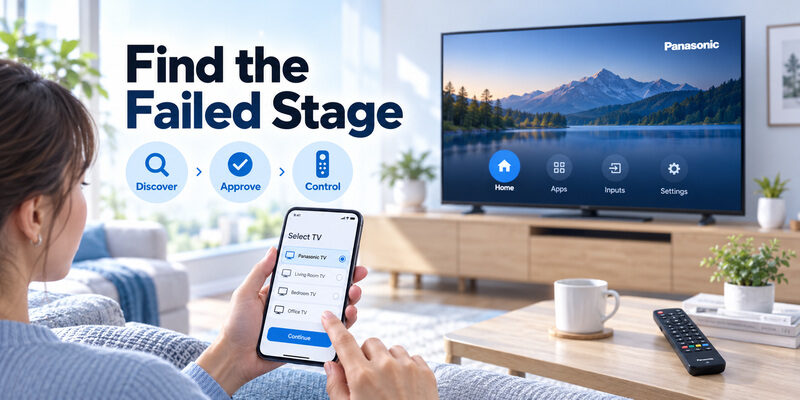
Identify whether discovery or control failed
If the app opens but lists no television, check model support, power, local network, and relevant permissions. If the TV appears but approval fails, verify the selected device and current on-screen prompt. If navigation works, investigate only the missing function.
An app for Panasonic TV remote control should be evaluated with one deliberate change at a time. Restarting discovery after correcting a denied permission gives useful evidence; changing the router, television accounts, and app simultaneously does not.
Compare another working controller
Try the same task with the physical handset or another already supported phone. Keep the television on the same screen. A difference between controllers can identify an app-specific limitation, while a failure across all methods can point toward the TV or receiving service.
Preserve partial success. An app for Panasonic TV remote use that can still navigate has an active control relationship. Do not erase that useful evidence through repeated factory resets while investigating a single unsupported keyboard or volume action.
Test Standby and Household Availability
Return after a normal viewing break
Once setup works, let the television enter ordinary standby and try its supported wake route. Some configurations may need physical power before network discovery resumes. Test this in your own room instead of assuming every app can turn on every sleeping TV.
An app for Panasonic TV remote use should also survive ordinary phone interruptions in a practical way. Reopen it after a call or another app and confirm the selected television before sending commands. Learn whether it reconnects or returns to a device list.
Make access independent of one person
A phone backup is unavailable when its owner leaves with it. Keep a compatible physical controller accessible, or configure another supported household device where appropriate. Use clear room names so viewers do not choose a different television by mistake.
A shared room needs a shared recovery plan. Keep a short note identifying the TV, app publisher, and physical controller location. Avoid including passwords in that note. Recheck the plan after changing the router, phone, or television.
Choose an Alternative for a Specific Benefit
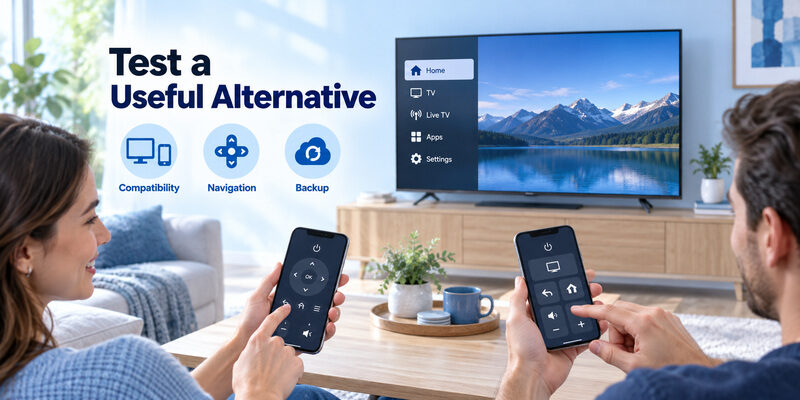
Compare it with your established baseline
For supported models, provides another phone-control route when the physical remote is unavailable. Confirm the current compatibility and purchase terms, then test the same basic viewing sequence used for the platform app.
The best app for Panasonic TV remote use is the one that completes your required tasks on your equipment with a layout you can use comfortably. That conclusion should come from the test, not a brand-wide assumption or a screenshot alone.
Keep a physical route for setup and recovery
A network app is most useful after the television is already reachable. If the set loses WiFi settings or is factory-reset, another supported controller may be needed to restore access. Keep that distinction when deciding whether the app can replace your handset.
Choose convenience without losing recoverability. The guide covers hardware and compatibility. The guide covers installation, publisher checks, and the first successful connection.
Compare two apps with the same starting conditions
Keep the television awake, use the same supported network, and test the same Home, selection, and sound sequence. Do not compare one app immediately after setup with another while the television is asleep. Those different conditions can make a reliable controller appear worse for reasons unrelated to its design.
An app for Panasonic TV remote use should be judged by the task and conditions you can repeat. Note any required reconnect action after switching apps. Keep the physical handset nearby and avoid changing television settings simply to make the two phone interfaces look identical.
Decide what would justify switching
A clearer direction pad, easier supported text entry, or a better household routine can be a useful reason to choose another controller. Write down that specific benefit before evaluating an app for Panasonic TV remote use. More buttons or a different color scheme do not necessarily improve the task you perform each evening.
If the new option fails the essential sequence, preserve your working setup while checking compatibility. A good app for Panasonic TV remote control should earn its place through a visible result on your television. Keep the store terms and supported features in view before making a permanent purchase decision.
Questions About Panasonic Phone Controllers
Is TV Remote 3 for every Panasonic smart TV?
No. Its official listing describes a particular supported Panasonic model scope, including compatible 2011–2018 televisions. Check the exact model and current requirements. A newer Panasonic Fire TV or another platform should be evaluated through its own supported app route.
Does a Panasonic TV Remote 2 Play Store result prove support?
No. Current Panasonic support points users from TV Remote 2 toward TV Remote 3. Older search results, instructions, or remaining listings do not establish current model and phone compatibility. Use the current publisher description and manufacturer guidance together.
Can a 32-inch Panasonic television use a remote app?
Screen size is not enough information. Identify the complete model, platform, and supported control method. A Panasonic TV 32 inch remote app search can include unrelated television generations. Confirm those identifiers before downloading software or comparing features.
Does the Apps button install a remote on my phone?
No. A physical Apps button opens the television’s supported app interface or menu. Phone remote software is installed through the phone’s appropriate supported route. The two app environments are separate even when they interact during television control.
Keep one simple result from your comparison: the app name, the television it controlled, and the functions that passed. If a later update changes the layout, repeat the same viewing sequence rather than trying to reproduce an old screenshot. Check the relevant publisher instructions when a selector or permission moves. The purpose of this record is to make a working setup easy to recover, especially when several similarly named apps have been tried on the same phone.
Final Thoughts
Choose an app for Panasonic TV remote use by the model, platform, current support, and required connection. Verify navigation first, then test text entry, sound, inputs, and the next viewing session before treating the phone as dependable control.
Keep a compatible physical fallback. Current software can make a misplaced handset less disruptive, but an unreachable television may still need another setup route. A tested app and a clear household routine provide more value than a collection of unverified downloads.
Download TV Remote App