
TCL TV Remote Buttons Explained: Home, Sound and Inputs
By the Remote TV App Team
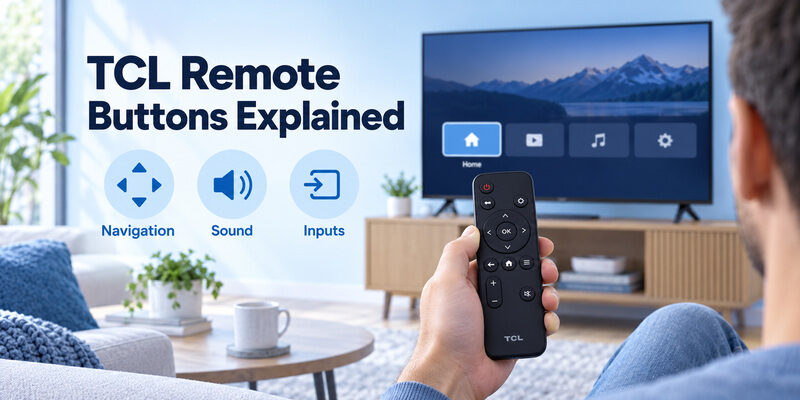
Short answer: Use Home, directions, OK, and Back for navigation, then the model’s sound, input, and playback controls for viewing.
The exact layout varies across TCL Google TV, Android TV, Roku TV, and Fire TV handsets. Some functions have dedicated keys; others live in an on-screen menu. A TCL TV remote buttons explained guide is therefore most useful when it connects each button to a task instead of assuming one diagram fits every controller.
Start with the basic navigation group, then learn the controls you actually need. This article explains their usual purpose, the differences that require your model manual, and how to tell an unfamiliar button behavior from a remote that needs troubleshooting.
TCL TV Remote Buttons Explained by the Task They Perform
Learn the small group that helps you recover
Home gives you a recognizable starting screen. Directions move its highlight, OK opens the selected item, and Back usually returns a level or leaves the current view. Read any confirmation that appears before selecting an exit, purchase, or account action.
With TCL TV remote buttons explained this way, you can practice a repeatable sequence: return Home, select a familiar app, open it, and come back. That is more useful than memorizing every printed shortcut before you can recover from an accidental selection.
Read the model diagram as the final map
TCL’s official getting-to-know-your-remote guides are separated by platform and generation. Match the diagram to the actual handset. A button may have a house, curved arrow, gear, microphone, or input symbol instead of a written label.
The icon and its context matter together. TCL TV remote control functions can vary even when two controllers look similar. Use the exact television manual when a key is missing from your handset or an online diagram shows a different arrangement.
Move Between Home Back and Settings
Use Home to return to the main interface
Home usually exits the current view to the platform’s main screen. From there, choose services, inputs, or settings according to the model. Pressing Home does not necessarily sign you out of a streaming account or stop every background activity.
A TCL TV remote buttons explained lesson should begin with a familiar destination rather than a hidden shortcut. Ask a new viewer to return Home after opening an unfamiliar menu. That provides a reliable way to recover without changing television configuration.
Distinguish Back from Settings and menu controls
Back often returns one level, while a gear or menu control opens settings or contextual options. An individual app may intercept these buttons and present its own menu. Observe the title and selected option before continuing.
Settings changes need a visible purpose. A TCL TV remote setting search should identify what you want to change, such as picture mode or sound output. Do not browse deep menus randomly because a particular button behaves differently inside one streaming app.
💡 Discover Helpful Guides: TCL TV Remote: Complete Setup, App, Codes, Troubleshooting & Replacement Guide
Use Directions OK and Number Keys Accurately
Follow the highlighted item
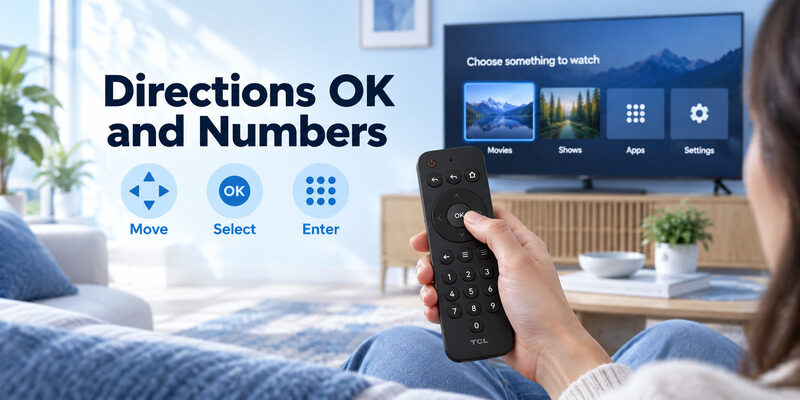
Directions change focus; OK confirms the currently highlighted item. Move one step at a time when learning a new screen. If a list scrolls after holding a direction, release it and look for the current highlight before pressing OK.
For TCL TV remote buttons explained in a shared household, demonstrate the highlight instead of describing only the physical button positions. The same directional pad works across many screens, but what it selects depends on the interface in front of you.
Understand where number keys apply
A TCL TV remote with numbers may support channel entry or other model-defined input. That does not mean the number keys select numbered items in every streaming app. Use them where the television’s guide or manual describes numeric entry.
A numeric keypad is a feature, not a universal requirement. A compact handset without numbers may offer an on-screen route for a relevant task. Before buying another controller, check whether the function you need is already available through the existing menu.
🛠️ Learn with Step-by-Step Guides
TCL Roku TV Remote Not Working? Easy Fixes to Get It Working Again
Select HDMI and Other Sources
An Input or Source key chooses the signal shown by the television. Some remotes reach that selector through Home or a menu instead of a dedicated button. Select the port where the intended console, receiver, or player is connected.
The practical benefit of TCL TV remote buttons explained is knowing what a press can change. Selecting HDMI 1 does not move a cable from HDMI 2, turn every external device on, or establish an internet connection for the attached player.
If the input menu appears and your selection changes, the television has accepted that command. A subsequent no-signal message points toward the source, cable, port, or source-device power rather than automatically indicating a broken remote.
An accepted command and a usable picture are separate results. Keep the source device’s own controller available while testing. If the TV displays the correct HDMI source but the player does not navigate, check which device each handset is intended to operate.
Adjust Volume Mute and the Active Sound Output
Identify the speaker before judging the button
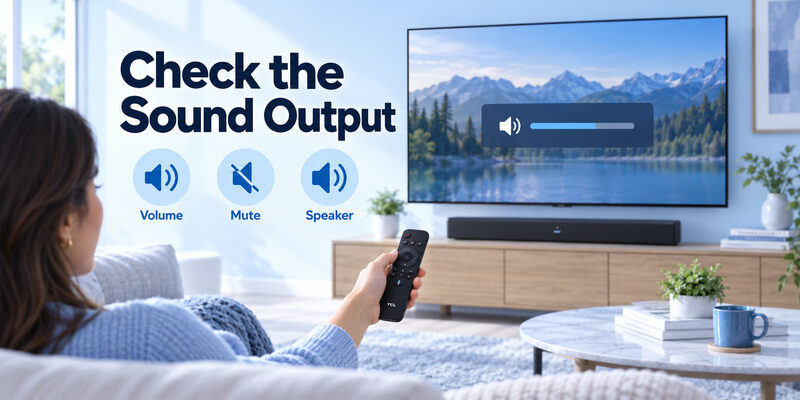
Volume and Mute may affect the television or a configured audio system. Listen to the actual speaker while pressing the control. A visible volume indicator is useful feedback, but it does not prove a separately controlled receiver changed level.
Anyone using TCL TV remote buttons explained instructions should compare the same sound source at a moderate level. Start with known playing content, confirm that it is not paused, and check whether headphones or another output have taken over.
Keep television and soundbar controls distinct
A soundbar may have its own handset or supported integration with the TV. If its controller changes sound while the television remote does not, investigate the audio-control arrangement before changing wireless remote pairing. Preserve the working method during that check.
Mute is a sound state, not proof of lost connection. A TCL TV remote functions guide should help you separate silence from failed commands. Return to the expected output and test a small volume change before assuming either the speaker or remote needs replacement.
📖 Read More Guides: TCL TV Remote Control Replacement Buying Guide
Understand Playback and Service Shortcut Buttons
Test playback during actual playback
Play, Pause, rewind, and fast-forward operate where the current service and content support them. A live program, advertisement, recorded show, and on-demand film may expose different controls. Try the button during a known playable segment rather than on a static menu.
With TCL TV remote buttons explained by context, an inactive Pause key on Home is not a fault. Compare the same button inside a supported app. If it works there, the original difference may simply be the receiving screen’s behavior.
Treat printed services as shortcuts
A branded key normally opens a supported service or its relevant screen. It does not supply a subscription, guarantee local availability, or bypass that service’s account requirements. Regional models may include different printed shortcuts.
| Button group | Normal job | Common misunderstanding |
|---|---|---|
| Home and Back | Move between screens | Back always turns the TV off |
| Directions and OK | Move focus and select | OK chooses an item you have not highlighted |
| Input or Source | Select television signal | Input selection powers every connected device |
| Volume and Mute | Adjust configured audio | Every speaker responds to the TV handset |
| Service shortcut | Open a supported service | The button includes paid content |
Shortcuts save navigation, not account setup. Keep this distinction when replacing a remote: a changed service logo does not necessarily affect basic compatibility, but required functions still need explicit confirmation.
Use Microphone and Assistant Buttons Deliberately
Follow the supported voice action
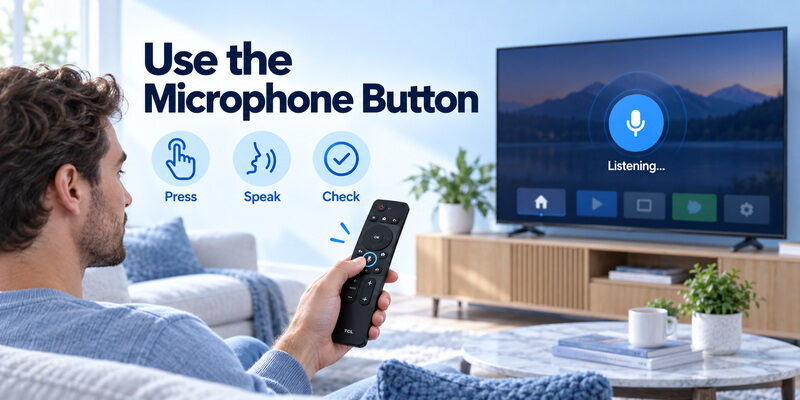
On supported TCL Google TV configurations, TCL’s assistant guidance describes holding the appropriate button while speaking. The handset must have the required supported connection. Use a short request and watch whether the television starts listening.
A TCL TV remote buttons explained article cannot promise identical voice behavior for every platform. A microphone icon on an unsuitable replacement is not enough evidence of compatibility. Follow the model’s instructions for the actual assistant and remote hardware.
Separate listening from completing a request
If the TV recognizes words but cannot open content, investigate the service, account, network, or supported command. If no listening response appears, check pairing and assistant configuration first. Those observations point to different next steps.
The remote microphone and hands-free TV microphones are separate. Some televisions provide their own microphone switch or hands-free feature. That does not mean the handset’s button needs the same setup, nor that turning one route on verifies the other.
Explain a new layout through one familiar task
When a replacement moves the Home or Back key, walk through opening the viewer’s usual service instead of reciting the whole button diagram. Ask them to identify the screen highlight, select the service, and return to the starting point. This puts TCL TV remote buttons explained into an action they can repeat independently.
Use the same approach for sound. Have the viewer make a small volume adjustment and identify the speaker that changed. A person who understands the result can often adapt to a new button position more easily than someone who has memorized the old layout alone.
Keep a short household note if several controllers sit together. TCL TV remote buttons explained should distinguish which handset operates the television and which one belongs to a soundbar or player. That prevents a correct button press on the wrong controller from looking like a fault.
Check buttons without relying entirely on tiny labels
Look for recognizable shapes such as the house, gear, speaker, and directional ring, then verify their meaning in the model manual. If a viewer struggles to see a particular label, choose a compatible layout they can read rather than assuming the most feature-rich controller is the best fit.
The value of TCL TV remote buttons explained is usable knowledge, not a long list of symbols. Practice in ordinary room lighting and from the normal seat. A button that is easy to identify on a brightly lit product page may be less convenient in actual use.
💡 Discover Helpful Guides: TCL TV Remote Download: Control Your TCL TV With Your Phone
Set a Sleep Timer Through the Correct Menu
Find the timer in the model’s settings
A TCL TV remote sleep timer search does not necessarily lead to a dedicated Sleep key. TCL’s Google TV support describes reaching the feature through Settings, with menu placement depending on the model and software. Follow the displayed timer options on your television.
Choose the desired interval and confirm the setting as the interface requires. The purpose is to turn the television off after the selected period. Do not confuse a sleep timer with picture dimming, a screensaver, or a network standby option.
Check and cancel the setting intentionally
If the TV turns off unexpectedly at a repeatable interval, inspect its timer and power settings before blaming the remote. Another viewer may have enabled a timer during an earlier session. Read the current value rather than assuming the last person used the default.
A timer controls later behavior after the button press ends. This is an important part of TCL TV remote buttons explained: some actions change an ongoing setting rather than causing an immediate visible result. Return to the timer menu to confirm or cancel it.
Recognize Roku Fire TV and Google TV Differences
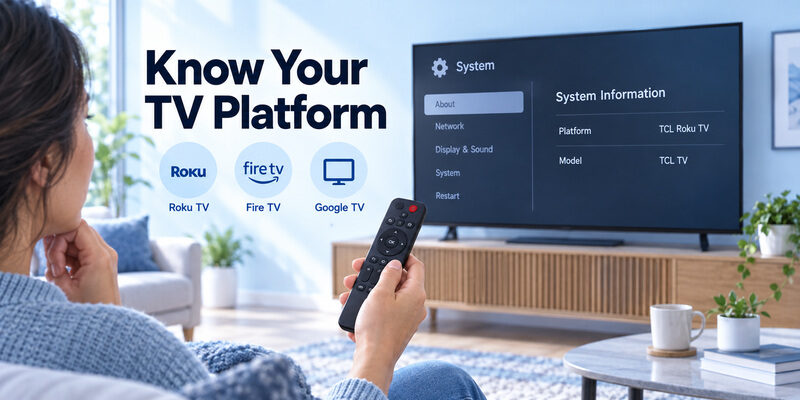
A TCL Fire TV remote buttons explained result may show a different menu key, assistant control, or arrangement from a Roku handset. Use the diagram for the television platform and supplied accessory. Do not infer the operating system from the TCL logo alone.
Even when Home and Back have familiar shapes, a pairing procedure can differ. Keep ordinary button use separate from long-hold combinations intended for setup or reset. A guide for another platform should not become a reason to experiment with undocumented holds.
TCL’s Google TV remote guide explicitly identifies a generation range in its title. Other models can add, omit, or relocate controls. A replacement photograph is helpful for identifying the layout but should be checked against model support and documented features.
Similar symbols do not make all remotes interchangeable. When reading TCL TV remote buttons explained for a controller you do not own, extract the general task meaning and verify the physical action against your own manual before pressing anything unusual.
🗺️ Browse How-To Guides: TCL TV Remote Battery Size and Replacement Guide
Diagnose a Button That Appears Not to Work
Test another appropriate screen
Try Home or a direction command, then test the suspect button in the context where it should apply. If all navigation works except one app’s playback control, compare another supported app or content segment. That narrows the problem without changing the television’s entire setup.
For TCL TV remote buttons explained troubleshooting, identify whether the symptom is one key, a group of functions, or every command. This determines whether to investigate context, a control path, or the handset’s power and compatibility.
| Observation | First investigation | Useful evidence |
|---|---|---|
| One app ignores a playback key | App and content support | Same key in another supported context |
| Every key is unresponsive | Power, receiver path, TV response | Physical television button result |
| Power works but microphone does not | Supported pairing and assistant setup | Whether a listening prompt appears |
| Direction repeats without touching | Stuck key or pressure on controller | Whether removing the obstruction stops it |
| Sound indicator moves but audio does not | Actual output and audio configuration | Separate soundbar or receiver response |
Avoid turning a small problem into a reset
Remove obvious objects pressing keys and check batteries or charging according to the handset’s design. Do not open the housing merely because a button behaves differently in one service. A new or visibly damaged remote may be better handled through the seller’s support route.
Preserve every working function while investigating the failed one. A factory reset can remove accounts and network access without fixing a physically damaged key. Use it only when relevant manufacturer troubleshooting calls for that action.
Recognize Roku Fire TV and Google TV Differences
Test the alternative control directly
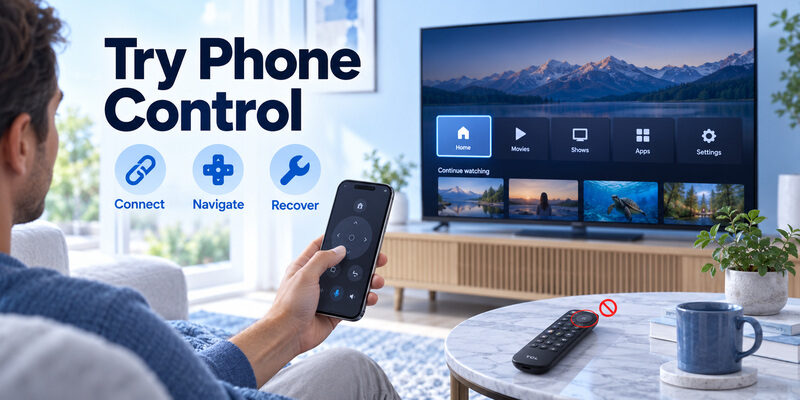
A supported phone app may expose navigation or text entry in another layout. Select the app for the television platform, connect through the required network, and complete any on-screen approval. Test the specific missing task rather than assuming every printed key has a phone equivalent.
For supported models, can provide another control route while a handset is unavailable. Check current compatibility and verify Home, selection, and sound before relying on it for your everyday viewing.
Keep a physical route for setup and recovery
The guide explains phone setup. Retain a compatible physical controller for offline recovery or functions the app cannot reach. A network-based option cannot be assumed to configure a disconnected television.
Button knowledge should transfer into a simple routine. After using TCL TV remote buttons explained to learn the basics, show another viewer how to reach Home, select the source, adjust sound, and exit a wrong screen. That routine remains useful across many layouts.
Investigate unwanted repeats before changing television settings
If the selection moves repeatedly after you release a direction, put the controller on a clear surface and inspect for a trapped key or a cover pressing it. Compare the result after removing that external pressure. Do not force a stuck button or dismantle the housing while a return or support route is available.
For TCL TV remote buttons explained troubleshooting, this observation separates an unwanted stream of input from an app that simply scrolls differently. Note whether the behavior occurs on Home as well as inside a service. A repeat across unrelated screens gives support a more specific symptom.
Keep another working controller available during the check. If a phone navigates normally when the handset is no longer sending commands, report that comparison. TCL TV remote buttons explained should help you describe what changed instead of replacing a precise symptom with the statement that everything is broken.
Keep setup combinations separate from daily button use
A button used normally for Home can also appear in a documented pairing combination. That does not mean a long hold is the next thing to try whenever Home feels unresponsive. Read the model’s setup instructions and confirm the purpose before using combinations. Keep TCL TV remote buttons explained guidance focused on the task you actually need.
Someone searching for TCL TV remote buttons explained may only need to exit a menu. Applying a reset sequence would solve a different problem and can create extra setup work. Begin with the ordinary screen context and the shortest supported action.
Save pairing instructions separately from the everyday household note. The short TCL TV remote buttons explained routine can cover navigation and sound, while the model manual remains available for less frequent setup and recovery tasks.
Make a short button lesson easy to repeat
For a guest or new household viewer, demonstrate four actions in order: reach Home, open the usual service, adjust the intended speaker, and return from a wrong screen. TCL TV remote buttons explained through this routine are easier to remember than a long list of unfamiliar symbols.
Let the viewer repeat the actions while you watch the television response. If one step is confusing, identify the relevant icon and show the model’s diagram. Keep the note beside the controller’s usual storage place so the next session does not require another full lesson.
💡 Discover Helpful Guides: TCL TV Remote Download: Control Your TCL TV With Your Phone
Questions About TCL Remote Button Functions
Does every remote have a dedicated input button?
No. Some layouts use a dedicated Input or Source key, while others reach sources through an on-screen menu. Check the model’s diagram and source-selection instructions. A missing physical key does not necessarily mean that the television cannot change inputs.
Do service buttons include free subscriptions?
No. They are shortcuts to supported services or screens. Account requirements, local availability, and paid content remain separate. Read the television’s displayed sign-in or purchase prompt rather than assuming a printed logo grants access.
Why does Back behave differently in different apps?
The receiving app can define how Back leaves its screens or presents an exit prompt. Compare its behavior with Home and read the current interface. A difference between two services is not automatically evidence that the physical button is faulty.
Is a long press always a shortcut to more options?
No. Meaning depends on the button, model, platform, and current state. Some combinations are reserved for pairing or reset. Follow the relevant instructions instead of applying long presses experimentally when a normal button action is unfamiliar.
Final Thoughts
The goal of TCL TV remote buttons explained is dependable control of ordinary viewing. Learn navigation first, then inputs, sound, playback, voice, and timers according to your handset’s actual layout and television platform.
Watch the screen response before judging the button. Many apparent faults are differences in app context, selected source, or audio output. Keep the model manual and a tested backup route available so missing or unfamiliar controls can be resolved without unnecessary resets.
Download TV Remote App