
TCL TV Remote: Complete Setup, App, Codes, Troubleshooting & Replacement Guide
Quick answer: A TCL TV remote can be an infrared remote, a paired Roku/Google TV voice remote, or a phone-based remote depending on your TCL TV operating system and model.
If your tcl tv remote has stopped working, start with fresh batteries, identify whether the remote uses IR or wireless pairing, test the TV’s physical power button, and then re-pair the remote if necessary. Do not immediately buy a replacement.
TCL currently sells TVs running Roku TV, Google TV, Android TV, and Fire TV platforms, so one set of remote instructions does not apply to every model. The most useful first step is therefore identifying your platform and remote type.
This guide covers physical remotes, smartphone control, replacement options, remote codes, voice control, battery problems, and troubleshooting so you can choose the quickest fix instead of repeatedly trying random reset combinations.
1. What TCL TV Remote Do You Have?
Not every tcl tv remote works the same way. Two remotes that look similar may communicate with the television through completely different technologies.
The three most common categories are:
| Remote type | Connection | Pairing required? | Typical use |
| Standard IR remote | Infrared | No | Basic TCL and Roku TVs |
| Voice/enhanced remote | Wireless/Bluetooth/RF depending on platform | Usually yes | Roku, Google TV, Android TV |
| Phone remote | Wi-Fi | Initial connection required | Roku, Google TV, Android TV |
Standard infrared remote
A standard IR tcl tv remote sends commands using infrared light. It must normally be pointed toward the receiver on the television.
TCL’s support documentation notes that objects such as a soundbar, decoration, or other equipment placed in front of the TV can block this signal. If an IR remote only works when you stand very close to the screen or point it at a precise angle, check the line of sight before assuming the remote is broken.
IR remotes usually do not need pairing.
Roku or voice remote
A Roku voice or enhanced tcl tv remote communicates wirelessly and therefore does not need to remain pointed directly at the TV.
These remotes do need to establish a connection with the television. Depending on the generation, you may find a pairing button inside the battery compartment or use another pairing procedure.
Google TV and Android TV remote
Many TCL Google TV and Android TV remotes combine wireless connectivity with infrared control for specific functions.
For example, navigation or voice commands may depend on Bluetooth while a power-related function may behave differently depending on the TV model. This is why a remote can sometimes turn the television on but lose voice control, or navigate menus while one particular function does not respond.
Before troubleshooting your tcl tv remote, check the model number on the TV and identify whether it runs Roku TV, Google TV, Android TV, or another platform.
📘 Find the Right Guide: TCL TV Remote Control Replacement Buying Guide
2. TCL TV Remote Buttons Explained
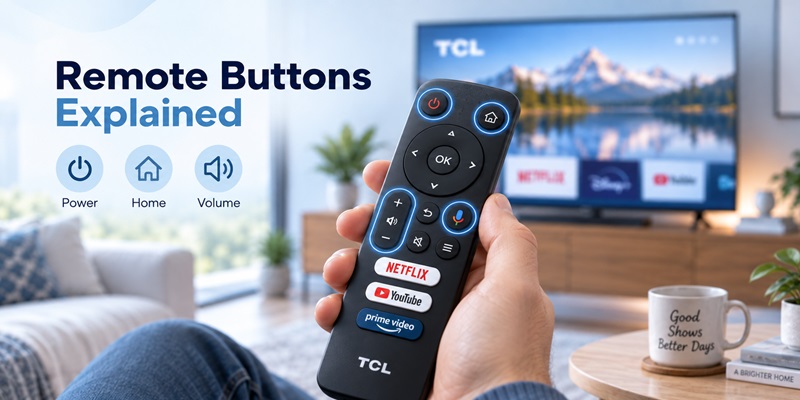
The exact layout varies by model, but most TCL remotes share a predictable group of controls.
If you searched for tcl tv remote buttons explained, the most important distinction is between navigation controls and platform-specific controls.
Essential navigation buttons
A typical tcl tv remote may include:
- Power: turns the television on or places it in standby.
- Home: returns to the Roku, Google TV, or Android TV home screen.
- Back: returns to the previous screen.
- Directional pad: moves through menus.
- OK/Select: confirms a highlighted option.
- Volume Up/Down: adjusts sound.
- Mute: temporarily disables audio.
- Input/Source: switches between HDMI, antenna, and other inputs where supported.
Voice-enabled models may also include a microphone button.
On Roku models, you may see an Options or star-shaped button, playback controls, instant replay, and branded streaming shortcuts.
Google TV remotes can include Google Assistant and dedicated YouTube or Netflix buttons depending on the model and region.
Why one button can fail while others work
One dead button does not automatically mean the entire tcl tv remote has failed.
Sticky residue, physical wear, liquid exposure, damaged contacts, or loss of wireless pairing may affect only part of the remote.
For example, if navigation works but voice commands fail, TCL recommends checking or re-establishing the remote’s pairing rather than immediately replacing the entire TV.
If Power, Home, and Volume all fail at once, batteries, signal transmission, or remote pairing should move higher on your troubleshooting list.
3. How to Connect and Pair a TCL Remote to Your TV
If you need to connect tcl remote to tv, first determine whether the remote actually requires pairing.
A standard IR remote does not. Insert compatible batteries, make sure the television has power, point the remote at the TV, and test Power or Home.
Wireless and voice remotes are different.
Pairing a TCL Roku remote
For compatible TCL Roku voice or enhanced remotes with a pairing button:
- Turn on the TV.
- Open the remote’s battery compartment.
- Confirm that the batteries are fresh.
- Find the pairing button.
- Hold it until the pairing indicator begins flashing.
- Keep the tcl tv remote close to the television.
- Wait for the pairing confirmation on screen.
TCL’s current troubleshooting documentation recommends holding the pairing button for roughly 3–5 seconds, depending on the support procedure and remote generation, and allowing the TV time to establish the connection.
Do not repeatedly tap the button. A sustained hold is the important part.
If pairing does not start
Try this sequence:
- Remove the batteries.
- Unplug the television.
- Wait at least 30 seconds.
- Plug the TV back in.
- Wait until it starts.
- Reinstall the batteries.
- Start pairing again.
If the remote still refuses to pair, test a phone-based remote. If the phone controls the television correctly but the physical tcl tv remote does not, you have strong evidence that the problem is on the remote side rather than the television itself.
Google TV remote pairing
Pairing behavior varies more among TCL Google TV generations.
Use the on-screen setup instructions whenever they are available instead of copying a random button combination from another TCL model.
Google’s own Google TV documentation also notes that third-party Google TV devices may use manufacturer-specific pairing procedures.
That model-specific limitation is important: a pairing shortcut that works on one TCL series is not guaranteed to work on another.
💡 Discover Helpful Guides: TCL Roku TV Remote Not Working? Easy Fixes to Get It Working Again
4. How to Use a TCL TV Remote on Your Phone
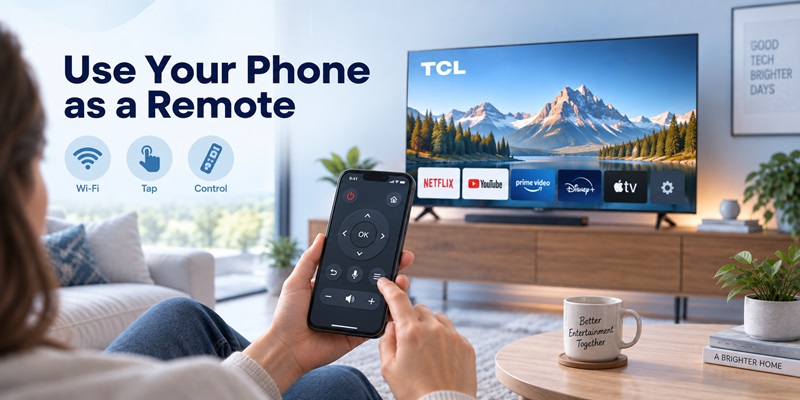
Your phone is often the fastest emergency replacement for a missing physical tcl tv remote.
There is no single tcl remote control app for every TCL television because the correct option depends on its operating system.
TCL Google TV
For a TCL Google TV, the tcl google tv remote app function can be accessed through Google Home on supported iPhone, iPad, and Android devices.
TCL says your phone and television should be connected to the same Wi-Fi network. In Google Home, select your television under Devices and open the Remote control.
Typical controls include:
- Directional navigation
- Select
- Home
- Back
- Volume
- Phone keyboard input
- App navigation
If you’re specifically searching for a free tcl google tv remote app, Google Home provides an official free option rather than requiring a separate paid TCL remote.
TCL Android TV
For a tcl android tv remote, Google also supports phone control through the Google TV app.
Google’s official process is:
- Open Google TV on your Android phone.
- Select Connect TV.
- Choose the Android TV.
- Enter the code shown on the television.
- Tap Pair.
Both devices need to be on the same network for normal Wi-Fi control.
TCL Roku TV
For a TCL Roku television, Roku’s official mobile app can provide remote functionality as long as the phone can discover the Roku TV over the local network.
That makes a phone particularly useful when i lost my tcl tv remote describes your situation.
Universal Remote TV App option
A third-party Remote TV App can also be useful when you control several television brands and want one interface instead of separate manufacturer apps.
The practical advantage is convenience: rather than switching between a Roku solution, Google solution, and another brand’s app, a compatible universal app may give you basic navigation, volume, power, keyboard, and playback functions in one place.
However, network remote apps cannot always wake a fully powered-down television. Whether power-on works depends on the TV, standby configuration, platform, network state, and supported wake features.
That limitation should be considered before treating a tcl tv remote on phone as a complete hardware replacement.
🗺️ Browse How-To Guides: TCL TV Remote Download: Control Your TCL TV With Your Phone
5. What to Do When a TCL TV Remote Is Not Working
When a user reports tcl roku tv remote not working or tcl tv not responding to remote, replacing the remote should not be the first step.
Use a diagnostic order that separates battery, signal, pairing, TV software, and hardware faults.
| Symptom | Likely cause | First action |
| Nothing responds | Batteries, remote failure, TV power | Replace batteries and test TV button |
| Works only close to TV | Weak batteries or IR obstruction | Fresh batteries; clear receiver |
| Navigation works but voice does not | Wireless pairing | Re-pair remote |
| One or two buttons fail | Dirt or physical wear | Inspect and clean buttons |
| Remote works intermittently | Battery/contact/pairing issue | Reseat batteries and re-pair |
| Phone app works but physical remote does not | Remote-side problem | Reset/re-pair or replace remote |
Step 1: Replace the batteries
Use a fresh, matching pair.
Do not mix an old battery with a new battery. TCL specifically advises against mixing different ages or types because inconsistent power can affect performance.
Step 2: Check line of sight
This applies to IR remotes.
Look at the lower front area of the television and check whether a soundbar or another object could be blocking the receiver.
Step 3: Test the remote with a phone camera
Many smartphone cameras can detect infrared light that the human eye cannot see.
Point the IR emitter at the camera, press a remote button, and watch the phone screen.
If you see flashing light, the tcl tv remote is probably transmitting an IR signal. If fresh batteries are installed and there is still no flash, remote failure becomes more likely.
TCL itself recommends this diagnostic technique for compatible IR remotes.
Step 4: Restart the TV
Temporary software freezes can look like a remote failure.
TCL recommends unplugging affected Roku TVs during troubleshooting and waiting before reconnecting power. Depending on the troubleshooting path, its official instructions use approximately 30–60 seconds.
Step 5: Re-pair wireless remotes
If the tcl tv remote has voice control or wireless pairing, reconnect it after the television restarts.
Step 6: Compare with another control method
Try:
- The TV’s physical button
- A compatible phone app
- Another known-compatible remote
This comparison is extremely useful.
If all three fail, the problem may be the TV rather than the remote. If only the physical remote fails, replacing the television makes little sense.
📖 Read More Guides: TCL TV Not Responding to Remote Troubleshooting Guide
6. TCL TV Remote Battery Problems and Fast Battery Drain
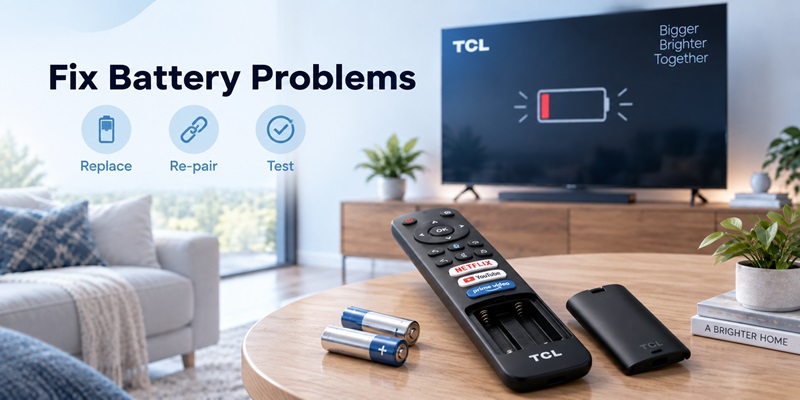
A tcl tv remote battery issue can appear in several ways:
- Remote range becomes shorter.
- Buttons respond inconsistently.
- Pairing repeatedly disconnects.
- Voice control stops.
- Batteries need replacement unusually often.
For a standard battery-powered tcl tv remote, start by replacing the complete set rather than changing only one battery.
Rapid battery drain on a Roku voice remote
An unusually useful troubleshooting detail comes from TCL’s documentation for Roku voice remotes.
TCL states that a voice remote that is not properly paired can drain its batteries in just a few days and recommends re-pairing it.
Therefore, if your remote suddenly begins consuming batteries much faster than before, do not assume the batteries themselves are the only problem.
Try:
- Fresh batteries.
- Re-pairing the tcl tv remote.
- Restarting the television.
- Checking whether a button is stuck.
- Removing the batteries temporarily to see whether the TV’s unexpected behavior stops.
For TCL’s affected Roku remote guidance, alkaline batteries are recommended and rechargeable NiCd/NiMH batteries are discouraged in that specific support procedure.
Always prioritize the recommendations for your exact remote model if its manual specifies something different.
📖 Read More Detail Guides: TCL TV Remote Battery Size and Replacement Guide
7. How to Turn On a TCL TV Without a Remote
Yes, you usually can.
If you’re asking can you turn on tcl tv without remote, first look for the physical power or multifunction button on the television.
TCL says the physical button may be:
- Under the center of the TV
- Behind or below the TCL logo
- Along the bottom edge
- On the rear or side panel
The exact location varies by model.
On many TCL Android TV models, pressing the multifunction button once powers the television on from standby. When the TV is already on, the same button may open a basic control menu.
This test also helps diagnose the tcl tv remote.
If the physical button works
The television is receiving power.
Focus on:
- Remote batteries
- IR transmission
- Pairing
- Remote hardware
If the physical button also fails
The problem could involve:
- Wall outlet
- Power cord
- TV power system
- Software freeze
- Internal hardware
At that point, buying another tcl tv remote may accomplish nothing.
A useful emergency workflow is to power the television on with its physical button and then connect your smartphone remote once the TV is active and online.
💡 Discover Helpful Guides: TCL Google TV Remote App: Setup and Controls Guide
8. TCL TV Remote Control Replacement Options
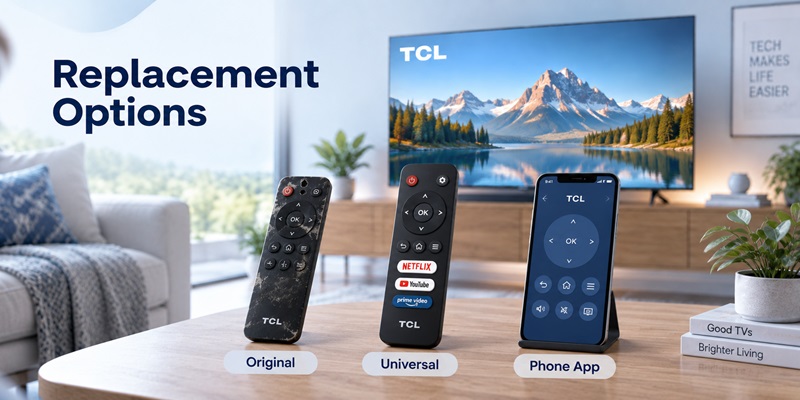
A tcl tv remote control replacement makes sense when the remote has physical damage, liquid exposure, failed buttons, or cannot transmit/pair despite fresh batteries and correct troubleshooting.
But there are several replacement paths.
1. Original compatible TCL remote
An original remote is usually the safest choice when you rely on:
- Voice search
- Google Assistant
- Roku voice control
- Dedicated platform buttons
- Model-specific features
If you specifically want a tcl tv remote original with voice control, verify compatibility using the TV model number rather than appearance alone.
Two TCL remotes can look nearly identical while supporting different platforms or pairing systems.
2. Platform-compatible replacement
A TCL Roku TV may work with an appropriate Roku-compatible remote, while Google TV models need compatible Google TV controls.
Again, platform compatibility matters more than the TCL logo.
3. Universal physical remote
A universal remote can be inexpensive and useful for:
- Power
- Volume
- Mute
- Input selection
However, TCL cautions that not every universal or cable remote will reproduce every function of the original tcl tv remote. Some provide only basic button support.
4. Phone-based remote
If you mainly need navigation and volume control, buying hardware may not be necessary immediately.
This is particularly useful for a secondary-room television or an older tcl 32 inch smart tv remote replacement scenario where the cost of a premium voice remote may not be justified.
What should you buy?
Use this rule:
Buy an original or fully compatible voice remote when you use voice and platform-specific functions. Choose a universal remote when basic TV control is enough. Use a phone remote when convenience and immediate access matter more than tactile buttons.
9. Universal Remote Codes for TCL TVs
There is no single universal code for tcl tv universal remote that works with every remote.
Codes depend on:
- Remote manufacturer
- Cable or satellite provider
- TCL operating system
- TV model
- Remote generation
TCL currently publishes several provider codes for TCL Google TV, Android TV, Roku TV, and Fire TV televisions.
For Comcast/Xfinity, TCL lists the following commonly used codes:
| TCL platform | Xfinity codes listed by TCL |
| Google TV | 11756, 12434, 12290, 14398 |
| Android TV | 11756, 12434, 12290, 12292 |
| Roku TV | 11756, 12434, 12290, 12292 |
| Fire TV | 10178, 11756, 12434, 12290, 14398 |
These are not guarantees.
TCL explicitly notes that compatibility varies by provider, remote, platform, and software version.
How to program a generic universal remote
The exact procedure differs by manufacturer, but a normal setup looks like this:
- Turn on the TCL television.
- Put the universal remote into Setup or Program mode.
- Select TV.
- Enter the TCL code.
- Test Power.
- Test Volume and Mute.
- Test Input.
- If one function fails, try another listed code.
TCL also recommends using automatic code search when supported by the universal remote.
Do not assume a code is fully compatible simply because Power works.
Always test at least Power, Volume, Mute, and Input before saving the configuration.
10. How to Pair an Xfinity Remote With a TCL TV
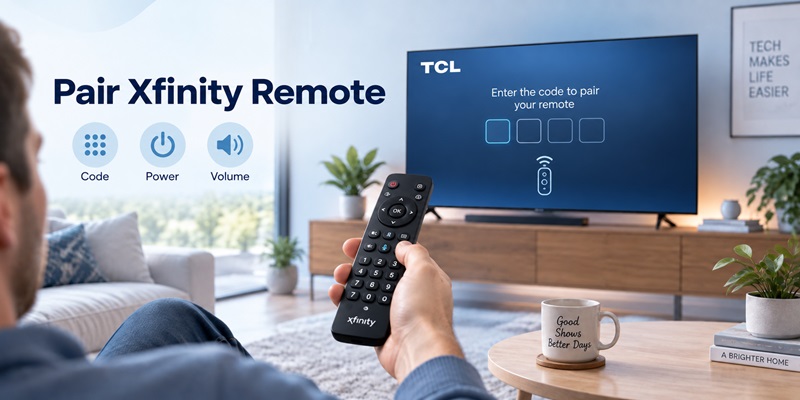
If you’re searching how to pair xfinity remote to tcl tv, first identify the Xfinity remote model.
The steps for an XR11 with a Setup button differ from those for an XR15 without one.
XR15-style setup
Xfinity’s official instructions for the XR15 say to:
- Turn the television on.
- Hold Xfinity + Mute for about five seconds until the status light changes.
- Enter the manufacturer’s five-digit code.
- Test Power.
- Turn the TV back on and test Volume and Mute.
- Try the next code if the first one fails.
For TCL TVs, start with the current codes published by TCL for your platform.
Common Xfinity/TCL candidates include:
11756, 12434, 12290, and 12292, with additional codes available for certain operating systems.
XR11 and code search
Xfinity also provides a 9-9-1 search method for supported remotes with a Setup button.
That can be useful if none of the listed codes provides reliable control.
Remember that your Xfinity remote does not necessarily replace every function available on the original tcl tv remote. Voice assistant controls, streaming shortcuts, or advanced OS navigation may still require the original remote or a phone app.
📘 Find the Right Guide: How to Pair an Xfinity Remote With a TCL TV: Step-by-Step Guide
11. TCL Roku Remote Headphone Mode and Voice Features
Some users specifically look for a roku tv remote headphone jack because they want private listening without sending audio through the TV speakers.
This feature is not present on every Roku remote.
Roku says compatible voice remotes can include a built-in headphone jack. Plugging headphones into the jack activates Headphone Mode and mutes the TV speakers.
If your tcl tv remote does not have a headphone jack, the Roku mobile app may still support private listening on compatible Roku devices.
Roku’s support documentation says up to four mobile devices can use mobile private listening with one Roku device in supported circumstances.
That is useful for households where more than one person wants headphone audio.
Battery considerations:
Headphone listening can increase remote battery consumption.
Roku specifically advises disconnecting headphones when they are no longer being used to extend battery life.
For the rechargeable Roku Voice Remote Pro, Roku states that a full charge takes roughly three hours and can last around two months under normal use, while heavy Headphone Mode use shortens battery life.
Do not apply those numbers to every TCL-branded remote; they refer specifically to compatible Roku Voice Remote Pro hardware.
12. TCL Remote Compatibility by Roku TV, Google TV, and Android TV
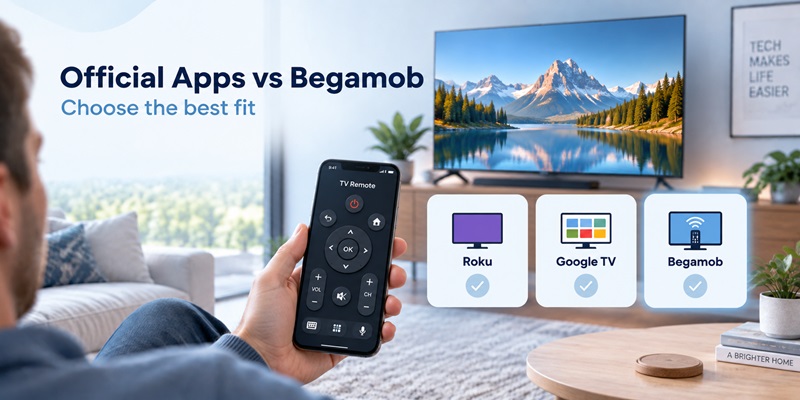
Choosing the right tcl tv remote app depends on the operating system inside your TCL TV, not simply the TCL brand name.
TCL sells televisions powered by Roku TV, Google TV, Android TV, Fire TV, and other platforms depending on model and region. A phone remote designed specifically for TCL Roku TV may therefore be completely unsuitable for a TCL Google TV.
For most users, there are two practical approaches:
- Use the official platform app for the deepest integration with Roku or Google features.
- Use a universal remote app such as Universal Remote TV Control by Begamob when you want one app to manage compatible TVs across multiple brands and platforms.
Here is the more useful comparison:
| Remote option | Best TCL platform | Connection | Key advantages | Main limitations | Best for |
| Roku Mobile App | TCL Roku TV | Same Wi-Fi network | Native Roku navigation, keyboard, media controls, and Headphone Mode on supported devices | Designed mainly for Roku devices; not a universal solution for TCL Google TV or other brands | Users who own only a TCL Roku TV |
| Google Home | TCL Google TV | Same Wi-Fi + Google ecosystem | Native Google TV control, navigation, volume, keyboard, app launching, and Google Assistant integration | Some power controls vary by TV setup; focused on Google ecosystem | TCL Google TV users who already use Google Home |
| Google TV App | TCL Android TV / supported Google devices | Same Wi-Fi + pairing code | Official Google solution, easy pairing, navigation, keyboard input | Primarily useful for Android/Google TV devices; fewer cross-brand benefits | Users who want a simple official Android TV remote |
| Universal Remote TV Control by Begamob | Compatible TCL Smart TVs plus multiple other TV brands | Usually same Wi-Fi with device discovery | One remote app for multiple TV brands, automatic device discovery, navigation, volume, channels, streaming shortcuts, search and casting on supported devices | Feature availability depends on the TV model/platform; some premium features require an in-app purchase | Homes with several TV brands or users who want one universal remote app |
| Physical TCL Remote | Exact compatible TCL model | IR, Bluetooth or RF depending on model | Reliable tactile controls, voice functions on supported models, works without opening a phone app | Can be lost, damaged, or require batteries; one remote usually controls a limited set of devices | Users who prefer physical buttons or need model-specific functions |
The important point is that there is no single winner for every TCL owner. The best option depends on whether you prioritize native platform features or universal compatibility.
Which TCL Remote App Should You Choose?
If you searched for tcl tv remote download, use this decision rule rather than downloading the first app you find.
Choose Roku Mobile App if:
You have a TCL Roku TV and want Roku-specific functions such as Headphone Mode and deep Roku integration.
Choose Google Home if:
You have a TCL Google TV and already use Google Assistant, Nest devices, or the Google Home ecosystem.
Choose Google TV App if:
You have a TCL Android TV and mainly need a straightforward official remote for navigation and typing.
Choose Universal Remote TV Control by Begamob if:
You want one remote app for compatible TCL TVs plus other brands, especially in a home with multiple Smart TVs.
Choose a physical TCL remote if:
You need tactile buttons, dependable power control, platform-specific voice features, or functionality that your TV does not expose through network control.
Official App vs Begamob: Which Is Better?
Neither approach is automatically better—the use case is different.
If you own one TCL Roku TV, installing the Roku app is usually the logical first choice because you gain Roku-specific features that a universal controller may not reproduce.
If you own one TCL Google TV and several Google smart-home products, Google Home provides stronger ecosystem integration.
But imagine a home with:
- TCL Roku TV in the bedroom
- Samsung Smart TV in the living room
- LG Smart TV in another room
- Another TCL or Android TV elsewhere
Using separate manufacturer apps means switching interfaces depending on which TV you are controlling.
In that situation, Universal Remote TV Control by Begamob becomes considerably more practical because the goal is not to reproduce every proprietary feature—it is to give users a consistent remote interface for everyday controls across compatible televisions.
For many users, the best setup may actually be to keep both:
Use the official app when you need platform-specific features, and keep Begamob’s Remote TV App as your everyday universal controller and backup remote.
That combination provides a better balance between deep platform functionality and convenient multi-TV control.
13. How to Decide Whether the Remote or TV Is Faulty
Before spending money on another tcl tv remote, perform one final isolation test.
Test A: Physical TV button
Press the physical Power button.
If the TV powers on, its basic power system is functioning.
Test B: Phone remote
Connect the appropriate mobile remote while the television is online.
If the phone works immediately, the physical remote becomes the primary suspect.
Test C: IR camera test
For IR remotes, verify whether the emitter flashes through a smartphone camera.
Test D: Fresh batteries
Always test a complete fresh battery set before declaring the remote dead.
Test E: Re-pair
For wireless remotes, perform the proper model-specific pairing process.
After these tests, the diagnosis becomes much clearer:
Physical button works + phone works + tcl tv remote fails = remote problem is likely.
Physical button works + IR remote emits signal + TV ignores it = obstruction, IR receiver, compatibility, or TV-side problem becomes more likely.
Physical button fails + remote fails + phone cannot reach TV = investigate TV power or system failure before buying another remote.
TCL’s own troubleshooting flow uses the physical TV button for exactly this reason: it helps separate remote trouble from television trouble.
When replacement is justified
Replace the remote when:
- Liquid has entered it.
- The casing or circuit board is damaged.
- Multiple buttons are physically broken.
- Fresh batteries make no difference.
- IR transmission fails.
- A wireless remote refuses to pair after correct troubleshooting.
- Another remote or app controls the TV normally.
That evidence-based approach is more useful than immediately searching for the cheapest replacement.
14. FAQ About TCL TV Remotes
Can I use my phone as a TCL TV remote?
Yes. The correct method depends on the TCL operating system. TCL Google TV can be controlled through Google Home, Android TV can use Google’s TV remote functionality, and Roku TV supports Roku’s mobile remote. The phone and television generally need to be connected to the same local network.
Is there a free TCL TV remote app?
Yes, official free options are available for several TCL platforms. Google Home supports compatible TCL Google TVs, while Roku provides a mobile app for Roku devices. A universal Remote TV App may also be useful if you control several TV brands from the same phone.
Why is my TCL TV remote not responding even with new batteries?
Check whether it is an IR or paired remote. For IR, clear anything blocking the television’s receiver and perform a camera test. For wireless tcl tv remote models, restart the television and re-pair the remote. Also test the physical TV power button.
Can any universal remote work with a TCL TV?
No. Many universal remotes support TCL, but functionality depends on the remote and television platform. Some replacements control only Power, Volume, Mute, and Input. TCL recommends using the remote manufacturer’s code list or automatic code-search procedure when available.
Do TCL Roku remotes need pairing?
It depends on the remote. Standard infrared Roku TV remotes generally do not require pairing, while voice or enhanced remotes use a wireless connection and normally need to be paired. Look for voice controls, a pairing mechanism, or the documentation for your exact remote.
Is buying an original TCL remote better than using an app?
It depends on how you use the television. An original compatible tcl tv remote is better for tactile buttons, quick power control, voice functions, and model-specific features. A phone app is more convenient as an emergency remote and may eliminate the need for immediate replacement.
15. Final Thoughts
The right solution for a tcl tv remote problem depends less on the TCL brand name and more on which TV platform and remote technology you actually have.
Start with the simple checks: fresh batteries, physical TV button, clear IR line of sight, and a restart. If you have a Roku, Google TV, or Android TV voice remote, verify pairing before spending money on replacement hardware.
If your physical tcl tv remote is lost or damaged, your smartphone can often keep the television usable while you decide whether you need an original remote, a compatible voice remote, or a basic universal replacement.
Most importantly, diagnose before buying. If the television responds to its physical button and phone app but ignores the original remote, replacing the remote is reasonable. If the TV does not respond to any control method, investigate the television itself instead.
For users managing multiple television brands, a compatible Remote TV App can also serve as a practical backup, especially when a physical remote is missing, the batteries are dead, or you need immediate navigation without waiting for replacement hardware.
The best tcl tv remote setup is therefore not always the most expensive one—it is the option that preserves the controls you actually use while remaining compatible with your exact TCL model and operating system.
Download TV Remote App