
TCL TV Remote on Phone: Connect and Control Your Screen
By the Remote TV App Team
Short answer: Use a compatible platform app on the same required network to turn your phone into a TCL television controller.
Choose Google TV for a supported Google TV or Android TV set, Roku for Roku TV, or Amazon Fire TV for Fire TV. A TCL TV remote on phone setup then requires selecting the correct television and completing its approval process. The television must already be accessible in a state that permits that connection.
This guide follows the practical sequence from identifying your equipment to finishing a normal viewing session. It covers Android and iPhone differences, keyboard and sound checks, shared households, and the situations where a physical controller remains necessary.
Choose the Right TCL TV Remote on Phone Route
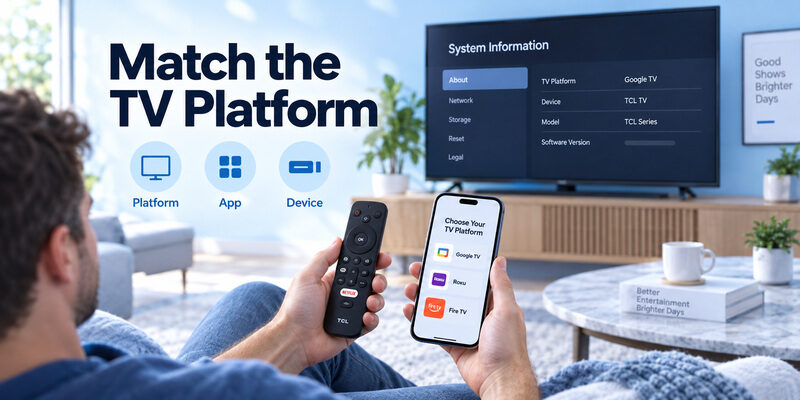
Your phone’s operating system and your television’s platform are two separate choices. An Android phone does not mean the television runs Android TV, and an iPhone can control supported televisions through the appropriate iOS app. Identify both before choosing software.
| Television platform | Phone app route to investigate | Setup evidence |
|---|---|---|
| Google TV or supported Android TV | Google TV for the relevant phone platform | TV selected and displayed code accepted |
| Roku TV | Official Roku mobile app | Correct device connected and Remote screen works |
| Fire TV | Official Amazon Fire TV app | Selected device completes on-screen approval |
| Other TCL system | Model-specific support guidance | Explicit phone-control compatibility |
Match the TV system before choosing the interface. A TCL TV remote in mobile search can show many attractive products, but their names do not establish that they support your actual set. Read the complete model information and publisher details.
When a streaming stick is connected to HDMI, check whether you want to control that player or the television. They may present similar entertainment screens while requiring separate controls for inputs, picture settings, or sound.
Complete the First Connection While the TV Is Awake
Prepare the two devices
Turn on the television and confirm its existing network connection. Put the phone on the required local network and allow relevant device-discovery access when prompted. Keep the TV screen visible so the approval stage can be completed without guessing.
A TCL TV remote on phone is easiest to establish while a physical handset still works. Use it to read system information or network settings, then leave it within reach until the phone has completed a normal command. Do not erase saved connections simply to start from a supposedly cleaner state.
Follow one complete setup sequence
- Open the correct app: Confirm its publisher and television compatibility.
- Choose the intended device: Use the TV’s name and visible screen to identify it.
- Complete approval: Enter the current television code or follow its prompt.
- Test Home and selection: Watch the television respond to the phone.
- Reopen once: Confirm you can return to the same remote without confusion.
Connection success means visible control of the correct screen. If the app remains on a searching page, go back to discovery requirements. If it reaches approval but fails, check the selected television and current prompt before reinstalling software.
Use Android and iPhone Controls Correctly
Follow Google’s Android connection labels
Google’s Android TV help directs Android users to Google TV, then Connect TV, device selection, the code shown by the television, and Pair. Use that path on supported devices. A code from a universal remote chart serves a different purpose and cannot replace the displayed phone-pairing code.
For a TCL TV remote from phone connection, read the current television screen at the moment you pair. If another TV is selected, its prompt may appear in another room while the screen in front of you remains unchanged. Correct device selection should come before repeated code attempts.
Use the matching iPhone app instructions
Google’s iOS help uses the TVs nearby selector in its current documented route. Other platform apps have their own device screens. Follow the labels shown in your installed version and grant local-network access when needed for television discovery.
The phone platform changes the interface, not the television identity. A TCL TV remote on phone setup should remain tied to the same TV model whether you use Android or iPhone. Avoid following an Android screenshot literally when your iPhone presents a differently named selector.
Make Navigation Feel Predictable
Use the direction pad before experimenting
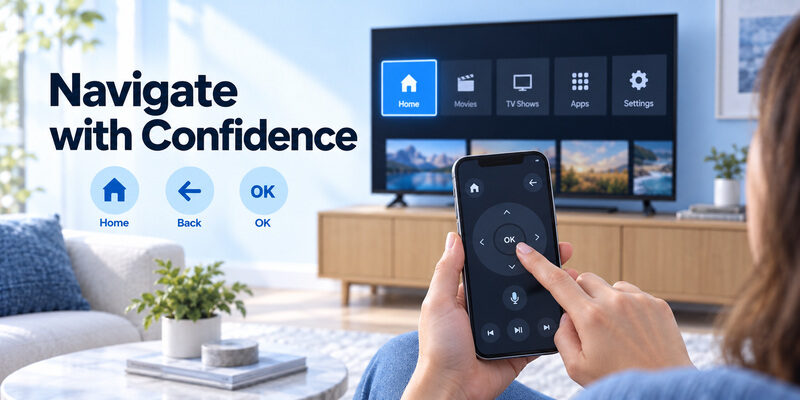
Begin with discrete direction presses and OK. Watch the selected tile move and confirm that the intended item opens. If the app offers another navigation style, such as a supported touch surface, compare it after you understand the basic sequence.
A TCL TV remote phone interface should make recovery easy. Practice Home to return to the main screen and Back to leave a menu. Those two controls are often more useful to a new viewer than a large page of shortcuts they have never used.
Check app-specific behavior
Back, playback, and menu controls can behave differently inside individual TV apps. Test a function where it makes sense: pause a playing video rather than pressing Pause on a static settings screen. Read any exit or purchase confirmation before selecting it.
A familiar routine is a better test than random tapping. Use the TCL TV remote on phone to open one service, select content, pause, resume, and return Home. If that sequence works, you have established practical control even if another shortcut remains unavailable.
Type Searches Without Overestimating Keyboard Support
Select a search field on the television, then use the phone keyboard where the app provides it. Try a short, non-sensitive phrase first. This shows whether the receiving field accepts phone text without involving account credentials or a long search that is difficult to correct.
When evaluating a TCL TV remote for phone use, distinguish navigation from text injection. The phone may move the cursor correctly while the current television app handles text differently. Try another supported field before calling the whole connection broken.
After typing, look at the television to confirm the text and selected result. A phone keyboard submission may not start playback automatically. You may still need to use the direction pad and OK to open the desired title.
Verify where the text went before continuing. A TCL TV remote on phone can reduce repeated button presses, but it should not encourage entering private information into an uncertain field. Use the television’s displayed instructions for sign-in, purchases, or account approvals.
Adjust Sound and Inputs on the Intended Device
Check the sound system you actually hear
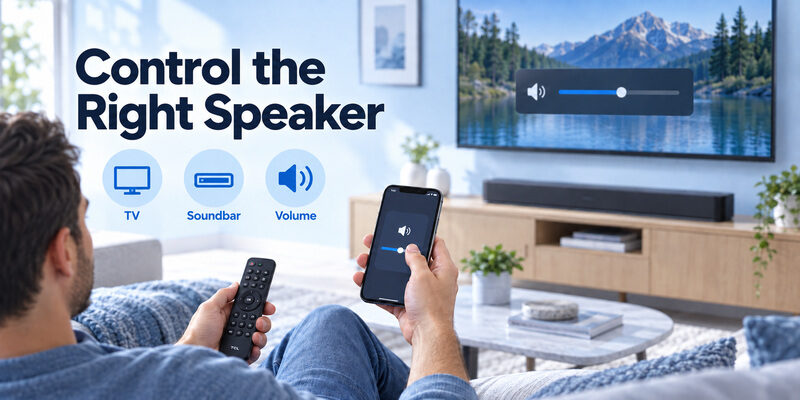
Determine whether audio comes from the television, a soundbar, a receiver, or headphones. Then compare the phone’s volume action with the existing physical controller. A volume overlay on screen is not enough if the separate speaker remains unchanged.
A TCL TV remote mobile setup can provide navigation while audio depends on another configuration. Keep those results separate. If the soundbar has its own handset, use it for the sound test before changing television pairing or reinstalling the phone app.
Identify the source before selecting an input
Where the phone app supports input selection, choose the HDMI port containing the intended device. A missing input control may reflect app or model limitations rather than a failed network connection. Retain the physical controller for functions that are not available through the phone.
Control the television and connected equipment intentionally. A TCL TV remote on phone aimed at a streaming player does not necessarily expose the TV’s input menu. Confirm which device receives commands before diagnosing a source-selection problem.
Download TV Remote AppTroubleshoot Discovery Approval and Reconnection
Use the last successful stage as your clue
Do not treat every error as a download problem. Opening the app, finding the TV, completing approval, and sending commands are different stages. Note where the process stops and whether anything changed since the last successful session.
| Last successful stage | What to check next | Useful comparison |
|---|---|---|
| App opens only | TV platform, power, network, permission | Can another supported phone find the TV? |
| TV appears | Correct device and current approval | Does the prompt appear on this screen? |
| Pairing completes | Home or direction response | Is another television responding? |
| Navigation works | Specific missing function | Same task with original handset |
| Works until standby | Supported wake behavior | Does physical power restore discovery? |
Repeat a controlled test after changes
If local-network permission was denied, correct that setting and repeat discovery. If the TV is asleep, wake it physically and repeat the same command. Keep a working route available rather than changing several unrelated settings at once.
Partial success narrows the problem. A TCL TV remote on phone that still navigates has not lost all communication. Record the specific failing function, current screen, and app publisher if you need help; those details are more useful than a general statement that the remote stopped working.
Compare two phones under the same conditions
If another supported household phone is available, connect it to the same television and test the same command. Keep the TV awake and leave its settings unchanged. A TCL TV remote on phone that works on one device but not another points you toward phone-specific app access, setup, or compatibility rather than an immediate television reset.
Do not transfer every setting blindly from one phone to the other. Android and iPhone permission screens differ, and two app versions can expose different labels. Record each phone’s result at the same stage: discovery, approval, or actual control.
A successful second TCL TV remote on phone is useful evidence, not proof that the first phone’s hardware is defective. Use it to keep watching while you investigate the original device’s supported software requirements and relevant permissions.
Recover after a call or another app interrupts viewing
A phone used as a controller still receives calls, messages, and other interruptions. Pause the television where supported, handle the interruption, then reopen the remote and verify the selected TV before continuing. Do not assume the volume keys now affect the television when the phone is handling a call.
Test this deliberately while configuring a TCL TV remote on phone. If the app returns to a device list, learn how to reconnect to the correct room. If it resumes directly, send one small navigation command and watch the intended screen.
Keeping a physical remote nearby makes this transition easier for another viewer. The TCL TV remote on phone remains a useful convenience without requiring the whole room to wait whenever the phone is occupied.
Plan for Standby No WiFi and First Setup
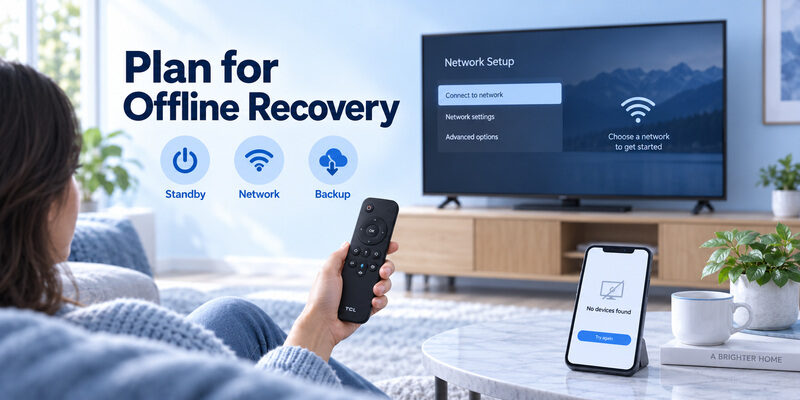
Test the television’s ordinary sleep state
Once the app works, let the TV enter normal standby and try its supported wake route. Some models or configurations may need physical power before discovery resumes. That result does not automatically mean the app forgot the device or a paid feature expired.
Using a TCL TV remote on phone should include a realistic next-day test. Keep the phone charged, reopen the app, and select the saved TV. If this is awkward, simplify the device names or retain a physical handset for the startup part of your routine.
Keep a route that does not depend on the lost network
A changed router, disconnected television, or factory reset can remove the conditions that allowed phone control. Ordinary network apps cannot reliably send new Wi-Fi credentials to a television they cannot reach. A compatible physical controller may be needed to restore setup access. Keep its location in the household note.
Phone control is strongest after the TV is already configured. If you want to use phone as TCL TV remote without an existing connection, first check the model’s supported initial-setup process. Do not assume instructions for a working household apply to a newly reset screen.
Share Control Without Creating Household Confusion
Give devices recognizable names
When several TVs appear, choose names that identify rooms rather than vague defaults. Confirm the screen response before saving a selection. A household can contain both a television and a player with similar names, making the wrong target easy to choose.
For a shared TCL TV remote on phone arrangement, let each regular viewer practice the same short sequence. Selecting the correct set, returning Home, and adjusting the intended speaker should be understandable without the person who originally configured everything standing nearby.
Keep the owner’s phone from becoming the only key
An app installed on one person’s device may be unavailable when that person leaves. Keep a physical controller accessible or configure another supported household phone where appropriate. Do not share account passwords merely to make device names easier to recognize.
A backup should remain usable when its creator is absent. Write a short note with the television name, app publisher, and physical remote location. Keep private credentials out of that note, and revisit the instructions when equipment or network names change.
Evaluate Another App Against Your Working Setup
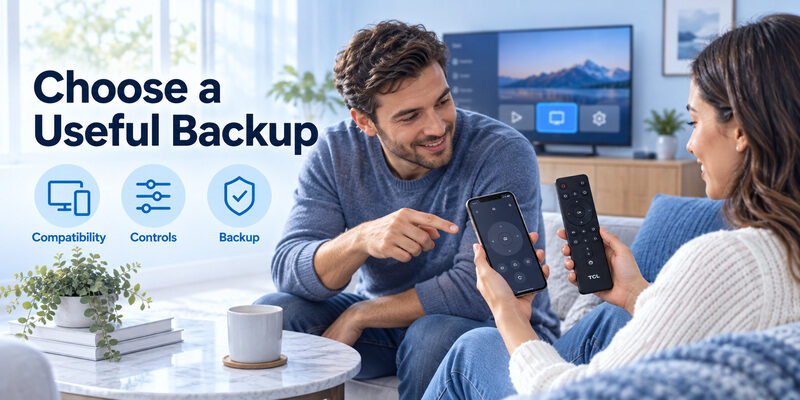
Identify a concrete reason to change
An alternative can be useful if it offers a clearer layout or a supported control you need. Compare it against the same television, network, and viewing sequence. Ratings and interface screenshots do not replace a compatibility test on your actual equipment.
Read the current purchase terms before relying on a TCL TV remote on phone as a permanent replacement. A free download may include limited controls, optional upgrades, or a trial. Distinguish the app’s remote features from streaming subscriptions and content purchases.
Keep a tested fallback for a missing handset
For supported models, offers another phone-control route when the physical remote is missing or inconvenient. Confirm compatibility and test the commands needed in your household before making it the default backup.
Choose the option that completes the real task reliably. The guide explains app selection, while covers recovery when the handset is already unavailable. Preserve any working physical route while comparing software.
Keep battery availability in the household plan
A phone with little charge may not be a dependable sole controller for a long viewing session. Charge it through an appropriate normal method and keep a physical handset available. The question is practical availability, not whether the app claims to replace every remote.
When establishing a TCL TV remote on phone for a shared room, check who will have a usable device when the television is normally watched. A second supported phone or an accessible handset can prevent an ordinary low-battery interruption from stopping everyone else.
Avoid leaving the television in a hard-to-recover menu before putting the phone away. Return to a familiar screen and keep the other controller in its usual place. This makes the TCL TV remote on phone arrangement easier to hand over without repeating the original pairing explanation.
Compare a guest network with the household network
A guest can have internet access while being separated from local television discovery. If their phone does not list your TV, verify the network arrangement with the person who manages it. Do not make broad router changes simply because a remote app cannot see a device.
For TCL TV remote on phone use, choose an approved supported connection or offer the physical controller. That may be the simplest option for a short visit. A household’s ordinary device-control setup does not need to be reconfigured for every guest.
Once a supported connection is available, let the guest confirm the correct screen before using it. A TCL TV remote on phone should control the television you intend, not another room’s similarly named device. Clear room names and a brief demonstration make the result easier to repeat.
Keep a simple record when requesting help
Before contacting app or television support, note the exact TV model, phone type, app publisher, and last successful stage. For TCL TV remote on phone troubleshooting, a description such as “the television appears, but no approval prompt opens” is much more actionable than saying the app does not work.
Include whether the original handset still performs the failed task. If Home works through both methods but one search field rejects typing, explain that limited result. Avoid sending account passwords, pairing codes from a live session, or unrelated personal information with the report.
A TCL TV remote on phone comparison should use the same television screen and task. After support suggests a relevant change, repeat that test and update the result. Keep the functioning controller available so the household can continue watching while the issue is investigated.
Questions About Controlling TCL TV From a Phone
Can an iPhone control a TCL television?
Yes, where the television and an available iOS app support the relevant connection. Choose the app for the TV’s platform and follow its iPhone instructions. Confirm discovery, approval, and actual navigation rather than assuming a successful installation guarantees control.
Does the phone need an infrared transmitter?
Not for the supported network-based routes described here. Those depend on the required connection to the television. However, a phone without compatible infrared hardware cannot control an older infrared-only TV merely by downloading an app that displays a keypad.
Can I replace every physical button with the phone?
Not necessarily. Available controls depend on the TV, app, platform, and current state. Test input selection, sound, text entry, and wake behavior separately. Keep a compatible physical method for functions or setup screens the phone cannot reach.
Should I pay for another app when no TV is detected?
Not before checking the reason. Platform mismatch, missing local-network access, standby, or an offline television can prevent discovery. Payment alone does not change those conditions. Establish a reachable compatible setup before judging a paid feature’s value.
Final Thoughts
A TCL TV remote on phone should make normal viewing easier from connection through playback and recovery. Match the television platform, complete its approval process, and verify navigation, typing, sound, and standby behavior on the actual set.
Keep a physical recovery method alongside the convenience. A working app is valuable when the handset is missing, but network changes and first setup can require another route. Save a simple household routine so the next person can control the correct screen without repeating your troubleshooting.
Download TV Remote App