
Panasonic TV Remote: Complete Guide to Apps, Pairing, Replacement, Codes & Fixes
A Panasonic TV remote can usually be replaced, paired, reset, or substituted with a compatible universal remote or smartphone app depending on your Panasonic TV model.
If your original panasonic tv remote is missing or no longer responding, you do not necessarily need to stop using the TV. You may be able to replace the batteries, reset the remote, pair a Bluetooth voice remote, use physical buttons on the television, install a compatible mobile remote app, or purchase a replacement controller.
The important point is that not every Panasonic television uses the same remote technology. Older Viera models often rely primarily on infrared, while newer smart TVs may combine infrared and Bluetooth features. Voice control, app compatibility, button layouts, and pairing procedures can therefore vary considerably.
This guide covers the main options so you can identify your remote, fix common problems, find a replacement, use your phone as a controller, and decide which solution makes the most sense for your television.
1. Panasonic TV Remote: Which Type Do You Have?
Before troubleshooting or replacing a panasonic tv remote, identify the type of controller your television uses.
Panasonic has released many generations of televisions, including older Viera LCD and plasma TVs, newer OLED and LED models, Fire TV-based models, and smart TVs with different operating systems. As a result, the remote included with one Panasonic television may look and function very differently from another.
The three most common categories are:
| Remote type | Connection | Typical functions | Pairing required? |
| Traditional Panasonic remote | Infrared | Power, volume, channel, menu, input | Usually no |
| Smart/voice remote | IR + Bluetooth | Standard controls, voice, smart features | Bluetooth functions may require pairing |
| Mobile remote app | Wi-Fi/network | Navigation, volume, apps, keyboard | App connection required |
Traditional infrared remotes send commands directly to a sensor on the television. You normally need to point the controller toward the TV.
Newer voice remotes can use Bluetooth for certain features. Panasonic documentation for some recent TV models states that Bluetooth is required for voice controls, while infrared communication can still be used for other commands.
This distinction matters when diagnosing problems. A panasonic tv remote that turns the TV on but cannot activate voice search may have a Bluetooth pairing issue rather than a completely failed controller.
Check the remote’s model number, usually inside or near the battery compartment, and compare it with the television’s model information before buying accessories.
2. Panasonic TV Remote Instructions for Everyday Use
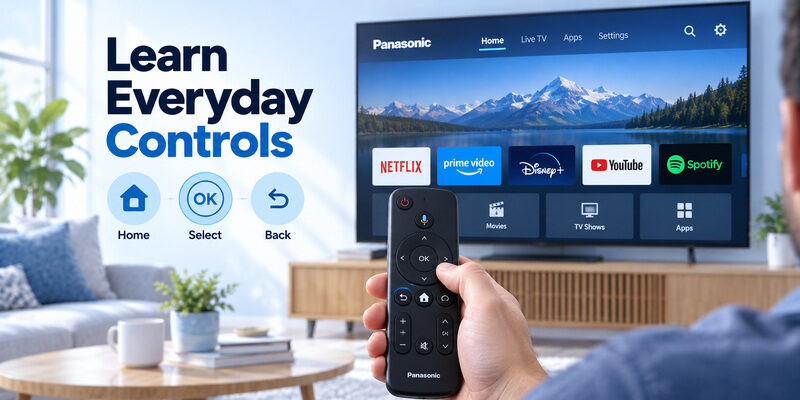
Most panasonic tv remote instructions follow a familiar layout, although exact buttons differ by television generation.
The basic controls typically include:
- Power: Turns the television on or puts it into standby.
- Volume + / -: Adjusts sound level.
- Channel + / -: Changes broadcast channels.
- Mute: Temporarily disables sound.
- Input or AV: Switches between HDMI, TV, game consoles and other sources.
- Home: Opens the smart-TV home interface.
- Navigation pad: Moves through menus and apps.
- OK: Confirms a highlighted selection.
- Back/Return: Returns to the previous menu.
- Menu/Settings: Opens picture, sound and system options.
Some panasonic tv remote models also provide dedicated streaming-service buttons, microphone controls, numeric keys or customizable shortcuts.
Using infrared controls correctly
For an infrared remote, point the top of the controller toward the television’s IR receiver. Objects placed in front of the TV can interfere with commands.
Panasonic specifically recommends checking that devices such as a soundbar or center speaker are not blocking the remote sensor.
A useful troubleshooting test is to stand directly in front of the television and try Power, Volume and Menu. If commands work from close range but fail from your normal seating position, the problem may involve batteries, distance or an obstructed sensor rather than the TV itself.
Smart remote functions
A newer panasonic tv remote may also provide:
- Voice search
- Bluetooth communication
- Streaming shortcuts
- Smart-home functions
- App navigation
- Content search
Availability depends on the television model and operating system.
3. Panasonic TV Remote Viera: What You Need to Know
The term panasonic tv remote viera generally refers to controllers and mobile applications designed for Panasonic’s Viera television range.
Viera covers many years of Panasonic TVs, so compatibility should always be checked by model rather than assuming every Viera television uses the same remote.
Older Viera televisions commonly use traditional infrared controllers. Many smart Viera models additionally support network-based remote applications.
Panasonic still maintains information for its TV Remote 2 application, which was designed to operate supported Viera televisions through a home Wi-Fi network. Panasonic describes TV Remote 2 as an application for controlling, configuring and sharing content with compatible Viera TVs.
Viera remote app requirements
For compatible models, the usual setup is:
- Connect the Viera TV to your home network.
- Connect your smartphone to the same Wi-Fi network.
- Open the compatible Panasonic remote application.
- Select the Viera TV detected on the network.
- Test navigation and basic controls.
Panasonic notes that available functions differ between Viera models. Unsupported features may simply not appear inside the application.
That is important when replacing a panasonic tv remote with a phone. An app might provide navigation and media controls without reproducing every physical button.
For an older Viera television, checking the exact model number before downloading an app or buying a replacement remote is the safest approach.
4. App for Panasonic TV Remote: Can You Use Your Phone?
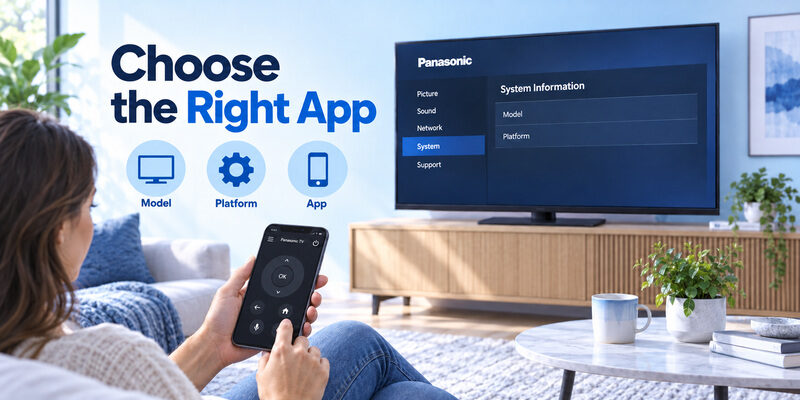
Yes. For many compatible smart televisions, an app for panasonic tv remote can turn an iPhone or Android device into a practical remote controller.
This is particularly useful if your original panasonic tv remote is missing, damaged or temporarily unavailable.
A mobile remote generally communicates through Wi-Fi rather than relying solely on infrared. That means your phone and television normally need to be connected to the same local network.
Depending on the TV and app, phone controls may include:
- Volume adjustment
- Directional navigation
- Menu control
- Playback
- App launching
- Text input
- Content browsing
- Media sharing
Panasonic’s TV Remote 2 documentation confirms that supported smartphones can connect through Wi-Fi to compatible Viera TVs on the same home network.
Panasonic TV remote in mobile: setup process
If you are searching for panasonic tv remote in mobile, start with these steps:
- Confirm the exact Panasonic TV model.
- Make sure the television has network connectivity.
- Connect the television and smartphone to the same Wi-Fi router.
- Install a compatible remote application.
- Allow local-network permissions if requested.
- Open the app and search for the television.
- Select the TV.
- Complete any confirmation displayed on screen.
- Test volume and navigation.
Keep the television powered on during the initial setup.
If the TV is completely off and does not support network wake functions, an app may not be able to turn it on. This is one reason a mobile remote works best as part of a backup strategy rather than assuming it can reproduce every hardware function.
5. How to Download Panasonic TV Remote Apps Safely
Users searching download panasonic tv remote are often trying to solve one of two problems: they have lost the physical controller or their existing remote has stopped working.
Start by checking your TV model rather than immediately installing the first app that appears in a search result.
Panasonic currently maintains support information for TV Remote 2, including versions designed for iOS and Android devices. Panasonic’s documentation describes the app as a controller for supported Viera televisions connected to the same home network.
However, app support varies by TV generation, region and mobile operating system.
Before installing an app
Check:
- TV model number
- TV operating system
- Smartphone operating system
- Wi-Fi support
- Application publisher
- Recent compatibility information
- Required permissions
If you download panasonic tv remote software from a third-party source, pay close attention to the publisher and requested permissions.
Avoid installing unknown APK files simply because they contain “Panasonic remote” in the filename. A mobile remote generally needs legitimate network access to communicate with your television, so installing software from an untrusted source creates unnecessary risk.
A compatible panasonic tv remote application should solve a specific problem without requiring unrelated permissions.
6. How to Pair Panasonic TV Remote
One of the most important distinctions is that not every Panasonic remote needs pairing.
If you are searching how to pair panasonic tv remote, first determine whether you have an infrared-only controller or a Bluetooth-enabled smart remote.
Traditional infrared remote
An IR panasonic tv remote generally does not require Bluetooth pairing.
Insert the correct batteries, point the remote toward the TV sensor and test the Power or Menu button.
If it does not respond, troubleshooting the batteries and infrared path is more useful than searching the settings for a pairing option.
Bluetooth voice remote
Some newer Panasonic TVs use Bluetooth for voice functionality.
For example, Panasonic documentation for certain recent televisions explains that the remote can communicate through either Bluetooth or infrared. Because voice commands depend on Bluetooth, the controller must be registered with the TV.
On the documented models, Panasonic provides an Add New Remote option through the TV’s controller/Bluetooth settings.
When initially registering the controller, Panasonic recommends pointing it toward the TV at close range. Low batteries can interfere with registration.
Because settings differ between Panasonic platforms, do not assume one button combination works for every Panasonic television.
If the panasonic tv remote still controls Power or Volume but voice functions suddenly stop, check Bluetooth registration before replacing the remote.
7. Panasonic TV Remote With Voice Control
A panasonic tv remote with voice control can make navigating a modern smart TV significantly faster because you can search without typing with directional buttons.
Typical uses include:
- Searching for movies
- Finding TV shows
- Opening supported apps
- Searching for content
- Issuing supported smart-TV commands
However, voice capability depends on the television model, software platform, region and remote supplied with the TV.
For certain recent Panasonic televisions, voice commands operate over Bluetooth rather than infrared. Panasonic therefore requires the remote to be paired before voice features can function correctly.
This creates a common troubleshooting situation:
Power works, but the microphone does not.
That does not necessarily mean your entire panasonic tv remote is broken. The Power command may still be sent through infrared while the microphone depends on Bluetooth.
Try these checks:
- Replace weak batteries.
- Confirm Bluetooth pairing.
- Restart the television.
- Check for remote or TV software updates.
- Pair the remote again if your model supports that process.
Do not confuse voice guidance with voice remote control. Voice guidance reads menu information aloud for accessibility, while voice control uses a microphone to accept spoken commands.
If you are buying a replacement, confirm both the television model and voice feature compatibility. A remote that looks identical may provide normal IR controls without supporting your TV’s Bluetooth microphone features.
8. Panasonic TV Remote Not Working: Quick Fixes
If your panasonic tv remote stops responding, start with simple hardware checks before buying a new one.
Panasonic’s official troubleshooting guidance recommends checking obstructions, batteries and the remote itself.
| Problem | Likely cause | What to try |
| Nothing works | Dead batteries | Install fresh batteries |
| Only works close to TV | Weak batteries or IR interference | Replace batteries and clear sensor |
| Some buttons fail | Stuck/worn buttons | Reset/test remote |
| Voice fails but Power works | Bluetooth issue | Re-pair compatible voice remote |
| App works but remote does not | Physical remote issue | Inspect or replace remote |
| New remote does nothing | Compatibility/pairing issue | Verify remote model |
Step 1: Replace the batteries
Install fresh batteries with the correct positive and negative orientation.
Panasonic advises using batteries of the same type and avoiding a mix of old and new batteries.
Step 2: Check the TV sensor
Remove any soundbar, decoration or other object blocking the television’s IR receiver.
Step 3: Reset the physical remote
Panasonic recommends:
- Remove the batteries.
- Press every button twice.
- Reinstall the batteries.
- Test the controller again.
This can help release a stuck key or clear a simple remote issue.
Step 4: Check Bluetooth
If you have a voice remote, verify that it is still registered with the television.
Step 5: Determine whether the TV or remote is responsible
If an app or another compatible remote controls the TV normally, the problem is probably with the original controller.
For most cases of panasonic tv remote not working, these checks should come before purchasing new hardware.
9. Panasonic TV Remote Battery Guide
A weak panasonic tv remote battery can cause more confusing symptoms than simply a completely dead controller.
You may notice:
- Short operating range
- Delayed button response
- Bluetooth disconnections
- Failed voice commands
- Intermittent navigation
- Pairing failures
The required battery size depends on the remote model. Check the markings inside the battery compartment rather than assuming every Panasonic remote uses the same battery size.
Panasonic’s support guidance recommends fresh batteries of the same type installed with the correct polarity. The company also warns against mixing new and used cells or different battery chemistries in the same controller.
How to replace batteries correctly
- Open the rear battery cover.
- Remove all existing batteries.
- Check the required battery size.
- Match the + and – markings.
- Install a fresh matching set.
- Close the cover securely.
- Test Power, Volume and navigation.
If your Bluetooth panasonic tv remote stops working immediately after changing batteries, give the TV a moment to reconnect. If necessary, check whether the remote must be registered again.
A practical rule is to troubleshoot batteries first whenever the remote becomes inconsistent. Weak cells can create problems that look like software, pairing or sensor failures.
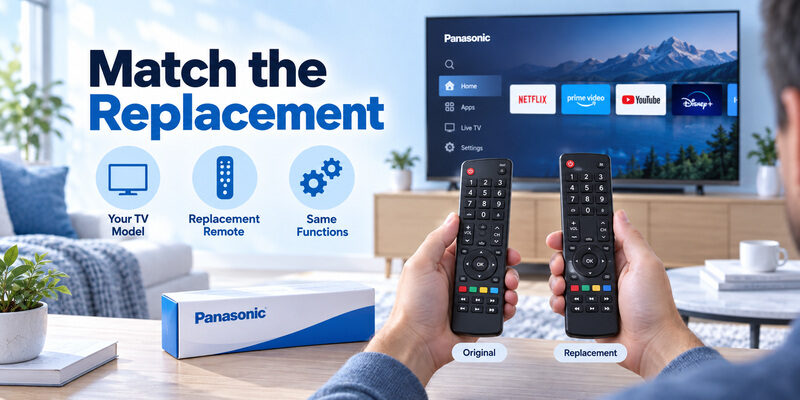
10. Panasonic TV Remote Replacement Options
A panasonic tv remote replacement can come from several sources, but the best choice depends on how many original features you want to preserve.
Option 1: Original Panasonic remote
This is usually the closest match for the television.
An original controller is the safest option when you rely on:
- Voice control
- Dedicated app shortcuts
- Model-specific settings
- Specialized buttons
- Bluetooth features
Match the remote part or model number whenever possible.
Option 2: Compatible replacement remote
Third-party replacements are often designed to imitate the original button layout.
They may work well for basic commands such as:
- Power
- Volume
- Input
- Channels
- Navigation
However, advanced functions may not always be supported.
Option 3: Universal remote
A universal controller can be practical when you want one physical remote for multiple devices.
Option 4: Smartphone app
A mobile controller can provide immediate access while you wait for a physical replacement.
| Replacement option | Best advantage | Main limitation |
| Original remote | Highest feature compatibility | May cost more |
| Third-party replacement | Simple physical replacement | Advanced buttons may differ |
| Universal remote | Controls multiple devices | Requires programming |
| Phone app | Fast backup | Depends on TV/network support |
Before purchasing any panasonic tv remote replacement, check the television model printed on the rear label or in the system information menu.
Visual similarity alone is not enough to confirm compatibility.
11. Can You Use a Universal Remote With a Panasonic TV?
Yes. Many Panasonic televisions can work with a compatible panasonic tv remote universal controller.
A universal remote is particularly useful when:
- The original remote is lost.
- You control several entertainment devices.
- You only need basic TV functions.
- An original replacement is difficult to find.
Most universal controllers require either a manufacturer code or an automatic code search.
Typical supported commands include:
- Power
- Volume
- Mute
- Channel
- Input
More specialized functions may vary.
Universal remote vs original Panasonic remote
An original panasonic tv remote is generally better when your television depends on Bluetooth, voice commands or model-specific smart functions.
A universal remote may be better when your priority is simple control across several devices.
Do not assume that “compatible with Panasonic” means every button will function.
Check whether the remote specifically supports your Panasonic television series and any features you consider essential.
For advanced smart TVs, a useful setup can be:
Universal remote for everyday Power/Volume + mobile app for smart-TV navigation.
That gives you a physical backup without relying on a universal controller to reproduce every smart feature.
12. Panasonic TV Code for Xfinity Remote
There is no single panasonic tv code for xfinity remote that works across every Xfinity controller.
The correct programming method depends on the Xfinity remote model.
For example, Xfinity’s XR11 quick-start documentation lists Panasonic TV codes 10051 and 10250 among its manufacturer codes.
Older or specialized Xfinity remotes can use different code sets. Xfinity’s large-button remote documentation, for example, lists several three-digit Panasonic codes rather than the XR11’s five-digit format.
| Xfinity remote type | Panasonic code examples |
| XR11 | 10051, 10250 |
| Large-button Xfinity remote | 468, 128, 162, 486, 375, 597, 624, 116 |
| Other Xfinity remotes | Use Xfinity’s model-specific lookup |
Programming an XR11
Xfinity instructs XR11 users to:
- Turn on the TV.
- Hold Setup until the LED changes from red to green.
- Enter the manufacturer code.
- Test TV Power.
- Try another listed code if necessary.
If the available code fails, the XR11 also supports an automatic search process beginning with code 9-9-1.
For XR15 and XR16 voice remotes, Xfinity provides different setup procedures, including on-screen pairing or voice-assisted programming.
Because Xfinity updates its equipment over time, identify the exact remote model before entering codes into your panasonic tv remote setup.
13. Lost Panasonic TV Remote: What Should You Do?
A lost panasonic tv remote does not necessarily leave the television unusable.
Start with the fastest available alternative.
1. Use physical TV controls
Many televisions provide at least a Power button or control switch on the TV itself.
Depending on the model, physical controls may also allow you to:
- Change inputs
- Adjust volume
- Open basic menus
- Navigate limited settings
2. Use a mobile remote
If the television is already connected to your Wi-Fi network, a compatible mobile controller may be the quickest solution.
3. Try a universal remote
A universal controller can restore Power, Volume and navigation without requiring the exact original remote.
4. Order a model-specific replacement
For full functionality, especially voice features, an original or compatible model-specific controller may be preferable.
If you regularly misplace the panasonic tv remote, consider keeping a phone-based controller configured in advance.
That is much easier than trying to establish a network connection after the physical controller has already disappeared.
Another practical approach is to photograph the remote model number and your television model label. If you later need a replacement, you will not have to identify the controller from memory.
14. Panasonic TV Factory Reset Without Remote
A panasonic tv factory reset without remote is not handled the same way on every Panasonic television.
This is an area where many generic online instructions can cause confusion because button combinations designed for one TV series may not work on another.
Panasonic’s official factory-reset documentation primarily directs users through the TV’s settings or through model-specific button procedures. One documented alternative method still requires controls on both the television and the remote, which means it is not a universal remote-free factory reset method.
Therefore, if you have no controller at all, try these options in order:
Use physical TV controls
Check whether your model has physical navigation controls that can reach the Settings menu.
Use a compatible smartphone remote
If the TV is already connected to your network, a mobile controller may let you navigate to the reset menu.
Use a compatible replacement or universal remote
This may be safer than trying undocumented button combinations.
Try a power reset first
If your goal is simply to fix a frozen TV, a full factory reset may not be necessary.
Turn the television off, disconnect power, wait briefly, reconnect it and restart.
A factory reset generally removes settings and may require you to configure the television again, so it should normally be treated as a later troubleshooting step.
Do not use random service-menu codes from the internet. Service menus are intended for technicians and can alter settings unrelated to a normal factory reset.
15. Use a Remote TV App as a Backup Panasonic Remote
A remote tv app is one of the most convenient backups when the physical panasonic tv remote is unavailable.
Instead of waiting for a replacement controller, you may be able to use the phone already in your pocket for common television controls.
For example, the Remote TV App by Begamob is designed to turn a compatible iPhone or iPad into a TV controller. Depending on television support, a smartphone remote can make it easier to handle everyday tasks such as navigation, volume control and smart-TV interaction.
This option is particularly useful when:
- Your remote is temporarily lost.
- Batteries have run out.
- Buttons are damaged.
- You are waiting for a replacement.
- You prefer using a touchscreen.
- You want a backup controller available on your phone.
Why keep a mobile remote ready?
The best time to configure a mobile remote is before you urgently need it.
Once your TV and phone are already connected, switching from the physical panasonic tv remote to a phone can be much easier.
For compatible TVs, the basic process is:
- Connect your phone and TV to the same Wi-Fi network.
- Open the Remote TV App.
- Let the application detect supported televisions.
- Select your Panasonic TV.
- Follow any connection instructions displayed.
- Test the main controls.
Network and TV compatibility still matter, and not every mobile app can reproduce every hardware function. Voice microphones, service controls and certain power functions may remain specific to the original remote.
Even so, a phone controller can be an excellent secondary option for everyday use.
If your Panasonic remote is missing or unreliable, keeping a Remote TV App ready gives you another way to stay in control without immediately depending on new hardware.
16. Frequently Asked Questions About Panasonic TV Remote
Can I use my phone as a Panasonic TV remote?
Yes, if your Panasonic television supports network-based remote control. Connect the television and phone to the same Wi-Fi network and use a compatible remote application. Panasonic’s TV Remote 2 supports selected Viera models through a home network.
Does every Panasonic TV remote need pairing?
No. A traditional infrared panasonic tv remote normally does not need pairing. Bluetooth-enabled controllers may require registration, especially when using voice features. Panasonic documents Bluetooth pairing for certain newer voice remotes.
Why does my Panasonic remote turn the TV on but voice control does not work?
The standard button may be communicating through infrared while voice functionality depends on Bluetooth. Check batteries and Bluetooth pairing before assuming the controller needs replacement.
Can I buy any Panasonic replacement remote?
No. Match the remote to your television model whenever possible. Basic controls may work across multiple models, but voice, smart shortcuts and other advanced functions can differ.
Can a universal remote control a Panasonic TV?
Yes, many universal remotes support Panasonic TVs. Basic functions such as Power, Volume, Mute and Input are commonly available, although compatibility with smart features and voice controls varies.
What should I do first if my Panasonic TV remote stops working?
Start with fresh matching batteries, confirm polarity, remove obstacles from the TV sensor and reset the remote by removing its batteries and pressing its buttons. Panasonic recommends these checks before concluding that the controller has failed.
17. Final Thoughts
The best solution for a panasonic tv remote problem depends on the television generation and the feature you are trying to restore.
For a basic infrared remote, fresh batteries, a clear sensor path and the correct replacement model solve many problems. If you own a newer television with voice functionality, also check Bluetooth pairing because infrared controls can sometimes continue working even when the voice connection does not.
Panasonic Viera owners may also have access to network-based mobile controls, while universal remotes provide a practical option for Power, Volume, Input and other basic commands.
If you have a lost panasonic tv remote, a smartphone app can be one of the quickest temporary alternatives. If the original controller is permanently damaged, compare an original replacement, compatible third-party controller and universal remote based on the functions your TV actually uses.
For the most reliable approach:
- Identify your Panasonic TV model first.
- Check whether the remote uses IR, Bluetooth or both.
- Troubleshoot batteries before replacing hardware.
- Match replacement remotes by model, not appearance.
- Use model-specific Xfinity codes and instructions.
- Keep a Remote TV App configured as a backup whenever your TV supports mobile control.
A properly matched panasonic tv remote should give you reliable access to the television without unnecessary setup, while a compatible mobile remote provides a useful second option whenever the physical controller is unavailable.
