TCL Android TV Remote: Buttons, Pairing and Phone Backup
By the Remote TV App Team
Last updated: September 2026
Short answer: A TCL Android TV remote uses model-compatible controls, with wireless pairing required for supported voice features.
Basic buttons and the microphone can depend on different control paths, which explains why Power may work while voice does not. The correct replacement or pairing procedure also depends on the television model and supplied handset. Android TV branding, screen size, or a familiar remote shape does not establish every feature.
This guide explains how the controls fit together, how to establish a reliable connection, and how to diagnose partial operation. It also covers input selection, phone control, and replacement decisions so you can keep watching while resolving the specific function that failed.
Understand Your TCL Android TV Remote Control Paths
Separate infrared commands from wireless features
Infrared requires a compatible transmitter and a clear path to the television’s receiver. Supported wireless remote features involve a separate connection. TCL’s official Android TV troubleshooting guidance distinguishes ordinary infrared operation from the connection used for voice, so a single working button should not stand in for a complete test.
A TCL Android TV remote can therefore appear partly functional without being entirely broken. If Power works but the microphone produces no listening response, investigate the voice connection and supported setup. If every button fails, begin with power, compatibility, and the television’s own responsiveness.
Identify the actual handset and television
Record the TV’s complete model from system information, its manual, or an accessible label. Record the handset’s model if present in its battery area or on the rear. A replacement seller should confirm that pair of identities rather than relying on a photograph alone.
Model identity is the starting point for instructions. An Android TCL TV remote search can surface accessories for other platforms. Keep your own model details visible while comparing those results so a similar shell does not become a mistaken compatibility claim.
Learn the Controls Used in Ordinary Viewing
Navigate with Home Back and the direction pad
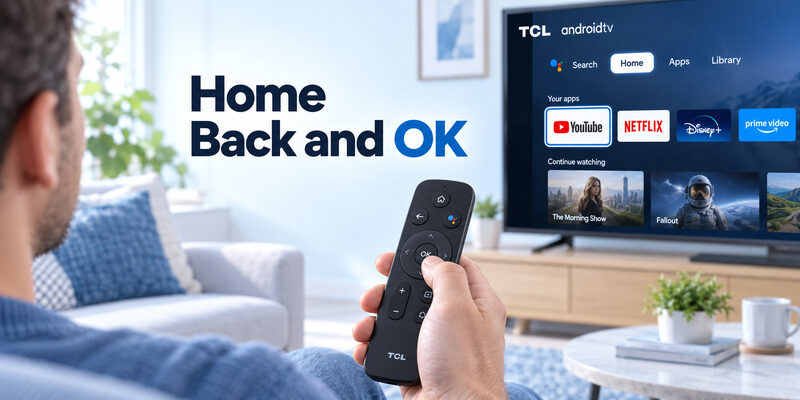
Home returns to the television’s main interface, where you can select a service or setting. Directions move the highlight; OK opens the selected item. Back usually leaves the current screen or returns a level, although an individual app may present its own exit prompt.
When learning a TCL Android TV remote, begin with that small sequence rather than memorizing every shortcut. Open a familiar app, return Home, and repeat. Knowing how to recover from a wrong selection makes the rest of the controller easier to explore.
Distinguish television controls from app behavior
Playback buttons act on the current app and content. A streaming service can interpret a press differently from the home interface, while a printed service shortcut does not include a subscription. The same button may appear inactive simply because the current screen does not support its action.
Test a control in the context where it is meant to work. For TCL TV remote Android questions, compare playback inside a playing video with navigation on Home. A function unavailable in one context is not enough evidence to replace the handset.
Pair a Supported Voice Handset Through the Correct Setup
Prepare a stable connection attempt
Turn on the TV with a working controller or its physical button. Install the specified batteries with correct polarity, or follow the remote’s charging instructions. Place the handset near the television and keep any existing phone or spare-controller route available for menu access.
The pairing illustration in the TCL Android TV remote manual should match the physical buttons in your hand. If it does not, stop and verify the replacement model. A different button layout can signal an incorrect controller rather than a need to hold buttons longer.
Follow the manufacturer and screen prompts
Use the pairing procedure supplied for that Android TV model. TCL’s Google TV instructions describe Home and OK for supported Google TV handsets, but that neighboring platform’s shortcut should not be imposed on every Android TV accessory. The television’s own prompt and matching manual take priority.
After confirmation, test directions and OK, then try voice separately. Pairing is complete when the TV accepts the intended commands. A blinking indicator during TCL TV remote pairing is a stage in the process, not proof that the television has stored a working connection.
Download TV Remote AppCheck Voice Input Without Confusing It With Search Results
Observe whether listening starts
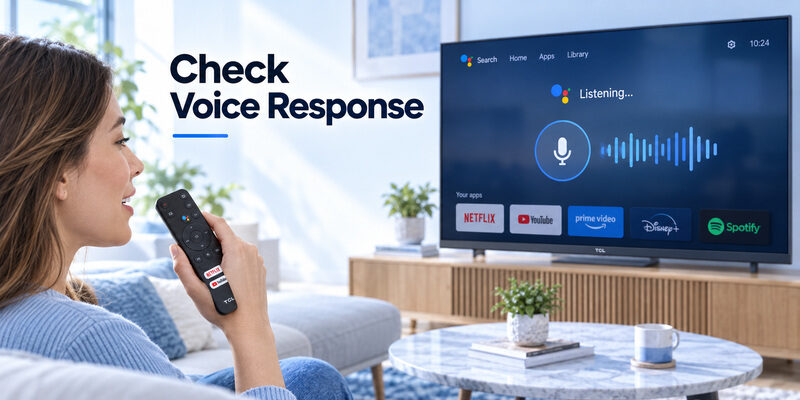
Press the supported voice or assistant button using the method in the model instructions, then make one short request. Watch for a listening response or recognized words. Keep background sound low enough to judge whether the request is being captured clearly.
With a TCL Android TV remote, no listening prompt and an unsuccessful search result are different failures. The first suggests checking the control path and assistant setup; the second may involve the requested service, account, network, language, or supported command.
Keep handheld and television microphones separate
Some televisions have their own supported hands-free microphone arrangement. That is separate from speaking into the handset. A TV microphone switch does not by itself establish whether the remote’s microphone and connection work.
Identify which microphone you are testing. If the television understands a spoken phrase but cannot complete the requested task, preserve that evidence. Re-pairing a TCL Android TV remote repeatedly will not necessarily resolve an unavailable service or a content request the current app cannot fulfill.
Choose Inputs and Manage Connected Equipment
The TCL TV remote input button may be dedicated on one handset and represented by an on-screen source menu on another. Follow the model diagram. Select the HDMI port containing the intended console, receiver, or player rather than choosing whichever input appears first.
A TCL Android TV remote selects what the television displays; it does not physically move a cable. If HDMI 2 shows no signal, confirm that the connected device is powered and attached to that port before changing remote settings.
An external streaming player has its own interface and may need its own controller. HDMI-CEC can provide certain supported interactions between devices, but it does not promise that every button or menu will be available through the TV handset.
TV navigation and player navigation can be different jobs. Keep the player’s controller nearby during the first test. If the television’s input menu responds but the player does not, investigate the downstream device rather than assuming the TCL Android TV remote has lost pairing.
A household may use the TCL Android TV remote for television settings but a game controller for the console connected to HDMI. In that situation, test source selection first, then confirm that the console’s own controller operates the game. The television handset does not need to replace every game command to be useful.
If you switch back to an internal TV app, return to the appropriate home interface. Keep track of which device is currently on screen. A TCL Android TV remote can appear to have lost navigation when the television is simply displaying an external device that expects another controller.
Write down the usual HDMI port if another viewer frequently chooses the wrong source. This small note solves a different problem from pairing and can prevent unnecessary changes to an otherwise working remote.
TCL’s Android TV remote guide identifies channel controls for antenna live television on the illustrated handset. That description should not be treated as a promise that the same keys change channels inside every streaming service or cable box. Use the current input and content source to interpret the result.
A TCL Android TV remote with working Home and Volume but inactive channel keys may simply be on a screen where those keys have no job. Try the documented live-TV context before treating the keypad as defective. If a cable box supplies channels, use the box’s supported controller or configuration.
Compare Infrared Voice and Phone Options
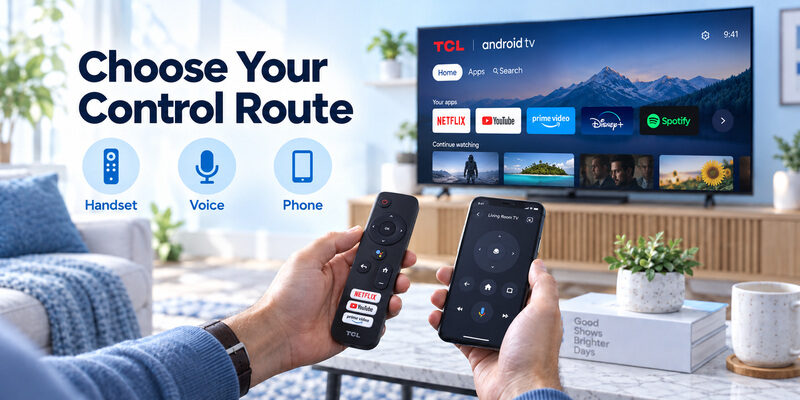
Match the route to the job
These control methods can complement one another. Their practical value depends on the television state and the functions you need, not just the number of buttons visible on a product image.
| Control route | Useful strength | Main dependency |
|---|---|---|
| Compatible infrared handset | Basic physical commands | Model support and clear receiver path |
| Supported voice handset | Navigation plus microphone functions | Correct accessory and wireless setup |
| Google TV phone remote | Phone navigation and supported text entry | Reachable compatible television |
| Supported third-party app | Alternative layout or control route | Publisher compatibility and tested functions |
| Programmable universal handset | Selected TV commands with other equipment | Manufacturer code database and feature limits |
Avoid paying for the wrong improvement
Someone who only needs Power and navigation may value a simple replacement. Someone who regularly speaks searches needs explicit voice compatibility. A TCL Android TV remote purchase should reflect those tasks rather than an assumption that every original-looking product has identical electronics.
Choose a feature set you can verify. A phone can be an excellent second controller while remaining unsuitable for offline initial setup. A universal handset may handle volume yet lack the wireless microphone feature of the original.
Add Google TV Phone Control to Android TV
Connect the phone to the television
Google’s official Android TV help describes using its Google TV app as a virtual controller. On Android, open the app, select Connect TV, choose the television, enter the code displayed by that screen, and confirm Pair. Both devices need the required local network connection.
This provides a TCL TV phone remote route while the physical controller remains a separate device. The code displayed for phone pairing is not a universal remote code. Use the current code from the television you selected rather than numbers copied from a troubleshooting page.
Test typing and recovery after reopening
Open a supported text field and enter a short search. Then return Home and reopen the phone app to confirm that selecting the television remains straightforward. Test normal standby separately if you intend to wake the TV from the phone.
Phone control does not repair or pair the physical handset. It can, however, keep a TCL Android TV remote problem from stopping ordinary viewing while you check batteries, compatibility, or the documented wireless setup. Retain the handset for recovery when the network is unavailable.
Diagnose a Remote That Works Only Partly
Start from the strongest working evidence
Compare several commands under the same conditions. If the television responds to its own physical button, power is available even when the remote does nothing. If a phone navigates successfully, the TV still accepts that separate control route.
| Symptom | First checks | What the result can distinguish |
|---|---|---|
| No handset buttons work | Batteries, model match, TV response | Remote path versus television state |
| Works only at close range | Power, aiming, receiver obstruction | Marginal infrared operation |
| Power works but voice fails | Supported wireless pairing and assistant setup | Separate control functions |
| Input menu works but picture is absent | Selected port, cable, source power | Remote command versus HDMI signal |
| Selection moves without a press | Stuck key or pressure on handset | Unwanted input rather than pairing loss |
Repeat one test after one adjustment
For TCL TV remote IR problems, clear obvious obstructions and use the normal receiver direction. A phone-camera check can sometimes reveal infrared activity, but some cameras filter it and a visible flash does not verify a correct command. Treat it as supporting information rather than a conclusive compatibility test.
Keep each comparison controlled. A TCL Android TV remote fault is easier to explain when only the batteries or aiming changed between attempts. Changing the TV’s network, resetting apps, and re-pairing together can hide which action actually helped.
Distinguish Android TV From Other TCL Product Labels
A TCL QLED TV remote or TCL LED TV remote search describes the television’s display category, not a complete remote-control protocol. Models with similar picture technology can run different platforms. Check operating-system and accessory information independently of the panel label.
The same applies to TCL QLED TV remote control listings that name several series. A shared marketing label is not proof of shared voice features or button layouts. Ask for the exact supported models if the seller’s description is broad.
A TCL Fire TV remote follows Fire TV guidance, while Roku accessories use their own methods. A TCL Android TV remote should be configured through the matching Android TV instructions. Similar Home and microphone symbols do not make those setup procedures interchangeable.
Year labels are not part numbers. A listing titled TCL TV remote 2025 may describe when it was marketed rather than the TVs it supports. Prioritize explicit model compatibility and the required functions over a year appearing prominently in a sales title.
Decide Between Maintenance and Replacement
Check ordinary maintenance first
Inspect the normal battery compartment and cover without dismantling the housing. Replace depleted cells with the specified type and polarity, or charge a rechargeable model as instructed. Look for a key held down by a cover or another object before assuming an electronic fault.
If the TCL Android TV remote is new, compare the supplied item with the order description and document visible damage before attempting repairs. Keeping packaging and compatibility evidence makes a return or support request easier to resolve.
Describe a repeatable failure to the seller
Record the TV model, handset model, failed function, and result from another available controller. State whether ordinary navigation works and whether the issue occurs immediately after setup or only after some use. A precise symptom helps distinguish a wrong accessory from a setup problem.
Replacement is justified by a demonstrated mismatch or fault. Do not erase the television merely to compensate for a handset that lacks the feature you purchased. Use the model-matching information in before ordering again.
Keep Viewing While You Resolve the Handset
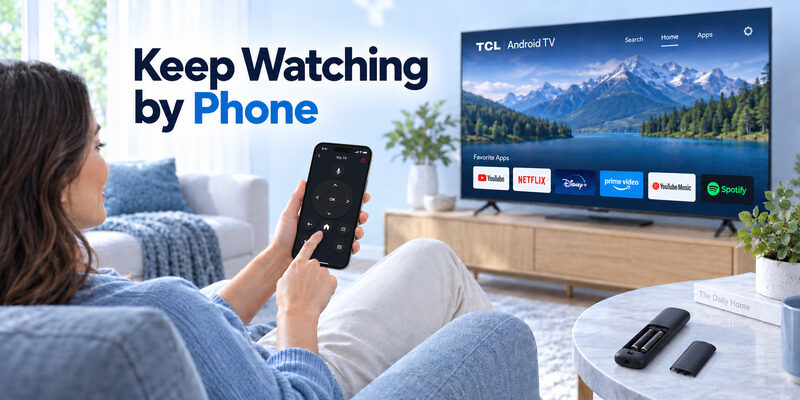
Preserve the working television setup
Use a compatible spare, supported phone route, or already configured connected device for the immediate viewing task. Keep the accounts and network settings that make that route possible. A factory reset can remove your easiest alternative without correcting an unsuitable remote.
For supported models, offers another phone-control option while the TCL Android TV remote is unavailable. Verify current compatibility and the functions you need, then test Home, selection, and sound on your own set.
Teach a short fallback routine
Show another viewer how to select the correct television and recover with Home or Back. Keep the physical power-button location recorded where it is easy to find. A backup on one person’s phone may be insufficient when that person is out of the house.
A tested routine is more valuable than several untested apps. Keep the guide with your setup notes, and revisit the backup after a router change or a television reset changes its connection requirements.
Compare an older relative’s everyday requirements
Someone who watches one service may need a simpler routine than the person who installed the television. Let that viewer hold the TCL Android TV remote, find Home and Volume without coaching, and leave an accidental menu. Button visibility and grip become useful purchase criteria after technical compatibility is established.
Do not assume a voice feature solves every usability problem. The viewer may prefer reliable physical selection or may not use an assistant at all. A TCL Android TV remote should suit the actual person’s tasks rather than the feature priorities of whoever chooses the replacement.
Keep the fallback equally simple. If the alternative phone interface requires repeated device selection that the viewer finds confusing, retain an accessible physical handset for the normal routine and use the phone for occasional text entry or troubleshooting.
Save the evidence needed for a future pairing loss
After a successful setup, note the television model, controller identity, and instruction source. Record which functions passed: ordinary navigation, voice listening, sound, and inputs. This gives a future TCL Android TV remote investigation a known comparison instead of a vague memory that everything once worked.
If the issue returns, compare the same commands before repeating setup. A changed audio system or a different input may explain the new symptom. Keeping that context prevents a TCL Android TV remote from being re-paired for a problem that belongs to another device.
Keep the remote and an attached player distinguishable
A TCL Android TV remote belongs to a particular control arrangement even when another streaming device shows a similar home screen. Place the player’s controller separately and show a new viewer how to return to the television’s own Home screen. Then demonstrate which handset chooses HDMI and which one navigates the attached player.
This small distinction prevents repeated pairing attempts on equipment that is already working. If a command changes only the player, record that result instead of assuming the television accepted it. A simple label on the storage location can help the household keep the controllers straight.
Questions About TCL Android TV Controllers
Does a working Power button prove voice pairing is complete?
No. Basic infrared operation and supported voice communication can use different paths. Check the model’s pairing procedure and assistant configuration, then observe whether listening starts. Treat recognized speech and completion of the requested service action as separate test results.
Can a QLED remote be assumed compatible?
No. QLED describes display technology. The television model, operating platform, accessory identity, and supported functions determine remote suitability. A controller should be matched against those details even when its appearance closely resembles the original.
Can I use Google’s phone controller with Android TV?
Yes, on supported devices. Google’s Android TV guidance provides a Google TV app route using device selection and a code displayed by the TV. The phone and television must meet the connection requirements, and individual controls still need testing.
Should I replace the television when only its remote fails?
No. First distinguish the handset, its power, compatibility, and connection from the television itself. A correctly matched replacement or supported phone route may restore control. Investigate the TV further only when evidence points beyond the remote.
Final Thoughts
A TCL Android TV remote should be evaluated by its model compatibility and separate control functions. Confirm ordinary navigation, establish the supported voice connection, and check inputs and sound in their actual viewing context before drawing a hardware conclusion.
Keep the successful control paths available while diagnosing the rest. A compatible phone option can maintain access, and a correctly matched physical handset supports recovery when the network or setup state changes. Save the working procedure with the television and remote model information.