
I Lost My TCL TV Remote: Find It or Restore Control
By the Remote TV App Team
Last updated: September 2026
Short answer: Use the TV’s physical power button and a compatible phone app to recover control when the remote is missing.
The phone route works only when the television supports it and remains reachable on the required network. If you searched “I lost my TCL TV remote,” the first useful question is whether the TV is already configured and connected, or whether you also lost access to its network. Those situations need different recovery methods.
Start with the shortest path back to your program. Check for a supported remote-finder feature, use controls already available in the room, and arrange a matched replacement if setup cannot be reached. Avoid erasing a working television while the only missing item is its handset.
I Lost My TCL TV Remote What Should I Try First
Recover power without changing settings
Locate the television’s physical power control using the model manual or a light. Its position varies: underneath the screen, around a lower edge, or on the rear. Use a normal press on the identified control and watch for a startup response.
If the screen is already on, leave it on while arranging another controller. The problem “I lost my TCL TV remote” is easier to solve when the television remains visible, connected, and ready to approve a phone. Turning it off prematurely can introduce a separate wake problem.
Choose the first available control route
- TV is on and connected: Try the official phone app for its platform.
- Remote supports a finder: Trigger the documented sound using an available control.
- A compatible spare is present: Test Home and navigation before purchasing anything.
- TV is offline or in initial setup: Obtain a model-supported physical controller.
Preserve the setup that still works. A missing handset is not evidence of a software fault. Record the current screen and network state before attempting any action that would remove them.
Search the Room Before Replacing the Handset

Check the place where the remote was last used, then nearby surfaces, blankets, bags, and accessible sofa gaps. Ask whether someone moved it while cleaning or carried it into another room. Searching one area carefully can be faster than repeatedly walking through the same rooms.
For “I lost my TCL TV remote” situations involving several similar controllers, compare photographs or remembered button layouts. A soundbar or streaming-stick handset may look close enough to be picked up accidentally. Put unrelated controllers aside so they do not keep interrupting the search.
Do not pull a mounted television away from the wall or reach blindly into mechanisms under a reclining seat. Check accessible gaps with a light first. If a remote seems trapped in furniture, follow the furniture’s safe handling procedure before moving the mechanism.
Search where the handset could realistically have travelled. A TCL TV remote lost during a move may be in the box containing power cables rather than beside the television. Look at the last activity, not only the object’s usual storage place.
Check Whether Remote Finder Is Actually Supported
Identify a handset with the necessary hardware
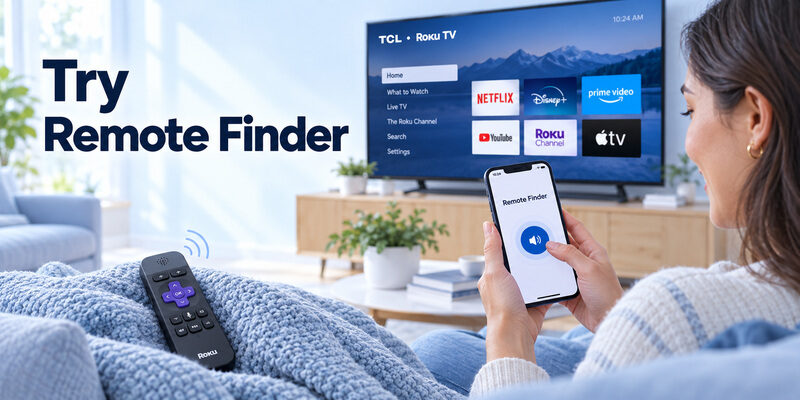
Roku’s official lost-remote-finder guidance limits the feature to supported voice remotes with a built-in speaker. Small speaker openings on the handset are a useful identification clue when you have a photo or the product information. A basic infrared remote cannot be made to beep by installing an app.
This matters when “I lost my TCL TV remote” leads to advice written for a different Roku accessory. The TV brand does not establish that the missing handset supports a finder. Confirm the actual remote model before spending time looking for an unavailable menu.
Trigger the feature from a working control
Roku documents a Ping Remote option beside a connected device in its mobile app. Supported TV menus can also offer Find remote. Use the route available on your setup, then listen carefully; the sound depends on the remote having adequate power and being within range.
A silent finder does not prove the remote is gone. Dead batteries, insufficient charge, unsupported hardware, or range can prevent a sound. Return to a physical search if those conditions are uncertain, rather than repeatedly reinstalling the app.
Use a realistic finding test when the remote returns
Once the handset is found, confirm whether the TCL TV remote finder feature actually exists on that model. If it does, test it while the remote is visible and charged. Learn which app control or television menu triggers the sound before you need to locate it behind a cushion.
The answer to “how to find my TCL TV remote” is much clearer when you already know whether the missing device can make a sound. A failed test while the handset is visible may indicate unsupported hardware or a configuration problem, which you can investigate without searching the whole house at the same time.
Keep the result with the model information. The next “I lost my TCL TV remote” interruption should start from that known capability rather than a fresh assumption based on the TCL logo.
Match Your Recovery Plan to the Television State
Distinguish a missing handset from missing connectivity
These situations look similar from the sofa but have different starting points. Identify the row that describes your television now, not the condition it was in before a move or router change.
| Current state | Useful route | Main limitation |
|---|---|---|
| TV awake and networked | Compatible phone remote | Correct platform and approval required |
| TV in ordinary standby | Physical power or supported wake | Wake behavior varies by model |
| Network credentials changed | Supported physical controller | Phone discovery may be unavailable |
| Factory-reset welcome screen | Initial-setup controller | Previous phone pairing may be gone |
| Supported finder remote missing | Ping or Find remote | Remote must have power and support |
Keep the recovery goal small
If your immediate need is to resume a show, first restore Home, selection, and sound. You do not need to configure every advanced feature before watching. The more settings you change, the harder it becomes to tell which change restored access.
“I lost my TCL TV remote” should therefore lead to a sequence of small, observable results. Power, navigation, and network setup are separate milestones. Complete the first available one and use it to reach the next.
Use a Phone When the Existing Network Still Works
Select the app for the built-in platform
TCL Roku TV uses Roku’s mobile route; supported Google TV or Android TV sets can use Google’s controller; TCL Fire TV has Amazon’s app route. Look at system information or the exact model manual if you are unsure. An HDMI streaming device is a different target from the TV itself.
For “I lost my TCL TV remote” on an already connected set, install the relevant app, select the correct television, and complete any displayed pairing or approval. Keep the TV visible while doing this so you do not miss the prompt.
Prove the phone can complete ordinary viewing
Try Home, move to a familiar service, open it, and return with Back. Then test volume against the speaker actually playing sound. Reopen the phone app once to make sure you can find the same television again without repeating the full setup.
A visible remote screen on the phone is only the beginning. The guide covers that connection in more detail. Keep a note of the working app and television name so the next viewer can use it too.
Handle a Lost Remote When There Is No WiFi
Recognize the missing setup path
A TCL Roku TV lost remote no WiFi search often follows a new router, a move, or a reset. Roku’s official lost-remote guidance explains that the mobile app cannot detect a device that is not connected in the required way. Downloading the app does not supply the TV with new network credentials.
If “I lost my TCL TV remote” is combined with lost connectivity, check the model’s physical controls and obtain a supported replacement when they cannot reach setup. Avoid treating a successful app installation on the phone as evidence that the television is now reachable.
Check existing equipment without assuming compatibility
A previously configured universal handset may still operate some TV commands. A connected HDMI device may support relevant control through HDMI-CEC, but that does not guarantee complete television menus or first-installation access. Test only the controls that the equipment documents.
An offline television needs a local recovery route. For TCL TV lost remote no WiFi problems, a correctly matched physical handset is often the clearest purchase. Keep the television’s existing accounts and settings intact unless official troubleshooting gives a separate reason to erase them.
Use Physical Buttons and Connected Equipment Carefully
Some TCL televisions provide a small menu through their onboard button arrangement. Others expose fewer controls. Consult the model’s instructions before using long presses: a control’s meaning can change depending on whether the TV is off, awake, or displaying an options menu.
For “I lost my TCL TV remote” recovery, use that menu only for the functions it actually displays. A power button does not necessarily provide full network settings. Do not assume an unlabeled pinhole is another navigation control.
A connected player may wake a compatible, configured TV or select its input through HDMI-CEC. The player’s own remote can then navigate the player, while the television’s deeper settings remain unavailable. Observe which interface responds before concluding that one handset controls everything.
A partial route can still restore tonight’s viewing. If a console or player already works, use it while arranging a full replacement. Do not change unrelated HDMI settings merely to make every control fit a single-controller ideal.
Buy a Replacement That Matches the Missing Remote
Recover the television identity first
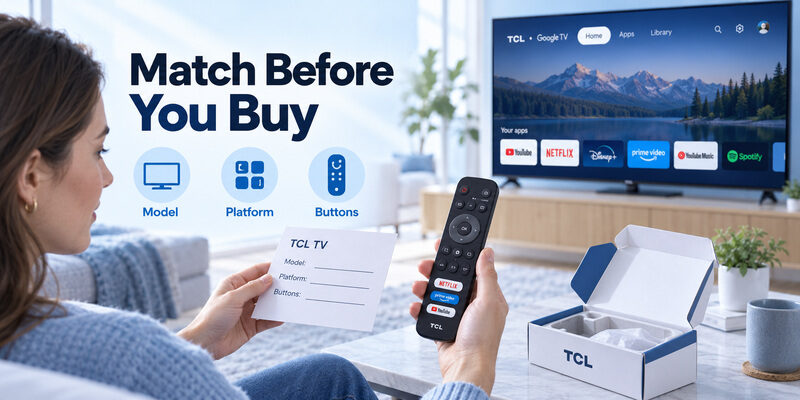
Use a purchase record, accessible rear label, or system-information screen to obtain the complete model. Keep regional suffixes. Screen size and a TCL logo are insufficient because similarly sized TVs can use different platforms and supplied accessories.
When asking a seller “I lost my TCL TV remote,” include the model and the controls you need: Home, Input, sound, numbers, or voice. That gives the seller a concrete compatibility question rather than an invitation to recommend any TCL-looking handset.
Compare features and return terms
An inexpensive compatible infrared controller may be suitable for basic use while omitting voice pairing or certain shortcuts. An original replacement still needs the correct part and platform match. Check condition, included batteries or charging requirements, and the return procedure for a failed compatibility claim.
Buy the missing functions, not just a familiar shape. Keep the order description and seller’s model confirmation. Test the new handset under normal viewing conditions promptly so a partial match is discovered while the stated return terms still apply.
Pair the Replacement Without Erasing the Television
Identify infrared and wireless models
A simple compatible infrared handset normally needs batteries and a clear path to the receiver rather than wireless pairing. A supported voice remote may require a platform-specific procedure. Follow the actual replacement’s instructions instead of applying a button combination from another TCL platform.
The problem “I lost my TCL TV remote” ends only when the replacement controls the intended TV reliably. A flashing indicator is useful feedback, but the television’s confirmation and successful navigation are stronger evidence that setup has finished.
Retain your temporary working controller
Keep the phone app or spare handset available during setup. It may provide access to the accessories menu or help you recover from a wrong selection. Remove or forget older accessories only when the model’s instructions require it.
Adding a remote does not normally require erasing accounts. Use the guide to identify the correct branch. A television factory reset can turn a missing-controller problem into an initial-setup problem with fewer available controls.
Fix the Problems That Remain After Control Returns
Someone may say “I lost my TCL TV remote” when the more immediate obstacle is now sound, source selection, or a phone that cannot wake the screen. Name the remaining failure precisely. A working Home button tells you something different from a television that ignores every command.
| Remaining symptom | Next useful check | Avoid assuming |
|---|---|---|
| Picture works but no sound | Output device and mute state | New remote is fully defective |
| Player works but TV menu does not | Which device the remote controls | HDMI navigation equals TV navigation |
| Phone works only while TV is awake | Model-supported standby networking | App installation failed |
| New remote has Power but no voice | Compatibility and wireless pairing | Power proves microphone readiness |
Write down the TV model, replacement model or app publisher, last successful command, and exact failure. Include whether the television responds to its physical button. This makes a support conversation more useful than repeatedly explaining only that the original remote is missing.
Preserve evidence from the working route. If both a phone and a compatible spare fail the same TV function, the television or connected equipment may need attention. Do not repeatedly buy replacements before checking that shared condition.
Make the Next Missing Remote Less Disruptive
Create one recognizable storage place
Use a visible holder or tray and show everyone who uses the TV where it belongs. If several controllers share the room, distinguish them by device or location. A short label can prevent a soundbar remote from being carried away with the television handset.
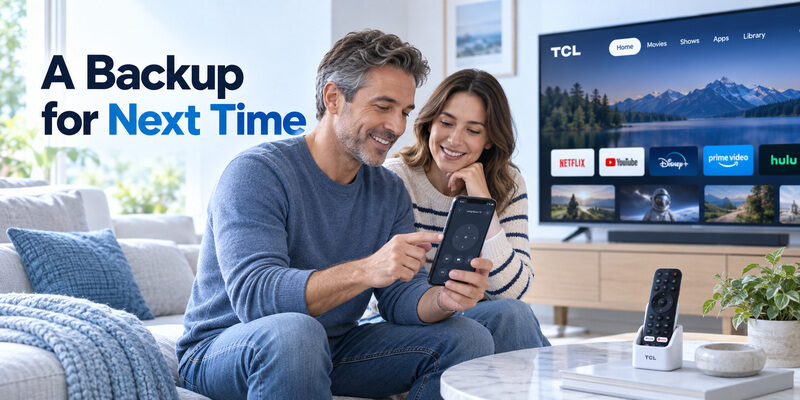
“I lost my TCL TV remote” becomes a smaller interruption when the household already knows a second way to reach Home. Test that backup while the original is available, rather than waiting until a network change and a missing handset occur together.
Keep a tested phone backup
For supported models, can provide another control option while a physical remote is missing. Confirm current compatibility and terms, then test navigation and the commands your household actually needs. Retain a physical setup method for offline recovery.
Prepare access for another viewer as well as yourself. Let that person select the correct TV and open a familiar service without coaching. If the setup depends on your phone alone, it may not help when you are away from home.
Prepare for a guest who has never used your setup
Imagine a guest reporting “I lost my TCL TV remote” while you are away. A phone app on your own device will not help that person directly. Leave a clearly labeled physical backup or explain the supported controller already available in the room, along with the television’s normal input.
Ask the guest to complete one ordinary task during setup: turn on the screen, choose the correct source, and adjust the actual speaker. If that requires several undocumented workarounds, simplify the instruction before relying on it. Do not include account passwords in the note.
This makes “I lost my TCL TV remote” a manageable interruption rather than a call for instructions about every connected device. A short procedure grounded in the room’s real equipment is more useful than a generic list of downloadable apps.
Keep moving and packing from breaking both control routes
Before moving a television, put its physical remote with the power lead and record the model. Keep that small set together rather than packing the remote in an unrelated room. The previous phone connection may not survive a change of network, even though the same app remains installed.
If “I lost my TCL TV remote” occurs after unpacking, check the equipment bag and packing list before buying a replacement. Preserve the television’s existing settings while you recover a controller. A reset removes information but cannot locate the missing object.
After reconnecting the TV, test your backup on the new network. The setup that solved “I lost my TCL TV remote” in the old home should be verified again in the new room. Record the new television name and app route so household members do not keep selecting an old device entry.
Separate a moved remote from a disconnected television
After moving house, two problems can appear together: the handset is missing and the TV remembers the previous network. An “I lost my TCL TV remote” recovery plan should address physical access first, then restore the television’s connection. Finding a downloadable app does not settle the second problem by itself.
If another household member says “I lost my TCL TV remote,” ask whether the television still appears on an already configured phone. That quick comparison identifies whether the existing backup remains usable. Keep the answer with the model information before choosing a replacement or asking support for help.
Questions About a Missing TCL Handset
Can every TCL remote make a finding sound?
No. The handset needs a supported finder feature and the necessary hardware. Roku describes compatible voice remotes with built-in speakers. A basic infrared controller cannot gain an audible finder through an app, and a supported remote still needs adequate battery power.
Can I set up a disconnected Roku TV with only the app?
Not through ordinary device discovery when the TV lacks the required connection. Restore a supported route to television setup first. A matched physical controller is often the practical solution after a reset or network change has removed the previous phone-control path.
Should I reset the TV because the remote is missing?
No. A missing object is not a television software fault. Resetting can remove network access and accounts that support the easiest recovery route. Follow a reset procedure only when a separate diagnosed issue and relevant manufacturer instructions justify it.
Is an original replacement the only acceptable option?
No. A clearly compatible alternative can be suitable if it supplies the required functions. Match the exact model and platform, verify voice support where needed, and check return terms. A similar shell or the same brand name is not enough evidence.
When an “I lost my TCL TV remote” search leads to several recovery options, choose the one that fits the television’s present state. An already connected set and a reset set need different first steps. Keep that distinction in the household note so the next “I lost my TCL TV remote” moment starts with a useful check.
Final Thoughts
If your starting point is “I lost my TCL TV remote,” preserve the television’s working setup and recover the smallest useful control route first. Use physical power, a supported finder, an already reachable phone app, or a correctly matched replacement according to the current state.
Recovery should leave you with dependable daily control. Test Home, sound, inputs, and normal standby before considering the problem solved. Keep the successful phone route and a physical fallback available so the next missing handset does not interrupt the whole evening.
Download TV Remote App