TCL Roku TV Remote Not Working? Easy Fixes to Get It Working Again
By the Remote TV App Team
Last updated: September 2026
Short answer: Start with fresh batteries, a clear receiver, and a TV restart when your TCL Roku TV remote stops responding.
The next step depends on whether you have a simple infrared remote or a paired voice model. With a TCL Roku TV remote not working, searching for a pairing button is useful only when the remote actually supports pairing. A simple IR handset needs the correct commands and a clear path to the television; a voice remote may need its wireless connection restored.
Work through the checks below in order and stop when normal control returns. A TCL Roku TV remote not working does not automatically mean the handset is broken, and a factory reset can create additional setup work. Keep track of the exact symptom so each test narrows the cause.
TCL Roku TV Remote Not Working Fast Fixes
Refresh the remote power
Replace removable batteries with a fresh matching set, following the compartment’s polarity markings. Use the battery type specified on your remote. For a rechargeable model, follow its charging instructions instead of attempting to open a sealed battery compartment.
With a TCL Roku TV remote not working intermittently, note whether fresh power restores all buttons or only improves the range. A weak response from the sofa can look like a software delay. Test one deliberate press at a time after changing the batteries, so repeated input does not obscure the result.
Clear the receiver and restart once
TCL’s Roku remote troubleshooting recommends an unobstructed path to the television and a restart with power disconnected for at least 30 seconds. Move a soundbar or ornament that blocks the receiver area, reconnect power, and allow the home screen to load before testing again.
Use this short sequence as a controlled starting point:
- Check power: Fit fresh batteries or charge the supported remote.
- Clear the path: Aim toward the TV’s receiver with obstacles removed.
- Restart the TV: Disconnect power, wait at least 30 seconds, then reconnect.
- Test Home: Check a single navigation command after startup finishes.
If the same failure remains, do not keep cycling power. A TCL Roku TV remote not working after these checks needs diagnosis by remote type and symptom.
Download TV Remote AppIdentify the Remote Before Attempting Pairing
Recognize a simple infrared remote
A basic TCL Roku TV handset without voice functionality normally uses infrared. It must be pointed toward the television and does not use the voice-remote pairing process. Look at the actual model and button layout if its design is unfamiliar.
For a TCL Roku TV remote not working without an obvious pairing button, do not assume a hidden button must exist. A simple IR remote can be ready to use as soon as the correct batteries are installed. Pressing combinations intended for another remote type will not add the missing connection method.
Recognize a voice remote
Roku identifies a microphone or magnifying-glass voice button as a key distinction. Some voice remotes have a pairing button on the back or inside the battery area; other voice models use a button combination. The absence of a pairing button therefore does not, by itself, prove that a handset is infrared-only.
Read the label or accessory documentation when uncertain. A TCL Roku TV remote with voice control needs a supported model and a successful pairing process. Do not confuse that direct remote connection with selecting the television in the phone’s Bluetooth settings.
Use the Symptom to Choose the Next Test
A report of a TCL Roku TV remote not working becomes more useful when you specify which controls fail. Check whether Power works, whether menu movement works, whether the problem affects one button, and whether a phone app can still navigate the TV.
Compare repeatable results, not isolated presses. For example, try Home three times with a pause after each press rather than holding it continuously. A consistent response tells you more about the command path than a burst of inputs followed by delayed movement.
| Symptom | More useful next check | Avoid assuming |
|---|---|---|
| No button responds | Power, IR path, and TV response | The TV needs a factory reset |
| Power works but menus do not | Voice pairing or compatibility | All hardware has failed |
| One key repeatedly fails | Physical key and command mapping | The network is responsible |
| Menus scroll after release | Stuck key or another controller | More pairing attempts will fix it |
| App works but handset does not | Handset signal and remote type | Every TV component is defective |
If a TCL Roku TV remote not working is accompanied by a frozen home screen, use another control method to see whether the television responds at all. That distinction helps you choose between remote troubleshooting and television support.
Restore a Simple Infrared Remote
Check aiming from a clear position
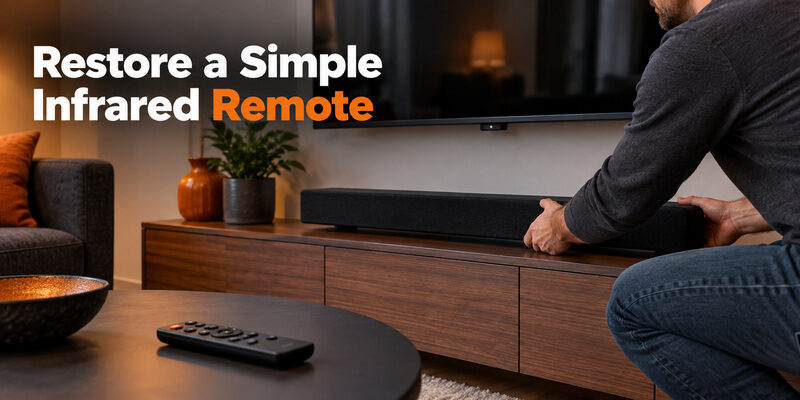
Stand in front of the television and aim directly at the receiver area. TCL’s standard-remote guidance specifically calls out soundbars as possible obstructions. Move the obstruction temporarily and compare the same command from the same position before and after the change.
If this fixes a TCL Roku TV remote not working from the normal seat, adjust the equipment arrangement so the path remains clear. Keep the receiver visible during everyday use. Replacing the remote without addressing the blocked receiver can reproduce the same problem with the new handset.
Use a camera test cautiously
TCL describes observing an IR emitter through a phone camera while pressing a button. A visible flicker can show that the handset is emitting infrared, but some cameras filter IR strongly. Compare with a known-working infrared remote using the same camera before treating a lack of visible light as proof of failure.
The test does not establish that the remote is transmitting the correct commands for your TV. A TCL Roku TV remote not working despite a visible flicker may still have a wrong profile, a blocked receiver, or a receiver fault. Combine this evidence with actual television response rather than making a purchase decision from the camera test alone.
Reconnect a Compatible Roku Voice Remote
Use the pairing button when present
Roku’s current pairing instructions say to hold the pairing button for approximately five seconds, until the status light flashes. Keep the remote near the television and follow any on-screen prompt. Make sure the television has finished restarting and is ready to accept the connection.
If the light does not flash, return to battery or charging checks before repeating the sequence. For a TCL Roku TV remote not working during setup, watch both the handset indicator and the TV. A flashing light alone is not the same as a confirmed connection.
Use Back and Home on supported models
For Roku voice remotes without a pairing button, Roku describes holding Back and Home together for five seconds until the indicator flashes. This applies to the relevant voice models, not to every simple TCL remote that happens to have those two buttons.
After pairing, test the direction pad and Home before trying voice search. With a TCL Roku TV remote not working after a confirmed pairing, record whether basic navigation fails or only the voice feature does. A narrow remaining symptom needs a narrower investigation than another full reset of the television.
Separate Button Faults From Audio Problems
Investigate continuous scrolling
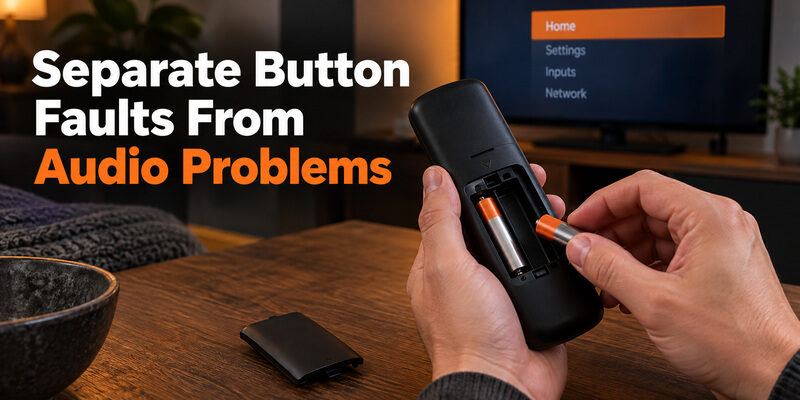
If the TCL Roku TV remote keeps scrolling after you release a key, remove the removable batteries and observe whether movement stops. Check that a cover, debris, or an object on the sofa is not holding a button down. Do not spray liquid into the handset.
Also close phone remote sessions and set aside other controllers that can send navigation commands. A TCL Roku TV remote not working normally can be blamed for input coming from another source. Isolate the controller producing the command before replacing the one you happened to be holding.
Check where volume is supposed to go
When navigation works but volume does not, determine whether you use TV speakers, a soundbar, or an AV receiver. Watch which device shows a volume response. If the TV indicator changes but the listening level does not, investigate the active audio output and the supported control arrangement.
For TCL Roku TV volume control without remote access, a compatible app may provide useful controls once connected. However, an app’s available buttons can vary with the device and audio setup. Do not assume that a missing app control proves the physical television volume buttons are broken.
Use the Roku App to Keep Navigating
Connect to the television already on your network
The official TCL Roku TV remote app route is Roku’s own mobile app. Install the legitimate store version, connect your phone to the same reachable home network as the TV, and select the television from the discovered devices. Open the virtual remote and check Home or a direction key.
A TCL Roku TV remote not working is easier to diagnose once another controller can navigate. You can inspect system information, restart through menus, or follow a supported remote-pairing path. Keep the app connected while testing so you have a way back if a handset change does not work.
Recognize when an app cannot help yet
A TCL Roku TV lost remote situation becomes harder when the television has also lost its network connection. Downloading an app does not automatically reconnect the TV to a new router. You may need a compatible physical remote or another model-supported way to reach network settings.
People searching for a TCL Roku TV remote app free should start by checking the official Roku listing. Download cost, account requirements for particular features, and regional availability are separate questions. Use the app to restore practical control where supported, rather than assuming every feature is available in every region.
Diagnose App Discovery and Command Access
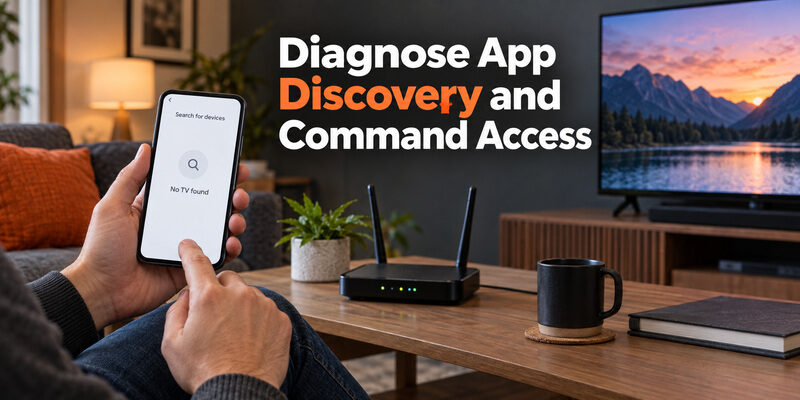
Check local connectivity first
If the app cannot find the TV, compare the network used by each device. A guest network or router isolation can prevent communication even when both devices have internet access. For a TCL Roku TV remote not working alongside a failed app connection, treat the two symptoms separately until you establish a shared cause.
Check the phone’s local-network permission when applicable, and verify that a VPN is not routing local traffic away from the home network. The phone must be able to reach the television locally. Moving both devices to a trusted, ordinary home network is a more useful test than repeatedly reinstalling the app.
Check the TV’s mobile-control setting
Roku’s documentation describes controls under System and Advanced system settings, with names such as Control by mobile apps or External Control depending on software. Some versions distinguish Limited and Enabled access. Follow the description shown on your TV rather than assuming a menu label from another version will match exactly.
If a third-party app discovers the TV but cannot send navigation commands, verify that the selected access level permits them. A TCL Roku TV remote not working should not lead you to enable broad internet-access settings. Use the local-network control option appropriate to your software and your chosen app.
Decide Between Replacement and TV Support
Replace the handset when the evidence supports it
Replacement is reasonable when a physically damaged remote or consistently failed key remains the problem after basic checks. Before ordering a generic TCL Roku TV replacement remote control, confirm that it is intended for Roku televisions and supports your model. A product for Roku streaming players is a different category.
The question “will any Roku remote work with TCL Roku TV” is too broad for a purchase decision. Roku’s accessory documentation lists compatibility by remote family and hardware version. Check the actual accessory model, especially if a listing combines several versions under one product name.
Ask for television support when multiple controls fail
When a known-compatible handset, the television’s physical controls, and a connected app all fail to produce the expected response, gather evidence for TCL support. Note the TV model, software version if accessible, startup behavior, and the checks already completed.
| Evidence | What to record for support |
|---|---|
| Remote identification | Model, IR or voice type, removable or rechargeable battery |
| Failed behavior | All buttons, navigation, voice, volume, or one key |
| Alternative controls | Whether TV buttons and phone navigation respond |
| Recent change | New remote, moved soundbar, update, or router change |
Do not promise yourself that a new handset will fix every TCL Roku TV remote not working case. If the television’s receiver or system is the cause, a replacement remote may show the same behavior. Avoid a factory reset until there is a clear reason and a workable way to complete setup afterward.
Establish a Backup Before the Next Failure
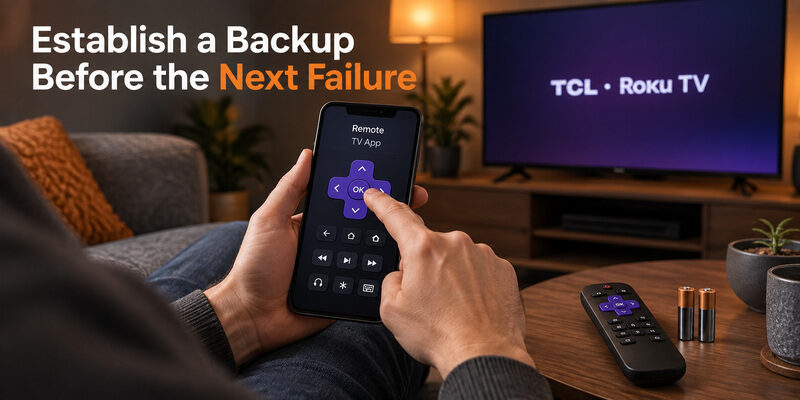
Keep a compatible phone option ready
For a supported television, can provide another way to navigate when your physical handset is unavailable. Check model support and complete any required local-control permission while a working controller is still available. Verify actual navigation after setup, not just whether the television appears in a list.
This backup is useful for a TCL Roku TV remote not working because of flat batteries or a misplaced handset. It is less useful when the TV cannot join the home network. Keep that connection limit clear so you do not discover it only after changing routers or moving house.
Keep the recovery information together
Save the television model, remote model, and successful pairing method in one note. Include where the spare batteries are kept and which app already connects. If you replace the handset, update the note rather than leaving instructions for an older remote type.
When several people use the television, show them how to reach Home and adjust volume with the backup. A TCL Roku TV remote not working then becomes a manageable interruption instead of a reason to experiment with resets. Keep the spare method simple enough that another viewer can use it without repeating the research.
Check When and Where the Failure Returns
Compare the first press after standby with normal use
Some problems appear only after the television has been idle. Note whether the first command wakes the screen and whether navigation starts working once the home interface is ready. Avoid pressing many keys during startup: queued commands can create movement that looks different from the original fault.
For a TCL Roku TV remote not working only after standby, compare a brief idle period with a normal evening shutdown. Record whether the TV indicator changes and whether a second, deliberate press works after startup. You are collecting a reproducible sequence for support, not assuming that standby behavior proves a particular hardware defect.
Record the delay with the symptom. “Home fails for a short period after the screen turns on” is more useful than “the remote is slow.” Also note whether the television was actually in standby or had been disconnected at a wall switch. Those conditions do not leave the TV in the same state.
Compare one app with the television home screen
If navigation works in the Roku home interface but fails inside a particular streaming app, exit that app and repeat the same directional presses elsewhere. A program loading slowly or a screen that does not accept the current command can feel like a remote problem. Do not replace the handset before checking whether the problem follows it across screens.
A TCL Roku TV remote not working in only one service needs a clear description of that service’s behavior. Note whether Back returns to a responsive screen, whether other apps open, and whether the phone remote produces the same failure. If both controllers fail only in the same app, report the app-specific result when seeking help.
Keep any software update investigation separate from physical-remote testing. If the problem started after an update, write down that timing without claiming the update caused it. A recent change is evidence to investigate; a repeatable test is still needed to show which component is affected.
Compare new accessories with the original room layout
Think about changes made just before the problem appeared. A newly placed soundbar can obscure the infrared receiver, a tight remote cover can press against a button, or a second controller can send unintended input. Test the suspected accessory by temporarily removing it from the situation and repeating the same simple command.
When a TCL Roku TV remote not working began after rearranging the room, compare control close to the television with control from the normal seat. A difference between those positions is more informative than another random button combination. Keep the successful arrangement clear of obstacles while you decide on a permanent placement.
For intermittent faults, make a short log with the time, screen, remote type, and result of the next test. Stop logging once a stable fix is established. The purpose is to expose a pattern that guides action, not to turn routine television use into a lengthy technical exercise.
Before requesting a replacement under an applicable support arrangement, photograph the handset label and explain the failed test in one or two sentences. State whether fresh power, direct aiming, and the correct pairing process changed the behavior. Include the television model in the same message so support does not need to guess which remote family is involved.
Do not post your home Wi-Fi password or account credentials in a public troubleshooting thread. A useful fault report needs device identity and observable behavior, not private sign-in details. Keep any order or serial information for the support channel that actually requires it.
Final Thoughts
For a TCL Roku TV remote not working, begin with power, receiver visibility, and one restart, then follow the correct IR or voice path. A remote without a pairing button may be a simple infrared unit or a newer voice model, so identify the handset before choosing the next step.
Replace only after the tests point to the remote. Keep a connected phone backup available, avoid unnecessary factory resets, and record the specific controls that fail. This approach turns a TCL Roku TV remote not working report into a sequence of practical checks with a clear reason for each action.