
Panasonic TV Factory Reset Without Remote: Complete Step-by-Step Guide
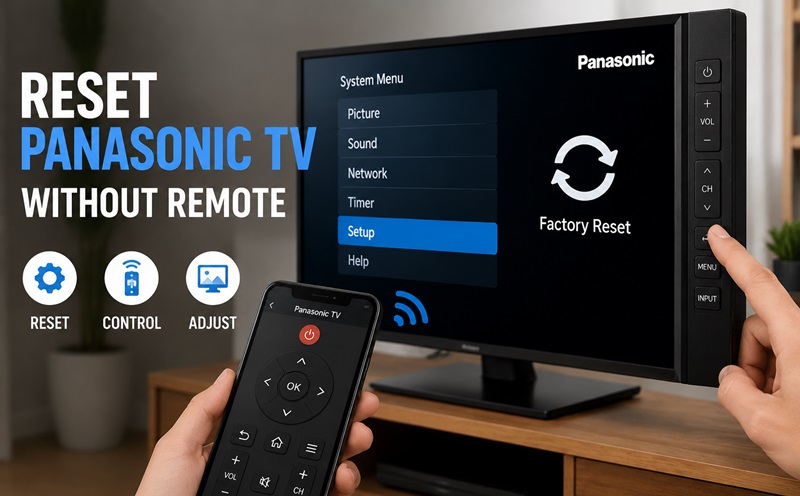
Losing your Panasonic TV remote can make simple tasks like changing settings, adjusting the picture, or performing a reset much more difficult. Many users search for panasonic tv factory reset without remote because their TV is frozen, showing incorrect settings, unable to connect properly, or stuck with unwanted configurations.
The good news is that some Panasonic TV models can be reset without the original remote by using physical buttons, mobile apps, universal remotes, or connected devices. However, the exact method depends on the Panasonic TV model, operating system, and available control options.
This guide explains how to complete a panasonic tv factory reset without remote, access menus without the original controller, control important functions, fix standby problems, and restore your Panasonic TV safely. You will also learn when a Remote TV App or replacement remote is a better solution than trying to reset the television manually.
1. Can You Factory Reset a Panasonic TV Without a Remote?
A panasonic tv factory reset without remote is possible on some models, but the available method depends on the TV design. Panasonic has released many television generations, including VIERA plasma TVs, LED LCD models, OLED TVs, and smart TV versions with different menu systems.
Before attempting a panasonic tv factory reset without remote, it is important to understand that not every Panasonic TV provides full menu navigation through physical buttons. Some models include multiple control buttons, while others only have a single joystick-style button or a power button.
How Does a Panasonic TV Work Without a Remote?
Most Panasonic TVs include physical controls that can replace some remote functions.
Common buttons include:
- Power.
- Volume Up and Down.
- Channel Up and Down.
- Input.
- Menu.
- Navigation buttons.
Using these buttons, you may be able to open Settings and complete a panasonic tv factory reset without remote if your model supports full navigation.
However, some newer Panasonic TVs simplify the physical controls. In these cases, you may only be able to:
- Turn the TV on or off.
- Change volume.
- Change input.
- Start a basic restart.
For complete factory reset access, you may need another controller.
When Do You Need a Remote Replacement?
A physical remote or alternative controller may be necessary when:
- The TV has no Menu button.
- The settings menu cannot be opened.
- Reset requires confirmation.
- The TV is locked in standby mode.
- The navigation buttons are unavailable.
- The TV is not connected to Wi-Fi.
A replacement can include:
- Original Panasonic remote.
- Universal remote.
- Smartphone remote application.
A Remote TV App may be useful if your Panasonic TV supports network control. The phone usually needs to connect to the same Wi-Fi network as the television before controlling it.
Factory Reset vs. Restart: What Is the Difference?
Many users search for panasonic tv factory reset without remote when they actually only need a restart.
These actions are different:
| Action | What It Does |
| Restart TV | Reloads the system and fixes temporary problems |
| Power cycle | Removes temporary power or software glitches |
| Network reset | Deletes saved Wi-Fi information |
| Factory reset | Restores all settings to default and removes saved data |
A factory reset will usually remove:
- Wi-Fi passwords.
- Installed applications.
- Picture settings.
- Audio settings.
- Channel lists.
- User preferences.
Before starting a panasonic tv factory reset without remote, make sure you have saved important account information and network details.
Prepare Before Resetting Your Panasonic TV
Before performing a panasonic tv factory reset without remote, prepare the following:
- Find your Panasonic TV model number.
- Check where the physical buttons are located.
- Disconnect unnecessary HDMI devices.
- Write down your Wi-Fi password.
- Make sure the TV has stable power.
- Prepare a phone or replacement remote if needed.
Different Panasonic models may use different names for reset options, such as:
- Shipping Condition.
- Factory Defaults.
- Reset to Default.
- Restore Factory Settings.
2. How to Access Panasonic TV Menu Without Remote
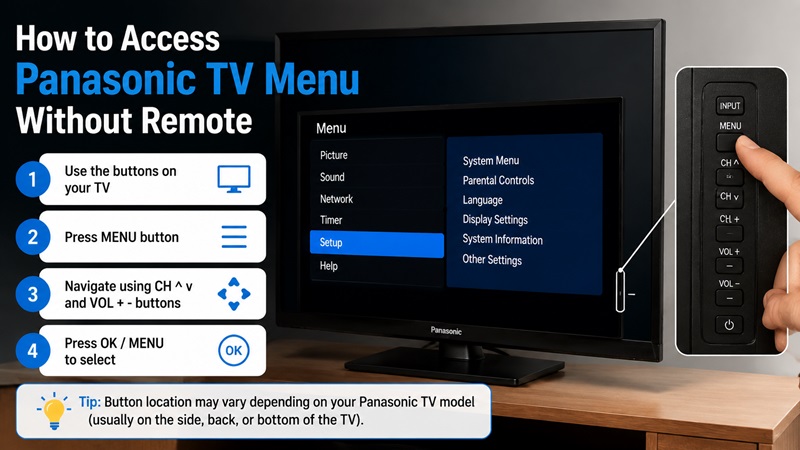
Accessing the settings menu is usually the hardest part of a panasonic tv factory reset without remote process. Without the remote, you need another way to navigate the Panasonic interface.
Use Physical Buttons on Panasonic TV
The first method is checking the built-in controls.
Physical buttons are usually located:
- Under the bottom edge of the screen.
- On the side panel.
- On the back of the television.
Follow these steps:
Step 1: Locate the Control Buttons
Look for:
- Menu button.
- Input button.
- Volume buttons.
- Channel buttons.
- Directional joystick.
Step 2: Open the Menu
Press the Menu button if available.
If your Panasonic TV uses a joystick button:
- Press the center button.
- Move left or right to navigate.
- Move up or down to select options.
- Press the center button to confirm.
Step 3: Navigate to Settings
Depending on your Panasonic model, the menu may include:
- Setup.
- System.
- Device Settings.
- Reset.
- Shipping Condition.
This allows some users to complete a panasonic tv factory reset without remote without installing additional tools.
Use Panasonic Remote App
If your TV supports smart features, a mobile remote may provide easier control.
A Remote TV App can replace many remote functions, including:
- Opening menus.
- Changing channels.
- Adjusting volume.
- Navigating settings.
General setup steps:
- Download a compatible Panasonic TV remote application.
- Connect your phone and Panasonic TV to the same Wi-Fi network.
- Open the app.
- Select your TV.
- Confirm the connection.
- Use the phone interface as a remote.
This method is especially useful when users search how to access menu on panasonic tv without remote but still have network access available.
Use a Universal Remote
A universal remote is another option for accessing Panasonic settings.
Setup process:
- Insert fresh batteries.
- Select Panasonic as the TV brand.
- Enter the correct remote code.
- Test Power and Menu buttons.
- Open Settings.
- Start the reset process.
Universal remotes are useful because they provide:
- Full menu navigation.
- Input switching.
- Volume control.
- Reset confirmation.
What If the Menu Button Is Missing?
Some Panasonic TVs do not have a dedicated Menu button.
Try these alternatives:
- Hold the Power button.
- Press the center joystick button.
- Use volume/channel buttons together.
- Connect a Panasonic-compatible remote.
- Use a Remote TV App if supported.
If none of these methods work, a replacement remote is usually the fastest solution.
3. How to Factory Reset Panasonic TV Without Remote Step by Step
A successful panasonic tv factory reset without remote requires accessing the reset menu through available controls. The exact menu names vary by Panasonic TV generation.
Method 1: Reset Using Physical TV Buttons
Follow these steps:
Step 1: Turn On the Panasonic TV
Press the physical Power button.
Wait until the home screen or live TV appears.
Step 2: Open the Settings Menu
Use:
- Menu button.
- Joystick control.
- Channel and volume navigation buttons.
Open:
Setup → System Settings → Reset
The menu name may be different depending on the Panasonic model.
Step 3: Select Factory Reset
Look for options such as:
- Factory Defaults.
- Shipping Condition.
- Reset to Default.
- Restore Settings.
Select the reset option.
Step 4: Confirm the Reset
The TV may ask:
- Are you sure?
- Restore factory settings?
- Delete all settings?
Confirm the action.
Step 5: Wait for Restart
The TV will:
- Turn off.
- Restart.
- Show the initial setup screen.
Do not disconnect power during this process.
Method 2: Reset Using a Mobile Remote
If physical buttons are difficult to use, a phone can simplify the process.
Steps:
- Install a compatible Panasonic remote application.
- Connect your phone to the same Wi-Fi network.
- Pair the app with your TV.
- Open the remote interface.
- Press Menu.
- Go to Setup.
- Choose Reset.
- Confirm factory restoration.
This is one of the easiest solutions for users searching for panasonic tv factory reset without remote because the phone provides full navigation.
Method 3: Power Cycle Before Factory Reset
A factory reset is not always necessary.
Try a power cycle first:
- Turn off the Panasonic TV.
- Unplug the power cable.
- Wait 60 seconds.
- Press and hold the TV Power button for 10 seconds.
- Plug the TV back in.
- Turn it on.
This can fix:
- Frozen screens.
- Temporary software problems.
- Standby issues.
- Remote connection problems.
Many users looking for panasonic tv factory reset without remote only need a restart instead of deleting all settings.
4. How to Control Panasonic TV Without Remote for Basic Functions
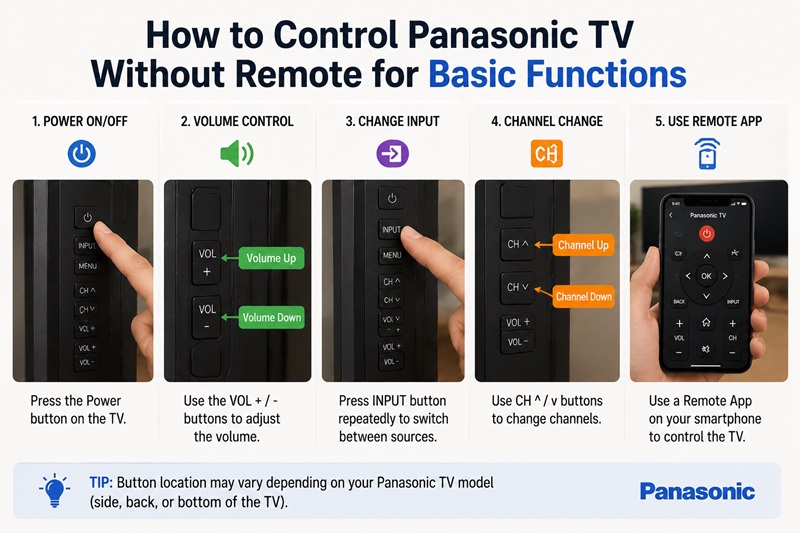
After completing or preparing a panasonic tv factory reset without remote, many users still need basic controls such as power, volume, and standby management. Fortunately, several alternatives can help you operate your Panasonic TV without the original controller.
How to Turn On Panasonic Viera TV Without Remote
Many Panasonic VIERA models include a physical power button that allows you to start the TV manually.
To turn on a Panasonic VIERA TV without a remote:
- Locate the physical control buttons.
- Press the Power button once.
- Wait for the screen to appear.
- Use available buttons to select input or adjust settings.
For older VIERA models, the power button may be located:
- Under the bottom edge of the display.
- Behind the side panel.
- On the rear control area.
If the TV does not respond, check:
- Power cable connection.
- Wall outlet.
- Power indicator light.
- Standby status.
Users searching how to turn on panasonic viera tv without remote often assume the TV is broken, but many models can still be powered on directly from the hardware button.
Another option is using a compatible mobile controller. A Remote TV App can turn your phone into a temporary Panasonic controller if the television supports network control.
How to Get Panasonic TV Off Standby Without Remote
A Panasonic TV stuck in standby is a common problem, especially after a power interruption or software issue.
If you need how to get panasonic tv off standby without remote, try these methods:
Method 1: Use the Physical Power Button
- Press the Power button on the TV.
- Wait several seconds.
- Check if the standby indicator changes.
- Wait for the TV startup screen.
Method 2: Perform a Power Reset
Follow these steps:
- Turn the TV off.
- Disconnect the power cable.
- Wait for 60 seconds.
- Press and hold the TV Power button for around 10 seconds.
- Reconnect the power cable.
- Turn the TV on.
This clears temporary electrical states that may prevent normal startup.
Method 3: Disconnect External Devices
HDMI devices can sometimes prevent proper startup.
Disconnect:
- Streaming devices.
- Game consoles.
- Soundbars.
- HDMI adapters.
Then restart the TV.
A standby issue does not always require a panasonic tv factory reset without remote. In many cases, a power cycle solves the problem without deleting settings.
How to Turn Up Volume on Panasonic TV Without Remote
Volume control is one of the most common reasons people search how to turn up volume on panasonic tv without remote.
You can adjust volume using:
Physical Volume Buttons
Most Panasonic TVs include:
- Volume + button.
- Volume – button.
Press the Volume + button repeatedly until the desired level is reached.
Smartphone Remote
A compatible Remote TV App can provide:
- Volume buttons.
- Mute control.
- Input switching.
- Menu navigation.
Universal Remote
A Panasonic-compatible universal remote can restore:
- Volume control.
- Power control.
- Menu access.
- Picture settings.
External Audio Device
If your Panasonic TV uses:
- Soundbar.
- AV receiver.
- HDMI ARC audio system.
Volume may need to be adjusted through the external device instead.
5. How to Adjust Panasonic TV Picture, Aspect Ratio, and Zoom Without Remote
Picture settings are another common challenge after losing the remote. Users often search for panasonic tv change aspect ratio without remote or panasonic tv zoom adjust without remote when the screen looks stretched, cropped, or incorrectly sized.
Panasonic TV Change Aspect Ratio Without Remote
Aspect ratio controls how images fit the screen.
Common options include:
- 16:9.
- 4:3.
- Auto.
- Zoom.
- Full.
- Just.
To perform panasonic tv change aspect ratio without remote, try:
Method 1: Use Physical Buttons
- Press Menu on the TV.
- Open Picture Settings.
- Select Screen Format or Aspect Ratio.
- Choose the correct display mode.
- Confirm the selection.
Method 2: Use a Remote App
If the TV supports network control:
- Open your Panasonic remote application.
- Connect to your TV.
- Press Menu.
- Open Picture Settings.
- Adjust Aspect Ratio.
Method 3: Use a Universal Remote
A universal controller can provide access to picture settings when the original remote is unavailable.
Panasonic TV Zoom Adjust Without Remote
A zoom problem usually appears as:
- Cut-off subtitles.
- Missing edges of the picture.
- Enlarged images.
- Stretched content.
For panasonic tv zoom adjust without remote, follow these steps:
- Open Picture Settings.
- Select Screen Format.
- Choose Auto or 16:9.
- Disable unnecessary zoom modes.
- Save the changes.
If the menu cannot be accessed:
- Use physical buttons.
- Use a remote app.
- Connect a compatible universal remote.
Why Does Picture Look Wrong After Reset?
After a panasonic tv factory reset without remote, all picture preferences return to default.
You may need to adjust:
- Brightness.
- Contrast.
- Color temperature.
- Aspect ratio.
- Zoom.
- Picture mode.
Factory reset restores the TV software state but does not automatically optimize the picture for your room or viewing preference.
6. Common Panasonic TV Problems Without Remote and Solutions
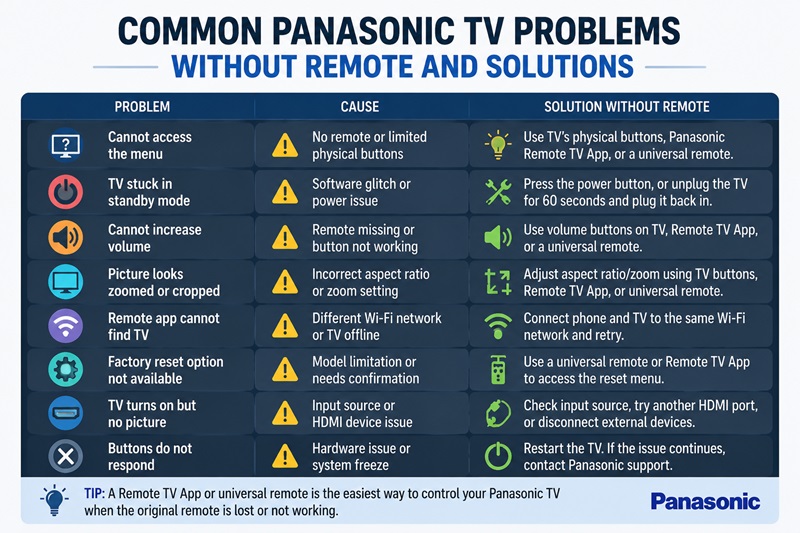
Even after following a panasonic tv factory reset without remote, users may still experience issues with navigation, power, picture, or connectivity.
The table below shows common problems and possible solutions.
| Problem | Possible Cause | Solution |
| Cannot open Panasonic menu | No remote or limited physical buttons | Use Panasonic app, universal remote, or TV buttons |
| TV stuck in standby mode | Temporary software or power issue | Perform a power cycle |
| Cannot increase volume | Remote missing or audio output issue | Use TV buttons, app, or universal remote |
| Picture is zoomed in | Incorrect aspect ratio setting | Adjust Screen Format or Zoom settings |
| TV cannot connect to remote app | Different Wi-Fi networks | Connect phone and TV to the same network |
| Factory reset option unavailable | Model requires remote confirmation | Use compatible replacement remote |
| TV buttons do not respond | Hardware issue | Restart TV and check controls |
| Remote app cannot find TV | Unsupported model or network problem | Verify compatibility and network |
| Settings reset unexpectedly | Factory reset was completed | Configure TV settings again |
| TV turns on but shows no image | Input or HDMI issue | Check source device and HDMI connection |
Remote TV App Cannot Find Panasonic TV
A Remote TV App may fail to detect your Panasonic TV because of:
- Phone and TV using different Wi-Fi networks.
- TV not connected to the internet.
- App permissions disabled.
- Unsupported Panasonic model.
- Router blocking device communication.
Try:
- Restart the TV.
- Restart the phone.
- Confirm the same Wi-Fi network.
- Update the application.
- Enable network permissions.
When Should You Buy a Replacement Remote?
A replacement remote is recommended when:
- The TV has no menu buttons.
- The TV requires confirmation during reset.
- The remote app does not support your model.
- You frequently change settings.
- The original remote is permanently lost.
A universal Panasonic-compatible remote is usually cheaper and faster than replacing the television.
Does Factory Reset Fix Every Panasonic TV Problem?
No.
A panasonic tv factory reset without remote can fix:
- Incorrect settings.
- Software configuration problems.
- Network issues.
- User preference errors.
However, it cannot fix:
- Broken hardware buttons.
- Damaged power components.
- Faulty display panels.
- Failed internal boards.
Always try simpler solutions before performing a complete reset.
7. Frequently Asked Questions About Panasonic TV Reset Without Remote
Can I Factory Reset a Panasonic TV Without a Remote?
Yes, some Panasonic models allow a panasonic tv factory reset without remote through physical buttons or alternative controllers. However, the exact process depends on your TV model.
Some TVs require a remote because the reset option needs menu navigation and confirmation.
How Do I Access Menu on Panasonic TV Without Remote?
To learn how to access menu on panasonic tv without remote, try:
- Physical Menu button.
- Joystick control.
- Panasonic remote app.
- Universal remote.
If your TV only has a Power button, a replacement controller may be required.
How Do I Turn On Panasonic Viera TV Without Remote?
For how to turn on panasonic viera tv without remote, press the physical Power button located on the TV body.
If the TV does not start:
- Check power connection.
- Perform a power cycle.
- Remove HDMI devices.
Can I Change Panasonic TV Aspect Ratio Without Remote?
Yes. For panasonic tv change aspect ratio without remote, use:
- Physical buttons.
- Remote application.
- Universal remote.
Access Picture or Screen Format settings and select the correct option.
How Do I Fix Panasonic TV Zoom Without Remote?
For panasonic tv zoom adjust without remote, open Picture Settings and change Screen Format or Aspect Ratio.
If you cannot access the menu:
- Use a phone app.
- Use a universal remote.
- Connect a replacement Panasonic remote.
Can a Remote TV App Replace a Panasonic Remote?
A Remote TV App can replace many functions, including:
- Volume.
- Navigation.
- Menu access.
- Input selection.
However, compatibility depends on your Panasonic TV model and network features.
Will Factory Reset Delete Everything?
Yes.
A factory reset removes:
- Wi-Fi settings.
- Installed apps.
- Accounts.
- Picture settings.
- Audio settings.
- Channel configurations.
After completing a panasonic tv factory reset without remote, you will need to complete the initial setup again.
Conclusion
A panasonic tv factory reset without remote is possible for many Panasonic models, but the available method depends on your TV design. Physical buttons, smartphone controllers, and universal remotes can help you access settings when the original remote is unavailable.
Before resetting, try simpler solutions such as restarting the TV, checking power connections, or reconnecting the network. If you need a full reset, follow the correct steps for your Panasonic model and prepare to configure your settings again.
For users who frequently lose remote access, a reliable Remote TV App or replacement remote can make controlling Panasonic TVs much easier.
Following the correct method ensures that your panasonic tv factory reset without remote is completed safely without unnecessary troubleshooting or data loss.
Download the ultimate Remote TV App and control your favorite smart TVs with ease. Whether you use LG, Sony, Samsung, TCL, Hisense, Philips, Roku TV, Android TV, Google TV, or many other popular brands, our app lets you turn your smartphone into a powerful TV remote in seconds. Enjoy quick setup, an intuitive interface, and convenient features like touchpad navigation, keyboard input, volume control, channel switching, and more. Download the Remote TV App today and take full control of your TV—no physical remote required.
Download Remote TV App Now