
Free Fire TV Remote App for Android and iPhone
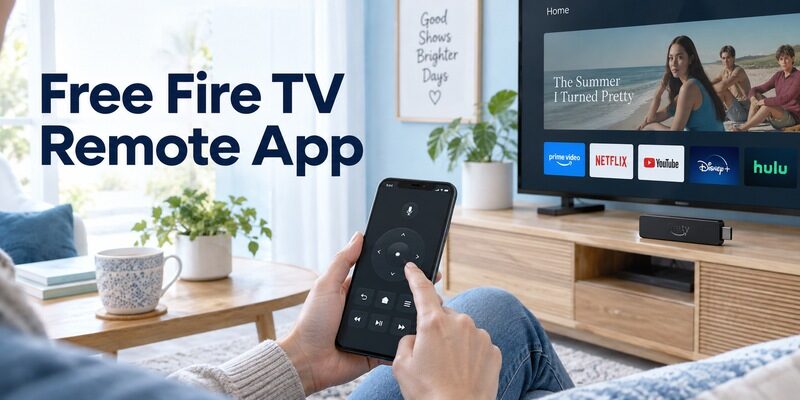
Short answer: Download Amazon’s official Fire TV app to use a free mobile remote with a compatible Fire TV device.
The free Fire TV remote app is a useful replacement for everyday navigation when the physical handset is missing or inconvenient. Your phone and Fire TV must have a supported connection, and first-time setup can still require the on-screen pairing process.
Use the Amazon-published application rather than assuming every store result with Fire TV in its name is official or free to operate. This guide explains current setup, separates Fire TV control from television power and sound, and covers discovery problems, changed Wi-Fi, and replacement-remote pairing. It also shows why a factory reset is usually a poor first response to losing the handset.
Install the Official Free Fire TV Remote App
Choose the Fire TV application published by Amazon. Amazon’s mobile app listing and support guidance describe using a phone as a controller for compatible Fire TV devices.
1. Open your phone’s app store: Search for Amazon Fire TV.
2. Check the publisher: Confirm that the listing belongs to Amazon rather than a similarly named developer.
3. Review compatibility: Check the required Android or iOS version and regional availability.
4. Install and sign in: Follow the official app’s account workflow.
5. Open the remote area: Select the remote control section before trying to connect a device.
A free Fire TV remote app download belongs on the phone. It is not a television app you need to sideload onto the Fire TV before basic mobile control can work.
If a listing asks for a recurring payment just to reveal the remote screen, check its publisher again. Independent apps can charge for their own service, but that does not establish a required payment for Amazon’s official mobile remote.
Download TV Remote AppConnect the Phone to Fire TV
Prepare the device and screen
Power on the television and Fire TV device, then select the HDMI input used by an external Fire TV Stick if applicable. Make sure the Fire TV has completed the network setup required for discovery.
For the free Fire TV remote app, connect the phone to the same Wi-Fi network. Amazon’s support instructions explicitly use this shared-network arrangement. Being in the same room or using mobile data does not establish that local connection.
Complete the current pairing prompt
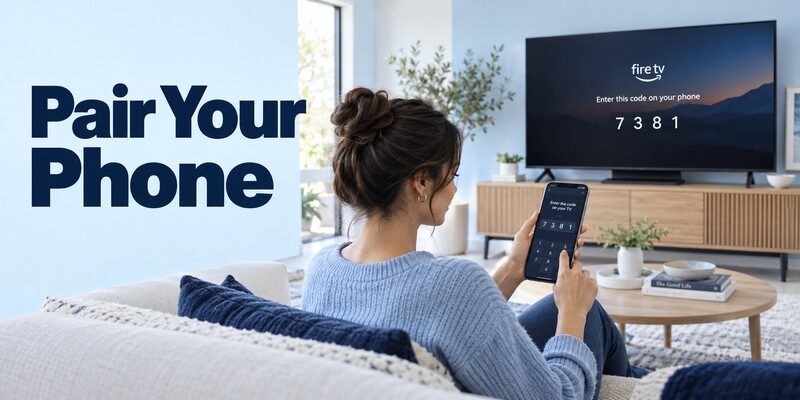
Open the app’s remote area, choose the Fire TV device, and follow the displayed setup request. Enter the code shown on the television when asked. The exact location of the device selector can change with app updates, so follow the current screen rather than an old screenshot.
Use the code from your own TV at that moment. A code printed in an online article is not a permanent pairing password. If the request expires, start a new connection attempt and use the newly displayed code.
Choose the Correct Device in a Multiroom Home
Identify a Stick versus a Fire TV television
An external Fire TV Stick and a television with Fire TV built in are different control targets. The mobile app can navigate the Fire TV interface, but available television-level controls depend on the equipment and supported features.
A free Fire TV remote app connection to the living room Stick does not automatically control another television with the same account. Select the actual device in the room before sending Power or playback commands.
Use clear device names
When several entries appear, choose a name tied to a room or identifiable device. Keep a record of which Fire TV is attached to which television. This avoids mistaking another household member’s screen for the unresponsive device you are trying to fix.
Test with one harmless navigation command. A moving highlight on the intended TV is better confirmation than repeatedly changing volume or launching content until someone in another room notices.
| Target | Primary mobile-control scope | Separate check |
|---|---|---|
| Fire TV Stick | Fire TV navigation and supported playback | TV power, input, and audio path |
| Television with Fire TV built in | Supported built-in Fire TV controls | Model-specific television functions |
| Another HDMI device | Its own supported controller | Fire TV app is not its universal remote |
If a device name is ambiguous, check its settings or account device information while you still have a reliable control. Rename it through the supported route where available. Avoid using Power to identify an unknown screen because it may interrupt someone else’s viewing. A single navigation test on the visible television is easier to observe and undo.
Use Navigation Keyboard and Playback
Directional controls and Back
Try moving through the Fire TV Home interface and returning from a menu. Use whichever directional or gesture mode the current app provides. Make deliberate taps while confirming responsiveness instead of sending many commands during a temporary delay.
A free Fire TV remote app can be convenient for routine browsing, but touch controls feel different from physical buttons. Choose a supported layout that makes selection predictable for the person who will actually use it.
Text entry and search
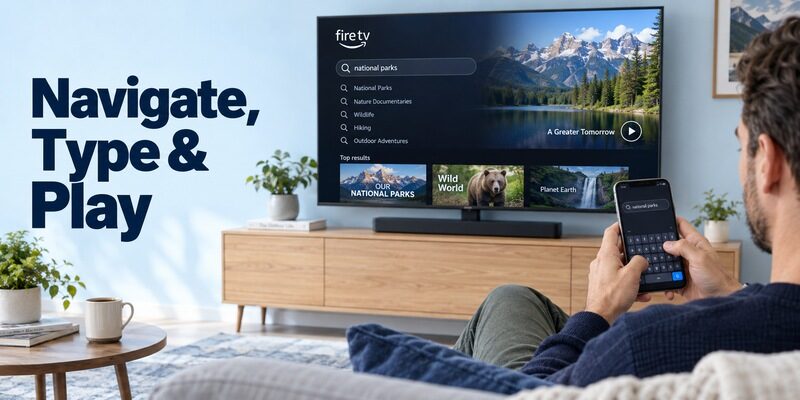
Where supported, open a search field and use the phone keyboard. Test with ordinary text before assuming the same behavior works in every streaming app. Some services draw their own keyboard or sign-in interface.
Keyboard support is field-dependent. If typing works in Fire TV search but not in one subscription service, investigate that application’s input behavior. Re-pairing the entire free Fire TV remote app connection is unlikely to be the most informative first test.
Playback controls
Check Play, Pause, and other available controls in the content service you normally use. A live channel can behave differently from an on-demand movie, and some services restrict seeking or skipping.
Do not interpret a disabled playback action as proof that the remote connection failed. Compare a basic Home or Back command first. This separates application rules from the phone’s ability to reach the Fire TV device.
Include an interruption in your control test. Switch briefly to another phone task, return to the remote, and check that the same Fire TV remains selected. This catches a usability problem that a continuous first-run session can hide. If the app returns to content browsing, reopen the remote area before assuming the connection has vanished.
The free Fire TV remote app is especially useful when text entry is the main frustration with a physical handset. Keep that advantage separate from claims about universal keyboard support: a phone keyboard still needs the television application to accept the input.
Understand the Redesigned App and Content Browsing
Remote controls and discovery screens
Amazon’s 2026 Fire TV announcements describe an expanded mobile experience that includes content discovery alongside remote use. You may therefore land on browsing or account content rather than seeing a full remote immediately after opening the app.
Find the remote area before troubleshooting a missing button. A content-browsing screen is not the remote keypad. This distinction matters when an older tutorial shows the remote as the application’s only primary screen.
Free control and paid entertainment
The free Fire TV remote app does not include every movie, channel, or subscription shown in its discovery interface. Content availability depends on the relevant service, region, and account entitlements.
If selecting a title produces a rental or subscription offer, identify which provider is making the offer. That charge is different from paying for the ability to navigate the Fire TV with your phone.
Check Volume Power and HDMI Limits
A physical remote may use a separate signal
A Fire TV handset can have equipment-control functions that are distinct from navigating the Fire TV device. A phone application should not be assumed to reproduce every infrared command that the physical handset sends to a TV or receiver.
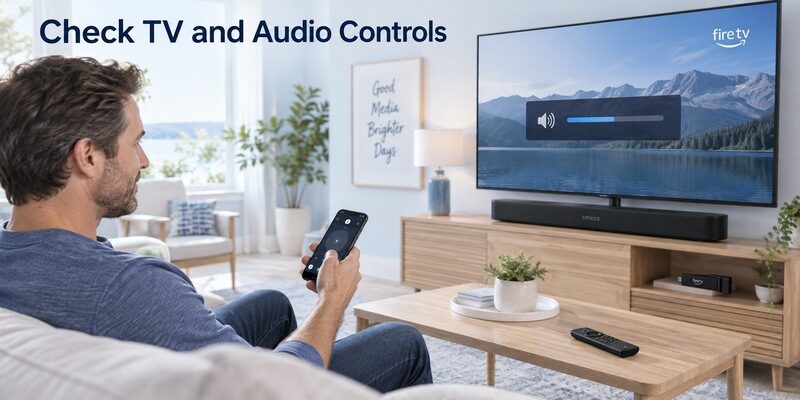
For a free Fire TV remote app, test television power and sound independently. The presence or absence of a volume button depends on the supported device and interface, not merely on successful Fire TV pairing.
External audio and television input
If sound comes from a soundbar or receiver, identify that route before diagnosing a volume failure. Keep its compatible controller available. Likewise, an external Stick cannot be seen if the television is switched to the wrong HDMI input.
Preserve a television-level control option. The free Fire TV remote app may restore streaming navigation while a physical TV remote or supported TV app is still needed for Input, audio configuration, or power recovery.
Configure iPhone and Android for Discovery
iPhone Local Network permission
For a free Fire TV remote app for iPhone, allow the relevant Local Network permission when prompted. If the TV never appears after access was denied, review the permission in iPhone settings and retry discovery.
The phone can still sign in to Amazon or browse the web while local discovery is blocked. Those successful internet tasks do not prove it is allowed to find your Fire TV on the home network.
Android and network selection
For a free Fire TV remote app for Android, confirm the actual Wi-Fi network and follow the current app permission prompts. A phone that silently switches to a guest network or mobile data may no longer share the expected local connection.
Keep permissions tied to the feature being used. Microphone access supports relevant voice functions; it is not the same thing as a successful device connection. Diagnose basic navigation first, then evaluate optional features separately.
Fix Missing Devices and Repeated Pairing Requests
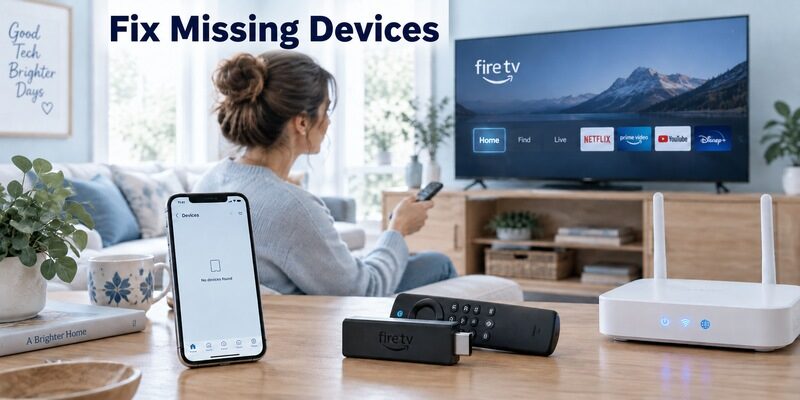
| Symptom | Useful first check | Next step |
|---|---|---|
| No Fire TV appears | Same Wi-Fi and device powered on | Review app permissions and network isolation |
| Wrong device responds | Selected device name | Return to device selection |
| Code fails | Current code on the intended television | Restart that pairing request |
| One app ignores playback buttons | Application behavior | Test Home or Back |
Restore a simple connection first
Close and reopen the Fire TV app, verify the selected device, and confirm the TV is awake. If a VPN interferes with local access, temporarily test without it, then restore the preferred setting after diagnosis.
A free Fire TV remote app issue should be narrowed by stage. Downloading another app does not solve an offline Stick, and resetting the TV does not correct a denied permission on the phone.
Check what changed
If control stopped after a router replacement, inspect the network configuration before removing app data. If only one phone fails, compare its permissions and app version with the working device. This helps avoid unnecessary changes to the television.
Keep a working connection intact where possible. Removing a saved device or clearing the application can trigger a fresh authorization step, which may be inconvenient when the physical remote is already missing.
Recover After Wi-Fi Changes or a Lost Handset
The Fire TV must be reachable
If a Fire TV has forgotten the network or is at first-time setup, a normal local mobile remote connection may not be available. You may need a compatible physical handset or another supported setup route to restore connectivity.
The free Fire TV remote app online search phrase should not be read as a promise of browser-based control from anywhere. The documented mobile workflow depends on its stated connection requirements and cannot simply discover an offline device through the internet.
Avoid unsupported download shortcuts
A free Fire TV remote app APK search is not required for ordinary installation when the official phone-store version is available. Check the supported app listing before considering any alternate package, particularly if its publisher or update history is unclear.
Do not reset the Fire TV to solve a missing handset. A reset may remove the existing network and account setup, leaving fewer control options than before. Establish a working recovery controller first.
Pair a Replacement Remote Through the App
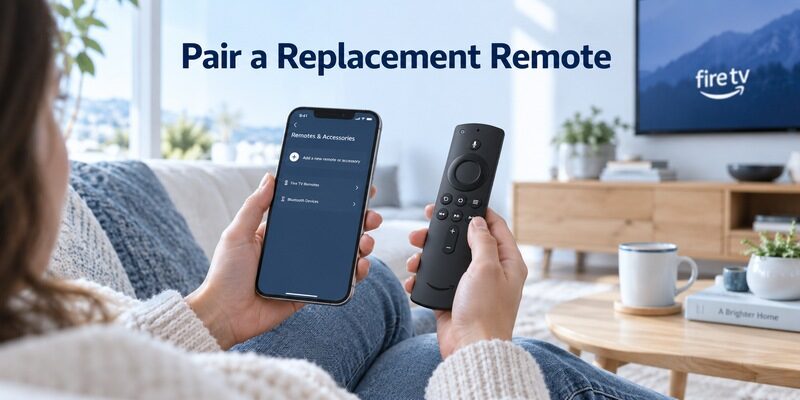
Open the supported remote settings
When the mobile connection already works, Amazon documents using it to navigate to Settings, then Controllers & Bluetooth Devices and Amazon Fire TV Remotes. Choose the option to add a new remote and follow the instructions for the compatible replacement.
This is a concrete benefit of the free Fire TV remote app: it can supply the navigation needed to register a new physical handset. It does not make an incompatible replacement compatible with the Fire TV hardware.
Verify the replacement before ending setup
Test direction, selection, Home, and Back on the new handset. Check voice and television equipment controls separately where supported. Keep the phone connection available until the replacement has passed the functions you need.
Save the working device and remote model details. If the next handset fails, you will know what was compatible instead of choosing only by appearance. A free Fire TV remote app remains useful as a second controller after replacement.
Keep a Supported Alternative Available
A television app can complement Fire TV control
If the mobile Fire TV connection handles streaming navigation but not a television setting, a compatible app for the television itself may help. Match that app to the TV platform and verify its connection requirements independently.
Remote TV App can be considered for supported television models as a separate backup interface. Check for current compatibility and feature terms rather than assuming it replaces every Fire TV or TV command.
Choose a backup for your actual failure
A physical remote helps when networking is unavailable. A second authorized phone helps when the usual phone is charging. A TV-specific controller helps with an external Stick’s input or sound limitations. Choose the backup that covers the missing control path.
For wider options, the guide compares common platform routes. Keep the official free Fire TV remote app as the baseline when the device you need to navigate is Fire TV.
Before returning a borrowed remote or putting the replacement away, verify the entire routine once more. Open the correct source, navigate to content, adjust the actual sound system, and exit safely. Record any task that still requires another controller. A backup is useful when its role is clear, especially for someone who did not complete the original setup.
Frequently Asked Questions
Is the Fire TV remote app free?
Yes. Amazon provides its official Fire TV mobile app as a free download with remote functionality for compatible devices. Paid streaming content and independently developed remote apps have separate terms. Verify the publisher before interpreting a subscription prompt as an Amazon requirement.
Is there a free remote app for Firestick?
Yes. The official Amazon Fire TV app is the starting point for compatible Fire TV Stick devices. The phone and Stick need the documented network connection, and you must complete any pairing prompt before using the phone for navigation.
Can the app work without the original remote?
Yes, when the Fire TV is already reachable and the connection process can be completed. If the device is offline or at initial setup, another supported controller may be necessary first. Preserve an existing connection rather than resetting the device prematurely.
Can I control TV volume with every Fire TV app connection?
No. Volume depends on the device, app controls, and audio arrangement. An external Stick’s navigation connection does not guarantee television or receiver volume control. Keep the appropriate physical or supported TV-specific controller available for those functions.
Final Thoughts
Use Amazon’s official free Fire TV remote app, connect to the correct device, and finish the on-screen pairing process. Test streaming navigation separately from television power, input, and sound.
Keep the working mobile connection available when adding a replacement handset. If Wi-Fi or initial setup blocks discovery, restore a supported control path first instead of erasing settings or searching for an app that promises to bypass missing connectivity.
Download TV Remote App