
Android TV Remote Control iOS: How to Control Android TV From an iPhone
Lost your Android TV remote or need a faster way to type on the big screen? An android tv remote control ios solution lets you use your iPhone to navigate menus, search for content, control playback, and manage compatible Android TV devices over Wi‑Fi. This guide explains the quick setup, essential requirements, and practical fixes when your iPhone cannot connect to the TV.
1. Quick Answer: Can an iPhone Control Android TV?
Yes. An android tv remote control ios setup lets you use an iPhone or iPad to navigate an Android TV, Google TV, or compatible smart TV. In most cases, you only need a remote app and a shared Wi-Fi network. Your iPhone and TV must be connected to the same router so the app can detect the television and send commands.
The fastest approach is simple: install a compatible android tv remote control ios app on your iPhone, open it, select your TV from the detected-device list, and enter the pairing code shown on the TV screen if requested. Once connected, you can normally use a directional pad, touchpad, keyboard, volume controls, home button, back button, and media playback controls.
An iPhone cannot generally control Android TV through the built-in Apple TV Remote in iOS Control Center. That Apple feature is designed for Apple TV hardware. For Android TV, you need a compatible manufacturer app, Google-supported option, or trusted third-party remote application.
This guide explains how an android tv remote control ios connection works, what you need before pairing, and how to solve the problems that commonly prevent an iPhone from finding or controlling a TV.
Download LG TV Remote2. How Android TV Remote Control on iOS Works
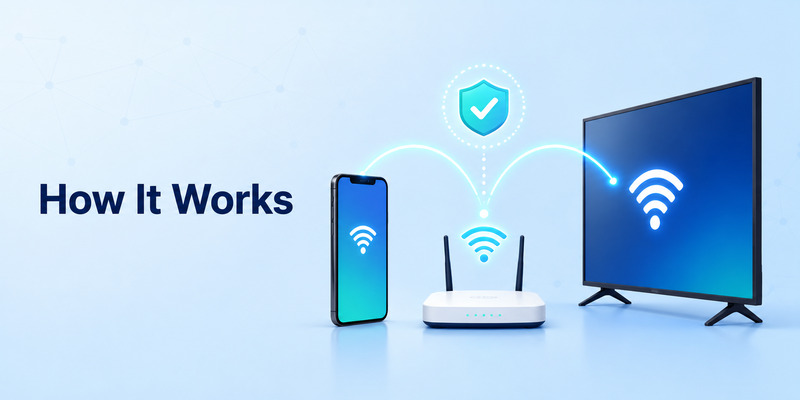
An android tv remote control ios tool usually sends commands through your home Wi-Fi network. Unlike a classic infrared remote, your iPhone does not need to point directly at the television. It communicates with the Android TV device through the same local network.
That makes the experience convenient. You can control the TV from another part of the room, type search terms from your iPhone keyboard, and avoid hunting for a physical remote when it gets lost between sofa cushions.
Wi-Fi is the core connection
For an android tv remote control ios setup to work, both devices must join the same network. If your iPhone uses mobile data, a guest Wi-Fi network, or a different router, the app may not detect your TV.
Some homes have separate 2.4 GHz and 5 GHz Wi-Fi names. These can still work, but certain router settings may isolate connected devices. If your app cannot find the television, place both devices on the same named network first.
Bluetooth is not always required
Most iPhone remote apps use Wi-Fi rather than Bluetooth. Bluetooth may be involved for some TV accessories or initial manufacturer-specific functions, but the standard remote connection is normally network-based.
This is why restarting the router, switching networks, or disabling a VPN can often solve an android tv remote control ios problem more effectively than restarting the app repeatedly.
Compatibility depends on the TV platform
Android TV, Google TV, Fire TV, Roku TV, and brand-specific smart TV systems are not identical. A remote app that works with one platform may not work with another.
Before installing an app, confirm that your television uses Android TV or Google TV. You can usually find this under Settings > Device Preferences, Settings > System, or the TV’s product information page. If your TV uses a different operating system, choose an app designed for that platform instead.
🛠️ Learn with Step-by-Step Guides: Apple TV Remote Icon: What It Means and How to Use It
3. What You Need Before Connecting Your iPhone
Setting up an android tv remote control ios app is easier when you check a few essentials first. Most connection errors happen because one of these requirements is missing.
An iPhone or iPad with current iOS
Update your iPhone when possible. Newer iOS versions may improve Wi-Fi stability, app permissions, and compatibility with updated remote applications. You do not always need the newest iPhone model, but an up-to-date operating system reduces avoidable issues.
An Android TV or Google TV connected to Wi-Fi
Your TV must be switched on and connected to the internet or local network. If the TV has no network connection, an android tv remote control ios app cannot discover it.
Use the physical remote, TV buttons, or Ethernet connection to confirm the TV is online. If Wi-Fi is weak, move the router closer, restart it, or use a stable wired connection for the television if available.
The same local network
Check the Wi-Fi name on your iPhone through Settings > Wi-Fi. Then confirm the Android TV network in the TV’s network settings. The names should match exactly.
Avoid guest Wi-Fi for either device. Guest networks often prevent connected devices from communicating with one another for security reasons. Your phone may still browse the web normally, but the remote app will not locate the TV.
Permission to use the local network
When you first install an android tv remote app ios option, iOS may ask for Local Network permission. Tap Allow. If you denied it earlier, go to Settings > Privacy & Security > Local Network and enable access for the relevant app.
Without this permission, the app may show an empty device list even when the TV and iPhone are on the same Wi-Fi.
💡 Discover Helpful Guides
Apple remote tv app: Complete Apple TV Remote Guide for iPhone, Siri Remote, Pairing & Fixes
4. Set Up an Android TV Remote Control iOS App
The precise screens vary by app and TV brand, but the setup process for an android tv remote control ios connection is usually very similar.
Step 1: Install a compatible remote app
Search the App Store for a remote that clearly states Android TV or Google TV compatibility. Read the compatibility description before downloading. Avoid choosing an app only because its name says “universal remote”; some universal remote apps support only a limited set of TV brands.
A good android tv remote for ios app should explain what TV systems it supports, whether it needs Wi-Fi, and which features require a subscription.
Step 2: Open the app and allow access
Open the remote application. Approve Local Network access if iOS asks. The app may also request Bluetooth or notification access. Bluetooth is optional for many setups, while notifications are generally not required for basic remote controls.
Step 3: Scan for your TV
Tap options such as Connect, Add Device, Scan, or Choose TV. Keep your television awake while scanning. If the TV is in deep standby mode, it may not appear.
When the app displays your TV name, select it. If there are multiple TVs at home, double-check the room name or model before pairing.
Step 4: Enter the code shown on the TV
Many apps display a pairing code on the television screen. Enter that code on your iPhone to approve the connection. This protects the TV from being controlled by every phone connected to the network.
Once pairing finishes, the android tv remote control ios interface should open automatically. Test the directional buttons, Select button, Home button, and Back button before relying on it as your main remote.
Step 5: Save the connection
If the app offers a remembered-device or favorite-TV option, enable it. This lets the app reconnect faster next time. However, if you change routers, reset the TV network, or use a new iPhone, you may need to pair again.
💡 Discover Helpful Guides: Apple TV Remote Replacement: Buying and Setup Guide
5. Use the Main Remote Features From iPhone
A well-designed android tv remote control ios tool can do more than basic navigation. The best functions reduce friction when searching, streaming, and managing TV settings.
Directional pad and Select button
The directional pad replaces the arrow buttons on a physical remote. Use it to move through streaming apps, Android TV settings, and content rows. Tap the center Select button to open an app, play a show, or confirm a setting.
This is the feature you will use most often, so test it first after setting up your android tv remote ios connection.
Touchpad controls
Some apps offer a swipe-based touchpad instead of, or alongside, a directional pad. This can feel faster when moving through long menus. Other people prefer dedicated arrows because they provide more precise control.
If your TV responds too quickly or skips items, switch between touchpad and D-pad mode in the app settings. Not every Android TV handles swipe gestures in the same way.
📘 Find the Right Guide: Apple TV Remote iPad: How to Set Up and Control Apple TV From Your iPad
Keyboard input
Keyboard support is one of the strongest reasons to use an iPhone as a remote. Instead of slowly typing with an on-screen TV keyboard, you can enter search terms, passwords, app names, and Wi-Fi details directly from your phone.
When a text field appears on the TV, the android tv remote control ios app may open a keyboard automatically. If it does not, look for a keyboard icon in the remote interface.
Home, Back, and app navigation
A useful remote should include Home, Back, Power, and recent-app controls. These shortcuts help you return to the Android TV home screen, leave an app, or move through settings without using the television’s physical buttons.
An ios remote for android tv may label the buttons differently, but the functions should remain clear. Spend a minute learning the layout before you need to troubleshoot an urgent issue.
Volume and playback
Play, pause, rewind, fast-forward, mute, and volume controls may work through the TV itself, HDMI-CEC, or an attached audio device. If navigation works but volume does not, the issue may be related to your soundbar or receiver rather than the remote app.
💡 Discover Helpful Guides: How to Reset Your Apple TV Remote: Pairing, Volume, and No-Remote Fixes
6. Fix Android TV Remote Control iOS Connection Problems
When an android tv remote control ios app does not find your television, work through the fixes below in order. Start with the simplest steps before resetting your TV or reinstalling multiple apps.
Confirm both devices use the same Wi-Fi
This is the most common fix. On iPhone, open Settings > Wi-Fi. On Android TV, open its network settings. Reconnect both devices to the same network and avoid guest Wi-Fi.
Also turn off a VPN temporarily. Some VPN services route traffic in ways that block local-device discovery.
Restart the iPhone, TV, and router
Restarting removes temporary connection errors. Turn your iPhone off and back on. Restart the Android TV through its settings menu or unplug it briefly if you cannot access the menu. Then restart the router if other network devices are also behaving unpredictably.
After restarting, open the android tv remote control ios app and scan again.
Check Local Network permission
If an app is installed but shows no devices, check iPhone permissions. Go to Settings > Privacy & Security > Local Network and make sure the app is enabled.
You can also open Settings, scroll to the app name, and review its available permissions. Turn on Local Network access, then close and reopen the app.
Keep the TV awake during setup
Some Android TV models stop advertising themselves on the network while in deep sleep mode. Turn the TV on manually and wait for the home screen before scanning. If the screen is black but the TV is technically on, press a physical button or use the TV’s original remote to wake it fully.
Update the TV software
Old TV firmware can create compatibility issues with a newer android tv remote control ios application. Check Settings > System > About > System Update, though the exact menu name varies by television.
Install updates only when you have a stable connection and enough time for the TV to restart. Do not disconnect power while an update is in progress.
Forget and pair again
If the app previously worked but no longer connects, remove the TV from the app’s saved-device list and pair it again. This is helpful after a router replacement, network reset, software update, or changed TV name.
An ios remote control android setup can also fail when the TV has too many old paired devices. Removing unused entries may restore a clean connection.
📖 Explore Articles: Apple TV Remote for iPhone: How to Set Up and Use Your iPhone as an Apple TV Remote
7. Choose a Safe and Reliable iOS Remote App
Not every android tv remote control ios app delivers the same experience. Some offer only basic controls, while others add keyboards, casting tools, voice input, channel shortcuts, or device management.
Check supported TV systems first
The app description should specifically mention Android TV or Google TV. If your television uses another platform, such as Fire TV, Roku TV, Samsung Tizen, or LG webOS, choose an app made for that system.
Do not rely only on screenshots. Read the compatibility section and recent user reviews to see whether the app works with your TV version.
Avoid unnecessary permissions
A remote app normally needs Local Network access. It may optionally request Bluetooth access. Be cautious if an app asks for permissions that do not fit its purpose, such as access to unrelated personal data.
A trustworthy android tv remote service ios option should clearly explain why it needs each permission and give you usable basic controls without confusing setup screens.
Review pricing before subscribing
Some remote apps are free with ads, while others require a subscription for premium features. Check the App Store purchase details before starting a trial. A paid option can be worthwhile if it supports multiple TVs, provides reliable keyboard input, and has no disruptive ads—but only if those features are useful to you.
Look for practical features
For most homes, the best android tv remote ios app includes:
- Quick TV discovery on Wi-Fi
- D-pad and touchpad modes
- Keyboard input
- Home, Back, Play, Pause, and volume controls
- Clear pairing instructions
- Stable reconnection to saved TVs
A Remote TV App can be especially useful as a backup when the physical remote is missing, its batteries are dead, or its buttons are unreliable. Still, keep the original remote available for first-time TV setup, Wi-Fi changes, and rare cases where a third-party app cannot connect.
📘 Find the Right Guide: Apple TV Remote Volume Not Working? Here’s How to Fix It
8. FAQs and Final Thoughts
Can I use an iPhone as an Android TV remote without Wi-Fi?
Usually, no. Most iPhone remote apps communicate with Android TV through the local Wi-Fi network. Unlike some Android phones, iPhones generally do not include an infrared blaster for direct IR control.
Why can my iPhone not find my Android TV?
The likely causes are different Wi-Fi networks, guest-network isolation, disabled Local Network permission, a VPN, or an Android TV that is asleep. Confirm the shared network first, then restart both devices.
Does every Android TV support iPhone remote apps?
Not necessarily. Compatibility depends on the TV operating system, model, firmware, and app. Android TV and Google TV are the most relevant platforms for this article, but individual app support can still vary.
Is it safe to use a third-party TV remote app?
It can be, if you choose a reputable app, read its privacy details, grant only necessary permissions, and review subscription terms before accepting a trial. Prefer apps with clear compatibility information and transparent pricing.
Can I type on Android TV from my iPhone?
Yes, many compatible apps include keyboard support. This can make searching for movies, signing in to streaming apps, and entering passwords much faster than using a physical TV remote.
An android tv remote control ios solution is a practical way to control Android TV when you have an iPhone but cannot find the original remote. The essential rule is simple: keep the iPhone and TV on the same Wi-Fi network, allow local-network access, and use an app that explicitly supports your TV platform.
If the connection fails, do not reset the television immediately. Check Wi-Fi, permissions, VPN settings, and TV sleep mode first. With the right setup, an android tv remote control ios app gives you dependable navigation, keyboard input, playback controls, and a convenient backup remote whenever you need it.
Download LG TV Remote