
iOS Remote Control: Turn Your iPhone or iPad Into a Smart TV Remote
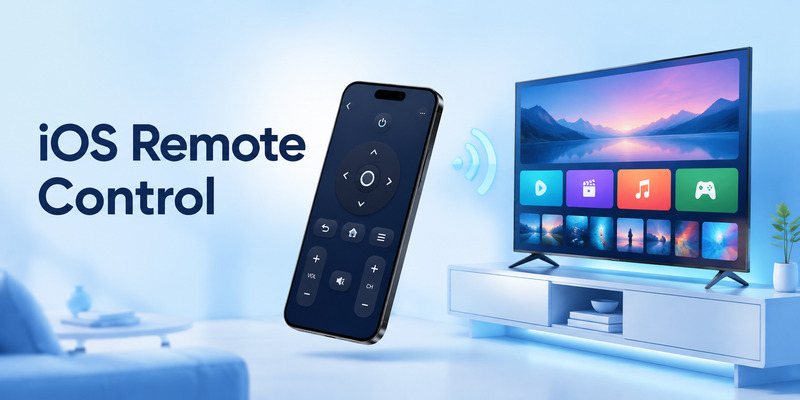
Lost your TV remote or tired of typing with directional buttons? An ios remote control app lets you control a compatible smart TV directly from your iPhone or iPad. With the right app and a shared Wi-Fi connection, you can navigate menus, adjust playback, enter text quickly, and keep watching without relying on the physical remote.
1. Quick Answer: Can iPhone Control a TV?
Yes. An ios remote control app can turn your iPhone or iPad into a practical remote for many smart TVs, streaming devices, and media boxes. Once your phone and TV are connected to the same Wi-Fi network, you can usually navigate menus, launch apps, type passwords, adjust playback, and control volume without using the original remote.
This is useful when the physical remote is lost, has a dead battery, or simply feels slow when you need to search for a movie. A reliable ios remote control solution also gives you a convenient backup remote that stays with you on your phone.
The exact setup depends on your TV brand and the app you choose. Some televisions work best with their official mobile app, while universal remote apps can support multiple TV brands from one interface.
Download LG TV Remote2. What Is an iOS Remote Control?
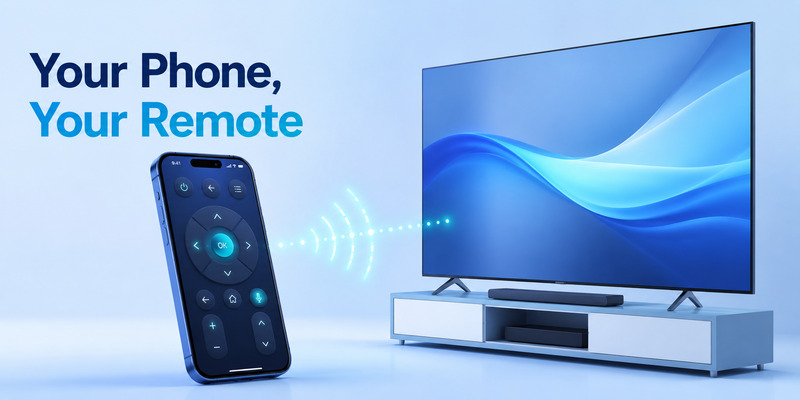
An ios remote control is an app-based remote interface that lets an iPhone or iPad communicate with a compatible television through your home network. Instead of pressing buttons on a physical controller, you tap buttons, use a touchpad, or type directly on your phone screen.
For most modern smart TVs, the connection happens over Wi-Fi. Your iPhone does not need an infrared transmitter, because the app sends commands through the local network. That is why your TV and phone usually need to be connected to the same router.
A typical ios remote control app can include:
- Directional arrows or a touchpad
- Home, Back, Menu, and Input controls
- Play, pause, rewind, and fast-forward buttons
- Volume and mute controls
- A keyboard for text entry
- App shortcuts
- Voice-search options on supported devices
- A device list for switching between TVs
An ios remote control tool is not limited to emergency use. Many people prefer it for typing into streaming apps, because an iPhone keyboard is much faster than selecting letters one by one with a physical remote.
🛠️ Learn with Step-by-Step Guides: Apple remote tv app: Complete Apple TV Remote Guide for iPhone, Siri Remote, Pairing & Fixes
3. How an iOS Remote Control App Works
Most ios remote control apps find compatible TVs on your local network. When you open the app, it scans for devices that are connected to the same Wi-Fi connection. You select your TV, confirm a pairing request if necessary, and begin controlling it.
The setup process may look slightly different across brands, but the basic flow is similar:
- Install a compatible app on your iPhone or iPad.
- Connect the phone and TV to the same Wi-Fi network.
- Open the app and allow Local Network access.
- Select the television from the discovered-device list.
- Enter or approve the pairing code shown on the TV.
- Test navigation, volume, and keyboard input.
A network-based ios remote control setup works within your home Wi-Fi environment. It is not normally designed to control a TV from another city or over mobile data. If an app claims that it can connect to any television anywhere without configuration, review its privacy policy and feature details carefully.
For everyday viewing, an ios tv remote control app can be much more responsive than you expect. The phone acts as a command center, while the TV receives instructions through the same network used for streaming video.
💡 Discover Helpful Guides
Apple TV Siri Remote: Complete Guide to Features, Generations, Pairing, and Everyday Use
4. What You Need Before Connecting Your iPhone
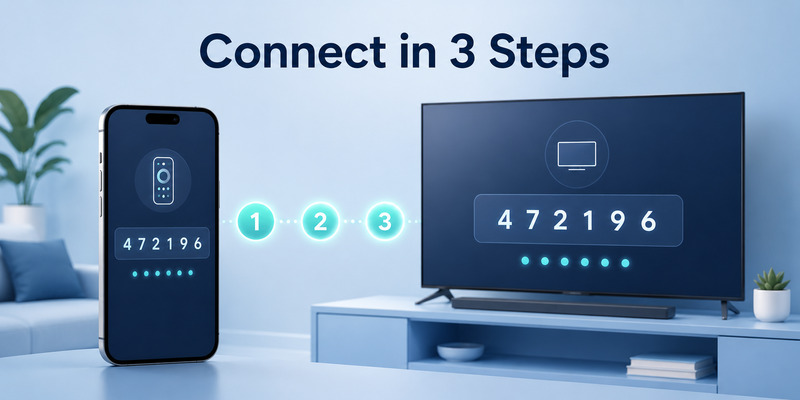
Before setting up an ios remote control solution, make sure the essentials are ready. This saves time and prevents the most common pairing errors.
A Compatible Smart TV or Streaming Device
Your TV needs to support network remote control. Most current smart TV systems do, including popular platforms such as Google TV, Android TV, Roku TV, Fire TV, Samsung Smart TV, LG webOS, and Apple TV.
Older non-smart TVs may still work if they are connected to a compatible streaming device. However, a standard television with no smart features or network connection cannot usually be controlled through a Wi-Fi remote app alone.
The Same Wi-Fi Network
Your iPhone and television must be on the same Wi-Fi network. A phone connected to mobile data, guest Wi-Fi, or a different router will often fail to discover the TV.
This is the most important requirement for an ios remote control connection. Check the network name on both devices before reinstalling apps or changing more advanced settings.
App Permissions
When an iPhone asks whether an app can access devices on your local network, select Allow. Without Local Network permission, the app may not see your TV even when both devices are connected correctly.
Some apps may also request Bluetooth access for discovery or pairing. Enable it only when necessary and review what the app actually needs.
Access to the TV Screen
For the first connection, you may need to approve a prompt or type in a code shown on the television. If you cannot use the TV at all because the original remote is lost and the device is offline, you may need a temporary replacement remote, USB keyboard, or Ethernet connection to restore access.
🛠️ Learn with Step-by-Step Guides: Apple TV Remote App Not Working: Fast Fixes for iPhone and Siri Remote Issues
5. How to Set Up iOS Remote Control for a Smart TV
Setting up an ios remote control app is usually quick. The steps below apply to most Wi-Fi-enabled television and streaming platforms.
Step 1: Choose a Compatible App
Start with the official app for your TV brand or operating system whenever possible. Official apps are often the safest choice because they are designed around the TV’s menus and capabilities.
If you have several TVs from different brands, a universal tv remote app ios option can be more convenient. Check the app description to confirm that it supports your specific model or TV platform.
Step 2: Install the App on iPhone or iPad
Download the app from the App Store. Avoid unofficial downloads and apps that do not clearly explain their subscription terms. Some remote apps are free with limited features, while others offer optional paid upgrades.
An ios remote control app should be easy to understand before you install it. Look for current updates, transparent pricing, useful reviews, and a clear privacy policy.
Step 3: Connect to the Same Wi-Fi
Open Settings on your iPhone and confirm the Wi-Fi name. Then check that your TV is connected to the same network.
If your home has several routers, repeaters, or guest networks, your phone may connect to one network while the TV is on another. Even similar network names can cause confusion.
Step 4: Find and Select the TV
Open the app and choose the remote-control feature. Your compatible television should appear in the device list. Select it, then wait for the app to establish a connection.
If the TV does not appear, restart the app first. If that does not work, restart both the phone and television.
Step 5: Complete Pairing
Many devices show a four-digit code on the TV screen. Enter this code on your iPhone to confirm that you are authorizing the right device.
After pairing, the ios remote control interface should display its navigation buttons or touchpad. Test a few commands before relying on it completely.
Step 6: Save the Connection
Most apps remember paired devices. This means your ios remote control tool should reconnect automatically whenever you are at home and both devices use the same Wi-Fi network.
💡 Discover Helpful Guides: Fire TV Remote iOS: How to Control Fire TV and Fire Stick From iPhone
6. Essential Features of an iOS TV Remote App
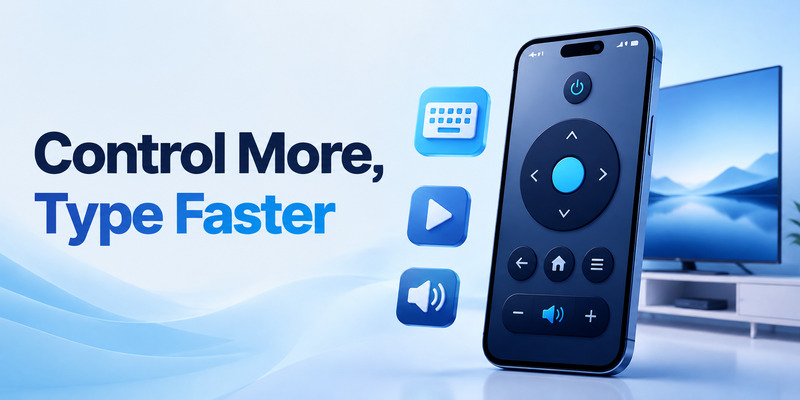
Not every ios remote control app offers the same functions. Before choosing one, consider which controls will actually improve your viewing experience.
Navigation Controls
Directional buttons, a central select button, Home, Back, and Menu controls are the foundation of any useful remote app. These functions should feel responsive and easy to reach.
Some users prefer a traditional D-pad layout. Others prefer a trackpad-style interface that lets them swipe through menus. A good ios tv remote app may offer both options.
Keyboard Input
Keyboard support is one of the biggest advantages of using a phone remote. Instead of selecting letters individually on the TV screen, you can type searches, passwords, and login details with your iPhone keyboard.
This feature is especially helpful when:
- Signing in to streaming apps
- Searching for long movie titles
- Entering Wi-Fi passwords
- Activating a television service
- Filling out account forms
Playback Buttons
A strong ios remote control app should include play, pause, rewind, fast-forward, and subtitle-related controls where supported. These features make it easier to manage streaming content without switching back to a physical controller.
Volume and Mute
Volume control can vary depending on your setup. If your TV uses an external soundbar or receiver, the app may need HDMI-CEC or a compatible audio configuration to adjust sound.
Test volume control early. A remote app may navigate the TV perfectly but still have limited power or audio support on certain models.
App Shortcuts
Some apps let you launch popular streaming services with a single tap. This can be convenient, although the quality of these shortcuts varies by TV platform and region.
A free tv remote app ios option may include ads or fewer shortcuts, while a paid version may provide customization. Decide whether those extras are worth paying for before subscribing.
📘 Find the Right Guide: Fios Remote TV Codes: Find, Program, and Fix Your Verizon Fios Remote
7. Which TVs Work with iOS Remote Control?
A modern ios remote control setup can work with many major smart TV ecosystems, but compatibility depends on the specific TV model and app.
Google TV and Android TV
Google TV and Android TV devices can often be controlled with the Google TV app or another compatible remote app. The phone can usually provide navigation, text input, playback control, and device pairing through Wi-Fi.
This is helpful for Chromecast with Google TV, Sony televisions, TCL models, and other devices using Google’s TV platform.
Samsung Smart TV
Many Samsung Smart TVs support mobile control through Samsung’s official app. Depending on the model, you may be able to navigate menus, enter text, launch apps, and manage playback.
A third-party smart tv remote ios app may also support Samsung, but official tools are usually the best first option for deep settings and brand-specific features.
LG webOS TV
LG televisions with webOS often support control through LG’s official mobile app. This may include a touchpad, keyboard, volume controls, and content features.
Because webOS layouts can vary between TV generations, make sure the app supports your model year before expecting every function to work.
Roku TV and Roku Streaming Devices
The Roku mobile app can provide a reliable phone remote experience, including navigation, keyboard input, private listening features on supported devices, and channel access.
For Roku users, the official app is often a better choice than a generic universal tv remote ios app because it is designed specifically for Roku’s interface.
Fire TV and Apple TV
Amazon Fire TV and Apple TV both have their own remote-control options. Apple TV also works closely with the Remote function available through iPhone Control Center on supported setups.
The main lesson is simple: an ios remote control tool works best when it is compatible with the exact smart TV system you use, not only the television brand printed on the screen.
📘 Find the Right Guide: Apple TV Remote iOS: Set Up, Connect, and Fix Common iPhone Remote Problems
8. How to Choose the Best iOS TV Remote App
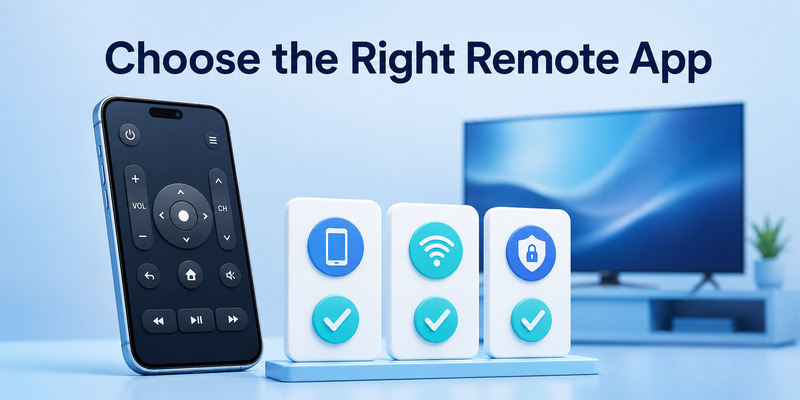
The best ios tv remote app is not necessarily the app with the most features. It is the one that connects reliably, supports your TV, and provides the controls you use most.
Look for these qualities:
- Clear support for your TV platform or model
- Reliable local Wi-Fi discovery
- Simple pairing steps
- Keyboard input
- Responsive navigation
- Transparent subscription pricing
- Limited and appropriate permission requests
- Recent app updates
- Helpful customer support
A ios tv remote control app should not force you to create unnecessary accounts just to use basic controls. Be cautious with apps that hide remote functions behind a trial that automatically converts into an expensive subscription.
If you own multiple devices, compare universal options carefully. A universal app can simplify your setup, but a dedicated brand app may offer better compatibility, faster connection, and access to more advanced TV features.
Remote TV App can be worth considering if you want a simple iPhone-based control option and prefer a remote layout designed for everyday TV navigation. Before choosing any app, verify that your specific television is listed as supported.
📖 Explore Articles: Google TV Remote iOS: How to Control Google TV from Your iPhone or iPad
9. Fix iOS Remote Control Not Connecting
When an ios remote control app cannot find or control your TV, the issue is usually caused by network settings, missing permissions, or an outdated app.
Confirm Both Devices Use the Same Wi-Fi
Check the Wi-Fi name on your phone and television. Do not assume they are connected just because both have internet access. A guest network can allow internet browsing while blocking local device discovery.
Turn off mobile data temporarily if your iPhone keeps switching away from Wi-Fi.
Restart Your Phone and TV
Restarting both devices clears many temporary connection errors. Close the app fully, restart the iPhone, restart the TV or streaming device, then try pairing again.
Enable Local Network Access
Go to iPhone Settings, find the remote app, and check that Local Network access is enabled. This permission is essential for most ios remote control apps.
Update the App and TV Software
Check the App Store for updates. Then check your television’s system settings for firmware or operating-system updates. Compatibility problems are more likely when either device runs very old software.
Disable VPN or Network Filtering Temporarily
VPNs, private relay services, router isolation, and certain security settings can prevent the phone from discovering local devices. Temporarily disable them, then test the connection again.
Re-Pair the Device
If the TV was previously connected but no longer responds, remove it from the app’s device list if possible. Start the pairing process again and enter a new code.
A stable ios remote control connection should reconnect without repeated setup. If you have to pair every day, inspect the TV’s network settings and app permissions more closely.
10. Tips for Better iPhone TV Control
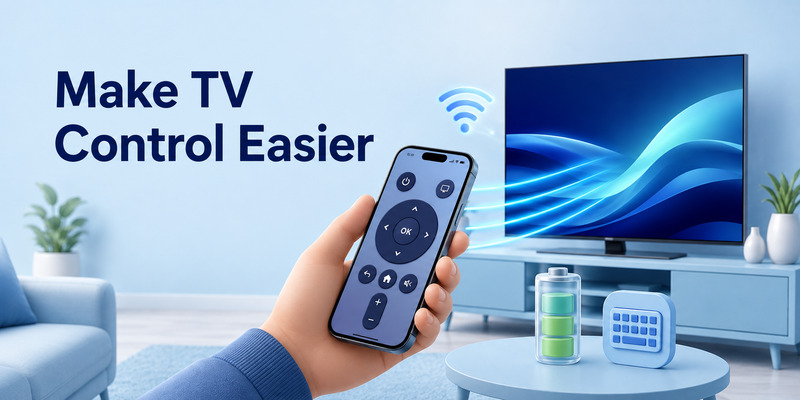
A few practical habits can make your ios remote control setup more reliable.
Keep Your TV and Phone Updated
Regular software updates improve security, Wi-Fi compatibility, and remote-app performance. You do not need to update immediately on launch day, but avoid leaving devices years behind.
Keep a Physical Remote as Backup
An iPhone remote is convenient, but it needs battery power and local network access. Keep the original remote, a compatible replacement, or spare batteries available for emergency setup and troubleshooting.
Name Your Devices Clearly
If your home has several televisions, rename them clearly. For example, use “Living Room TV,” “Bedroom TV,” and “Office TV.” This helps prevent sending commands to the wrong screen.
Check HDMI-CEC for Volume and Power
If volume, power, or input controls do not work correctly, inspect HDMI-CEC settings. TV brands use different names for this feature, but it allows connected devices to share certain controls.
Use the Phone Keyboard Whenever Possible
Typing is one reason an ios remote tv setup is genuinely better than a physical remote. Use it for searches, passwords, and account logins rather than struggling with an on-screen alphabet grid.
Avoid Low-Quality Copycat Apps
A ios tv remote app free option can be useful, but free does not automatically mean reliable. Read the feature list, recent reviews, and subscription details before installing. Choose apps with clear device compatibility rather than generic promises.
11. FAQs About iOS Remote Control
Is there a free iPhone TV remote app?
Yes. Many TV brands offer official remote apps at no charge, and some third-party apps offer free versions. A free ios tv remote app may include ads, limited features, or optional subscriptions.
Does iOS remote control work with every TV?
No. Your TV needs compatible smart features, a streaming device, or network remote-control support. Standard non-smart TVs usually cannot be controlled by Wi-Fi apps unless another compatible device is connected.
Can I use iPhone as a universal TV remote?
In many cases, yes. A universal tv remote app ios can support several smart TV brands, but compatibility is never guaranteed. Check your TV model before downloading.
Why can’t my iPhone find my television?
The most common reasons are different Wi-Fi networks, disabled Local Network permission, outdated software, or a VPN blocking local discovery. Restart both devices after checking these settings.
Can an iOS TV remote control volume?
Often, yes. However, volume behavior depends on your TV, soundbar, HDMI-CEC setup, and app compatibility. Test it after pairing.
Is it safe to use a third-party remote app?
It can be, as long as you install from the App Store, choose a reputable provider, review permissions, and understand any subscription terms. Avoid apps that ask for unrelated data or make unrealistic claims.
12. Final Thoughts
An ios remote control app gives you a simple, flexible way to manage your smart TV from an iPhone or iPad. It is especially valuable when the original remote is missing, the battery dies, or you need faster keyboard input for streaming searches and sign-ins.
Start with the official app for your television platform whenever possible. If you need one tool for several devices, compare a trusted universal option such as Remote TV App and confirm compatibility before subscribing.
With the right app, stable Wi-Fi, and the correct permissions, an ios remote control setup can turn the iPhone already in your hand into a dependable everyday TV remote.
Download LG TV Remote