
Apple TV Remote App Not Working: Fast Fixes for iPhone and Siri Remote Issues
When your apple tv remote app not working, even simple tasks like choosing a show, entering a password, or changing the volume can become frustrating. The problem may come from a Wi‑Fi mismatch between your iPhone and Apple TV, a low Siri Remote battery, failed Bluetooth pairing, or an issue with the touchpad, microphone, or IR volume control. This guide gives you fast fixes first, then explains how to resolve each Apple TV remote problem step by step.
1. Quick Answer: Fix Apple TV Remote Problems First
If your apple tv remote app not working, start with three checks: make sure your iPhone and Apple TV are connected to the same Wi‑Fi network, restart both devices, and open the Apple TV Remote from iPhone Control Center again. In many cases, the connection fails because one device switched to mobile data, a guest network, or a different Wi‑Fi band.
If you are using a physical Siri Remote instead, charge it for at least 30 minutes, move close to the Apple TV, and restart the remote. These quick actions solve most cases of an apple tv remote app not working without resetting your Apple TV or changing important settings.
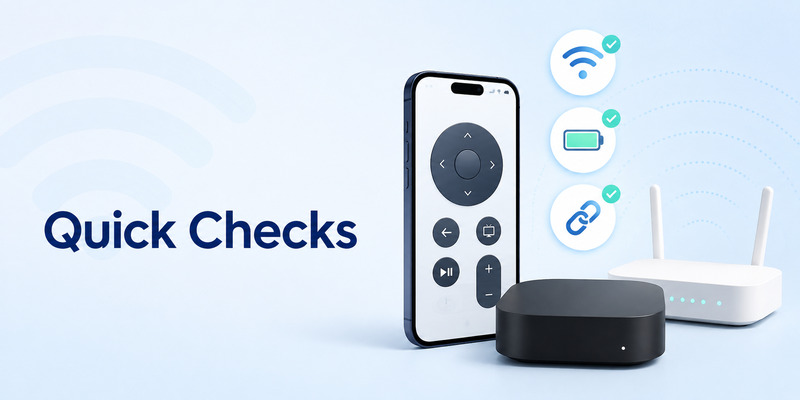
Apple TV remote issues can look similar but have different causes. Your iPhone remote may not detect the Apple TV at all. A physical remote may connect but have an unresponsive clickpad. You may also find that volume, Siri, or infrared controls fail while navigation still works. The sections below help you identify the actual cause and apply the right fix.
Download LG TV Remote2. Check the Most Common Causes
Before changing advanced settings, check the basics. An apple tv remote app not working is usually caused by connectivity, power, pairing, or software—not a serious Apple TV failure.
Confirm that Apple TV is turned on
Look for the Apple TV status light or check whether the television displays the Apple TV input. If the device is asleep, wake it using the TV input, a previously paired physical remote, HDMI-CEC controls, or the Apple TV box itself if available.
Check iPhone connectivity
The iPhone-based remote communicates with Apple TV through your local network. It does not work like a traditional infrared remote. If your iPhone has Wi‑Fi disabled, is using cellular data, or joined another network automatically, the remote cannot find Apple TV.
Check for battery and charging issues
A physical Siri Remote uses a rechargeable battery. A low battery may cause slow response, random disconnects, or buttons that appear dead. Connect it with a compatible cable and charger for at least 30 minutes before assuming the remote is broken.
Remove obvious interference
Bluetooth devices, thick metal TV cabinets, weak Wi‑Fi, and long distances can contribute to intermittent behavior. Move closer to Apple TV and test again. If the remote starts working normally nearby, range or interference is likely involved.
🛠️ Learn with Step-by-Step Guides: Apple TV Remote Icon: What It Means and How to Use It
3. Restart the Apple TV and iPhone
Restarting clears temporary connection faults and is one of the fastest ways to resolve an apple tv remote app not working.
To restart Apple TV:
- Open Settings on Apple TV.
- Select System.
- Choose Restart.
If you cannot navigate the menu, unplug the Apple TV power cable, wait about 10 seconds, and reconnect it. Avoid repeatedly unplugging the device during an update or while its status light is flashing.
To restart an iPhone:
- Turn the iPhone off using the side button and volume button, or through Settings > General > Shut Down.
- Wait a few seconds.
- Turn it back on and reconnect to Wi‑Fi.
After both devices restart, open Control Center by swiping down from the top-right corner of newer iPhones. Tap the Apple TV Remote control, choose your Apple TV, and enter the code displayed on the television if prompted.
This simple reset often fixes an apple tv remote app not working after an iOS update, router restart, or temporary Bluetooth issue.
💡 Discover Helpful Guides
Apple remote tv app: Complete Apple TV Remote Guide for iPhone, Siri Remote, Pairing & Fixes
4. Make Sure Both Devices Use the Same Wi‑Fi
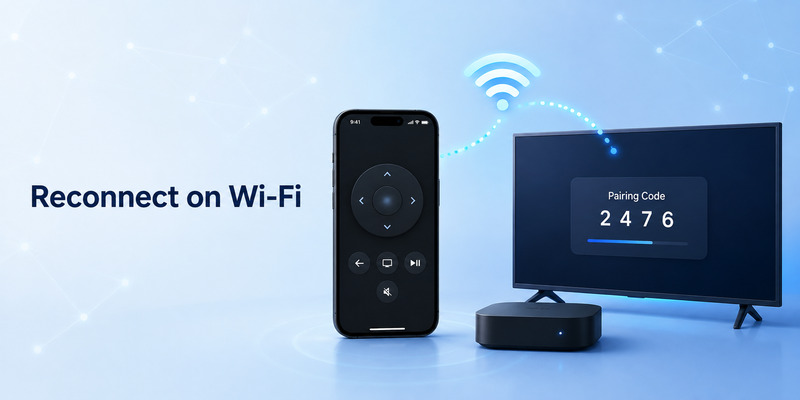
The most important requirement for the iPhone remote is that the iPhone and Apple TV are on the same local network. This is why users often search why is apple tv remote on iphone not working after changing routers, traveling, or setting up a new phone.
On iPhone, go to Settings > Wi‑Fi and note the network name. On Apple TV, go to Settings > Network and confirm it matches.
Do not assume two networks with similar names are the same. For example, “HomeWiFi,” “HomeWiFi-5G,” and “HomeWiFi-Guest” may be separate networks. Guest networks frequently block device-to-device communication, so your iPhone may have internet access while still being unable to control Apple TV.
If you use a VPN, disable it temporarily and test the remote again. Some VPN configurations interfere with local device discovery. Also check whether your router has client isolation, AP isolation, or guest-mode restrictions enabled.
When the network is the problem, fixing Wi‑Fi is more effective than repeatedly reinstalling apps. It can immediately restore an apple tv remote app not working without affecting your Apple ID, media library, or Apple TV settings.
5. Restore the Apple TV Remote in Control Center
Apple’s iPhone remote is built into Control Center. It is not usually a separate app that needs downloading from the App Store.
If the control is missing:
- Open Settings on iPhone.
- Tap Control Center.
- Find Apple TV Remote in the available controls.
- Add it to Control Center if it is not already included.
Then reopen Control Center and tap the remote icon. If more than one Apple TV appears, select the correct device. You may need to enter a four-digit code shown on the TV screen to complete pairing.
If your apple tv remote on iphone not working, check whether the remote screen says “Choose a TV” or shows a loading spinner. “Choose a TV” usually means Apple TV is not being detected on the local network. A continuous spinner can indicate an unstable Wi‑Fi connection or an Apple TV that needs restarting.
Also update iOS when possible. Apple periodically improves device discovery and remote compatibility through iOS updates. Keeping both devices current reduces the chance that an apple tv remote not working on iphone is caused by a software mismatch.
💡 Discover Helpful Guides: Apple TV Remote Replacement: Buying and Setup Guide
6. Recharge, Pair, or Restart the Siri Remote
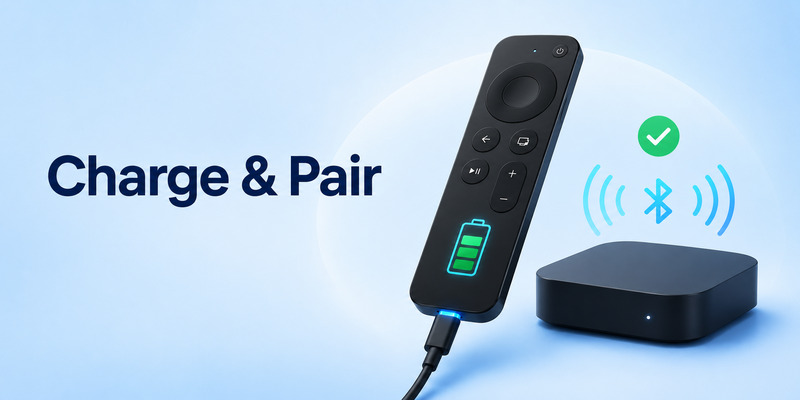
A physical Siri Remote can fail independently from the iPhone remote. If the iPhone remote works but the physical remote does not, focus on battery level, Bluetooth connection, and pairing.
Charge the remote
Connect the Siri Remote to power with the appropriate cable. Let it charge for at least 30 minutes. Then press a button and look for a response on the Apple TV.
To see its battery status, use Apple TV settings:
- Go to Settings > Remotes and Devices.
- Select Remote.
- Review the battery level.
Restart the Siri Remote
For many Siri Remote models, press and hold the TV/Control Center button and the Volume Down button together for about five seconds. Release them when the Apple TV status light turns off and then turns on again. Wait a few seconds for the remote to reconnect.
Pair the remote again
Bring the remote close to the Apple TV, ideally within a few inches. Press and hold the Back button and Volume Up button for several seconds. Follow the on-screen pairing instructions if they appear.
These steps are especially useful when an apple tv 4k remote not working after a power outage, software update, or extended period without use.
💡 Discover Helpful Guides: How to Reset Your Apple TV Remote: Pairing, Volume, and No-Remote Fixes
7. Fix Touchpad, Trackpad, and Button Problems
An unresponsive clickpad can make Apple TV feel completely unusable, even when the remote remains connected. If you have an apple tv remote touchpad not working, first remove any case or cover that could block the circular touch surface or make button presses less responsive.
Clean the remote gently with a soft, dry microfiber cloth. Do not spray liquid directly onto the remote and do not force the clickpad if it feels physically stuck.
Check Apple TV navigation settings:
- Open Settings > Remotes and Devices.
- Select Clickpad or Touch Surface Tracking, depending on your model.
- Test a different tracking speed.
If the center button clicks but swiping does nothing, restart the remote and Apple TV. If swiping works inconsistently, remove accessories or cases and test again.
The phrase apple tv remote trackpad not working is often used for the same clickpad or touch surface problem. In many cases, the issue is temporary software behavior rather than a damaged component. However, if the clickpad has visible cracks, liquid damage, or no response after charging and restarting, replacement may be necessary.
For individual buttons, test each function separately. A stuck Back, TV, Volume, or Mute button can cause strange behavior. If the remote navigates normally but one button never responds, the fault may be limited to that button rather than the Apple TV itself.
8. Fix Sound, IR, and Microphone Problems
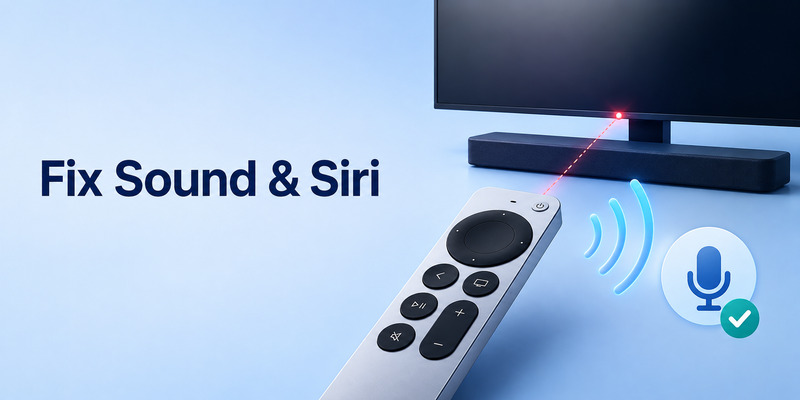
Some remote features depend on your television, soundbar, or receiver—not only Apple TV. That distinction matters when troubleshooting.
Apple TV remote sound not working
If apple tv remote sound not working means the Volume buttons do not change the TV volume, confirm that the television or soundbar is turned on and that the correct audio output is selected.
Then open Settings > Remotes and Devices > Volume Control on Apple TV. Choose the correct option, such as TV via IR, Receiver via IR, or HDMI-CEC. If you changed television, soundbar, or receiver equipment recently, run volume-control setup again.
Apple TV remote IR stopped working
When apple tv remote ir stopped working, remember that infrared requires a clear line of sight. Make sure the front of the remote points toward the TV, soundbar, or receiver. Remove obstacles from the equipment’s IR sensor area.
If Bluetooth navigation works but TV volume does not, this strongly suggests an IR or HDMI-CEC configuration issue rather than a failed remote. Restarting the TV and audio device can help restore HDMI-CEC communication.
Apple TV remote microphone not working
If the apple tv remote microphone not working, verify that Siri is enabled on Apple TV and that your internet connection is stable. Hold the Siri button while speaking clearly, then release it.
If Siri does not hear you, restart the remote and Apple TV. Check for software updates under Settings > System > Software Updates. If the microphone still fails while all other buttons work, test the iPhone remote’s Siri function if available. That helps separate an Apple TV service issue from a hardware microphone issue in the remote.
📖 Explore Articles: Apple TV Remote for iPhone: How to Set Up and Use Your iPhone as an Apple TV Remote
9. Fix Apple TV 4K Remote Connection Issues
Apple TV 4K uses Bluetooth for normal navigation, while volume control may use HDMI-CEC or infrared. This mixed setup explains why some functions can work while others fail.
If an apple tv remote app not working occurs on an Apple TV 4K setup, restart the Apple TV first, then restart or recharge the physical Siri Remote. Keep the remote near the Apple TV during pairing.
Next, reduce Bluetooth conflicts. Temporarily disconnect unneeded Bluetooth controllers, headphones, or speakers from Apple TV. These devices do not usually prevent a remote from working, but removing extra variables helps diagnose intermittent behavior.
Update tvOS through Settings > System > Software Updates. Newer tvOS versions can include remote stability fixes. If Apple TV is on a weak wireless network, improve router placement or switch to a stable network connection. A reliable network helps the iPhone remote connect consistently, even though the physical Siri Remote primarily uses Bluetooth.
When only the iPhone control fails, test whether another iPhone on the same Wi‑Fi can see Apple TV. If it can, the problem is likely isolated to your original phone’s network, Control Center, VPN, or iOS configuration.
📘 Find the Right Guide: Apple TV Remote Volume Not Working? Here’s How to Fix It
10. Stop the Apple TV Remote From Appearing on iPhone
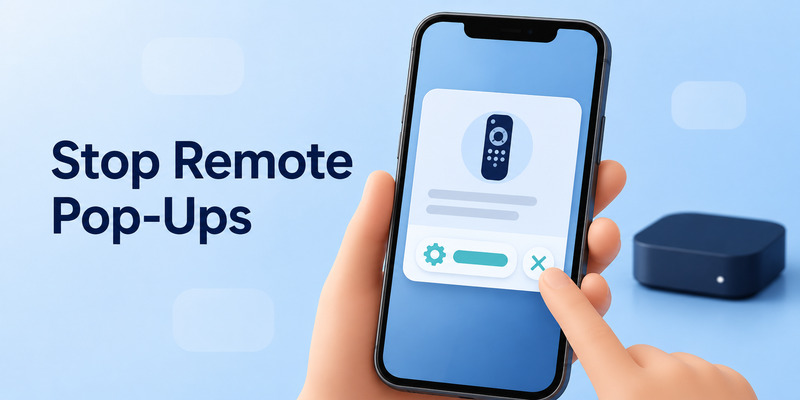
Some people have the opposite problem: apple tv remote keeps popping up on iPhone. This usually happens because an Apple TV, Apple TV app, or nearby device requests text input. The iPhone displays a notification so you can type into Apple TV more easily.
If you do not want these notifications:
- Open Settings on iPhone.
- Go to Notifications.
- Find Apple TV Keyboard or the related Apple TV notification option.
- Turn off notifications if the option is available on your iOS version.
You can also check which Apple TV is signed in with your Apple ID. If an old Apple TV remains connected to your account or home setup, remove it only if you no longer use it. Be careful not to remove an active family device by mistake.
This pop-up issue does not necessarily mean an apple tv remote app not working. It is usually a notification preference rather than a control failure.
📘 Find the Right Guide: Apple TV Remote iPad: How to Set Up and Control Apple TV From Your iPad
11. Reset Network and Apple TV Settings
If the earlier fixes do not work, reset only what is necessary. Start with iPhone network settings before considering a full Apple TV reset.
On iPhone, go to Settings > General > Transfer or Reset iPhone > Reset > Reset Network Settings. This removes saved Wi‑Fi networks, VPN settings, and related network preferences, so make sure you know your Wi‑Fi password first.
After the reset, reconnect the iPhone and Apple TV to the same Wi‑Fi network. Then open the remote in Control Center and pair it again.
A factory reset of Apple TV should be a last resort. It can remove apps, sign-ins, preferences, and downloaded content. Use it only when Apple TV itself has broader issues, such as repeated crashes, network failures, or inability to pair with any remote.
If every remote method fails—including a physical Siri Remote, Control Center remote, and HDMI-CEC TV remote—the Apple TV hardware, its network setup, or the television connection may need deeper inspection.
12. Use a Remote TV App When You Need a Backup
A compatible Remote TV App can be useful when your physical remote is charging, misplaced, or temporarily unavailable. It should be viewed as a backup option, not a replacement for fixing the underlying Apple TV connection problem.
Before installing any third-party remote tool, check its device compatibility, subscription terms, privacy policy, and whether it supports Apple TV specifically. Many apps are designed for other smart TV brands and may not control Apple TV as expected.
For Apple TV, the built-in iPhone remote in Control Center is usually the simplest and safest choice. If you are dealing with an apple tv remote on phone not working, resolve the Wi‑Fi and pairing issue first. A third-party app cannot reliably bypass a local network problem.
13. Frequently Asked Questions
Why does my iPhone not find my Apple TV?
The usual cause is that the devices are on different Wi‑Fi networks, one device is using cellular data, or the router blocks local-device discovery. Restart both devices and reconnect them to the same non-guest network.
Why is my Apple TV remote not responding at all?
Charge the Siri Remote, restart it, and pair it again close to Apple TV. If the iPhone remote works but the physical remote does not, the issue is likely with the Siri Remote’s battery, Bluetooth connection, or hardware.
Can I control Apple TV without the physical remote?
Yes. Use the Apple TV Remote in iPhone Control Center when your iPhone and Apple TV are connected to the same Wi‑Fi network. You can also use HDMI-CEC controls from some TV remotes.
Why do only the volume buttons fail?
Navigation normally uses Bluetooth, while volume may depend on HDMI-CEC or infrared. Reconfigure Volume Control in Apple TV settings and make sure your TV or soundbar has a clear IR path where needed.
Does resetting Apple TV erase everything?
A factory reset can remove apps, accounts, settings, and local downloads. Restarting Apple TV does not erase your data, so try that first.
14. Final Thoughts
Most cases of an apple tv remote app not working are solved by reconnecting iPhone and Apple TV to the same Wi‑Fi, restarting both devices, and reopening the remote from Control Center. For a physical Siri Remote, charging, restarting, and pairing it close to Apple TV are the most effective first actions.
Work through the fixes in order instead of resetting everything immediately. Check the network first for iPhone remote problems, then address Bluetooth, clickpad, infrared, audio, or Siri settings based on the feature that is actually failing. That approach gets your Apple TV working again faster while protecting your existing setup.
Download LG TV Remote