
Fios Remote TV Codes: Find, Program, and Fix Your Verizon Fios Remote
A Verizon Fios remote can control your TV, volume, mute, and input settings, but only after it is programmed with the right fios remote tv codes. Whether you have a Fios Voice Remote or an older Verizon model, this guide shows you how to find the correct code, pair the remote, use automatic setup, and fix common programming problems quickly.
1. Quick Answer: How to Find and Use Fios Remote TV Codes
To use fios remote tv codes, first identify your Verizon Fios remote model, then find the code list that matches your TV brand and model. Enter the code using the programming steps for that specific remote. If the first code does not work, try the next listed code or use automatic code search.
The correct fios remote tv codes let your Verizon remote control television power, volume, mute, and input functions while still operating your Fios set-top box. You do not need to guess randomly: the remote model and TV brand determine which setup method you should use.
For many Fios remotes, programming starts by holding a button combination such as OK + 0, OK + Fios TV, or TV + OK. Then you enter the TV code or use a guided automatic search. The exact button sequence changes by remote model, which is why identifying the remote is essential before you begin.
If you only need a fast solution, turn on both your TV and Fios set-top box, locate your remote model, get the matching code list, and test power and volume after programming. That approach solves most fios remote tv codes problems without replacing the remote.
Download LG TV Remote2. Identify Your Verizon Fios Remote Before Programming
Not all Verizon remotes use the same fios remote tv codes or programming process. A code that works with one remote may fail on another because the remotes use different layouts, button combinations, and setup systems.
Look at the front and back of the remote for its model name or design. Common Fios remote types include the Fios TV Voice Remote, Verizon P265, P283 Big Button Remote, Philips RC1445302, and Motorola 800. Newer voice remotes may use on-screen programming rather than requiring you to enter a long list of codes manually.
Fios TV Voice Remote
The Fios TV Voice Remote is designed for newer Fios TV hardware. It can pair with a Fios TV One or Fios TV One Mini, then use automatic or manual on-screen setup to control a connected television or audio device.
For this remote, fios remote tv codes may be handled inside the Fios settings menu rather than through a traditional button-and-number process. After pairing the remote with the set-top box, go to the remote programming menu and choose automatic setup first.
Verizon P265 Remote
The Verizon P265 remote commonly uses a code-search procedure. You may press OK and Fios TV together, then use Play/Pause at regular intervals until the television turns off. When that happens, turn the TV back on and press OK to save the found code.
This method is useful when you cannot quickly locate the correct fios remote tv codes for your television model.
Older remotes
Some older models use a three-digit code and a different button combination. For example, a remote may require TV + OK or OK + 0 before you enter the code. Do not copy instructions from a different remote simply because the buttons look similar.
Using the correct remote guide prevents accidental resets, failed programming, and unnecessary troubleshooting.
🛠️ Learn with Step-by-Step Guides: Apple TV Remote Icon: What It Means and How to Use It
3. Find the Right Fios Remote TV Codes for Your TV
The most accurate fios remote tv codes come from Verizon’s official remote code finder or from the user guide for your exact remote model. Code lists are organized by TV brand, and many brands have multiple possible codes.
That is normal. A television brand may use different internal components across product lines, manufacturing years, and regions. The first code in the list may control power but not volume, while another code may control all important functions.
Start with the TV brand and model
Look for the brand printed on the front of your television. If possible, also note the full model number from the back panel, settings menu, or original packaging.
Start with the codes listed for your brand. Test each one in order. Avoid using a random code list from an unrelated universal remote website because its codes may not match Verizon’s remote database.
Do not stop after power works
A successful power test is helpful, but it does not always mean you found the best code. After entering fios remote tv codes, test these functions:
- TV Power
- Volume Up and Volume Down
- Mute
- Input or Source
- Menu functions, if supported
- Powering the TV back on
If the remote turns the TV off but cannot turn it on again, use the next code or continue with automatic search. The best code is the one that gives you the most complete control.
Keep a record of the working code
Once you find working fios remote tv codes, write the code down in your phone notes or keep it with your TV documents. You may need it after replacing batteries, resetting the remote, changing your television, or setting up a new Fios box.
This small step saves time later and helps other people in your household reprogram the remote correctly.
🛠️ Learn with Step-by-Step Guides: How to Control Google TV With Phone on Android and iPhone
4. Program Fios Remote TV Codes Manually
Manual entry is the best option when you have the correct code list and want a direct, repeatable setup process. The exact steps depend on your remote, but the pattern is similar: enter programming mode, type the code, and test the TV functions.
Common programming approach
For many Verizon remote models, begin with the TV and Fios set-top box turned on. Then press the required setup buttons until the remote’s light blinks or remains lit.
On some models, you may press OK + 0. On others, you may press TV + OK or OK + Fios TV. Enter the appropriate code when the remote is ready.
After you enter a code, watch the indicator light. A successful entry usually produces a confirmation blink. Then press TV Power to see whether the television turns off.
Program a P283-style remote
For some Fios remotes, Verizon’s process begins by pressing OK and 0 together. Then enter the three-digit code for the television. Once the remote accepts the code, use Channel Down or another instructed search key to confirm that the TV responds, then save the setting with OK.
Because model steps vary, always compare your button layout with the correct Verizon guide before entering fios remote tv codes.
Program an older Philips-style remote
Some older remotes require you to hold TV and press OK, then release both buttons before typing a three-digit code. The remote light typically signals whether the entry was accepted.
If the light does not blink as expected, remove the batteries for a minute, reinstall them, and repeat the process carefully. Pressing the buttons too quickly can cause the remote to leave programming mode before the code is entered.
Test immediately
After programming, test power, volume, and mute. If only one function works, the code is incomplete for your TV model. Try another code for the same brand before assuming the remote is defective.
📘 Find the Right Guide: Apple TV Remote iOS: Set Up, Connect, and Fix Common iPhone Remote Problems
5. Use Automatic Code Search When a Code Fails
Automatic code search is the best backup when the listed fios remote tv codes do not work, the TV model is unusual, or you do not know the brand code.
Instead of entering a specific number, the remote cycles through a database of possible commands. You stop the search when the TV responds.
How automatic search works
On compatible remotes, enter programming mode first. Then press the designated search button, often Play/Pause, Channel Up, or Channel Down, once every second. The remote tests a code after each press.
When the television turns off, stop immediately. Turn it back on using the remote. If it powers on, press OK to save that code.
The search may take several minutes because the remote has to test many commands. Be patient and press the button at a steady pace. Pressing too fast can make you skip past the best code.
Go backward if you pass the correct code
Some remotes allow you to use Channel Down to step backward after the TV shuts off. This is useful if the next code works only partly or if you accidentally press past the first successful response.
After automatic setup, test all core functions. A code that only turns off the TV is not always the final answer. Continue searching if volume, mute, or input controls do not work.
Why automatic search can be better
Automatic search can find an option that is not obvious from the printed code list. It is especially helpful for newer TV models, older discontinued models, or brands with many similar code entries.
Use automatic search only after checking that the remote has fresh batteries and a clear line of sight to the TV’s infrared receiver.
💡 Discover Helpful Guides: Apple TV Remote iOS: Set Up, Connect, and Fix Common iPhone Remote Problems
6. Complete Fios Remote TV Pairing for Voice Remotes
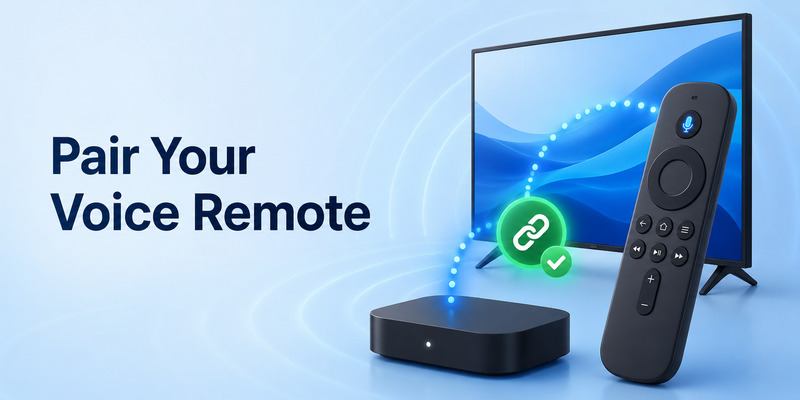
Fios remote tv pairing is different from entering traditional TV codes. Pairing connects a voice remote with the Fios set-top box, while TV programming allows that remote to control the television or audio system.
For a Fios TV Voice Remote, point the remote toward the Fios TV One or Fios TV One Mini. Hold Play/Pause and O together. Release the buttons when the blue light flashes. When the light stops flashing, the remote should be paired with the Fios device.
After that, use the Fios menu to set up TV and audio control.
Use Automatic Setup first
On the Fios TV interface, go to the remote settings area and select the voice remote programming options. Choose Automatic Setup first. The system may detect HDMI-connected TVs and audio devices automatically.
When setup succeeds, the screen should show a confirmation message. Test power and volume right away.
Use Manual Setup if automatic setup fails
If automatic detection does not work, choose Manual Setup. Select the TV or receiver brand and model when prompted. This method is often easier than looking through long fios remote tv codes lists because the Fios interface guides you through the selection.
If your remote controls the Fios box but not the TV, pairing is probably successful. The remaining issue is TV or audio programming, not the Bluetooth or voice connection itself.
📖 Explore Articles: Apple TV Remote Sync: How to Pair, Reconnect, and Fix Your Remote
7. Test Every Function and Fix Common Problems
After programming fios remote tv codes, test the remote like a real user would. Do not limit the test to a single power press.
The remote controls Fios but not the TV
This usually means the remote is paired with the set-top box but has not been programmed for the television. Repeat TV programming, try another code, or run automatic search.
The TV turns off but volume does not work
Try another code for the same TV brand. Different codes can provide different function coverage. Also confirm whether your sound comes from TV speakers, a soundbar, or an AV receiver.
If a soundbar controls the volume, program the remote for the audio device as well. The television code alone may not affect the soundbar.
The remote light does not blink
Replace the batteries first. Then press the programming buttons again and hold them for the correct amount of time. If the indicator still does not respond, restart the Fios set-top box and check Verizon’s guide for your exact remote model.
The remote works only at close range
Make sure there is a clear line of sight between the remote and the television’s infrared sensor. Clean the front edge of the TV, remove obstacles, and try new batteries.
For voice remotes, the set-top box connection may use wireless pairing, but TV volume and power can still depend on infrared or HDMI control. This is why some buttons work while others do not.
🛠️ Learn with Step-by-Step Guides: Android TV Remote Control iOS: How to Control Android TV From an iPhone
8. Use a Backup Remote TV App
A Remote TV App can be useful when the physical Fios remote is missing, damaged, or waiting for replacement. However, it is not always a complete substitute for a Verizon Fios remote because compatibility depends on your TV model, Fios hardware, and home network.
For standard Fios operation, the physical remote remains the most reliable choice. It is designed to control the set-top box directly and supports Fios-specific menus, guide controls, DVR functions, and voice features where available.
Still, an app can help you manage compatible smart TV functions, especially if you need basic navigation or volume while solving a remote issue.
The key to successful fios remote tv codes setup is simple: identify your remote first, use the code list designed for that model, test more than one function, and use automatic setup when manual entry fails. Do not assume the first code that turns off your TV is perfect. Test volume, mute, input, and power-on behavior before saving it as your final configuration.
When you follow that process, your Fios remote can control both the Fios box and your TV with far less frustration.
Download LG TV Remote