
Apple TV Remote iOS: Set Up, Connect, and Fix Common iPhone Remote Problems
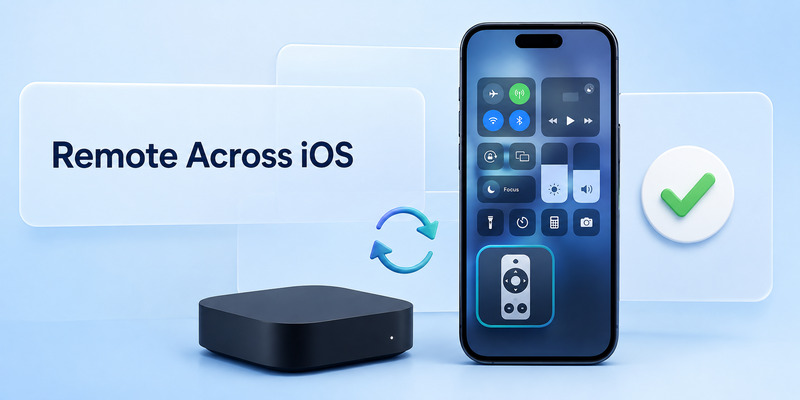
Your iPhone can become a convenient Apple TV remote in seconds. With apple tv remote ios in Control Center, you can navigate menus, type on the TV, control playback, and manage compatible audio devices without relying on the physical Siri Remote. This guide shows you how to connect it quickly and fix common issues with Wi‑Fi, searching, pairing, and volume control.
1. Quick Answer: How to Use Apple TV Remote on iPhone
The fastest way to use apple tv remote ios is to open Control Center on your iPhone, tap the Apple TV Remote control, select your Apple TV, and enter the four-digit code shown on the TV if prompted. Your iPhone and Apple TV must be connected to the same Wi-Fi network.
If the remote does not appear or cannot find your Apple TV, restart both devices, confirm they use the same Wi-Fi, and update iOS and tvOS. Most apple tv remote ios issues are caused by network mismatches, temporary software errors, or an Apple TV that is not fully awake.
The built-in iPhone remote is useful when the physical Siri Remote is charging, missing, or not responding. It lets you browse menus, choose apps, type passwords, control playback, and use basic navigation without purchasing another remote.
Download LG TV Remote2. What Apple TV Remote iOS Can Control
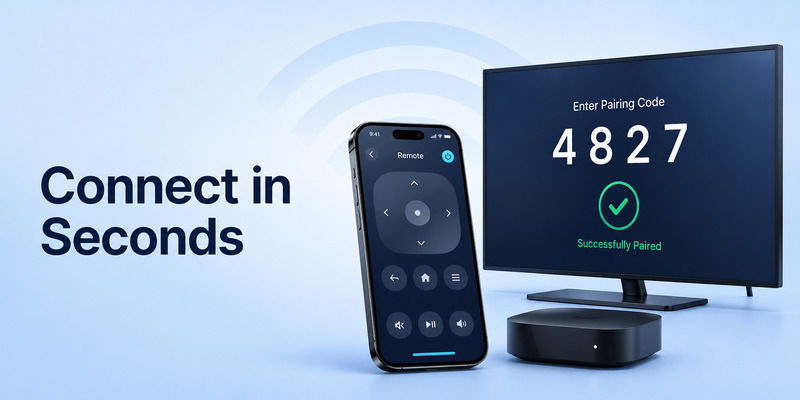
The built-in apple tv remote ios control is part of iPhone Control Center. It works with Apple TV HD, Apple TV 4K, and certain AirPlay-compatible smart TVs. It is designed for the Apple TV ecosystem, so it does not function as a universal remote for every television or streaming device.
Once connected, your iPhone can normally control the main Apple TV interface. The layout is intentionally simple, with a large navigation area, a Back button, a TV or Control Center button, play and pause controls, and shortcuts for text entry.
Navigate Apple TV menus
The touch area on the apple tv remote ios screen works like the clickpad on a physical Siri Remote. Swipe to move through content rows, apps, and settings. Tap the center area to select an item.
A short tap usually chooses an option. A swipe moves between menu items. The Back control returns you to the previous screen, while the TV button typically takes you to the Apple TV home experience.
Type on the TV with your iPhone
Typing is one of the biggest advantages of an ios remote apple tv setup. When Apple TV opens a text field, your iPhone may show a keyboard notification. You can type account details, search terms, Wi-Fi passwords, and app names using your iPhone keyboard rather than selecting individual letters on the television.
If the keyboard notification does not appear, first make sure the iPhone remote is connected to the correct Apple TV. Then select the text field again on the TV and wait briefly.
Control playback and basic functions
The apple tv remote ios control helps you play, pause, rewind, and fast-forward content. Depending on the app and Apple TV configuration, you may also be able to access captions, audio options, or playback timelines.
The exact controls can change slightly with iOS and tvOS updates, but the basic goal remains the same: turn your iPhone into a convenient replacement for the physical Apple TV remote.
🛠️ Learn with Step-by-Step Guides: Apple TV Remote Icon: What It Means and How to Use It
3. Add Apple TV Remote to Control Center
On recent iPhone software, you can add the Apple TV Remote control directly through Control Center customization.
- Swipe down from the top-right corner of the iPhone screen to open Control Center.
- Tap the Add Controls button.
- Choose Add a Control.
- Search for Remote or browse to the Remote category.
- Tap the Apple TV Remote control to add it.
On older versions, you may find this setting under Settings > Control Center. This is why instructions for ios 15 apple tv remote or ios 16 apple tv remote can look different from instructions for newer iPhone software.
After adding it, open Control Center and tap the remote icon. The iPhone should display a list of available Apple TVs and compatible smart TVs nearby.
If the icon is present but no devices appear, do not remove it immediately. The issue is usually related to network detection rather than Control Center customization.
📘 Find the Right Guide: Apple TV Remote Volume Not Working? Here’s How to Fix It
4. Connect Your iPhone to Apple TV
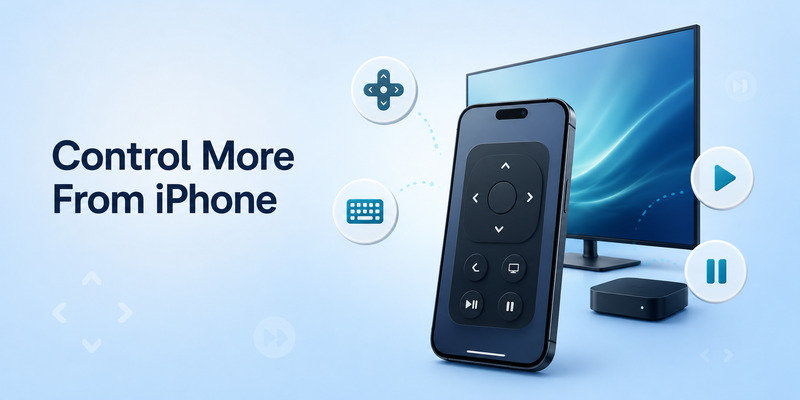
A successful apple tv remote ios connection depends on local-network access. Your iPhone does not usually control Apple TV by infrared. Instead, both devices communicate through the same Wi-Fi network.
Check the Wi-Fi network first
On iPhone, go to Settings > Wi-Fi and check the connected network name. On Apple TV, open Settings > Network and confirm it matches.
Be careful with guest Wi-Fi networks. Many guest networks allow internet browsing but block communication between devices. Your iPhone may be online while the Apple TV remote still cannot find the television.
If you use a VPN, turn it off temporarily and test again. Some VPN configurations can interfere with local-device discovery.
Select the right Apple TV
Open Control Center and tap the apple tv remote ios icon. If you have more than one Apple TV in your home, select the correct room or device name.
A four-digit passcode may appear on the television. Enter it on your iPhone to authorize the connection. This confirmation helps prevent other people on the network from controlling the TV without permission.
Wake the Apple TV before pairing
An Apple TV in deep sleep mode may not appear immediately. Turn on the television, switch to the Apple TV HDMI input, and wait until the Apple TV screen is visible. Then reopen the iPhone remote and select the device again.
If the remote worked previously but stopped after changing routers, moving house, or replacing an iPhone, remove the saved connection if the app offers that option and pair again.
💡 Discover Helpful Guides
Apple remote tv app: Complete Apple TV Remote Guide for iPhone, Siri Remote, Pairing & Fixes
5. Use Navigation, Keyboard, Siri, and Playback Controls
Once apple tv remote ios is connected, take a moment to learn the controls. This prevents confusion when you need to use it quickly because the physical remote is missing.
Use the touch area carefully
Swipe slowly across the central touch surface to browse menus. Fast swipes can move through several items at once, especially in long content rows. If you prefer precise navigation, make smaller movements and tap to confirm each selection.
The virtual touchpad does not always feel exactly like the physical Siri Remote, but it gives you reliable access to Apple TV menus.
Use the Home and Back controls
The Back button leaves the current screen or returns to a previous menu. The TV button generally opens the Apple TV home view. Use these controls when an app freezes, a menu becomes confusing, or you simply want to return to the main screen.
Use text input efficiently
When Apple TV asks for text, keep your iPhone unlocked and nearby. The apple tv remote ios keyboard prompt may appear as a notification. Tap it to enter text instantly.
This is helpful for logging into streaming services, searching for shows, naming Home devices, or entering account details. It is also more secure than slowly selecting letters on a large TV screen while others are watching.
Understand Siri availability
Siri behavior depends on your Apple TV model, language settings, region, and remote configuration. If voice search does not work from your iPhone, use keyboard search as a dependable alternative. Update iOS and tvOS before assuming that a feature is unavailable.
💡 Discover Helpful Guides: Apple TV Remote Replacement: Buying and Setup Guide
6. Fix Apple TV Remote iOS Not Connecting or Searching
If you see ios remote not connecting to apple tv, start with the same-network check. It is the most common cause of discovery problems.
Restart both devices
Restart the iPhone, then restart Apple TV through Settings > System > Restart. If you cannot navigate Apple TV settings, unplug its power cable, wait about 10 seconds, and plug it in again.
When both devices are back on, reconnect iPhone to Wi-Fi, open Control Center, and test the apple tv remote ios control again.
Fix iOS Apple TV Remote searching
The phrase ios apple tv remote searching describes a remote screen that continuously looks for an Apple TV but never displays one. First, wake the Apple TV and make sure it is connected to Wi-Fi. Then close Control Center, reopen it, and try again.
If your router has a guest network, device isolation, or access-point isolation enabled, move both devices to the main home network. Restart the router if other smart-home devices are also failing to communicate.
Update iOS and tvOS
If the connection problem began after a software update, check for another available update. Apple often improves compatibility and connection stability through iOS and tvOS releases.
An apple tv ios remote not working issue may also happen if one device is very outdated. Update your iPhone under Settings > General > Software Update and update Apple TV from its System settings.
Reset only when necessary
Do not factory-reset Apple TV as your first troubleshooting step. A factory reset can remove installed apps, sign-ins, and preferences. Try Wi-Fi checks, restarts, updates, and re-pairing first.
If ios apple tv remote not connecting continues after these steps, test another iPhone or iPad on the same Wi-Fi. If another device connects, the problem is likely limited to the original iPhone’s network settings or software.
📘 Find the Right Guide: Apple TV Remote iPad: How to Set Up and Control Apple TV From Your iPad
7. Fix Apple TV Remote iOS Volume Problems
Volume is one of the most misunderstood parts of apple tv remote ios. Navigation controls communicate with Apple TV, but volume can depend on the way your home audio setup is configured.
Why volume can work differently
The ios apple tv remote volume controls work best when Apple TV uses a HomePod, soundbar, or another AirPlay-compatible audio device. If your Apple TV sound comes directly from the television speakers and is not configured through a compatible audio path, the iPhone remote may not change volume.
In that case, use the physical remote that came with your TV, a soundbar remote, or HDMI-CEC controls.
Check the selected audio output
On Apple TV, open audio settings and confirm the correct speakers are selected. If you recently changed from television speakers to a soundbar or HomePod, restart the devices and test volume again.
Make sure the TV or soundbar is not muted independently. A working iPhone volume slider cannot fix a mute setting applied directly on another audio device.
Fix volume not working
If you search ios apple tv remote volume not working, try these steps:
- Restart Apple TV, the TV, and the audio device.
- Confirm the correct audio output is selected on Apple TV.
- Check HDMI-CEC settings on the television and soundbar if you use HDMI audio.
- Test volume with the physical TV or soundbar remote.
- Update tvOS and iOS.
If navigation works but volume does not, the iPhone remote connection itself is usually fine. Focus on audio settings and your TV or speaker configuration.
💡 Discover Helpful Guides: How to Reset Your Apple TV Remote: Pairing, Volume, and No-Remote Fixes
8. Apple TV Remote Across iOS Versions
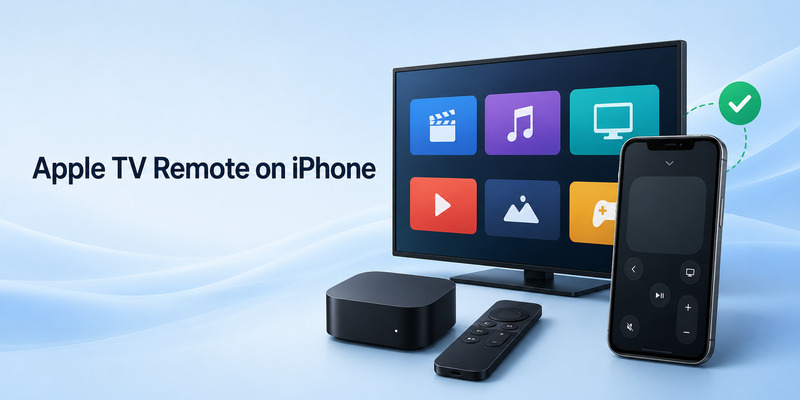
The basic apple tv remote ios experience has remained similar across recent iPhone software: open Control Center, choose the remote, select Apple TV, and pair with a code if necessary.
However, the route for adding controls can vary. On newer iOS releases, Control Center customization is handled directly within Control Center. On older releases, the control may be added through the iPhone Settings app.
Queries such as apple tv remote ios 18 and ios 26 apple tv remote usually reflect users looking for the same remote feature after an interface change. The key steps remain the same: add Remote to Control Center, connect to the same Wi-Fi, and select the correct Apple TV.
If you see queries for ios 27 apple tv remote, avoid assuming a different process solely from the version number. Check the current Control Center layout on your device and follow the available Remote control options.
For ios 26 apple tv remote not working, use the standard troubleshooting order: same Wi-Fi, restart both devices, install updates, disable a VPN temporarily, and pair again. This approach is more reliable than relying on an old screenshot or version-specific guide.
📖 Explore Articles: Apple TV Remote for iPhone: How to Set Up and Use Your iPhone as an Apple TV Remote
9. When to Use a Remote TV App
A compatible Remote TV App can be useful as a backup, particularly if you want to manage multiple smart TV brands from one iPhone. However, for Apple TV itself, the built-in Control Center option is generally the first choice because it is integrated with iOS and does not require a separate download.
Before installing a third-party app, verify that it specifically supports Apple TV. Many “universal remote” apps are built primarily for other TV platforms and may not provide full Apple TV navigation.
Choose a remote app carefully. Review pricing, free-trial terms, privacy settings, compatibility, and required permissions. An app should not need unnecessary access to personal data simply to locate a TV on your local network.
The built-in apple tv remote ios control remains the simplest option for everyday use, while a third-party app can be an extra fallback if you manage several devices at home.
10. FAQs and Final Thoughts
Can I use Apple TV Remote on any iPhone?
Most modern iPhones support the Control Center remote feature when running a compatible version of iOS. Keep your iPhone updated for the most reliable experience.
Why does my iPhone remote not find Apple TV?
Check that both devices use the same Wi-Fi network and that the Apple TV is awake. Then restart both devices, disable any VPN temporarily, and reopen Control Center.
Can I control TV volume from my iPhone?
Sometimes. It depends on whether Apple TV is configured with a HomePod, soundbar, or another compatible AirPlay audio device. If volume does not respond, use the television or soundbar remote and check audio settings.
Does the iPhone remote replace the physical Siri Remote?
It can handle many daily tasks, including navigation, typing, and playback. Still, keeping the physical remote is useful for certain TV-volume configurations, setup recovery, and troubleshooting.
The apple tv remote ios feature is one of the easiest ways to control Apple TV from an iPhone. Add it to Control Center, keep your devices on the same Wi-Fi network, and use the pairing code when prompted. If it stops working, restart first, check the network next, and investigate audio settings separately when only the volume controls fail.
Download LG TV Remote