
Chromecast With Google TV Remote: Buttons, Pairing, Setup, and Fixes
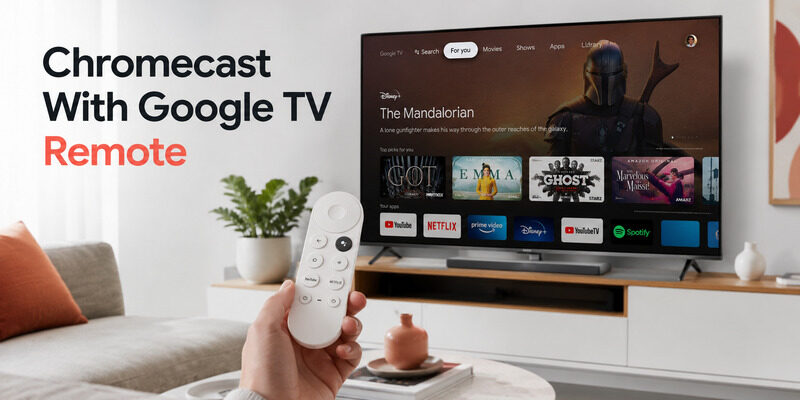
The chromecast with google tv remote normally pairs automatically, and manual pairing starts by holding Back and Home when the screen asks you to begin. Power, volume, and input require a separate device-control setup.
This guide follows the remote’s real lifecycle: identify the handset, learn the controls, configure the TV or audio device, recover Bluetooth pairing, and decide when a phone or replacement is the better answer.
Identify the Remote Before You Pair It
Chromecast Voice Remote
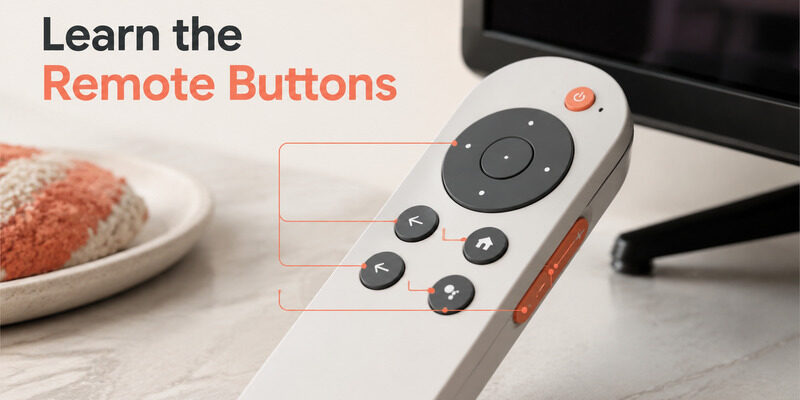
First confirm which Google streaming device and handset you have. The original Chromecast Voice Remote is designed for Chromecast with Google TV, while the newer Google TV Streamer Voice Remote belongs to the Streamer generation. Their layouts and reset combinations are not interchangeable in every support flow. Match the remote by button arrangement, battery compartment markings, and the streaming device shown in Settings.
A chromecast with google tv remote should be paired to the intended Chromecast, not merely any television that happens to display Google TV. Third-party televisions can have their own brand-specific remotes and pairing instructions.
Google TV Streamer Voice Remote
- Read the device name in Settings
- Compare button placement
- Check the battery-compartment label
| Remote type | Primary device | Check before pairing |
|---|---|---|
| Chromecast Voice Remote | Chromecast with Google TV | Match the Chromecast generation |
| Streamer Voice Remote | Google TV Streamer | Use Streamer-specific instructions |
| TV-brand remote | Google TV television | Follow the TV maker’s pairing flow |
Read the Buttons by Control Layer
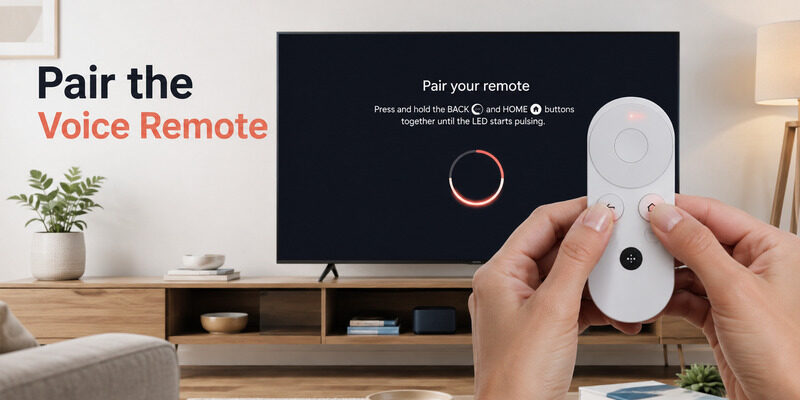
The circular pad, center select, Back, Home, Assistant or microphone, and media keys control the Google interface over Bluetooth. Branded app shortcuts launch assigned services, while power, volume, mute, and input can control the TV, receiver, or soundbar through infrared, HDMI-CEC, or device settings.
That split explains the most common partial failure: menus work but volume does not. The chromecast with google tv remote is paired correctly in that case; the missing step is device-control configuration. Open the streaming device’s remote settings and choose the hardware that actually produces sound.
Practice the buttons in a predictable order. Move once, select an app, return Home, play media, then test volume and power. A long press can behave differently from a tap, so use deliberate presses while checking a new configuration. If the microphone works but an app shortcut does not, confirm the app is installed and available for the current account.
Do not factory-reset the remote for a single service key before testing the core navigation layer.
- D-pad and Select
- Back and Home
- Voice or microphone
- Power and input
- Volume and mute
🛠️ Learn with Step-by-Step Guides: Apple remote tv app: Complete Apple TV Remote Guide for iPhone, Siri Remote, Pairing & Fixes
Pair the Chromecast With Google TV Remote
Let automatic pairing finish
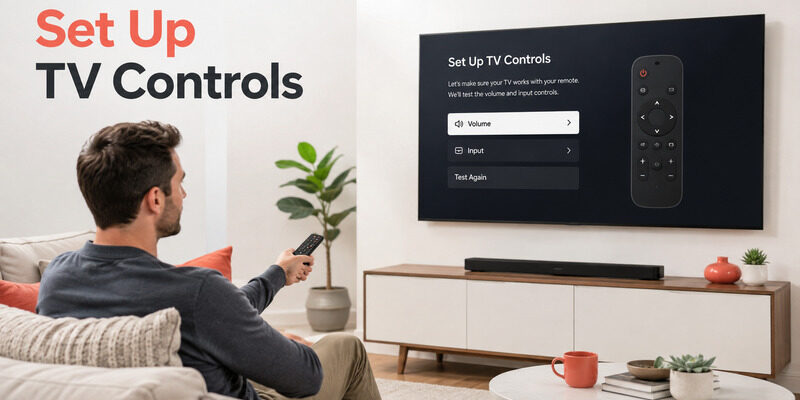
During first setup, insert fresh batteries and wait while the Chromecast searches for its remote. Google’s official setup guidance says that if the television shows Start pairing, hold Back and Home until the remote light begins to pulse, then wait for the confirmation on screen. Keep the chromecast with google tv remote close to the streaming device and avoid repeatedly releasing and pressing the buttons.
A quick flash followed by darkness is not the same as a sustained pulsing pairing state. Give the screen time to change before repeating the command. For a replacement remote, turn on the streamer and use the physical button on the device to enter pairing mode when required. Google’s replacement instructions specify two AAA batteries and a short device-button hold for the supported hardware.
Trigger manual pairing only when prompted
- Insert two fresh AAA batteries
- Wait for automatic discovery
- Hold Back and Home at Start pairing
- Confirm the remote on screen
Configure Power, Volume, and Input Separately
Open the remote-button settings on the Google streaming device and select the TV, receiver, or soundbar for each hardware control. Google’s official support explains that these buttons can be configured after initial setup, so there is no need to reset the entire streamer when only volume or power is missing.
Choose the device that owns the speakers. If audio comes from a soundbar, assigning volume to the television may show movement on screen without changing the real sound level. Test mute and several volume steps, then verify that power does not turn off the wrong component.
Input switching is usually infrared-dependent and requires line of sight. Point the chromecast with google tv remote toward the TV during that test even though the D-pad works from anywhere in the room over Bluetooth. Save one working profile before experimenting with another.
When a code test offers several choices, keep the profile that controls the broadest set of buttons, not simply the first one that changes volume.
- Select the real audio device
- Test volume and mute
- Aim at the TV for IR input control
- Verify power affects the intended screen
💡 Discover Helpful Guides: Apple TV Siri Remote: Complete Guide to Features, Generations, Pairing, and Everyday Use
Interpret the LED and Battery Behavior
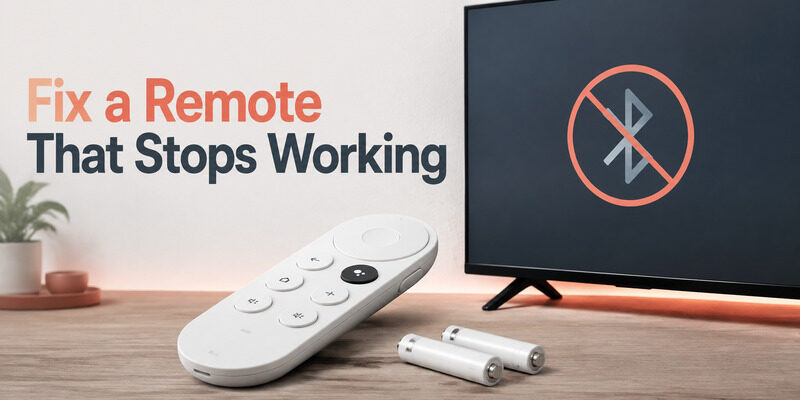
A pulsing light during setup usually indicates pairing activity, while no response can point to exhausted batteries, poor contact, or a stuck button. Remove both cells, inspect the polarity marks, and install a matched pair rather than mixing an old battery with a new one.
After battery replacement, press one button and watch for a consistent light response. If the LED remains active or the remote sends repeated commands, release each key around the ring and clean debris from the button edges. A mechanically held key can drain batteries and prevent normal pairing.
The chromecast with google tv remote uses two AAA batteries on supported models. Battery chemistry and use patterns affect life, but rapid drain over days is not normal. Test another matched pair before assuming the Bluetooth radio has failed. Do not scrape contacts with a metal tool.
A dry lint-free swab is safer for dust; visible corrosion or leakage calls for gloves, careful cleanup, and replacement if the contact plating is damaged.
- Use a matched pair of AAA cells
- Check polarity
- Release stuck keys
- Inspect contacts without metal tools
📘 Find the Right Guide: Google Home TV Remote: How to Control Your TV From the Home App
Recover a Remote That Stops Responding
Keep phone control available
Begin with fresh batteries, a streamer restart, and a short wait on the home screen. If the remote still fails, use a phone remote to open the accessory settings and see whether the handset is listed. That tells you whether the problem is a stale connection or a remote that is no longer discoverable. Google’s official troubleshooting guidance separates re-pairing from factory reset. Use the device button to return to pairing mode when needed, then hold the pairing combination.
Save a factory reset for the end because it clears remote state and creates more setup work. A can indicate a different failure from a completely dark handset. Record whether the LED is pulsing, solid, or absent and whether the TV reacts to any key before choosing the next action.
Escalate from restart to reset
- Replace batteries
- Restart the streamer
- Check accessory status by phone
| Observed problem | Control layer | Best next step |
|---|---|---|
| D-pad works, volume fails | TV or audio profile | Reconfigure remote buttons |
| No LED with fresh batteries | Power or contact | Inspect polarity and contacts |
| LED pulses, no connection | Bluetooth pairing | Restart streamer and re-pair |
Use a Phone to Restore Control
Open Google Home or Google TV on a phone connected to the same local network, select the streaming device, and enter the code shown on screen. Google’s official support confirms that the phone can provide navigation, media control, and keyboard input for compatible devices.
The phone is especially useful while the chromecast with google tv remote is unpaired because it can reach Settings without the physical D-pad. Add the remote tile to Android Quick Settings if you expect to use it more than once during recovery. The chromecast with google tv remote can then be restored without blind menu navigation.
Phone control cannot solve every power-state problem. The streamer and network must be awake enough to receive commands, and the phone cannot reproduce a missing infrared path to an offline TV. Use the television’s physical button to wake the display when necessary.
Once the physical remote is paired again, keep the phone route configured. It provides faster typing and a tested fallback for the next battery or pairing problem.
- Use the same Wi-Fi network
- Enter the television code
- Open Settings and accessories
- Retest the physical remote
💡 Discover Helpful Guides: Google TV Remote Not Working Light On: LED Meanings and Fast Fixes
Choose a Replacement That Matches the Streamer
Buy by streaming-device generation, not by the generic phrase Google TV remote. Google states that the Chromecast Voice Remote is compatible with Chromecast with Google TV, while replacement guidance for the newer Streamer names its own Voice Remote. Confirm the product listing and device model before ordering.
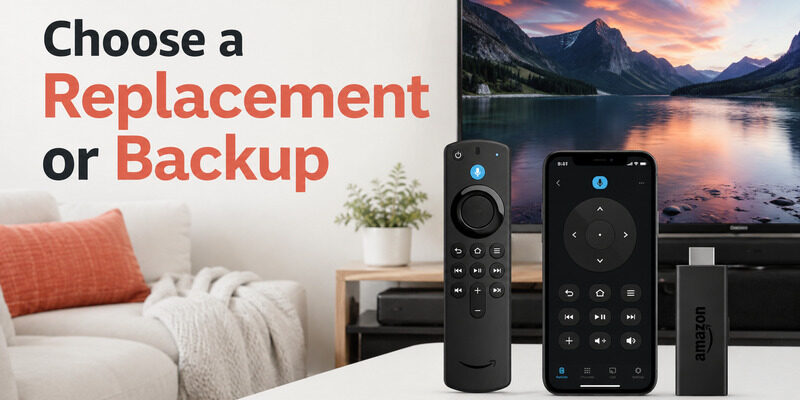
A should preserve the functions you actually use: Bluetooth navigation, microphone, TV power, volume, input, and app shortcuts. A basic infrared universal remote may control the TV but cannot necessarily navigate a hidden streaming stick. Keep the chromecast with google tv remote listed in Settings until the alternative passes a full control test.
is a practical interim controller while a replacement is in transit. Connect it before removing the old chromecast with google tv remote from Settings so you retain a route through menus and pairing screens. If only one button is worn, compare replacement cost with a phone backup and the television’s original handset.
Replacing the whole system is rarely justified when the streamer, Wi-Fi, and HDMI path are healthy. Avoid listings that promise universal compatibility without naming the exact device generation. A visually similar shell does not prove that Bluetooth pairing, voice, or button mapping will work. A chromecast with google tv remote replacement must match the streamer generation.
- Match the streamer generation
- Confirm Bluetooth and voice support
- Check TV-control buttons
The chromecast with google tv remote should be matched by supported hardware, not appearance alone.
🗺️ Browse How-To Guides: Apple TV Remote Volume Not Working? Here’s How to Fix It
Final Thoughts
A chromecast with google tv remote is easiest to fix when you separate Bluetooth navigation from infrared or HDMI device control. Identify the handset, pair it with Back and Home only when prompted, and configure power, volume, and input as a second task.
Keep a phone or Remote TV App connection ready before attempting a reset. If batteries, pairing, and button configuration all fail, choose a replacement explicitly listed for your Chromecast or Google TV Streamer generation.
Download LG TV Remote