
Google Home TV Remote: How to Control Your TV From the Home App
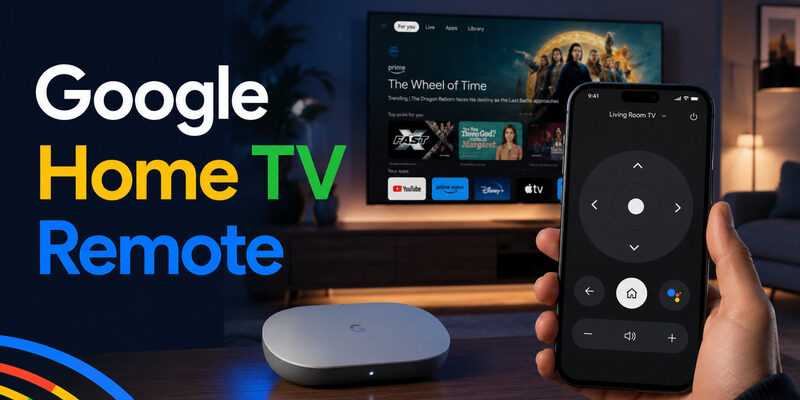
A Google Home TV remote lets you navigate a compatible Google TV or Android TV device from the Google Home app once the phone and television are linked on the same local network.
The on-screen remote and voice control are separate paths. The virtual D-pad is best for menus, playback and text entry, while a linked Nest or Home speaker can handle supported media commands. Availability varies by television platform, firmware and device type, so begin by confirming whether the tile represents a full Google TV remote, a cast session or voice-only media control.
Check Compatibility Before You Start
Full remote versus cast-only control
A full Google Home TV remote is most dependable with Chromecast with Google TV, Google TV Streamer and televisions running Google TV or Android TV. Confirm that the device appears in the correct Home, the phone has household access and both screens are awake. A tile that appears only while media is casting may offer pause and volume without exposing directional navigation.
Check the television’s operating system rather than relying on the brand name. Two TVs from the same manufacturer may use different platforms and expose different controls. If the remote button is absent, finish the TV or streamer setup in Google Home, update the apps, and verify the phone is signed into an account that can control that Home before changing network settings.
Confirm the control path
- Full virtual remote: Google TV or Android TV device
- Playback only: cast session or speaker-controlled media
- Voice control: linked speaker, display, or phone assistant
| Control path | Best for | Main limitation |
|---|---|---|
| Google Home remote | Device dashboard and navigation | Availability varies by device |
| Google TV app | Dedicated D-pad and keyboard | Same-network pairing required |
| Voice command | Hands-free playback | Not every app or TV command is supported |
Open the Google Home TV Remote
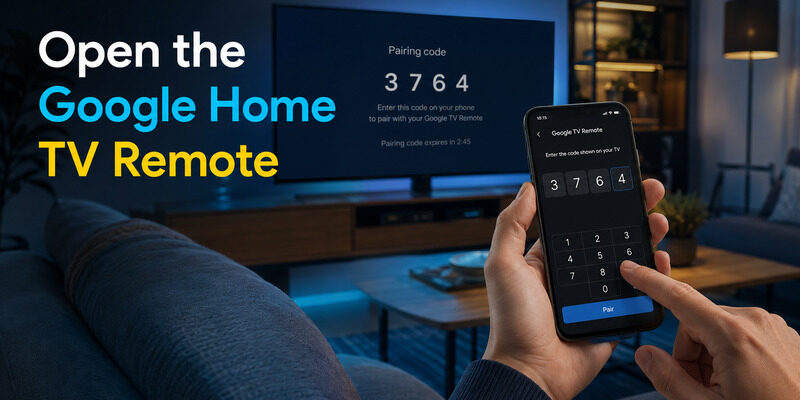
Open Google Home, select the compatible TV or streaming device, and choose the Remote option on its device page. If the television displays a code, enter it on the phone and approve the request. The Google Home TV remote should then show navigation and playback controls; some versions also provide a keyboard or quick access from a device tile.
Test the first connection slowly. Press one D-pad direction, wait a full second, then press OK. One movement per press shows that the session is healthy. Rapid tapping while the television is waking can queue commands and create a delayed burst, which users often mistake for a bad pairing.
If the TV never shows a code or the Remote option is missing, confirm that the phone and TV are on the same non-guest network and that local-device permissions are enabled. Do not remove the television from Google Home merely because the first session is slow; restart the app and retry before rebuilding the device setup.
Finish by testing Home, Back, directional navigation, playback and keyboard entry. Power and volume may use a different device-control path, so a working D-pad does not prove those buttons are configured.
- Turn on the TV and streaming device
- Open Google Home and choose the device
- Tap Remote and enter the on-screen code
- Test navigation, Back, Home, and playback
🛠️ Learn with Step-by-Step Guides: Apple remote tv app: Complete Apple TV Remote Guide for iPhone, Siri Remote, Pairing & Fixes
Use Google Home as a TV Remote With Voice
Link the right TV and speaker
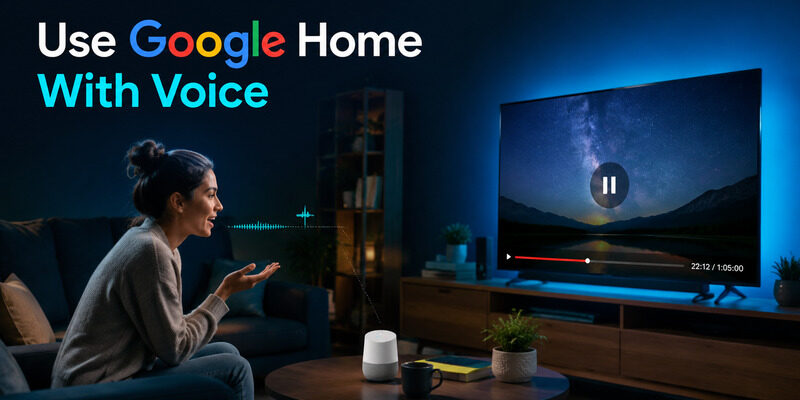
To use voice alongside a Google Home TV remote, place the television or Google streaming device in the same Home as the speaker or display and give it a distinct room-based name. Google Nest Help states that linked TVs can receive supported music and video commands. Start with an explicit target such as “Pause Living Room TV” until the correct session is established.
Follow-up commands may continue controlling the active media session without repeating the device name, but this becomes unreliable when several speakers or displays are playing. Say the target again whenever a command affects the wrong screen. Voice is useful for playback and supported power or volume actions; use the on-screen remote for account selection, consent prompts, keyboards and precise menu navigation.
Choose precise voice commands
- Start or stop supported media
- Pause, resume, next, or previous
- Adjust volume when the device path supports it
- Turn a compatible TV on or off
Understand Which Buttons and Features Work
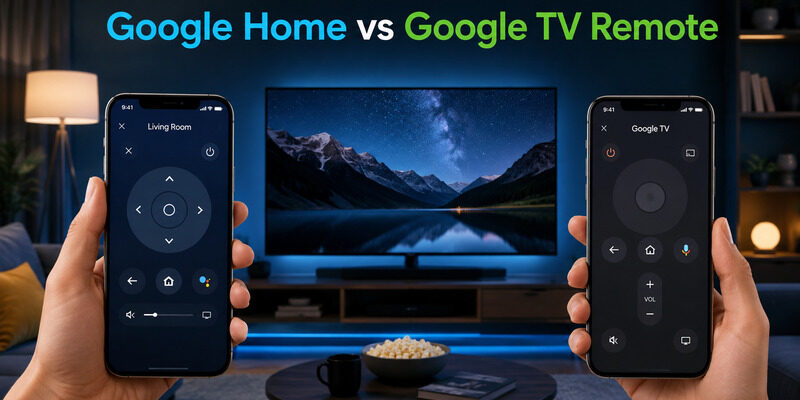
A Google Home TV remote control may expose a D-pad, OK, Back, Home, playback controls and phone keyboard entry. Power, volume and input are less consistent because they can depend on the television, the streaming device, HDMI-CEC, infrared configuration and standby behavior. Judge each control group independently instead of treating one failed button as a complete connection failure.
If navigation works while power or volume fails, the network session is already connected. Review the TV or streaming-device control settings, enable the appropriate HDMI-CEC option, and test the selected audio device. A receiver or soundbar may require a separate profile even when the television itself responds.
Text entry also depends on the active field. The keyboard may appear for a system search but not inside every streaming app, especially when the app uses its own protected input screen. When a feature is absent, compare the same action with the physical handset before resetting the Google Home TV remote.
Use the list below as a function check. Test navigation first, then playback, text entry, volume and wake-from-standby so the failed control path is easy to identify.
- Navigation and selection
- Text entry from the phone keyboard
- Playback controls
- Power and volume when supported
💡 Discover Helpful Guides
Apple TV Siri Remote: Complete Guide to Features, Generations, Pairing, and Everyday Use
Fix a Google Home Remote That Cannot Find the TV
Check network visibility first
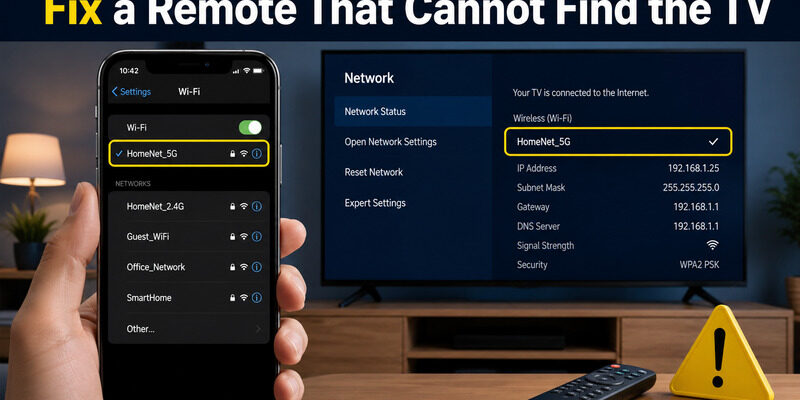
When the Google Home TV remote cannot find the television, compare the exact Wi-Fi names and confirm both devices are on the same local network. Guest isolation, a VPN, private relay behavior, mobile-data switching and router client isolation can block discovery even though the phone and television both have internet access. On iPhone, allow Local Network access; on Android, grant the nearby-device and network permissions requested by the app.
Restart Google Home, then restart the television or streaming device and wait for its home screen before scanning again. Remove VPNs temporarily and test near the router. Deleting the device or the entire Home is a last resort because it can remove rooms, automations and account access without correcting a blocked local network.
Read the discovery failure
- Enable Local Network permission on iPhone
- Allow nearby-device and network access on Android
- Disable VPN temporarily
- Restart the router only after device restarts
| Symptom | Likely cause | Best fix |
|---|---|---|
| TV tile missing | Wrong home/account | Add or move the device to the correct home |
| Remote opens but does nothing | Stale session | Restart app and TV/streamer |
| TV never appears | Network isolation or permission | Use same Wi-Fi and enable local access |
Compare Google Home and Google TV Phone Remotes
Google Home and the Google TV app can both provide a Google Home TV remote path for supported streaming devices, but they emphasize different tasks. Google Home fits a smart-home dashboard and makes it easy to move between rooms and devices. Google TV offers a more dedicated remote interface and, on Android, can be added to Quick Settings for faster access. This makes the Google Home TV remote easier to keep as a dependable household control path.
For a focused walkthrough, see . Keeping both official routes available gives you a backup if one app has a discovery or permission problem.
Both official apps normally require the phone and target device to share a local network and may ask for the code shown on the TV. Keep the route that reconnects reliably after standby. If one app fails discovery while the other still works, compare permissions and cached sessions before re-pairing the television.
Choose Google Home for household device management and voice-linked controls; choose Google TV for sustained navigation and keyboard entry. Keeping both available can prevent a temporary app issue from becoming a total loss of control.
- Google Home: smart-home device page and media controls
- Google TV: dedicated virtual remote and keyboard
- Voice: speaker or display commands
🛠️ Learn with Step-by-Step Guides: Apple TV Remote App Not Working: Fast Fixes for iPhone and Siri Remote Issues
Use Remote TV App as a Cross-Brand Backup
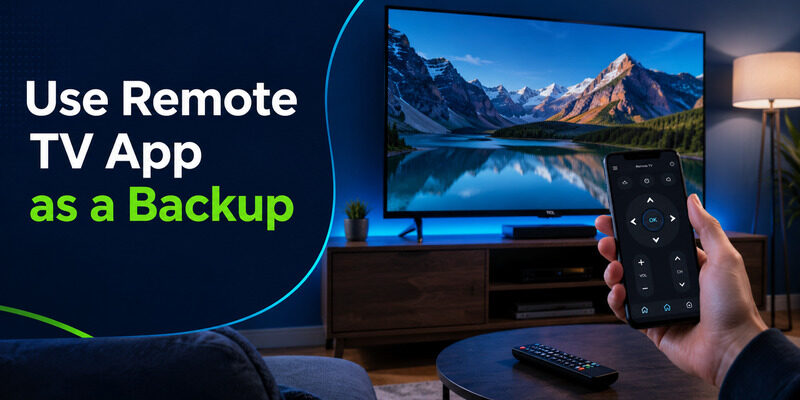
If the Google Home device tile is unavailable or the household includes several TV platforms, Remote TV App can provide a cross-brand phone fallback on supported models. Set it up while the television is online, grant local-network access and test discovery before the physical handset is lost. This backup complements the Google Home TV remote; it does not repair a TV that has already been reset or disconnected from Wi-Fi.
Visit the homepage to review compatibility and setup guidance. A configured backup is more useful than installing an app after the TV has already dropped off Wi-Fi.
A useful backup must survive a real standby cycle. Turn the TV off, wait a minute, wake it, reconnect from the phone and test Home, volume and playback separately. If the app can navigate only after someone powers on the TV manually, record that limitation so it is not mistaken for a pairing failure later.
Pair the fallback before an emergency and keep the television’s network name documented. An unpaired app cannot usually restore network access after a factory reset.
- Install and grant local-network access
- Pair while the physical remote still works
- Verify power, navigation, and playback separately
Before calling the Google Home TV remote ready, run a cold-start test: wake the television from standby, open a streaming app, enter a short search term, pause playback, change volume and return Home. Then close Google Home, reopen it and repeat one navigation command. A dependable Google Home TV remote reconnects without a delayed burst of queued taps. If only volume or power fails, adjust the TV-control path; if the whole device disappears, investigate account access, permissions and network visibility.
💡 Discover Helpful Guides: Fire TV Remote iOS: How to Control Fire TV and Fire Stick From iPhone
Final Thoughts
Use the Google Home TV remote by opening the correct device in Google Home, completing any on-screen code pairing and keeping the phone and television on the same local network. Use voice for supported media sessions, but switch to the on-screen D-pad when a task needs precise navigation, consent or text entry.
When controls disappear, check the Home assignment, app permissions, VPN status and router isolation before deleting the device. Google’s official help separates phone-remote pairing from voice-linked media control, and troubleshooting is faster when those paths are tested independently.
Keep one tested physical or phone backup available. The goal is not to make every control route identical; it is to know which path handles menus, which handles voice, and which can still wake the TV after standby.
Download LG TV Remote