
How to Download Apple TV Remote on iPhone: Complete Setup Guide
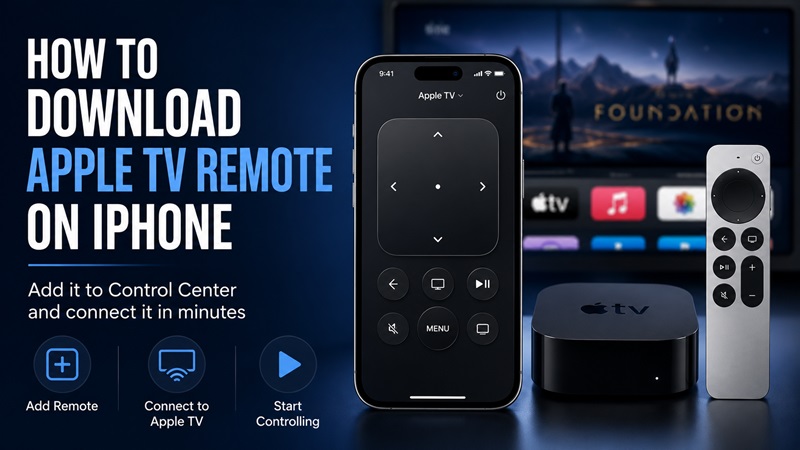
Losing the physical Apple TV remote does not mean you have to stop watching. Your iPhone can become a convenient controller for navigating menus, opening apps, entering text, and controlling playback. The key thing to know about how to download Apple TV Remote on iPhone is that you usually do not need to install a separate official app.
On supported iPhones, Apple TV Remote is built into Control Center. You only need to add the Remote control if it is not already visible, connect your iPhone and Apple TV to the same Wi-Fi network, select the correct device, and enter the pairing code shown on the television.
This guide explains how to download Apple TV Remote on iPhone, connect it step by step, use the main buttons, and fix common problems. It also explains when a third-party Remote TV App may be useful.
1. Do You Need to Download Apple TV Remote on iPhone?
People searching for how to download Apple TV Remote on iPhone often expect to find a separate official application in the App Store. On current iPhone software, however, Apple TV Remote is generally included as a built-in Control Center feature.
That means you normally do not need to search for or purchase another Apple application. The Remote control may already be present in Control Center. If it is missing, you can add it in a few taps.
Is Apple TV Remote Already on Your iPhone?
Open Control Center and look for a remote-shaped icon. If you see it, tap the icon and select your Apple TV. If you do not see it, add the Remote control using the steps in the next section.
This built-in approach answers the question how do I get Apple TV Remote on my iPhone for most users: add Remote to Control Center instead of downloading a separate app.
What Devices Are Supported?
The built-in remote supports compatible Apple TV models and some AirPlay-compatible smart TVs added to the Home app. Your iPhone and Apple TV must be reachable on the same local network.
What About an App Store Download?
Users may still search for download Apple TV Remote app for iPhone or download Apple TV Remote for iPhone. Third-party applications are available, but they are not normally required for Apple TV.
A third-party Remote TV App may help when you want to control several television brands from one place. This distinction is important when learning how to download Apple TV Remote on iPhone. Before installing one, check compatibility, subscription terms, recent reviews, and Local Network permissions.
2. How to Add Apple TV Remote to iPhone Control Center
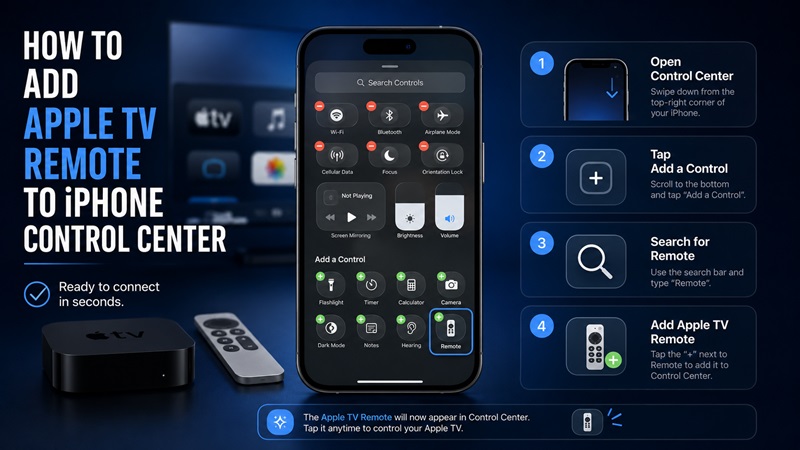
The next part of how to download Apple TV Remote on iPhone is making the built-in control easy to access. The exact menu can vary slightly depending on your iOS version.
Add Remote on Current iOS Versions
- Swipe down from the upper-right corner to open Control Center.
- Touch and hold an empty area or tap the option to edit controls.
- Select Add a Control.
- Search for Remote.
- Tap the Remote control to add it.
- Drag it to your preferred location if needed.
- Exit editing mode.
The Remote icon should now remain available whenever you open Control Center. At this point, the main part of how to download Apple TV Remote on iPhone is complete.
Add Remote Through Settings on Earlier iOS Versions
- Open Settings.
- Select Control Center.
- Find Apple TV Remote in the available controls list.
- Tap the Add button.
- Open Control Center and look for the Remote icon.
On an iPhone with Face ID, swipe down from the top-right corner. On an older iPhone with a Home button, swipe up from the bottom edge.
What If the Remote Icon Is Already There?
Do not add a duplicate control. Tap the existing Remote icon, choose the device selector at the top, and look for your Apple TV.
For anyone asking how do I get Apple TV Remote on my iPhone, the setup is complete as soon as the Remote icon appears in Control Center.
If you originally searched for download Apple TV Remote for iPhone, adding the built-in control is faster than installing an unfamiliar third-party app.
3. How to Connect Apple TV Remote on iPhone Step by Step
After adding the control, the next part of how to download Apple TV Remote on iPhone is connecting it to the correct Apple TV.
Before You Start
Confirm that:
- Apple TV and the television are turned on.
- Your iPhone is connected to Wi-Fi.
- Apple TV is connected to the same local network.
- Both devices have recent software updates.
- Apple TV has completed its startup process.
If Apple TV uses Ethernet, it can still work as long as the router allows communication between wired and wireless devices on the same local network.
Connect the iPhone Remote
- Open Control Center.
- Tap the Apple TV Remote icon.
- Tap the device name or selector at the top.
- Choose your Apple TV from the list.
- Wait for a four-digit code to appear on the television.
- Enter the code on your iPhone.
- Wait for the remote interface to open.
- Swipe on the touch area to move through the menu.
- Tap the touch area to select an item.
Once paired, the iPhone may reconnect automatically whenever you select the same Apple TV again.
Connect to an AirPlay-Compatible Smart TV
For a supported smart TV, first add the television to the Home app and assign it to a room. Then open the built-in Remote, select the TV, and follow the pairing prompts.
Switch Between Multiple Apple TVs
Name each Apple TV by room, such as Living Room, Bedroom, or Office. Open the device selector at the top of the Remote interface whenever you need to switch.
This step-by-step process is the practical answer to how to download Apple TV Remote on iPhone and begin using it immediately.
4. How to Use Apple TV Remote on Your iPhone
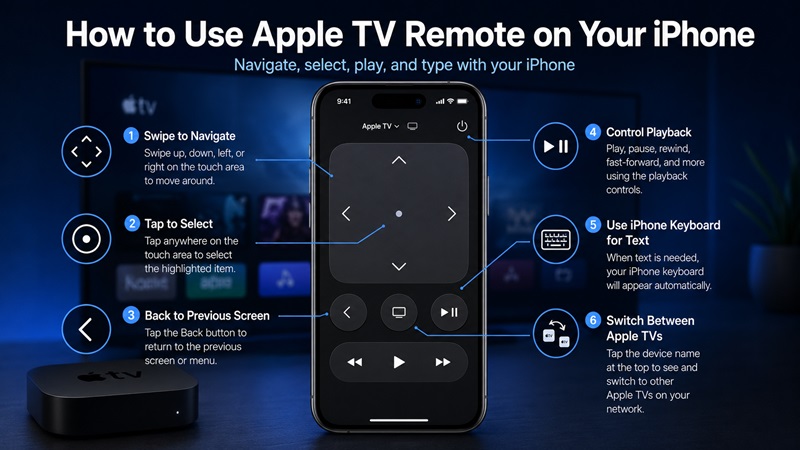
If you are asking how do I use Apple TV Remote on my iPhone, begin with the large touch-sensitive area near the top of the interface. It replaces the clickpad or touch surface on the physical remote.
Navigate and Select
Swipe up, down, left, or right to move between apps and menu items. Tap the touch area to open the highlighted item. For long lists, use longer or repeated swipes.
Go Back and Return Home
The Back button returns to the previous screen. Depending on the Apple TV model and settings, other controls may return to the Home Screen or open Apple TV Control Center.
Apple TV Control Center provides quick access to profiles, audio, sleep, and connected-home features.
Control Playback
The iPhone remote can:
- Play or pause supported content.
- Skip forward or backward.
- Scrub through compatible video.
- Open playback options.
- Turn subtitles on or off.
- Use app-specific controls when supported.
Available buttons may change based on the app and content currently playing.
Type With the iPhone Keyboard
When Apple TV displays a text field, your iPhone may show a keyboard notification. You can type passwords, search terms, and usernames more quickly than with the physical remote.
This is one of the biggest benefits of learning how to download Apple TV Remote on iPhone instead of immediately buying a replacement controller.
Control Volume
The iPhone volume buttons may control compatible audio equipment, such as certain receivers, speakers, or HomePod setups. This is another useful part of how to download Apple TV Remote on iPhone and use it as a full backup controller. Volume control does not work with every television or audio system.
5. What Can the Apple TV Remote on iPhone Do?
After completing how to download Apple TV Remote on iPhone, your phone can handle most everyday Apple TV tasks.
Main Features
The built-in remote can help you:
- Navigate Apple TV menus.
- Open and switch apps.
- Search for movies and shows.
- Enter text with the iPhone keyboard.
- Use Siri or dictation when supported.
- Play, pause, rewind, and fast-forward.
- Access Apple TV Control Center.
- Switch between several Apple TV devices.
The exact controls displayed can change depending on the selected device and the app currently open.
iPhone Remote vs. Physical Remote
The iPhone is especially convenient for typing and searching when the original remote is missing or charging. A physical remote still provides tactile buttons and does not depend on your phone being unlocked, so many households use the iPhone mainly as a backup.
Should You Install Another Remote App?
A Remote TV App may offer multi-brand controls, casting tools, or extra shortcuts. However, third-party apps may contain ads, subscriptions, or limited free features.
If your only goal is to control Apple TV, try the built-in Control Center remote first. It is the recommended starting point for how to download Apple TV Remote on iPhone. This explains why a search for download Apple TV Remote app for iPhone can lead to unnecessary downloads even though the official control is already included.
6. Apple TV Remote Not Working on iPhone: Problems and Solutions
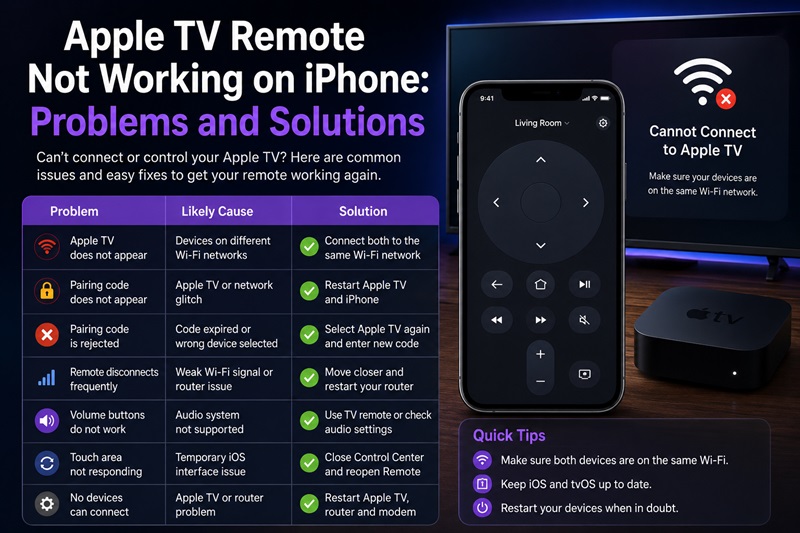
Even after following how to download Apple TV Remote on iPhone, Apple TV may not appear or the remote may disconnect. Most how to download Apple TV Remote on iPhone problems come from network discovery rather than the Remote control itself. Use the table below to identify the likely cause.
| Problem | Likely Cause | Recommended Solution |
| Remote icon is missing | The control has not been added | Add Remote through Control Center or Settings |
| Apple TV does not appear | Devices use different networks | Connect both devices to the same Wi-Fi |
| Pairing code does not appear | Apple TV or network is temporarily unresponsive | Restart Apple TV and the iPhone |
| Pairing code is rejected | The code expired or the wrong device was selected | Select Apple TV again and enter the new code |
| Remote disconnects frequently | Weak Wi-Fi or router instability | Move closer and restart the router |
| Touch area does not respond | Temporary interface problem | Close Control Center and reopen Remote |
| Volume buttons do not work | Audio equipment is unsupported or not configured | Use the TV remote or review audio settings |
| Apple TV uses Ethernet but is not found | Router blocks local communication | Review network settings |
| Only one iPhone fails | Phone-specific software or network issue | Restart and update that iPhone |
| No phones can connect | Apple TV or router problem | Restart Apple TV, router, and modem |
Confirm the Same Network
Compare the Wi-Fi network on the iPhone with the Network settings on Apple TV. Avoid guest Wi-Fi and temporarily disable VPN services because either can block local discovery.
Restart and Update Both Devices
Restart the iPhone and Apple TV, install available iOS and tvOS updates, and try pairing again. Restart the router if Apple TV repeatedly disappears.
Test Another iPhone or iPad
If another device connects, focus on the original iPhone’s software and network settings. If no mobile device connects, troubleshoot Apple TV or the router. A third-party remote app cannot control an offline Apple TV.
7. Frequently Asked Questions
How Do I Get Apple TV Remote on My iPhone?
Open Control Center, add the Remote control if it is missing, tap the icon, select Apple TV, and enter the four-digit code displayed on the television.
Do I Need to Download Apple TV Remote From the App Store?
Usually not. The official Apple TV Remote is built into Control Center on supported iPhones. You normally do not need to download Apple TV Remote app for iPhone from the App Store.
Can I Use My iPhone If the Physical Remote Is Lost?
Yes, provided Apple TV is turned on and available on the same local network. Open the built-in Remote, select Apple TV, and complete pairing.
How Do I Use Apple TV Remote on My iPhone?
Open Remote from Control Center. Swipe on the touch area to navigate, tap to select, use Back to return, and use the playback buttons with supported content.
This directly answers how do I use Apple TV Remote on my iPhone for everyday control.
Why Can’t My iPhone Find Apple TV?
Common causes include different Wi-Fi networks, Apple TV being offline, outdated software, guest-network isolation, VPN interference, or a router that blocks local communication.
Can the iPhone Remote Turn Apple TV On?
It may wake a compatible Apple TV from standby when the device remains connected and available on the network. Results can vary with network, television, receiver, and HDMI settings.
Can One iPhone Control Multiple Apple TVs?
Yes. Open the device selector at the top of the Remote interface and choose another Apple TV detected on the local network.
Conclusion
Learning how to download Apple TV Remote on iPhone is easier than many users expect because the official controller is already built into Control Center. Add the Remote control, place the iPhone and Apple TV on the same Wi-Fi network, select the device, and enter the pairing code.
Once connected, you can navigate menus, control playback, type with the iPhone keyboard, and switch between multiple Apple TV devices. If the connection fails, check Wi-Fi, restart both devices, update their software, and review the router before installing another app.
For most users, the built-in control is the fastest and safest solution for how to download Apple TV Remote on iPhone.
