
Google TV Remote Finder: How to Find a Lost Google TV Remote
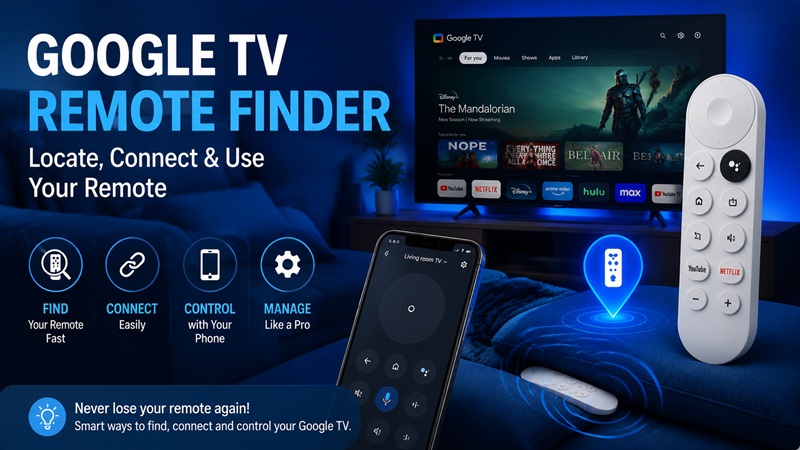
Losing a TV remote is one of the most common problems when watching movies, streaming shows, or switching between apps. A remote can easily disappear between sofa cushions, under furniture, or in another room. Fortunately, google tv remote finder features and alternative solutions can help users quickly locate their missing remote or continue controlling their TV without interruption.
Many users search for solutions after experiencing a lost google tv remote situation and want to know whether Google TV has a built-in way to find the device. The answer depends on the type of Google TV device, remote model, and available hardware features.
This guide explains everything about google tv remote finder, including how the feature works, how to find a missing remote step by step, how to reconnect it, what to do when the remote stops working, and how a phone-based remote solution can help when the physical remote cannot be found.
1. What Is Google TV Remote Finder and How Does It Work?
Google TV Remote Finder is a feature designed to help users locate a misplaced remote control by making the remote easier to identify. Instead of searching randomly around the house, users can activate a finding function that helps locate the remote through sound or connection-based methods.
However, not every Google TV remote supports a built-in finder feature. Some newer streaming devices and remotes include hardware that allows users to trigger an alert sound, while older remotes may not have this capability.
The way google tv remote finder works depends mainly on three factors:
- The Google TV device model.
- The generation of the remote control.
- Whether the remote includes additional finder hardware.
For example, a Google TV Streamer remote may support more advanced finding features compared with older Bluetooth remotes. Before trying to locate your remote, it is important to confirm whether your device actually supports this function.
How Does Google TV Remote Finder Locate a Remote?
When supported, the finder feature communicates with the paired remote and activates an alert. This allows users to follow the sound and discover where the remote is hidden.
A typical process includes:
- Sending a finder command from the compatible Google TV device.
- The remote receiving the signal through its wireless connection.
- The remote producing an audible alert.
- The user following the sound to locate the remote.
The feature is especially useful when the remote is nearby but hidden in places that are difficult to see, such as between cushions, under blankets, or behind furniture.
Does Every Google TV Remote Have a Finder Feature?
No. Many users assume every Google TV remote includes a built-in tracker, but that is not always true.
A standard Bluetooth remote usually helps control the TV but does not automatically provide location tracking. If your remote does not support a built-in finder, you may need other methods such as:
- Searching manually.
- Using a smartphone remote.
- Adding an external Bluetooth tracker.
- Purchasing a replacement remote.
This is why searches like google remote finder or find my remote google tv are common among users who are unsure whether their device includes this function.
2. Lost Google TV Remote? What Are the Best Ways to Find It?
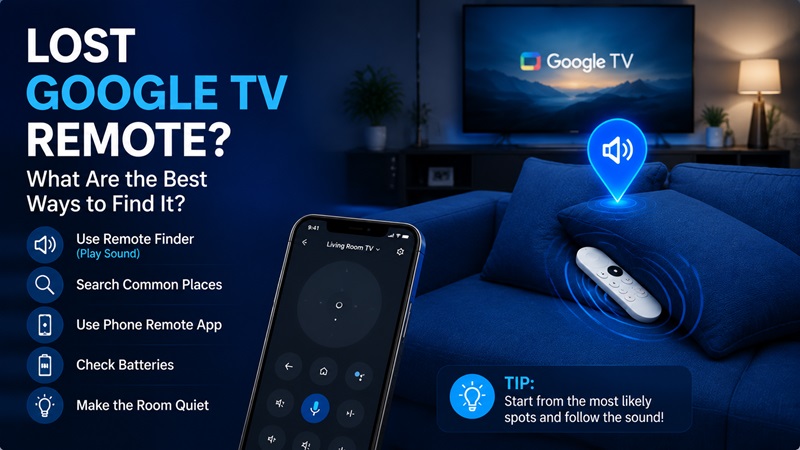
A lost google tv remote can quickly become frustrating, especially when you want to watch content but cannot control your TV. Before buying a replacement, there are several ways to find it.
The fastest method depends on whether your remote supports google tv remote finder. If it does, start with the built-in feature. If not, follow a systematic search process.
Use Google TV Remote Finder First
If your device supports remote finding, activate the feature before searching manually.
Keep the room quiet and listen carefully. Remote alert sounds can sometimes be soft, especially when the remote is covered by pillows, clothes, or furniture.
The best places to check include:
- Between sofa cushions.
- Under the couch.
- Behind the TV stand.
- Near charging cables.
- Inside blankets.
- On coffee tables.
- In bedrooms.
- Inside bags or drawers.
Many users searching find google tv remote discover that the remote was not actually far away but simply hidden in a common location.
Search Based on Your Last Usage
Instead of checking the entire house, think about the last time you used the remote.
Ask yourself:
- Were you watching TV in another room?
- Did someone move the remote after using it?
- Was it placed near food, drinks, or a laptop?
- Could children or pets have moved it?
This approach is often faster than random searching.
Check the Remote Battery
A weak battery can make finding features unreliable. If your remote normally responds but suddenly cannot be detected, replace the batteries before assuming the remote is missing.
Battery issues can also explain why users experience situations where the remote appears lost even though it is nearby.
Use Your Phone as a Temporary Remote
If you cannot immediately locate your physical remote, you can often control your Google TV using your smartphone.
A phone-based solution allows you to:
- Navigate menus.
- Open streaming apps.
- Adjust playback.
- Control volume.
- Search using your phone keyboard.
Many people ask, “is there an app to find your tv remote?” The important difference is that most apps do not physically locate a remote. Instead, they replace the remote functions so you can continue using your TV.
A reliable Remote TV App can be a practical backup solution when your physical remote is unavailable.
3. How to Find Google TV Remote Step by Step
If you are wondering how to find google tv remote, follow this structured process. These steps help you determine whether the remote can be recovered using built-in features or alternative methods.
Step 1: Identify Your Google TV Device
First, check what type of device you are using:
- Google TV Streamer.
- Chromecast with Google TV.
- Smart TV with Google TV built in.
- Android TV device using Google software.
Different devices may support different remote features.
Step 2: Check Remote Compatibility
Before searching, confirm whether your remote supports a finder function.
A remote with built-in finding capability may allow you to activate an alert, while a basic remote may require manual searching.
This step prevents users from repeatedly trying a feature their device does not support.
Step 3: Activate the Remote Finder Feature
If supported:
- Open the available remote management option.
- Select the remote finder function.
- Wait for the remote alert.
- Follow the sound.
The exact process can vary depending on the Google TV model, so users should check their device instructions if the option is unavailable.
Step 4: Make the Area Quiet
Turn off unnecessary noise sources:
- Music speakers.
- Fans.
- Background TV sound.
- Other electronic devices.
A quiet environment makes it easier to locate the remote.
Step 5: Search Slowly Around the TV Area
Start from the most likely locations:
- Sofa area.
- TV cabinet.
- Coffee table.
- Nearby chairs.
Avoid moving too many objects at once because the remote may become harder to locate.
Step 6: Try a Mobile Remote Solution
If the physical remote cannot be found, use your smartphone as a temporary controller.
This is useful when you need immediate access to your TV settings while continuing the search.
Many users searching find remote google tv are actually looking for a way to regain control quickly, not only the physical location of the remote.
4. How to Use Google TV Remote Finder Features and Alternatives
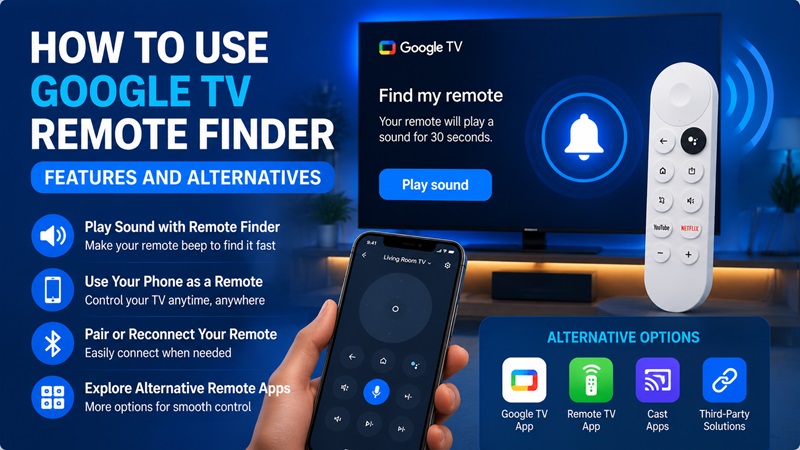
After understanding how the feature works, the next step is learning how to use google tv remote finder effectively. While the feature can save time, it is important to understand its limitations and know what alternatives are available when the physical remote cannot be located.
A google tv remote finder is mainly designed for short-distance searches. It works best when the remote is somewhere inside your home, especially near the TV area. It is not a GPS tracker and cannot show the exact location of your remote on a map.
How to Use Google TV Remote Finder Effectively
To get the best results, follow these tips:
Keep the Room Quiet
Remote finder alerts are usually designed to be noticeable but may become difficult to hear when:
- The TV volume is high.
- Other devices are playing sound.
- The remote is covered by furniture.
- The remote is inside another object.
Reducing background noise increases the chance of hearing the alert.
Search the Most Recent Usage Area First
Most lost remotes are found close to where they were last used.
Start checking:
- Sofa cushions.
- Armchairs.
- Coffee tables.
- Bedside areas.
- Kitchen counters.
Many people who search locate google tv remote find that the remote is within a few meters of the TV.
Check Battery Condition
The finder feature depends on communication between the TV system and remote. If the batteries are completely empty, the remote may not respond.
Replace the batteries if:
- The remote does not respond.
- Buttons work inconsistently.
- The finder feature does not activate.
Can a Phone Find a Physical Google TV Remote?
A common question is: “is there a way to find my tv remote using my phone?”
The answer depends on the type of remote.
Most smartphone remote apps cannot detect the physical location of a standard Google TV remote. Instead, they provide a digital remote interface that allows users to control the TV.
For example, a phone-based remote can help you:
- Open streaming apps.
- Navigate menus.
- Enter text faster.
- Adjust volume.
- Search content.
This means a smartphone is usually a replacement control method rather than a tracking device.
Using a Remote TV App as an Alternative
When your remote is missing, a Remote TV App can provide immediate access to your TV.
These apps are useful because they eliminate the need to wait for a replacement remote. Users can control their Google TV directly from a smartphone when both devices are connected properly.
Typical features include:
- Touch navigation.
- Virtual buttons.
- Keyboard input.
- Voice search support.
- Volume control.
For users who frequently lose remotes, keeping a remote app installed can prevent future interruptions.
Is There an App to Find Your TV Remote?
Many users search is there an app to find your tv remote expecting an application that works like a phone tracker.
However, most TV remote applications cannot locate a lost physical remote unless the remote has built-in tracking technology.
The difference is:
| Solution | Finds Physical Remote? | Controls TV? | Requires Connection? |
| Google TV Remote Finder | Yes (supported models) | Yes | Depends on device |
| Smartphone Remote App | Usually No | Yes | Usually Wi-Fi |
| Bluetooth Tracker | Yes | No | Bluetooth |
| Manual Search | Yes | No | No |
5. How to Connect Google TV Remote After Finding It
Finding your remote is only the first step. Sometimes a remote can be located but still fail to control the TV because the connection has been interrupted.
Knowing how to connect google tv remote correctly helps restore normal operation quickly.
A Google TV remote usually connects through Bluetooth, while some buttons may also rely on infrared signals depending on the model.
Step 1: Replace or Check the Batteries
Before pairing again:
- Remove old batteries.
- Insert fresh batteries.
- Confirm the positive and negative directions.
Weak batteries are one of the most common reasons a remote appears disconnected.
Step 2: Restart Your Google TV Device
Restarting can refresh the Bluetooth connection.
You can:
- Disconnect the TV or streaming device power.
- Wait briefly.
- Reconnect the power.
- Wait until the Google TV interface loads.
Step 3: Put the Remote Into Pairing Mode
To reconnect the remote:
- Hold the required pairing buttons for your model.
- Wait until the indicator appears or the TV detects the remote.
- Follow the on-screen instructions.
The exact button combination can vary depending on your remote version.
Step 4: Connect Remote Through Settings
If you still need help with how to connect remote to google tv, use your phone as a temporary controller.
Go to:
- Google TV Settings.
- Remote & Accessories.
- Pair a new device.
- Select your remote.
- Complete the pairing process.
Step 5: Test All Functions
After reconnecting, check:
- Direction buttons.
- Home button.
- Back button.
- Volume controls.
- Voice assistant button.
A successful connection should restore full control.
6. Google TV Remote Lost: Can You Control Your TV Without the Remote?
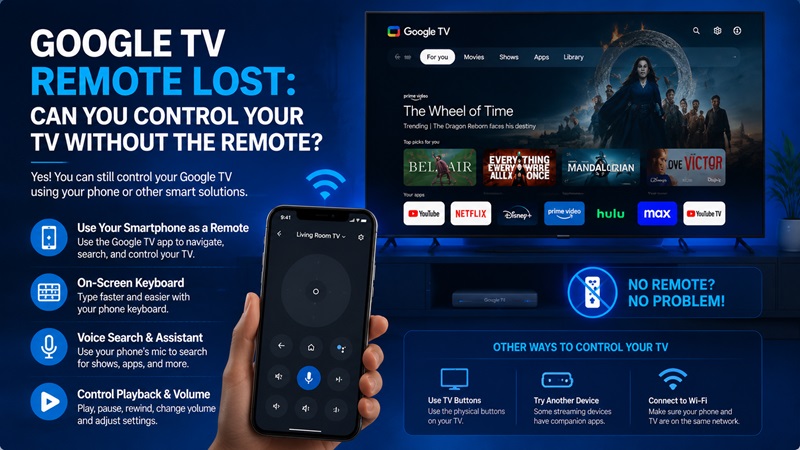
A google tv remote lost situation does not always mean you need to stop using your TV. There are several ways to continue watching content while searching for or replacing the remote.
Use Your Smartphone as a Remote
The easiest temporary solution is using your phone.
A smartphone remote allows you to:
- Browse apps.
- Search movies.
- Control playback.
- Change settings.
This is especially useful when your remote is missing but your TV is already connected to Wi-Fi.
Use Google TV Mobile Controls
To open the remote interface:
- Install or open the Google TV application.
- Select the remote option.
- Choose your TV device.
- Enter the pairing code displayed on the TV.
- Start controlling your TV.
Users often search how to open google tv remote because the remote function is not always obvious inside the app.
What If Your TV Is Not Connected to Wi-Fi?
This can make phone control more difficult.
Possible solutions include:
- Using physical buttons on the TV.
- Connecting through Ethernet if supported.
- Using a compatible replacement remote.
- Using HDMI devices that support remote control features.
Can You Use Another Remote?
Yes. Many replacement remotes can work with Google TV if they are compatible with your device.
Before buying a replacement, check:
- TV brand.
- Streaming device model.
- Remote compatibility.
- Required features.
7. Why Is My Google TV Remote Not Working? Common Problems and Fixes
Many users search why is my google tv remote not working after finding the remote but discovering that it still does not respond.
A remote problem does not always mean the device is damaged. Common issues include batteries, pairing problems, software errors, or connection interference.
| Problem | Possible Cause | Solution |
| Remote does not respond | Weak or empty batteries | Replace batteries |
| Remote cannot connect | Bluetooth pairing lost | Pair the remote again |
| Some buttons do not work | Connection or setup issue | Restart and reconnect |
| Voice button fails | Assistant settings problem | Check voice settings |
| Phone remote cannot find TV | Different Wi-Fi networks | Connect both devices to the same network |
| Remote works slowly | Software or battery issue | Restart device and update software |
Replace Batteries First
Before trying advanced fixes, always test with new batteries.
A remote with low power may:
- Work only sometimes.
- Disconnect frequently.
- Fail to activate finder features.
Restart and Reconnect the Remote
If changing batteries does not solve the issue:
- Restart Google TV.
- Remove the remote from paired devices.
- Pair it again.
- Test all buttons.
Check Wireless Interference
Bluetooth performance can be affected by:
- Wireless speakers.
- Routers.
- Other Bluetooth devices.
- Physical barriers.
Moving nearby devices may improve stability.
Update Google TV Software
Software updates can fix:
- Connection bugs.
- Remote delays.
- Compatibility issues.
Always keep your Google TV system updated for better reliability.
8. Google TV Remote Finder vs Other Remote Finding Solutions
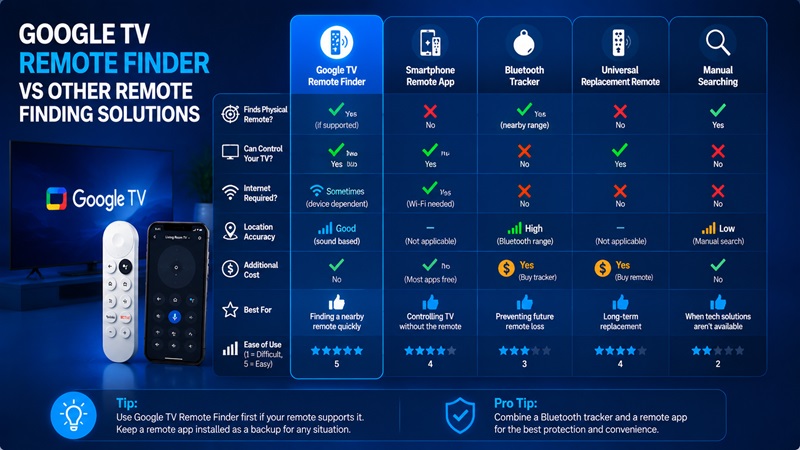
Different solutions work for different situations. A built-in google tv remote finder is convenient, but it is not always available.
| Solution | Physical Remote Location | Internet Needed | Best Use Case |
| Google TV Remote Finder | Yes | Sometimes | Supported Google TV remotes |
| Google TV Mobile Remote | No | Usually Yes | Temporary control |
| Remote TV App | No | Usually Yes | Daily replacement |
| Bluetooth Tracker | Yes | No | Preventing future loss |
| Manual Searching | Yes | No | Any remote |
Google TV Remote Finder
Best for users who have compatible hardware.
Advantages:
- Fast.
- No extra accessories.
- Designed specifically for remote recovery.
Limitations:
- Not available on every remote.
- Limited range.
- Requires compatible hardware.
Bluetooth Trackers
A separate tracker can be attached to a remote.
Advantages:
- Works with many remotes.
- Can help locate items later.
Limitations:
- Requires purchasing an additional device.
- Requires replacing batteries periodically.
Remote Apps
A phone remote is useful when finding the physical remote takes too long.
It does not replace a finder feature but provides immediate control.
9. Frequently Asked Questions About Google TV Remote Finder
How Do I Find My Remote on Google TV?
To find a Google TV remote, first check whether your device supports a finder feature. Activate the feature if available, listen for the alert sound, and search nearby areas such as sofas, tables, and TV stands.
How Do I Find Remote Google TV Without a Finder Feature?
If your remote does not support a finder, search common locations manually, check the last place it was used, or use a phone remote app while looking for it.
Is There a Way to Find My TV Remote?
Yes, but the method depends on the remote. Some newer devices support built-in finding features, while others require manual searching or an external tracker.
Is There a Remote Finder on Roku TV?
Some Roku devices provide remote finding features, but availability depends on the Roku model and remote type. It is different from Google TV Remote Finder.
How Do I Use Google Remote?
To use Google remote features, connect your phone or physical remote with your Google TV device, then navigate through menus, apps, and playback controls.
How Do I Connect a Remote to Google TV?
To connect a remote, install fresh batteries, activate pairing mode, open Remote & Accessories settings, and complete the pairing process.
Why Does My Google TV Remote Finder Not Work?
The most common reasons are empty batteries, unsupported hardware, Bluetooth connection problems, or the remote being outside communication range.
10. The Best Way to Find and Manage Your Google TV Remote
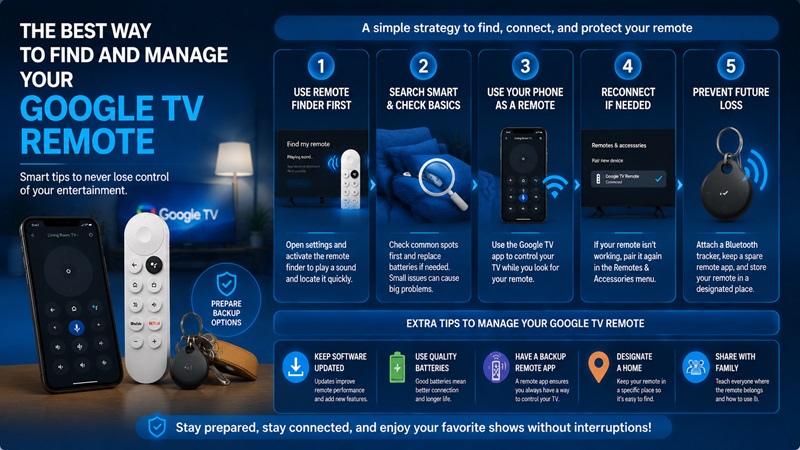
A missing remote does not have to interrupt your entertainment experience. The best approach is to start with google tv remote finder if your device supports it, then move to manual searching or smartphone control when necessary.
The most effective strategy is:
- Activate the remote finder feature.
- Search common hiding places.
- Replace batteries if needed.
- Reconnect the remote.
- Use a smartphone remote solution as a backup.
For users who frequently lose remotes, a combination of a reliable Remote TV App and a Bluetooth tracker can make managing your TV much easier.
Whether you need to find google tv remote, reconnect a disconnected device, or control your TV without the original remote, these methods provide practical solutions for almost every situation. A good backup plan ensures that a missing remote never stops you from enjoying your favorite content.
