How to Pair Google TV Remote and Reconnect It
A disconnected remote can prevent you from completing Google TV setup, opening applications, changing settings, or even selecting a Wi-Fi network. Fortunately, learning how to pair google tv remote controls usually takes only a few minutes.
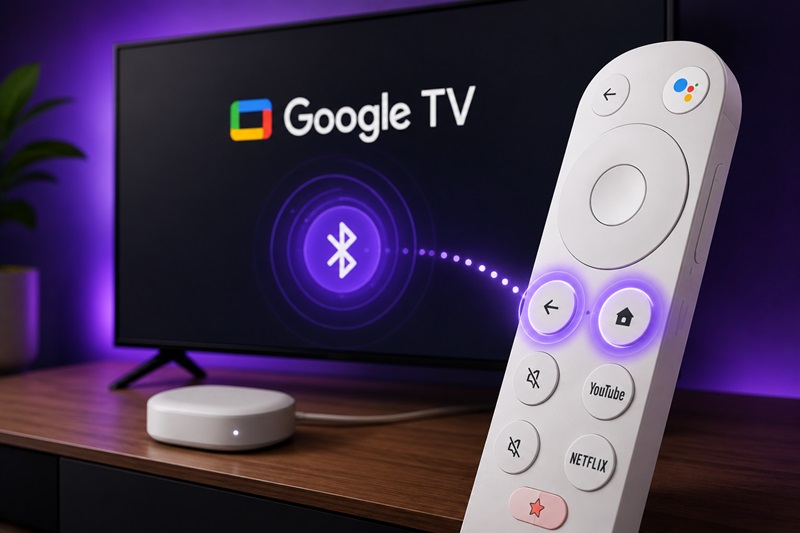
Most Google TV voice remotes communicate with a streaming device through Bluetooth. During the initial setup, the remote should connect automatically. When it does not, holding the Back and Home buttons normally places a compatible Google voice remote into pairing mode.
The process may vary slightly between a Google TV Streamer, Chromecast with Google TV, a television with Google TV built in, and an onn. Google TV device. Pairing the remote with the streaming device is also different from programming its Power, Volume, and Input buttons for a television or soundbar.
This guide explains how to pair google tv remote models, reconnect a previously paired remote, activate pairing mode, configure TV buttons, troubleshoot failed connections, and use a Remote TV App while the physical controller is unavailable.
1. Which Google TV Remote Are You Trying to Pair?
Before following how to pair google tv remote instructions, identify the remote and device you own. Not every controller uses the same button combination or connection technology.
| Remote type | Main connection | Common pairing method |
| Google TV Streamer Voice Remote | Bluetooth | Hold Back and Home |
| Chromecast with Google TV Voice Remote | Bluetooth | Hold Back and Home |
| Remote supplied with a Google TV television | Brand-specific | Follow the TV setup screen |
| onn. Google TV remote | Bluetooth and IR, depending on model | Follow the device guide |
| Third-party Bluetooth remote | Bluetooth | Pair remote or accessory |
| Infrared-only remote | Infrared | No Bluetooth pairing |
A Chromecast or Google TV Streamer remote usually pairs with the streaming device rather than directly with the television. The remote can later be programmed to control TV Power, Volume, and Input.
A remote supplied with a television that has Google TV built in may use instructions from the TV manufacturer. Sony, TCL, Hisense, and other brands can use different remote designs even though the television interface is powered by Google TV.
When you pair google remote with tv, determine whether you are trying to:
- Connect navigation buttons to Google TV
- Program Volume and Power for the television
- Reconnect a remote that was paired previously
- Pair a replacement voice remote
- Connect a Bluetooth accessory
Users asking how do i pair my google remote to my tv often need two separate procedures: Bluetooth pairing for Google TV navigation and button programming for television control.
A correct google tv remote setup begins by identifying the exact streaming device or television model.
Download TV Remote App📖 Read More Guides: Google Remote TV: Complete Guide to Apps, Pairing, Fixes, Phone Control, and Replacement
2. How to Pair a Google TV Remote Step by Step
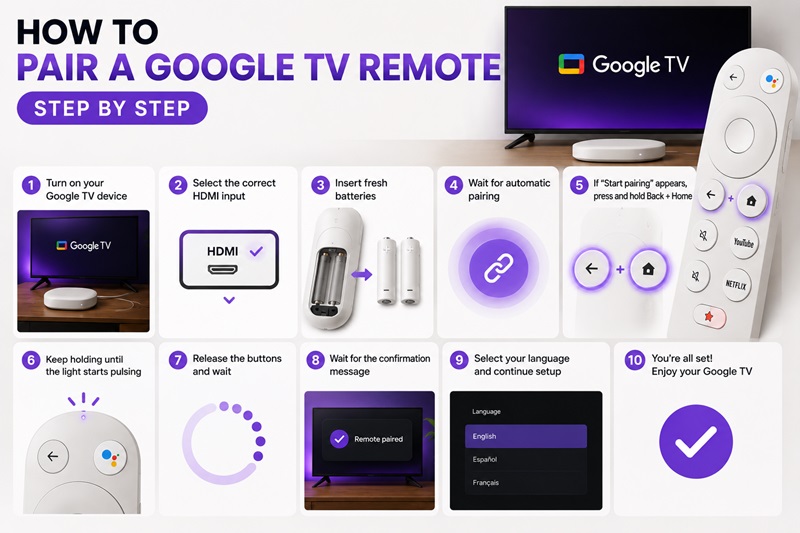
The easiest method for how to pair google tv remote depends on whether you are completing initial setup or adding the controller later.
Pair the Remote During Initial Setup
Follow these steps:
- Connect the Google TV device to the television.
- Turn on the television.
- Select the correct HDMI input.
- Insert fresh batteries into the remote.
- Wait several seconds for automatic pairing.
- Look for a “Start pairing” message.
- Press and hold Back and Home together.
- Continue holding until the remote light begins pulsing.
- Release the buttons.
- Wait for the television to confirm the connection.
- Select your language.
- Continue the Google TV setup.
In many cases, you do not need to press anything because the remote connects automatically. Use Back and Home only when the pairing screen remains visible or navigation does not respond.
Pair a Remote From Google TV Settings
If Google TV is already configured:
- Open the Google TV Home Screen.
- Select the profile picture or Settings icon.
- Open All Settings.
- Select Remotes & Accessories.
- Choose Pair remote or accessory.
- Put the remote into pairing mode.
- Wait for the remote name to appear.
- Select the remote.
- Choose Pair.
- Test Home, Back, navigation, and voice control.
This method is useful when learning how to connect google tv remote replacements or third-party Bluetooth controllers.
If you need how to connect remote to google tv but cannot navigate Settings, use the Google TV mobile remote on a phone temporarily.
Test the Connection
After completing how to pair google tv remote, test:
- Directional navigation
- Select or OK
- Home
- Back
- Google Assistant
- Playback controls
- YouTube or application shortcuts
- Volume
- Power
- Input
Navigation can work even when the TV-control buttons are not configured. Volume, Power, and Input are programmed separately later.
The same steps usually answer how to pair google remote to google tv devices during both initial setup and replacement-remote installation.
💡 Discover Helpful Guides: How to Pair and Reconnect a Google TV Remote
3. How to Put a Google TV Remote in Pairing Mode
Knowing how to put google tv remote in pairing mode is essential when the controller does not connect automatically.
Use the Back and Home Buttons
For many official Google TV voice remotes:
- Stand close to the Google TV device.
- Install fresh batteries.
- Press and hold Back.
- While holding Back, press and hold Home.
- Keep both buttons pressed for several seconds.
- Watch the status light.
- Release the buttons when the light pulses.
- Wait for the remote to appear on the TV.
- Select it if confirmation is required.
The Back button may use an arrow-shaped icon, while Home uses a house icon.
Signs That Pairing Mode Is Active
The google tv remote pairing mode is active when:
- The status light pulses slowly.
- The light flashes repeatedly.
- The remote appears in the accessory list.
- Google TV displays a pairing request.
- Navigation begins working after a few seconds.
When Back and Home Does Not Work
Try these fixes:
- Replace both batteries.
- Check battery polarity.
- Move closer to the device.
- Restart the Google TV streamer.
- Open Pair remote or accessory manually.
- Remove the remote from saved accessories.
- Check the manual for your exact remote.
The phrase google tv remote how to pair often leads to Back and Home instructions, but remotes supplied by television manufacturers may use a different method.
A successful google tv remote sync requires the remote to be compatible with the Google TV device. An infrared-only television remote cannot enter Bluetooth pairing mode.
💡 Discover Helpful Guides: Google TV Remote Not Working? 15 Fixes for Pairing, Volume, Buttons, Voice, and Power
4. How to Reconnect a Google TV Remote That Was Previously Paired
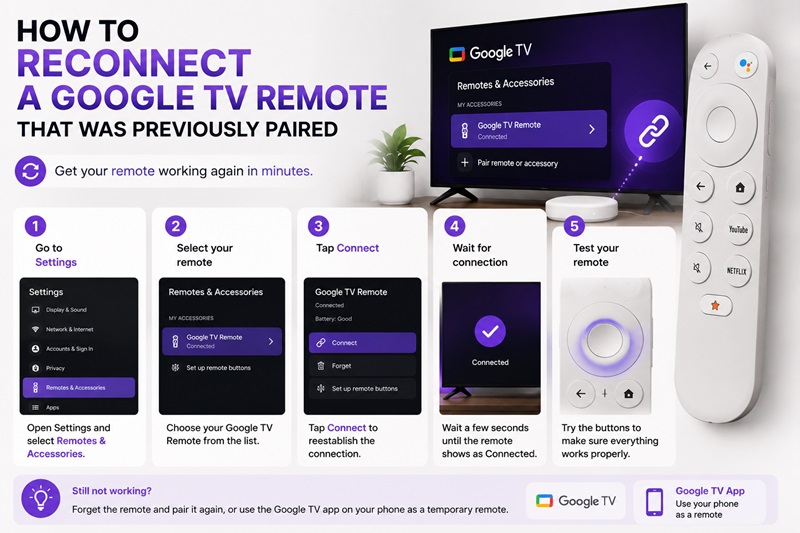
A previously paired remote may disconnect after battery replacement, a system restart, an update, or interference from another Bluetooth device.
Try Automatic Reconnection
Before repeating how to pair google tv remote, try:
- Install fresh batteries.
- Move close to the Google TV device.
- Press the Home button.
- Wait several seconds.
- Test navigation.
A saved remote may reconnect automatically when it becomes active.
Reconnect From Settings
Use a phone remote or another controller:
- Open Settings.
- Select Remotes & Accessories.
- Find the disconnected remote.
- Select it.
- Choose Connect.
- Wait for the status to change.
- Test the buttons.
This is the simplest method for how to reconnect google tv remote devices that still appear in the accessory list.
Forget and Pair It Again
When Connect fails:
- Open Settings > Remotes & Accessories.
- Select the saved remote.
- Choose Forget.
- Confirm the removal.
- Return to the accessories screen.
- Select Pair remote or accessory.
- Hold Back and Home.
- Select the remote when it appears.
- Confirm pairing.
This process provides a clean google tv remote pairing connection and removes a stuck Bluetooth record.
Restart the Google TV Device
- Disconnect its power cable.
- Wait about 30 seconds.
- Reconnect power.
- Wait for the Home Screen.
- Put the remote into pairing mode.
- Try the connection again.
These steps also answer how to sync google tv remote controllers after a system restart or battery change.
🗺️ Browse How-To Guides: Google TV Remote Battery: Type, Life, Drain and Replacement Guide
5. How to Program Google TV Remote Buttons for Your TV
Bluetooth pairing connects navigation buttons to the Google TV device. Google tv remote programming configures Power, Volume, and Input for the television, soundbar, or receiver.
Open the Button Setup Menu
Navigate to:
Settings > Remotes & Accessories > Set up remote buttons
Select the device you want the remote to control.
Program Volume Control
To learn how to program google tv remote volume buttons:
- Select Volume control.
- Choose the device producing the sound.
- Select the device brand.
- Follow the on-screen test.
- Point the remote toward the TV or soundbar.
- Press Volume Up.
- Press Volume Down.
- Confirm whether the volume changes.
- Try another profile if it does not work.
The sound may come from:
- TV speakers
- A soundbar
- An AV receiver
- Another connected audio device
Choose the device that actually controls the sound level.
Program the Power Button
- Select Power.
- Choose the television or audio device.
- Select its brand.
- Press Power on the Google TV remote.
- Wait for the device to turn off.
- Turn it back on.
- Confirm whether the command worked.
Program the Input Button
- Select Input.
- Press the Input button.
- Check whether the TV input menu opens.
- Move through available inputs.
- Return to the Google TV HDMI input.
- Confirm the result.
A complete google tv remote setup may use Bluetooth for navigation and infrared for television buttons. The remote may need to point toward the TV when using Power, Volume, or Input.
If pairing works but these buttons do not, repeat the button setup instead of repeating how to pair google tv remote.
🗺️ Browse How-To Guides: Google TV Remote Not Working Light On: LED Meanings and Fast Fixes
6. How to Complete onn. Google TV Remote Pairing
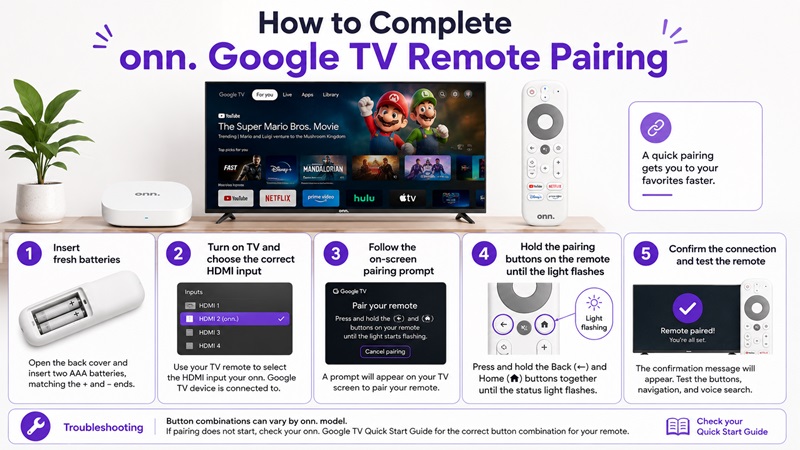
The exact onn google tv remote pairing process can vary between streaming boxes and device generations. Check the label, packaging, or quick-start guide for the exact model.
A general setup process is:
- Insert fresh batteries into the onn. remote.
- Connect the onn. Google TV device to HDMI.
- Power on the television.
- Select the correct HDMI input.
- Wait for the setup screen.
- Follow the on-screen pairing instructions.
- Try holding Back and Home if the remote uses the standard Google TV layout.
- Wait for the status light to flash.
- Confirm the remote when it appears.
- Complete the setup.
If the remote does not connect:
- Restart the onn. streaming device.
- Replace both batteries.
- Move closer to the device.
- Use a phone remote.
- Open Pair remote or accessory.
- Check the model-specific button combination.
Do not assume that every onn. controller follows identical google tv remote pairing mode instructions.
After pairing, open Set up remote buttons to configure the television controls. This may be necessary even when navigation works correctly.
💡 Discover Helpful Guides: How to Control Google TV With Phone on Android and iPhone
7. What to Do When Google TV Remote Pairing Does Not Work
If how to pair google tv remote steps fail, use the symptom to identify the most likely cause.
| Problem | Likely cause | Recommended fix |
| Remote light does not turn on | Dead or reversed batteries | Install fresh batteries |
| Light pulses but TV finds nothing | Google TV is not scanning | Open Pair remote or accessory |
| Saved remote will not reconnect | Stuck Bluetooth connection | Forget and pair again |
| Power and Volume work only | IR works but Bluetooth is disconnected | Re-pair the remote |
| Remote disconnects repeatedly | Weak batteries or interference | Replace batteries and restart |
| Replacement remote never appears | Compatibility issue | Check the device model |
| Pairing menu cannot be opened | No working physical remote | Use a phone remote |
| Navigation works but TV buttons fail | Button setup is incomplete | Set up remote buttons |
Replace the Batteries
Use a new matching pair. Avoid mixing old and new batteries.
Check that the positive and negative ends match the markings inside the compartment.
Move the Remote Closer
Bluetooth pairing is usually most reliable when the remote is close to the streaming device.
Move within a few feet and remove objects blocking the device.
Restart the Streaming Device
Disconnect power for approximately 30 seconds, reconnect it, and wait for startup. Then repeat how to pair google tv remote with Back and Home.
Remove Wireless Interference
Temporarily move or disconnect:
- Bluetooth headphones
- Game controllers
- Wireless speakers
- USB Bluetooth adapters
- Other remotes
Forget the Old Remote
A replacement remote may fail to appear when the device is still trying to reconnect to an old controller. Remove the old accessory and start pairing again.
Check Compatibility
Not every Bluetooth remote is compatible with every Google TV device. Confirm that the replacement supports:
- Google TV Streamer
- Chromecast with Google TV
- The television’s built-in Google TV platform
- The exact onn. streaming device
If how to reconnect google tv remote remains unsuccessful after these checks, test a phone remote to confirm that the Google TV device itself is still responsive.
🗺️ Browse How-To Guides: How to Connect Google TV to WiFi Without Remote: 5 Working Methods
8. Use a Remote TV App While Pairing the Physical Remote
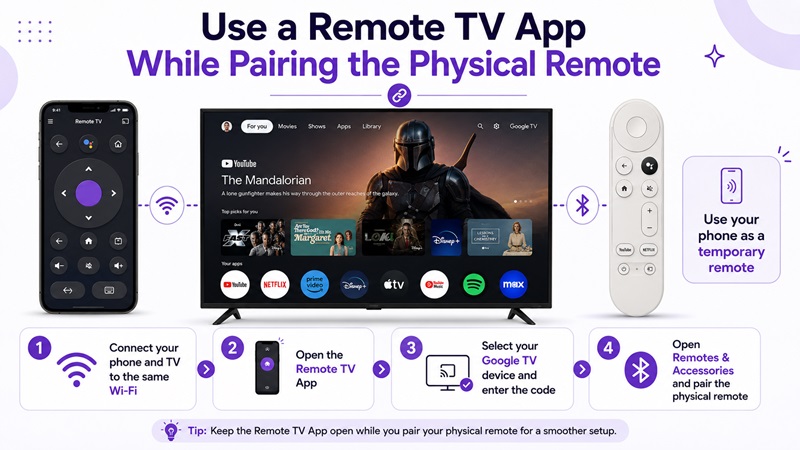
A phone can provide temporary control while you complete how to pair google tv remote troubleshooting.
Use the Google TV App
On Android:
- Connect the phone and Google TV to the same Wi-Fi.
- Open the Google TV app.
- Tap Connect TV or the remote icon.
- Select the Google TV device.
- Enter the code displayed on the television.
- Tap Pair.
- Use the phone remote to open Settings.
- Select Remotes & Accessories.
- Pair the physical remote.
The mobile remote is especially useful when you need to forget a disconnected controller or access the pairing menu.
Use Google Home
On supported devices:
- Open Google Home.
- Select the Google TV or streaming device.
- Open the remote control.
- Use the virtual controls to navigate.
Use a Universal Remote TV App
A compatible Remote TV App may help with:
- Television volume
- Power
- Input selection
- Menu navigation
- Media playback
- Basic Google TV control
However, a third-party app may not be able to pair a Bluetooth voice remote or access every Google TV setting.
The phone and TV usually need the same Wi-Fi network.
📘 Find the Right Guide: Google TV Remote Finder: How to Find a Lost Remote
Final Pairing Checklist
For the fastest how to pair google tv remote process:
- Install fresh batteries.
- Restart the Google TV device.
- Open Pair remote or accessory.
- Hold Back and Home.
- Wait for the light to pulse.
- Select the remote.
- Test navigation.
- Configure Power, Volume, and Input separately.
If you are still asking how to pair my google tv remote, confirm the exact remote model and follow its model-specific guide. Official Google voice remotes generally use Back and Home, while television-brand and onn. controllers can differ.
Once pairing is complete, the physical remote should control Google TV navigation. Finish google tv remote setup by programming the TV buttons and keeping a mobile remote available as a backup.