
Hisense Remote Control Manual: Buttons, Pairing, Apps, and Troubleshooting
Use the Hisense remote control manual for your exact TV model and remote part number because Hisense Roku, Google TV, Fire TV, VIDAA, and Xumo remotes do not share one universal button map or pairing sequence.
This guide shows how to find the correct document, interpret button groups, install batteries, pair wireless models, control audio devices, and choose a phone backup without mixing instructions from another platform.
Find the Hisense Remote Control Manual by TV Model
Locate the television model
Read the TV model from Settings or the rear label and note the remote part number inside the battery compartment when available. Search Hisense’s official support site with the television model first, then open its user manual or quick-start guide.
A hisense tv remote manual for a similar-looking handset can still show different microphone, shortcut, pairing, or input behavior. Match the illustrations and platform name before following any button combination.
Locate the remote identity
- TV model number
- Serial or support label
- Remote part number
- Smart TV platform
| Identifier | Where to find it | Use |
|---|---|---|
| TV model | Settings or rear label | Find official manual |
| Remote part number | Battery compartment | Check replacement and layout |
| Platform | Home screen or About | Choose pairing and phone app |
Install Batteries and Complete the First Power Test
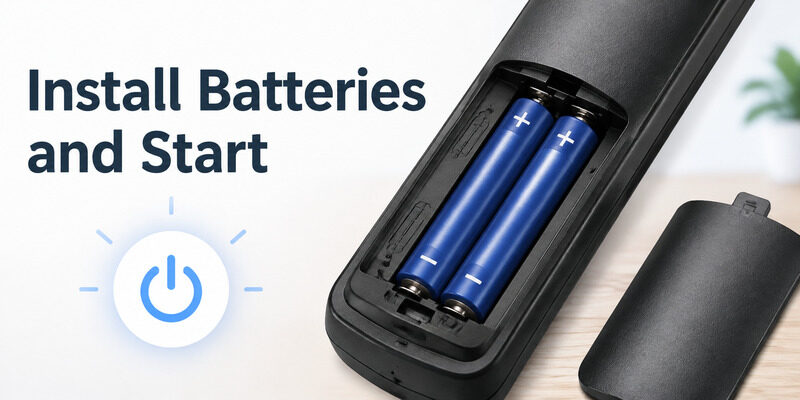
Open the rear cover along its arrow, read the size and polarity marks, and install a matched pair. Many Hisense battery remotes use two AAA 1. 5-volt cells, but the compartment label is the final authority.
Close the cover and press Power while aiming at the TV. Hisense manuals warn against mixing old and new batteries and show that remote designs vary, so do not infer cell size from appearance alone.
If the indicator responds but the screen stays off, use the television’s physical button to confirm power. The hisense remote control manual may separate infrared Power from Bluetooth navigation. Complete battery and basic power checks before pairing.
A remote with poor contact cannot hold a stable wireless link.
- Confirm size
- Match polarity
- Use a fresh pair
- Test Power first
Read the Buttons by Function Group
Navigation and system keys
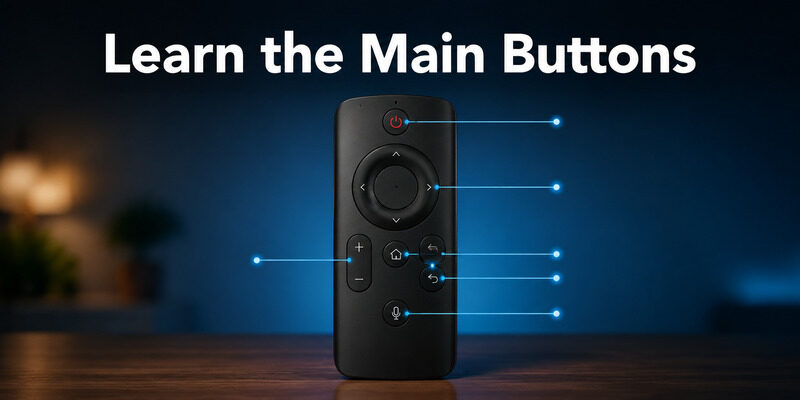
The directional pad, OK, Back, Home, Settings, and Exit keys move through the TV interface. Their labels can be icons rather than words, and long presses may open a different action. Playback keys manage supported media; channel and number keys matter on tuner-focused remotes; colored or branded shortcuts vary by region and service.
A hisense tv remote how to use question is easier when buttons are grouped by task rather than memorized top to bottom. The hisense remote control manual should be consulted when one icon is ambiguous. Button availability in the guide may be marked as model-dependent, which is not an error.
Media, channel, and shortcut keys
- Power and input
- Home, Back, and Settings
- D-pad and OK
- Playback and channel
- App shortcuts
| Button group | Typical job | Connection may use |
|---|---|---|
| Power, input, and volume | TV or audio-device control | Infrared or HDMI-CEC |
| D-pad, Home, and media | Navigation and playback | Infrared or Bluetooth |
| Microphone | Voice request | Bluetooth or RF |
Use Voice, Microphone, and App Shortcuts Correctly
A microphone key usually requires a paired Bluetooth or RF connection even when infrared Power already works. Hold or press the key as the platform instructs, speak after the on-screen listening cue, and release if required.
Voice support can depend on account, language, country, permissions, and platform service. Do not reset the remote when voice alone is unavailable until these conditions are checked. Branded app keys launch the service assigned by the remote and TV software.
They may do nothing if the app is unavailable in the region or disabled for the current profile. Use the hisense remote control manual to distinguish a microphone key from an assistant or input key.
Similar icons can trigger different platform actions.
- Pair wireless control
- Wait for the listening cue
- Check language and account
- Install the shortcut app
Pair the Remote Using the TV Platform’s Menu
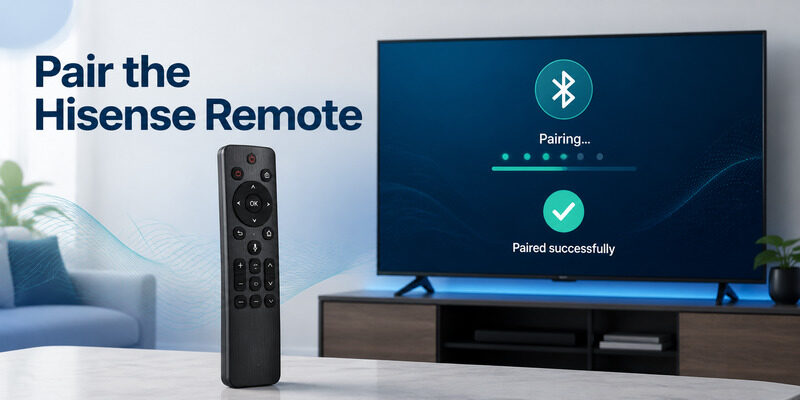
Wake the television fully and open its remote or accessories settings with the physical buttons, a phone app, or a second controller. Hisense guides for some Bluetooth models instruct users to keep the remote close and hold a specified pair of buttons for several seconds until the light pulses.
Select the remote name on screen and wait for confirmation. Some Hisense documentation notes that pairing cannot complete while the TV is in standby. A Roku voice remote, Fire TV remote, and Google TV remote use platform-specific flows.
Follow the hisense remote control manual for the actual model rather than borrowing a combination from another Hisense television. After pairing, test navigation, voice, volume, and wake-from-standby separately. One successful D-pad press does not prove every control layer is configured.
- Wake the TV
- Open the pairing menu
- Hold the listed keys
- Select the remote
Configure a Soundbar, Receiver, or HDMI Device
Decide which device owns volume. If sound comes from a soundbar or receiver, assign the remote to that device through the TV’s device-control, HDMI-CEC, or equipment settings. Test volume, mute, power, and input one group at a time.
Navigation may travel over Bluetooth while audio buttons use infrared or HDMI control. The hisense tv remote instructions can name the TV’s HDMI-CEC setting, but manufacturers sometimes use branded labels.
Enable only the path needed for your setup and watch for devices turning each other on unexpectedly. If an external streaming box also has a remote, choose one primary controller for power sequencing.
Multiple HDMI controllers can create confusing wake and input changes.
- Choose the audio device
- Enable the required control path
- Test mute and volume
- Verify power order
Use a Phone as a Temporary Hisense Remote
Choose the phone app by the television platform. Roku mobile app controls Hisense Roku TV, while Google Home or Google TV controls supported Google TV and Android TV models. Fire TV, VIDAA, and Xumo require their own platform route.
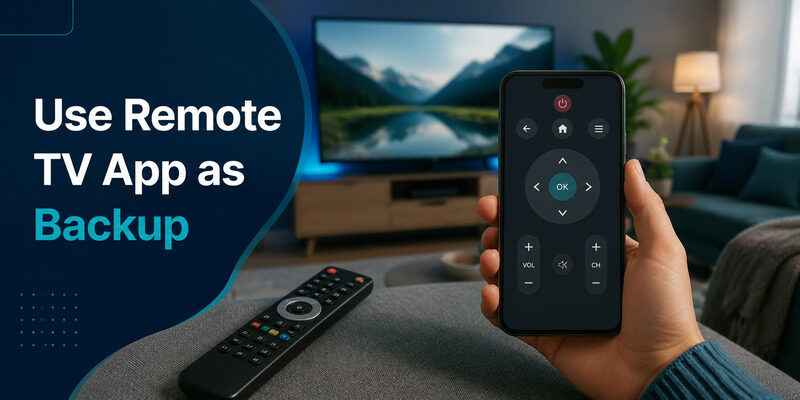
Connect the phone and TV to the same local network and approve any on-screen code. A phone remote is useful for opening Settings, typing passwords, and recovering a physical handset. The guide explains the platform differences in detail.
Keep the hisense remote control manual nearby for any physical pairing step the app cannot complete. A network app cannot control a television that has lost Wi-Fi. Know the location of the TV’s physical power or navigation button before an emergency.
- Match the TV platform
- Join the same Wi-Fi
- Approve the pairing code
- Open remote settings
Troubleshoot by Control Layer, Not by Guessing Buttons
No power or indicator
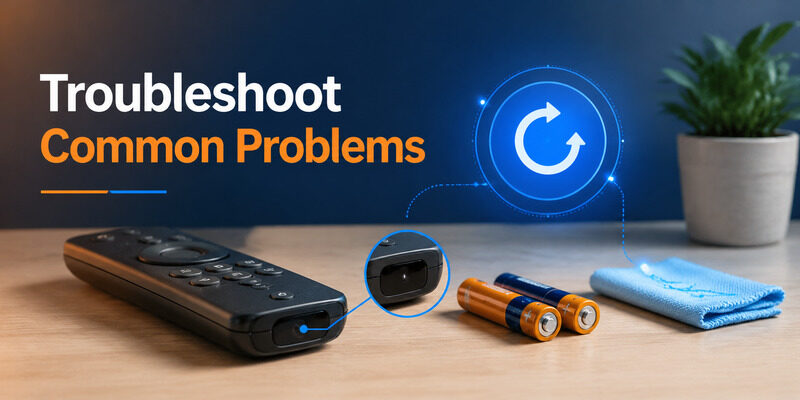
For no light, replace both batteries, confirm polarity, and inspect contact pressure. For infrared response, aim at a phone camera and press Power to look for a flashing emitter. If Power works but Home, voice, or navigation does not, the remote may need Bluetooth pairing. Wake the TV, open accessories, and follow the exact hisense remote control manual sequence.
If only volume fails, inspect the soundbar or receiver profile and HDMI-control setting. If commands repeat, release stuck keys and remove batteries briefly. Avoid factory-resetting the television for a single failed button. Diagnose batteries, infrared, wireless pairing, and device control in that order.
Power works but smart features fail
- Battery power
- Infrared path
- Bluetooth pairing
- Audio-device control
| Symptom | Likely layer | First action |
|---|---|---|
| No light | Battery power | Replace pair and inspect contacts |
| Power only | Wireless pairing | Open platform pairing menu |
| Volume only fails | Audio-device control | Check soundbar or receiver profile |
Download and Store the Manual Safely
Download the hisense tv remote control manual pdf from Hisense’s official support page for the exact model. Avoid file sites that hide the source, bundle installers, or publish a manual without a model number. Save the PDF with the television model in the filename and store a copy where the household can find it without the TV remote. Keep the hisense remote control manual beside the model record for future pairing.
A phone or cloud folder is more useful than a link remembered only in the television browser. The hisense remote control manual should remain available when the TV is offline. Record the remote part number and battery type in the same note.
Those details speed replacement and prevent another generic hisense remote control manual search. When firmware changes a menu label, the manual can still provide button identity and safety information, while current on-screen instructions should guide the live pairing flow.
- Use official Hisense support
- Match the model number
- Rename the file clearly
- Store remote part details
Keep as a Tested Backup
Open Remote TV App from the homepage and connect it while the television is online. Test Home, Back, navigation, volume, and wake behavior before the physical handset is unavailable. Use the app to reach pairing menus, but follow the hisense remote control manual for the model-specific button combination on the handset.
Remote TV App is especially useful in a multi-brand home because one phone can provide supported control across different television platforms. Keep official platform apps when a unique feature belongs to Roku, Google, or Fire TV. The hisense remote control manual remains the authority for physical button behavior.
Do not remove the last working physical remote entry until phone control is confirmed. Keep the TV’s local power button accessible for a fully offline screen. Review permissions and remove abandoned remote apps. Reliable recovery is easier with one tested backup than with several unverified controllers.
- Connect before an outage
- Test core buttons
- Keep physical power access
FAQ About Hisense Remote Instructions
Can any Hisense remote control any Hisense TV?
No. Some Hisense remotes may share basic infrared commands, but compatibility varies by TV platform, model, Bluetooth support, voice features, and shortcut buttons. Match a replacement remote to your exact TV model or an official compatibility list.
Where is the Hisense TV model number?
You can usually find the model number on the label on the back of the television. If the TV is working, you may also find it under Settings > System, About, or a similar device-information menu. Photograph the label so you have the model and serial details available for future support.
Why does Power work but voice does not?
Power may work through infrared while voice commands depend on Bluetooth pairing and supported smart features. Re-pair the remote, check microphone permissions, confirm the required account is signed in, and make sure the selected language supports voice control.
Where should I get the Hisense remote manual PDF?
Use the official Hisense support website and search for your exact TV model. Download the manual or quick-start guide provided for that model rather than relying on generic instructions or third-party download sites.
When should I replace the remote?
Consider replacing the remote if it has corrosion, liquid damage, broken battery contacts, several unresponsive buttons, abnormal battery drain, or repeated pairing failures. Before buying a replacement, confirm that another compatible remote or controller can operate the TV normally.
Final Thoughts
A hisense remote control manual is model-specific because Hisense televisions use several platforms and remote protocols. Identify the TV and handset, install batteries correctly, learn buttons by function group, and pair through the actual platform menu.
Diagnose power, infrared, Bluetooth, and device control as separate layers. Store the official manual PDF and keep Remote TV App connected so one missing or unpaired handset does not block access to the television.
Download LG TV Remote