
How to Pair Hisense Remote to TV: Complete Setup Guide
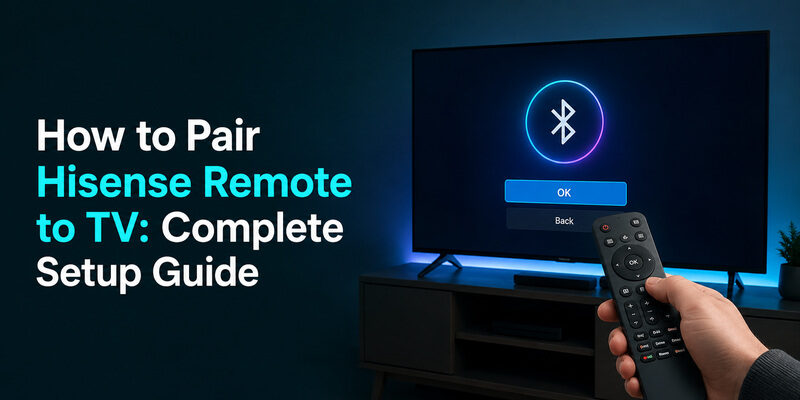
Most Hisense remotes pair automatically over Bluetooth within a few seconds of powering on the TV, or by holding the OK and Back buttons together for about five seconds to trigger infrared pairing mode.
The exact steps change depending on which remote came with your TV. A Hisense VIDAA voice remote, a Hisense Roku TV remote, a universal remote, and an Xfinity remote each use a slightly different pairing sequence, and a few models add an on-screen confirmation prompt partway through.
This guide covers how to pair hisense remote to tv for each remote type, plus what to check when a remote refuses to connect at all.
Have two fresh batteries ready before you start — a weak battery is one of the most common reasons pairing silently fails.
What You Need Before Pairing a Hisense Remote
Gather these basics first so a pairing attempt is not wasted on something unrelated:
- Two fresh AAA batteries — rechargeable batteries often lack enough voltage for reliable Bluetooth pairing (worn-out cells are covered in more depth in )
- A clear, direct line of sight to the TV if the remote uses infrared (IR) rather than Bluetooth
- The TV powered on and out of standby mode, with the screen actively displaying
- Your remote’s model name, found on the back of the remote or in Settings > Support > About, if you are not sure which pairing method applies
How to Pair Hisense Remote to TV: The Original Remote
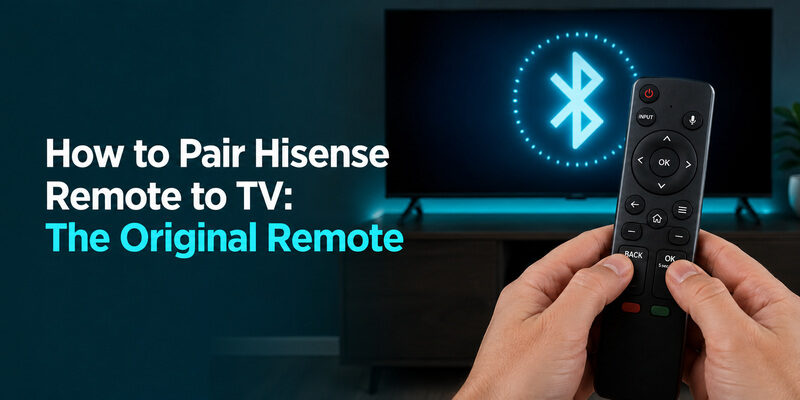
Most Hisense TVs sold since 2019 ship with a remote that supports both Bluetooth and infrared, so there are two ways to connect it.
Automatic Bluetooth Pairing
Turn on the TV and wait about 10 seconds. Most Hisense smart TVs automatically search for a nearby Bluetooth remote during startup, and a small pairing icon appears in the corner of the screen once it is detected.
When the on-screen prompt appears, press OK on the remote to confirm. The icon disappears and the remote responds immediately once pairing finishes, usually within 15-20 seconds.
Manual Infrared (IR) Pairing
If no prompt appears, hold the OK and Back buttons together for about five seconds while pointing the remote at the TV. A status light on the remote or a Bluetooth icon on screen blinks to confirm pairing mode is active.
Release the buttons once the icon on screen stops flashing. Test the remote by pressing Volume or Home; if it responds, this method for how to pair hisense remote to tv is complete.
💡 Discover Helpful Guides: Hisense TV Remote App: Control Your Hisense TV From Your Phone
How to Pair a Hisense VIDAA Voice Remote
Hisense TVs running the VIDAA smart platform ship with a voice remote that has a microphone button and its own Bluetooth pairing sequence.
Pairing Steps for the VIDAA Remote
Insert the batteries with the TV already powered on. The VIDAA remote typically starts pairing automatically the moment battery contact is made.
If it does not pair within 30 seconds, hold the Back and Home buttons together for five seconds. A brief on-screen message confirms once hisense tv remote pairing is complete.
Setting Up Voice Search After Pairing
Once paired, press and hold the microphone button, speak a command such as “Open Netflix,” and release. If voice search does not respond, re-check your Wi-Fi connection – the microphone requires an active internet connection, not just a paired remote.
How to Pair a Hisense Roku TV Remote
Hisense Roku TVs use a Roku-branded remote with a different pairing button, located under the battery cover rather than on the remote’s face.
Pairing a Roku Voice Remote
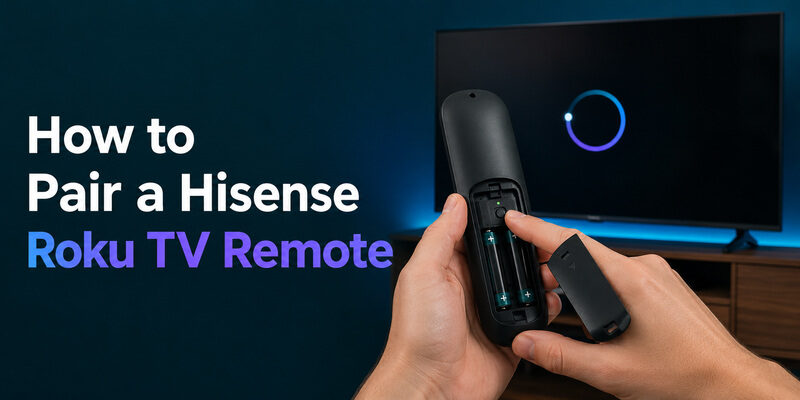
Remove the battery cover and press the small pairing button once. The Roku logo or headphone icon on the remote flashes rapidly while a matching icon appears on the TV screen.
Pairing usually finishes within 60 seconds. If it times out, remove and reinsert the batteries, then repeat the pairing-button press with the TV already on and showing the home screen.
Using the Roku Remote App as a Backup
If the physical remote will not pair at all, the on a phone can control the TV over the same Wi-Fi network while you troubleshoot the hardware remote separately.
📘 Find the Right Guide: Hisense TV Remote Batteries: Size, Replacement, Drain, and Fixes
How to Program a Universal Remote to a Hisense TV
A universal remote can replace a lost or broken Hisense remote using either a manual code or an automatic search, depending on the remote brand.
The table below covers the two most common entry methods.
| Method | Steps | Best For |
| Manual code entry | Hold Setup until the light stays on, enter the code from the list, then press Power to confirm | Remotes with a printed or app-based code list |
| Auto code search | Hold Setup, press and release Power repeatedly (about one press per second) until the TV turns off, then press Enter/OK | Remotes without a known Hisense-specific code |
Entering a Hisense Code Manually
Most universal remote brands list several Hisense codes rather than one; if the first code does not control power and volume correctly, work through the next code in the list before assuming the remote is incompatible.
Using Auto Code Search
Auto search is slower but does not require finding the correct code number, which makes it the more reliable option when you are programming a universal remote without the original manual on hand.
How to Pair an Xfinity Remote to a Hisense TV
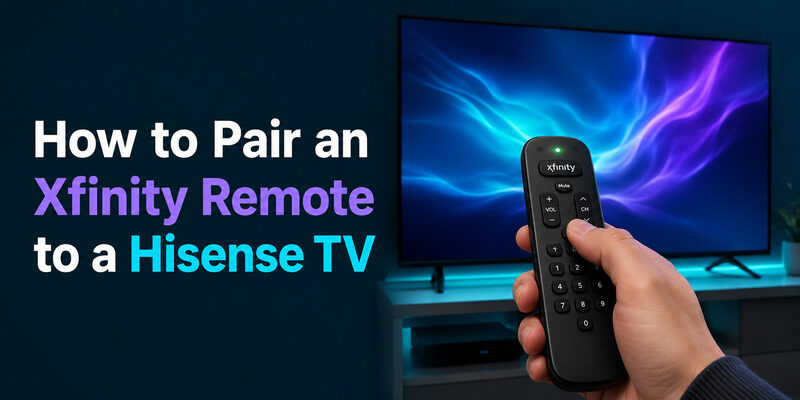
An Xfinity remote can control a Hisense TV’s power and volume once it is programmed with the correct code, which lets one remote handle both the cable box and the TV.
Hold the Xfinity and Mute buttons together until the light at the top turns green, then enter 9-9-1. The light blinks green twice to confirm the remote is now in setup mode.
Press and release the TV power button. The Hisense TV should turn off within a few seconds; if it does not, press the channel-up button repeatedly until it does, then press Setup to save the code.
This process only programs power, volume, and input – it does not replace the full Hisense remote for navigating smart TV menus.
📖 Read More Guides: Hisense TV Code for Universal Remote: Verified Codes and Programming Steps
How to Pair the Hisense EN2A27 Remote
The EN2A27 is a common infrared remote bundled with several Hisense TV series and does not use Bluetooth, so pairing is closer to a simple sync check than a wireless handshake.
Insert fresh batteries, point the remote directly at the TV’s front-facing sensor from within about 8 feet, and press the Home button. If the TV responds, the remote is already working and no further step is needed.
If it does not respond, confirm the battery orientation matches the polarity markings inside the compartment – reversed batteries are the single most common reason a first EN2A27 pairing attempt fails.
📖 Read More Guides: How to Open Hisense TV Remote Safely for Batteries, Cleaning, or Repair
What to Do When Your Hisense Remote Won’t Pair
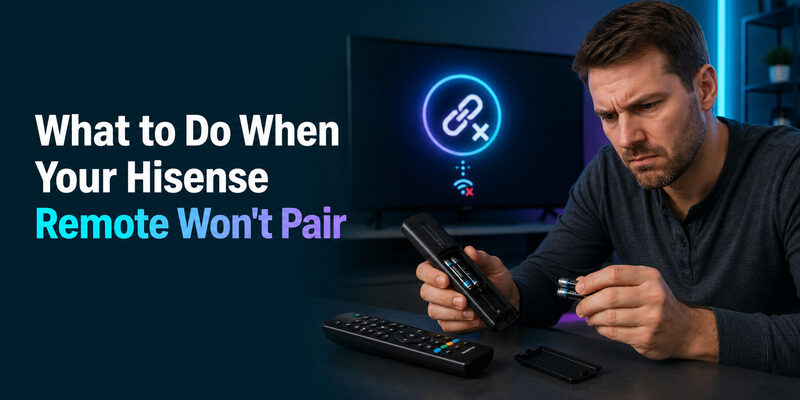
When a remote still refuses to connect after a normal pairing attempt, the cause is usually one of a short list of issues. A deeper walkthrough of these symptoms is also covered in .
| Symptom | Likely Cause | Fix |
| No response to any button | Dead or reversed batteries | Replace with two fresh AAA batteries in the correct orientation |
| Pairs briefly, then disconnects | Low battery voltage under load | Swap batteries even if they test as “partially charged” |
| Bluetooth icon never appears | TV Bluetooth turned off in settings | Enable Bluetooth under Settings > Remote & Accessories |
| Works up close, fails from the couch | Obstruction or IR sensor misalignment | Clear the space between the remote and the front sensor |
Can a Remote TV App Replace a Hisense Remote?
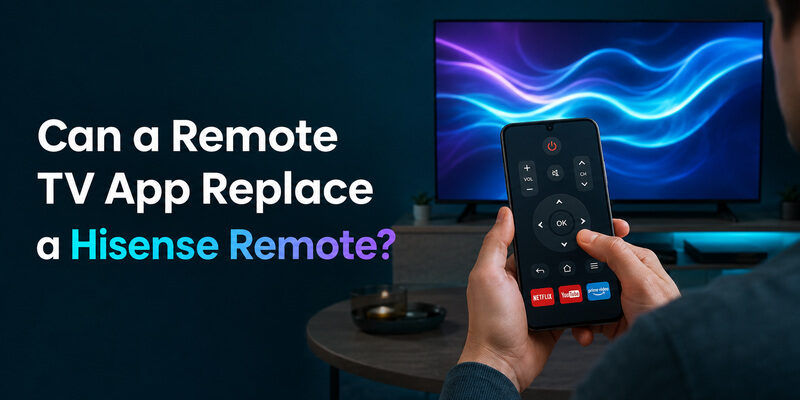
When a Hisense remote is lost, broken, or simply will not pair no matter what you try, the Remote TV App turns a phone into a working replacement over the same home Wi-Fi network, covering power, volume, navigation, and app launching without waiting for a replacement remote to arrive.
It is meant as a practical fallback rather than a permanent substitute – a physical remote is still more convenient for daily use once the pairing issue is actually resolved. to keep a working backup ready before the next pairing problem comes up.
🗺️ Browse How-To Guides: Hisense Remote Control Manual: Buttons, Pairing, Apps, and Troubleshooting
FAQs About Pairing a Hisense Remote
Can I use my phone as a Hisense remote?
Yes. A phone running the Remote TV App or the official Hisense remote app can control power, volume, and navigation over Wi-Fi once the app is connected to the same network as the TV.
Is there a free way to pair a universal remote to a Hisense TV?
Yes – auto code search is free and built into virtually every universal remote. It takes longer than manual entry but does not require finding a specific Hisense code number.
How do I reset a Hisense remote before re-pairing it?
Remove both batteries, press and hold any button for 10 seconds to drain residual charge, then reinsert the batteries and repeat the pairing steps for your remote type.
Can I use a universal remote with a Hisense Roku TV?
Yes, but a standard universal remote code only controls power, volume, and input – full Roku navigation still requires the original Roku remote or the Roku mobile app.
🗺️ Browse How-To Guides: Hisense TV Remote Not Working: Fix Pairing, Buttons, Lag, and Power Problems
Final Thoughts
Knowing how to pair hisense remote to tv comes down to matching the right method to the remote you actually have – Bluetooth for most modern remotes, a button-hold combo for infrared models, and a code or auto-search sequence for universal and Xfinity remotes.
If pairing still fails after trying the right method twice, fresh batteries and a Bluetooth-settings check resolve the majority of cases. For everything else, the Remote TV App is a reliable way to keep the TV usable while you sort out the hardware.
Download LG TV Remote