
Hisense TV Remote Not Working: Fix Pairing, Buttons, Lag, and Power Problems
If your Hisense TV remote not working problem appeared suddenly, start with fresh batteries, restart the TV, and then use the pairing method for your TV platform. That sequence fixes the most common power, software, and lost-connection failures without erasing settings.
Do not jump straight to a factory reset: Hisense sells Roku TV, Google TV, Android TV, Fire TV, VIDAA, and Xumo models, and their remotes do not all communicate the same way. Some keys use infrared while voice and navigation may use Bluetooth. This guide helps you identify that control layer, test it safely, and choose the correct repair. Keep the TV model number and remote battery cover nearby; those details prevent a generic fix from becoming a longer problem.
Run This 60-Second Hisense TV Remote Not Working Check
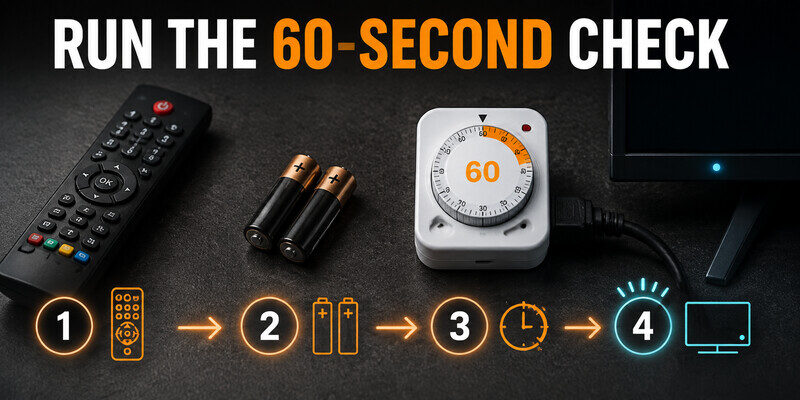
Begin with the reversible steps. Remove both batteries, press and release the Power button five times, and check whether any key feels stuck. Install a matched pair of fresh alkaline batteries in the marked direction. Mixing an old cell with a new one can produce enough voltage to blink the LED but not enough current for reliable Bluetooth transmission.
Next, unplug the TV from wall power for 60 seconds. While it is unplugged, press the physical Power button on the TV once if you can reach it. Reconnect power and wait until the home screen finishes loading before testing the remote from 3–6 feet away. Move decorative objects, a soundbar edge, or bright lamps away from the TV’s lower bezel during the test.
Use this order:
- Test Power from close range.
- Test the directional pad and Home key.
- Test Volume and Mute.
- Test the microphone only after ordinary navigation works.
If every key returns, the Hisense TV remote not working event was probably a weak-battery or temporary TV-state issue. If only certain keys return, the pattern tells you which control layer needs attention.
Download LG TV RemoteRead the Symptom Before You Reset Anything
For a Hisense TV remote not working case, a precise symptom is more useful than repeatedly pressing buttons. Observe the remote LED, the TV standby light, and which key groups respond. Record whether the failure began after a battery change, TV update, HDMI-device installation, or power outage.
| What you observe | Most likely area | Best next test |
|---|---|---|
| No remote LED and no response | Batteries, contacts, or damaged keypad | Fresh cells, clean contacts, test another key |
| LED flashes but TV ignores every key | Lost pairing, blocked IR, or frozen TV | TV power cycle, then platform-specific pairing |
| Power works but Home and arrows fail | IR works; Bluetooth connection may be lost | Re-pair the voice remote |
| Navigation works but Power or Volume fails | TV-control setup, IR path, or HDMI-CEC | Reconfigure TV control and test line of sight |
| Delayed or repeated movement | Weak batteries, interference, stuck key, or overloaded TV | Close apps, restart TV, remove nearby interference |
| Microphone alone fails | Permission, pairing, or remote hardware | Re-pair, check software, then test voice again |
This table also explains why one universal remedy rarely fixes a Hisense TV remote not working complaint. A remote that powers the panel but cannot navigate is not truly “dead”; its infrared portion may be working while its wireless portion is disconnected.
Identify Infrared, Bluetooth, or Wi-Fi Control
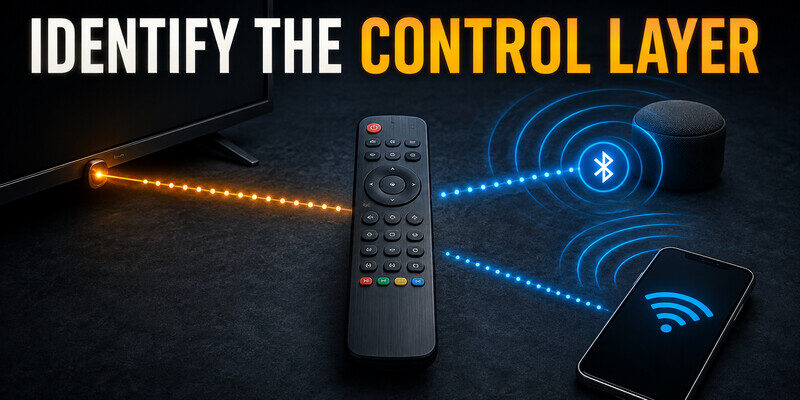
When diagnosing Hisense TV remote not working, first identify the signal type. Traditional infrared remotes send light from the small window at the top of the handset. They need a reasonably clear path to the TV and normally do not require pairing. Voice remotes often combine infrared for Power or Volume with Bluetooth for menus, voice, and shortcuts. Phone remotes usually communicate through the same local Wi-Fi network as the TV.
You can check an infrared emitter with many phone cameras. Open the camera, point the remote’s top end toward the lens, and press Power. A pale purple or white flicker on the phone screen suggests that the remote is transmitting infrared. Some phone cameras filter infrared strongly, so a blank camera test is evidence, not final proof; try the front camera if available.
Look inside the battery compartment for a model number or pairing instructions. A microphone button, status LED, or pairing button usually indicates a wireless function. Also identify the TV platform from its home screen or model support page. The correct response to a Hisense TV remote not working issue depends more on that platform than on the Hisense logo printed on the bezel.
Repair Batteries, Contacts, and Stuck Buttons
A Hisense TV remote not working after weeks of intermittent use often needs battery and contact service before pairing. Remove the cells and inspect both ends of the compartment under good light. A dull film can be wiped with a dry lint-free swab. For light residue, use a swab barely dampened with 70% or higher isopropyl alcohol, then let the compartment dry completely before installing batteries. Do not pour liquid into the remote or scrape contacts with a knife.
Press every key once, especially Power, Volume, Home, and the directional pad. A key wedged under the shell may continuously transmit and prevent other commands. Clean around the key with a dry soft brush. If the remote has been dropped or exposed to liquid, remove the batteries and stop testing until it is dry; repeated power can worsen board corrosion.
The common “red light but no control” version of a Hisense TV remote not working problem often means the handset has power but the signal is not reaching the correct receiver. After the battery check, move to pairing or line-of-sight tests rather than cycling through more battery brands.
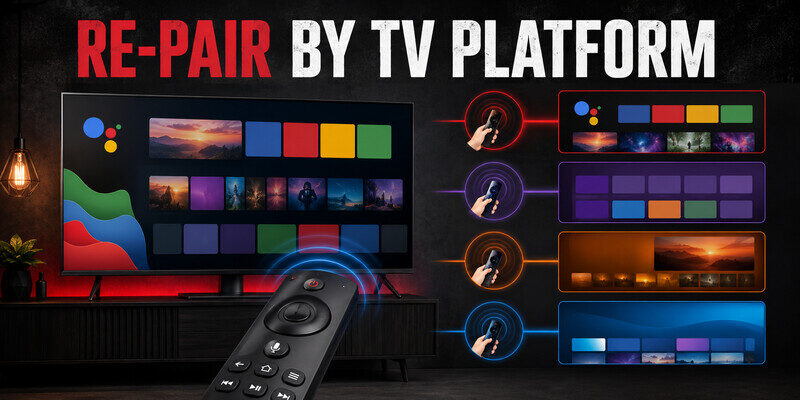
Re-Pair the Remote for Your Hisense TV Platform
If Hisense TV remote not working persists after power and battery checks, pairing is the next controlled test. Do not use a random button combination from another Hisense model. Start the TV normally, stand close to it, and follow the platform that appears on your home screen. If the TV is stuck before the home screen, use its physical buttons or a compatible phone remote to reach settings where possible.
Hisense Google TV or Android TV
Google’s official guidance for Google TV devices uses Back + Home to place many remotes into pairing mode. Hold the buttons while close to the TV and wait for the on-screen remote name. If you can navigate with another controller, open Settings > Remotes & Accessories > Pair remote or accessory. Menu wording can differ by model, so the Hisense manual for the exact model remains authoritative.
Hisense Roku TV
A Roku simple remote uses infrared and has no pairing button; fresh batteries and line of sight are the main tests. A Roku voice remote uses wireless pairing. Roku’s official support says remotes with a pairing button can be reset by holding that button for about 20 seconds; compatible models without one use Back + Home for about 20 seconds. Release when the status light stops, restart the TV if needed, and allow the pairing message time to appear.
Hisense Fire TV
Amazon’s official Fire TV guidance says to hold Home for about 10 seconds to pair an unpaired remote. For the supported reset sequence, hold Left + Menu + Back together for 12 seconds, release, then complete the on-screen pairing process. Exact generations differ, so use Amazon’s Fire TV remote instructions and the manual supplied with the television when a button is absent.
Hisense VIDAA or Xumo TV
VIDAA and Xumo remotes vary more by region and model. Use the pairing prompt shown by the TV or the specific Hisense quick-start guide. If ordinary infrared keys work but the microphone does not, open the TV’s remote/accessory settings and reconnect only the wireless feature. Avoid assuming that a Roku or Google combination applies.
| Platform | Typical remote type | Pairing clue |
|---|---|---|
| Google TV / Android TV | Bluetooth voice remote plus some IR | Back + Home; Remotes & Accessories menu |
| Roku TV | Simple IR or Roku voice remote | Pairing button, or Back + Home on supported voice models |
| Fire TV | Alexa voice remote | Hold Home; use Amazon reset sequence if needed |
| VIDAA / Xumo | Model-dependent IR or voice remote | Follow the model’s on-screen prompt and Hisense guide |
Fix a Hisense TV That Ignores the Remote and Its Own Buttons
When Hisense TV remote not working coincides with the TV ignoring its physical button, treat the television as the likely problem. Disconnect it from power for 60 seconds, remove nonessential HDMI and USB devices, then reconnect only power. Wait through the full boot sequence. An HDMI device can sometimes wake the TV, change inputs, or create confusing HDMI-CEC behavior, so isolating the panel is an important test.
If the screen is on but frozen, allow a few minutes for an update or app to finish before removing power. If the TV repeatedly freezes after restarting, check the Hisense support page for firmware tied to the exact model and serial number. Never install firmware intended for a different model. A persistent Hisense TV remote not working report combined with frozen physical controls points away from the handset and toward TV software, power, or service needs.
Factory reset should be the final software step because it removes accounts, network settings, app logins, and picture adjustments. Use it only after you can identify the model-specific reset procedure and have a way to finish setup without the failed remote.
Restore Power, Volume, or Mute When Other Keys Work
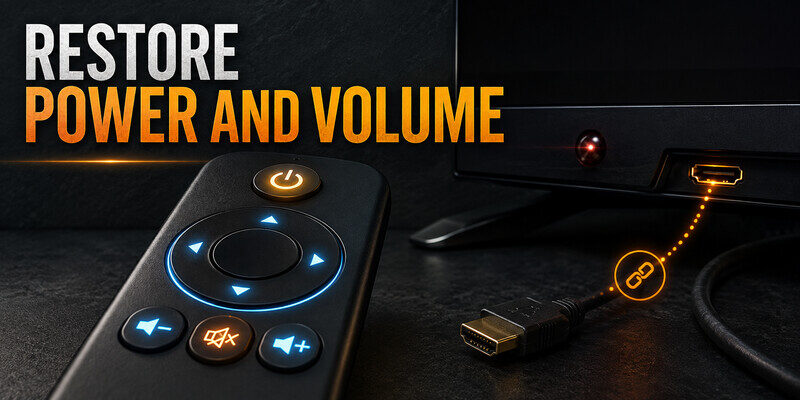
If menus work but Power, Volume, or Mute does not, the Hisense TV remote not working diagnosis changes: pairing may already be fine. Those TV-control keys may use infrared, HDMI-CEC, or a separate equipment-control profile. Remove anything blocking the TV’s infrared receiver, test from directly in front of the panel, and verify that the correct TV brand or equipment profile is selected in the platform settings.
On Roku TV systems, the remote setup area can reconfigure TV-control functions. On Fire TV systems, Amazon places these options under Settings > Equipment Control > Manage Equipment > TV. HDMI-CEC may control power through a connected streamer or receiver, but its availability and volume behavior depend on the devices in the chain.
| Working keys | Failed keys | Likely explanation |
|---|---|---|
| Power and Volume | Home, arrows, voice | Wireless pairing is lost; IR still works |
| Home and arrows | Power and Volume | Wireless link works; TV-control profile or IR path needs attention |
| Every key except one | One physical button | Worn membrane, dirt, or board damage under that key |
| All keys intermittently | All groups | Batteries, interference, stuck key, or TV performance issue |
This split-function diagnosis prevents a partially working remote from being replaced before its equipment-control settings are corrected.
Stop Lag, Delay, Jumping, and Repeated Commands
In a Hisense TV remote not working report defined by lag or repeated movement, timing and interference matter more than a mystery code. Install fresh batteries, move within 6 feet, and temporarily switch off nearby Bluetooth headphones, game controllers, or USB 3.0 devices. Remove any case covering the remote. Then restart the TV and close an app that is consuming memory.
Press each directional key and confirm it springs back cleanly. A sticky key can send repeated movement that looks like software lag. If the cursor jumps only inside one app, test the same keys on the TV home screen; an app-specific failure should be fixed by updating, restarting, or reinstalling that app rather than resetting the remote.
For a Hisense TV remote not working issue that appears only after waking the TV, wait 15–30 seconds for Wi-Fi and Bluetooth services to reconnect. Consistent delay after a clean restart can justify checking the TV firmware and remote firmware where the platform exposes an update option.
Use Remote TV App as a Safe Temporary Controller
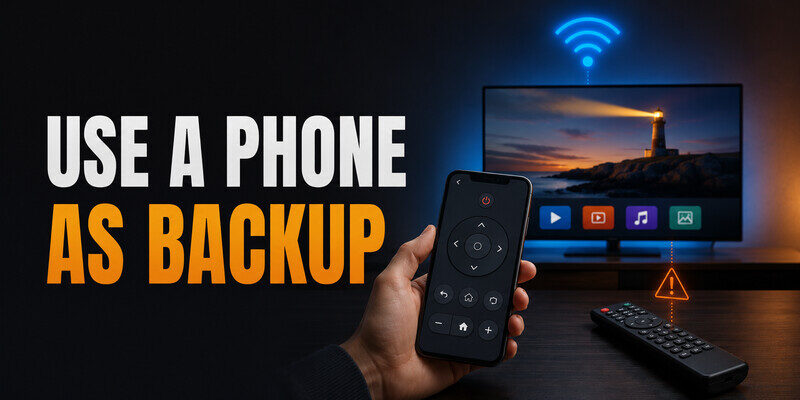
During a Hisense TV remote not working incident, a phone controller is useful when you need to reach pairing menus, change inputs, or keep watching while a replacement remote is in transit. Connect the phone and television to the same trusted Wi-Fi network, open Remote TV App, select the detected television, and accept the code or confirmation shown on the TV. Availability depends on the TV platform and network state.
Use the app as a bridge, not as proof that the physical remote is defective. If phone control works, the TV is responsive and network control is available; the remaining fault is more likely the physical handset, its infrared path, or its Bluetooth pairing. If the TV is offline, use a physical TV button or wired network connection to restore access first.
Keep one tested backup method ready before removing a paired remote from settings. That habit makes the next Hisense TV remote not working incident much easier to recover from. Learn more and set up a compatible phone controller at the Remote TV App homepage.
Decide Whether to Repair, Replace, or Contact Support
Replace the handset when the Hisense TV remote not working condition survives fresh batteries, a verified IR test, the correct pairing path, and a TV restart—and another compatible controller operates the TV normally. Also replace it when liquid damage, cracked battery terminals, an overheated cell, or several dead buttons are visible. Match replacements by the TV model number and remote part number, not only by appearance.
Contact Hisense support when the TV ignores multiple known-good controllers, will not complete booting, or loses pairing after every restart. Have the model number, serial number, purchase date, remote part number, LED behavior, and steps already tried ready. Hisense’s official support pages provide model-specific manuals, firmware, replacement-part routes, and service contact options.
Avoid opening a rechargeable voice remote unless its manual explicitly supports service. Lithium cells can be damaged by prying or puncture. Also avoid buying a replacement described only as “universal” when you need voice, Bluetooth, app shortcuts, or microphone functions; those features require explicit compatibility.
FAQ About Hisense Remote Failures
Why did my Hisense TV remote suddenly stop working?
The most common sudden causes behind Hisense TV remote not working are depleted batteries, a stuck key, a frozen TV process, or a lost Bluetooth pairing after power loss or an update. Start with new batteries and a full TV power cycle, then re-pair for the correct platform.
Why does the remote light flash but the TV does nothing?
The light confirms that the remote has power, not that the TV received or understood the command. Check line of sight for infrared, identify whether wireless pairing was lost, and make sure the TV itself responds to a physical button.
Why does my Hisense remote turn the TV on but nothing else?
Power often travels by infrared while Home, navigation, and voice travel through Bluetooth. Re-pair the voice remote using the Google TV, Roku TV, Fire TV, VIDAA, or Xumo instructions for your television.
Can I control a Hisense TV without its remote?
Yes, many models support a platform phone app or a compatible controller on the same network. A physical button on the TV can also provide limited power or input control. Network control must already be available or restored before a phone can discover the TV.
Should I factory-reset the TV to fix the remote?
Usually no. A factory reset is disruptive and may leave you unable to complete setup. Try batteries, line of sight, TV restart, correct pairing, and equipment-control settings first. Reset only with model-specific instructions and a working backup controller.
Final Thoughts
A Hisense TV remote not working problem is fastest to solve when you separate power, infrared, wireless pairing, and TV response. Start with fresh matched batteries and a 60-second TV restart. Identify the platform before using a button combination, then test which key group fails. Power-only operation usually points to lost Bluetooth pairing; navigation-only operation points to infrared or equipment-control setup.
Use Remote TV App as a temporary route into settings, and replace the handset only after another controller proves that the TV itself is healthy. If multiple controllers fail or the panel also ignores its physical button, use the exact Hisense model support page and contact service instead of repeating remote resets.
Download LG TV Remote